How to create folders in Outlook to organize your inbox

The short answer
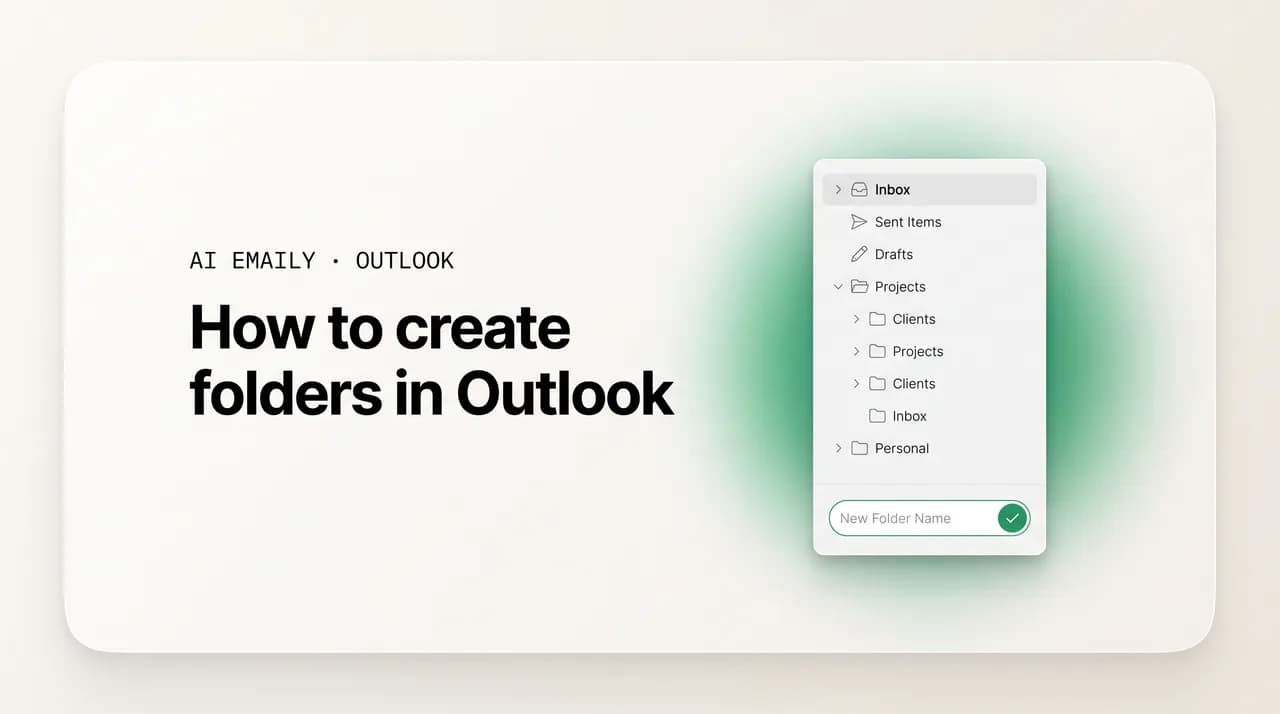
To create a folder in Outlook, right-click your mailbox name or the Inbox in the left folder pane, choose Create new folder (or New Folder in classic Outlook), type a name, and press Enter. Right-click an existing folder and pick Create new subfolder to nest one inside it, then drag emails in or set a rule to file them automatically.
How to create folders and subfolders in new Outlook, classic Outlook, and the web, move and file emails into them, and choose folders vs categories.
On this page
- 01What does a folder do in Outlook, and why create one?
- 02How do you create a folder in new Outlook and on the web?
- 03How do you create a folder in classic Outlook for Windows?
- 04How do you create subfolders and nest folders in Outlook?
- 05How do you move, rename, delete, and reorder folders in Outlook?
- 06How do you add folders to Favorites in Outlook?
- 07How do you move emails into folders, manually and automatically?
- 08What does a good Outlook folder system look like?
- 09Folders or categories: which should you use in Outlook?
- 10Can you create folders in the Outlook mobile app?
- 11Why can't I create or see a folder in Outlook?
- 12How does AI Emaily auto-file your mail across every account?
- 13Putting it all together
What does a folder do in Outlook, and why create one?#
A folder in Outlook is a container that physically holds messages, a place you move mail to so it leaves the inbox and lives somewhere named instead. You make one called "Receipts," move every invoice and order confirmation into it, and from then on the inbox is lighter and every receipt is in one predictable spot. Where the inbox is the firehose everything arrives through, folders are the filing cabinet you sort it into.
The core reason to create folders is the same reason a desk with drawers beats a desk piled with paper: separation. An inbox with three thousand messages is unsearchable by eye and stressful to open, because finished business and live business sit jumbled together. Move the finished and reference mail into folders, and the inbox shrinks back to what it should be, a short list of things that actually want your attention. Folders work identically whether your mail is on Microsoft 365, Outlook.com, Gmail connected to Outlook, or any IMAP account.
It helps to be clear from the start about what a folder is not, because the most common organizing mistake in Outlook is treating folders and categories as the same tool. A folder holds a message, and a message lives in exactly one folder at a time; move it into "Receipts" and it is no longer in the inbox. A category, by contrast, is a colored label that does not move anything. That single difference, container versus label, decides which one you reach for, and we devote a whole section to it below.
There is a practical payoff beyond a tidy inbox: folders are the foundation for automation. They are the destination Outlook's rules need, since a rule that says "move everything from this newsletter into Reading" only works because Reading is a folder to move into. Build a sensible structure and you unlock one-click filing, automatic filing, and search folders that gather mail by query.
Outlook now wears three faces on the desktop and web, and folder creation looks slightly different in each, so it is worth knowing which one you are in. The new Outlook for Windows is the modern, redesigned app Microsoft is steering everyone toward; the classic Outlook for Windows is the older, feature-dense app with the full ribbon and the Folder tab; and Outlook on the web is the browser version at outlook.com or your work webmail. The good news is that the basic act, right-click in the folder pane and make a folder, is nearly the same everywhere; the differences are in the menu wording and a few advanced moves.
This guide walks the whole job end to end: create your first folder in new Outlook and on the web, then in classic Outlook, build subfolders and decide how deep to nest, then move, rename, delete, reorder, and favorite folders, and file emails into them by hand and automatically with rules. From there, a ready-to-copy folder system, the real difference between folders and categories, what creation looks like on mobile, a troubleshooting section, and how an AI email client can keep mail filed for you across every account. By the end you will have a folder system that still makes sense a year from now.
Folders contain, categories tag
How do you create a folder in new Outlook and on the web?#
Creating a folder in the new Outlook for Windows and in Outlook on the web is the same gesture, because the two apps share a codebase, so we will treat them together. Everything happens in the folder pane, the column on the left that lists Inbox, Sent Items, Drafts, and the rest. You right-click where you want the folder to appear, choose the create option, type a name, and press Enter. There is no Folder tab on the ribbon in these versions, which trips up people coming from classic Outlook; the right-click menu in the pane is the way.
The one decision to make first is where the folder should sit: right-click your account name (the email address at the top of the pane) for a top-level folder alongside the Inbox, or right-click a parent folder to nest inside it. Picking the right spot to right-click is the whole trick. Here is the full flow.
- 1
Find the folder pane
Look at the left side of new Outlook or Outlook on the web for the list of folders (Inbox, Sent Items, Drafts, Deleted Items). If the pane is collapsed, click the folder or hamburger icon to expand it so you can see your account name and folders.
- 2
Right-click where the folder should live
To create a top-level folder beside the Inbox, right-click your account name (your email address) at the top of the pane. To nest the folder inside another, right-click that folder instead. The spot you right-click decides where the new folder lands.
- 3
Choose Create new folder
In the menu that appears, click "Create new folder." An editable, blank folder appears in the pane with the cursor in it, ready to be named. (If you right-clicked an existing folder, the option may read "Create new subfolder" instead, which is the same action one level down.)
- 4
Type a name and press Enter
Type a clear, short name such as Receipts, Travel, or a client's name, then press Enter to commit it. The folder now appears in the pane, sorted alphabetically among its siblings, and is ready to receive mail.
- 5
Confirm it is where you wanted it
Check that the new folder sits at the level you intended, top-level under your account, or indented under a parent. If it landed in the wrong place, you can drag it to the correct spot or right-click it and use the move option, both covered below.
A couple of details smooth this out. New folders sort alphabetically among their siblings, so a folder named "Archive-2025" jumps up near the A's; if you want a specific order, prefix names with numbers ("01 Action," "02 Waiting"). If you do not see a "Create new folder" option when you right-click your account name, your mailbox may be a type that restricts folder creation, or the pane may be showing a filtered view, so expand to the full folder list and try again on the account name.
Folders you create in new Outlook or on the web are stored on the server for Microsoft 365 and Outlook.com accounts, so they sync everywhere within minutes, because all clients read the same mailbox. If you came from classic Outlook, the absence of a Folder tab is the biggest adjustment, but once you internalize "right-click the account name for a top-level folder, right-click a folder for a subfolder," the new app is actually faster, because you act directly on the thing you want the folder near rather than reaching up to a toolbar.
How do you create a folder in classic Outlook for Windows?#
Classic Outlook gives you more ways to create a folder than any other version, which is fitting for the most feature-dense app. You can use the right-click menu in the folder pane just like the new app, use the dedicated New Folder button on the Folder tab of the ribbon, or use the keyboard shortcut. All three open the same small Create New Folder dialog, which is slightly richer than the inline rename box in the new app, because it lets you name the folder, choose what kind of items it holds, and pick its parent location all in one window.
For email folders, the fastest route is still the right-click in the pane, identical in spirit to the new app: right-click the Inbox or your mailbox name and choose New Folder. But the ribbon route and the Ctrl+Shift+E shortcut are worth knowing because they open the full dialog, the most reliable way to drop a folder in an exact location. Here is the dialog-based method.
- 1
Open the Create New Folder dialog
Go to the Folder tab on the ribbon and click "New Folder," or press Ctrl+Shift+E from anywhere in Outlook, or right-click a folder in the pane and choose "New Folder." Any of the three opens the same Create New Folder dialog.
- 2
Name the folder
In the "Name" field at the top, type a clear, short name such as Receipts, Clients, or Reference. This is the label that appears in your folder pane, so make it specific enough to be obvious six months from now.
- 3
Leave the folder type as Mail and Post Items
Check the "Folder contains" dropdown reads "Mail and Post Items" (the default for email folders). Classic Outlook can also make folders for calendar, contacts, or tasks, but for filing email you want this setting left as is.
- 4
Pick where to place the folder
In the "Select where to place the folder" tree, click the parent you want. Click your Inbox to make a subfolder of the Inbox, click your mailbox name at the top to make a top-level folder beside the Inbox, or click any existing folder to nest inside it.
- 5
Click OK
Click "OK" to create the folder. It appears in the pane under the parent you chose, ready to receive mail. From here you can drag messages into it, set rules to fill it, or drag it to a different position in the list.
The location tree is the feature that makes classic Outlook the most precise version for folder work. Because you pick the parent from a full tree of your mailbox, you can drop a new folder exactly where it belongs in a deep structure without right-clicking the precise parent first, which matters when your folder list is long. People who maintain large, nested folder systems often prefer classic Outlook for this reason alone.
One wrinkle concerns where folders physically live. If your account is an Exchange or Microsoft 365 mailbox, folders are stored on the server and sync everywhere. But classic Outlook also supports local data files, PST files for archived or POP mail, and folders you create inside a PST live only on that computer and do not sync. If a folder does not appear on your phone or the web, check whether you created it inside your online mailbox or a local data file lower down the pane; that is the usual cause. Classic Outlook can also create folders for calendar, contacts, or tasks, plus Search Folders (saved searches that contain no mail of their own), which is why the "Folder contains" dropdown exists, though for ordinary filing you only ever want "Mail and Post Items."
The fastest folder shortcut in classic Outlook
How do you create subfolders and nest folders in Outlook?#
A subfolder is simply a folder inside another folder, and it is how you build structure rather than a flat wall of folders all at the same level. If you have a "Clients" folder, you might create "Acme," "Globex," and "Initech" as subfolders inside it, so the top of your pane stays short and the detail tucks away one level down. Creating them is nearly identical to creating any folder, you just start from the parent.
In new Outlook and on the web, right-click the folder you want to nest inside and choose "Create new subfolder." In classic Outlook, right-click the parent and choose New Folder, or use the Create New Folder dialog and select the parent in the location tree. The mechanics below are the same idea wherever you are.
- 1
Right-click the parent folder
In the folder pane, right-click the folder you want the new one to live inside, for example right-click "Clients" to add a folder for a specific client. The folder you right-click becomes the parent.
- 2
Choose Create new subfolder
In new Outlook and on the web, click "Create new subfolder" (or "Create new folder"). In classic Outlook, click "New Folder" and the dialog opens with that folder pre-selected as the location. Either way you are now creating a folder one level down.
- 3
Name the subfolder and confirm
Type a name and press Enter (or click OK in classic Outlook's dialog). The subfolder appears indented beneath its parent, and an expand/collapse arrow appears next to the parent so you can hide or show its contents.
- 4
Expand and collapse to manage the view
Click the small arrow or triangle to the left of any folder with subfolders to expand or collapse it. Collapsing parents you are not using keeps the pane short, while the subfolders stay one click away whenever you need them.
The question that decides whether a folder system helps or hurts is how deep to nest. The temptation is to mirror every distinction in your work as nested folders, Clients, then each client, then each project, then each year, until a message is buried five levels down and filing one takes a dozen clicks. Resist it. Keep nesting to two or three levels at most: a top-level theme, an optional middle grouping, and the items themselves. Beyond that, paths get long, filing gets slow, and you spend more time deciding where something goes than you saved by filing it.
There are real limits that argue for restraint too. Microsoft recommends keeping a mailbox under roughly 500 folders that contain subfolders, no more than about 450 subfolders inside any one parent, and individual folders under around 100,000 items; while these are guidelines rather than hard caps, performance, sync, and search degrade as the count climbs. A practical pattern that holds up: let your top level be broad, durable themes that will still make sense in a year, and only nest a second level where a theme genuinely splits into stable sub-parts, like a "Clients" folder with one subfolder per active client. Avoid nesting by date inside everything, since Outlook's search and sort already handle dates.
How do you move, rename, delete, and reorder folders in Outlook?#
Your first folder names and arrangement are rarely your final ones, so maintaining folders matters as much as creating them. All four operations, moving, renaming, deleting, and reordering, live in the right-click menu in every version of Outlook, and most also work by dragging in the pane. None of them lose your mail: renaming keeps every message inside, moving a folder takes its contents with it, and even deleting sends the folder and its mail to Deleted Items rather than vaporizing it, so you can recover from a mistake.
Renaming is the most common cleanup, and reordering, changing the up-and-down position of folders, is where versions differ most. The steps below spell out each of the four operations.
- 1
Rename a folder
Right-click the folder in the pane and choose "Rename" (or "Rename folder"), then type the new name and press Enter. In classic Outlook you can also click the folder once to select it and press F2. Every message inside keeps its place; you are only changing the label.
- 2
Move a folder to a new parent
Drag the folder and drop it onto the folder you want it nested inside, or onto your mailbox name to make it top-level. Alternatively, right-click the folder, choose "Move folder" (classic) or the move option, and pick a destination from the list. The folder's entire contents move with it.
- 3
Delete a folder
Right-click the folder and choose "Delete" (or "Delete folder"). The folder and all its messages move to Deleted Items, where you can recover them until that folder is emptied. To remove it permanently, empty Deleted Items afterward. Default folders like Inbox and Sent Items cannot be deleted.
- 4
Reorder folders by dragging
In classic Outlook, drag a folder up or down within its level to set a custom order. In new Outlook and on the web, you can drag folders within the same level to reorder them as well; if dragging only nests rather than reorders, the app may be enforcing alphabetical order for that section.
- 5
Reset to alphabetical order if it gets messy
If a custom order becomes a tangle, you can sort folders alphabetically. In classic Outlook, go to the View tab, open the Folder Pane options, and choose to show folders A to Z. New Outlook and the web generally keep folders alphabetical within each level by default.
Reordering behaves most differently across versions. Classic Outlook lets you drag folders into any custom order, which is why classic users often pull their most important folders to the top. New Outlook and the web lean toward keeping folders alphabetical within each level, so if you cannot drag a folder where you want it there, that constraint, not a bug, is usually why. The reliable cross-version fix is to prefix folder names with numbers: "01 Action," "02 Waiting On," "03 Reference" makes alphabetical sort produce exactly the order you want and keeps your most-used folders at the top in every client.
Be a little careful deleting folders that hold mail you might want. A deleted folder goes to Deleted Items and is recoverable, but once Deleted Items is emptied, by you or by a retention policy, the folder and its contents are gone. If you are not certain you are done with an old folder's mail, move its contents into your Archive first rather than deleting outright.
How do you add folders to Favorites in Outlook?#
Once you have more than a handful of folders, the ones you use constantly get buried in a long scrolling pane. Favorites solves this by letting you pin chosen folders to a special section at the very top of the folder pane, above the Inbox, so your most-used folders are always one glance away regardless of where they actually live in the hierarchy. Adding to Favorites does not move or copy the folder; it just creates a shortcut to it at the top, and the real folder stays in its place. The gesture is the same everywhere with minor wording differences: right-click the folder and choose "Add to Favorites" (classic), "Add to favorites" (new Outlook and web), or "Show in Favorites" (mobile). Here is the flow.
- 1
Right-click the folder you use most
In the folder pane, right-click a folder you open all the time, for example your most active client folder or an "Action" folder you triage into. Pick the few folders that genuinely deserve top billing; Favorites loses its value if you pin everything.
- 2
Choose Add to Favorites
Select "Add to Favorites" (classic Outlook) or "Add to favorites" (new Outlook and the web). The folder immediately appears in the Favorites section pinned at the very top of the pane, above your Inbox and accounts.
- 3
Reorder your Favorites
Within the Favorites section you can drag the pinned folders up and down into the order you prefer, so the single most-used folder sits first. This order is independent of where the real folders live in your mailbox.
- 4
Remove a Favorite when it stops being one
Right-click a folder in the Favorites section and choose "Remove from Favorites" (or "Remove from favorites"). This only removes the shortcut at the top; the actual folder and all its mail stay exactly where they were in the pane below.
Favorites is most powerful when you treat it as your working set rather than a second copy of your whole folder tree. The point is to surface the three to six folders you touch many times a day; pin twenty and you have just recreated the scrolling problem at the top of the pane. A common setup is to favorite the Inbox, an "Action" folder, your one or two hottest client folders, and Sent Items, and leave everything else to the full list below.
Favorites is also a quiet fix for deep nesting. If an important folder lives four levels down, adding it to Favorites gives you a one-click path to it from the top of the pane without flattening the structure, so you keep a tidy, logically nested hierarchy and still have instant access to the handful of deep folders you live in. On Microsoft 365 accounts your Favorites selection also syncs, so the same pinned set greets you across devices.
How do you move emails into folders, manually and automatically?#
A folder is only useful once mail is in it, and Outlook gives you two complementary ways to file: by hand, for the judgment calls and one-offs, and automatically with rules, for the predictable mail that should never have touched your inbox. Doing it by hand is the obvious starting point, but the real leverage comes from rules, which file matching mail for you on arrival so you are not the bottleneck. Most well-run Outlooks use both: rules for the repetitive, hands for the rest.
Manual filing has several forms: drag a message (or a multi-selected batch) onto the target folder, or right-click and choose "Move" then the destination, which in newer apps offers a searchable list. There are also one-click approaches via Quick Steps (classic) and Sweep (web). Then there are rules, the automatic route, which we give full steps to because they are where folders start saving real time.
- 1
Drag a message into a folder
Click and hold a message in the list and drag it onto the destination folder in the pane, then release. To move several at once, Ctrl-click individual messages or Shift-click a range first, then drag any one of them and the whole selection moves.
- 2
Right-click and choose Move
Right-click a message (or a selection), choose "Move" (or "Move to"), and pick the destination folder from the list. In new Outlook and the web you can start typing the folder name to filter the list, which is quicker than scrolling a long pane.
- 3
Create a rule from a representative message
To file mail automatically, right-click a message from a sender you always file the same way, choose "Rules," then "Create rule," and Outlook pre-fills the sender. Tick the option to move messages from that sender, and choose the destination folder (or create one on the spot).
- 4
Set the rule's move-to-folder action
Confirm the action is "Move the item to folder" (or "Move to") and the chosen folder is correct. In classic Outlook this lives in the Rules Wizard under "Move messages from someone to a folder"; in new Outlook and the web it is in Settings, then Mail, then Rules, with the action "Move to."
- 5
Save and optionally run it on existing mail
Name and save the rule. In classic Outlook you can also tick "Run this rule now on messages already in the Inbox" to file the backlog, not just future arrivals. From then on, every matching message lands in the folder automatically without touching your inbox.
Rules are the difference between a folder system you maintain by hand and one that largely maintains itself. The pattern that pays off most is to write a rule for every sender or type of mail you file the same way week after week, newsletters into "Reading," receipts into "Receipts," a noisy notification address into its own folder, so that mail is filed before you ever see it. The fastest way to build these is from a real message: right-click an example, choose Rules, then Create rule, and let Outlook pre-fill the conditions. We cover rule-building in depth in our guide to creating rules in Outlook.
Lighter-weight one-click options sit alongside rules. Classic Outlook's Quick Steps let you define a button that moves a message to a chosen folder (and optionally marks it read) in a single click, ideal for filing you do often but that needs a human to trigger. Outlook on the web and new Outlook offer Sweep, which can move or delete all mail from a sender in one action and optionally keep doing so going forward.
Rules are powerful but they share a built-in weakness worth being honest about: they are literal and rigid. A rule that files anything from a known billing address works perfectly until the company sends from a new address, or until an important one-off lands from a sender you have not written a rule for. Keyword rules misfire too, filing a critical message because its subject happened to contain a matched word, or missing one because the wording was slightly different. You end up writing more and more rules for the edge cases, and a chunk of mail still arrives unfiled. That gap, the messy middle rules cannot reliably catch, is exactly what an AI email client is built to close, which we come to below.
What does a good Outlook folder system look like?#
Knowing how to make a folder is the easy part; the hard part is designing a structure that stays useful instead of metastasizing into hundreds of half-remembered folders. The failure mode is always the same: you create folders reactively, one per passing need, nesting deeper each time, until filing means a decision tree and finding means a hunt. A lasting system rests on a few principles, set them before your next folder and you will avoid the sprawl that makes people give up on folders entirely.
Keep the top level small and durable, the few broad themes your mail clusters around. Keep nesting shallow, two or three levels at most. Let rules and Quick Steps do the repetitive filing and reserve hand-filing for judgment calls. And favorite the three to six folders you live in so depth never costs you speed. Together these produce a structure you will actually maintain. Here is a proven starter set you can copy and adapt; the point is the shape, not the exact names.
| Folder | What goes in it | Where it sits | How it gets filled |
|---|---|---|---|
| Inbox | Only live mail that still needs you; everything else moves out | Top level (default) | Arrival, then triaged out as you process it |
| 01 Action | Messages you must reply to or act on, your to-do list | Top level, favorited | Hand-filed or one-click Quick Step while triaging |
| 02 Waiting On | Mail where you are waiting on someone else to respond | Top level, favorited | Hand-filed when you send or read |
| Receipts | Invoices, order confirmations, statements, expenses | Top level | Rule on known billing and store senders |
| Clients | A subfolder per active client or account | Top level, with subfolders | Rule on each client's domain, plus manual |
| Reading | Newsletters and updates to read later, not act on | Top level | Rule or Sweep on newsletter senders |
| Reference | Things to keep but never act on; confirmations, docs | Top level | Hand-filed, or moved from Action once done |
The pattern across every row is a short top level, shallow nesting (only "Clients" splits into subfolders), rules carrying the predictable filing, and the working folders favorited to the top. The "01 Action" and "02 Waiting On" pair is the most useful add-on: number-prefixed so they sort to the top, they turn folders into a lightweight task system, Action as your do-list and Waiting On as your follow-up list, and you process the inbox by moving each message into the right one.
Two habits make the system run itself. Set up rules for your predictable senders so mail is filed on arrival, and define a Quick Step (classic Outlook) or lean on Move (new Outlook and web) so hand-filing is one motion. Then start with five or six folders and add a new one only when you have caught yourself wishing it existed twice. A shallow, favorited structure you grow into beats an elaborate tree you build all at once and abandon, because the test of a folder system is whether you keep using it next month.
Folders or categories: which should you use in Outlook?#
This question decides whether your Outlook stays organized or quietly works against you, because folders and categories look interchangeable and are not. A folder is a container: it physically holds a message, and because a message can only be in one folder at a time, moving it there removes it from the inbox. A category is a label: a colored tag that moves nothing, stays in place, and that a single message can wear several of at once. Container versus tag is the entire distinction, and it tells you when to reach for each.
The classic illustration is an invoice from a client named Acme for a project called Redesign. In a folder system you must choose one home, the Acme folder, the Receipts folder, or the Redesign folder, because the message can only live in one, and the other two views are now missing it. With categories you simply apply all three, Acme, Receipts, Redesign, the message stays put, nothing is duplicated, and it surfaces under any of the three. So folders force a single filing decision and get mail out of the inbox; categories let one message belong to many groups while staying where it is. The table lays out when each wins.
| Question | Folders | Categories |
|---|---|---|
| What is it? | A container that holds messages | A colored label stuck on a message |
| Can a message be in more than one? | No, one folder at a time | Yes, several categories at once |
| Does using it move mail out of the inbox? | Yes, it relocates the message | No, the message stays in place |
| Can it have sub-levels? | Yes, subfolders nest | No, categories do not nest |
| Does it work on calendar and contacts? | No, mail only | Yes, the same colors span the calendar and contacts |
| Best for | Getting finished or reference mail out of sight | Marking what mail is about across folders |
The practical answer is that the tidiest Outlook uses both, for different jobs. Use folders to get mail out of the inbox, finished business, reference, things you have dealt with, so your inbox stays a short live list. Use categories to mark what mail is about without moving it, so a single filter pulls together everything on a topic across folders, and so calendar events and contacts can share the same colored themes as your mail. A folder answers "where did I file this?"; a category answers "what is this about, and what else is like it?"
If you want simplicity, choose folders for filing and let search do the cross-cutting work. Folders are universal, work on every account type including basic IMAP, sync everywhere, and are the destination rules need, so a folder-first system with good rules and Outlook's search is a complete, low-maintenance setup. Add categories when you find yourself wishing one message could belong to several groups at once. For a deeper treatment, see our guide to creating and using categories in Outlook; the takeaway here is simply that folders move mail and categories label it, and knowing which you want stops you from fighting the wrong tool.
Can you create folders in the Outlook mobile app?#
Yes, though the mobile story has historically been the most limited and is the most recently improved. For a long time the Outlook apps for iPhone, iPad, and Android had no direct way to create a folder at all; the only workaround was to move a message and create the destination during the move. That changed in 2025, when Microsoft rolled out proper folder management to Outlook on iOS and Android, so on a current app you can now create, rename, move, and delete folders directly from your phone, bringing mobile much closer to parity with desktop.
On an up-to-date app, you create a folder from the folder list: tap the menu or your account to reveal your folders, look for an add or Edit control (often a plus icon), tap it, name the folder, and confirm. You can also typically long-press an existing folder to rename, move, or delete it. The exact placement shifts between app updates and between iOS and Android, but the capability is now there, where before mobile was strictly a place to file into folders you had made on desktop.
- Creating folders: current Outlook for iOS and Android can create new folders directly from the folder list (look for a plus or Edit control). On older app versions, the only route was the move-a-message workaround, so update the app if you do not see a create option.
- Renaming, moving, deleting: the 2025 folder-management update added rename, move, and delete to mobile, usually via a long-press or swipe on a folder in the list. As with creation, exact gestures vary by version and platform.
- Filing mail: moving a message into a folder has always worked on mobile, swipe or open a message, tap the move icon, and choose a folder, so even older apps let you file into your existing structure from your phone.
- Favorites: you can show a folder in Favorites on mobile (often "Show in Favorites" via long-press), pinning it to the top of the mobile folder list the same way Favorites works on desktop.
- Sync: folders you create on mobile sync to the server for Microsoft 365 and Outlook.com accounts and appear on desktop and the web within minutes, because all clients read the same mailbox.
The reassuring part is sync. Because folders for Microsoft 365 and Outlook.com accounts live on the server, it does not matter where you create them: a folder you make on the web, in new Outlook, in classic Outlook, or now on your phone shows up everywhere else within minutes. So even if folder creation is fiddlier on mobile than on a full keyboard, you build your structure once, on whichever device is most comfortable, and it follows you everywhere. Most people still find it easiest to design the structure on desktop and simply file into it from their phone.
If your mobile app stubbornly will not create folders, the cause is almost always an out-of-date app or an account type that restricts the feature. Update Outlook from the App Store or Play Store first, since the modern folder-management tools only arrived in 2025 and older builds lack them. As a fallback, the older workaround still works: move any message to a new destination during the move action, which creates the folder, then move the message back if you only wanted the folder.
Why can't I create or see a folder in Outlook?#
If folders are not behaving, the cause is almost always one of a handful of known issues rather than lost mail or a real bug. Your messages are essentially never gone just because a folder is not where you expect, so work through these common causes in order.
- There is no New Folder button in new Outlook. The new app and the web have no Folder tab on a ribbon; folder creation is in the right-click menu of the folder pane. Right-click your account name for a top-level folder, or right-click a folder for a subfolder, this is the expected design, not a missing feature.
- A folder you created does not sync to other devices (classic Outlook). You likely created it inside a local PST data file rather than your online mailbox. Folders in a PST live only on that computer. Create the folder under your Exchange or Microsoft 365 mailbox at the top of the pane instead, and it will sync everywhere.
- You cannot create a folder at all, or hit a limit. Microsoft suggests staying under roughly 500 folders with subfolders and about 450 subfolders per parent; very large counts can cause errors or slowdowns. If you are nowhere near those numbers, check that you right-clicked your account name (not a filtered view) and that your account type permits folder creation.
- Custom folders are missing in the mobile app. Update the app, the modern folder tools arrived in 2025 and older builds show fewer options. Some users on certain devices have also reported custom folders being hidden behind a "more" or "manage folders" view; expand the full folder list rather than the shortlist the app shows by default.
- Folders will not reorder the way you want. New Outlook and the web tend to keep folders alphabetical within each level, while classic Outlook allows free custom ordering. To force an order that survives everywhere, prefix folder names with numbers ("01 Action," "02 Waiting") so alphabetical sorting produces your intended sequence.
- A folder seems to have vanished. Check whether it was accidentally dragged into another folder (collapse and expand parents to find it) or moved to Deleted Items. A folder dragged into a neighbor becomes its subfolder rather than disappearing, the single most common cause of a folder that "went missing."
One conceptual mix-up sends people hunting for the wrong feature. Folders are not categories and not flags. A flag marks a single message for follow-up but moves nothing. A category labels a message with a color and can span many messages and item types but, again, moves nothing. Only a folder physically relocates a message and gets it out of the inbox. If you wish a folder could let one message belong to several groups, you want a category; if you wish a category could clear mail out of sight, you want a folder paired with it. The cleanest Outlook uses folders to file, categories to label, and flags to nudge.
How does AI Emaily auto-file your mail across every account?#
Everything above works, and for an organized Outlook it is worth doing. But notice how much of it is upkeep that falls on you. You design the structure, hand-file every message a rule cannot catch, write a new rule for every edge case and every sender that changes its address, and keep pruning as your work shifts. Then you do the whole exercise again in every other account you own, your Gmail, your work mailbox, the side address you keep meaning to clean up, none of which share Outlook's folders or rules. The folders are useful; the filing is still manual, and the automation that exists only matches rigid keywords. AI Emaily is built to close exactly that gap.
AI Emaily is an AI-native email client that connects to Outlook, Gmail, iCloud, Fastmail, Proton, and any IMAP account, and brings the folders, labels, and mail from every one of them into a single unified inbox. Instead of writing brittle rules folder by folder, you describe how you want your mail filed in plain English, "move anything that looks like a receipt into Receipts," "file newsletters under Reading," "put everything from my biggest client in their folder," and the agent reads each message the way a person would and files it where it belongs. Because it understands meaning rather than matching exact words, it catches the receipt from a brand-new sender and the client thread a keyword rule would miss, and it keeps working as your mail changes without you maintaining a growing pile of rules.
It does this across all your accounts at once, so the same filing logic runs everywhere instead of being rebuilt provider by provider and capped by which Outlook version you happen to use. And because it is the same agent that drafts replies and triages your inbox, filing is just one chore it quietly handles. It runs in Manual, Copilot, or Autopilot mode, so you choose the control: review and approve every move it suggests, let it auto-file routine mail while flagging the uncertain cases, or hand it the wheel entirely, always with undo and a full audit trail. You can try it free at app.aiemaily.com/signup, with a Free plan at $0 and Pro at $12.42 per month on the annual plan.
Putting it all together#
Folders are the oldest and most universal way to organize Outlook, and the whole system rests on one idea: a folder is a container, so a message lives in exactly one folder at a time and moving it there gets it out of the inbox. Create folders by right-clicking your mailbox name or the Inbox in the folder pane and choosing Create new folder (New Folder in classic Outlook), nest subfolders by right-clicking a parent, and keep the structure shallow, two or three levels, so any message is one or two obvious clicks from filed.
From there, maintain and fill the system without much effort. Rename, move, delete, and reorder folders from the right-click menu, prefix names with numbers if you want a fixed order, and pin the three to six folders you live in to Favorites. File mail by dragging or Move for the judgment calls, and write rules for predictable senders so most mail is filed before you see it. Use folders to get mail out of the inbox and categories to label what it is about; on mobile, the modern apps can now create folders too, though many people still design the structure on desktop and file into it from the phone.
Build it short, nest it shallow, favorite what you use, and grow it only when you catch yourself wishing a folder existed. And if maintaining folders and rules across several accounts, with the filing always falling back on you, is more upkeep than it is worth, that is precisely the busywork an AI email client can take off your hands, reading your mail and filing it in plain English across every account you own. Either way, the goal is the same: an Outlook where finished business is filed out of sight and your inbox is a short, calm list of what still needs you.
Frequently asked
See it in AI Emaily
Keep reading
Sources
- Microsoft Support — Create a folder or subfolder in Outlook
- Microsoft Support — Working with message folders in Outlook on the web
- Microsoft Support — Change the order of folders in the Folder Pane in Outlook
- Microsoft 365 Message Center — Create, Delete, Rename, and Move Folders in Outlook for iOS and Android

Written by
Nafiul HasanNafiul Hasan is an entrepreneur and AI automation system builder with 10+ years of experience turning messy, manual workflows into reliable automated systems. He designs and ships AI enterprise solutions end-to-end — the agent logic, the data plumbing, and the product people actually use — and founded AI Emaily to give busy professionals their attention back. He writes here from the builder's seat: what works, what breaks, and how to put AI to work without giving up control.