How to enable confidential mode in Gmail

The short answer
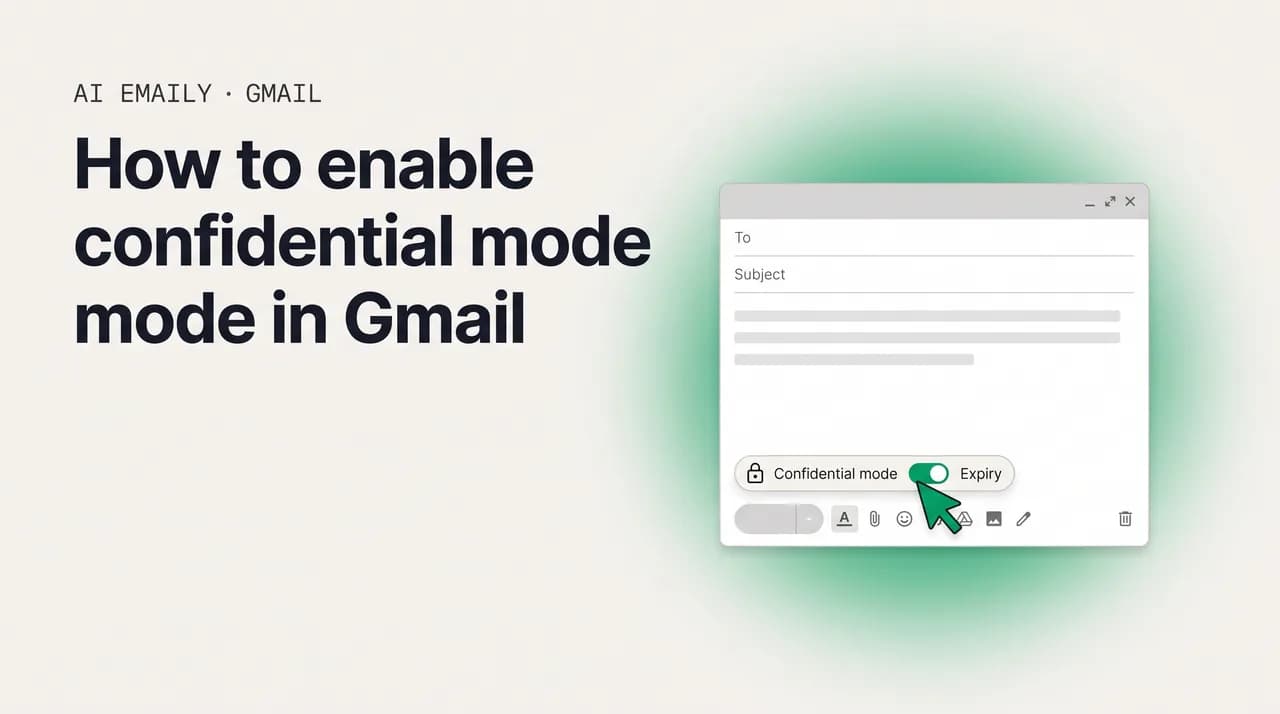
To enable confidential mode in Gmail, open Compose, click the lock-and-clock icon, set an expiration (one day to five years) and an optional SMS passcode, then send. Recipients can't forward, copy, print, or download the message, and you can revoke access anytime from Sent. It is not end-to-end encryption, and screenshots are still possible.
How to enable confidential mode in Gmail: turn it on in Compose, set an expiration and passcode, revoke access anytime — plus what it does and doesn't protect.
On this page
- 01What is Gmail confidential mode, and what is it not?
- 02How do you enable confidential mode in Gmail on desktop?
- 03What do the expiration and passcode options actually do?
- 04How do recipients open a confidential email?
- 05How do you revoke access to a confidential email after sending?
- 06How do you use confidential mode on Android and iPhone?
- 07What does confidential mode not protect against?
- 08When should you use confidential mode, and when should you use something else?
- 09How does confidential mode work on Google Workspace?
- 10Why is confidential mode not working, and how do you fix it?
- 11Does confidential mode replace recalling or unsending an email?
- 12How does AI Emaily's real privacy model protect mail across every account?
- 13Putting it all together
What is Gmail confidential mode, and what is it not?#
You are about to email something you would rather not see forwarded, screenshotted into a group chat, or sitting in someone's inbox forever — a contract draft, a set of login details, a salary figure, a medical note, a sensitive update to a client. So you go looking for a way to send it that gives you a little more control than a normal email, and you land on Gmail's confidential mode. It is built into the compose window, it is free, and it promises exactly the kind of thing you want: messages that expire, that can't be forwarded, and that you can revoke after the fact.
Confidential mode is genuinely useful, and this guide will show you how to turn it on, set an expiration, add a passcode, and pull a message back after it has been sent — on desktop, Android, and iPhone. But before any of that, you deserve the honest version of what this feature is, because the name oversells it and a lot of people walk away with a false sense of security. Used with the right expectations, confidential mode is a sensible tool. Used as if it were a vault, it will let you down.
Here is what confidential mode actually does. When you send a confidential message, the recipient does not receive the message body in the normal way. Instead, Gmail stores the content on Google's servers and sends the recipient a link to view it. That indirection is the whole trick, and it is what makes the headline features possible. Because the content lives on Google's side rather than landing as a plain message in the recipient's mailbox, Gmail can attach rules to it: an expiration date after which the link stops working, an optional passcode required to open it, and a kill switch that lets you revoke access whenever you want. The recipient sees a message that they cannot forward, copy, print, or download through the normal Gmail buttons.
Now here is what it is not, and this is the part most articles bury. Confidential mode is not end-to-end encryption. Google can still access the content of a confidential message — it is stored on Google's servers in a form Google can read, exactly like any other Gmail message. The feature controls who can open the message and for how long; it does not hide the message from Google itself. If your threat model includes "my email provider should not be able to read this," confidential mode does nothing for you.
It also cannot stop a determined recipient from capturing what they see. The forward, copy, print, and download buttons are disabled, but nothing prevents someone from taking a screenshot, photographing their screen with a second phone, or simply retyping the contents. Gmail tries to discourage screenshots in some contexts, but it cannot reliably block them, and the instant a recipient captures the content outside Gmail, your expiration date and revoke button no longer apply to that copy. The control you have is over the original, server-hosted message — not over a human being who has already read it.
So the accurate way to think about confidential mode is as a set of access controls layered on top of a normal-ish email, not as encryption and not as a self-destruct guarantee. It raises the effort required to casually share or hoard your message, it lets you set a sensible shelf life, and it gives you a way to cut off access if you sent something to the wrong person or changed your mind. Those are real benefits. Just don't mistake "harder to share" for "impossible to share," or "Google controls the link" for "Google can't read it." With that framing in place, let's turn it on.
The one-sentence version
How do you enable confidential mode in Gmail on desktop?#
On a computer, confidential mode lives inside the compose window, so there is no setting to flip ahead of time — you switch it on per message, right before you send. That is a deliberate design choice: confidentiality is decided email by email, not as a blanket account setting. The control is a small toolbar icon at the bottom of the compose box, shaped like a padlock with a clock over it, and toggling it opens the panel where you choose how the message behaves.
The flow is quick once you know where to look. You compose your email as usual — recipients, subject, body, attachments — then click the confidential mode icon, pick an expiration window and an optional passcode, save those settings, and send. A confidential email looks slightly different at the bottom of the compose box once it is active, with a colored banner noting the expiration date and reminding you the message is confidential. Here is exactly how to do it step by step.
- 1
Open Gmail and click Compose
On a computer, open Gmail in your browser and click "Compose" to start a new message. Fill in the recipient, subject, and body as you normally would, and add any attachments you want to send.
- 2
Click the confidential mode icon
At the bottom of the compose window, in the row of toolbar icons next to Send, find the padlock-with-a-clock icon (its tooltip reads "Toggle confidential mode") and click it. A settings panel opens over the message.
- 3
Set an expiration date
Use the "Set expiration" dropdown to choose how long the message stays accessible: 1 day, 1 week, 1 month, 3 months, 5 years, or a custom date. After this window, the recipient's link stops working and the content is no longer viewable.
- 4
Choose a passcode option
Pick "No SMS passcode" or "SMS passcode." With no SMS passcode, Gmail recipients open the message directly and non-Gmail recipients get a passcode emailed to them. With SMS passcode, the recipient receives a code by text and you must enter their phone number — not your own.
- 5
Click Save, then Send
Click "Save" to apply the confidential settings — you'll see a banner at the bottom of the compose box confirming the expiration. Then click "Send" as usual. If you chose SMS passcode and haven't added the recipient's phone number, Gmail will prompt you for it before sending.
You can change the settings before you send
What do the expiration and passcode options actually do?#
The two settings you choose in the confidential mode panel — expiration and passcode — are the entire mechanism, so it is worth understanding precisely what each one controls and what it does not. They work together, but they protect against different things, and choosing them thoughtfully is the difference between a control that fits your situation and one that just adds friction.
The expiration date sets a shelf life for the message. Gmail lets you choose from one day up to five years, with preset options for one day, one week, one month, and three months, plus a custom date picker if you want something specific. When that window elapses, the link the recipient was using to view the content stops working, and they can no longer open the message. This is the "self-destructing email" behavior people search for: the message effectively disappears from the recipient's reach on a timer you set. It is a soft control rather than a hard one — the underlying content may persist on Google's servers for a period after expiration, and any screenshot the recipient already took is unaffected — but for keeping a sensitive message from lingering accessibly in someone's inbox indefinitely, it does the job.
The passcode adds a second layer: identity verification before the message can be opened. You have two choices. "No SMS passcode" means recipients who use Gmail can open the message directly within their own Gmail (since they're already authenticated to Google), while recipients who don't use Gmail receive a one-time passcode by email to prove they control that address. "SMS passcode" means every recipient must enter a code that Gmail texts to their phone — which is why, when you choose it, you have to supply the recipient's phone number rather than your own. The SMS option is the stronger of the two because it ties access to a device, not just an inbox, but it only makes sense when you actually know and trust the recipient's number.
It is worth being clear-eyed about what the passcode buys you. It raises the bar for someone other than the intended recipient opening the message — useful if an email account is shared, was compromised, or might be accessed by the wrong person. It does not encrypt the content, and it does not stop the legitimate recipient, once they have entered the code, from screenshotting or copying what they see. Think of expiration as controlling how long the message lives and the passcode as controlling who can unlock it — neither one controls what a verified recipient does with the contents after they're in.
| Setting | Options | What it controls | What it does not do |
|---|---|---|---|
| Expiration | 1 day, 1 week, 1 month, 3 months, 5 years, or custom | How long the recipient can open the message before the link stops working | Doesn't delete screenshots already taken; content may linger on Google's servers |
| No SMS passcode | Default option | Gmail users open directly; non-Gmail users get an emailed code to verify their address | Doesn't tie access to a device; anyone with that inbox can open it |
| SMS passcode | Requires recipient's phone number | Every recipient must enter a code texted to their phone to open the message | Doesn't encrypt content; doesn't stop the verified recipient from copying it |
How do recipients open a confidential email?#
What the recipient experiences depends on whether they use Gmail and on which passcode option you chose, and it helps to know this so the feature doesn't surprise the person you're emailing. The experience is smoother for Gmail users and a couple of clicks heavier for everyone else, which is worth keeping in mind if you're sending to a client or contact on Outlook, iCloud, or a work address on another system.
If your recipient uses Gmail and you chose no SMS passcode, the message appears inside their Gmail almost like a normal email, except the forward, copy, print, and download options are disabled and a banner shows the expiration date. They are already authenticated to Google, so there's no extra step to open it. This is the cleanest path, and it's the one to aim for when both sides are on Gmail.
If your recipient does not use Gmail — they're on Outlook, Yahoo, a company mail system, or anything else — they don't get the message body directly. Instead they receive an email saying you've sent them a confidential message, with a button to view it. Clicking that button takes them to a Google-hosted page. If you chose no SMS passcode, they request a passcode, which Google emails to the same address, and they enter it to view the message. If you chose SMS passcode, they receive the code by text on the number you supplied. Either way, once they're in, they see your message and its expiration date, with the same forward, copy, print, and download buttons disabled.
This extra friction for non-Gmail recipients is the trade-off for the access controls. It's usually fine for a one-off sensitive message, but it can feel clunky for ongoing back-and-forth, and some corporate spam filters or strict security gateways occasionally flag or delay the "view the message" email — something to keep in mind if a recipient says they never received it. If a smooth experience across providers matters more than Gmail's specific controls, that's one of the places a dedicated cross-provider client changes the calculus, which we'll come back to later.
Non-Gmail recipients get a link, not the message
How do you revoke access to a confidential email after sending?#
One of the most useful parts of confidential mode is that you don't have to wait for the expiration date — you can manually revoke access at any time, cutting off the recipient's ability to open the message immediately. This is the closest thing Gmail offers to pulling a sensitive message back after you've sent it, and it's the reason people sometimes reach for confidential mode when they really want a recall. It isn't a recall (the recipient still knows a message arrived, and may have already read it), but it does let you slam the door on future access the moment you realize you sent something to the wrong person or changed your mind.
Revoking is done from your Sent folder, and it takes just a few clicks. Once you revoke, the recipient who tries to open the message — or reopen one they'd already viewed — sees a notice that access has been removed, and the content is no longer available to them through the link. You can also grant access back later if you revoked it by mistake. Here's the process on desktop.
- 1
Open your Sent folder
On a computer, open Gmail and click "Sent" in the left sidebar. Find the confidential message you want to revoke — it will be marked with the confidential mode styling.
- 2
Open the confidential message
Click the message to open it. Because it was sent in confidential mode, you'll see the confidential banner and, depending on its state, a "Remove access" option.
- 3
Click "Remove access"
Click "Remove access" to immediately revoke the recipient's ability to open the message. They can no longer view the content through their link, even if they'd opened it before.
- 4
Restore access if needed
If you change your mind, open the same message again and click "Renew access" (or "Grant access") to let the recipient view it once more, up until the original expiration date.
Revoke can't undo what was already seen
How do you use confidential mode on Android and iPhone?#
Confidential mode works in the Gmail app on both Android and iPhone or iPad, and the steps are nearly identical across the two platforms — the menu lives in a slightly different spot than on desktop, but the expiration and passcode choices are the same. This is useful, because plenty of sensitive emails get sent on the move, and you don't have to wait until you're at a computer to add these controls.
On mobile, the confidential mode option is tucked into the compose menu rather than sitting on a visible toolbar. You start a new message, open the three-dot "More" menu in the top-right corner of the compose screen, and tap "Confidential mode." From there you set the expiration and passcode just as you would on desktop, then back out and send. Opening a confidential message you've received works the same way on mobile as on desktop: Gmail-app users see it inline with the actions disabled, and the experience for non-Gmail senders mirrors the link-and-passcode flow. The steps below apply to both Android and iOS.
- 1
Open the Gmail app and tap Compose
Open the Gmail app on your Android phone or iPhone/iPad and tap the "Compose" button to start a new message. Add your recipient, subject, and body.
- 2
Open the More menu
Tap the three-dot "More" menu in the top-right corner of the compose screen. On both Android and iOS this menu holds the confidential mode entry.
- 3
Tap Confidential mode
Tap "Confidential mode" to open the settings. If a confidential message is already toggled on, you may need to toggle it on with the switch at the top of the panel first.
- 4
Set expiration and passcode
Choose your expiration window and pick "No SMS passcode" or "SMS passcode," entering the recipient's phone number if you choose SMS. These are the same options as on desktop.
- 5
Save and send
Tap the back arrow or "Done" to apply the settings, then tap the send arrow to send your confidential message. A banner confirms the expiration on the sent message.
Revoke from the mobile Sent folder too
What does confidential mode not protect against?#
This is the section to read twice, because the gap between what confidential mode implies and what it actually delivers is where people get burned. The feature is marketed with words like "confidential" and behaviors like "expiring" and "can't forward," all of which suggest a level of security the underlying mechanism does not provide. Knowing the limits isn't pedantry — it's the difference between using the tool appropriately and trusting it with something it can't actually protect.
Start with the biggest one: confidential mode is not end-to-end encryption, and it never claims to be in the fine print. Your message is stored on Google's servers in a form Google can read. That means Google itself has access to the content, and so, potentially, does anyone who can compel Google to produce it — law enforcement with a valid legal request, for instance. If your requirement is that no one but you and the recipient can ever read the message, including the email provider, confidential mode does not meet it. For that you need genuine end-to-end encryption, which is a different category of tool entirely.
Next, the "can't forward, copy, print, or download" protection is real but shallow. Those buttons are disabled in the Gmail interface, which stops casual, one-click resharing. But it does nothing to stop a recipient from taking a screenshot, photographing their screen with another device, or simply reading the message aloud or retyping it. Gmail attempts to block screenshots in some situations, but it cannot do so reliably across every device, operating system, and app — and a second phone pointed at the screen defeats it instantly. The moment a recipient captures your content, the copy they've made is outside Gmail's control: your expiration date won't expire it, and your revoke button won't touch it.
There's a subtler limit too: confidential mode doesn't hide metadata or the fact that you sent something. The recipient knows a message arrived from you, even if access is later revoked, and the subject line is not protected the way the body is. So if the very existence of the correspondence is sensitive, or if a revealing subject line would itself cause a problem, confidential mode leaves that exposed — it protects the contents behind the link, not the envelope around it. And because non-Gmail recipients receive a link to a Google-hosted page, their access depends on that link and the surrounding email actually reaching them — which strict corporate security gateways sometimes interfere with. Finally, expiration is a soft control: the recipient loses access on schedule, but the underlying content may persist on Google's infrastructure for some time after, so "expired" doesn't necessarily mean "permanently and immediately destroyed everywhere."
It's also worth noticing what "the recipient can't forward it" really means in practice. It means they can't forward the live, server-hosted message through Gmail's forward button so that a second person inherits your access controls. It does not mean the information can't travel. A recipient can describe the contents in a fresh email, paste a screenshot into a chat, or read it over the phone — and at that point the information has left the protected container entirely, with none of your expiration or revoke rules attached. The disabled buttons raise the friction of casual resharing, which genuinely reduces the offhand "FYI" forwards that leak a lot of sensitive mail. But friction is not prevention, and anyone motivated to share what they've read will find it trivial. Designing around "this discourages careless sharing" is realistic; designing around "this makes sharing impossible" is not.
None of this makes confidential mode useless. It makes it a specific, limited tool: good for adding friction to casual sharing, setting a sensible shelf life on a sensitive message, requiring a passcode for an extra identity check, and revoking access if you make a mistake. It is not good for protecting truly secret information from a motivated recipient or from Google itself. Match the tool to the stakes, and you'll never be surprised by what it can't do.
Confidential mode is access control, not encryption
When should you use confidential mode, and when should you use something else?#
Given those limits, the practical question is when confidential mode is the right call and when you should reach for a different tool. The honest answer is that it sits in a useful middle ground: stronger than a plain email, weaker than real encryption, and best matched to situations where you want to discourage casual sharing and set an expiry, not to situations where exposure would be catastrophic.
Confidential mode is a good fit when you're sending something mildly sensitive to someone you broadly trust, and you mostly want to keep it from being forwarded around or sitting in their inbox forever. A draft agreement, an internal update, a document you'd rather people not pass along, a temporary set of instructions, an invoice — these are reasonable uses. The expiration keeps the message from lingering, the disabled forward button discourages offhand resharing, and the revoke option gives you a safety net if you address it wrong. For these everyday cases, it's a sensible, free, built-in choice.
It is the wrong tool when the information is genuinely high-stakes — passwords to critical systems, financial account numbers, government identifiers, protected health information, trade secrets, or anything where a single screenshot or a provider-level disclosure would cause real harm. For those, the lack of end-to-end encryption and the screenshot loophole are disqualifying. The right alternatives there are dedicated end-to-end encrypted email or messaging (where the provider genuinely cannot read the contents), encrypting the file itself with a strong password and sharing that password over a separate channel, or using a secure file-sharing or vault service built for secrets rather than convenience.
There's also a category where confidential mode is simply overkill or counterproductive: routine correspondence with non-Gmail recipients who'll find the link-and-passcode flow annoying, or ongoing threads where you actually want the recipient to be able to forward, save, and reference the message later. For those, a normal email is the better experience. The skill isn't using confidential mode as much as possible — it's recognizing the narrow band where its specific controls help and reaching for plain email or real encryption on either side of that band.
A simple test cuts through most of the indecision. Ask yourself what happens if the recipient screenshots this message and it ends up somewhere you didn't intend. If the honest answer is "it would be awkward or untidy, but not damaging," confidential mode is a fine, proportionate choice — you're mostly trying to keep the message tidy and time-limited, not bulletproof. If the answer is "that would be a serious problem — a breach, a legal exposure, real financial or personal harm," then confidential mode is the wrong tool by definition, because a screenshot is exactly the failure it can't prevent. Run that one question before you click the padlock icon, and you'll almost always land on the right side of the line without having to think any harder about it.
- Good fit: mildly sensitive content sent to someone you trust, where you want an expiry and to discourage casual forwarding — drafts, internal notes, invoices, temporary instructions.
- Add a passcode when: the recipient's inbox might be shared or accessed by others, and you want a second identity check before the message can open.
- Use real end-to-end encryption when: the content is high-stakes (credentials, financial or health data, secrets) and a screenshot or provider-level disclosure would cause real harm.
- Encrypt the file separately when: you're sending a sensitive attachment — password-protect the file and share the password over a different channel, rather than relying on confidential mode alone.
- Just use a normal email when: the recipient is on another provider and the link-and-passcode flow adds friction, or when they'll legitimately need to forward and save the message.
How does confidential mode work on Google Workspace?#
If you're on a Google Workspace account (a work or school address) rather than a personal Gmail, confidential mode behaves the same way for you as a sender, but whether it's available at all is controlled by your administrator — and that's the most common reason the option is missing for some people. Admins can turn confidential mode on or off for the entire organization or for specific organizational units, so if you don't see the padlock-and-clock icon in compose, it may simply be disabled for your account.
For administrators, the control lives in the Google Admin console under Apps, then Google Workspace, then Gmail, then User settings, in the "Confidential mode" section — checking or unchecking "Enable confidential mode" and saving. Changes can take up to 24 hours to fully propagate, so a freshly toggled setting may not appear immediately. Admins also have a related lever: they can set up a compliance rule to block incoming confidential mode messages, which some organizations use when their security policy requires that all inbound mail be scannable and archivable in the normal way (confidential messages, being link-based, don't behave like ordinary archived mail).
There are a couple of practical implications worth knowing. First, if you're a Workspace user and the feature is missing, the fix isn't in your own settings — you need to ask your IT administrator to enable it, and then wait for propagation. Second, even when confidential mode is enabled in your organization, the same fundamental limits apply: it's still not end-to-end encryption, Google (and by extension, in a Workspace context, the controls and visibility your organization has configured) can still access content, and screenshots still defeat the no-forward protection. Workspace doesn't upgrade confidential mode into something more secure; it just governs who in the organization can use it.
No confidential mode icon? Ask your admin
Why is confidential mode not working, and how do you fix it?#
If confidential mode isn't behaving as expected — the icon is missing, the recipient can't open the message, or something else is off — the cause is almost always one of a short list of ordinary issues rather than a bug. Run through these before assuming the feature is broken; in most cases a small adjustment puts you back on track.
- The icon is missing on a work or school account. Confidential mode is controlled by your Google Workspace admin and may be disabled for your organization. Fix: ask your IT administrator to enable it, and allow up to 24 hours for the change to take effect.
- You're looking in the wrong place. On desktop the toggle is a padlock-with-a-clock icon at the bottom of the compose window; on mobile it's inside the three-dot "More" menu in compose. Fix: open a new message and check those exact locations rather than the main Settings menu.
- The recipient says they never got it. For non-Gmail recipients, the notification email with the "view the message" link can land in spam or be blocked by a strict security gateway. Fix: ask them to check spam, and confirm their mail system isn't filtering Google-hosted message links.
- The SMS passcode never arrives. This usually means the wrong phone number was entered, or the recipient's carrier blocked the text. Fix: open the message in your Sent folder, confirm you entered the recipient's number (not your own) in the right format, and resend if needed.
- The recipient can't open an expired message. Once the expiration date passes, the link stops working by design. Fix: open the message in Sent and use "Renew access" to extend or restore it if it expired sooner than intended.
- You revoked access by accident. Removing access is reversible up to the expiration date. Fix: open the message in Sent and click "Renew access" or "Grant access" to let the recipient view it again.
- Attachments aren't behaving as expected. Confidential mode disables downloading attachments through the normal buttons, which can confuse recipients expecting to save a file. Fix: if the recipient genuinely needs to keep the attachment, confidential mode is the wrong choice — send it as a normal email or share it through a file service.
Does confidential mode replace recalling or unsending an email?#
People often arrive at confidential mode hoping it's a way to unsend, so it's worth being precise about how it relates to Gmail's other after-the-fact controls — because it overlaps with them without being the same thing. The two features most often confused with it are Undo Send and the idea of recall, and each does something genuinely different.
Undo Send acts before delivery: for a few seconds after you click Send, Gmail holds the message and lets you cancel it entirely, after which it reverts to a draft and is never delivered. That's the tool for catching a mistake in the moment — a wrong recipient, a missing attachment, a typo you spot a second too late. Confidential mode doesn't do that; a confidential message is genuinely sent, and the recipient knows it arrived. If your goal is to stop a message from going out at all, Undo Send is the relevant feature, and we cover it in depth in our guide on how to recall an email in Gmail.
Recall, in the strict Outlook sense of reaching into a delivered message and deleting it, doesn't exist in Gmail at all. Confidential mode is the closest cousin, because revoking access does cut off the recipient's ability to open the message after delivery. But the difference matters: the recipient still received a notification, may have already read the content, and could have captured it before you revoked. Confidential mode controls access to the server-hosted copy going forward; it does not erase what's already been seen or screenshotted. So it's a partial, access-level version of recall for content you proactively decided to send confidentially — not a universal undo for any email you regret.
The clean mental model is this: use Undo Send to stop a message you just realized shouldn't go out; use confidential mode when you decided up front that a message should expire, require a passcode, and remain revocable; and accept that neither one is a true recall that can pull a delivered, already-read message back into nonexistence. If you frequently wish you had more control over what you've sent, that recurring frustration is usually a sign the underlying send experience could be better — which is the last thing worth talking about.
| Feature | When it acts | What it does | What it can't do |
|---|---|---|---|
| Undo Send | Before delivery (few-second buffer) | Cancels the send entirely; message reverts to a draft | Nothing once the buffer passes and the email is delivered |
| Confidential mode | After delivery | Revokes access, expires the link, requires a passcode | Erase what was already read, screenshotted, or copied |
| True recall (Outlook-style) | After delivery | Not available in Gmail at all | Doesn't exist on standard Gmail accounts |
How does AI Emaily's real privacy model protect mail across every account?#
Confidential mode is a reasonable patch on a single provider's webmail, but step back and the bigger picture is clear: it's a narrow control bolted onto Gmail, with honest limits, that doesn't travel to your other accounts and doesn't actually keep your provider out of your mail. If privacy is something you care about across your whole email life — not just on the occasional message you remember to mark confidential — it's worth thinking about the foundation your email runs on rather than the per-message switches on top. That's the gap AI Emaily is built to close. AI Emaily is an AI-native email client that connects to every provider — Gmail, Outlook, iCloud, Fastmail, Proton, and any IMAP inbox — so its privacy model applies to all your mail in one place, not to one provider's web interface.
The foundation is a privacy posture designed in from the start rather than added as a feature. AI Emaily encrypts your data in transit and at rest, so your mail isn't sitting around in the clear. The AI side is zero-retention: the models that draft, summarize, and triage your email don't keep your content after a request is handled, and your mail is never used to train models — a meaningful distinction from setups where your data quietly becomes training fuel. And for people who want maximum control over the AI layer, AI Emaily supports BYOK (bring your own key): you can plug in your own model provider key, so the AI calls run on your terms. The point isn't a single "confidential" button; it's that the whole system is built so your email is handled privately by default, on every account you connect.
That foundation changes what the everyday tools can safely do. Because the client mediates your sending and acts as an agent rather than a dumb pipe, you get controls that go beyond what per-message confidential mode offers: a send model where, in Copilot mode, the agent can draft replies in your voice but every message waits for your explicit approval before it goes out, plus a configurable send-delay and a full audit trail of what was sent and when. The most common privacy mistake in email — firing off the wrong thing to the wrong person — is exactly what an approval-gated, delayed, audited send is designed to prevent, and it works the same way across Gmail and every other provider you've connected, not just inside one webmail.
AI Emaily is free to start at $0, with a Pro plan at $12.42 per month billed annually for higher volume and the full agent, send-delay, and automation toolkit. If you reach for Gmail's confidential mode because you care about how your email is handled, it's worth handling all of it that way — with encryption in transit and at rest, zero-retention AI that never trains on your mail, and the option to bring your own key, across every account at once. You can create an account at app.aiemaily.com/signup and connect your mailbox in a few minutes.
Privacy as the default, not a per-message toggle
Putting it all together#
Enabling confidential mode in Gmail is genuinely simple: open Compose, click the padlock-and-clock icon (or find it in the three-dot menu on mobile), set an expiration from one day to five years, choose whether to require an SMS passcode, save, and send. From your Sent folder you can revoke access at any time, and restore it if you change your mind. That's the whole feature, and for adding friction to casual sharing and setting a sensible shelf life on a sensitive message, it does its job.
The part to carry with you is the honest framing. Confidential mode is access control, not encryption. Google can read your message, the disabled forward and download buttons don't stop a screenshot, and "expired" doesn't mean "instantly destroyed everywhere." Use it for mildly sensitive content sent to people you trust, add a passcode when an inbox might be shared, and reach for real end-to-end encryption — or encrypt the file separately — whenever the stakes are high enough that a single leaked screenshot would matter.
And if you find yourself caring enough about privacy to use confidential mode at all, it's worth applying that standard to your whole inbox rather than one message at a time. A client like AI Emaily builds the foundation in — encryption in transit and at rest, zero-retention AI that never trains on your mail, BYOK, and an approval-gated, audited send — across Gmail and every provider you connect. Confidential mode is a useful tool with sharp edges; know the edges, use it where it fits, and don't ask it to be a vault it was never built to be.
Frequently asked
See it in AI Emaily
Keep reading
Sources

Written by
Nafiul HasanNafiul Hasan is an entrepreneur and AI automation system builder with 10+ years of experience turning messy, manual workflows into reliable automated systems. He designs and ships AI enterprise solutions end-to-end — the agent logic, the data plumbing, and the product people actually use — and founded AI Emaily to give busy professionals their attention back. He writes here from the builder's seat: what works, what breaks, and how to put AI to work without giving up control.