How to schedule an email in Gmail

The short answer
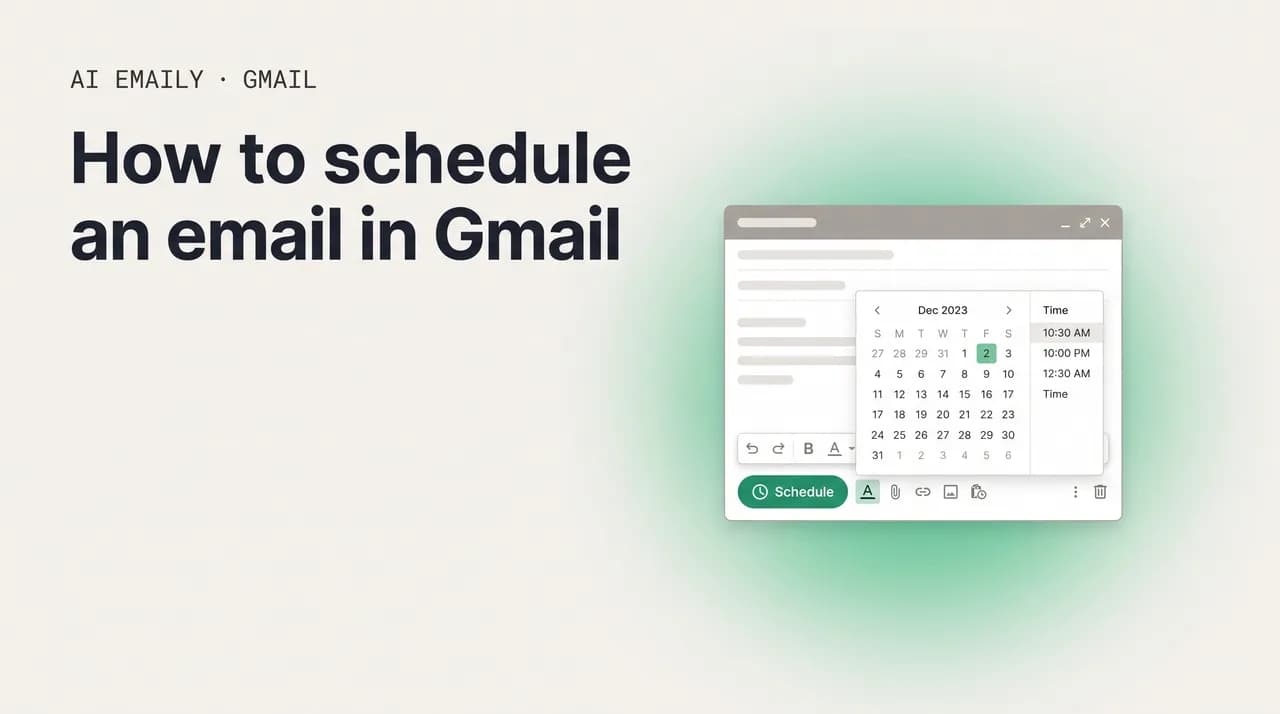
To schedule an email in Gmail on desktop, write your message, click the down arrow next to the Send button, choose Schedule send, and pick a date and time. On Android and iPhone, tap the three-dot menu in the compose window and choose Schedule send. Scheduled mail waits in the Scheduled folder, where you can edit or cancel it.
How to schedule an email in Gmail on desktop, Android, and iPhone, plus how to view, edit, or cancel a scheduled send and fix it when it is not working.
On this page
- 01What does scheduling an email in Gmail actually do?
- 02How do you schedule an email in Gmail on desktop?
- 03Where exactly is the schedule send button?
- 04How do you schedule an email in the Gmail app on Android and iPhone?
- 05How do you view, edit, or cancel a scheduled email?
- 06How does the time zone affect when your email actually sends?
- 07When is the best time to schedule an email to send?
- 08What are the most useful ways to use schedule send?
- 09Why is Gmail schedule send not working, and how do you fix it?
- 10What are the limits and tips you should know?
- 11How does AI Emaily schedule across every account?
- 12What should you remember about scheduling email in Gmail?
What does scheduling an email in Gmail actually do?#
You have written the message. It is good, it is ready, and the only thing wrong with it is the clock. It is 11 p.m. and you do not want your boss to see you working that late. It is Saturday and the client should not hear from you until Monday. It is the middle of your workday but the recipient is asleep eight time zones away, and a 3 a.m. arrival means your email lands at the bottom of a pile by the time they wake up. Schedule send exists for exactly this gap between when a message is finished and when it should actually arrive.
When you schedule an email in Gmail, you are telling Google's servers to hold the message and release it at a future moment you choose. The email does not sit in your Outbox waiting for your laptop to be awake. It is queued on Google's side, which means it will go out at the appointed time whether your computer is on, asleep, closed, or at the bottom of a lake. This is the single most important thing to understand about the feature, and it is the thing most people get wrong: scheduling is server-side, not device-side. You can write an email Friday night, schedule it for Monday at 8 a.m., turn off your phone for the weekend, and it will still send.
Gmail has had this built in since 2019, and by 2026 it is a fully mature, free feature available to every account: personal Gmail, Google Workspace, on the web, and in the official mobile apps on both Android and iOS. There is nothing to install, no setting to enable first, and no premium tier required. The control is hiding in plain sight inside the compose window, which is precisely why so many people have used Gmail for years without noticing it.
It is worth being clear about what scheduling is and is not, because people confuse it with two neighboring features. Scheduling is about controlling when a finished message is sent. Snoozing is about controlling when a message you received comes back to the top of your inbox; it acts on incoming mail, not outgoing. Undo Send is about catching a message in the few seconds right after you hit send, before it leaves at all. Scheduling sits in front of all of that: you decide the future send time up front, and then you are free to forget about it. This guide covers scheduling end to end, and points you to the right tool when one of the neighbors is what you actually need.
There is also a quiet professional benefit to scheduling that is easy to underrate. The timestamp on an email is a piece of information the reader sees whether you intend it or not, and over time those timestamps add up to an impression of how you work. A message that arrives at 2 a.m. tells a story, and not always the one you want; it can read as frantic, as poorly boundaried, or as a subtle expectation that the reader should also be up at 2 a.m. answering you. Scheduling lets you separate the moment you do the work from the moment the work is seen, which means you can be the night owl or the weekend catcher-upper you actually are without ever advertising it. For managers especially, this matters: every late-night send to a direct report is a small signal about what is normal on the team, and scheduling is the cheapest way to stop sending that signal by accident.
Throughout, the steps describe Gmail as it works in 2026. Google refreshes the interface periodically, and the exact wording of a button or the position of a menu can drift slightly over time, but the underlying flow, compose, find the schedule control, pick a time, has been stable for years and is unlikely to change in shape. If a label reads a little differently on your screen, the logic still holds.
How do you schedule an email in Gmail on desktop?#
The desktop web version of Gmail is where most scheduling happens, and it is the clearest place to learn the feature because the whole compose window is visible at once. The control you are looking for lives right next to the Send button, and once you have seen it you will never lose it again. Here is the full flow from a blank screen to a queued message.
- 1
Open Gmail and start a new message
Go to mail.google.com in your browser and sign in. Click the Compose button in the top-left corner. A new message window opens in the lower-right of the screen. If you are replying to or forwarding an existing thread, the same schedule control appears in that reply window too, so you do not have to start from scratch.
- 2
Write your email as normal
Fill in the recipient in the To field, add a subject line, and write your body text. Attach files, add a signature, and proofread exactly as you would for a message you were about to send immediately. Scheduling does not change anything about how you compose; it only changes when the finished message leaves.
- 3
Click the down arrow next to Send
At the bottom-left of the compose window, the blue Send button has a small downward-pointing arrow (a caret) attached to its right edge. Click that arrow, not the button itself. Clicking Send sends immediately; clicking the arrow opens a short menu with the Schedule send option. This is the single step people miss most often, because the arrow is easy to overlook next to the much larger Send button.
- 4
Choose Schedule send
In the small menu that appears, click Schedule send. A dialog box opens offering a few suggested times, things like Tomorrow morning and Tomorrow afternoon, with a specific date and time shown next to each so you know exactly what you are choosing. These presets are calculated from your current time and are the fastest path if one happens to fit.
- 5
Pick a preset or choose a custom date and time
If none of the suggestions work, click Pick date & time at the bottom of the dialog. A small calendar and clock appear. Select the day you want, then type or pick the exact hour and minute. Gmail uses your account's time zone here, which matters a great deal and is covered in its own section below. Confirm your choice.
- 6
Confirm, and watch it leave the inbox
Click the final Schedule send button to lock it in. The compose window closes and a brief confirmation appears at the bottom of the screen, usually with an Undo link in case you scheduled by mistake. The message is now held by Google and will go out at the time you set. You can close the browser and shut down the computer; the send is no longer tied to your device.
Click the arrow, not the button
Where exactly is the schedule send button?#
Because so many people search for scheduling specifically because they cannot find the control, it is worth pinning down its location on every surface in one place. The button does not live in the same spot across desktop and mobile, and that inconsistency is the source of a lot of confusion.
On the desktop web, the schedule control is the down arrow attached to the right edge of the blue Send button, in the bottom-left of the compose window. It is not in the three-dot overflow menu, it is not in Settings, and it is not in the top toolbar. It sits directly beside Send because scheduling is, in effect, just a delayed send.
In the Gmail apps on Android and iPhone, the layout is different. There is no down arrow next to Send on mobile. Instead, the schedule option lives inside the three-dot menu (the overflow menu, sometimes called More) at the top-right of the compose screen, while you are writing the message. Tap those three dots and Schedule send appears in the list alongside other compose options. People who learned the feature on desktop often hunt for a phantom arrow on mobile and conclude, wrongly, that the feature is missing. It is there; it just moved.
If you use Gmail through a third-party email client, an older browser, or a corporate setup, the native control may genuinely be absent, because schedule send is a Gmail feature rather than a property of the underlying email protocol. In those cases the fix is to use the official Gmail web interface or mobile app for scheduling, even if your day-to-day reading happens elsewhere. The next sections walk through mobile in full.
How do you schedule an email in the Gmail app on Android and iPhone?#
Scheduling on mobile is just as capable as on desktop, and the steps are nearly identical between Android and iOS because Gmail keeps its apps closely aligned. The only real difference is the small platform-specific dressing around the menus. Use the tabs below for the exact path on your device; the logic, compose, open the three-dot menu, choose Schedule send, pick a time, is the same on both.
Open the Gmail app on your Android phone or tablet and make sure you are signed into the account you want to send from. Tap the Compose button, the pencil or plus icon, in the bottom-right corner. Write your email: add recipients, a subject, and your message body, exactly as you would for an immediate send.
When the message is ready, look to the top-right of the compose screen and tap the three-dot menu (More). In the menu that slides up, tap Schedule send. A panel appears with a few suggested times plus a Pick date & time option at the bottom.
Either tap one of the suggested times or tap Pick date & time to open a calendar and clock and set an exact moment. Confirm your selection. The compose window closes and your message moves into the Scheduled folder, where it waits until the send time. As on desktop, the send happens on Google's servers, so your phone does not need to be on or connected when the time arrives.
Make sure your Gmail app is up to date through the Play Store. The schedule send control has been standard for years, but a badly out-of-date app can behave oddly, and an update is the first thing to try if the option is missing.
It is the Gmail app, not Apple Mail
How do you view, edit, or cancel a scheduled email?#
Scheduling an email is only half the job; the other half is being able to find it again, change your mind, or fix a typo before it goes out. Gmail keeps every queued message in one place, the Scheduled folder, and learning to use that folder is what turns scheduling from a fire-and-forget gamble into something you can trust.
On the desktop web, the Scheduled folder appears in the left sidebar alongside Inbox, Sent, and Drafts. If you do not see it, it usually means you have no scheduled messages yet, or the label is collapsed under a More link at the bottom of the folder list; click More to reveal it. The number next to Scheduled tells you how many messages are currently queued. On mobile, open the hamburger menu (the three horizontal lines at the top-left) and tap Scheduled in the list of folders.
Inside the folder you can see every message you have queued, each showing its scheduled send date and time. This view is your safety net: any time you schedule something important, take two seconds to open the Scheduled folder and confirm the message is there with the date and time you expected. That habit catches the two most common scheduling mistakes, sending immediately by accident and setting the wrong time, before they can cause any harm.
Editing a scheduled email works through a small but important quirk: you cannot edit a message while it is scheduled. Gmail treats a queued send as locked. To make changes, you first cancel the send, which converts the message back into an ordinary draft, then edit the draft, then schedule it again. The steps below walk through that on desktop; mobile follows the same cancel-edit-reschedule pattern from inside the Scheduled mailbox.
- 1
Open the Scheduled folder
On desktop, click Scheduled in the left sidebar (expand More if you do not see it). On mobile, open the hamburger menu and tap Scheduled. You will see the list of every message currently queued, each with its send time.
- 2
Open the message you want to change
Click or tap the scheduled message to open it. At the top you will see when it is set to send, and a Cancel send button. While it sits here, the message is locked; you cannot type into it directly.
- 3
Click Cancel send to unlock it
Click Cancel send. This does not delete anything; it pulls the message out of the send queue and drops it back into your Drafts as an ordinary, editable draft. The scheduled send is now off, so make your change soon if you still want it to go out later.
- 4
Edit the draft
Open the draft (from Drafts, or it may reopen automatically), and make your edits: fix the typo, change a recipient, swap an attachment, or rewrite the whole thing. It behaves like any other draft now.
- 5
Reschedule it
When the draft is right, click the down arrow next to Send (desktop) or the three-dot menu (mobile), choose Schedule send, and set the date and time again, either the same time as before or a new one. The message returns to the Scheduled folder. To cancel a scheduled email entirely rather than reschedule it, just leave it in Drafts after canceling the send, or delete the draft.
Canceling send turns it into a draft, not a sent message
How does the time zone affect when your email actually sends?#
Time zones are where scheduling quietly goes wrong, and almost every "my email sent at the wrong time" complaint traces back to one of two misunderstandings. Getting this right is the difference between an email that lands at a thoughtful moment and one that arrives in the middle of someone's night.
First misunderstanding: Gmail schedules in your time zone, not the recipient's. When you pick 9 a.m. for a scheduled send, Gmail interprets that as 9 a.m. in the time zone set on your Google account, and it makes no attempt to convert it to wherever the recipient happens to be. If you are in New York scheduling for 9 a.m. and your recipient is in London, the email will arrive at 2 p.m. their time, not 9 a.m. theirs. This is not a bug; it is simply how the feature works. If you want a message to land at a specific local time for the reader, you have to do that math yourself and pick the equivalent time in your own zone.
Second misunderstanding: the time zone Gmail uses is the one in your Gmail settings, which is not always the one on your computer's clock. On the desktop web, open Settings (the gear icon), then See all settings, then the General tab, and find the Time zone option. Whatever is set there is the zone Gmail uses for scheduling, regardless of where you physically are or what your laptop says. People who travel, or whose account zone was set years ago and never updated, are the ones most likely to be bitten by this, scheduling for 8 a.m. and watching it go out at 11 a.m. or 5 a.m. because the account zone is somewhere else entirely.
There is a subtlety worth knowing if you travel between zones after scheduling. The send is anchored to the absolute moment in time you chose, calculated from the account zone at the moment you scheduled it. If you schedule something for 9 a.m. while your account is set to Pacific time and then fly to the East Coast, the email still goes out at that same absolute instant; it does not magically shift to 9 a.m. Eastern just because you moved. When in doubt, the only sure way to know what will happen is to check the Scheduled folder, which shows the exact send time, and to confirm your account time zone matches your intent before you rely on it.
The practical rule is simple. Before you schedule anything that needs to land at a precise local time for someone else, do two things: confirm your Gmail account time zone is what you think it is, and consciously convert the recipient's desired local time into your own zone. Two minutes of care here prevents the most common and most embarrassing scheduling failure there is.
Check your account time zone before relying on a schedule
When is the best time to schedule an email to send?#
Scheduling gives you control over timing, which naturally raises the question of what timing is best. The honest answer is that it depends on your goal and your audience, but years of large-scale send data point to some reliable patterns worth using as a starting point. Treat the table below as a default to test against, not as a law; your own audience may behave differently, and the only way to know for sure is to watch your own replies and opens.
The broad consensus across multiple studies of billions of emails is that mid-week mornings perform best for most professional and marketing mail. Tuesday, Wednesday, and Thursday tend to edge out the rest of the week, and a window of roughly 8 a.m. to 11 a.m. in the recipient's local time catches people as they triage their inbox at the start of the day. Monday mornings fight the weekend backlog, and Friday afternoons arrive after people have mentally clocked out, though some 2026 data shows Friday and Monday performing surprisingly well for certain audiences, which is exactly why testing beats dogma.
What matters more than chasing the single perfect minute is avoiding the obvious dead zones and matching the send to the message's purpose. A cold sales email and a newsletter and a personal note to a colleague all want different timing. The table gives sensible defaults for common cases; the column on reasoning is there so you can adapt it rather than follow it blindly.
| Email type | Suggested send window | Why this window |
|---|---|---|
| Professional or work email to a colleague | Tue to Thu, 8 to 10 a.m. their local time | Lands at the top of the inbox during morning triage, before the day fills up with meetings and fires. |
| Cold outreach or sales email | Tue to Thu, 8 to 11 a.m. their local time | Mid-week mornings show the strongest open and reply rates across most large data sets; Mondays and Fridays underperform for cold sends. |
| Newsletter or marketing email | Tue or Thu, 9 to 11 a.m., or a secondary evening slot | Mid-morning catches commuters and early triagers; some lists respond to an early-evening window when people relax and browse. |
| Message to a different time zone | Whatever maps to morning in their zone | Convert their ideal local time into your own account zone before scheduling, since Gmail fires in your zone, not theirs. |
| Internal note you wrote after hours | Next business morning, around 8 a.m. | Avoids signaling late-night work and keeps the message from being buried by everything else that arrives overnight. |
| Time-sensitive reminder before an event | The morning of, or the evening before | Close enough to the event to be actionable, far enough ahead that the reader still has time to respond or prepare. |
What are the most useful ways to use schedule send?#
Scheduling is one of those features that seems minor until you build it into a habit, at which point it changes how you relate to your inbox. The point is not just convenience; it is control over the impression your email makes and over your own working hours. Here are the situations where it earns its keep most often.
The most common reason people reach for it is protecting boundaries. If you do your best thinking late at night or early on weekends, scheduling lets you work when you work without broadcasting it. Write the message at 11 p.m., schedule it for 8 a.m., and your recipient sees a normal-hours email from a person who appears to keep sane boundaries. This matters more than it sounds: a string of late-night and weekend timestamps quietly sets an expectation that you are always reachable, and that expectation is hard to walk back.
Closely related is respecting other people's hours, especially across time zones. Catching a teammate in Singapore at the start of their day, or making sure a client in California does not get pinged at 4 a.m., is a small courtesy that compounds. Scheduling lets you write when it suits you and deliver when it suits them, which is the whole point of asynchronous work.
It is also a memory aid disguised as a sending tool. If you know you will be on a flight, in a long meeting, or simply not at a keyboard when something needs to go out, write it now and schedule it for then. Birthday and anniversary notes, renewal nudges, the follow-up you promised for next Tuesday, the rent reminder to a roommate, all of these can be handled in advance and forgotten, confident they will fire on time without you.
Salespeople and recruiters lean on it to hit the windows that data says work best, queuing a batch of mid-week morning sends rather than firing them off whenever they happen to finish writing. Anyone running a small campaign by hand can space sends out, land them at sensible local times, and avoid the dead zones, all without staying glued to the screen at the optimal minute. And for the simplest case of all, it is a graceful way to reply to something the moment you read it, while still delaying the actual delivery until a time when the conversation can reasonably continue.
A subtler use is managing your own attention rather than the recipient's. When you reply to an email immediately, you often invite an immediate reply back, and before you know it you are locked into a real-time conversation you did not have time for. Scheduling the reply for later breaks that loop on purpose: you clear the message off your plate while you have it open, but you do not trigger a back-and-forth until a time you have actually set aside for it. The same trick works for messages you would rather not appear to have answered instantly, where a measured, next-morning reply reads as more considered than a reflexive one fired off within seconds. In both cases you are using the delay not to be polite to the reader but to protect the shape of your own day, which is a perfectly good reason to schedule.
- Write late, send during business hours, so your timestamps never reveal your real schedule.
- Match the recipient's time zone so your email arrives during their morning, not their 3 a.m.
- Queue follow-ups and reminders the moment you think of them, then forget them.
- Batch sales or outreach emails into proven mid-week morning windows.
- Prepare birthday, renewal, or deadline messages days ahead so they fire even if you are away.
- Reply immediately to clear it off your plate, but delay delivery to a sensible hour.
Why is Gmail schedule send not working, and how do you fix it?#
When scheduling does not behave, it is almost always one of a small handful of causes, and each has a quick fix. Work down this list and you will resolve the overwhelming majority of "gmail schedule send not working" problems without needing to contact anyone.
The single most frequent issue is not finding the button at all, which is a location problem rather than a fault. On desktop, the control is the down arrow next to Send, not the three-dot menu and not anywhere in Settings. On mobile, it is the reverse: it lives inside the three-dot menu at the top of the compose window, with no arrow next to Send. People who learned the feature on one surface routinely look in the wrong place on the other. If you genuinely see no Send arrow on desktop and no Schedule send in the mobile menu, you are likely in a third-party client or a stripped-down view rather than real Gmail.
The second most common problem is the email sending at the wrong time, which is nearly always a time-zone mismatch rather than a scheduling failure. Gmail fires the send using the time zone in your account settings, not your device clock and not the recipient's zone. Check Settings, See all settings, General, Time zone, correct it if it is off, then cancel and reschedule the affected message. Remember too that Gmail does not convert to the recipient's local time, so an email that arrives at an odd hour for them may have sent at exactly the time you set in your own zone.
A third cause is the hundred-message limit. Gmail caps you at 100 scheduled emails at any one time. If you have hit that ceiling, often without realizing it, because of recurring or batched sends, new scheduling will fail until you send or delete some of the queued messages. Open the Scheduled folder, clear out anything stale, and try again.
The list below covers the rest of the usual suspects. If you work through all of them and scheduling still refuses to behave, the catch-all fixes, update the app, refresh the browser, disable extensions, try a different network, almost always shake it loose.
- Looking in the wrong place: on desktop use the arrow beside Send; on mobile use the three-dot menu in compose. They are not in the same spot.
- Wrong time zone: Gmail schedules in your account's time zone (Settings, General, Time zone), not your device clock or the recipient's zone. Fix it, then cancel and reschedule.
- Hit the 100-email cap: Gmail allows at most 100 scheduled messages at once. Clear the Scheduled folder to free up room.
- Outdated app: update the Gmail app from the Play Store or App Store; an old version can hide or break the option.
- Browser extensions interfering: some email add-ons override the compose window. Disable them, or use an incognito window to test.
- Third-party or work client: schedule send is a Gmail feature, so it may be absent in non-Gmail clients or locked-down corporate setups. Use the official Gmail web or app interface.
- Connectivity at schedule time: you need a connection to set the schedule, but not to send it; the send itself happens on Google's servers.
- Canceled but never rescheduled: a message you canceled sits in Drafts and will not send until you schedule it again.
A scheduled email is not a recalled email
What are the limits and tips you should know?#
Schedule send is reliable, but it has edges worth knowing before you build a workflow on top of it. The table below collects the hard limits and the practical tips in one place, so you are not surprised later. None of these are dealbreakers; they are simply the contours of the feature.
The headline constraint is the 100-message cap. For an individual sending the occasional scheduled email, you will never come close to it. But anyone using scheduling for outreach, reminders, or any kind of batch will eventually bump into it, and when you do, scheduling silently stops working until you clear room. It is the limit most likely to catch a power user off guard.
Beyond the cap, the recurring themes are the same ones from the troubleshooting section: scheduling is server-side so your device need not be on, timing is anchored to your account zone rather than the recipient's, and a scheduled message is fully editable only after you cancel its send. Keep those three facts in mind and the feature holds no surprises.
| Limit or behavior | What it means | What to do about it |
|---|---|---|
| Maximum 100 scheduled emails | Gmail will not queue more than 100 messages at once across your account. | Clear the Scheduled folder of stale messages before scheduling more, especially if you batch sends. |
| Schedules in your account time zone | The send fires at your chosen time in your Gmail account's zone, not the recipient's and not your device clock. | Verify your zone in Settings, General, and convert the recipient's local time into your own before scheduling. |
| Send happens on Google's servers | The message goes out at the scheduled moment whether or not your device is on or online. | Schedule and forget; you do not need to keep the app open or the computer awake. |
| Editing requires canceling first | A queued message is locked; you cannot type into it while it is scheduled. | Cancel send to drop it back to Drafts, edit, then reschedule. |
| No built-in recipient time-zone adjustment | Gmail will not auto-convert your time to land at the reader's local morning. | Do the conversion yourself, or use a tool that handles recipient-time scheduling for you. |
| No native recurring or send-sequence scheduling | Gmail schedules one send at one time; it has no built-in repeat or follow-up automation. | Schedule each send individually, or use an assistant or extension that supports sequences. |
The 100-email cap is per account, not per day
How does AI Emaily schedule across every account?#
Everything above is about Gmail's native scheduling, which is genuinely good for what it is: a free, reliable way to delay a send inside one Gmail account. Where it runs out of road is the moment your email life stops being one Gmail account. If you run a personal Gmail, a work Google Workspace address, an Outlook account, and maybe an iCloud or Fastmail address on the side, you are now juggling several different scheduling interfaces, each in a different place, each with its own quirks, and none of them aware of the others. AI Emaily is built for that reality.
AI Emaily is an AI-native email client that connects Gmail alongside every other major provider, Outlook, iCloud, Fastmail, Proton, and any standard IMAP mailbox, into one place. Schedule send and send-later are built in and work the same way across all of them, so you learn the action once instead of relearning it per provider. The down-arrow hunt on Gmail, the buried menu in Outlook, the separate Apple Mail behavior, all of it collapses into a single consistent way to say "send this later," no matter which account the message is going out from.
The part that goes beyond what any native client does is that AI Emaily has an agent that can act, not just a button you press. You can ask it in plain language to draft a reply and send it tomorrow morning in the recipient's time zone, or to write a polite follow-up and queue it for Tuesday if you have not heard back, and it will prepare the message in your voice and schedule it for you. The agent runs in one of three modes you control: Manual, where it only does what you click; Copilot, where it drafts and proposes and waits for your approval before anything sends; and Autopilot, where it handles routine sending on its own within the limits you set. Every action it takes is logged, and anything it does can be undone, so handing off scheduling never means handing off control.
That combination, one inbox across every provider, consistent scheduling everywhere, and an agent that can draft and time messages on your behalf, is what makes scheduling feel less like a manual chore and more like something your email handles for you. You stay in charge of what goes out and when; the tedious parts of getting it there at the right moment stop being your problem.
AI Emaily has a Free plan at $0, and a Pro plan at $12.42 per month billed annually for the full agent and multi-account power. If your scheduling has outgrown a single Gmail account, you can connect your mailboxes and try it at app.aiemaily.com/signup. The point is not that Gmail's scheduling is bad; it is that once your email spans several accounts, one place to schedule and an agent that can do it for you is a meaningful upgrade.
If you live in more than one inbox
What should you remember about scheduling email in Gmail?#
Scheduling an email in Gmail is one of the highest-return habits you can pick up in a few minutes, and once it clicks you will wonder how you sent mail any other way. The core move never changes: write the message, find the schedule control, pick a time, and let Google's servers handle the rest while you get on with your day.
On desktop, that control is the down arrow next to the Send button; on Android and iPhone, it is inside the three-dot menu in the compose window. Queued messages wait in the Scheduled folder, where you can confirm the send time, and where you cancel a send to edit it before scheduling it again. Get in the habit of glancing at that folder after you schedule anything important; it is the simplest way to catch a wrong time or an accidental immediate send.
The two things that trip people up most are both avoidable. Time zones: Gmail fires in your account's zone, not the recipient's and not your device clock, so check the setting and convert when it matters. The 100-message cap: scheduling quietly stops once 100 messages are queued, so clear the folder if a new schedule refuses to take. Keep those in mind and the feature is dependable.
If your email has grown past a single Gmail account, scheduling is also a good reason to look at a client built for many inboxes at once. AI Emaily connects Gmail and every other provider, schedules the same way across all of them, and adds an agent that can draft and time messages in your voice, with undo and an audit trail so you stay in control. Whether you stick with native Gmail or move to one place for everything, the underlying lesson is the same: you should decide when your email arrives, not the clock that happened to be running when you finished writing it.
Frequently asked
See it in AI Emaily
Keep reading
Sources

Written by
Nafiul HasanNafiul Hasan is an entrepreneur and AI automation system builder with 10+ years of experience turning messy, manual workflows into reliable automated systems. He designs and ships AI enterprise solutions end-to-end — the agent logic, the data plumbing, and the product people actually use — and founded AI Emaily to give busy professionals their attention back. He writes here from the builder's seat: what works, what breaks, and how to put AI to work without giving up control.