How to set up POP and IMAP in Gmail

The short answer
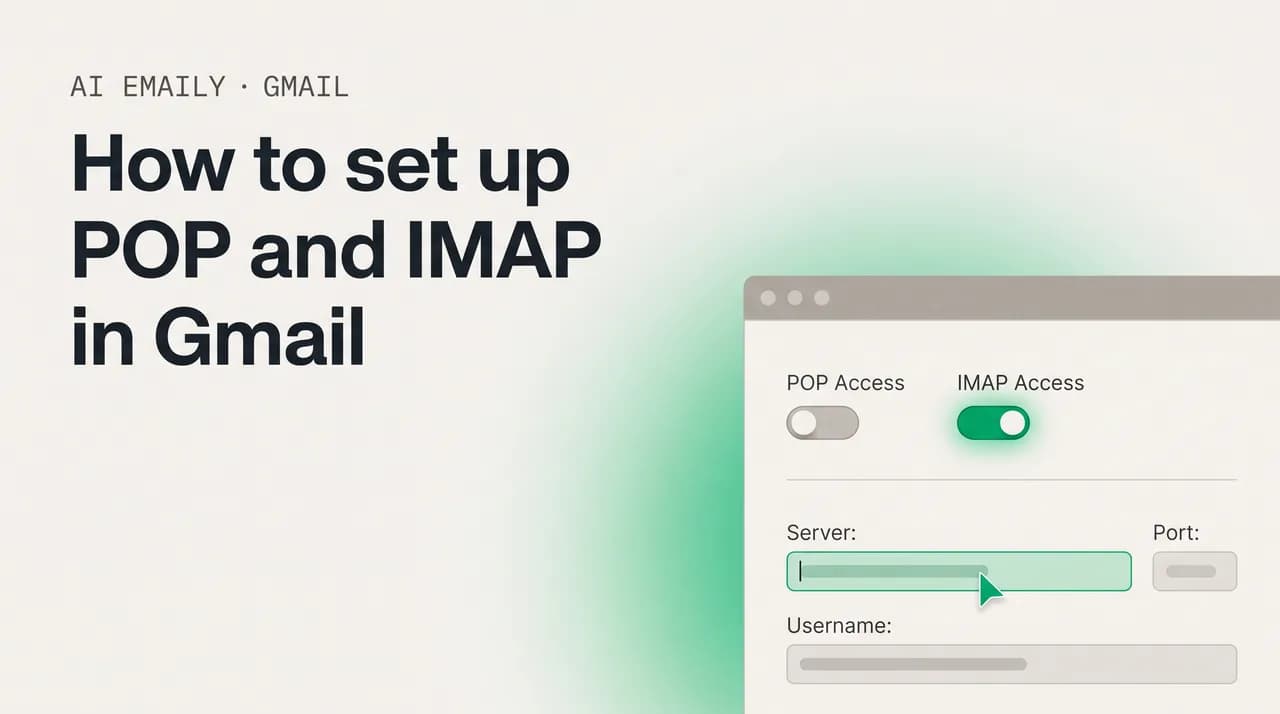
To set up POP and IMAP in Gmail, open Settings, then "Forwarding and POP/IMAP," and enable IMAP (recommended, syncing across devices) or POP (a one-way download). Then add Gmail to your client with imap.gmail.com:993 SSL, smtp.gmail.com:465 SSL or 587 TLS, and an app password if two-step verification is on.
How to set up POP and IMAP in Gmail: enable each protocol, the exact server settings, app passwords for 2FA, and connecting to Outlook, Apple Mail, or Thunderbird.
On this page
- 01What are POP and IMAP, in plain English?
- 02How do you enable IMAP in Gmail?
- 03How do you enable POP in Gmail?
- 04What are the exact Gmail server settings for IMAP, SMTP, and POP?
- 05Do you need an app password for Gmail IMAP or POP?
- 06How do you connect Gmail to Outlook, Apple Mail, or Thunderbird?
- 07IMAP vs POP for Gmail: which should you use?
- 08Why isn't my Gmail IMAP or POP connection working? (troubleshooting)
- 09How does AI Emaily connect Gmail and every provider in one inbox?
- 10Putting it all together
What are POP and IMAP, in plain English?#
If you want to read your Gmail somewhere other than the Gmail website or app, in Outlook, Apple Mail, Thunderbird, or any other email program, you will run into two acronyms almost immediately: IMAP and POP. They are the two protocols Gmail uses to hand your mail to an outside program, and the choice between them quietly decides how your email behaves for years afterward: whether it stays in sync across your devices, whether deleting on your laptop also deletes on your phone, and whether your mail lives on Google's servers or only on the one machine that downloaded it. Most people pick one without understanding the difference and then spend ages confused about why their email is acting strangely. A few minutes of plain explanation up front saves all of that.
Think of it like the difference between streaming a film and downloading it. IMAP is streaming: your mail stays on Gmail's servers, and every program you connect, your laptop, your phone, your tablet, sees the same live copy. Read an email on your phone and it shows as read on your laptop. Delete it in one place and it is gone everywhere. File it into a folder and that folder appears on every device. The mail itself never really leaves Google; your programs are just windows onto the one canonical copy sitting in the cloud. This is why IMAP is what almost everyone should use today, and, as we will see, why Google now treats it as the default.
POP is downloading. Instead of keeping your mail on the server and showing it everywhere, POP pulls a copy down to a single program and, traditionally, removes it from the server afterward. The mail now lives on that one computer. Your phone will not see it, because the message was taken off the server before your phone ever asked for it. There is no syncing: read, file, or delete on the POP computer and nothing changes anywhere else, because nowhere else has the message. POP was designed for a world of one computer and expensive, intermittent dial-up, where the goal was to grab your mail fast, hang up, and read it offline. That world is mostly gone, which is the heart of why the two protocols feel so different to live with.
That single distinction, mail stays on the server and syncs versus mail is pulled down to one device, explains nearly every difference you will encounter. With IMAP, your inbox is the same object seen from many places, so it is consistent, multi-device, and backed up by Google by definition. With POP, your inbox becomes a pile of messages on whichever machine downloaded them, fast and self-contained but isolated, and at genuine risk if that machine dies and you kept no copy on the server. For the way people use email now, across a phone, a laptop, and often a work machine too, one of them fits and the other fights you constantly.
There is an important piece of recent context worth stating plainly before you change a single setting. Google has been steadily pushing everyone toward IMAP and away from POP. IMAP is now enabled by default on Gmail accounts and, for many accounts, can no longer even be turned off; the old on/off toggle has been removed because there is no longer a reason to disable it. POP, meanwhile, is being wound down: Google has been retiring POP-based features for consumer Gmail accounts, so while you can still see POP settings in many accounts, it is the legacy path, not the future one. We will cover both honestly, because plenty of people still have a specific reason to use POP, but the strong recommendation, and Google's own direction, is IMAP.
This guide walks the whole job in order: enable each protocol in Gmail's settings, lay out the precise server settings in a table you can copy from, cover the app passwords and two-step verification most programs now require (plus the newer "Sign in with Google" path), connect Gmail to Outlook, Apple Mail, and Thunderbird, compare IMAP and POP side by side, and work through the errors that trip everyone up. Finally we look at why juggling server settings at all is increasingly optional, and how a modern client connects Gmail and every other account for you without a single port number.
The one rule that decides everything
How do you enable IMAP in Gmail?#
IMAP is the protocol you almost certainly want, and on a modern Gmail account it is usually already on, so this step is often just a matter of confirming it. Google flipped IMAP to enabled by default and, on many accounts, removed the option to disable it entirely, because keeping mail synced on the server is now the expected behavior. So the experience varies slightly by account: some people open the settings and find a live "Enable IMAP" choice; others find the section showing IMAP as simply on, with no toggle to turn it off. Both are normal, and either way you go to the same place to check.
All of Gmail's POP and IMAP controls live in one spot on the desktop web: Settings, then the "Forwarding and POP/IMAP" tab. You cannot reach these settings from the Gmail mobile app, but once IMAP is enabled on the web, every device and program you connect afterward, including your phone, will use it. Here is exactly how to enable or confirm IMAP.
- 1
Open Gmail settings on the web
On a computer, sign in to Gmail in your browser, then click the gear icon in the top-right corner and choose "See all settings." This opens the full settings screen; the quick settings panel that appears first does not include the POP and IMAP controls, so you do need the full "See all settings" view.
- 2
Open the "Forwarding and POP/IMAP" tab
Along the row of tabs at the top of settings, click "Forwarding and POP/IMAP." This single tab holds every control for forwarding, POP download, and IMAP access. Everything in this guide that you do inside Gmail happens on this one screen.
- 3
Find the IMAP access section
Scroll to the "IMAP access" section near the bottom. If your account shows a choice, select "Enable IMAP." If instead it shows IMAP as already enabled with no off switch, that is the newer default and there is nothing to change, IMAP is on and ready.
- 4
Save your changes
If you made a change, scroll to the bottom of the page and click "Save Changes." Settings in Gmail are not saved until you click this button, so it is easy to think you enabled IMAP, navigate away, and find it never took. If the section had no toggle to change, skip this; nothing needed saving.
Once IMAP is on, you have done the entire Gmail-side setup for the recommended path. There is nothing else to switch on in Gmail; the rest of getting your mail into another program happens in that program, using the server settings in the next section. The reason IMAP needs so little configuration is exactly the reason it is the right default: it does not change how Gmail stores your mail, it simply opens a door for outside programs to see the same synced mailbox the Gmail website shows.
It is worth understanding how Gmail's labels translate over IMAP, because it surprises people coming from folder-based systems. Other email programs think in folders, while Gmail thinks in labels, and IMAP bridges the two by presenting each of your Gmail labels as a folder in the connected program. A message with three labels can therefore appear in three folders, because it is genuinely the one message wearing three labels, not three copies. This is normal IMAP-with-Gmail behavior, not a glitch, and knowing it prevents a lot of confusion the first time you see the same email in several folders.
Because IMAP keeps the canonical copy on Google's servers, it is also the safe choice: your mail is backed up by Gmail by definition, and connecting or disconnecting a program changes nothing about what is stored. You can add IMAP to a new laptop, read for a month, remove the account, and lose nothing. That reversibility and safety is precisely what POP gives up, which is the next thing to set up if, and only if, you have a reason to.
If you don't see an IMAP toggle, that's the new normal
How do you enable POP in Gmail?#
POP is the legacy path, and before enabling it, it is worth being honest about whether you actually want it. Pick POP only if you have a specific, deliberate reason: you are archiving mail onto a single computer, you want a self-contained offline copy on one machine, or you are working with an old system or script that speaks only POP. If you simply want to read Gmail in another program across your devices, POP is the wrong tool and will frustrate you; use IMAP. That said, plenty of people do have a real POP use case, and Gmail still supports configuring it on many accounts, so here is how to turn it on cleanly.
Like IMAP, POP is configured on the desktop web only, in the same "Forwarding and POP/IMAP" tab. The crucial extra decision POP forces on you, and the one that causes the most regret later, is what should happen to Gmail's copy of each message after a program downloads it. You choose this once, and it governs whether your server inbox empties out, stays intact, or gets archived as your client pulls mail down. Choose carefully; the wrong setting here is how people accidentally strip every message out of their Gmail inbox.
- 1
Open the "Forwarding and POP/IMAP" tab
On a computer, click the gear icon in Gmail, choose "See all settings," and open the "Forwarding and POP/IMAP" tab, the same screen used for IMAP. POP and IMAP share this one settings page, so you are in the right place already if you just enabled IMAP.
- 2
Choose what POP downloads
In the "POP download" section, pick "Enable POP for all mail" to make every message available to download, or "Enable POP for mail that arrives from now on" to download only new mail and leave your existing backlog untouched. "From now on" is the gentler choice if you do not want to pull years of old mail into one program.
- 3
Decide what happens to Gmail's copy
Use the dropdown labeled "When messages are accessed with POP" to tell Gmail what to do after a program downloads a message: "keep Gmail's copy in the Inbox" (safest, leaves everything in place), "mark Gmail's copy as read," "archive Gmail's copy," or "delete Gmail's copy." Choose "keep" unless you specifically want POP to clear mail out of your inbox.
- 4
Save your changes
Scroll to the bottom and click "Save Changes." As with IMAP, nothing is applied until you click Save. Once saved, POP is enabled with the download scope and copy-handling rule you chose, and any program you set up with Gmail's POP server settings can begin pulling mail down.
That "When messages are accessed with POP" dropdown deserves a second look, because it is the single most consequential POP setting and the one people get wrong. POP historically removed mail from the server after download, which on Gmail maps to the "delete" or "archive" options. If you choose "delete Gmail's copy," every message a program downloads over POP is sent to Trash, where it is permanently removed after thirty days, so a POP client quietly emptying your inbox and a thirty-day clock erasing it is a real way to lose mail. "Archive" is gentler, moving downloaded mail out of the inbox into All Mail rather than toward deletion, but it still clears your inbox view. For almost everyone, "keep Gmail's copy in the Inbox" is the right answer: you get a downloaded copy in your program and the original stays safely in Gmail.
There is a quirk worth knowing if you connect more than one program over POP: Gmail marks each message internally as already downloaded once any POP client has pulled it, and will not normally hand the same message to POP a second time. This is why a second computer set up over POP often sees no old mail, only messages that arrive after it connects. It is also why POP is genuinely poor for multi-device use: the protocol assumes one downloader, and Gmail's bookkeeping reflects that. If you find yourself wanting the same mail on two machines, that is your signal that you wanted IMAP all along.
Finally, keep the wider direction in mind. Google has been retiring POP-based functionality across consumer Gmail, and while POP download settings remain available on many accounts as a legacy option, they may be limited or absent on newer or managed accounts. None of that should alarm you if you have a deliberate, single-machine POP use case. But if you ever feel like you are fighting POP to do something multi-device, the fix is not a better POP configuration, it is to switch that connection to IMAP.
"Delete Gmail's copy" can quietly empty your inbox
What are the exact Gmail server settings for IMAP, SMTP, and POP?#
Enabling a protocol in Gmail only opens the door; your email program still needs the precise addresses, ports, and security settings to walk through it. These are the values you type into Outlook, Apple Mail, Thunderbird, or any other client when you add your Gmail account manually. Many programs recognize a Gmail address and fill these in for you, but when a setup goes wrong, it is almost always one of these fields, so it pays to have the exact, correct values in front of you.
The table below lists every server setting Gmail uses, for incoming mail over IMAP, incoming mail over POP, and outgoing mail over SMTP. You will always need an incoming server (pick IMAP or POP, not both, for one account) and the SMTP outgoing server, since IMAP and POP only receive mail; sending always goes through SMTP.
| Setting | Server (host) | Port | Security | Notes |
|---|---|---|---|---|
| Incoming, IMAP (recommended) | imap.gmail.com | 993 | SSL/TLS required | Keeps mail on the server and syncs across devices; the default, preferred choice. |
| Incoming, POP (legacy) | pop.gmail.com | 995 | SSL/TLS required | Downloads mail to one device; enable POP in Gmail settings first. |
| Outgoing, SMTP (SSL) | smtp.gmail.com | 465 | SSL/TLS required | Use with the SSL option; authentication required, same login as incoming. |
| Outgoing, SMTP (TLS) | smtp.gmail.com | 587 | STARTTLS / TLS required | Use port 587 if your program asks for TLS or STARTTLS instead of SSL. |
| Username (all) | your full Gmail address | — | — | Always the complete address, e.g. [email protected], not just the part before the @. |
| Password (all) | app password or Google sign-in | — | — | If two-step verification is on, use a 16-character app password, not your normal password. |
A few points clear up the questions these settings always raise. The two SMTP rows are not two different servers; they are the same server, smtp.gmail.com, reached on two different ports depending on which security style your program offers. Port 465 pairs with the "SSL" or "SSL/TLS" option, and port 587 pairs with "TLS" or "STARTTLS." Either works with Gmail, so let your client decide: pick whichever security type it offers and use the matching port. The classic mistake is mixing them, choosing SSL but typing 587, or TLS but typing 465, which produces a connection that times out or refuses.
Two settings are non-negotiable and catch people constantly. First, security is always on, every Gmail server, incoming and outgoing, requires SSL or TLS; if your program has a "None" or "no encryption" choice, that is never correct for Gmail. Second, your outgoing server requires authentication: SMTP must log in with the same username and password as your incoming server. Many clients have a checkbox like "My outgoing server requires authentication," and it must be on. A huge share of "I can receive but can't send" problems are simply SMTP authentication left off, so the server politely refuses to relay your mail.
Finally, the username is always your full email address, including everything after the @, and the password is where the modern wrinkle lives. If your account has two-step verification turned on, which Google increasingly expects, your normal Gmail password will not work in most older programs over IMAP or POP; you need an app password instead. Newer clients sidestep this entirely with "Sign in with Google," which uses a secure browser login and never asks for a password at all. Both are covered next, because for most people this is the single step that decides whether the connection works.
Two SMTP ports, one server, pick by security type
Do you need an app password for Gmail IMAP or POP?#
This is the step that breaks more Gmail-in-another-program setups than every server-setting typo combined, so it is worth understanding clearly. The short version: if your Gmail account has two-step verification turned on, and Google strongly encourages it, then older email programs that ask for a plain password over IMAP or POP cannot use your normal Gmail password. They need a special app password instead. Newer programs avoid the whole issue by using "Sign in with Google," a secure browser-based login. Which path you take depends entirely on the program you are connecting.
Here is the reasoning, because it explains why your real password simply does not work. With two-step verification on, signing in requires your password plus a second factor, a code, a phone prompt, a security key. An old-style email program connecting over IMAP or POP only has a box for a password; it has no way to present that second factor. An app password resolves this: it is a single 16-character code that stands in for your password-plus-second-factor for one specific program, letting that program authenticate on its own. You generate one per program and can revoke any of them at any time without changing your real password, which is exactly why it is safer than handing programs your actual credentials.
Note one prerequisite that trips people up: the app password option only appears in your Google Account after two-step verification is turned on. If you go looking for app passwords and cannot find the setting, that is almost always why. Here is how to turn it on and generate an app password.
- 1
Turn on two-step verification
Go to your Google Account, open the "Security" section, and under "How you sign in to Google" turn on "2-Step Verification," following the prompts to confirm a phone or another second factor. App passwords do not exist until this is on, so this step has to come first.
- 2
Open the App passwords page
Still in your Google Account, search "App passwords" in the account search bar, or return to the Security section and find "App passwords." If the option is missing, two-step verification is not fully enabled yet, go back and complete it. Google may ask you to confirm your identity to continue.
- 3
Create a new app password
In the "App name" field, type a label that tells you which program it is for, such as "Outlook laptop" or "Apple Mail iPhone," then click "Create." The name is only for your own reference so you can recognize and revoke it later; it does not have to match anything.
- 4
Copy the 16-character code
Google shows a 16-character password, usually in four groups of four. Copy it exactly. You can type it into your email program with or without the spaces; both work. This code is shown once, so capture it now, if you lose it, you simply delete it and generate a new one.
- 5
Paste it as the password in your email program
In your email program's account setup, use your full Gmail address as the username and paste this 16-character app password in the password field, in place of your normal password. The program can now authenticate over IMAP or POP and send via SMTP, all with this one code.
The cleaner alternative, where your program supports it, is to skip app passwords entirely and use "Sign in with Google." Modern clients, current versions of Apple Mail, Thunderbird, the Gmail mobile app, and many others, offer this as the account type, and it is the better path: instead of any password, the program opens Google's secure sign-in page in a browser window, you log in there with your normal credentials and second factor, and Google hands the program a revocable token. You never type your password, or an app password, into the program at all. If your client offers "Sign in with Google" or a "Google" account type, prefer it; it is more secure, survives password changes, and avoids the entire app-password dance.
The reason both of these exist, rather than just letting programs use your password, is a deliberate industry-wide security shift away from plain-password logins, often called basic authentication, toward token-based sign-in like OAuth, because a single stolen password should not hand an attacker full mailbox access with no second factor. This is also why a setup that worked years ago with just your Gmail password may suddenly fail today, the old password path is being closed.
One practical security habit follows from all this: keep your app passwords tidy. Because each one is a standing key to your mailbox, generate a separate app password per program with a clear name, and when you stop using a program or sell a laptop, delete that app password from the App passwords page. Revoking one instantly cuts off only that program and touches nothing else, no other program and not your real password.
App passwords are revocable keys, treat them that way
How do you connect Gmail to Outlook, Apple Mail, or Thunderbird?#
With IMAP enabled, the server settings in hand, and an app password generated (or "Sign in with Google" ready), you can add Gmail to any email program. The mechanics differ a little per client, and one of them, Outlook, has an important catch worth knowing first. The general shape is always the same: tell the program you are adding an account, give it your Gmail address, and either let it sign in with Google or feed it the IMAP and SMTP settings plus your app password. We will use IMAP throughout; POP setup is identical except you would use the POP server row instead.
Microsoft Outlook is the one to approach with care, because of the authentication shift just covered. Outlook's desktop versions have historically not supported "Sign in with Google" (OAuth) for IMAP and POP accounts, so adding Gmail to desktop Outlook generally relies on an app password, with two-step verification on. If desktop Outlook keeps rejecting your normal password no matter how carefully you type it, this is why, and the app password is the fix. Outlook on the web and the newer Outlook app handle Google sign-in more gracefully, so if the desktop version fights you, those are worth trying. Here is the IMAP setup for Outlook.
- 1
Start adding an account in Outlook
In Outlook, go to File, then "Add Account" (or Account Settings, then New). Type your full Gmail address and, if Outlook offers "Advanced" or "Let me set up my account manually," choose it and select IMAP so you control the server settings rather than letting Outlook guess.
- 2
Enter Gmail's IMAP and SMTP settings
For incoming, enter imap.gmail.com, port 993, with SSL/TLS encryption. For outgoing, enter smtp.gmail.com with SSL on port 465 or TLS/STARTTLS on port 587. Use your full Gmail address as the username, and make sure outgoing authentication is enabled with the same login.
- 3
Use an app password as the password
Because desktop Outlook generally cannot use Google's browser sign-in for IMAP, paste the 16-character app password you generated earlier into the password field instead of your normal Gmail password. Turn on two-step verification first if you have not, or the app password option will not exist.
- 4
Finish and let Outlook sync
Complete the wizard and let Outlook connect and download your mail. Because this is IMAP, your folders mirror your Gmail labels and everything stays in sync with Gmail and your other devices. If sending fails while receiving works, revisit the outgoing server's authentication setting, that is the usual culprit.
Apple Mail, on Mac and on iPhone or iPad, is the easiest of the three because it uses Google's secure sign-in natively, so you can usually skip app passwords entirely. On a Mac, open Mail, then go to Mail, then Settings (or System Settings, then Internet Accounts), click the plus to add an account, and choose "Google" from the list. On an iPhone or iPad, open Settings, go to "Mail," then "Accounts," tap "Add Account," and choose "Google." In both cases Apple Mail opens Google's own sign-in page in a secure window; you log in with your normal credentials and second factor, approve access, and Apple Mail configures IMAP, all the server settings, security, and authentication, automatically. You never type a server address or an app password. This is the "Sign in with Google" path working exactly as intended.
If you ever do need to add Gmail to Apple Mail manually, perhaps on an older version, choose "Other Mail Account" instead of "Google" and enter the IMAP and SMTP settings from the table, using an app password as the password. But on any current version, the "Google" account type is the right choice, and it sidesteps the entire authentication problem that makes Outlook fiddly. Because Apple Mail uses the secure token rather than a password, if Google ever flags the connection or you revoke access, you may be prompted to sign in to Google again from within Mail, which is normal and just re-establishes the token.
Thunderbird is the most setup-friendly of the lot for power users, and it too supports Google's secure sign-in, so you do not need an app password. Add a new account, enter your name and full Gmail address, and let Thunderbird detect the settings. It recognizes Gmail, fills in imap.gmail.com and smtp.gmail.com with the correct ports and security automatically, then opens Google's sign-in page so you authenticate in the browser. Approve the access request and you are connected over IMAP with full syncing. If Thunderbird ever falls back to asking for a password and rejects it, switch the account's authentication method to OAuth2 in its server settings, that tells it to use Google's secure sign-in rather than a plain password, which is what Gmail now expects.
Apple Mail and Thunderbird: choose "Google," skip the app password
IMAP vs POP for Gmail: which should you use?#
Now that you have seen both protocols in action, the choice should be clearer, but it helps to lay them side by side on the dimensions that actually affect daily life: where your mail lives, whether it syncs, how it behaves across devices, and what happens if a device dies. For the overwhelming majority of people, IMAP wins every row that matters, which is exactly why Google made it the default and is winding POP down. The table below is the honest comparison; read it and the decision usually makes itself.
| Factor | IMAP (recommended) | POP (legacy) |
|---|---|---|
| Where mail lives | Stays on Gmail's servers; programs view the same copy | Downloaded to one device; removed from server by default |
| Syncing across devices | Full, two-way; read, file, or delete reflects everywhere | None; actions on the POP device change nothing elsewhere |
| Multiple devices | Built for it, every device sees the same live mailbox | Poor; Gmail won't re-serve mail already popped by another device |
| Read/unread and folders | Synced everywhere, including your Gmail labels as folders | Local only; status and filing stay on the one machine |
| Backup and safety | Mail backed up on Google's servers by definition | At risk if the device fails and no server copy was kept |
| Offline access | Cached copies, resync when back online | Fully offline once downloaded, the original design goal |
| Best for | Almost everyone: phone + laptop, multi-device, modern use | A single machine archiving mail, or legacy POP-only systems |
| Google's direction | The default, can't be disabled on many accounts | Being retired across consumer Gmail; legacy option |
Put simply, choose IMAP unless you have a concrete reason not to, and almost no one does anymore. If you read mail on more than one device, which is nearly everyone with a phone and a computer, IMAP is not just better, it is the only one that works the way you expect; POP will leave your devices showing different, inconsistent piles of mail. It also backs your mail up for free, and needs no copy-handling decision and no worry about a program quietly emptying your inbox.
POP earns its place in a narrow set of cases: deliberately pulling mail down to a single computer for archival or compliance, feeding an old application or script that speaks only POP, or wanting a fully self-contained offline copy on one machine. Even then, lean toward setting the copy-handling to "keep" so you do not strip mail off the server. Outside those cases, POP is a trap that looks like a choice, and reaching for IMAP will save you a great deal of confusion.
There is a deeper point hiding in this comparison, and it is the reason this whole topic exists. Both IMAP and POP are ways to bolt one Gmail account onto one program, leaving you to do the wiring per account, per program, per device. The moment you have more than one mailbox, a personal Gmail, a work address, maybe an Outlook or iCloud inbox too, you repeat this entire ritual for each, juggling server settings and app passwords and copy rules across a sprawl of connections. That is precisely the pain a modern, unified client is built to erase, which is where we turn next.
The simple rule: IMAP unless you have a reason
Why isn't my Gmail IMAP or POP connection working? (troubleshooting)#
When a Gmail connection fails in another program, the cause is almost always one of a small, predictable set of problems you can usually fix in a couple of minutes. The two big families are authentication failures, the program cannot prove who it is, and connection failures, it cannot reach or negotiate with the server. Run through these before assuming anything is deeply broken; the overwhelming majority of cases are an app password, a security-type mismatch, or SMTP authentication left off.
- "Authentication failed" or your password is rejected: with two-step verification on, your normal Gmail password will not work in most programs over IMAP or POP. Generate a 16-character app password and use that instead, or, better, choose "Sign in with Google" if supported.
- You can't find the app password option: app passwords only appear after two-step verification is turned on. Enable it in your Google Account's Security section first.
- Desktop Outlook keeps rejecting the login: Outlook's desktop versions generally don't support Google's browser sign-in for IMAP/POP, so you must use an app password. Try Outlook on the web or the newer Outlook app if it still refuses.
- You can receive mail but can't send: your outgoing server isn't authenticating. Turn on "My outgoing server requires authentication" (or "use same settings as incoming") for smtp.gmail.com, with your full address and app password.
- The connection times out or is refused: you've likely mismatched security and port. Use SSL with 465 or TLS/STARTTLS with 587 for SMTP, and SSL on 993 for IMAP or 995 for POP. Never select "no encryption", Gmail always requires SSL or TLS.
- Your username doesn't work: the username must be your full Gmail address including everything after the @, not just the part before it, and not a display name.
- A setup that used to work suddenly fails: Google is retiring plain-password (basic authentication) sign-in, so an old connection using your bare password may now be blocked. Switch it to an app password or "Sign in with Google."
- POP downloads nothing on a second device: Gmail won't re-serve mail already popped by another program, and "from now on" only fetches new mail. This is expected POP behavior, if you want the same mail everywhere, switch to IMAP.
- Old mail is vanishing from your Gmail inbox: your POP copy-handling is set to "delete" or "archive." Change "When messages are accessed with POP" to "keep Gmail's copy in the Inbox" so downloads leave your server mail intact.
- Thunderbird falls back to a password and rejects it: set the account's authentication method to OAuth2 in its server settings so it uses Google's secure sign-in rather than a plain password.
Most failures are one of three things
How does AI Emaily connect Gmail and every provider in one inbox?#
Everything above is the manual craft of wiring one mailbox into one program: confirm IMAP is on, decide whether you really want POP and how it should treat your server copy, copy server addresses and ports into a client, generate an app password because your real one no longer works, get the security type and outgoing authentication exactly right, and then do it again for the next account and the next device. It is entirely learnable, and now you know it. But it is also a remarkable amount of plumbing for the simple goal of reading your email somewhere, and every step is a place to get stuck, multiplied by each account and program you own.
AI Emaily is built so you never touch a single server setting. Instead of asking you for imap.gmail.com, a port, a security type, and an app password, you connect Gmail with a secure sign-in, the same kind of "Sign in with Google" flow that the better clients use, and that is the whole setup. No protocol to choose, no port to type, no app password to generate, no copy-handling dropdown to fear. The connection is configured correctly for you behind the scenes, with the secure, token-based authentication Gmail now expects, so the failure modes in that troubleshooting section simply do not arise.
The real shift, though, is that AI Emaily is not a single-account client at all, it is a unified, provider-agnostic inbox. You connect Gmail, Outlook, iCloud, Fastmail, Proton, and any IMAP account, and they all flow into one place, not separate accounts you switch between, but a single inbox spanning every mailbox at once. So the situation that makes manual IMAP and POP setup so tedious, several accounts across several providers, each needing its own server settings and credentials on each device, collapses into one secure sign-in per account and one combined inbox everywhere. Adding your work Outlook next to your personal Gmail is the same two-minute sign-in.
And because every account lives in one place, AI Emaily can do the part no protocol does: actually help with the mail. It reads each incoming message the way you would, understands what it is, a client request, a receipt, a newsletter, a meeting invite, and triages it across every connected account at once, surfacing what needs you and sorting the rest out of the way. You tell it once, in plain language, how you want mail handled, and it applies that judgment across all your inboxes, instead of you rebuilding filters per account. IMAP gives a program a synced view of your mail; AI Emaily gives you an agent that works through it.
You stay fully in control of how much it does on its own. AI Emaily runs in three modes: Manual, where it organizes and suggests but you do everything; Copilot, where it drafts replies and proposes actions for your one-tap approval; and Autopilot, where it handles routine streams on its own once you trust it. Every action is logged with one-tap undo, and there is a mandatory approval step before anything is sent, so the agent never quietly fires off mail in your name.
Getting started is genuinely a few minutes, with none of the friction this whole article describes. The free plan is $0 and connects up to two accounts, enough to put a personal and a work inbox in one place and feel the difference immediately, no app passwords, no ports, no server names. Pro is $12.42 a month billed annually and connects up to five accounts; Autopilot ($20.75 a month billed annually) raises that to ten and adds hands-free sending — for people whose email is spread across many providers. You can connect your first inboxes at app.aiemaily.com/signup, and because it works across every provider you already use, there is nothing to migrate, you point it at the accounts you have.
No ports, no app passwords, every account in one inbox
Putting it all together#
Setting up POP and IMAP in Gmail comes down to a clear sequence built on one rule: IMAP keeps your mail on the server and syncs it everywhere, while POP downloads it to one device and, by default, removes it. You enable or confirm IMAP in Settings under "Forwarding and POP/IMAP", it is on by default on modern accounts, and you enable POP in the same place only if you have a deliberate single-machine reason, setting copy-handling to "keep" so it does not strip your inbox. Then you give your program Gmail's server settings: imap.gmail.com on 993 with SSL, smtp.gmail.com on 465 with SSL or 587 with TLS, your full address as the username, and, if two-step verification is on, a 16-character app password rather than your normal one.
From there, connecting a client follows the same pattern, with one wrinkle: Apple Mail and Thunderbird offer "Sign in with Google," so choose the "Google" account type and skip app passwords entirely, while desktop Outlook generally needs an app password because it does not support that browser sign-in for IMAP. When something fails, it is almost always one of three things, an authentication problem solved by an app password or Google sign-in, a security-and-port mismatch, or outgoing authentication left off. Choose IMAP unless you are in the narrow band of true POP use cases, and most of the trouble in this topic never finds you.
All of that is worth knowing, and now you do. But it is also a lot of careful plumbing for one account on one program, and it multiplies with every mailbox and device you add. If your email is spread across more than one account or provider, that is exactly where a unified, provider-agnostic inbox earns its keep: connect Gmail, Outlook, iCloud, Fastmail, Proton, and any IMAP account with a single secure sign-in each, see them all in one place, and let an agent triage across them, with no ports, no app passwords, and undo on everything. Set up Gmail's own protocols well and your mail is readable elsewhere; reach for one inbox that spans them all, and you stop configuring email and start just using it.
Frequently asked
See it in AI Emaily
Keep reading
Sources

Written by
Nafiul HasanNafiul Hasan is an entrepreneur and AI automation system builder with 10+ years of experience turning messy, manual workflows into reliable automated systems. He designs and ships AI enterprise solutions end-to-end — the agent logic, the data plumbing, and the product people actually use — and founded AI Emaily to give busy professionals their attention back. He writes here from the builder's seat: what works, what breaks, and how to put AI to work without giving up control.