How to Process Email Faster: A Triage System for High-Volume Inboxes

The short answer
Process email faster by making it a system, not a typing race. Handle each message once (OHIO), run a four-D decision, delete, do, delegate, defer, use keyboard shortcuts, reuse templates, and search instead of scroll. Do it all in a single pass so nothing is re-read, and let AI triage and drafting turn each email into one quick decision.
How to process email faster with OHIO, the four D's, keyboard shortcuts, templates, and a single-pass triage routine for high-volume inboxes.
On this page
- 01Why does processing email faster have almost nothing to do with typing speed?
- 02What does it mean to only handle email once (OHIO)?
- 03What are the four D's, and how do they make every email a fast decision?
- 04Which keyboard shortcuts actually save you hours on email?
- 05How do templates and snippets kill the time you waste on repeat replies?
- 06Why should you search for emails instead of scrolling to find them?
- 07What does a single-pass processing routine look like, step by step?
- 08How does AI Emaily make processing each email nearly instant?
- 09So how do you actually process email faster?
Why does processing email faster have almost nothing to do with typing speed?#
Most people who want to get through email faster are trying to solve the wrong problem. They assume the bottleneck is output, the raw speed at which they can read a message and produce a reply, and so they look for ways to type faster, read faster, or simply push themselves harder through the pile. They sit down to a hundred and forty unread messages, brace themselves, and try to power through by sheer effort, and an hour later they are exhausted, a third of the way down, and somehow the inbox has more in it than when they started. The conclusion they draw is that they need to be faster. The conclusion they should draw is that they have no system, and that the absence of a system is what is slow, not their fingers.
Here is the thing the productivity literature is unusually unanimous about: the time cost of email is dominated not by the messages that are genuinely hard but by the friction around the messages that are easy. The single biggest drain is re-handling, opening a message, reading it, understanding exactly what it needs, and then closing it without finishing it, so that the same message has to be re-opened, re-read, and re-understood tomorrow, and the day after, until a thirty-second reply has been touched six times and finished zero. The second biggest drain is indecision, the message you stare at without deciding what to do, which sits in a kind of limbo that costs you a fresh decision every time your eye passes over it. The third is friction in the mechanics themselves, reaching for the mouse to do something the keyboard could do in a keystroke, retyping the same paragraph you have typed two hundred times, and scrolling through hundreds of messages to find one you could have surfaced with a search. None of those is a typing-speed problem. All of them are system problems, and systems are fixable in a way that raw speed is not.
This reframing matters because it changes what you should work on. If the problem were output speed, the answer would be discouraging, you are about as fast as you are going to get. But because the problem is friction, the answer is mechanical too, which means it is learnable and repeatable, and unlike effort it compounds: the system gets faster the more you use it. There is a useful distinction hiding in the word fast. Reading a message quickly has a low ceiling. But processing a message quickly, getting it from the inbox to its correct next state in as few touches as possible, has an enormous ceiling, because most of the time currently spent processing is waste a system eliminates. The person who reaches inbox zero in twenty minutes is rarely a faster reader than the person who takes two hours, they are a faster processor: they handle each message once, decide instantly, act with the keyboard, reuse what they have written, and find rather than hunt. The gap is almost entirely method, and method is what this guide is.
So this guide builds the method, piece by piece, in the order the pieces lock together. It starts with the foundational discipline that everything else serves, OHIO, only handle it once, the commitment to finish or fully decide a message the first time you open it. It gives you the decision framework that makes OHIO possible, the four D's, delete, do, delegate, defer. It covers the mechanics that remove physical friction, the keyboard shortcuts that save hours, the templates that kill repeat typing, and the search habit that replaces scrolling. It assembles all of that into a single-pass processing routine. And it shows how AI Emaily makes each step nearly instant, triaging your inbox into decision-ready groups and drafting the replies for you, so processing email faster stops being a discipline you grind out and becomes one quick decision per message. The goal throughout is the same: not to make you type faster, but to make the system around your typing so frictionless that speed is the natural result.
Speed is the absence of friction, not the presence of effort
What does it mean to only handle email once (OHIO)?#
The foundation of fast email processing is a principle with an unfortunate acronym and an excellent idea behind it: OHIO, Only Handle It Once. The principle is most associated with the Harvard Business School lecturer and productivity writer Robert Pozen, who used it to describe how high performers deal with paper and email, and it is exactly as literal as it sounds. When a message reaches you and you open it, you deal with it then and there, in that single contact, rather than reading it, registering what it needs, and putting it back to deal with later. You touch it once. You do not let it become a thing you have already read but not resolved, because that category, read but unresolved, is the swamp where most inbox time is lost.
To see why OHIO is the lever it is, count the touches in the way most people handle a typical actionable email without it, as the example below traces: opened on a phone and closed, re-opened at the desk and re-read, opened a third time and abandoned mid-reply, finally answered on the fourth read the next morning. The reply itself took ninety seconds, but the message consumed four full reads, three abandoned decisions, and a day of low-grade I still owe that person a reply. OHIO collapses all of that into one event: you open it once, and you do not move on until it is resolved, replied to, filed, delegated, or deliberately deferred with a real plan, so it never has to be re-read at all.
It is worth being precise about what only handle it once does and does not mean, because the literal phrasing invites a fair objection. It does not mean you must reply to every message the instant it arrives, which would be its own disaster, the constant interruption that wrecks focused work. And it does not mean every message can be fully completed in one touch, because some genuinely cannot, a message that needs a two-hour analysis before you can answer it obviously will be touched more than once. What OHIO means is that each time you do touch a message, you must move it forward to a settled state, never leave it exactly where you found it. For the quick message, the settled state is done. For the message you cannot finish now, the settled state is a real decision, deferred to a specific time with a specific note, delegated to a specific person, so that the next time you encounter it you are acting on a plan rather than re-reading it cold. The sin OHIO forbids is the null touch: opening a message, absorbing it, and leaving it precisely as unresolved as before. That null touch, repeated across an inbox, is the single largest waste in email, and OHIO is the discipline of refusing to commit it.
OHIO has a close relative you will meet constantly in email advice, and the two are best understood as a pair. The two-minute rule, from David Allen's Getting Things Done, says that if a message can be fully handled in under two minutes, you do it now rather than deferring it. The relationship is clean: OHIO is the principle, handle it once, and the two-minute rule is the practical line that tells you which messages you can realistically only-handle-once on the spot. If a reply is quick, OHIO and the two-minute rule agree completely, finish it now, one touch, done. If a reply is genuinely large, you cannot only-handle-it-once in the literal sense, so OHIO's job becomes ensuring your single touch right now produces a clean deferral, a definite plan for the one later pass in which you will finish it, rather than a vague intention that guarantees several more re-reads. The two rules are not competitors; OHIO sets the goal of minimum touches, and the two-minute rule supplies the cutoff that decides whether minimum means one-now or one-now-plus-one-later.
OHIO sits at the foundation of this guide because every other technique exists to make it achievable. The four D's make handling-once fast by removing the agonizing that tempts you to defer. Keyboard shortcuts make it cheap by letting you act in a keystroke rather than a hunt for the mouse. Templates make it possible on repetitive replies by removing the typing that would push a quick message over your patience threshold. Search makes it safe by letting you delete and archive aggressively, knowing you can find anything again. And a single-pass routine is simply OHIO scaled to the whole inbox: one pass, each message touched once, nothing re-read. OHIO is the why; the rest of the guide is the how.
What are the four D's, and how do they make every email a fast decision?#
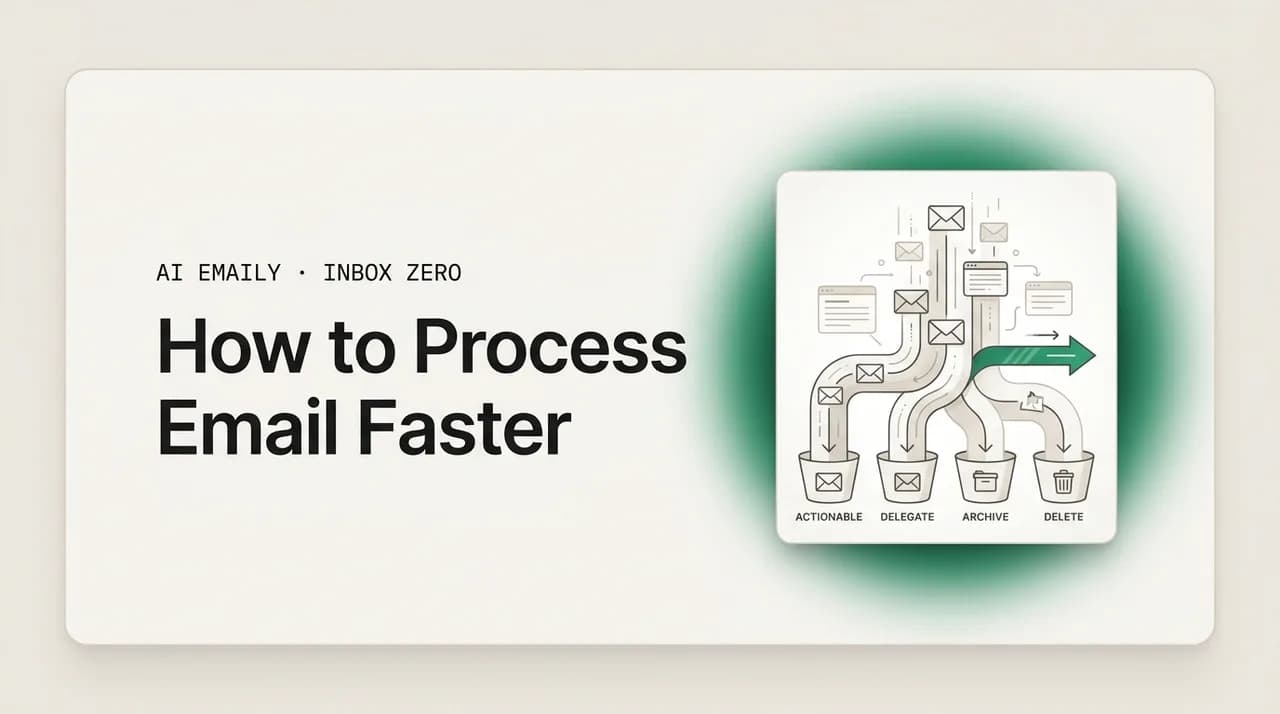
OHIO tells you to handle each message once, but not how to decide what handling it means, and without a decision framework, only handle it once is impossible to follow, because the thing that tempts you to put a message back is precisely the uncertainty about what to do with it. You open a message, you are not sure whether to answer it, file it, or pass it on, the uncertainty feels like work, and so you defer the whole question by closing the message, the null touch OHIO forbids. The fix is to remove the uncertainty by pre-deciding the menu. The cleanest menu, and the one that pairs perfectly with OHIO, is the four D's: every message you open gets exactly one of four fates, delete, do, delegate, or defer, and you assign it fast and move on. Because the options are fixed and few, the decision stops being open-ended and becomes a quick sort, which is what makes handling-once feasible at speed.
You test the four D's in a deliberate order, cheapest first, because most messages resolve at the first or second test and you want the slow decisions made against the shortest possible list. Delete comes first because the fastest message to handle is the one that needs no action at all, and a large share of any inbox, in many descriptions roughly half, is exactly that: receipts, notifications, newsletters, FYIs, automated alerts, things you read or skim and then clear in a single keystroke. Getting that bulk out of the way first means every later, slower decision is made against a much shorter inbox. Do comes second, and this is the two-minute rule's slot: if a message needs action and that action is quick, under roughly two minutes, you do it now, on the spot, because finishing it costs less than the overhead of recording it and coming back. Delegate comes third: if a message needs action but not from you, you forward or reassign it to the right person, which is itself usually a sub-two-minute act, and add a light reminder to follow up so the handoff does not vanish. Defer comes last, the catch-all for everything that needs you and needs more than two minutes: it goes onto a task list, a calendar slot, or a dedicated reply block, with enough of a note that future-you can pick it up without reloading the context from scratch.
What makes this fast rather than fussy is that the tests are ordered and cheap, so you are not weighing a rich set of possibilities, you are running a four-rung ladder and stopping at the first rung that fits. Can I delete or file it? Often yes, done in a keystroke. No, can I finish it in two minutes? Done now. No, should someone else own it? Delegated, done. No, then deferred, with a note, done. The entire decision for a typical message is a couple of seconds, and the discipline is the same one OHIO demands: you must land on one of the four and act, not hover. A message that has been decided, even decided to be deferred, has left limbo and will not cost you again; a message you keep half-deciding is the one that gets touched six times. The four D's are, in effect, the operational form of OHIO, the set of allowed settled states a single touch can produce.
Two of the four rungs are the ones people abuse, and a fast system stays honest about both. Delete is for what genuinely needs no action; using it to dodge mail you do not want to deal with is how you miss things, so file or archive rather than delete when there is any chance you will need it, and let search be your safety net so clearing never feels risky. Defer is the more dangerous one, the respectable-looking version of the null touch: deferring a message you could finish now, because deciding feels like effort, is the re-handling tax wearing a nicer name, and the single most common way the four D's quietly fail. The guardrail is the two-minute test, if it is quick, you are not allowed to defer it, you do it. Defer is reserved strictly for what needs more than two minutes, and even then it comes with a concrete plan, a time and a note, not a vague someday, or it just rejoins the pile.
The two-minute cap on the do rung is what keeps a processing session from collapsing into a work session. Without it, you would start a careful ten-minute reply in the middle of clearing your inbox, lose the rhythm of the sweep, and surface twenty minutes later having processed one message and left forty untouched. The cap forces heavy replies into defer, where they belong, so the session stays a fast triage rather than a grind. The four D's, OHIO, and the two-minute rule are three views of one idea: handle each message once, give it one of four definite fates, and keep do small enough that the pass stays fast. The table below lays out the four rungs, what triggers each, how fast each is, and roughly how often each fires, so the ladder becomes a reflex rather than something you reason through.
| The D | Question that triggers it | How fast | Roughly how often |
|---|---|---|---|
| Delete / file | Does this need any action from me? No, receipts, FYIs, newsletters, alerts. | A keystroke; test this first to shorten the list | About half of a typical inbox |
| Do | Does it need action I can fully finish in under two minutes? | Under two minutes, done now, sent, and gone | A large share of what remains |
| Delegate | Does it need action, but from someone other than me? | Usually under two minutes to forward plus a follow-up note | A modest slice, more for managers |
| Defer | Does it need me and more than two minutes of real thought? | Seconds to file onto a list or block, with a note for later | The smallest group, the heavy replies |
Defer is where fast systems quietly die
Which keyboard shortcuts actually save you hours on email?#
Once you have a decision framework, the next source of speed is purely mechanical, and it is the one people most consistently overlook because it feels too small to matter: the trip to the mouse. Every time you decide a message's fate and then reach for the mouse, move the cursor across the screen, find the archive button, click it, and bring your hand back to the keyboard, you spend a second or two and, more importantly, you break your flow. A second or two is nothing on one message. Across a hundred and forty messages, twice or three times a day, every working day, it is a startling amount of time, and the flow-breaking is worse than the seconds, because each reach for the mouse is a small context switch that pulls you out of the rhythm of the sweep. Keyboard shortcuts remove the trip entirely: you decide, you press one key, the action happens, and you are already on the next message with your hands never having left home position. This is the difference between processing email and operating an inbox like an instrument.
The shortcuts that matter for fast processing are a small set, not the full reference card of dozens you will never remember, and they map directly onto the four-D decision you are already making. You need a key to archive or file, a key to delete, a key to reply, keys to move to the next and previous message, and, ideally, a key that combines archiving with advancing so that clearing a message and moving on is a single stroke. Learn those five or six and you can run an entire processing session without touching the mouse, your hand resting on the keyboard, each decision flowing straight into a keystroke. The trick is not to memorize a long list but to enable shortcuts, pick the handful that match your four-D actions, and force yourself to use them for a week even when the mouse feels faster, because the muscle memory forms quickly and then pays out forever.
In Gmail, shortcuts are off by default, and turning them on, in Settings, is the single highest-return five-second change most Gmail users can make. The core set is small and intuitive. Pressing e archives the current conversation. Pressing # deletes it. Pressing r replies, and pressing a replies to all. To move through your inbox, j goes to the older conversation and k to the newer one, so you can walk the list without the mouse. The most powerful single shortcut for processing is the combination of archiving and advancing: with auto-advance enabled, archiving or deleting a message takes you straight to the next one instead of dumping you back at the inbox list, so you can sit on the keyboard and clear message after message, each one a single keystroke followed by the next message appearing, which is as close to flow as email gets. Add c to compose and Ctrl+Enter to send, and you have the entire mechanical vocabulary of a fast Gmail session in about eight keys.
Outlook has its own shortcut system, separate from Gmail's, and the same logic applies: learn the handful that map to your four-D actions and turn off the mouse. The actions are the same, archive, delete, reply, reply all, move to next and previous, and Outlook additionally offers Quick Steps, which let you bind a sequence of actions, move this to a folder and mark it read and flag it for follow-up, to a single click or keystroke, enormously useful for the repetitive multi-step handling that otherwise eats time. The principle holds across every client worth using: the actions you take hundreds of times a day should cost a keystroke, not a mouse trip. The table below lays out the core processing shortcuts in Gmail and their Outlook equivalents so you can pin the handful that matter and start building the muscle memory today.
One honest caveat keeps shortcuts in proportion: they speed up acting on a decision, not the decision itself, and the decision is usually the larger cost. Pressing e to archive is instant; deciding whether to archive is where the real time goes. This is why shortcuts sit third here, after OHIO and the four D's, they are a multiplier on a good system, not a substitute. A person with fast hands and no framework still stalls on every ambiguous message, just with their hands on the keyboard. But a clear four-D reflex plus fast hands is genuinely fast, the decision is quick and the action is free, and the two together let a session move at the pace of thought. Learn the shortcuts as the final mechanical layer on a system that has already made your decisions fast.
| Action | Gmail (shortcuts on) | Outlook | Why it speeds processing |
|---|---|---|---|
| Archive / file | e | Backspace or a Quick Step to a folder | Clears a handled message in one keystroke instead of a mouse trip |
| Delete | # | Delete | Removes no-action mail instantly, the most common single action |
| Reply / reply all | r / a | Ctrl+R / Ctrl+Shift+R | Starts the response without leaving the keyboard |
| Next / previous message | j / k | Down / up arrow in the list | Walks the inbox so you never grab the mouse to navigate |
| Archive and advance | e with auto-advance on | Quick Step bound to move-and-next | Clears and moves on in one stroke, the core of a fast sweep |
| Compose / send | c / Ctrl+Enter | Ctrl+N / Alt+S | Opens and fires a message without touching the send button |
How do templates and snippets kill the time you waste on repeat replies?#
If you keep an honest log of the replies you send over a week, a striking pattern appears: a large fraction of them are not original at all. You write the same scheduling reply, the same we received your request and will get back to you, the same here is the document you asked for, the same polite decline, over and over, slightly reworded each time as though each were a fresh composition. It is not. It is the same handful of messages, retyped from scratch dozens of times a week, and that retyping is one of the largest and most invisible time costs in email, invisible because each instance feels too small to notice and the total is never tallied. The fix is templates, also called snippets or canned responses: prewritten messages you save once and insert in a keystroke, so the repeat replies that make up much of your volume stop being composed and start being summoned.
The case for templates is partly about time and partly about something subtler, the threshold effect. A reply that would take two minutes to write from scratch sits right at the edge of your patience, and edge-of-patience replies are exactly the ones that get deferred, the message you could answer now but don't, because composing it feels like just enough effort to put off, which is how a template-able message becomes a re-handled message and violates OHIO. Drop the cost of that reply from two minutes to five seconds with a template, and it falls decisively below the threshold, you answer it on the spot, every time, without thinking, because there is no longer any effort to defer. Templates therefore do double duty: they save the direct time of retyping, and they rescue a whole category of messages from the defer pile by making them trivially fast to handle once. The repeat replies are often the bulk of an inbox, and converting them from compositions into insertions is one of the highest-leverage changes a heavy email user can make.
Setting up templates is straightforward in every major client, and the right way to build the library is to grow it from your actual sent mail rather than trying to invent it up front. For a week or two, every time you notice yourself writing a reply you have clearly written before, stop and save it as a template instead of just sending it. That way the library assembles itself out of your genuine repeat messages, in your real voice, rather than a set of generic templates you never quite use. In Gmail, the feature is called Templates (formerly Canned Responses), enabled in the advanced settings, after which you can save any draft as a template and insert it into a reply from the compose menu. Gmail caps you at fifty saved templates, which is plenty to start and a limit heavy users eventually outgrow, at which point a dedicated text-expander tool, which inserts saved snippets by typing a short trigger in any application, becomes the upgrade. Outlook offers both Quick Parts and template messages for the same purpose. The mechanism matters less than the habit: capture your repeat replies once, and never type them from scratch again.
The obvious objection to templates is that they make your email sound robotic, and it is a fair worry handled by a simple rule: a template is a starting point, not a finished message. The fast move is to insert the template and then spend five or ten seconds personalizing it, the recipient's name, one specific detail that proves you actually read their message, a closing line that fits the relationship, so that what lands in their inbox reads as a real, considered reply rather than a form letter, while you have skipped ninety percent of the typing. The template carries the structure and the boilerplate, the parts that are identical every time; you supply the small human specifics, the parts that vary. Done this way, templates do not flatten your voice, they free you to spend your attention on the part of the reply that actually needs a human. A good template library is not a set of messages you send unedited; it is a set of seventy-percent-finished drafts that turn a two-minute reply into a ten-second edit.
Templates earn their place in a fast system by supercharging the do rung specifically. A message that would have been a borderline two-minute reply, the kind you are tempted to defer, becomes a clear, instant do the moment a template exists for it, so templates actively shrink your defer pile by promoting messages up into do. Combined with keyboard shortcuts the effect is sharp: you read a repeat-type message, press reply, insert the template, personalize one line, and send, without the mouse and in well under thirty seconds, on a message that otherwise costs two minutes or several touches. That is processing email faster in its most concrete form, and it costs nothing but the discipline to save a reply the first time instead of retyping it the tenth.
Why should you search for emails instead of scrolling to find them?#
There is a habit so common that most people do not register it as a choice: when you need a message, you scroll for it, scanning subject lines, hunting for the one you want, sometimes for thirty seconds, sometimes for two full minutes, occasionally giving up and re-deriving the information some other way. Multiply that by the dozens of times a day you go looking for something in your mail, and scrolling-to-find quietly becomes one of the larger time sinks in your email life, all of it invisible because no single hunt feels expensive. The faster habit is the opposite reflex: when you need a message, you search for it, you type a sender, a keyword, a date range into the search box and the message appears in a second, no scanning, no scrolling, no giving up. Search instead of scroll is a small change in reflex with a large change in cumulative time.
The case for search rests on a fact about how email storage actually works, which is that your inbox is a database, and databases are built to be queried, not browsed. Scrolling treats your mail as a physical pile you have to dig through; searching treats it as what it is, an indexed store that can return any message instantly if you ask it the right question. Modern email search is fast and precise when you use it deliberately, you can filter by sender, by recipient, by words in the subject or body, by date range, by whether it has an attachment, by which label or folder it lives in, and combining two or three of those narrows thousands of messages to the one you want almost instantly. The reason people scroll instead is not that search is worse; it is that they never learned to phrase the query, so they fall back on the manual hunt out of habit. Learning even a handful of search operators, from:someone, subject:keyword, has:attachment, a date range, converts the manual hunt into a one-line question, and the time difference between the two is the difference between a couple of minutes and a couple of seconds. Gmail's set is the best documented of the lot, and knowing how to use Gmail search operators transfers most of the way to Outlook's equivalents.
Search does something more valuable than just saving the time of any single hunt, though, and this is the part that ties it back to fast processing: it makes aggressive clearing safe, which is what lets the whole four-D system run at speed. The reason people hesitate to delete, archive, and file mail quickly, the hesitation that slows processing and bloats the inbox, is the fear that they will need something later and will not be able to find it, so they leave messages in the inbox as a kind of insurance, where they pile up and have to be re-scanned forever. Strong search dissolves that fear. If you know with confidence that any message, once archived or filed, can be retrieved in seconds with a search, then there is no reason to keep anything in the inbox for safekeeping, you can clear ruthlessly, archive everything handled, file aggressively, and trust the search to be your safety net. Search is therefore not merely a retrieval tool; it is the thing that gives you permission to process fast, because OHIO and the four D's only work if clearing a message feels free, and clearing only feels free when you trust you can find it again.
This is also why search beats elaborate folder systems for most people, despite so much email advice pushing toward intricate filing hierarchies. Filing every message into a carefully chosen folder is slow at processing time, you decide which folder, navigate to it, and drop it in, exactly the per-message decision that breaks a fast sweep. Search makes most of that filing unnecessary: if you can find anything by querying for it, you can archive into one big store and retrieve by search, which is far faster. The fast pattern is to file lightly, a few broad folders for the categories you genuinely browse, and rely on search for everything else. Search, in other words, is the component that makes the others safe to run hard: OHIO and the four D's only work if clearing a message feels free, and clearing only feels free when you trust you can find it again, so the fast email user clears the inbox completely and constantly, trusting search to surface anything they ever need, and almost never scrolls. Less filing, more finding, is almost always faster.
- Your inbox is a database, built to be queried, not a pile to be dug through; search treats it as what it is.
- Learn a few operators, from:, subject:, has:attachment, a date range, and any message is a one-line question, not a two-minute hunt.
- Search makes aggressive clearing safe, which is what lets OHIO and the four D's run at speed, you can delete and archive without fear of losing things.
- Search beats deep folder trees: filing every message is a slow per-message decision, finding by query is not, so file lightly and search for the rest.
- The fast pattern: clear the inbox completely and constantly, trust search to retrieve anything, and almost never scroll.
What does a single-pass processing routine look like, step by step?#
Every technique so far, OHIO, the four D's, shortcuts, templates, search, is a component, and the routine that assembles them is the thing that actually makes you fast: a single-pass sweep of the inbox, run in a fixed block, in which each message is touched exactly once and given a definite fate before you move on. Single-pass is the whole game. The slow way to do email is multi-pass, you skim the inbox once to see what is there, go back and read a few, go back again and answer one or two, drift away, return and re-read what you have already read, and never quite finish, so that the same messages are handled three and four times across a fragmented hour. The fast way is one pass: you start at the top, you handle each message completely, decided and acted on, and you do not move to the next until the current one has left your inbox or been deliberately deferred, so that when you reach the bottom, you are done, and nothing has been touched twice. The routine below is OHIO scaled to the whole inbox, with the four D's as the decision and shortcuts, templates, and search as the tools.
The first step is to set the boundary, because a single-pass routine only works if it runs in a dedicated block rather than continuously. Decide in advance that you process email at set times, two or three a day is plenty for most people, mid-morning, after lunch, late afternoon, and that between those times new mail arrives and waits, notifications off, the tab closed. This is the batching principle, and it is the fence that makes everything else possible: a single-pass sweep is impossible if you are dipping into your inbox every ten minutes all day, because each dip is a partial pass that re-reads and re-defers, the exact multi-pass waste single-pass exists to kill. You cannot process once if you visit twenty times. So the routine begins not with the inbox but with the calendar: block the processing times, kill the notifications, and only inside those blocks do you open the inbox at all.
Inside the block, you go top to bottom and run the four-D ladder on each message in turn, acting with the keyboard and never with the mouse, deciding and acting in the same motion so no message sits read-but-undecided. Clear the no-action mail with archive or delete, do the quick ones now with a template where one fits, delegate what belongs to others with a forward and a note, and defer what needs more than two minutes by filing it with a real note, then move on. You are sorting, not composing; the heavy replies get written later, in the dedicated block the deferred mail points to, never mid-sweep, because composing a heavy reply mid-pass is the one thing that breaks the single pass and turns it back into a grind.
The single most important rule of the routine is the one that defines single-pass, and it deserves to be stated on its own: never close a message in the same state you opened it. Every message you touch must end in a more settled state than it began, replied and archived, deleted, delegated and noted, or deferred with a concrete plan, never read-and-left. This is OHIO operationalized as a sweep rule, and it is what guarantees you never have to come back. The temptation, always, is the soft skip, you open a message, it needs a bit of thought, and you think I'll come back to this and move on without deciding, which is the null touch, and a single null touch is the seed of the multi-pass return. If the message is quick, you finish it; if it is not, you defer it with a plan; but you do not leave it as you found it. Hold that one rule and the pass stays single; break it even occasionally and the pass becomes the slow drift it was meant to replace.
You end the pass at the bottom of the inbox, and the state you end in is the point of the whole exercise: a processed inbox, not merely an empty one. Every message has been decided, the no-action mail gone, the quick ones handled, the delegated ones handed off, and a short list of deferred heavy replies parked with notes for the focused block where you will finish them. That is far better than an inbox that merely looks clean because you skimmed it and left the hard messages unread, because a processed inbox has no open loops, nothing that will cost you a second touch. Then you close the inbox until the next block. Run this two or three times a day and the effect compounds: each message is read once, decided once, and acted on once, the multi-pass waste gone entirely, and an inbox that used to eat a fragmented two hours of re-reading collapses into two or three fast, fenced sweeps. The steps below lay out the routine so you can run it tomorrow.
- 1
Block the time and kill notifications
Decide email happens at two or three set times a day, with notifications off and the inbox closed in between. A single pass is impossible if you dip into your inbox all day; batching is the fence that makes the sweep work.
- 2
Go top to bottom, one message at a time
Start at the top and take each message in turn. Do not skim the whole inbox first; that starts a multi-pass. You handle the first message completely before you look at the second.
- 3
Run the four-D ladder on each, with the keyboard
Delete or file no-action mail, do the quick ones now (with a template where it fits), delegate what belongs to others, defer the heavy ones with a note. Act in a keystroke, never the mouse.
- 4
Never close a message in the state you opened it
Every touch must end more settled than it began, replied, deleted, delegated, or deferred with a real plan, never read-and-left. The soft skip is the null touch that seeds a second pass. Forbid it.
- 5
Don't write heavy replies mid-sweep
When a message needs more than two minutes, defer it with a note and move on. Composing it now breaks the pass. The heavy replies get written later, in the dedicated block the deferred list points to.
- 6
End at a processed inbox, then close it
Reach the bottom with every message decided, no open loops, a short list of deferred replies parked for a focused block. That is a processed inbox, not just an empty one. Close the tab until the next session.
The soft skip is what turns one pass into four
How does AI Emaily make processing each email nearly instant?#
Everything above is the manual system, and it genuinely works, but look honestly at what it asks of you: to be the engine that, for every message in a high-volume inbox, recognizes what kind of message it is, runs the four-D decision, finds or writes the reply, and executes it, hundreds of times a day, across every batched session. The system removes the friction around each message, but it cannot remove the message, you still have to read each one, judge it, and produce the response. This is exactly the layer AI Emaily collapses. AI Emaily is an AI-native email client, your mail lives inside it, and it is built so that the two slowest parts of fast processing, the recognition-and-decision and the writing, are largely done for you or done in seconds, which turns the whole routine from a discipline you grind out into one quick decision per message, with the AI doing the rest under your approval.
Start with triage, because it attacks the part of the routine that costs the most and the part the four D's run by hand: the constant snap judgment about what each message is and what it needs. AI Emaily's triage reads every incoming message before you start a session and sorts it into decision-ready groups, it tells the quick actionable mail from the heavy mail, separates what needs you from what merely informs you, surfaces the messages that genuinely need a reply, and clears the noise, the receipts, newsletters, and alerts, out of the way. That is the four-D classification, automated up to the point of action: the delete rung handled by sorting the no-action bulk aside, the do-versus-defer split surfaced so you see at a glance which messages are quick wins and which need a real block, the delegate candidates flagged. Instead of arriving at a flat chronological pile and classifying it message by message, you arrive at a pre-triaged inbox where the work is already grouped, so the routine's most expensive step, the one you currently run two hundred times a session, is largely made for you, and each email becomes a single decision, confirm and act, rather than a fresh act of recognition.
Then the writing, which is the other slow half. AI Emaily drafts replies for you from a short instruction, and the fastest version of that is voice: you read a message, you say what you want to say in a sentence, confirm Tuesday works, ask for the invoice number, decline politely and suggest next quarter, and the AI turns your spoken intent into a complete, properly worded reply in your tone, ready to review and send. A two-minute reply becomes a ten-second one, and the part that stays yours is exactly the part a human should keep, glancing at the draft and approving it. This is the same win templates give you for repeat replies, generalized to every reply, including the one-off messages no template could cover, because the AI composes from your intent rather than from a saved canned response. For the do rung of a high-volume inbox, voice drafting plus AI triage is the difference between typing two hundred words two hundred times and speaking a sentence, confirming a draft, and moving on.
The actions themselves, the four-D fates, can then be carried out by the agent rather than by your hand, which is what makes the single-pass routine nearly automatic. AI Emaily can do, defer, delegate, and clear under your direction: draft and send the quick reply from your voice instruction, archive or file the no-action mail, forward what belongs to someone else, or schedule the heavy reply into a later block. Because it is an agent rather than a passive assistant, the same understanding that triaged a message can act on it, so the routine this guide describes becomes something the software helps execute rather than something you sweep through alone. And the part a human must never give up is preserved exactly: nothing is sent without you, every action can be undone, and there is an audit trail, so the decision stays yours while the labor of executing it, the typing, the filing, the forwarding, is lifted.
Two facts make this different from bolting a chatbot onto your inbox. First, it works across every provider, Gmail, Outlook, iCloud, Fastmail, Proton, and IMAP, so the same triage and voice drafting cover all your accounts at once, with no copy-paste loop and no second app, which matters because a high-volume routine only survives if it covers everywhere your mail lives, and most heavy users have mail in more than one place. Second, it is private by default: triage and drafting happen grounded in your own mail, and your email is never used to train models, so you get comprehension-grade help without routing your correspondence through a consumer chatbot, the privacy cost that makes most people hesitate to let AI touch their mail at all.
The plans are simple and the entry point is free. The Free plan is $0 and includes AI triage and AI drafting, so you can put real processing speed, a pre-sorted inbox and voice-fast replies, on your actual mail without paying anything, and feel the difference in your very next session. Pro is $12.42 per month billed annually and adds the deeper automation: custom rules so your triage and processing logic run on their own, and the full agent that can carry out the four-D actions at scale with your approval, an undo, and an audit trail. If the reason your inbox is slow is that you are personally classifying and composing every one of hundreds of messages, the version where they arrive pre-triaged into decision-ready groups and your replies are a spoken sentence away is a couple of minutes from running on your inbox at app.aiemaily.com/signup.
- AI triage: every message is pre-sorted into decision-ready groups before your session, automating the four-D classification up to the point of action.
- Voice drafting: say a sentence, the AI writes the full reply in your tone, turning a two-minute reply into a ten-second one, on every message, not just templated ones.
- Smart search: find any message with a plain-language query instead of scrolling, so aggressive clearing stays safe.
- Four-D actions by the agent: do, defer, delegate, and clear carried out under your direction, executing the decision rather than just showing it.
- Human approval kept: nothing sends without you, every action is undoable, and there is an audit trail, so the decision stays yours.
- Every provider: Gmail, Outlook, iCloud, Fastmail, Proton, and IMAP, one fast routine over all your accounts, no copy-paste, no second app.
- Private by default: triage and drafting are grounded in your mail, which is never used to train models.
- Free is $0 with AI triage and drafting; Pro is $12.42/mo billed annually for rules and the full agent at scale.
Processing speed without the disclosure cost
So how do you actually process email faster?#
If you take one thing from this guide, take this: processing email faster is a system, not a sprint. The speed you are looking for does not come from reading or typing faster, ceilings you have already hit, but from removing the friction that surrounds each message, the re-handling, the indecision, the mouse trips, the retyped paragraphs, the scrolling, all of which are mechanical and therefore fixable. You build the system from named parts that lock together: OHIO as the foundation, handle each message once and never leave it as you found it; the four D's as the decision that makes handling-once fast, delete, do, delegate, defer, tested in order; keyboard shortcuts as the mechanical layer that makes acting free; templates as the way to turn repeat replies from compositions into insertions; and search as the safety net that lets you clear ruthlessly because you can always find anything again. None is dramatic alone. Assembled, they are the difference between an inbox you process and an inbox that processes you.
The routine that runs them is the single pass: at a set time, in a fenced block, with notifications off, you give each message one definite fate before you move on, never closing a message in the state you opened it, never writing heavy replies mid-sweep, ending at a processed inbox with no open loops. That single rule, never leave a message as you found it, is the whole discipline of fast processing in one sentence, because the slow way is the multi-pass drift of reading without deciding, and the fast way is the disciplined one-touch sweep. Master the single pass and you have mastered processing email faster; the techniques are just tools that make each touch cheap enough that one is all you need.
AI Emaily is what makes the well-built version nearly effortless, because it attacks the two parts the manual system cannot remove, the labor of recognizing and deciding each message, and the labor of writing each reply. It pre-triages your inbox into decision-ready groups so the four-D classification is largely done before you start, it drafts your replies from a spoken sentence so a two-minute reply takes ten seconds, it lets you find anything by query instead of scrolling, and it can carry out the four-D actions under your approval, across every provider, private by default, with your mail never used to train models. The Free plan puts that on your real inbox for $0, so the cost of finding out whether your inbox stops processing you is nothing but the couple of minutes it takes to connect an account. If you are tired of touching the same hundred and forty messages four times each, the inbox where they arrive pre-sorted and a sentence away from sent is waiting at app.aiemaily.com/signup.
Build the system, then let AI run it
Frequently asked
See it in AI Emaily
Keep reading
Sources

Written by
Nafiul HasanNafiul Hasan is an entrepreneur and AI automation system builder with 10+ years of experience turning messy, manual workflows into reliable automated systems. He designs and ships AI enterprise solutions end-to-end — the agent logic, the data plumbing, and the product people actually use — and founded AI Emaily to give busy professionals their attention back. He writes here from the builder's seat: what works, what breaks, and how to put AI to work without giving up control.