How to add an email signature in Gmail

The short answer
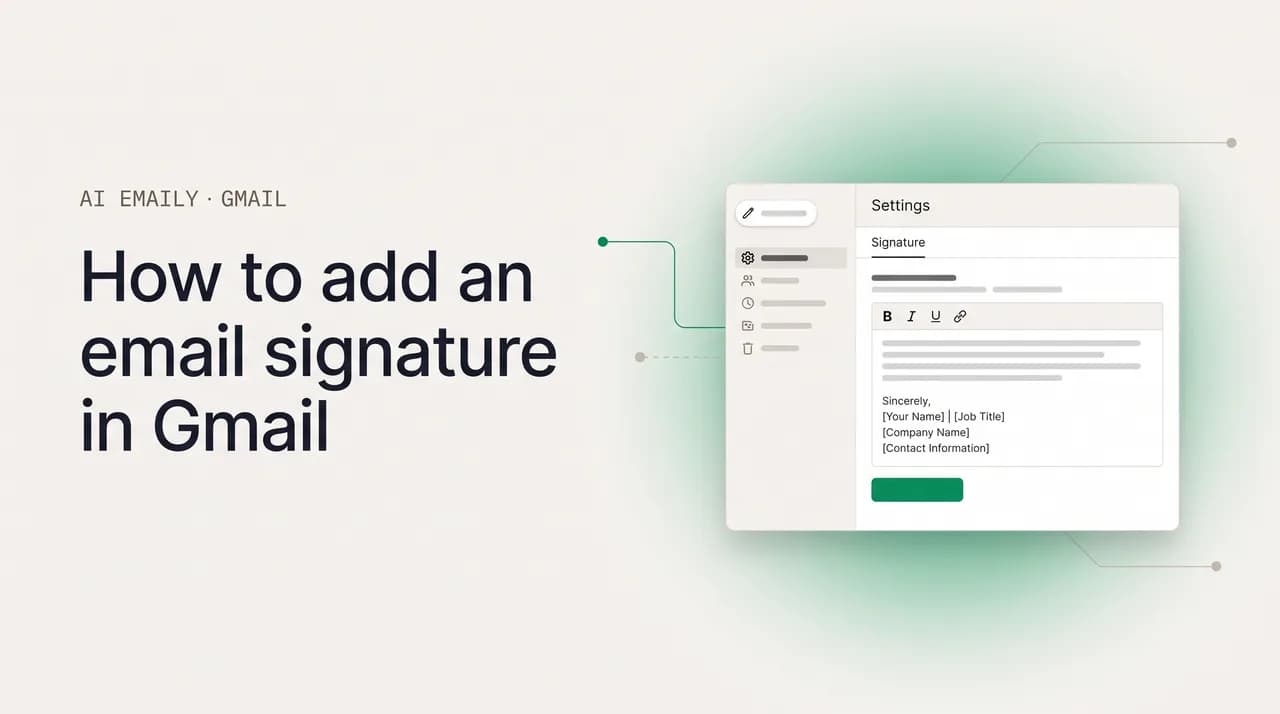
To add a signature in Gmail, open Settings, then See all settings, scroll to the Signature section under the General tab, click Create new, name it, type your sign-off, and set it as the default for new emails and replies. Save changes at the bottom. Mobile signatures are separate and plain text.
How to add a signature in Gmail step by step: create one, set defaults for new mail and replies, manage multiple signatures, and fix common signature problems.
On this page
- 01What is a Gmail signature, and why set one up?
- 02How do you create a signature in Gmail on desktop?
- 03How do you format a Gmail signature with links, bold text, and an image?
- 04How do you set up multiple signatures and choose the defaults?
- 05How do you assign a different signature to each send-from address?
- 06How do you set up a signature on the Gmail mobile app?
- 07What should you put in a professional email signature?
- 08Why is my Gmail signature not showing up?
- 09Why does my email show two signatures, and how do I fix it?
- 10How does AI Emaily handle signatures across every account?
- 11Putting it all together
What is a Gmail signature, and why set one up?#
A Gmail signature is the block of text and images that Gmail automatically adds to the bottom of the emails you send. It usually carries your name, your job title, the company you work for, and a way to reach you outside of email, such as a phone number, a website, or a couple of social links. You write it once, store it in your settings, and from then on Gmail pastes it onto every message so you never have to retype your contact details by hand.
It sounds like a small piece of housekeeping, and on the surface it is. But a signature does real work on every single email you send. It tells a new contact exactly who you are and how to reach you without making them dig through the thread or look you up. It gives a recipient a clean, predictable place to find your phone number when they suddenly need to call you. And on a quieter level it signals competence: an email that ends with a tidy, consistent sign-off reads as more deliberate and more trustworthy than one that just stops after the last sentence.
The reverse is true too. No signature, or a sloppy one, costs you small amounts of credibility and convenience over and over. A client who wants to call you has to email back and ask for your number. A recruiter cannot tell at a glance which company you are with. A new partner has no website to click through to. None of these are disasters on their own, but they add friction to every introduction, and they add up across the hundreds of emails you send each month.
Gmail's signature feature has grown well past a single line of text. You can create more than one signature and switch between them per message. You can set one signature to appear automatically on brand-new emails and a different one (or none at all) on replies and forwards. If you send from more than one address in the same account, you can assign a different signature to each sending identity. And you can format the whole thing with bold text, links, colors, and an image such as a logo or headshot.
There is one important split to understand before you start, because it trips up almost everyone. The signature you build on the Gmail website, in a desktop browser, is governed by your account settings and is fully formatted. The signature on the Gmail mobile app is a completely separate setting that lives on your phone, and on most setups it is plain text only. Setting one does not set the other. We will cover both, and we will show you how to keep them from fighting each other so you do not end up with two signatures stacked on one email.
This guide walks through the whole thing in order: creating your first signature on desktop, formatting it with links and an image, building multiple signatures and choosing your defaults, assigning signatures to different send-from addresses, setting up the separate mobile signature on Android and iPhone, deciding what to actually put in a professional signature (with a comparison table and examples), and fixing the handful of problems that send people searching, chiefly a signature that will not show up and the dreaded double signature. At the end we look at how an AI email client handles signatures across every account so you stop managing them by hand.
How do you create a signature in Gmail on desktop?#
The desktop web version of Gmail is where you build your real, formatted signature, so start here even if you mostly read email on your phone. The whole flow lives in one settings panel, and it takes about two minutes once you know where it is. Open Gmail in a browser on a computer (the signature editor is not available the same way in the mobile app), and follow the steps below exactly. The single most common reason a signature never appears is skipping the very last step, so do not stop until you have saved.
- 1
Open Gmail settings
In Gmail on the web, click the gear icon in the top-right corner. A quick-settings panel slides out. At the top of it, click "See all settings" to open the full settings page. The quick panel alone does not contain the signature editor; you need the full page.
- 2
Find the Signature section in the General tab
The full settings page opens on the "General" tab by default. Scroll down past the language, density, and theme options until you reach the section labeled "Signature." If you have never made one, it will say "No signatures" with a "Create new" button.
- 3
Click Create new and name your signature
Click "Create new." Gmail asks you to name the signature, for example "Main" or "Work" or "Personal." This name is private; recipients never see it. It only helps you tell signatures apart later. Type a name and click "Create."
- 4
Type your signature in the editor box
A text box appears to the right of the signature name. Type what you want to appear at the bottom of your emails: your name on the first line, then your title and company, then your contact details. Use real line breaks (press Enter) to stack the lines the way you want them read.
- 5
Set the signature defaults
Just below the editor are two dropdowns under "Signature defaults," labeled "For new emails use" and "On reply/forward use." Pick your new signature in the first dropdown so it appears on fresh messages. Choose it (or "No signature") in the second dropdown for replies. We unpack this choice in detail below.
- 6
Save changes at the bottom of the page
Scroll all the way to the bottom of the settings page and click "Save Changes." This is the step everyone forgets. Gmail does not auto-save the signature page, so if you navigate away without clicking this button, your signature is gone and you will think the feature is broken.
Once you have saved, test it immediately. Click "Compose" to open a new message and confirm your signature appears at the bottom of the blank email. If it does, you are done with the basics. If it does not, jump to the troubleshooting section near the end of this guide; the fix is almost always a setting you missed, not a real malfunction.
A note on where the signature lands in a reply. By default, Gmail places your signature below the quoted text of the message you are replying to, which can push it far down the email under a long history. If you would rather have your signature appear directly under what you just typed, look for the checkbox labeled "Insert this signature before quoted text in replies and remove the "--" line that precedes it." Tick it, and your sign-off sits right after your new words instead of at the very bottom of the thread. The same checkbox removes the two-dash separator line that Gmail otherwise adds, which most people prefer to hide.
Build it on desktop, not your phone
How do you format a Gmail signature with links, bold text, and an image?#
A plain block of text works, but a little formatting makes a signature easier to scan and more professional. The signature editor on desktop is a small rich-text toolbar that sits just above the editing box. It gives you the essentials: bold, italic, underline, text color, font, a link button, and an image button. You do not need to know any HTML; you style the text the same way you would in a word processor, by selecting it and clicking a button.
Start with hierarchy. Most well-built signatures make the name slightly more prominent than everything below it. Select your name and click bold, or bump its size up one step using the font-size control (the small and large "A" icons). Keep the rest of the lines at the default size in a neutral color. The goal is for the eye to land on your name first and then drift down to the details, not to turn the whole block into a billboard.
- 1
Add a clickable link
Select the text you want to turn into a link, for example your website address or the words "Book a call." Click the link button (a chain-link icon) in the signature toolbar. Paste the full URL, including https://, into the web-address field and confirm. The selected text becomes a clickable link in every email.
- 2
Bold and color key lines
Highlight your name and click the bold button. To add a touch of brand color, select a line, click the text-color button (the "A" with a colored bar), and choose a color. Use color sparingly; one accent color on your name or company is plenty. Too many colors read as noise.
- 3
Insert an image or logo
Place your cursor where you want the image, then click the image button (a small picture icon) in the toolbar. You can insert from a URL or from your Google Drive or Google Photos. Choose your logo or headshot, insert it, then click the image once in the editor to resize it using the small, medium, large, or original options.
- 4
Turn the image into a clickable logo
After inserting an image, click it once to select it, then click the link button and paste your website URL. Now the logo itself is clickable, so a recipient can tap your company mark to land on your site. This is a common, polished touch for brand signatures.
Two things to know about images, because they cause the most signature headaches. First, the image has to be hosted somewhere Gmail can reach over a secure (HTTPS) connection. When you insert from Google Drive or Google Photos, Gmail handles the hosting for you, which is why those options are the safest. An image pasted from a non-secure or local source often shows for you but appears as a broken box to the people you email. Second, keep it small. A logo around 100 to 300 pixels wide and well under 100 KB looks crisp without bloating every message or getting clipped on a phone screen.
Resist the urge to over-build. The most effective signatures are restrained: name, title, company, one phone number, one link, maybe a small logo. Each extra line, banner, social icon, and inspirational quote you add is one more thing the reader has to wade through to find what they actually need, which is usually your phone number or your name. If you want the deep version of the image workflow, including resizing, hyperlinking, and the most common image problems, we cover it in detail in our companion guide on adding an image to your Gmail signature.
Host images where Gmail trusts them
How do you set up multiple signatures and choose the defaults?#
Gmail lets you store several signatures and switch between them, which is genuinely useful once you notice how often you wear different hats in email. You might want a full, formal signature with your title and logo for outreach to new clients, a stripped-down two-line version for quick internal replies, and a personal one with no company branding for messages to friends. Rather than copy-pasting these from a notes app, you build each one once and let Gmail hold them.
Creating additional signatures uses the same panel as your first. Go back to Settings, then See all settings, then the Signature section under General. Below your existing signature you will see the "Create new" button again. Click it, give the new signature its own name ("Internal," "Personal," "Sales"), write and format it, and it joins the list. There is no separate menu; every signature lives in this one section, each with its own name and editing box. To edit any of them later, click its name, change the text, and save. To delete one, hover over its name in the list and click the trash icon.
- 1
Open the Signature section again
Settings, then See all settings, then scroll to Signature under the General tab. Your existing signatures are listed here, each with its own editing box.
- 2
Create each additional signature
Click "Create new," name the signature so you can tell it apart from the others, then write and format it in its box. Repeat for as many as you need. Each one is stored independently under its own name.
- 3
Choose your default for new emails
Under "Signature defaults," use the "For new emails use" dropdown to pick which signature Gmail attaches automatically when you start a fresh message. This is the one that goes out most, so make it your main, complete signature.
- 4
Choose your default for replies and forwards
Use the "On reply/forward use" dropdown to pick a different signature for replies, or select "No signature" so replies stay clean. Many people set a full signature on new emails and a short one (or none) on replies, because a thread does not need your full contact block repeated on every back-and-forth.
- 5
Save, then switch per message when needed
Save changes. From then on, to use a non-default signature on a specific email, open a compose window, click the pen-with-three-dots "Insert signature" icon in the bottom toolbar, and pick the signature you want for that message.
The defaults are the part worth getting right, because they decide what happens automatically while the per-message switcher is only for exceptions. The "For new emails" default is what lands on every message you start, so it should be your most complete, polished signature. The "On reply/forward" default is more of a judgment call. Setting it to a short signature keeps long threads from collecting a wall of repeated contact blocks, where your full name, title, company, phone, and logo appear over and over down the chain. Setting it to "No signature" goes a step further and keeps replies completely clean, which many people prefer for ongoing internal conversations.
To switch signatures on a single message without changing your defaults, compose or reply as normal, then click the "Insert signature" icon at the bottom of the compose window. It looks like a pen with a few dots and sits among the other formatting controls. Hover over it and your saved signatures appear as a list; click the one you want. Gmail swaps the current signature for the one you picked, just for this message. Your defaults stay exactly as they were for the next email.
A common, low-friction setup
How do you assign a different signature to each send-from address?#
If your Gmail account can send from more than one address, you can give each address its own signature, and Gmail will pick the right one based on which identity a message goes out from. This matters for anyone who runs, say, a personal Gmail plus a custom-domain work address through the same inbox, or who handles both a support@ and a hello@ alias for a small business. You want "Jane Doe, Founder" on outbound from your business address and just "Jane" on your personal one, without thinking about it each time.
The thing to understand is that send-from addresses are different from labels or filters. A send-from address is a sending identity you have added to your account under Settings, then Accounts and Import, in the "Send mail as" section. Once you have more than one address there, the Signature section gains a small address picker at the top, so each signature you create can be tied to a specific sending address. Gmail then applies the matching signature automatically whenever you compose from that address.
- 1
Confirm your extra address is added
Go to Settings, then See all settings, then the "Accounts and Import" tab. In the "Send mail as" section, make sure each address you want to send from is listed and verified. If an address is not here yet, add it with "Add another email address" and complete the verification email Gmail sends.
- 2
Open the Signature section
Return to the "General" tab and scroll to Signature. Because you now have more than one sending address, a dropdown appears at the top of this section letting you choose which address you are editing signatures for.
- 3
Select the address, then create its signature
Pick the sending address from that top dropdown, then click "Create new" and build the signature you want for that identity. Set its defaults for new emails and replies. Repeat for each address, choosing the address first and then assigning the right signature.
- 4
Save and test from each identity
Save changes. Then compose a new email and use the "From" dropdown in the compose window to switch sending addresses. Watch the signature change to match the address you selected. That confirms each identity is wired to the correct signature.
Once this is set, the behavior is automatic and quiet: choose a "From" address in any compose window and the matching signature drops in. If you only ever see one signature regardless of the address, it usually means the extra address is not actually added under "Send mail as," so the per-address picker never appears in the Signature section. Add and verify the address first, then come back and assign its signature.
This per-identity behavior is one of the clearest places where managing signatures by hand starts to strain. It works, but it is fiddly: you are juggling sending identities, separate signatures, and separate defaults inside one account, and the whole thing only covers addresses inside that single Gmail account. The moment you add a second mailbox, on Outlook, on a work domain, or another Gmail, none of this carries over, and you are back to rebuilding signatures from scratch in a different settings panel. We come back to that problem near the end.
How do you set up a signature on the Gmail mobile app?#
Here is the part that confuses almost everyone: the Gmail mobile app has its own signature, and it is completely separate from the one you built on the web. Setting a signature on desktop does not automatically put it on your phone, and the mobile signature is, on most setups, plain text only, no bold, no links, no logo. It lives in the app's settings on that specific device. If you want a sign-off on emails you send from your phone, you have to set it there, and you have to decide whether you want it to differ from your desktop one or stay out of the way entirely.
There is also a behavior difference between the two mobile platforms worth knowing before you start. On iPhone, if you leave the in-app "Mobile signature" switched off, the Gmail app will fall back to the formatted signature from your web account and apply that instead. On Android, the app has historically not pulled your web signature automatically the same way, so if you want any signature on Android-sent mail you generally set the mobile signature in the app. Newer versions of the Android app have improved how they handle synced HTML signatures, but the safe mental model is: the mobile signature is a per-device, plain-text setting you control in the app.
Open the Gmail app on your Android phone or tablet. Tap the hamburger menu (the three stacked lines) in the top-left corner, then scroll to the bottom and tap "Settings."
Tap the specific account you want to set a signature for. If you have several accounts in the app, each one has its own mobile signature, so choose carefully.
Tap "Mobile Signature" (sometimes shown under a "Signature settings" entry). Type the signature you want. The Android app treats this as plain text, so keep it to a few simple lines: your name, maybe your title, and a phone number.
Tap "OK" or back out of the screen to save. The change applies only to this account on this device. Compose a test email from the app to confirm it appears.
The practical takeaway is to pick one approach and stick with it so you never send an email with two signatures stacked on top of each other. The cleanest setup for iPhone users is to leave the mobile signature off and let the app use your full web signature, so every email looks the same no matter where you send it from. If you genuinely want a different, shorter signature on the go, for instance "Sent from my phone, will follow up properly later," turn the mobile signature on and keep it to a line or two. On Android, set a short plain-text mobile signature if you want one on phone-sent mail, and accept that it will look simpler than your desktop version.
Whatever you choose, test it from the app after you set it. Send yourself an email from the phone and look at what arrives. If you see your signature twice, one formatted block from the web setting and one plain-text block from the mobile setting, that is the classic double-signature situation, and the fix is to turn one of them off. We cover exactly that in the troubleshooting section.
Mobile is a separate setting and can double up
What should you put in a professional email signature?#
Once the mechanics are sorted, the harder question is what the signature should actually say. The instinct is to cram in everything, every phone number, every social account, a quote, a banner, but the best signatures are the most restrained. The reader is scanning, not studying. They want to know who you are and how to reach you, fast. Every extra element competes for that attention and pushes the useful parts further down. A good rule of thumb: if a line does not help the reader identify you or contact you, it probably does not belong.
The core of a professional signature is four things: your full name, your title and company, one reliable way to reach you beyond email (usually a phone number), and one link (your website or a booking page). From there you can add optional elements depending on your role and industry. Pronouns directly after or below your name are now standard professional practice in many workplaces and signal an inclusive, current sensibility. A small logo or headshot adds brand recognition. A legal disclaimer matters in regulated fields like law, banking, and finance, but is clutter almost everywhere else; do not add one out of habit.
| Element | Include it? | Notes |
|---|---|---|
| Full name | Always | First line, slightly emphasized (bold or one size up) so the eye lands on it first. |
| Job title and company | Almost always | One line: "Product Manager, Acme Co." Tells recipients your role and organization at a glance. |
| Phone number | Usually | One number, the one you actually answer. Avoid listing three numbers; it forces the reader to guess. |
| Website or booking link | Usually | One link. A site, portfolio, or scheduling page. Make it clickable, not raw text. |
| Pronouns | Recommended | After or below your name ("Jane Doe, she/her"). Same font and size as the rest; now standard in many workplaces. |
| Logo or headshot | Optional | Small (roughly 100–300px wide), hosted securely, ideally clickable to your site. Skip if it bloats the email. |
| Social links | Sparingly | Only the one or two that matter for your role (often LinkedIn). Rows of icons read as noise. |
| Legal disclaimer | Only if required | Useful in law, banking, finance, healthcare. Clutter everywhere else; do not add one by default. |
| Quote or tagline | Rarely | Almost always skippable. It adds length and personality but rarely helps the reader do anything. |
To make this concrete, here are three signatures at different levels of formality. A minimal version for everyday internal mail might be just two lines: your name in bold, then your title and company. A standard professional version adds a phone number and a website link below that, and perhaps your pronouns after your name. A full brand version adds a small clickable logo and a single LinkedIn link, all in one accent color, with everything else neutral. Notice how each step adds exactly one layer; none of them turns into a cluttered wall.
The example below shows the standard professional version laid out the way it reads in an email, line by line. Treat it as a skeleton: keep the structure, swap in your own details, and stop adding lines the moment it stops earning its space.
A few finishing principles keep any signature looking sharp. Use one font for the whole block, ideally the same one your email body uses, so the signature does not look pasted in from somewhere else. Use at most one accent color, on your name or company, and keep everything else a neutral dark gray or black. Keep the whole thing to roughly four to six lines of text; if it is taller than the short reply you just wrote, it is too big. And test it by sending yourself a message and viewing it on both a computer and a phone, because a signature that looks balanced on a wide screen can wrap awkwardly on a narrow one.
Why is my Gmail signature not showing up?#
A signature that refuses to appear is the single most common Gmail signature complaint, and the cause is almost never a real bug. It is usually one missed setting. Work through the checklist below in order; one of these is the culprit the overwhelming majority of the time. The very first thing to suspect, every time, is that the settings page was never saved.
- You did not save changes. The signature settings page does not auto-save. If you built a signature and then navigated away without scrolling to the bottom and clicking "Save Changes," nothing was stored. Go back, rebuild or confirm the signature, and click Save.
- No default signature is selected. Creating a signature is not the same as turning it on. Under "Signature defaults," make sure your signature, not "No signature," is chosen in the "For new emails use" dropdown (and the reply dropdown if you want it on replies). If both dropdowns say "No signature," nothing will appear.
- You are checking on mobile, where it is a separate setting. If the signature shows on desktop but not in the phone app, that is expected: the mobile signature is its own setting. Set it in the app, or on iPhone leave the mobile toggle off so the app uses your web signature.
- Plain text mode is on in the composer. If the compose window is in plain text mode, Gmail will not insert a formatted signature. Open a new message, click the three-dot "More options" menu at the bottom, and make sure "Plain text mode" is unchecked.
- The wrong send-from address is selected. If you assigned signatures per sending address, composing from an address with no signature (or a different one) will show the wrong result. Check the "From" field in the compose window and confirm it matches the address you set the signature on.
- Browser cache or an extension is interfering. A stale browser cache, or a signature-management extension you installed earlier, can suppress or override the built-in signature. Clear your browser cache and cookies, reload Gmail, and disable any signature-related extensions to test.
If you have an image in your signature and the text shows but the image is a broken box for your recipients, that is a hosting problem, not a settings problem. Gmail will not display images served from insecure or local sources to the people you email. Re-insert the image from Google Drive or Google Photos so Gmail serves it over a secure connection. We go deep on image-specific fixes in our companion guide on adding an image to your Gmail signature.
Why does my email show two signatures, and how do I fix it?#
The double-signature problem, where recipients see your sign-off twice on one email, has two distinct causes, and the fix depends on which one you are hitting. The first and most common is the desktop-versus-mobile clash. You set a formatted signature on the web, and you also turned on the plain-text mobile signature in the app. When you send from your phone, the app can apply the mobile one while the web signature also rides along, and the recipient gets both, a formatted block and a plain-text block, stacked together.
The fix for that is to pick a single source per device. On iPhone, the cleanest answer is to turn the in-app mobile signature off so the app falls back to your web signature alone, giving you one consistent sign-off everywhere. If you genuinely want a separate phone signature, then turn the mobile one on and accept that it, not the web version, is what goes out from the app. Either way, only one of the two should be active for a given device. Send yourself a test email from the phone after changing it to confirm you now see exactly one signature.
- Mobile plus web clash (most common): turn off the in-app mobile signature on iPhone so the app uses only the web signature, or accept the mobile one as the single source. Do not run both.
- Manually pasted signature on top of the automatic one: if you copy-paste a signature into the body and Gmail also inserts the default, you get two. Let Gmail insert it automatically, or use the "Insert signature" switcher rather than pasting by hand.
- Signature placement plus quoted text: in long reply chains, an old signature can sit in the quoted history while your current one is added fresh, so the thread shows several over its length. Use the "insert before quoted text" option to keep your current signature in a single, predictable spot.
- Two signatures both set as defaults across identities: if you switch send-from addresses mid-compose, you can end up with one address's signature already in the body and another inserted. Set the "From" address first, then write, so only the matching signature appears.
The second family of double-signature problems comes from manual pasting and quoted history. If you keep a signature in a notes app and paste it into the body yourself while Gmail is also set to insert one automatically, you will obviously get two; the answer is to stop pasting and let Gmail do it, or use the per-message "Insert signature" switcher instead of pasting. In long reply chains, an older signature can live inside the quoted text from earlier in the thread while Gmail adds your current one fresh on top, so the conversation appears to collect signatures as it grows. Turning on "Insert this signature before quoted text" keeps your current signature pinned in one predictable place rather than letting it pile up at the bottom under the history.
How does AI Emaily handle signatures across every account?#
Everything above is the manual reality of Gmail signatures: a settings page here, a separate mobile toggle there, per-address pickers, defaults for new mail versus replies, and a handful of ways it can quietly break. It is all doable, but it is a lot of fiddly housekeeping, and it only ever covers one Gmail account at a time. The moment you add a second mailbox, a work address on a custom domain, an Outlook account, another Gmail, you start over in a different settings panel with different quirks, and you are once again the person manually keeping signatures in sync across places that do not talk to each other.
AI Emaily is an AI-native email client that connects every mailbox you have, Gmail, Outlook, custom domains, and more, into one place, and signatures are part of what it manages for you across all of them. You set a signature per mailbox once, and the right one is attached to the right account automatically, without you hunting through each provider's separate settings or rebuilding the same block five times. The desktop-versus-mobile split that causes so many doubled signatures stops being your problem to police, because the client treats your sign-off as one consistent thing per account rather than a tangle of per-device toggles.
- Per-mailbox signatures across every provider: set the correct signature for each account once, and AI Emaily applies it to the right outbound mail automatically, whether that mailbox is on Gmail, Outlook, or your own domain.
- Drafting in your voice: beyond the static block at the bottom, AI Emaily learns how you actually write and drafts replies that sound like you, so the whole message, sign-off included, reads as genuinely yours rather than templated.
- One inbox, consistent sign-offs: because every account lives in one client, you are not reconciling a Gmail signature, an Outlook signature, and a phone signature by hand; the client keeps each mailbox's signature consistent for you.
- You stay in control: nothing sends without your approval in the default workflow, so your signature and your words go out on your say-so, with a clear audit of what was added.
The bigger shift is that a signature is only the last two lines of an email, and AI Emaily is built around the other ninety-eight percent: reading what lands, drafting replies that match how you write, and acting on the routine work so you are not retyping the same things all day. Voice-matched drafting means a reply does not just end with your name, it sounds like you wrote the whole thing, which is the part a static signature could never solve. Signatures are handled quietly in the background; the real win is getting through your inbox in a fraction of the time, across every account at once.
If you are tired of maintaining the same details in a dozen different settings panels, or if you simply want your email to draft itself in your own voice while keeping the right sign-off on the right account, AI Emaily is built for exactly that. There is a free plan at $0 to try it on your own inbox, and Pro is $12.42 per month billed annually for the full agentic workflow across all your accounts. You can connect your first mailbox and see your signatures handled in one place at app.aiemaily.com/signup.
Stop rebuilding the same signature five times
Putting it all together#
Adding a signature in Gmail comes down to one panel and one habit. Open Settings, then See all settings, scroll to the Signature section under the General tab, click Create new, write and format your sign-off, set it as the default for new emails (and decide what you want on replies), and, crucially, scroll down and click Save Changes. That single saved signature will then ride along on every email you send from the web, and you can test it in two seconds by hitting Compose.
From there, the rest is refinement. Create multiple signatures if you wear different hats, and let the defaults handle the common cases while the per-message switcher handles the exceptions. Assign a signature per send-from address if your account sends from more than one identity. Set the mobile signature separately in the app, and pick one source per device so you never double up. Keep the content itself lean, name, title and company, one phone number, one link, with pronouns and a small logo as optional extras, and skip the disclaimer unless your field requires it.
And when you find yourself maintaining the same signature in three or four different settings pages across Gmail, Outlook, and your phone, that is the signal that the manual approach has hit its ceiling. An AI email client like AI Emaily keeps a signature per mailbox in one place across every provider and drafts the rest of the message in your voice, so your sign-off is consistent and correct everywhere without you policing it. Set the signature once, get on with your day, and let the inbox largely run itself.
Frequently asked
See it in AI Emaily
Keep reading

Written by
Nafiul HasanNafiul Hasan is an entrepreneur and AI automation system builder with 10+ years of experience turning messy, manual workflows into reliable automated systems. He designs and ships AI enterprise solutions end-to-end — the agent logic, the data plumbing, and the product people actually use — and founded AI Emaily to give busy professionals their attention back. He writes here from the builder's seat: what works, what breaks, and how to put AI to work without giving up control.