How to change the default font in Outlook for new emails

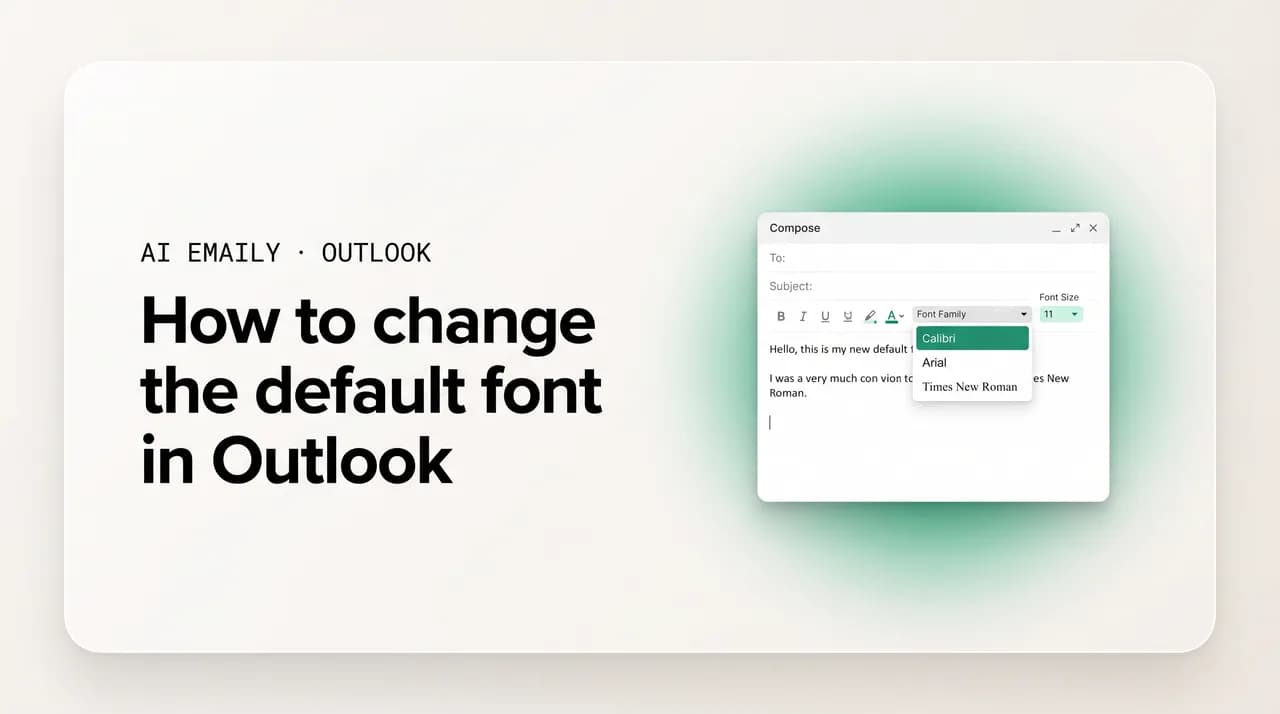
The short answer
To change the default font in Outlook, open classic Outlook's File, Options, Mail, then Stationery and Fonts, and set the font for new messages and for replies and forwards. In new Outlook and on the web, go to Settings, Mail, Compose and reply, and pick the font, size, and color. Mac and mobile have their own, more limited controls.
How to change the default font in Outlook: set it in classic via Stationery and Fonts, in new Outlook and web, fix fonts that won't save, plus Mac and mobile.
On this page
- 01Why would you want to change the default font in Outlook?
- 02How do you change the default font in classic Outlook for Windows?
- 03How do you change the default font in new Outlook and on the web?
- 04How do you set a different font for new emails versus replies and forwards?
- 05How do you change the font size, color, and bold styling?
- 06How do you change the default font in Outlook for Mac?
- 07Can you change the default font in the Outlook mobile app?
- 08Which fonts look most professional in email?
- 09Why won't my default font save or stay changed in Outlook?
- 10How does AI Emaily keep your formatting consistent and draft in your voice?
- 11Putting it all together
Why would you want to change the default font in Outlook?#
The default font in Outlook is the typeface, size, and color that Outlook applies automatically the moment you start typing an email. You do not choose it each time; it is the baseline every message inherits until you override it by hand. For most people that baseline was Calibri at 11 points for years, and more recently Microsoft switched the default across its apps to a newer font called Aptos. Either way, somebody at Microsoft picked that font, not you, and it shows up on every email you send unless you change it.
That sounds like the smallest possible detail, and on any single email it is. But a default font is not a single email; it is every email. It is the first thing a recipient's eye registers before they read a word, and it sets a quiet tone for the whole message. A clean, readable font at a sensible size reads as considered. A font that is slightly too small strains the reader, and a too-large or unusual decorative one reads as careless, even when the writing underneath is excellent. Multiply that across the hundreds of messages you send a month and the default font is doing real, repeated work on how you come across.
There are practical reasons to change it too, beyond taste. Many people find the modern defaults a touch small and bump the size up a point or two so they are not squinting while they compose. Others need to match a company brand standard. Some want a font that renders reliably across devices and email apps, since an exotic font can fall back to something unpredictable on the recipient's end. And a fair number simply prefer one classic typeface over another and want their email to feel like theirs.
Whatever your reason, changing the default once is far better than restyling each email by hand. Set it correctly and every new message, and optionally every reply and forward, opens in exactly the font, size, and color you want, with zero effort from then on. The catch, and it is a real one, is that Outlook is not a single program with a single settings screen. There are several versions of Outlook, they store the font setting in completely different places, and they offer different amounts of control. This guide walks through every one of them in order so you can find your version and set it correctly the first time.
Here is the split you need to understand before you touch anything, because it is the source of nearly all the confusion around this topic. The classic Outlook for Windows, the dense desktop program that many companies still run, keeps the font setting deep in its Options dialog under a button labeled Stationery and Fonts, and it gives you the most control of any version. The new Outlook for Windows and Outlook on the web share a lighter, more modern Settings panel under Mail, then Compose and reply, where the font controls are simpler and more limited. Outlook for Mac is its own program again, with its own preferences. And the Outlook mobile apps on iPhone and Android offer the least control of all, with historically no real default-font setting at all.
Setting the font in one of these does not set it in the others. A font you change in classic Outlook does not carry over to the web, the web setting does not reach your phone, and so on. That is why someone will swear they changed their Outlook font and still see the old one: they changed it in the version they were not actually composing in. So the first thing to do is identify which Outlook you use most, set it there, and then decide whether you need to repeat the change in the other versions you also use.
This guide covers all of them: the full Stationery and Fonts flow in classic Outlook for Windows, including the separate fonts for new messages, replies and forwards, and plain text; the simpler Compose and reply settings in new Outlook and on the web; how to set the font specifically for new emails versus replies and forwards, and why that distinction matters; how to set the size, color, and bold styling; the Mac steps; the honest state of mobile; a comparison table of professional fonts that render well; and a troubleshooting section for the genuinely maddening problem of a default font that will not save or keeps reverting. At the end, we look at how an AI email client keeps your formatting consistent and drafts in your voice across every account so the font stops being something you police by hand.
There is not one Outlook, and each stores the font differently
How do you change the default font in classic Outlook for Windows?#
Classic Outlook for Windows is the version with the full power over fonts, and it is still the version a great many people in offices use every day. If your Outlook has the dense ribbon across the top, with File, Home, Send / Receive, Folder, and View tabs, and it opens as an installed desktop program rather than in a browser, you are almost certainly in classic Outlook. This is the version where you can set three separate fonts, one each for new messages, for replies and forwards, and for plain text, all from a single dialog called Stationery and Fonts.
The path is not where most people would guess, which is why this is one of the most searched Outlook questions. The font setting is not on any ribbon tab and not in any compose window; it lives inside the main Outlook Options dialog, behind a button. Once you know the route, it takes under a minute. The single most important thing to remember is to click OK on the way back out of every dialog, because closing a dialog with the X can discard the change and make it look like the setting did not take.
- 1
Open File, then Options
In classic Outlook, click the "File" tab in the top-left corner to open the backstage view, then click "Options" near the bottom of the left column. This opens the Outlook Options dialog box, the central settings hub for the classic program.
- 2
Select Mail in the left column
In the Outlook Options dialog, click "Mail" in the list on the left. This page holds the settings for composing and reading messages, including the button you are looking for.
- 3
Click Stationery and Fonts
In the "Compose messages" section near the top of the Mail page, click the "Stationery and Fonts..." button. This opens the "Signatures and Stationery" dialog. Switch to the "Personal Stationery" tab if it is not already showing; the font controls live there.
- 4
Set the font for new mail messages
Under "New mail messages," click the "Font..." button. In the Font dialog, choose your typeface, the font style (such as Regular or Bold), the size in points, and a font color. Click "OK" to confirm. This is the font Outlook will use whenever you start a brand-new email.
- 5
Set the font for replying or forwarding messages
Under "Replying or forwarding messages," click its "Font..." button and choose the font, size, and color for replies and forwards. You can match it to your new-message font or keep it distinct (some people use a different color here to set their reply apart from the original text). Click "OK".
- 6
Set the font for plain text messages (optional)
Under "Composing and reading plain text messages," click "Font..." to set how plain-text mail looks on your screen. Note this changes how plain text displays for you while composing and reading; plain-text emails carry no font information to recipients, so this is mostly for your own comfort.
- 7
Click OK on every dialog to save
Click "OK" to close the Signatures and Stationery dialog, then "OK" again to close Outlook Options. Open a new message to confirm your font now applies. Closing either dialog with the X instead of OK can discard your changes.
That is the whole flow, and it is worth pausing on how much control it gives you. In one dialog you have set the font for new mail, a potentially different font for replies and forwards, and the display font for plain text, each with its own typeface, size, style, and color. No other version of Outlook lets you separate new-message and reply fonts this cleanly, which is exactly why power users tend to stay in classic for this kind of fine control.
A couple of details save grief here. The "Composing and reading plain text messages" font only affects what you see; it is not transmitted to recipients, because plain text has no formatting, so do not expect a recipient to receive your chosen plain-text font. And if you have a signature configured, remember it carries its own font, set in the signature editor, which can visually clash with your message-body font. For a single consistent look, set the signature to the same font as your message body so the whole email reads as one piece.
One more note for the classic version. If you change the new-message font and it works for new emails but your replies still come out in the old font, that is expected behavior, not a bug, and it is the single most common follow-up complaint. The reply font is a separate setting (the "Replying or forwarding messages" one above), and even then, replies to messages from other Outlook users can inherit the original sender's formatting in some cases. We cover that quirk in the troubleshooting section near the end.
Classic Outlook is the only version with truly separate reply fonts
How do you change the default font in new Outlook and on the web?#
The new Outlook for Windows and Outlook on the web (outlook.com or outlook.office.com) share the same modern interface, so the steps to change the font are essentially identical, and we cover them together. The trade-off compared to classic Outlook is simplicity for control: these versions have a clean settings panel, but they apply one default font to everything you compose, with no separate setting for replies and forwards. If your layout looks light and simplified rather than packed with ribbon tabs, or you are reading mail in a browser, this is the version you are in.
The font setting lives under the message-format settings in the Compose and reply page. As with the signature, it is a per-account setting in the new Outlook, so if you have more than one account connected, you select the account at the top of the page before changing the font. The whole thing takes well under a minute, and the one step people skip is the final Save, without which the change is not stored.
- 1
Open Settings
Click the gear icon in the top-right corner. In Outlook on the web, a quick-settings panel slides out; if needed, look for "View all Outlook settings" to open the full window. In new Outlook for Windows, the gear opens the full Settings window directly.
- 2
Go to Mail, then Compose and reply
In the Settings window, select "Mail" in the left column, then choose "Compose and reply." Scroll to the "Message format" section. If you have multiple accounts, select the account you want to change at the top of the page first, since the setting applies per account.
- 3
Choose your font, size, and color
Under "Message format," use the font dropdown to pick a typeface and the size dropdown to set the point size. Use the bold, italic, and underline buttons and the font-color control to style the default. A small preview shows roughly how composed text will look.
- 4
Click Save
Click the "Save" button to store your changes. This is the step that is easy to miss; if you close the Settings window without saving, the font reverts. After saving, click "New mail" and confirm a fresh message opens in your chosen font.
There are two limitations to be honest about here, both of which send people searching for a workaround that does not exist. The first is that single-font reality: in new Outlook and on the web, the font you set under Message format applies to new messages and to replies and forwards alike. There is no equivalent of classic Outlook's separate "Replying or forwarding messages" font. If having a distinct reply font matters to you, classic Outlook is the only native version that offers it, and you would need to compose there.
The second is the per-account behavior. Because the message-format setting is tied to the specific account you have selected, changing the font for one account does not change it for another account in the same new Outlook. If you have, say, a work account and a personal account both connected, and you only changed the font while one was selected, the other still uses its own default. Select each account in turn at the top of the Compose and reply page and set the font for each one you care about. This is easy to overlook and is a frequent reason people think the change did not take, when in fact it took for one account and not the other.
Finally, a note on what the default actually is now, since it surprises a lot of long-time users. Microsoft changed the default font in its apps, including Outlook, from Calibri to a newer typeface called Aptos. If you opened a new email recently and the font looked subtly different from what you remembered, that change is why. You are free to set it back to Calibri, or to anything else you prefer, using the exact steps above. The default is just a starting point, not a constraint.
New Outlook and the web set the font per account, and apply it to everything
How do you set a different font for new emails versus replies and forwards?#
This is the distinction that trips up the most people, so it is worth its own section. Outlook treats "the font for emails I start fresh" and "the font for emails I reply to or forward" as two separate things, but only one version of Outlook actually lets you control them independently. Understanding which version you are in tells you immediately whether the separate-reply-font you want is even possible without a workaround.
In classic Outlook for Windows, you have full control. The Stationery and Fonts dialog (File, Options, Mail, Stationery and Fonts, Personal Stationery tab) has two distinct font buttons: one under "New mail messages" and one under "Replying or forwarding messages." Set each to whatever you like. A common pattern is to use a clean dark font for new messages and the same font in a different color, often a dark blue, for replies, so your contributions stand out visually within a long quoted thread. You can also simply set them to the same font for total consistency. The point is the choice is genuinely yours in classic Outlook.
- 1
Open the font controls for your version
In classic Outlook, go to File, Options, Mail, then click "Stationery and Fonts" and open the "Personal Stationery" tab. In new Outlook or on the web, go to Settings, Mail, "Compose and reply," and find the "Message format" section.
- 2
Set the new-message font
In classic Outlook, click "Font..." under "New mail messages" and choose your typeface, size, and color. In new Outlook and on the web, set the font in the Message format dropdowns; this single setting covers both new mail and replies because there is no separate reply control.
- 3
Set the reply and forward font (classic only)
In classic Outlook, click "Font..." under "Replying or forwarding messages" and choose a font for replies and forwards. You can match the new-message font or differentiate it (for example, a distinct color to set your reply apart from quoted text). New Outlook and the web have no equivalent step.
- 4
Save and test both paths
Save your changes (OK in classic Outlook, Save in new Outlook and on the web). Then test both: open a brand-new message to check the new-message font, and reply to an existing email to check the reply font. Confirming both is the only reliable way to know each took.
If you are in new Outlook, on the web, on a Mac, or on mobile, the honest answer is that you cannot natively set a separate reply font. The single Message-format font applies to everything. The practical workarounds are limited: you can change the font manually on an individual reply using the formatting toolbar in the compose window (which only affects that one message), or, if a separate reply font genuinely matters to your workflow, you can compose in classic Outlook where the control exists. There is no hidden setting in the modern versions that unlocks a separate reply font; it simply is not there.
There is also a subtler behavior worth naming, because it causes a lot of confusion regardless of version. When you reply to an email that was itself written by someone using Outlook with rich formatting, your reply can sometimes pick up the formatting of the original message rather than your own default, particularly with messages Outlook treats as styled HTML. This is not your setting failing; it is Outlook honoring the incoming message's styling for the quoted portion and sometimes bleeding it into the new text. If your replies look inconsistent depending on whom you are replying to, this is usually why, and the troubleshooting section covers how to handle it.
Only classic Outlook separates new-message and reply fonts
How do you change the font size, color, and bold styling?#
Changing the font is rarely just about the typeface. Most people who go looking for the font setting actually want to fix the size (the modern defaults strike many as a little small), set a consistent color, or make their default text bold. The good news is that all of these live in the very same place as the font itself, in every version of Outlook, so once you have found the font control you have found all of them. The difference is only in how the controls are presented.
In classic Outlook, the Font dialog you reach from Stationery and Fonts puts everything in one box: the font list, a "Font style" column (Regular, Italic, Bold, Bold Italic), a "Size" column in points, and a "Font color" dropdown, plus effects like underline. Set them all there at once and click OK. Because classic Outlook has separate Font dialogs for new messages and for replies, you can set a different size or color for each if you want. In new Outlook and on the web, the same options appear as a row of controls under Message format: a font dropdown, a size dropdown, bold / italic / underline buttons, and a font-color picker. Pick each and Save.
- 1
Set the size in points
Choose a point size from the size control. For body email, 11 or 12 points is a comfortable, professional default on most screens; 10 reads small to many people, and anything above 12 can feel oversized in a normal message. If you find yourself zooming in to read your own drafts, bump the size up a point.
- 2
Set a font color
Use the font-color control to pick a color. For body text, a near-black dark gray or plain black is the safe, readable choice. Reserve any color, such as a dark blue, for a specific purpose like distinguishing your reply text from quoted material, and avoid light colors that wash out on a white background or in dark mode.
- 3
Apply bold or other styling
If you want your default text bold (some people do for readability), choose Bold in the classic Font dialog's style column, or click the bold button in new Outlook and on the web. Use this sparingly; a whole email in bold reads as shouting, so most people leave the body regular and bold only specific words while composing.
- 4
Save and check it on a real message
Save the change (OK in classic Outlook, Save in new Outlook and the web), then open a new message and type a line to confirm the size, color, and weight are what you intended. What looks right in a small settings preview can read differently in a full compose window.
A few principles keep your default looking professional rather than fiddly. On size, 11 to 12 points renders comfortably on the mix of laptops and phones most email is read on, whereas an unusually large default looks like you are straining to be seen and a small one makes people squint. On color, the most common mistake is a body color that looks fine on your screen but fails elsewhere; a medium gray that reads on your bright monitor can nearly vanish on a recipient's dimmer screen or in dark mode, so keep body text close to black. And on bold, emphasis only works when it is rare, so a bold default defeats the purpose.
One thing the size setting does not change is the size of text in your inbox message list, which people often conflate with the compose font. Changing your compose font does not enlarge the message list, and vice versa. The message-list and reading-pane text size is controlled separately (through View settings and the overall display in classic Outlook, and through the density and text-size options in the modern versions), so if your goal was to make the inbox list easier to read rather than your outgoing emails, that is a different setting entirely.
How do you change the default font in Outlook for Mac?#
Outlook for Mac is its own program with its own settings, separate from both the Windows versions and the web, and its font controls have shifted across recent versions of the app. The reliable route is through the Outlook menu (the application menu at the top of the screen), then into the app's settings or preferences, where the font for composing mail lives. Depending on which build of Outlook for Mac you are running, you will find it under a "Composing" or "Fonts" section. The general shape is the same as the other versions: you pick a font and size for the mail you write.
Compared to classic Outlook for Windows, the Mac version sits somewhere in the middle on control. Recent builds of Outlook for Mac do let you set a font for new mail and, in some versions, a separate one for replies and forwards, more like the classic Windows experience than the single-font modern web experience, though the exact layout depends on your version. As always on the Mac, changes apply to the Mac app specifically and do not propagate to your phone or to Outlook on a Windows machine.
- 1
Open Outlook, then Settings or Preferences
With Outlook for Mac open, click "Outlook" in the menu bar at the very top of the screen, then choose "Settings" (called "Preferences" in some versions). This opens the app's settings window.
- 2
Open the Fonts or Composing section
In the settings window, look for "Fonts" or "Composing." Recent versions place the compose-font controls under Composing; older ones use a dedicated Fonts pane. Either way, this is where the font for the mail you write is set.
- 3
Set the font for new mail (and replies, if offered)
Click the control to choose a font and size for new messages. If your version offers a separate option for "Reply or forward," set that too; otherwise the new-mail font applies broadly. Pick a readable size, typically 11 or 12 points, and a near-black color.
- 4
Close the settings and test
Close the settings window to apply the change, then open a new message in Outlook for Mac and confirm the font is what you chose. If replies still differ, check whether your version exposed a separate reply-font control you have not set yet.
Two Mac-specific notes save time. First, because the menus have moved between versions of Outlook for Mac, if you cannot find "Fonts" do not assume the setting is gone; look under "Composing" instead, and vice versa. The destination, a font and size for the mail you write, is consistent even when the label and location are not. Second, just like on Windows, replying to a message from another Outlook user can pull in the original sender's formatting, so a reply that does not match your Mac default is often a reflection of the incoming message's styling rather than a broken setting. The troubleshooting section addresses that across all platforms.
Can you change the default font in the Outlook mobile app?#
This is where expectations need adjusting, because the Outlook mobile apps on iPhone and Android have historically offered the least font control of any version, and for most users the honest answer has been that there is no setting to change the default compose font on the phone at all. You can format text while writing a specific message, using the formatting toolbar to bold or italicize or change the size of selected text, but there has been no global "set my default font" option equivalent to the desktop setting. The app simply composes in its own standard font.
There is a recent development worth knowing, though it does not yet change the picture for everyone. Microsoft has been rolling out more typeface and formatting options in the Outlook mobile compose experience, letting you switch the font and apply bold, italics, and underline more like you would on the desktop. At the time of writing, the richer font selection has been appearing first for users on the Microsoft Insider beta channels rather than as a finished feature for every account, so whether you see expanded font choices on your phone depends on your app version and channel. Treat any mobile font control you do see as a per-message formatting tool rather than a reliable global default unless your specific app version clearly offers a default-font setting.
The practical takeaway is to do your real default-font work on the desktop or the web, where the setting genuinely exists and persists, and treat mobile as a place where you occasionally adjust formatting on an individual message. If you send a lot of mail from your phone and the standard mobile font bothers you, the most dependable fix today is not a hidden setting but a different approach to email entirely, which is where a modern client that carries consistent formatting across every device, covered next, becomes genuinely useful.
Mobile has historically had no default-font setting
Which fonts look most professional in email?#
Once you know how to change the font, the better question is what to change it to. The instinct to reach for something distinctive, a script font, a thin display face, something that stands out, is exactly the instinct to resist in email. The job of an email font is to disappear: to be so clean and legible that the reader takes in your words without ever thinking about the typeface. Anything that draws attention to itself is working against you. The most professional choice is almost always a plain, widely supported font at a comfortable size in near-black.
There is also a technical reason to play it safe, and it is specific to email in a way that does not apply to, say, a printed document. The font you choose is not necessarily the font your recipient sees. Email clients render with the fonts available on the recipient's device, and if you pick something exotic that they do not have installed, their client substitutes a fallback font, often something you did not intend and would not have chosen. Sticking to common, web-safe fonts dramatically reduces the odds of an ugly substitution. The table below weighs the most common choices for professional email, including what Outlook now defaults to.
| Font | Good for | Notes |
|---|---|---|
| Aptos | Modern default | Outlook's current default font, replacing Calibri. Clean and contemporary; a safe choice if you want to match the current standard. |
| Calibri | Familiar default | The long-time Outlook default many people still prefer. Soft, rounded, highly legible. A safe, neutral pick that nearly everyone has. |
| Arial | Maximum compatibility | A near-universal sans-serif available on essentially every device, so it almost never falls back. Plain and dependable if a touch generic. |
| Helvetica | Clean sans-serif | Crisp and professional, common on Apple devices. Falls back to Arial where it is not installed, which looks nearly identical, so it is low-risk. |
| Georgia | Readable serif | A serif designed for screens; warmer and more traditional than a sans-serif while staying highly legible. Good if you want a classic feel. |
| Times New Roman | Formal serif | Reads as formal and old-fashioned. Universally available, but can feel dated for everyday email; better suited to formal correspondence. |
| Verdana | Small-size legibility | Designed to stay readable at small sizes, with wide letterforms. Useful if you want a smaller point size to remain comfortable to read. |
| Tahoma | Compact and clear | Similar to Verdana but tighter, fitting more text in less space while staying legible. A solid, businesslike sans-serif. |
If you just want a recommendation rather than a menu, here it is. For most professional email, pick one common sans-serif, Aptos, Calibri, or Arial, at 11 or 12 points in near-black, and stop there. That combination reads cleanly on every device, almost never triggers an ugly font substitution on the recipient's end, and looks considered without trying. If you specifically want a more traditional, letter-like feel, Georgia at 12 points is the serif equivalent and is genuinely readable on screens, unlike many serifs. Either of those choices will serve you well across years of email without a second thought.
Two habits keep the whole thing consistent. First, match your signature font to your message-body font. A signature in a different typeface from the email above it looks pasted in, and it is one of the most common reasons an otherwise tidy email looks slightly off; setting both to the same font fixes it instantly. Second, resist mixing fonts within a single email. The cleanest professional emails use exactly one font throughout, with emphasis carried by bold or, occasionally, italics rather than by switching typefaces. One font, one size, near-black, with your signature matching, is a standard you can apply once and never revisit.
Match your signature font to your body font
Why won't my default font save or stay changed in Outlook?#
A default font that refuses to save, reverts after you restart Outlook, or stubbornly reappears as Calibri or Aptos no matter what you set is one of the most frustrating and most searched problems with this whole topic, precisely because it feels like the feature is broken. In almost every case it is not a malfunction but a predictable interaction between where Outlook stores the setting and what else is competing to control your formatting. The fixes differ a little by version, so work through the checklist below for the version you are in.
The deeper cause in classic Outlook is worth understanding because it explains several otherwise baffling symptoms. Outlook's compose formatting is built on the same engine as Word, and it has a hard underlying default stored in a template file (often referred to as the NormalEmail template) that is tied to a font theme rather than a single named font. When Outlook is uncertain which style to apply, particularly with messages it treats as unstyled or with replies to certain messages, it can fall back to that underlying theme default, which is why your carefully chosen font seems to evaporate in specific situations even though the setting itself is intact. The font theme attached to that template, not just the visible setting, is what truly governs the fallback.
- You did not finish the save. In classic Outlook, you must click "OK" on the Font dialog, then "OK" on Signatures and Stationery, then "OK" on Outlook Options; closing any of those with the X discards the change. In new Outlook and on the web, you must click "Save" in the Settings window. This is the most common cause by far.
- You changed the wrong version. A font set in new Outlook does not apply to classic Outlook, the web setting does not reach your phone, and so on. If the font "won't change," confirm you are setting it in the same version you are actually composing in.
- You changed it for the wrong account. In new Outlook, the font is per account; if you set it while one account was selected, another account keeps its own default. Select each account at the top of Compose and reply and set the font for each.
- Replies inherit the sender's formatting. When you reply to a message from another Outlook user, your reply can pick up the original message's styling rather than your default, especially with styled HTML mail. This looks like your reply font reverting, but it is Outlook honoring the incoming message's format.
- A signature is overriding the look. If your signature uses a different font, the email can appear to switch fonts partway down. Set the signature to match your body font so the message reads consistently.
- A central, IT-managed policy is in force. In managed organizations, administrators can enforce fonts, themes, or templates server-side that overwrite your local choice on every send. If your font never sticks no matter what you do, ask your administrator whether a managed policy applies.
- An add-in is interfering. A third-party add-in, particularly a signature or compliance tool, can reassert its own formatting and undo your manual change. Disable formatting-related add-ins and test whether your setting now persists.
If you have ruled out the simple causes and the font still will not hold in classic Outlook specifically, the remaining fix is at the template-and-theme level. Because the hard default is governed by the font theme attached to the NormalEmail template, the durable solution is to set that theme rather than only the surface setting. In practice that means opening the email template, going to the design or theme controls, and customizing the theme fonts to your preferred typeface so the underlying fallback matches what you want, then setting the normal style to the same font. This is more involved than the Stationery and Fonts button and is the kind of step worth doing carefully, or with help from IT, but it is what finally stops the revert when nothing on the surface works.
It is also worth being realistic about replies. Even with everything set perfectly, a reply to a message composed by someone else in Outlook can inherit that sender's font for the quoted region and sometimes for your new text, because Outlook is preserving the conversation's formatting. There is no setting that universally forces every reply into your font regardless of the incoming message; the reliable workaround is to select your text in that specific reply and apply your font from the formatting toolbar before sending. If your replies look inconsistent from one correspondent to the next, this behavior, not a failed setting, is almost always the reason.
If the font keeps reverting in classic Outlook, the cause is usually the theme or a policy
How does AI Emaily keep your formatting consistent and draft in your voice?#
Step back and look at what changing the default font in Outlook actually involves. It is a different settings location in classic Outlook than in new Outlook and the web, a third location on the Mac, almost no control on mobile, a single-font limitation everywhere except classic, a per-account quirk in new Outlook, and a genuinely thorny revert problem rooted in font themes and inherited formatting. You can absolutely get it right, but it is a surprising amount of fiddly housekeeping for what is, at heart, just wanting your email to look like itself. And it only ever covers your Outlook. Add a Gmail account, a custom domain, or a second work address and you start over in a different settings panel with its own rules.
AI Emaily is an AI-native email client that connects every mailbox you have, Outlook, Gmail, custom domains, and more, into one place, with one consistent composing experience across all of them. Instead of reconciling separate font settings in classic Outlook, new Outlook, the web, the Mac, and your phone, you have a single, coherent way your email looks and reads on every device and account. The version-by-version split behind so much of the confusion above stops being something you manage, because you are not bouncing between four programs that each store formatting differently.
More importantly, AI Emaily is built around the part of the email the font cannot touch: the words. It learns how you actually write, your phrasing, your level of formality, the way you open and close, and drafts replies that sound like you wrote them, not like a template. A consistent font makes an email look tidy; voice-matched drafting makes the whole message genuinely yours, which is the thing a font setting could never do. The formatting stays consistent in the background while the real work, getting through your inbox in a fraction of the time, happens in your own voice.
- One consistent composing experience across every account and device, so you are not reconciling separate font and formatting settings in classic Outlook, new Outlook, the web, the Mac, and mobile.
- Works with every provider: connect Outlook, Gmail, and custom domains in one client, and the way your email looks and reads stays consistent across all of them rather than configured five separate times.
- Voice-matched drafting, not just consistent styling: AI Emaily learns how you write and drafts replies that sound like you, so the whole message reads as genuinely yours, beyond what any font choice can do.
- You stay in control: in the default workflow nothing sends without your approval, so your words go out on your say-so with a clear record of what was drafted.
The honest framing is that the default font is the smallest possible slice of email, the look of your text, and AI Emaily is built around the other ninety-eight percent: reading what lands in your inbox, drafting replies that match how you write, and handling the routine back-and-forth so you are not retyping the same things all day across several accounts. Consistent formatting comes along for free because everything composes in one place; the real win is the time you get back when your inbox largely drafts itself in your voice.
If you are tired of setting the same font in four different Outlook panels, fighting a default that keeps reverting, or simply want your email to look consistent and draft itself in your own voice across every account, AI Emaily is built for exactly that. There is a free plan at $0 to try it on your own inbox, and Pro is $12.42 per month billed annually for the full agentic workflow across all your accounts. You can connect your first mailbox and see one consistent composing experience in minutes at app.aiemaily.com/signup.
Stop configuring the same formatting in four places
Putting it all together#
Changing the default font in Outlook comes down to finding the right panel for your version and finishing the save. In classic Outlook for Windows, the version with the most control, go to File, Options, Mail, click Stationery and Fonts, and on the Personal Stationery tab set separate fonts for new messages, for replies and forwards, and for plain text, then click OK on every dialog. In new Outlook and on the web, go to Settings, Mail, Compose and reply, set the font, size, and color under Message format, pick the right account first if you have several, and click Save. Outlook for Mac has its own Composing or Fonts settings, and mobile has historically had no real default-font control at all.
From there, a few principles keep it clean. Pick one common, web-safe font, Aptos, Calibri, or Arial for a sans-serif, or Georgia for a serif, at 11 or 12 points in near-black, so it renders well everywhere and never triggers an ugly substitution on the recipient's end. Match your signature font to your body font so the whole email reads as one piece. Remember that only classic Outlook lets you set a separate reply font, and that replies to other Outlook users can inherit their formatting regardless of your setting. And if your font keeps reverting, suspect the underlying font theme, an inherited reply format, or an IT-managed policy rather than retyping the setting again.
And when you notice you are maintaining the same font and formatting across classic Outlook, new Outlook, the web, your Mac, your phone, and a second provider entirely, that is the signal the manual approach has hit its ceiling. An AI email client like AI Emaily gives you one consistent composing experience across every account and drafts the rest of the message in your own voice, so your email looks right and sounds like you everywhere, without you policing a font setting in five different places. Set it once, get on with your day, and let the inbox largely run itself.
Frequently asked
See it in AI Emaily
Keep reading

Written by
Nafiul HasanNafiul Hasan is an entrepreneur and AI automation system builder with 10+ years of experience turning messy, manual workflows into reliable automated systems. He designs and ships AI enterprise solutions end-to-end — the agent logic, the data plumbing, and the product people actually use — and founded AI Emaily to give busy professionals their attention back. He writes here from the builder's seat: what works, what breaks, and how to put AI to work without giving up control.