Outlook Categories: How to Create and Use Color Tags

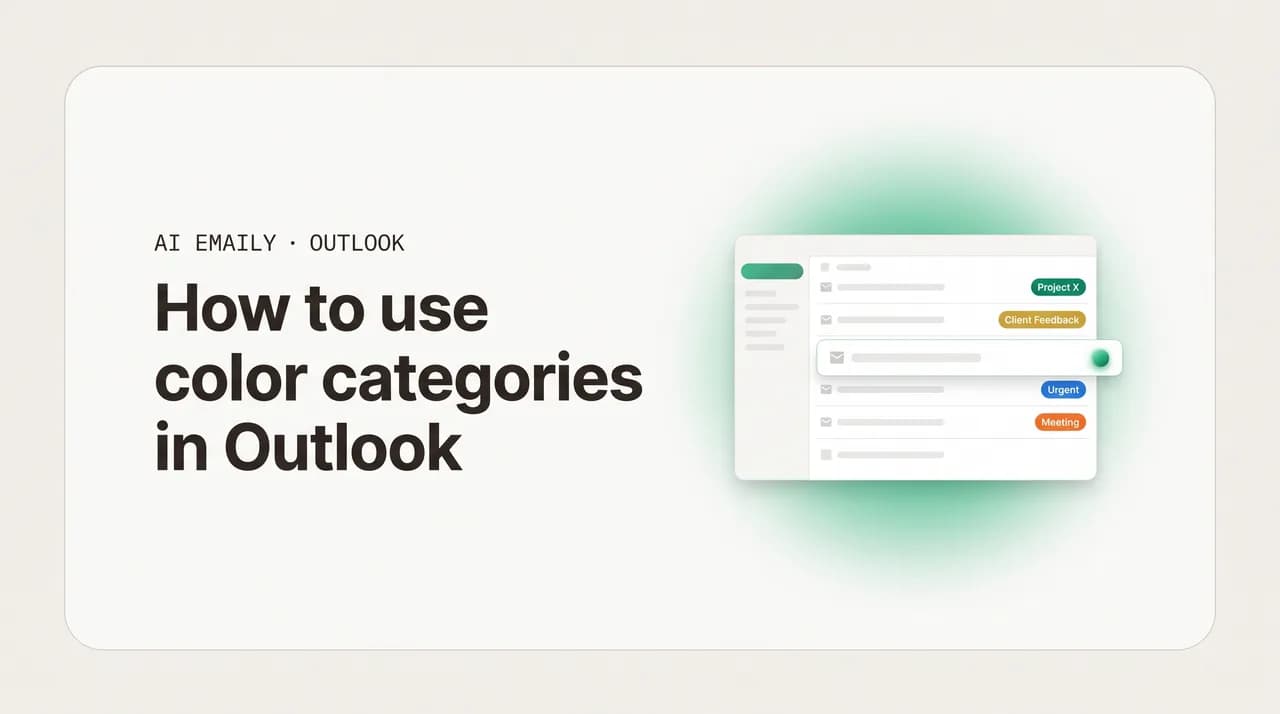
The short answer
To create categories in Outlook, select an email, click Categorize, then choose New category, name it, pick a color, and save. Assign categories by right-clicking a message and choosing Categorize, set a one-click default with Set Quick Click, and filter, sort, or search your inbox by category to pull every tagged email together.
How to create, color, and rename categories in Outlook, assign them, set Quick Click, filter and search by category, and auto-apply them with rules.
On this page
- 01What does a category do in Outlook, and how is it different from a folder?
- 02How do you create and color a category in Outlook?
- 03How do you assign categories to emails in Outlook?
- 04How do you set a default category with Quick Click in Outlook?
- 05How do you filter, sort, and search your inbox by category in Outlook?
- 06How do you auto-assign categories with rules in Outlook?
- 07How do categories work in your Outlook calendar and contacts?
- 08What does a good Outlook category system look like?
- 09Are categories different in new Outlook, classic Outlook, the web, and mobile?
- 10Why are my Outlook categories missing, greyed out, or not syncing?
- 11How does AI Emaily auto-categorize with AI across every account?
- 12Putting it all together
What does a category do in Outlook, and how is it different from a folder?#
A category in Outlook is a colored label you stick on an item, an email, a calendar event, a contact, a task, so you can group and find related things later regardless of where they live. You make one called "Finance," tag every invoice and bank statement with it, and from then on a single filter or search pulls up everything in that category at once, no matter which folder the messages sit in or who sent them. A category answers the question "what is this about?" and lets you ask Outlook to show you everything that shares an answer, in one colored sweep.
If you have spent years moving mail into folders, the instinct is to treat categories as folders with a splash of color, and that instinct will quietly work against you. A folder physically holds a message; an email lives in exactly one folder at a time, and dragging it into "Finance" pulls it out of the inbox. A category does not move anything. It is a tag, and a single item can wear several tags at once while staying right where it is. That one difference, tag versus container, is the whole reason categories exist alongside folders rather than replacing them.
Picture an invoice from a client named Acme for a project called Redesign. In a folder system, does that email go in the Acme folder, the Invoices folder, or the Redesign folder? It can only live in one, so you pick, and the other two views are now incomplete. With categories you simply apply all three: Acme, Invoices, Redesign. The same email surfaces when you filter for any one of them, nothing was duplicated, and one message is findable from three angles at once without ever leaving the inbox.
There is a second consequence that surprises people coming from folders. Because a category does not remove a message from your inbox, applying one does not tidy anything on its own. Tag an email "Finance" and it gets a colored label, but it is still sitting in your inbox. Categories are a layer of meaning on top of your mail, not a way to move it out of sight. For a clean inbox, pair categories with archiving or folders: the category says what the email is about, and the archive or folder gets it off your plate.
It also helps to know that, in most setups, categories are stored on the mailbox and sync across devices. When your account lives on Microsoft 365 or Outlook.com, the category you create on your laptop shows up on Outlook on the web and, where supported, on your phone within minutes. The master list, the names and their colors, travels with the mailbox rather than living on one machine. There are real exceptions, especially older POP accounts and some third-party providers connected to the desktop app, which we cover later, but for the mainstream Microsoft 365 user, categories are a shared system everywhere you read mail.
This guide builds and runs that system the right way, across the three faces of Outlook you are likely to meet: the new Outlook for Windows, the classic Outlook for Windows, and Outlook on the web. We will create and color your first category, assign categories several different ways, set a one-click default with Quick Click, then filter, sort, and search by category so a tag becomes a view. From there: how to auto-apply categories with rules, how the same categories work across your calendar and contacts, a ready-to-copy category system, the real differences between new, classic, web, and mobile, a troubleshooting section, and how an AI email client can keep the whole thing tagged for you across every account you own. By the end you will not just know which buttons to click; you will know how to design a category system that still makes sense a year from now.
Categories tag, folders contain
How do you create and color a category in Outlook?#
Creating your first category takes about fifteen seconds, and the path is nearly identical in new Outlook, classic Outlook, and Outlook on the web. All three share the Categorize button, which lives on the ribbon or toolbar when an email is selected and is the gateway to your whole category list. You select a message, open Categorize, choose to make a new category, then name it and give it a color; from then on it is available to assign to anything.
Start by selecting any email in your message list, even if it is not the one you want to tag, since you just need a message highlighted so the Categorize option appears. Then follow the steps below; the same flow works on all three, with only tiny wording differences noted where they matter.
- 1
Select a message and open Categorize
Click any email so it is highlighted, then click "Categorize" (in classic Outlook it sits in the Tags group on the Home tab; in new Outlook and on the web it is on the toolbar above the reading pane or in the right-click menu).
- 2
Choose New category
At the bottom of the Categorize menu, click "New category" (shown as "All Categories," then "New" in classic Outlook). A small dialog opens with a name field and a color picker.
- 3
Name the category
Type a clear, short name, for example Finance, Travel, To Do, or Acme, specific enough to be useful and broad enough that you will actually fill it. Outlook ships with default categories named after their colors ("Red Category," "Blue Category"); replace these with names that mean something to you.
- 4
Pick a color
Choose a color from the palette. Outlook offers a fixed set of around 25 colors, so two categories can share one if you run out, though giving the important ones distinct colors keeps your inbox scannable. The color shows up as a block or chip next to the subject in your list.
- 5
Save it
Click "Save" (or "OK" in classic Outlook). The category now exists in your master list, ready to assign to any item. In new Outlook and on the web, creating it while a message is selected also applies it to that message right away.
Renaming and recoloring a category matters as much as creating one, since your first names are rarely your final ones. Renaming keeps every item already tagged with it; you are editing the label, not stripping it off your mail. In classic Outlook, click Categorize, then "All Categories," select the category, and click "Rename" or use the color dropdown beside it. In new Outlook and on the web, click Categorize, then "Manage categories" (or Settings, then Accounts, then Categories), which opens the panel where you rename, recolor, delete, and mark favorites that pin to the top of the menu.
A short note on the default categories. Out of the box, Outlook gives you several named only by their color, and the first time you assign one it may prompt you to rename it. Take that prompt: "Red Category" tells you nothing six months from now, while "Urgent" or "Finance" tells you everything at a glance. Delete the color-named defaults you will not use to trim the Categorize menu to just your real categories. Deleting a category never deletes the emails; it only removes that tag, which makes categories safe to prune.
Color choice deserves restraint. Outlook's palette is fixed and fairly limited, so giving every category a different bright color leaves an inbox that looks like confetti. The opposite reads far better: reserve your boldest colors for the one or two categories that should jump out, red for "Urgent" or "Action," orange for "Waiting," and let routine ones sit in calmer blues, greens, and grays. When red consistently means "deal with this," a glance down the list tells you where to spend your attention before you read a single subject line.
How do you assign categories to emails in Outlook?#
A category does nothing until it is attached to mail, and Outlook gives you several ways to attach one. The fastest for sorting a list is the right-click; the most discoverable is the Categorize button on the toolbar; and for clearing a backlog, multi-select tags many messages in one move. The methods differ slightly across versions, but the spirit is the same: select what you want to tag, open the category list, and click the categories to apply.
The right-click is the workhorse. In any version, right-click a message, hover or click "Categorize," and click a category to apply it; click it again to remove it. Because a message can hold several categories, you can apply more than one in a row. To tag a batch, hold Ctrl and click individual emails for a scattered selection, or click the first and Shift-click the last for a range, then right-click any of them and choose Categorize to apply it to the whole selection at once.
- 1
Right-click to categorize one message
Right-click the email, move to "Categorize," and click the category you want. The colored label appears next to the subject immediately. Repeat to add a second or third; click an applied one again to take it off.
- 2
Use the Categorize button on the toolbar
Select or open a message, then click "Categorize" on the ribbon (classic Outlook, Home tab, Tags group) or the toolbar above the reading pane (new Outlook and web), and check the categories you want. This is the most discoverable route when you are reading an open email.
- 3
Tag many messages at once
Hold Ctrl and click each message for a scattered selection, or click the first and Shift-click the last for a continuous run. With several highlighted, right-click, choose Categorize, then a category, and it applies to all of them, the quick way to clear a backlog.
- 4
Remove a category
Open the Categorize menu again and click the applied category to uncheck it, or right-click the colored chip in views that show it. To strip every category at once, classic Outlook offers "Clear All Categories" at the top of the menu.
There is a keyboard angle worth knowing for classic Outlook. The All Categories dialog lets you attach a shortcut key, Ctrl+F2 through Ctrl+F12, to a category. Once set, you select a message and press the shortcut to toggle that category instantly, no menus at all. Power users assign their three or four most-used categories to shortcut keys and tag mail at the speed of typing. New Outlook and the web do not expose this in full, one of several ways classic Outlook remains the most category-rich version.
Categories are not only for your inbox. While composing in classic Outlook, you can open the Tags group and categorize an outgoing email so your copy in Sent Items carries the label (new Outlook and the web are more limited here), so a project category like "Redesign" can cover both the mail you receive about it and the mail you send.
One habit makes assigning categories sustainable: tag at the moment of reading, not in a giant cleanup session later. When an email arrives and you decide it is a receipt, a category click takes a second and the message is filed in meaning even while it stays in your inbox. Deferring all of it to a weekly purge turns a one-second action into an hour-long chore, and it is exactly the repetitive work that rules and, later, an AI assistant can take off your hands.
How do you set a default category with Quick Click in Outlook?#
If you find yourself reaching for the same category over and over, Quick Click turns it into a single click. It designates one category as your default, and then clicking the category column next to any message, the empty space where the colored chip would go, applies that default instantly without opening any menu. That is the difference between three clicks and one for the category you use most, and over a busy week it adds up. Quick Click is a classic Outlook strength; new Outlook and the web handle one-click categorizing differently, which we note below.
Setting it up takes a moment. In classic Outlook the option lives at the bottom of the Categorize menu, and you then assign it by clicking in the category column of your message list. If you do not see a category column, you may need a view that shows it, or hover at the right edge of a message row where the indicator sits. Here is the full setup.
- 1
Open Set Quick Click
In classic Outlook, go to the Home tab, click "Categorize" in the Tags group, and choose "Set Quick Click" at the bottom of the menu.
- 2
Choose your default category
In the Set Quick Click dialog, open the dropdown and pick the category you apply most often, such as Follow Up or Finance, then click OK.
- 3
Apply it with one click
In your message list, click in the empty category column to the right of a message (the blank slot where a colored chip appears) and your default applies instantly. Click the same spot again to remove it. No menu, just one click per message.
- 4
Change the default anytime
Reopen Set Quick Click and choose a different category whenever your priorities shift. Many people leave it on a "Follow Up" category for triage, so a single click while scanning flags anything that needs action.
Quick Click pairs beautifully with a triage habit. Set your default to a "Follow Up" or "Action" category, then as you scan a fresh inbox, one click on anything that needs a response tags it instantly, and a later filter for that category gives you a clean to-do list pulled from across every folder. It is a lightweight task system built from one category and one click, and because it syncs with your mailbox, that list follows you to other devices. The restraint that makes it work: use Quick Click for the single most frequent category only.
On new Outlook and Outlook on the web, the classic Set Quick Click dialog is not the model. Those versions lean on a streamlined Categorize menu, favorites that pin your most-used categories to the top, and hover or right-click categorizing. The net effect is similar, fast access to common categories, but the exact "click the empty column to apply one default" behavior is a classic-Outlook hallmark, and one reason people keep classic Outlook alongside the new app.
How do you filter, sort, and search your inbox by category in Outlook?#
Tagging mail is only half the payoff; the other half is pulling every item in a category together on demand. This is the moment a category stops being decoration and becomes a view: click or type the right thing and your whole inbox collapses to just the "Finance" mail, or just the "Urgent" mail, gathered from wherever it was sitting. Outlook gives you three complementary ways to do this, depending on whether you want a quick peek, a reorganized list, or a precise saved query.
The quickest is sorting or grouping by category, which rearranges your list so same-category items sit together. In classic Outlook, use the column header bar or View settings to arrange by Categories, and your inbox reorders into color-banded clusters. Filtering goes further by hiding everything except the category you want. Searching by category, with a filter or a typed command, is the most surgical, finding every tagged item across folders at once. Here is how each works.
- 1
Sort or group by category
In classic Outlook, click the arrange/sort options above the message list (or the "Arrange By" header) and choose "Categories." Your inbox regroups so all same-category messages cluster together under colored headers. In new Outlook and on the web, use the "Filter" or "Sort" control at the top of the message list and select Categories where offered.
- 2
Filter to a single category
The fastest filter in most versions is to click the colored category chip on any message, which shows you every message in that category. You can also use the Filter menu at the top of the inbox and pick Categorized, or a specific category, to hide everything else until you clear the filter.
- 3
Search with a category filter
Click in the Search box. In classic Outlook the Search ribbon appears with a "Categorized" dropdown; choose your category and it lists every matching item. In new Outlook and on the web, open the search filters (the filter or sliders icon by the search bar) and pick a category to scope the results.
- 4
Type a category search command
You can search by typing instead of clicking. Type category:"Finance" (quotes for multi-word names) into the Search box and press Enter to list every Finance item. Combine it with other terms, for example category:"Finance" from:acme. This works across folders, the real power of searching by category.
- 5
Save the view as a Search Folder (classic)
In classic Outlook, turn a category filter into a permanent Search Folder: right-click "Search Folders" in the folder pane, choose "New Search Folder," pick "Categorized mail" or custom criteria, and select your category. From then on that folder always shows every item in the category, live, without re-running the search.
The category search command is the most reliable way to find tagged mail no matter where it lives. Typing category:"Travel" pulls every Travel-tagged email regardless of folder, sender, or date, and stacking it with other operators lets you ask precise questions like "every Finance item from Acme this month" without building anything in advance. Multi-word names need straight quotation marks so Outlook reads them as one phrase, not two search words; a category called "Action Needed" must be searched as category:"Action Needed". This syntax detail trips up a lot of people and is worth memorizing.
Search Folders, available in classic Outlook, are the natural endpoint for categories you query constantly. A Search Folder stores no mail; it is a saved search that always shows current results, so a "Categorized: Finance" Search Folder behaves like a live view of everything in that category across your mailbox. You set it up once and it maintains itself, turning the folder pane into a set of saved questions. New Outlook and the web do not yet offer the full Search Folder system, so there the typed category search and the filter menu are your tools.
One limitation frustrates people: in current new Outlook and Outlook on the web, the filtering and sorting controls for categories have historically been less complete than classic Outlook's, and the exact options shift as Microsoft updates the apps. Some users can click a category chip to filter but cannot easily group the whole list by category. If category-based views are central to how you work and you are on the new app, the typed category: search is your most dependable tool, another reason classic Outlook remains the richer environment for heavy category users.
How do you auto-assign categories with rules in Outlook?#
Tagging by hand is fine for judgment calls, but for predictable mail, the receipts that always come from the same address, the alerts that always contain the same word, you want the category applied automatically the moment the message arrives. That is a rule. A rule watches incoming mail for conditions you set, the sender, a subject word, a phrase in the body, and takes an action, here "assign it to the category." Set one up once and every matching message tags itself from then on, the single biggest leap in keeping a categorized inbox tidy without daily effort.
Here is the important caveat up front, because it determines whether this is even available to you: the "assign it to the category" rule action is a strength of classic Outlook, and is far more limited or absent in new Outlook and on the web. Classic Outlook runs rich client-side rules that can apply categories; new Outlook and Outlook on the web run mainly server-side rules, and category assignment is one of several actions Microsoft dropped from the server-only set. So the steps below assume classic Outlook, and we will say plainly what your options are on the newer apps.
- 1
Open Rules in classic Outlook
Go to the Home tab, click "Rules," then "Manage Rules & Alerts." Click "New Rule" to start from scratch, or right-click a representative message and choose "Rules," then "Create Rule" to pre-fill conditions from that email.
- 2
Choose a starting template
In the Rules Wizard, pick a template such as "Apply rule on messages I receive," then click Next. Starting blank gives you full control over the conditions; the message-based shortcut is faster if you are building from a real example.
- 3
Set the conditions
Check the conditions that define the mail you want to tag, for example "from people or public group" and pick a sender, or "with specific words in the subject" and type a keyword. You can combine several conditions to be as precise as you need.
- 4
Choose the assign-to-category action
On the actions screen, check "assign it to the category." Click the underlined "category" link in the rule description at the bottom, pick the category you want applied (or create one on the spot), and confirm. This is the action unique to classic Outlook's client-side rules.
- 5
Name, run, and finish
Click Next through any exceptions, name the rule, and optionally check "Run this rule now on messages already in the Inbox" to categorize existing mail too, not just future arrivals. Click Finish. From now on, every matching message is tagged automatically.
On new Outlook and Outlook on the web, you can still build rules, but the menu of actions is narrower because they run on the server. You will find conditions like sender and subject keywords and actions like move to folder, flag, mark as read, and forward, but the "assign to category" action is generally not among them. The workaround is to rely on folders plus categories you apply by hand, or to use classic Outlook for category rules. Microsoft has not signaled the dropped client-side actions are returning, so this is a lasting difference, not a temporary gap.
Even where rules can assign categories, they share the weakness all keyword rules have: they are rigid and literal. A rule watching for "invoice" will miss a bill whose subject says "your statement is ready," and it cannot tell an important client thread from a marketing blast that contains the same keyword. You end up writing more and more rules for the edge cases, and even then a chunk of mail arrives uncategorized, waiting for you to tag it by hand. Rules are excellent for predictable senders and obvious keywords; they struggle with the messy middle, which is precisely the gap an AI email client is built to close.
A sensible habit is to build category rules from a real message rather than guessing criteria in the abstract. Right-click an email that represents what you want to tag, choose Rules, then Create Rule, and Outlook pre-fills the sender and subject; you then add the assign-to-category action and broaden or narrow from there. Working from a concrete example cuts down on false matches from a keyword that turns out more common than expected. It is also worth auditing your rules occasionally under Manage Rules & Alerts, since a rule for a sender you no longer hear from is just quiet overhead.
Category rules are a classic-Outlook feature
How do categories work in your Outlook calendar and contacts?#
One of the most underused strengths of categories is that they are not limited to email. The same master list applies to your calendar events, contacts, tasks, and notes, so a single category can stitch together everything related to one topic across all of Outlook. Tag the kickoff email, the recurring meeting, and the key contact all with "Redesign," and the color ties them into one visible thread. This cross-item reach is what turns categories from an inbox trick into an organizing system for your whole Outlook.
In the calendar, categories are especially useful because the color renders as the event block itself. Right-click any appointment or meeting, choose Categorize, pick a category, and the event takes on that color in your day, week, and month views. Your calendar becomes legible at a glance: client meetings in one color, internal syncs in another, personal blocks in a third. Many people color-code their entire calendar this way and read their week's shape in a single look. The gesture is the same as in mail; the payoff is visual across the grid rather than a chip beside a subject line.
- Calendar events: right-click an appointment or meeting and choose Categorize to color the event block. The color shows in day, week, and month views, so you read your schedule by type at a glance. For meetings you organize, your category is yours; attendees do not see your colors unless they apply their own.
- Contacts: open or right-click a contact and choose Categorize to tag people, for example "VIP," "Vendor," or a project name. You can then filter your contacts list by category to pull up everyone in a group at once.
- Tasks and to-dos: categories apply to tasks too, so a "Finance" category can span the finance emails, the finance meeting, and the finance task in one color, a single thread across everything related to that area of your work.
- Notes: in versions that still include Notes, categories apply there as well, completing one shared category list across every type of item Outlook manages.
There is a subtlety about categories on shared and meeting items: they are generally personal to your mailbox. When you categorize a meeting you organized, your color is stored against your copy; attendees do not automatically see it and are free to apply their own, and the same goes for messages in a shared mailbox depending on how it is configured. So categories are best thought of as your private organizing layer, not a label everyone in a thread will see, which is usually exactly what you want: your view of your work, tuned to you.
This cross-item reach is also why a thoughtful category list pays off more than a thoughtful folder structure. Folders only organize mail, one folder per message. A category like "Redesign" reaches into your inbox, sent mail, calendar, contacts, and tasks at once, so the work you put into naming and coloring a small set returns value across all of Outlook. When you design your system next, you are choosing the handful of themes that organize your entire working life inside Outlook.
What does a good Outlook category system look like?#
Knowing how to make a category is the easy part. The hard part, and the reason most people's categories turn into a graveyard of unused colors, is designing a system that holds up over time. The failure mode is always the same: you create categories reactively, one per random need, until you have twenty overlapping tags, half forgotten and several sharing a color by accident. A lasting system rests on a few principles worth setting before your next category.
First, categorize by the few dimensions you actually search and group along, not every possible attribute. For most people that is some mix of who (the people or companies you deal with), what (the type of thing, like receipts or contracts), and status (whether you still need to act). Second, let color carry meaning: reserve your most vivid colors for what should grab attention and keep the routine ones calm. Third, let rules do the repetitive tagging where you can and reserve hand-applied categories for judgment calls. Together these produce a small, color-meaningful set you will actually maintain.
Here is a proven starter set you can copy and adapt. It is deliberately short, because a category list you can hold in your head is one you will keep using. Rename or recolor freely; the point is the shape, not the exact words.
| Category | What goes in it | Suggested color | How it is applied |
|---|---|---|---|
| Action / To Do | Anything that needs a reply or task from you | Red (so it jumps out) | Quick Click default, applied with one click while triaging |
| Waiting On | Mail where you are waiting on someone else to act | Orange | Right-click categorize when you send or read |
| Finance | Invoices, receipts, statements, expenses | Green | Rule on known billing senders (classic Outlook) |
| Clients / Projects | One category per active client or project | A distinct calm color each | Rule on sender or subject, plus manual |
| Travel | Flights, hotels, itineraries, confirmations | Blue | Rule on travel-vendor senders, plus manual |
| Reference | Things to keep but not act on; read later | Gray | Manual, often paired with archiving |
| Personal | Non-work mail you want kept separate | Purple | Manual or a rule on personal contacts |
The pattern across every row is a small number of categories, color used so the urgent ones stand out and the routine ones recede, and a clear sense of whether each is applied by a rule, by Quick Click, or by hand. A freelancer can run their entire Outlook on "Action," "Waiting On," "Finance," a couple of client categories, and "Reference" and never feel lost. The "Action" and "Waiting On" pair is the most useful add-on: it layers a lightweight task and follow-up system on top of whatever else you tag by, and a filter on either one gives you an instant, cross-folder to-do list.
Pair the system with two moves and it largely runs itself. Set Quick Click to your "Action" category so triage is one click per message, and write category rules in classic Outlook for predictable senders, billing addresses, travel vendors, known clients, so mail tags itself on arrival. The categories define the meaning; Quick Click and rules keep applying them without daily effort. Start with five or six categories and add a new one only when you have caught yourself wishing it existed twice. A system you grow into beats one you build all at once and abandon.
Are categories different in new Outlook, classic Outlook, the web, and mobile?#
Yes, and knowing which version you are in saves a lot of confusion. Microsoft now ships two desktop apps on Windows, new Outlook and classic Outlook, alongside Outlook on the web and the mobile apps, and categories behave a little differently in each. The good news: the core idea, create a colored category, assign it, find tagged items, works everywhere your account supports categories. The friction is in the advanced features, where rules that assign categories, Quick Click, Search Folders, and the depth of filtering all lean toward classic Outlook, while the web is simpler and mobile is the most limited.
Classic Outlook remains the most category-rich environment, with the full Set Quick Click default, the "assign it to the category" rule action, keyboard shortcuts, Search Folders for live category views, and the deepest grouping and filtering. New Outlook for Windows and Outlook on the web share a simpler model: creating, coloring, assigning, and managing categories is easy, and you can filter and search by category, but the category-assignment rule action is gone and Search Folders are not there. Mobile is where to set the lowest expectations. The table lays the whole landscape out at a glance.
| Capability | Classic Outlook (Windows) | New Outlook & web | Outlook mobile |
|---|---|---|---|
| Create, color, rename categories | Yes, full control | Yes, via Manage categories / Settings | Limited; best done on desktop or web first |
| Assign categories to mail | Yes (right-click, ribbon, shortcuts) | Yes (Categorize menu, right-click) | Android: yes, from an open message; iOS: very limited |
| Quick Click one-click default | Yes (Set Quick Click) | Favorites pin common ones instead | No |
| Auto-assign via rules | Yes (assign it to the category) | No (server rules dropped this action) | No |
| Filter / sort / group by category | Yes, deep grouping and Search Folders | Filter and search, no Search Folders | Filter by existing categories only |
| Categories on calendar & contacts | Yes | Yes | View, with limited assigning |
The mobile story is the one most likely to disappoint. The Outlook mobile apps have historically lagged badly on categories: for a long time you could only view categories on a message, not assign them, and could not create new ones from your phone. More recently the Android app has gained the ability to categorize emails, contacts, and events, but the experience is narrower than desktop, the option typically appears only when you open a single message and tap its options, and it depends on categories you already created on desktop or the web. The iOS app has been even more limited, often without categorizing at all. Treat mobile as a place to view, and sometimes lightly assign, categories you built elsewhere.
The sync picture is the reassuring part. When your mailbox is on Microsoft 365 or Outlook.com, your categories live on the mailbox and follow you across new Outlook, classic Outlook, the web, and supported mobile apps, so a category you create on your laptop appears on the web within minutes. The exceptions are mainly POP accounts, which do not sync categories, and some third-party accounts (Gmail, Yahoo, iCloud) connected to the desktop app, where behavior can be partial or local. For the mainstream Microsoft user, your category system is genuinely one shared system, with classic Outlook simply offering the most power on top of that foundation.
Why are my Outlook categories missing, greyed out, or not syncing?#
If categories are not behaving, the cause is almost always one of a handful of known issues rather than lost data or a true bug. Your mail and your tags are essentially never gone just because something is not showing the way you expect. Work through these common causes in order, and most category problems resolve quickly.
- The Categorize option is greyed out or missing. You usually need a message (or event) selected, and the feature requires a supported account type. On a POP account or some third-party accounts connected to the desktop app, categorizing can be limited or unavailable, the most common reason the button does nothing.
- Categories are not syncing to another device. This is normal for POP accounts, which do not sync categories. For Microsoft 365 and Outlook.com, give it a few minutes and confirm both clients are signed into the same account; categories propagate, but not always instantly.
- You only see color names like "Red Category." Those are the default placeholders. Rename them through Categorize, then Manage categories (new Outlook and web) or All Categories (classic), and they show meaningful names everywhere from then on.
- A category created on desktop is not on mobile. The mobile apps support a subset of features and depend on categories defined on desktop or web. Make sure the app is up to date, that you are on Android (iOS is more limited), and that you are opening a single message where the option appears.
- Your list looks different in new Outlook versus classic. The two apps share the mailbox's categories, but classic exposes more features around them (Quick Click, rules, Search Folders). A capability absent in new Outlook may simply not be implemented there yet rather than missing from your account.
- Categories vanished after a profile or PST change. In classic Outlook, the master list can be tied to a mailbox or data file; switching profiles or files can change which list you see. Tagged items keep their categories, but the names and colors may need re-creating if the list was specific to the old file.
One conceptual mix-up sends people hunting for the wrong feature. Categories are not the same as folders or flags. A flag marks a single message for follow-up but carries no color grouping and no cross-item reach. A folder physically files a message in one place. A category is the only one of the three that is both colored and able to span many items and item types at once. If you wish a flag could group things, you want a category; if you wish a category could get mail out of your inbox, you want a folder or archive paired with it. The tidiest Outlook uses all three together.
How does AI Emaily auto-categorize with AI across every account?#
Everything above works, and for an organized Outlook it is worth doing. But notice how much of it is upkeep that falls on you, and how much of the best of it is locked to classic Outlook. You design the category list, hand-tag the messages a rule cannot catch, write a new rule for every edge case, and on the newer apps you cannot auto-assign categories by rule at all. Then you repeat the whole exercise in every other account you own, your Gmail, your work mailbox, the side address you keep meaning to clean up, none of which share Outlook's categories. The categories are useful; the categorizing is still manual, and the automation that exists only matches rigid keywords. AI Emaily is built to close exactly that gap.
AI Emaily is an AI-native email client that connects to Outlook, Gmail, iCloud, Fastmail, Proton, and any IMAP account, and brings your categories, labels, and folders from every one of those into a single unified inbox. Instead of writing brittle rules, or being told the category rule action is unavailable on your version, you describe how you want your mail organized in plain English, "tag anything that looks like a receipt as Finance," "categorize emails from my manager as Urgent," "label shipping notifications as Orders," and the agent reads each message the way a person would and applies the right category. Because it understands meaning rather than matching exact words, it catches the bill whose subject says "your statement is ready" and the client thread a keyword rule would miss, and keeps working as your mail changes without you maintaining a growing pile of rules.
It does this across all your accounts at once, so the same organizing logic runs everywhere instead of being rebuilt provider by provider and capped by which Outlook version you happen to use. And because it is the same agent that drafts replies and triages your inbox, categorizing is just one chore it quietly handles. It runs in Manual, Copilot, or Autopilot mode, so you choose the control: review and approve every category it suggests, let it auto-categorize routine mail while flagging the uncertain cases, or hand it the wheel entirely, always with undo and a full audit trail. You can try it free at app.aiemaily.com/signup, with a Free plan at no cost and Pro at $12.42 per month on the annual plan.
Putting it all together#
Color categories are the most flexible organizing tool in Outlook, and the whole system rests on one idea: a category is a colored label, not a container, so one item can carry several at once and applying one never moves the message out of your inbox. Create and color categories from the Categorize menu, rename the color-named defaults to something meaningful, assign them by right-click or the toolbar button (or to a whole batch at once), and set Quick Click to your most-used category so triage is a single click.
From there, let categories become views and let automation carry the load. Filter, sort, and search by category, using the typed category:"name" command to pull tagged mail from across every folder, and in classic Outlook save the ones you query constantly as live Search Folders. Auto-assign categories with rules where your version supports it, remembering the assign-to-category action is a classic-Outlook strength the newer apps dropped, and extend the same categories across your calendar and contacts. Design the system on desktop, since mobile is for viewing more than building.
Build it short, color it with meaning, and grow it only when you catch yourself wishing a category existed. And if maintaining categories and rules across several accounts, half-supported on the version you happen to use, is more upkeep than it is worth, that is precisely the busywork an AI email client can take off your hands, reading your mail and categorizing it in plain English across every account you own. Either way, the goal is the same: an Outlook where everything is tagged by what it means and any item is one filter away.
Frequently asked
See it in AI Emaily
Keep reading
Sources

Written by
Nafiul HasanNafiul Hasan is an entrepreneur and AI automation system builder with 10+ years of experience turning messy, manual workflows into reliable automated systems. He designs and ships AI enterprise solutions end-to-end — the agent logic, the data plumbing, and the product people actually use — and founded AI Emaily to give busy professionals their attention back. He writes here from the builder's seat: what works, what breaks, and how to put AI to work without giving up control.