How to mark all as read in Gmail

The short answer
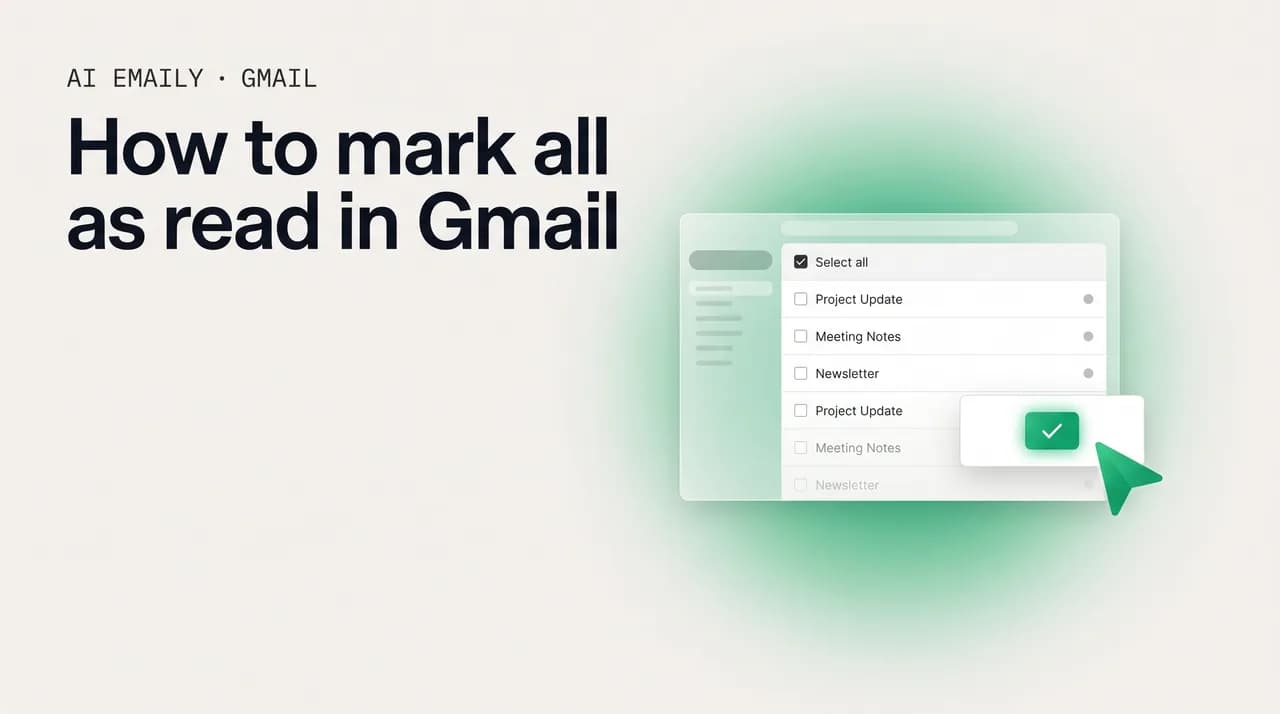
To mark all as read in Gmail on desktop, search is:unread, click the select-all checkbox, then click "Select all conversations that match this search" and hit the Mark as read envelope icon. The plain checkbox alone only catches 50 messages, so the match-search link is the step that clears the whole unread count at once.
On Gmail desktop, search is:unread, click select-all, then 'Select all conversations that match this search' and mark as read. Plus label and mobile fixes.
On this page
- 01Why does that unread count feel so much heavier than it should?
- 02How do you mark all emails as read in Gmail on desktop?
- 03How do you mark only unread emails as read with is:unread?
- 04How do you mark a single label or category as read?
- 05How do you target a specific label or category with search?
- 06How do you mark all as read on Android and iPhone?
- 07How do you mark all read from a specific sender or filter?
- 08How do you keep the unread count from climbing back up?
- 09Why does select all only select 50, and how do you fix it?
- 10How does AI Emaily mean you never face 10,000 unread again?
- 11What should you remember about marking all as read in Gmail?
Why does that unread count feel so much heavier than it should?#
There is a specific kind of low-grade dread attached to a Gmail unread badge. You glance at the phone and it reads 1,247. You open your laptop and the browser tab says (3,961). You have not actually fallen behind on anything that matters; you replied to the three emails that needed replies this morning. But the number does not know that. The number counts every newsletter you skimmed and meant to read later, every shipping notification, every receipt, every "someone mentioned you" alert, every promotion you have no intention of opening, all stacked into one accusing total that sits at the top of your screen like an unpaid bill. The unread count has stopped measuring your actual obligations and started measuring your guilt.
Marking everything as read is the cheapest possible way to buy that feeling back. It does not delete anything, it does not archive anything, and it does not move a single message out of your inbox. It simply tells Gmail that you have acknowledged these conversations, which flips them from bold to normal weight and resets the badge to zero. The emails are all still there, exactly where they were, fully searchable, ready to open. You have just stopped letting the count nag you about mail you were never going to triage one by one. For a lot of people this is the single most satisfying thing you can do to a Gmail account that has drifted into five-figure unread territory.
The frustrating part, and the reason you are reading this instead of having already done it, is that Gmail makes the all-at-once version of this surprisingly hard to find. There is no big "Mark everything read" button sitting on the screen. The obvious move, clicking the checkbox at the top of the list to select all, quietly betrays you: it only grabs the 50 messages on the page you are looking at, so you mark 50 read, watch the count drop by 50, and realize you would have to do this dozens or hundreds of times to clear the whole thing. The actual solution exists, works perfectly, and clears tens of thousands of emails in two clicks, but it hides behind a thin gray banner that most people never notice. Once you have seen it, you cannot unsee it. The whole job is finding it.
This guide covers every reliable way to mark mail as read in Gmail, in the order you are most likely to need them. We start with the canonical desktop method, the select-all plus the hidden match-search link that actually clears everything, because that is the one that solves the five-figure-badge problem. Then we narrow it down: marking only what is unread so you do not touch mail you have already dealt with, clearing a single label or category instead of the whole inbox, and bulk-marking by a specific sender. Mobile gets its own honest section, because the Gmail app genuinely does not have a true select-all and the workarounds matter. We finish with how to stop the count from climbing back up, using filters that mark low-value mail read on arrival, and a troubleshooting section for the most common snag of all, the one where select-all stubbornly grabs only 50.
Throughout, the steps describe Gmail as it works in 2026. Google adjusts the interface from time to time, and the exact wording of a button or the position of an icon can drift, but the underlying logic, search, select, expand the selection, mark read, has been stable for years and is not likely to change shape. If a label reads slightly differently on your screen, the flow still holds.
Marked as read is not the same as archived or deleted
How do you mark all emails as read in Gmail on desktop?#
The desktop web version of Gmail at mail.google.com is the only place where you can truly mark everything read in one pass, which is why, if you are staring down a giant unread count, you want to be at a real keyboard rather than on your phone. The method has two parts, and skipping the second part is the single most common reason people think this is impossible. Part one is selecting the visible page of messages. Part two, the part that does the real work, is telling Gmail to extend that selection to every conversation that matches your view, not just the page in front of you.
Before the steps, one detail that trips up a surprising number of people: the magic link only appears when your inbox is sorted by date, not by relevance. If Gmail is showing you mail sorted by "Most relevant," the "Select all conversations that match this search" link will not show up, and you will be stuck at 50 with no idea why. There is a small control in the top-right of the message list, near the page count, that toggles the sort order. If you do not see the expand-selection link in step three below, switch the sort from Most relevant to Newest first and it will appear. We will flag this again in troubleshooting, but it is worth knowing up front because it is the most quietly maddening version of this whole problem.
Here is the full flow to mark your entire inbox read on desktop.
- 1
Open Gmail on the web and go to the view you want to clear
Sign in at mail.google.com in a browser. By default you will land in your Inbox. If you want to clear the whole inbox, stay here. If you want to clear something narrower, like only unread mail or a single label, use the search bar first (covered in the next sections) so that the view shows exactly the conversations you intend to mark read. Whatever is in the current view is what you are about to act on, so look before you leap.
- 2
Click the Select all checkbox at the top-left
Just above the message list, on the far left of the toolbar, is an empty square checkbox. Click it once. Every conversation visible on the current page, normally up to 50, gets a checkmark and the row highlights. The toolbar above the list changes to show bulk actions: archive, delete, mark as read, and so on. At this point you have selected only the visible page, which is the trap. Do not stop here if you want everything.
- 3
Click "Select all conversations that match this search"
The instant you select the page, a thin banner appears just above the message list. It reads something like "All 50 conversations on this page are selected," followed by a blue link: "Select all conversations that match this search." Click that link. The banner updates to confirm you have now selected every matching conversation, often a much larger number, across all pages, not just the 50 in front of you. This is the step that turns a 50-at-a-time chore into a single action. If the link is not there, your inbox is sorted by relevance instead of date; switch to Newest first and it will appear.
- 4
Click the Mark as read icon
In the toolbar above the list, find the Mark as read control. It is the open-envelope icon (an envelope shown as opened). Click it. If you do not see an envelope, click the three-dot More menu in the toolbar and choose Mark as read from the dropdown. Gmail begins marking every selected conversation read. With a very large selection this can take a few seconds; let it finish.
- 5
Watch the unread count fall to zero and confirm
The bold weight drops off the messages in the list and the unread badge in the sidebar (and on the browser tab) collapses, ideally all the way to zero for that view. The emails themselves stay exactly where they were; only their read state changed. If you cleared the whole inbox, your unread count is now empty. If a few stragglers remain, they are usually new mail that arrived after you started, so just repeat the select-all and match-search once more.
The plain checkbox only grabs 50, the link grabs everything
How do you mark only unread emails as read with is:unread?#
Marking your entire inbox read is fine when you have given up on the backlog and just want a clean slate. But there is a smarter, safer version for everyday use, and it hinges on a single search operator: is:unread. Instead of selecting your whole inbox, including the thousands of messages you already opened and read months ago, you tell Gmail to show you only the conversations that are actually still unread, and then mark just those read. The end result on the badge is identical, the count goes to zero, but you have only touched mail that needed touching, which keeps the operation tidy and predictable. It is a small instance of a bigger habit: knowing how to use Gmail search operators turns most bulk actions into a search plus one click.
Why does this matter if the read messages were already read? Two reasons. First, it is faster and lighter: Gmail only has to act on the unread set, which is usually a small fraction of the total, so the operation completes quickly even on a huge account. Second, and more importantly, it is the foundation for every narrower version of this task. Once you are comfortable searching is:unread and marking the results read, you can bolt on extra conditions, a label, a category, a sender, a date range, and clear exactly that slice without disturbing anything else. The is:unread search is the workhorse behind the rest of this guide.
Here is how to mark all unread mail read on desktop using the search operator.
- 1
Type is:unread into the search bar and press Enter
Click the search box at the top of Gmail, type is:unread (no quotation marks, no spaces around the colon), and press Enter or Return. Gmail filters the view down to only conversations that currently contain unread messages. The total at the top-right of the list tells you how many there are, which is often a sobering number and exactly the one driving your badge.
- 2
Select all conversations on the page
Click the Select all checkbox at the top-left of the list. Every unread conversation visible on the page, up to 50, gets selected. As before, this is only the visible page, so the next step is essential.
- 3
Click the match-search link to extend the selection
In the banner that appears above the list, click "Select all conversations that match this search." Now your selection covers every unread conversation across all pages, not just the first 50. If the link does not appear, switch the sort order from Most relevant to Newest first using the control near the top-right of the list.
- 4
Mark them read
Click the Mark as read envelope icon in the toolbar (or the three-dot More menu, then Mark as read). Gmail marks every unread conversation read. The is:unread view will empty out as it goes, because the messages no longer match the search once they are read, and your unread badge drops to zero.
is:unread is the safest way to clear the badge
How do you mark a single label or category as read?#
Most of the time, the unread count is not spread evenly across your mail; it is concentrated. A few thousand of those unread messages are sitting in your Promotions tab, another chunk are in Updates, and the handful that actually matter are in your Primary inbox or under a specific label you check often. Marking everything read in one swing would flatten the meaningful unread mail along with the noise. The better move is to clear the noisy buckets, your Promotions and Social and Updates categories, or a specific label like "Newsletters," while leaving Primary alone so the count there still means something.
Gmail gives you two ways to do this, and which one is easier depends on whether you are working with a built-in category tab or a label you created. For category tabs, there is a shortcut: a "Mark all as read" option that handles the whole tab in one click. For labels, or for more surgical control over categories, you combine the is:unread operator with a label: or category: filter and use the same select-all-plus-match-search method from the previous sections. Both are below.
The fastest route for the built-in category tabs (Promotions, Social, Updates, Forums) uses the toolbar's overflow menu and clears the entire tab at once, across all pages.
- 1
Click into the category tab you want to clear
If you have Gmail's category tabs enabled, click the tab you want to empty of unread mail, for example Promotions or Social. Each tab behaves like its own mini-inbox with its own unread count, and you can clear them independently. Make sure you are actually on that tab before the next step, so you do not clear the wrong one.
- 2
Open the three-dot More menu in the toolbar
Look at the toolbar just above the message list, the row with the archive, delete, and other icons. At its right end is a three-dot More menu. Click it. This menu is different from the per-message three-dot menu inside a conversation; you want the one in the toolbar above the whole list.
- 3
Choose Mark all as read
In the dropdown, select "Mark all as read." Gmail marks every message in the current category tab as read, across all pages, not just the visible ones. This is the quickest way to clear a noisy tab like Promotions in a single action, without needing the search-and-select dance at all.
How do you target a specific label or category with search?#
The toolbar shortcut above is great for the four standard category tabs, but it does not help with labels you created yourself, and it gives you no way to combine conditions. For everything else, the search approach is more powerful and works identically whether you are targeting a label, a category, or both. The pattern is always the same: build a search that describes exactly the unread mail you want, then select all, extend with the match-search link, and mark read.
The two operators you need are label: and category:. Use label:newsletters is:unread to find every unread message under your Newsletters label. Use category:promotions is:unread to find unread mail in the Promotions category, which is the search equivalent of clearing the Promotions tab. You can stack them with other operators too: in:inbox is:unread limits to unread mail in the inbox proper, and label:work is:unread older_than:1m would catch unread work mail older than a month. The search bar is the most flexible tool Gmail gives you for deciding precisely what gets marked read.
Here is the general flow for any label or category.
- 1
Build the search for the slice you want
In the search bar, type the operator that describes your target plus is:unread. For a custom label, use label:LabelName is:unread (replace LabelName with your label; if it has spaces, wrap it like label:"Project Falcon" is:unread). For a category, use category:promotions is:unread, or social, updates, or forums. Press Enter. The view now shows only the unread mail in that slice.
- 2
Select the page, then extend the selection
Click the Select all checkbox at the top-left to select the visible page, then click "Select all conversations that match this search" in the banner that appears, so your selection covers every matching conversation across all pages rather than just the first 50.
- 3
Mark them read
Click the Mark as read envelope icon (or the three-dot More menu, then Mark as read). Only the conversations matching your search are affected; everything outside that label or category is untouched. The unread count for that slice drops to zero while the rest of your mail keeps its read state intact.
| What you want to clear | Search to type | Then do |
|---|---|---|
| Every unread message everywhere | is:unread | Select all, click the match-search link, Mark as read. |
| Unread in the inbox only (not other labels) | in:inbox is:unread | Select all, click the match-search link, Mark as read. |
| Unread Promotions mail | category:promotions is:unread | Select all, match-search link, Mark as read (or use the tab's Mark all as read). |
| Unread under a custom label | label:newsletters is:unread | Select all, match-search link, Mark as read. |
| Unread from one sender | from:[email protected] is:unread | Select all, match-search link, Mark as read. |
| Old unread you will never read | is:unread older_than:6m | Select all, match-search link, Mark as read. |
Label names with spaces need quotes
How do you mark all as read on Android and iPhone?#
Here is the honest answer that most articles bury: the Gmail mobile app does not have a true "mark all as read" or "select all conversations that match this search" feature. Neither the Android app nor the iPhone app exposes the match-search link that does the heavy lifting on desktop. On mobile, you can only select what is currently loaded on the screen, which is typically 25 to 50 conversations depending on your device and how far you have scrolled. There is no single tap that clears a five-figure unread count from the phone. Anyone who tells you otherwise is describing the desktop method and hoping you will not notice it does not exist on mobile.
That does not leave you stranded, though. There are three real workarounds, and the right one depends on how much mail you are clearing and how patient you feel. The first is batch-marking by page: long-press to start a selection, use the in-app select-all to grab the loaded conversations, mark them read, scroll to load more, and repeat. This is genuinely fine for a few hundred messages and is the most native option. The second, and the one we recommend for a truly enormous backlog, is to open the desktop version of Gmail in your phone's browser, where the real match-search link is available. The third, for clearing whole categories, is the per-category mark-all that does exist in the app. All three are below.
Open the Gmail app and go to the view you want to clear, the inbox, or tap the hamburger menu (three lines, top-left) and choose a specific label or category. Optionally, tap the search bar at the top and search is:unread first so you are only working through unread mail.
Long-press any message in the list. This switches the list into selection mode and puts a checkmark on that message. At the top of the screen a selection toolbar appears, and on most versions a Select all toggle (sometimes shown as a checkbox or the count at the top) lets you select every conversation currently loaded on screen.
Tap the three-dot menu at the top-right and choose Mark as read, or tap the Mark as read icon if it is shown directly in the toolbar. The loaded messages flip to read. Crucially, this only affected the conversations that were loaded, so scroll down to load the next batch and repeat the long-press, select-all, and mark-read steps. For a few hundred messages this is workable; for tens of thousands it is not, which is when you switch to the desktop-site method in the next tab.
Keep your Gmail app updated through the Play Store. Menu wording and the exact position of the select-all control shift slightly between app versions, but the long-press-then-select pattern has been the mobile norm for years.
The mobile app cannot clear a huge backlog in one tap
How do you mark all read from a specific sender or filter?#
Often the unread count is not really an inbox problem; it is one sender's problem. A single automated address, an order-status bot, a social network's notification system, a CRM, a project tool, has quietly piled up two thousand unread messages all by itself, and clearing just that one source would fix most of your badge without touching anything you care about. Gmail's from: operator makes this trivial, and it composes cleanly with is:unread so you only mark the unread ones read.
The pattern is the now-familiar one, but pointed at a sender. Search from:address is:unread to find every unread message from that source, then select all, extend with the match-search link, and mark read. You can be loose with the address, too: from:linkedin.com catches everything from any address at that domain, while from:[email protected] targets one exact address. You can also widen it beyond a single sender by adding OR or by searching a keyword that appears in a class of mail, for instance subject:receipt is:unread to clear unread receipts regardless of who sent them.
Here is the flow for clearing one sender, which you can adapt to any from: search.
- 1
Search for the sender's unread mail
In the search bar, type from: followed by the sender's address or domain, then is:unread. For example, from:[email protected] is:unread, or more broadly from:github.com is:unread to catch every address at that domain. Press Enter. The view now shows only unread messages from that source, and the count tells you how big the pile actually is.
- 2
Select all and extend the selection
Click the Select all checkbox at the top-left to grab the visible page, then click "Select all conversations that match this search" in the banner to extend the selection to every matching message across all pages. If the link is missing, switch the sort order to Newest first.
- 3
Mark them read
Click the Mark as read envelope icon (or three-dot More menu, then Mark as read). Every unread message from that sender flips to read, the slice empties from the is:unread view, and your badge drops by that sender's entire contribution, all without affecting mail from anyone else.
Clearing the worst sender often fixes most of the badge
How do you keep the unread count from climbing back up?#
Marking everything read is a one-time reset, and if you do nothing else, the count will simply refill. The same newsletters, receipts, notifications, and promotions that built it the first time will keep arriving, each one bold, each one adding to the badge, and in a few weeks you will be back where you started, searching for this article again. The durable fix is to stop low-value mail from ever showing up as unread in the first place, so the badge only counts things you might actually want to open. Gmail's filters do exactly this: you can tell Gmail that mail matching certain conditions should be marked as read automatically the moment it arrives, before it ever touches your unread count.
This is the single highest-leverage thing you can do for inbox sanity in Gmail. A filter that says "any mail from this newsletter, or in the Promotions category, or containing 'unsubscribe', should be marked read on arrival" means those messages still land in your inbox and stay searchable, but they never inflate the badge and never demand your attention as if they were urgent. You read them when you choose to, not because a number is nagging you. The trade-off is that you stop getting an unread nudge for that class of mail, which is precisely the point for the categories that were never urgent to begin with.
Here is how to build a filter that marks matching mail read automatically.
- 1
Run the search that describes the mail you want auto-read
In the search bar, type the search that matches the low-value mail you want to stop counting, for example category:promotions, or from:[email protected], or the keyword unsubscribe. Then click the search-options icon (the small sliders or down-arrow at the right of the search bar) to open the filter builder pre-filled with your terms, or refine the conditions in the builder fields directly.
- 2
Click "Create filter"
At the bottom of the search-options panel, click "Create filter." Gmail switches to a list of actions to apply to mail matching these conditions from now on. This is where you tell Gmail what to do with every future message that fits the search.
- 3
Tick "Mark as read"
In the actions list, check the box for "Mark as read." You can combine it with other actions if you like, such as "Skip the Inbox (Archive it)" to move the mail out of the inbox entirely, or "Apply the label" to file it, but at minimum, Mark as read is the action that keeps it off your unread count.
- 4
Apply it to existing mail too, then create the filter
Tick "Also apply filter to matching conversations" so the rule cleans up the messages already sitting unread, not just future ones, then click "Create filter." From now on, mail matching those conditions arrives already marked read, lands quietly in your inbox (or skips it, if you chose that), and never adds to the badge. Build one of these for each noisy source and the count stops climbing on its own.
Filters turn a one-time cleanup into a permanent fix
Why does select all only select 50, and how do you fix it?#
By far the most common complaint about marking all read in Gmail is that select-all seems broken: you click the checkbox, it selects messages, you mark them read, and the count drops by exactly 50, no matter how many thousands you have. This is not a bug, and you have not done anything wrong. It is simply the gap between the two halves of the method, and almost every version of this frustration comes down to one of a few specific causes. Work down the list and you will resolve essentially all of them.
The number-one cause, the source of perhaps nine in ten of these reports, is missing the match-search link. The checkbox at the top-left selects only the visible page, which is up to 50 conversations. That is all it is supposed to do. The second click, on the "Select all conversations that match this search" link in the banner that appears above the list, is what extends the selection to everything. If you only ever click the checkbox and then Mark as read, you will mark exactly the page, 50, read, every time. The fix is simply to click that link before marking read.
The number-two cause is the one that makes the link itself disappear: your inbox is sorted by "Most relevant" rather than by date. When sorting by relevance, Gmail does not offer the match-search expansion at all, so even people who know about the link cannot find it. The fix is the sort-order control near the top-right of the message list, switch it from Most relevant to Newest first, and the banner with the link comes back. If you are certain the link should be there and it is not, this sort setting is almost always why.
Beyond those two, a few smaller causes account for the rest. You might be on mobile, where, as covered above, the true select-all simply does not exist, the app caps you at the loaded page no matter what, and the answer is the desktop site or batch-marking. You might be looking at a view with fewer than 50 matching conversations, in which case selecting the page genuinely is selecting everything and there is nothing more to expand, the link will not appear because there is nothing beyond the page. Or the page-size setting might be making this more tedious than it needs to be. The list and table below lay out the fixes.
- You skipped the match-search link: after clicking the select-all checkbox, click "Select all conversations that match this search" in the banner above the list. This is the fix for the overwhelming majority of cases.
- Your inbox is sorted by relevance: the match-search link only appears when sorted by date. Switch the sort from Most relevant to Newest first using the control near the top-right of the message list.
- You are on the mobile app: there is no true select-all-matching-search in the Gmail app. Use the desktop site in your phone's browser, or batch-mark page by page.
- There really are 50 or fewer matches: if your search returns fewer conversations than a page holds, selecting the page is selecting everything, and no expansion link appears because there is nothing beyond it.
- Increase the page size for less repetition: Settings, See all settings, General, Maximum page size lets you show up to 100 per page, which reduces how often you repeat the process when the match-search link is unavailable.
- Mail is still arriving: new unread mail that lands after you start will not be in your original selection. Just run the select-all-plus-match-search once more to catch the stragglers.
| Symptom | Most likely cause | Fix |
|---|---|---|
| Marking read only clears 50 at a time | You clicked the checkbox but not the match-search link | After selecting the page, click "Select all conversations that match this search" in the banner, then Mark as read. |
| The match-search link never appears | Inbox is sorted by Most relevant, not date | Switch the sort order to Newest first using the control near the top-right of the list. |
| No way to select everything on mobile | The Gmail app has no true select-all-matching-search | Use the desktop site in your phone's browser, or batch-mark page by page in the app. |
| Mark as read icon is not visible in the toolbar | The envelope icon is hidden in the overflow menu | Click the three-dot More menu in the toolbar and choose Mark as read. |
| Count drops then a few unread reappear | New mail arrived after you started the selection | Repeat the select-all and match-search once more to catch newly arrived mail. |
| Too tedious because there is no match-search link | Page size is at the default 50 | Raise Maximum page size to 100 in Settings, General, so each page clears twice as much. |
How does AI Emaily mean you never face 10,000 unread again?#
Everything above is about firefighting: an unread count that already grew out of control, and the various ways to beat it back down inside one Gmail account. Gmail's native tools are fine for that, the match-search link genuinely works, filters genuinely help, and for a single account they are enough. But notice what you are actually doing. You are manually clearing a number that should never have been allowed to balloon in the first place, and you are doing it separately in every account you own. The moment your email life is more than one Gmail inbox, a personal Gmail, a work Google Workspace address, an Outlook account, maybe an iCloud or Fastmail address, you are now hunting down the match-search link in each one, building duplicate filters in each one, and still ending up with several five-figure badges instead of one. AI Emaily is built so that the count never gets out of hand to begin with, across all of those accounts at once.
AI Emaily is an AI-native email client that connects Gmail alongside every other major provider, Outlook, iCloud, Fastmail, Proton, and any standard IMAP mailbox, into a single inbox. The unread count you see is one number across everything, not a separate badge per provider that you clear separately and forget about separately. That alone removes most of the per-account busywork. But the real difference is what happens to the mail before it ever becomes an unread number you have to deal with.
Instead of every message arriving bold and demanding equal attention, AI Emaily's AI triage reads incoming mail and sorts it automatically into what actually needs you and what does not. Auto-categorization separates the genuine, reply-worthy messages from the receipts, notifications, newsletters, and promotions, so the count that reaches you reflects real obligations rather than the noise that drives a Gmail badge to 10,000. The low-value mail is still there and still searchable, exactly as marking it read would leave it, but it never piles up as an accusing unread total, because the client understood it was low-value on arrival and handled it accordingly. You are not periodically resetting a count; the count simply never inflates.
On top of the triage sits an agent that can act, not just sort. You can ask it in plain language to mark everything from a given sender read, to clear a whole category, or to keep a certain class of mail permanently out of your unread count, and it does it across every connected account at once, no per-provider filter-building, no per-account match-search hunting. It runs in one of three modes you control: Manual, where it only does what you click; Copilot, where it proposes actions and waits for your approval; and Autopilot, where it handles routine triage on its own within the limits you set. Every action it takes is logged, and anything it does can be undone, so letting it manage your unread count never means losing control of it.
AI Emaily has a Free plan at $0, and a Pro plan at $12.42 per month billed annually for the full agent and multi-account power. If you are tired of periodically beating a giant unread badge back down, in Gmail and then again in your other accounts, you can connect your mailboxes and try it at app.aiemaily.com/signup. The point is not that Gmail's mark-all-read is bad; it is that clearing the count by hand is treating the symptom, and an inbox that triages on arrival across every account is the version where the 10,000-unread problem just does not happen.
Clearing the badge treats the symptom; triage prevents it
What should you remember about marking all as read in Gmail?#
Marking all as read in Gmail is the fastest way to silence an unread count that has stopped meaning anything, and the whole skill comes down to one move that is easy to miss. On desktop, you select the page with the top-left checkbox, then, and this is the step that matters, click the "Select all conversations that match this search" link in the banner above the list, and finally click the Mark as read envelope icon. The plain checkbox alone only grabs 50; the match-search link is what clears the entire count in one pass.
From there, everything is a variation on the same pattern, narrowed by a search. Search is:unread to touch only mail that is actually unread. Add category:promotions, label:newsletters, or from:address to clear a specific noisy slice while leaving the rest alone. For the standard category tabs, the toolbar's three-dot Mark all as read is an even quicker shortcut. The select-then-extend-then-mark rhythm, and the search that defines what you are acting on, are the only two ideas you need.
Two things trip people up most, and both are quick to fix. Select-all clearing only 50 almost always means you skipped the match-search link, or your inbox is sorted by relevance instead of date, switch it to Newest first and the link reappears. And the mobile app simply has no true select-all-matching-search, so a giant backlog means either batch-marking page by page or, far better, opening the desktop site in your phone's browser where the real link lives. Knowing those two facts removes nearly all the frustration.
Finally, remember that clearing the count is a reset, not a cure. If it keeps refilling, build a few mark-as-read filters for your worst senders and the Promotions category so low-value mail never inflates the badge again. And if you are clearing the same battle in several accounts, a client built for many inboxes is worth a look. AI Emaily connects Gmail and every other provider into one inbox, uses AI triage and auto-categorization so the count reflects real mail instead of noise, and adds an agent, with undo and an audit trail, that can keep the clutter out of your unread total across every account. Whether you stay with native Gmail or move to one place for everything, the lesson is the same: the unread number should serve you, not stalk you.
Frequently asked
See it in AI Emaily
Keep reading
Sources

Written by
Nafiul HasanNafiul Hasan is an entrepreneur and AI automation system builder with 10+ years of experience turning messy, manual workflows into reliable automated systems. He designs and ships AI enterprise solutions end-to-end — the agent logic, the data plumbing, and the product people actually use — and founded AI Emaily to give busy professionals their attention back. He writes here from the builder's seat: what works, what breaks, and how to put AI to work without giving up control.