How to use Gmail search operators to find any email

The short answer
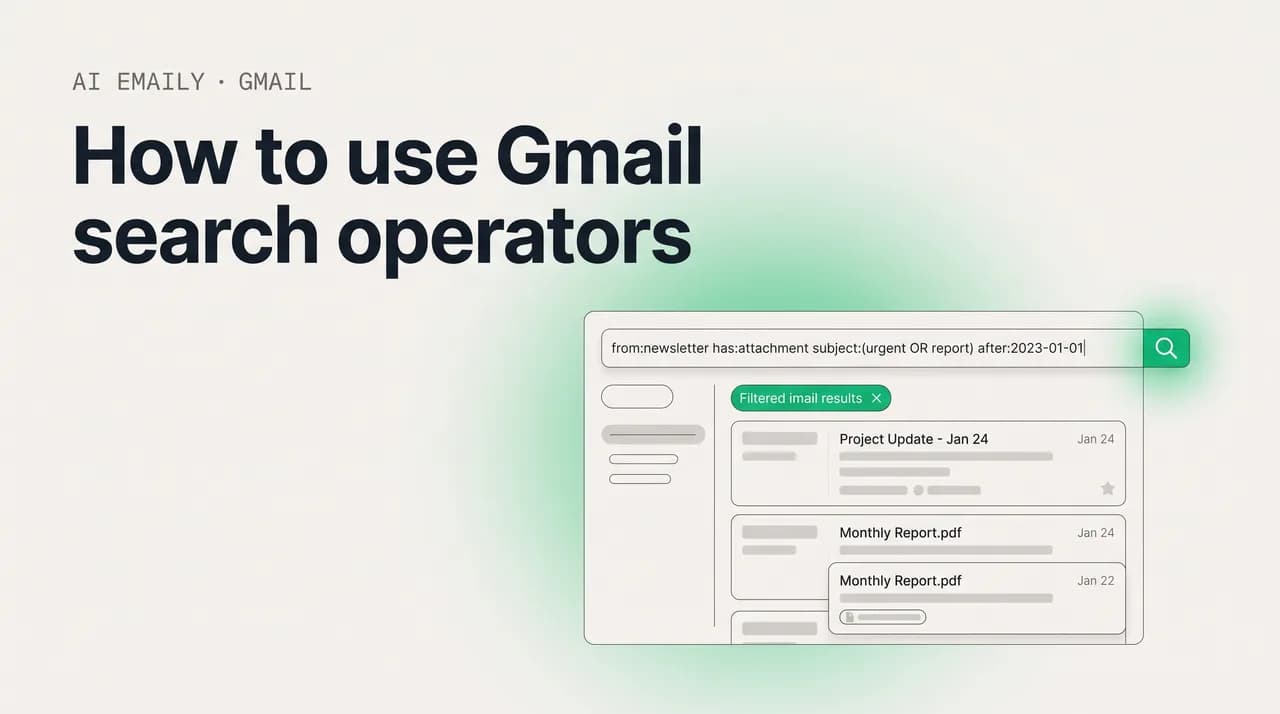
Gmail search operators are keywords like from:, subject:, has:attachment, before:, and larger: that you type into the search box to find exact messages instead of scrolling. Combine them with spaces, OR, quotes, and a minus sign to narrow results, then save any search as a filter so Gmail repeats the sort automatically.
Gmail search operators let you find any email fast. Full operator list, combining tricks, date and size search, 15+ recipes, and how to save a search.
On this page
- 01Why are Gmail search operators worth learning?
- 02What is the complete list of Gmail search operators?
- 03How do you combine Gmail search operators?
- 04How do you search Gmail by date?
- 05How do you find emails by attachment, size, and content?
- 06What are the most useful Gmail search recipes?
- 07How do you turn a Gmail search into a saved filter?
- 08What about search chips and searching on mobile?
- 09What are the best tips for searching Gmail faster?
- 10How does AI Emaily find email by meaning, with no operators?
- 11Putting Gmail search operators to work
Why are Gmail search operators worth learning?#
Most people use Gmail search the way they use a junk drawer: they type a name, scroll past forty results, and give up halfway down. That works when the message you want arrived this morning. It falls apart the moment you are hunting for a receipt from two years ago, the one PDF a colleague sent before a deadline, or the single confirmation email buried under hundreds of newsletters that all mention the same store. The plain keyword search is a blunt instrument, and a busy inbox quickly outgrows it.
Search operators are the fix. They are short, typed commands — words and symbols like from:, subject:, has:attachment, before:, and larger: — that tell Gmail not just what word to look for but where to look for it and how to narrow the field. Instead of asking Gmail to find every message that contains the word invoice anywhere, you can ask it for invoices from a specific sender, sent last quarter, with a PDF attached, and skip the four hundred near-misses entirely. The difference between typing a name and typing from:[email protected] has:attachment is the difference between rummaging and retrieving.
The payoff compounds the more mail you have. A two-thousand-message inbox is searchable by hand if you are patient; a hundred-thousand-message archive is not. Operators turn the size of your archive from a liability into an asset, because the more precisely you can describe a message, the faster Gmail isolates it no matter how much surrounds it. People who learn five or six operators stop dreading the search box and start treating it as the fastest way to navigate their entire email history.
This guide is built to be both a tutorial and a reference you come back to. It opens with a complete table of every operator Gmail supports, so you can scan for the one you need. Then it walks through the four moves that make operators powerful in combination — requiring multiple conditions, allowing alternatives, excluding noise, and grouping with parentheses. After that come dedicated sections on searching by date and size, searching by attachment and content, and more than fifteen ready-to-use recipes for the situations people actually face. Finally, it shows how to turn any search into a saved filter, how the search chips and mobile app fit in, and where Gmail's literal, string-matching search stops being enough.
One honest note up front, because it shapes everything below: Gmail search is literal. It matches the exact words and addresses you type, not the meaning behind them. A search for invoice will not surface a message whose subject reads your statement is ready, because the word invoice never appears in it. Operators make you precise, but precision and understanding are not the same thing — and that gap is exactly where a different approach, which we come to at the end, earns its place. For now, learning the operators is the highest-leverage thing you can do with the inbox you already have.
What is the complete list of Gmail search operators?#
Here is the full set of operators Gmail recognizes, with what each one does and a worked example you can adapt. You do not need to memorize the table — bookmark it and pull the operator you need when you need it. A few rules apply across the board, and they are worth committing to memory because they cause most of the confusion people hit: type operators with no space after the colon (from:alice, never from: alice); operators are not case-sensitive (FROM: and from: behave the same); and you can chain as many as you like in one search, separated by spaces.
| Operator | What it does | Example |
|---|---|---|
| from: | Messages from a specific sender (name, address, or whole domain) | from:amazon.com |
| to: | Messages sent to a specific recipient or alias | to:me |
| cc: | Messages where an address was on the CC line | cc:[email protected] |
| bcc: | Your sent messages where an address was BCC'd | bcc:[email protected] |
| subject: | Words in the subject line only | subject:invoice |
| " " | An exact phrase, in that exact order | "order confirmation" |
| OR | Either condition matches (must be capitalized) | from:alice OR from:bob |
| { } | Same as OR — any term inside the braces matches | {from:alice from:bob} |
| - (minus) | Excludes messages containing the term | vacation -hawaii |
| AND | Both conditions must match (a space does the same) | from:bank AND subject:statement |
| ( ) | Groups terms to control how a query is read | subject:(quote OR estimate) |
| AROUND | Two words within N words of each other | holiday AROUND 5 party |
| has:attachment | Any message with a file attached | has:attachment from:boss |
| filename: | Attachments by name or file type | filename:pdf |
| has:drive | Messages with a Google Drive link or file | has:drive |
| has:document | Messages with a Google Docs attachment | has:document |
| has:spreadsheet | Messages with a Google Sheets attachment | has:spreadsheet |
| has:presentation | Messages with a Google Slides attachment | has:presentation |
| has:youtube | Messages containing a YouTube link | has:youtube |
| label: | Messages carrying a specific label | label:receipts |
| has:nouserlabels | Messages with no label you created | has:nouserlabels |
| has:userlabels | Messages carrying at least one of your labels | has:userlabels |
| in: | Messages in a location (inbox, spam, trash, anywhere) | in:anywhere |
| is:unread | Unread messages | is:unread |
| is:read | Read messages | is:read |
| is:starred | Starred messages | is:starred |
| is:important | Messages Gmail marked important | is:important |
| is:snoozed | Snoozed messages | is:snoozed |
| is:muted | Muted conversations | is:muted |
| category: | Messages in a tab (primary, social, promotions, updates, forums) | category:promotions |
| before: | Messages before a date (YYYY/MM/DD) | before:2026/01/01 |
| after: | Messages after a date (YYYY/MM/DD) | after:2025/12/31 |
| older_than: | Messages older than a relative span (d, m, y) | older_than:1y |
| newer_than: | Messages newer than a relative span (d, m, y) | newer_than:7d |
| older: | Messages before a date (alternative to before:) | older:2026/01/01 |
| newer: | Messages after a date (alternative to after:) | newer:2026/01/01 |
| larger: | Messages larger than a size (use M or K) | larger:10M |
| smaller: | Messages smaller than a size | smaller:1M |
| size: | Messages at or above a size in bytes | size:5000000 |
| list: | Messages from a mailing list | list:[email protected] |
| deliveredto: | Messages delivered to a specific address | deliveredto:[email protected] |
| rfc822msgid: | A single message by its unique Message-ID | rfc822msgid:[email protected] |
| + (plus) | Forces an exact-word match, no variants | +unicorn |
That table is the whole language, but a handful of these operators carry most of the weight in real use, and they are worth knowing cold. from: and to: are the workhorses — the fastest way to collapse an inbox to one conversation partner. subject: keeps a search out of the message body, which matters when a common word appears in hundreds of footers but only a few subject lines. has:attachment and filename: are how you find files you remember receiving but cannot remember the message around. And the date and size operators — before:, after:, older_than:, newer_than:, larger:, smaller: — are what make a years-deep archive navigable. If you learn only six operators, learn those.
The rest earn their place in specific moments. category: lets you search inside one of Gmail's tabs, so category:promotions unsubscribe finds marketing mail you want gone without touching your real conversations. list: targets mail that arrived through a mailing list, which is the cleanest way to corral newsletters that all use different sender addresses. in:anywhere is the override that tells Gmail to include Spam and Trash, which it normally excludes — invaluable when a message you need has been misfiled or deleted. And rfc822msgid: is the specialist's tool: every email carries a globally unique Message-ID in its headers, and searching for it returns that exact message and nothing else, which is how support teams and IT admins pinpoint a single email out of millions.
A few operators surprise people with their behavior, so they deserve a flag. The plus sign before a word (+meeting) forces Gmail to match that exact word and suppress the stemming it normally does, so you get meeting but not meetings or meet — useful when a near-variant is flooding your results. The AROUND operator finds two words near each other rather than adjacent, so quarterly AROUND 10 forecast catches quarterly sales forecast and quarterly revenue and growth forecast alike; the number sets how many words apart they can be. And curly braces { } are simply a terser way to write OR — everything inside them is treated as alternatives, so {from:alice from:bob} means the same as from:alice OR from:bob.
No space after the colon — ever
How do you combine Gmail search operators?#
A single operator narrows your search; combining several is where the real precision comes from. Gmail gives you four ways to join conditions, and once you understand all four you can describe almost any message in a single line. They are: requiring every condition (AND), allowing alternatives (OR), excluding terms (the minus sign), and grouping conditions together (parentheses). Each does something the others cannot, and the most powerful searches use two or three at once.
The default is AND, and it is invisible. When you type two operators separated by a space, Gmail requires both to match — there is no need to type the word AND, although you can. So from:stripe.com has:attachment returns only messages that are both from Stripe and carry an attachment; a message that is from Stripe with no attachment, or has an attachment but is from someone else, is excluded. Every space you add tightens the result set, because each new condition is one more thing a message must satisfy. This is why stacking operators is the fastest way to shrink a thousand results to a handful.
OR does the opposite — it widens. Capitalized OR between two conditions tells Gmail that either one is enough, which is how you cover several senders, subjects, or phrasings in one pass. from:[email protected] OR from:[email protected] returns mail from either person. The capitalization matters: a lowercase or is treated as an ordinary word to search for, not an operator, so it will quietly break your query. The curly-brace form {from:[email protected] from:[email protected]} does the same job if you find it easier to read.
The minus sign excludes, and it is the most underused operator of the four. Putting a hyphen directly before any term or operator removes matching messages from your results. subject:report -subject:draft finds reports that are not drafts. from:linkedin.com -is:starred finds LinkedIn mail you have not starred. The exclusion is surgical — it carves a specific slice out of a broad result set — and it is often the difference between a search that almost works and one that lands exactly on the message you want. Think of it as the answer to everything from this sender except the stuff I do not care about.
Parentheses group conditions so Gmail reads them as a unit, which matters the moment you mix OR with anything else. Without grouping, from:acme.com subject:invoice OR subject:receipt is ambiguous — Gmail may read it as from Acme with invoice in the subject, OR anything at all with receipt in the subject, which is not what you meant. Wrapping the alternatives in parentheses fixes it: from:acme.com subject:(invoice OR receipt) means from Acme, with either invoice or receipt in the subject. Parentheses are how you keep complex searches doing what you intended.
| You want to... | Use | Example |
|---|---|---|
| Require several things at once | Space (implicit AND) | from:stripe.com has:attachment after:2026/01/01 |
| Match any of several senders | OR (capitalized) | from:[email protected] OR from:[email protected] |
| Cover several subject phrasings | subject:( ) with OR inside | subject:(invoice OR receipt OR "order confirmation") |
| Exclude a word or condition | - (minus sign) | from:linkedin.com -subject:job |
| Find an exact phrase | Quotation marks | "meeting notes" |
| Group alternatives in a larger query | Parentheses | from:acme.com (subject:quote OR subject:estimate) |
| Find two words near each other | AROUND N | budget AROUND 5 approval |
Put the four together and you can write searches that read almost like a sentence. from:(amazon.com OR ebay.com) subject:(order OR shipped) after:2026/01/01 -subject:returned finds order and shipping mail from either store this year, minus anything about returns. It looks dense, but each piece is doing one obvious job: the parenthesized from: covers two retailers, the parenthesized subject: covers two phrasings, the after: sets a window, and the trailing minus carves out the returns. Build a search like this one piece at a time and it is never confusing — start with the sender, add the subject, add the date, then trim with exclusions until the result list is exactly what you wanted.
The practical habit that makes this painless is to build incrementally and watch the result count shrink. Type from:amazon.com and see how many messages that is. Add subject:order and watch the number drop. Add after:2026/01/01 and watch it drop again. Each operator you append is feedback — if the count goes to zero, the last thing you added is too strict or has a typo, and you can fix it in isolation. This trial-and-narrow rhythm is how power users write a precise five-operator query in fifteen seconds without ever planning it out in advance.
OR must be capitalized; or is just a word
How do you search Gmail by date?#
Date is the single most useful way to narrow a deep archive, because almost everything you are looking for happened in a rough window you can remember — last month, before you changed jobs, sometime in 2024. Gmail gives you two families of date operators: absolute dates with before: and after:, and relative spans with older_than: and newer_than:. They solve slightly different problems, and knowing when to reach for each is half the skill.
Absolute date operators take a specific calendar date in YYYY/MM/DD format. before:2026/01/01 returns everything sent before January 1, 2026; after:2025/06/30 returns everything sent after June 30, 2025. The format is strict — year first, slashes between, no spaces — and Gmail is exclusive at the boundary, meaning before:2026/01/01 does not include messages from January 1 itself. To search a window, combine the two: after:2025/12/31 before:2026/02/01 returns mail from January 2026. There are also older: and newer: operators that behave exactly like before: and after: with the same date format, kept around for compatibility; you can use whichever reads more naturally to you.
Relative date operators are often faster because you do not have to do the calendar math. older_than: and newer_than: take a number followed by a unit — d for days, m for months, y for years. newer_than:7d returns everything from the past week; older_than:1y returns everything more than a year old; newer_than:2m returns the last two months. These shine for recurring cleanups: older_than:1y larger:10M is a one-line search for big old mail you can probably delete, and it stays accurate whenever you run it because relative means relative to today, not to a fixed date.
The two families combine freely with each other and with every other operator, which is where date search becomes powerful. from:[email protected] after:2025/09/01 before:2025/12/01 has:attachment finds attachments your boss sent in the autumn quarter. newer_than:30d is:unread surfaces everything from the last month you have not read yet. subject:invoice older_than:2y is how you find ancient invoices for an audit. Date is rarely the whole search — it is the frame you put around a sender, a subject, or an attachment to pin down the exact era you remember the message arriving in.
| Operator | Format | Example | Returns |
|---|---|---|---|
| before: | YYYY/MM/DD | before:2026/01/01 | Everything sent before that date |
| after: | YYYY/MM/DD | after:2025/06/30 | Everything sent after that date |
| older: | YYYY/MM/DD | older:2024/01/01 | Same as before: — sent before the date |
| newer: | YYYY/MM/DD | newer:2024/01/01 | Same as after: — sent after the date |
| older_than: | N + d / m / y | older_than:1y | Older than one year from today |
| newer_than: | N + d / m / y | newer_than:7d | Newer than seven days from today |
| Date window | after: + before: | after:2025/12/31 before:2026/02/01 | Mail sent in January 2026 |
A small gotcha with date search trips people up, so it is worth naming: Gmail interprets these dates in your account's time zone, and the boundary is the start of the day. If a message arrived late at night and you search right up to its date, an off-by-one can make it appear to fall outside your window. When a date search seems to be missing something at the very edge of your range, widen the window by a day on each side and the message usually reappears. Dates are about catching an era, not a precise timestamp — give yourself a little margin and the search behaves.
Relative dates beat the calendar for cleanups
How do you find emails by attachment, size, and content?#
Two of the most common reasons people search Gmail are I know someone sent me a file and my inbox is full, find the big ones. Both are squarely in operator territory, and both are far easier than the scrolling people usually resort to. The attachment and content operators answer the first; the size operators answer the second.
For attachments, has:attachment is the broad net — it returns every message carrying any file, which you then narrow with a sender or date. The sharper tool is filename:, which matches attachments by type or by name. filename:pdf returns messages with a PDF attached; filename:xlsx targets spreadsheets; filename:contract.docx finds an attachment with that specific name. Combine them with a sender and you go straight to the file: from:[email protected] filename:pdf is the fastest possible path to a contract a lawyer emailed you, no matter how long ago. Gmail also recognizes its own document types — has:drive for Drive links and files, has:document, has:spreadsheet, and has:presentation for Docs, Sheets, and Slides, and has:youtube for messages containing a YouTube link — which are handy when the thing you shared was a Google file rather than a traditional attachment.
For size, larger: and smaller: take a number with an M or K suffix and return messages above or below that threshold, attachments included. larger:10M finds the heavyweight messages clogging your storage; smaller:1M excludes them when you want only lightweight mail. The size operators are the backbone of any storage cleanup, because the messages eating your quota are almost always the ones with large attachments, and larger: isolates them in one line. Pair it with a date — larger:10M older_than:1y — and you have a precise list of big, old mail that is usually safe to delete. There is also a size: operator that takes a raw byte count (size:5000000 for five megabytes), useful when you need an exact threshold rather than the rounded M and K shortcuts.
For content, remember the distinction between searching everywhere and searching the subject. A bare word searches the entire message — subject, body, and sender. subject: restricts the match to the subject line, which is what you want when a common word like report appears in countless email signatures and footers but only a handful of subject lines. Quotation marks turn loose words into an exact phrase: "quarterly report" matches those two words in that order, while quarterly report without quotes matches messages containing both words anywhere, in any order. And the AROUND operator handles the middle ground, finding two words near each other when you remember the gist but not the exact phrasing.
| Goal | Operator | Example |
|---|---|---|
| Any message with a file | has:attachment | from:[email protected] has:attachment |
| A specific file type | filename: | filename:pdf |
| A named attachment | filename: | filename:invoice_2026.pdf |
| A Google Drive file or link | has:drive | from:[email protected] has:drive |
| A Google Docs / Sheets / Slides file | has:document / has:spreadsheet / has:presentation | has:spreadsheet from:finance |
| Large, storage-heavy mail | larger: | larger:10M |
| Lightweight mail only | smaller: | smaller:500K |
| An exact phrase | Quotation marks | "meeting agenda" |
| Two words near each other | AROUND N | contract AROUND 10 signature |
| A word only in the subject | subject: | subject:reminder |
These three families — attachment, size, and content — combine with sender and date to handle the overwhelming majority of real searches. The mental model is to layer from general to specific: start with who or what kind of thing you are after (from:, has:attachment, filename:), add the era (after:, older_than:), and finish with a content constraint (subject:, an exact phrase) only if you still have too many results. Most searches resolve in two or three operators; you rarely need all of them at once. The skill is not memorizing every operator but knowing which two or three to reach for given what you actually remember about the message.
filename: matches type or full name
What are the most useful Gmail search recipes?#
Operators click fastest when you see them solving real problems. Below are more than fifteen ready-to-use searches for situations almost everyone runs into. Type any of them straight into the Gmail search box — addresses, names, and keywords are examples, so swap in your own. Each is built from the operators above, and reading how they are assembled is the quickest way to learn to write your own.
A few of these recipes deserve a closer look because they solve problems that come up constantly. The storage cleanup pair — larger:10M has:attachment and larger:5M older_than:1y — is the answer to Gmail telling you that you are out of space. Run the first to find the single biggest messages, the second to find big mail old enough to delete without a second thought, and you can usually free several gigabytes in a few minutes of reviewing and deleting. There is no faster way to reclaim quota than letting larger: surface the offenders for you.
The from:acme.com -subject:newsletter pattern is the everyday workhorse of the minus sign: everything from a sender or domain except one category of their mail. It generalizes endlessly. from:linkedin.com -subject:job hides job alerts but keeps connection requests. from:bank.com -subject:statement keeps everything but the monthly statements. Any time you mostly want a sender's mail but not one noisy slice of it, the exclusion operator is the tool, and it almost always reads cleaner than trying to describe the slice you do want.
The receipts-and-invoices recipe shows why parenthesized OR is so useful, and also exposes the central limit of literal search. subject:(receipt OR invoice OR "order confirmation") catches three common ways a purchase confirmation phrases itself — but only those three. The moment a store writes thanks for your order or your payment was successful, the search misses it, and you would have to add yet another alternative to the parentheses. This is the maintenance treadmill of literal search: you are enumerating phrasings, and language always has one more you did not list. Hold that thought; it is exactly the problem the product section at the end addresses.
Finally, in:anywhere is the recipe to remember when a search comes up empty for a message you are certain exists. By default Gmail excludes Spam and Trash from search results, so a confirmation that got misclassified as spam, or a thread you deleted and now need, simply will not appear in a normal search. Adding in:anywhere tells Gmail to include every location — Spam, Trash, and All Mail — and the missing message usually surfaces immediately. When something should be there and is not, in:anywhere is the first thing to try.
How do you turn a Gmail search into a saved filter?#
The best thing about a good search is that you never have to write it twice. Once a search reliably catches the mail you care about, Gmail can turn that exact query into a filter — a standing rule that applies the same logic to every future message automatically. A search finds mail you already have; a filter built from that search keeps doing the sorting for you on everything that arrives next. This is the bridge from finding to organizing, and it is the natural next step once an operator string proves itself.
The whole process starts from the search box and takes under a minute. You do it on a computer — the Gmail mobile app cannot create filters, which we cover in the next section.
- 1
Build and test your search first
Type your operator string into the Gmail search box and run it. Confirm the results are exactly the mail you want this rule to act on. This preview is your safety check — never build a filter from a search you have not eyeballed, especially one that will delete.
- 2
Open the search options panel
Click the sliders icon (Show search options) on the right edge of the search box. Gmail opens a panel with your search already translated into its fields — From, Subject, Has the words, and so on — so you can see and tweak the criteria.
- 3
Click Create filter
At the bottom of the search options panel, click Create filter. Gmail switches from criteria to the actions screen, where you decide what should happen to every message that matches your search from now on.
- 4
Choose what the filter should do
Tick the actions you want: Skip the Inbox (Archive it), Apply the label, Mark as read, Star it, Forward it, or Delete it. You can combine several. The common pairing is Apply the label plus Skip the Inbox, which files matching mail and clears it from the inbox in one move.
- 5
Apply it to existing mail (optional)
Tick Also apply filter to matching conversations to have Gmail sweep the messages already in your inbox that match, not just future ones. Leave it unticked to act only on new arrivals. The screen shows how many existing messages match.
- 6
Click Create filter to save
Confirm, and the filter goes live immediately. Because filters run on Google's servers, it now applies on every device you read mail on — the search you wrote once becomes permanent, automatic organization.
This is why the time you spend learning operators pays off twice. The first payoff is finding any message on demand. The second is that every search you perfect becomes a candidate for automation — your best from:(…) subject:(…) query is one click away from being a filter that labels and archives that mail forever. People who get fluent with operators end up with a tidy set of filters almost by accident, because they keep noticing that a search they just ran would be useful as a standing rule. If you want the full walkthrough of filter actions, edge cases, and recipes, our companion guide on creating filters in Gmail goes deeper on the actions side.
One thing to know about the translation from search to filter: a few operators that are about state rather than content do not carry into filters cleanly, because filters act on mail as it arrives, before you have read or starred it. is:unread, is:read, and is:starred describe a status you assign later, so they make little sense as a filter condition and Gmail may ignore them. Content and routing operators — from:, to:, subject:, has:attachment, filename:, larger:, list: — are exactly what filters are built for and translate perfectly. When a saved filter behaves oddly, check whether you leaned on a status operator that belongs in a search but not in a rule.
Test as a search before you save as a filter
What about search chips and searching on mobile?#
You do not have to type operators by hand to benefit from them, and Gmail offers two assists that lower the barrier. The first is search chips — the row of clickable filter buttons that appear under the search box after you run a search. The second is the search options panel, the form-based front end to the same operators. Both are doing exactly what the typed operators do under the hood; they just spare you the syntax.
Search chips appear automatically once you have searched. After you look something up, Gmail shows quick-filter buttons like From, To, Date, Has attachment, Is unread, and Attachment type beneath the search bar. Tapping one refines your existing search without retyping — tap Has attachment and Gmail appends has:attachment to whatever you searched; tap a date range and it adds the date operators. Chips are the fastest way to narrow a broad search interactively: search a sender's name, then tap Has attachment and Last 7 days to drill down in two taps. They are operators wearing a friendlier interface, and they work the same on desktop and mobile.
The search options panel, opened with the sliders icon on desktop, is the form version. It gives you labeled fields — From, To, Subject, Has the words, Doesn't have, Size, Date within, Search (which location), and Has attachment — and translates whatever you fill in into the matching operators behind the scenes. It is the gentlest on-ramp for people who find the syntax intimidating, and because it is also the launch point for creating a filter, it doubles as the place where searches become rules. Anything you can express in the panel, you can express in typed operators, and vice versa.
On mobile, the picture is mixed and worth being clear about. The good news: every typed search operator works perfectly in the Gmail app on iPhone and Android. You can type from:[email protected] has:attachment older_than:1y into the mobile search box and it behaves exactly as it does on desktop, and the search chips appear there too, so interactive narrowing is fully available on your phone. The limitation is filters: you cannot create, edit, or manage filters in the mobile app at all — that lives only in Gmail on the web. So the workable split is to search freely on your phone, but build any standing filter at a desktop. If you must manage a filter from a phone, opening mail.google.com and requesting the desktop site is the only workaround, and it is cramped.
For day-to-day searching, the practical advice is to mix the three approaches rather than picking one. Type the operators you know by heart — from:, subject:, has:attachment cover most needs and are faster to type than to click. Use the chips to refine on the fly once results appear, especially on mobile where typing a long query is tedious. And open the search options panel when you want to build something precise from scratch, or when you intend to turn the result into a filter. The operators, the chips, and the panel are three doors into the same room; fluent users walk through whichever is closest.
Operators work on mobile; filters do not
What are the best tips for searching Gmail faster?#
Beyond the operators themselves, a handful of habits separate people who fight the search box from people who fly through it. None of these are complicated; they are the small refinements that make every search quicker and more reliable.
- Press the / key (forward slash) anywhere in Gmail to jump straight to the search box without reaching for the mouse. It is the fastest way to start a search, and it works on every screen.
- Build searches incrementally and watch the result count. Start broad, add one operator at a time, and if the count drops to zero you know the last thing you typed is too strict or has a typo — fix it in isolation rather than rewriting the whole query.
- Use subject: to escape the footer problem. Common words like report, team, or update appear in countless signatures and footers; restricting to the subject line cuts the noise instantly.
- Reach for in:anywhere whenever a search comes up empty for a message you are sure exists. Gmail hides Spam and Trash from normal results, and this operator brings them back into the search.
- Prefer relative dates (older_than:, newer_than:) for anything you do repeatedly, and absolute dates (before:, after:) for pinning down a specific known event. Relative searches stay accurate every time you run them.
- Quote exact phrases and use the plus sign for exact words. "order confirmation" keeps the words together and in order; +invoice suppresses variants like invoices and invoicing when a near-match is flooding your results.
- When a search proves its worth, turn it into a filter. Any query you find yourself running more than a couple of times is a candidate for automation — let Gmail repeat the sort for you instead of retyping the search.
- Combine the minus sign liberally. The fastest path to a clean result is often everything from this sender minus the one noisy slice — from:store.com -subject:sale — rather than trying to describe precisely what you do want.
The meta-skill underneath all of these is to treat search as a conversation rather than a single guess. You rarely write the perfect query on the first try, and you do not need to. Throw out a rough search, read what comes back, and refine — add an operator, tighten a date, exclude a noisy term — until the result list is what you wanted. Gmail returns results instantly, so this back-and-forth costs seconds. The people who find anything in their inbox are not the ones who memorized every operator; they are the ones who got comfortable narrowing a search in two or three quick passes.
How does AI Emaily find email by meaning, with no operators?#
Everything above makes Gmail search faster, and it is worth learning. But there is a ceiling on what operators can do, and it comes down to one fact that has run through this whole guide: Gmail search is literal. It matches the words and addresses you type, not the meaning behind them. So a search for invoice misses the message that says your statement is ready; a search for that contract from the lawyer fails unless you happen to recall the sender's address or a word from the subject. You end up translating what you remember — a vague sense of who, when, and what about — into the exact strings the message contains, and when memory and wording do not line up, the search returns nothing even though the email is right there.
AI Emaily takes a different approach. It is an AI-native email client built around semantic search — search that understands meaning, not just keywords. You describe the message the way you actually remember it, in plain language, and AI Emaily finds it even when none of your words appear in the email. Ask it for the contract the lawyer sent before the deadline or that receipt from the flight I booked in spring and it surfaces the right message by understanding the concept, not by matching a literal string. There are no operators to memorize, no syntax to get exactly right, and no off-by-one date format — you search the way you think, and the meaning does the work the operators used to.
On top of semantic search, AI Emaily adds Ask AI: you can ask a question about your mail in plain English and get an answer, not just a list of search results. What did the client say about the timeline? or Did I ever get the signed contract back? returns the answer drawn from across your messages, the way you would ask an assistant who had read your whole inbox. It is the difference between being handed a stack of matching emails to read through and being told the thing you actually wanted to know. The literal search is still there when you want it; Ask AI sits on top for the questions that a keyword query was never going to answer.
The other ceiling operators hit is that they only search the one inbox you are looking at. If your life is split across a personal Gmail, a work address on another provider, and an old account you still get mail at, Gmail's operators only reach the mailbox you happen to be in — you search each one separately, with no way to query across them at once. AI Emaily works across every account you connect — Gmail, Outlook, Yahoo, iCloud, any IMAP mailbox — and searches all of them together. One semantic search, or one question to Ask AI, spans your entire email life regardless of which provider each message lives in. You stop asking which inbox was that in and start just finding the message.
- Semantic search finds mail by meaning — describe a message in plain language and AI Emaily surfaces it even when none of your words appear in the email.
- Ask AI answers questions about your inbox in plain English — get the answer drawn from your mail, not just a list of results to read through.
- Works across every account you connect — Gmail, Outlook, Yahoo, iCloud, any IMAP — and searches all of them at once, so no message is trapped in the wrong inbox.
- No operators, no syntax, no date formats to get exactly right — you search the way you think, and the meaning does the work.
AI Emaily has a free plan at $0, so you can connect your accounts and try semantic search and Ask AI without paying anything. The Pro plan is $12.42 per month billed annually for the full experience across all your mail. If Gmail's operators have taken you as far as literal, single-inbox search can go — and you have felt the friction of translating what you remember into exact strings, or hunting through three accounts for one message — searching by meaning is the natural next step. You can create an account at app.aiemaily.com/signup.
Keep your operators, add search by meaning
Putting Gmail search operators to work#
Search operators turn Gmail's search box from a guessing game into a precise instrument, and you do not need all forty to feel the difference. Start with the six that carry most of the weight: from: and to: for who, subject: for what, has:attachment and filename: for files, and the date operators for when. Type one, read the results, add another, and watch the count narrow — that incremental rhythm finds almost any message in a few seconds, no matter how deep your archive runs.
From there, the four combining moves multiply what you can express. A space requires every condition; capitalized OR allows alternatives; the minus sign excludes the noise; and parentheses group it all so Gmail reads your query the way you meant it. Layer date and size operators on top and you can describe a single message out of a hundred thousand in one line. When a search proves itself, take the extra minute to turn it into a filter, and the query you wrote once keeps sorting your mail forever.
Keep the two honest limits in mind, because they explain the moments search lets you down. Operators match literal text, not meaning, so a message phrased differently than you remember can hide in plain sight — and they only reach the single inbox you are searching, so mail scattered across accounts stays scattered. Within those bounds, operators are the best tool Gmail gives you, and they reward a few minutes of practice with years of faster searching.
And when you bump into those limits — when you want to find a message by what it was about rather than the exact words it used, ask a plain-English question and get an answer, or search every account you own in one pass — that is the line where literal search ends and AI Emaily's semantic search and Ask AI begin. Learn the operators; they will serve you well in Gmail. Reach for search by meaning when the words you remember and the words in the email no longer match.
Frequently asked
See it in AI Emaily
Keep reading

Written by
Nafiul HasanNafiul Hasan is an entrepreneur and AI automation system builder with 10+ years of experience turning messy, manual workflows into reliable automated systems. He designs and ships AI enterprise solutions end-to-end — the agent logic, the data plumbing, and the product people actually use — and founded AI Emaily to give busy professionals their attention back. He writes here from the builder's seat: what works, what breaks, and how to put AI to work without giving up control.