How to create and nest labels in Gmail

The short answer
To create labels in Gmail, hover over More in the left sidebar, click Create new label, name it, and click Create. To nest a sub-label, check Nest label under and pick a parent. Color-code labels from the three-dot menu, and use filters to apply labels automatically as mail arrives.
How to create labels in Gmail, nest sub-labels, color-code them, and auto-apply labels with filters on desktop and mobile, plus a labeling system that lasts.
On this page
- 01What is a Gmail label, and how is it different from a folder?
- 02How do you create a label in Gmail on desktop?
- 03How do you nest sub-labels under a parent label in Gmail?
- 04How do you color-code labels in Gmail?
- 05How do you apply labels to messages by hand and automatically?
- 06How do you show, hide, and manage labels in Gmail?
- 07What does a good Gmail labeling system look like?
- 08How do you create and manage labels in the Gmail mobile app?
- 09Why are my Gmail labels missing or not working?
- 10How does AI Emaily auto-label across every account?
- 11Putting it all together
What is a Gmail label, and how is it different from a folder?#
A label in Gmail is a tag you stick on a conversation so you can find it later. You make one called "Receipts," attach it to every order confirmation that lands in your inbox, and from then on a single click in the left sidebar pulls up every receipt you own, no matter who sent it or when. That is the whole idea. A label answers the question "what is this about?" and lets you ask Gmail to show you everything that shares an answer.
If you came from Outlook, Apple Mail, or any classic mail program, you are used to folders, and the instinct is to treat labels as folders with a different name. They are close cousins, but there is one difference that changes how you organize, and it is worth getting straight before you build anything. A folder physically holds a message. An email lives in exactly one folder at a time; move it to "Receipts" and it leaves the inbox to sit inside that folder. A label does not move anything. It is a sticker, and a single email can wear as many stickers as you like at once.
That sounds like a small distinction until you see what it unlocks. Picture an invoice from a client named Acme for a project called Redesign. In a folder system you face an awkward choice: does that email go in the Acme folder, the Invoices folder, or the Redesign folder? It can only live in one, so you pick, and the other two views are now incomplete. In Gmail you simply apply all three labels. The same email shows up when you click Acme, when you click Invoices, and when you click Redesign. Nothing was duplicated and nothing was lost; one message is just findable from three angles at the same time. Combine that with knowing how to use Gmail search operators and you can narrow to the intersection — label:acme label:invoices — in a single line.
There is a second consequence that trips up newcomers. Because a label does not remove a message from your inbox, applying one does not clean anything up on its own. Stick the "Receipts" label on an email and it gets tagged, but it is still sitting in your inbox staring at you. To get it out of the way you also have to archive it, which removes the inbox label while keeping every other label intact. After archiving, the email is no longer in your inbox but it is still one click away under "Receipts." Labeling and archiving are two separate moves, and a tidy Gmail uses them together: the label says where the email belongs, and the archive gets it off your plate.
It helps to know that, under the hood, Gmail treats almost everything as a label, including the things that do not look like labels at all. "Inbox" is a label. So are "Sent," "Starred," "Drafts," "Trash," and "Spam." When you archive a message, all Gmail really does is peel off its "Inbox" label; the message keeps existing in "All Mail," which is just the view of everything you have, with or without the inbox tag. This is why your mail never truly disappears when you label or archive it, and why a label can never lose an email: removing a tag is not the same as deleting the message. Once that clicks, the whole system stops feeling mysterious. You are not moving files around a hard drive; you are adding and removing little stickers on a single pile of conversations, and the sidebar is just a set of saved questions about which stickers you want to see.
This guide is about building and running that labeling system the right way. We will create your first label step by step on desktop, then nest sub-labels so related tags collapse under a parent, color-code them so your inbox becomes scannable at a glance, and apply labels both by hand and automatically with filters so new mail tags itself. From there you will get a ready-to-copy labeling strategy with example label trees, the steps for creating and managing labels on the Gmail mobile app, a troubleshooting section for when labels go missing, and a look at how an AI email client can keep the whole thing tidy for you across every account you own. By the end you will not just know which buttons to click; you will know how to design a label system that still makes sense a year from now.
Labels are tags, not boxes
How do you create a label in Gmail on desktop?#
Creating your first label on a computer takes about ten seconds. Gmail gives you two routes to the same result: a quick one from the left sidebar and a thorough one from Settings. Start with the sidebar, since it is faster and the one you will reach for day to day.
Open Gmail in your browser and look at the menu running down the left side, where you see Inbox, Starred, Sent, and so on. Scroll down past the standard items until you reach a row labeled "More." Click it to expand the hidden part of the menu, and at the very bottom you will find "Create new label." That is your entry point.
- 1
Open the More menu
In the left sidebar, scroll down and click "More" to expand the rest of the menu. The list grows to show items like All Mail, Spam, and Trash, and at the bottom appears the "Create new label" option you need.
- 2
Click Create new label
Select "Create new label" (it has a small plus icon next to it). A dialog box pops up in the middle of the screen with a single text field titled "Please enter a new label name."
- 3
Name the label
Type a clear, short name, for example Receipts, Travel, or Acme. Keep it specific enough to be useful and broad enough that you will actually fill it. Avoid names that are nearly identical to each other, since you will be reading them in a narrow sidebar.
- 4
Skip nesting for now
The dialog also shows a "Nest label under" checkbox. Leave it unchecked to create a normal top-level label. We will use that checkbox in the next section to build sub-labels.
- 5
Click Create
Press the blue "Create" button. The dialog closes and your new label appears immediately in the left sidebar, alphabetized among your other labels and ready to use. There is no save step beyond this; the label exists the moment you click Create.
The second route lives in Settings, and it is the place to go when you want to see all your labels at once, rename several, or change which ones are visible. Click the gear icon in the top-right corner, choose "See all settings," and open the "Labels" tab along the top. This page lists every label you have, system ones like Inbox and Sent at the top and your own custom labels below. Scroll to the "Labels" section and click the "Create new label" button there; it opens the same dialog as the sidebar. The Settings page does not create labels any differently, but it is the control panel for managing them once you have a few, which is why we come back to it later for show, hide, rename, and remove.
A few naming habits pay off once your list grows. Capitalize consistently so the sidebar looks deliberate rather than thrown together. Resist creating a label for something you will tag only once or twice, since a label you never reuse is just visual clutter. And think a beat about whether a new idea is really its own top-level label or a child of one you already have. "Flights" and "Hotels" probably do not each deserve a spot at the top of your sidebar; they are sub-labels of "Travel," which is exactly what we will set up next.
It also helps to decide early what kind of name you are writing. There are roughly two schools. The first names labels after nouns, the subjects your mail is about: "Receipts," "Contracts," "Acme," "Newsletters." The second names them after actions or states, what you intend to do: "To Reply," "Waiting," "Read Later," "Follow Up." Most people end up with a blend, and that is fine, but be deliberate about it rather than mixing the two at random, because a sidebar that jumps between "things" and "to-dos" with no logic is hard to scan under pressure. A clean approach is to keep your subject labels in one part of the tree and your action labels in another, often a small "Status" branch, so your eye knows which kind of label it is looking at. We will lean on exactly that split when we lay out example label trees later.
Rename without losing anything
How do you nest sub-labels under a parent label in Gmail?#
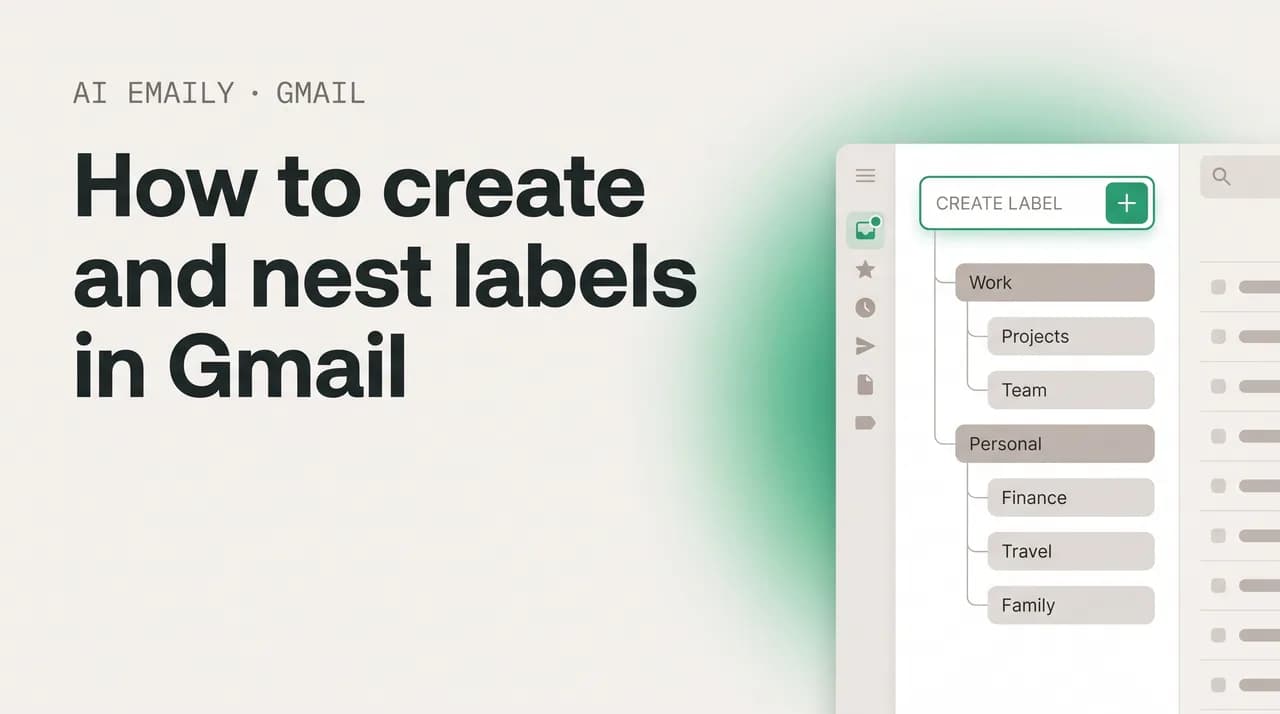
Nesting is what turns a flat, sprawling list of tags into a tidy tree. A nested label, also called a sub-label, sits underneath a parent label and tucks away neatly with it. "Travel" can be the parent, with "Flights," "Hotels," and "Receipts" nested inside. In the sidebar the parent shows a small arrow you can click to expand or collapse its children, so most of the time you see one clean "Travel" entry instead of four separate rows competing for space.
This matters more than it first appears. Gmail technically lets you create thousands of labels, but a sidebar with thirty top-level labels is unusable; you scroll and squint and never find anything. Nesting keeps the top level short, on the order of five to ten parent categories, while the detail lives one layer down, collapsed until you need it. There are two ways to nest, depending on whether you are making a brand-new sub-label or reorganizing one you already have.
- 1
Create a new sub-label from scratch
Start a new label the usual way (More, then Create new label). In the dialog, check the box "Nest label under," then pick the parent from the dropdown that appears. Name the sub-label, click Create, and it lands indented beneath its parent in the sidebar.
- 2
Nest an existing label under a parent
Already have a label you want to move under another? Hover over it in the sidebar, click the three-dot menu, choose "Edit," check "Nest label under," and select the parent. Click Save. The label keeps every email attached to it and simply slides under its new parent.
- 3
Add a sub-label from the parent
Hover over the parent label in the sidebar and click its three-dot menu. Some accounts show an "Add sublabel" option directly here, which pre-fills the nesting for you so you only have to type the child's name and click Create.
- 4
Expand or collapse the tree
Once a parent has children, a small triangle arrow appears to its left. Click it to expand and see the sub-labels, or collapse it to hide them. Gmail remembers the state, so a category you rarely open can stay collapsed and out of the way.
You can nest more than two levels deep, for example Clients then Acme then Invoices, but go easy. Each level adds a sliver of indentation and a layer of clicking, and three levels is about where the sidebar starts to feel cramped on a normal screen. For most people, two levels, a parent and its children, is the sweet spot: deep enough to organize, shallow enough to stay readable. Save the third level for genuinely large categories where the extra split earns its keep.
One quirk worth knowing: Gmail stores the full path of a nested label internally as something like "Travel/Flights," with the slash marking the hierarchy. You will mostly never see this, but it surfaces in two places. First, if you ever export or migrate your mail, nested labels travel as those slash-separated paths. Second, in Gmail search and filters you can target the whole branch; searching a parent label can return mail from its children too, which is handy when you want the wide view. It is the same tree, just written out as a path instead of drawn with indentation.
How do you color-code labels in Gmail?#
Color is where labels stop being a filing system you have to open and become information you absorb at a glance. Give "Urgent" a bold red, "Receipts" a calm gray, and "Family" a warm green, and your inbox turns into a color map. You spot the red bar on a subject line and know it matters before you have read a single word. The label color shows up as a small chip next to the subject in your inbox list and in the sidebar, so the coding works everywhere you look, not just inside the message.
Setting a color takes three clicks and applies retroactively to every email that already wears the label, so you never have to re-tag anything.
- 1
Hover over the label
In the left sidebar, move your cursor over the label you want to color. Three vertical dots appear to its right. Click them to open the label's menu.
- 2
Open Label color
In the menu, hover over "Label color." A grid of color swatches slides out, each one a paired background and text color that Gmail has tuned to stay readable.
- 3
Pick a preset or add a custom color
Click any swatch to apply it instantly. If none fit, choose "Add custom color" at the bottom of the grid and set your own background and text colors with the picker. Custom colors are how teams match a brand or build a precise palette.
- 4
Remove a color later
To return a label to plain gray, open the same Label color menu and click "Remove color" (the swatch marked with a slash at the top-left). The label stays; only its color resets.
A little restraint makes color far more powerful. If every label is a different bright color, none of them stand out and the inbox just looks loud. The trick most organized users land on is to reserve vivid colors for the handful of labels that should grab your eye, red for urgent or action-needed, maybe orange for waiting-on-reply, and leave everything routine in muted grays and soft blues. Color, in other words, should mean something. When red consistently means "deal with this," your eye learns to trust it, and a glance down the inbox tells you where to spend your attention.
Color also rides along with filters, which is the bridge to the next section. Once a label has a color, any email a filter automatically tags will show that color the instant it arrives, with no extra step from you. Set "Receipts" to gray once, point a filter at every message from your payment processor, and from then on receipts file themselves and show up in the same calm gray every time. The color is set once on the label; the filter does the repetitive applying. Setting up that half is covered in our guide on how to create rules in Gmail.
Let color carry meaning, not decoration
How do you apply labels to messages by hand and automatically?#
A label does nothing until it is attached to mail, and there are two ways to attach it: by hand, when you are reading or sorting messages, and automatically, with a filter that tags matching mail the moment it lands. You will use both. Manual labeling handles the one-off, judgment-call cases; automatic labeling handles the predictable, high-volume ones so you never touch them.
To label by hand on desktop, you have a few quick options. Open the conversation and click the label icon in the toolbar at the top (it looks like a small tag), then check every label you want to apply and click Apply. You can also select one or more emails in the list using their checkboxes and click the same label icon to tag them all at once, which is the fast way to clear a backlog. Dragging works too: grab an email and drop it onto a label in the sidebar to apply that label, though note dragging also archives the message out of your inbox, since you are moving it there rather than just tagging it. To remove a label, open the message, click the label icon, and uncheck it, or click the small x on the label chip shown beside the subject.
- 1
Start a filter from the search bar
Click the small sliders or filter icon on the right side of the Gmail search bar to open the advanced search panel. Fill in the criteria that define the mail you want to tag, for example a sender's address in the "From" field, a word in the subject, or a phrase the messages always contain.
- 2
Create the filter
With your criteria entered, click "Create filter" at the bottom of the search panel. Gmail switches to a list of actions it can take on every message that matches, now and in the future.
- 3
Choose Apply the label
Check "Apply the label" and pick the label from the dropdown. If the label does not exist yet, choose "New label" right there to create it on the spot without leaving the filter.
- 4
Optionally skip the inbox
Check "Skip the Inbox (Archive it)" if you want matching mail to bypass the inbox entirely and go straight to its label, the closest thing Gmail has to filing into a folder. Newsletters and receipts are good candidates; you read them on your schedule under their label.
- 5
Apply to existing mail and finish
Check "Also apply filter to matching conversations" to label everything already in your account that fits, not just future mail. Click "Create filter" to save. From now on, qualifying messages tag themselves automatically.
Automatic labeling with filters is the single biggest leap in keeping a labeled inbox tidy, because the work happens without you. The catch is that filters are rigid and literal. A filter that watches for the word "invoice" will miss a bill whose subject says "your statement is ready," and it cannot tell an important client thread from a marketing blast that merely contains the same keyword. You end up writing more and more filters to cover the edge cases, and even then a chunk of mail still arrives unlabeled, waiting for you to sort it by hand. Filters are excellent for the predictable senders and the obvious keywords; they struggle with the messy middle, which is exactly the gap an AI email client is built to close, as we will cover later.
A useful habit when you do lean on filters is to build them from the mail you already have rather than guessing at criteria in the abstract. Open a message that is a perfect example of what you want to label, click the three-dot menu at the top of the conversation, and choose "Filter messages like these." Gmail pre-fills the sender for you, and from there you can broaden or narrow before clicking "Create filter." Working from a real example keeps your filters grounded and cuts down on the false matches that come from typing a keyword that turns out to be more common than you expected. It is also worth periodically auditing your filters under Settings, since a rule you wrote a year ago for a sender you no longer hear from is just quiet overhead, and a stale filter that archives the wrong mail is a common reason an important message seems to vanish.
One subtlety to keep in mind: filters apply labels, but they do not retroactively color anything that the label was not already colored for, and they fire in the order Gmail evaluates them, top to bottom. If two filters touch the same message, both can act, so a message can pick up several labels from several rules at once, which is usually what you want. The place this bites people is when one filter says "skip the inbox" and another expects the same mail to stay visible; the archive wins and the message quietly leaves the inbox. When a labeled email is not where you expect, the culprit is almost always an overlapping filter, not the label itself.
Labeling and filing are different actions
How do you show, hide, and manage labels in Gmail?#
As your label list grows, the sidebar can get crowded, and not every label deserves a permanent spot in your line of sight. A reference label you open once a month does not need to sit next to your daily ones. Gmail gives you fine control over which labels show in the sidebar, which show in the message list, and which stay hidden until they have unread mail. All of it lives on the Labels page in Settings.
Open the gear icon, click "See all settings," and choose the "Labels" tab. You will see your full list with a row of options beside each one. Two columns matter most: "Show in label list" controls whether the label appears in the left sidebar, and "Show in message list" controls whether its colored chip appears next to subjects in your inbox. Each has options to always show, always hide, or show only if there is unread mail.
- 1
Show or hide in the sidebar
On the Labels page, find the label and use the "Show in label list" controls. Choose "Show" to keep it pinned in the sidebar, "Hide" to remove it from view (the label and its mail stay intact), or "Show if unread" so it only appears when something new arrives under it.
- 2
Show or hide the chip on messages
Use "Show in message list" to decide whether the colored label chip rides along next to the subject in your inbox. Hiding it declutters the list for labels you do not need to see at a glance, while keeping the label fully functional.
- 3
Reorder by nesting
Gmail sorts labels alphabetically and you cannot freely drag them into any order. The way to group related labels together is to nest them under a shared parent, which keeps them adjacent and collapsible. A common trick is prefixing names with a number or symbol to force sort order, for example "1 Urgent."
- 4
Remove a label for good
To delete a label, hover over it in the sidebar and click the three-dot menu, then "Remove label," or use "Remove" on the Settings Labels page. Deleting a label does not delete the emails; it only strips that tag off them. The messages remain in your inbox, archive, or other labels.
Hiding is genuinely underused, and it is the calmest way to tame a long list. You can keep dozens of labels for thorough filing while showing only the eight or ten you touch daily. The rest sit quietly, available the moment you search or click into them, but not cluttering your sidebar every time you open Gmail. "Show if unread" is the best of both worlds for seasonal or low-traffic labels: out of sight when there is nothing new, surfacing the instant something arrives.
One more management habit worth building: prune occasionally. Every few months, glance down your label list and remove the ones you stopped using or that only ever held one or two emails. Deleting them is harmless, since the mail stays put, and a lean list is far easier to scan than one padded with experiments you never committed to. Labels are cheap to make, which is exactly why it pays to be a little ruthless about keeping them.
What does a good Gmail labeling system look like?#
Knowing how to make a label is the easy part. The hard part, and the reason most people's labels turn into a graveyard, is designing a system that holds up over time. The failure mode is always the same: you create labels reactively, one per random need, until you have forty overlapping tags, half of which you forgot exist. A system that lasts is built on a few principles, and it is worth setting them before you make your next label.
The first principle is to label by the few dimensions you actually search along, not by every possible attribute. For most people that is some mix of who (the people or companies you deal with), what (the type of thing, like receipts or contracts), and status (whether you still need to do something). You rarely need more than two or three of those. The second principle is to keep the top level short and push detail into sub-labels, so your sidebar stays scannable. The third is to let filters do the repetitive tagging and reserve manual labels for judgment calls. Put together, those principles produce a small set of parent categories, each with a handful of children, color-coded so the urgent stuff jumps out.
Here are a few proven label trees you can copy outright and adapt. They are deliberately shallow, two levels in most cases, because that is what stays usable.
| Use case | Parent label | Example sub-labels | Suggested color |
|---|---|---|---|
| Freelancer / consultant | Clients | Acme, Globex, Initech | Each client a distinct soft color |
| Freelancer / consultant | Money | Invoices, Receipts, Taxes | Green for invoices, gray for receipts |
| Job seeker | Job Search | Applications, Interviews, Offers, Rejections | Blue for interviews, gray for rejections |
| Action management | Status | To Do, Waiting On, Done | Red for To Do, yellow for Waiting On |
| Personal | Home | Bills, Insurance, Warranties, Travel | Gray, with red on Bills |
| Student | School | Courses, Financial Aid, Advising | One calm color per branch |
| Team / shared | Projects | Redesign, Launch, Roadmap | A distinct color per active project |
Notice the pattern across every row: a small number of parents, each holding related children, with color used sparingly to flag what needs attention. A freelancer can run their entire inbox on "Clients," "Money," and a "Status" tree, perhaps five top-level labels in total, and never feel lost. The job seeker's "Job Search" tree turns a stressful, scattered process into one collapsible category where every application, interview, and offer is one click away. The "Status" tree, To Do, Waiting On, Done, is the single most useful add-on for most people, because it layers a lightweight task system on top of whatever else you label by.
However you build it, pair the tree with two automations and it largely runs itself. First, write filters for your predictable senders so receipts, statements, newsletters, and known contacts tag themselves on arrival. Second, decide which of those should skip the inbox entirely (reference and bulk mail) versus which should stay visible (anything you act on). The labels define the shape of your inbox; the filters and archiving keep it that shape without daily effort. Start smaller than you think you need, four or five parents, and add a sub-label only when you have caught yourself wishing it existed twice. A system you grow into beats one you build all at once and abandon.
How do you create and manage labels in the Gmail mobile app?#
For a long time the Gmail mobile apps let you apply existing labels but not create new ones, which sent people scrambling back to a computer. That gap is closing. Creating labels has been available on the iPhone and iPad app for a while, and as of early 2026 it began rolling out to the Gmail app on Android too, account by account. The steps differ slightly between the two platforms, so here is each.
To create a label: open the Gmail app, tap the Menu icon (three lines) at the top left, scroll down to the Labels section, and tap "Create new." Type the label name and tap Done. To nest it, the option to nest under a parent appears as you create it.
To apply a label: touch and hold one or more emails to select them, tap the three-dot More menu, choose "Label," check the labels you want, and tap Done. Removing works the same way, by unchecking.
To manage labels: tap Menu, then the Settings gear, choose "Inbox customizations," tap "Labels," and select a label to rename it, set its color, or change its show and hide behavior.
A few mobile-specific realities are worth setting expectations on. Color-coding is still primarily a desktop job; while colors you set on a computer display on mobile, the apps give you limited or no control over choosing custom colors, so plan to do your color setup at a desk. Building a full nested tree is also far more comfortable on a big screen, where you can see the whole hierarchy at once. The practical division of labor most people settle into: design and color the system on desktop, then on mobile just create the occasional new label on the fly and apply existing ones as mail comes in. The two stay in sync automatically through your account, so a label you make on your phone shows up on your laptop within moments, and vice versa.
Why are my Gmail labels missing or not working?#
If a label you expected has vanished from the sidebar, or a label refuses to behave, the cause is almost always one of a handful of settings rather than a bug or lost data. Your mail is essentially never gone just because a label is not visible. Work through these in order.
- The label is hidden, not deleted. The most common culprit: on the Settings Labels page, "Show in label list" is set to "Hide" or "Show if unread." Set it to "Show" and the label reappears in the sidebar. The mail under it was never affected.
- It is collapsed under a parent. A nested sub-label hides when its parent is collapsed. Click the arrow next to the parent label to expand the tree and reveal its children.
- You are below the More fold. Custom labels live under the "More" expander in the sidebar. If you have not clicked "More," your labels may simply be tucked below it. Expand More, or drag the divider to show more rows.
- A filter is sending mail elsewhere. If new mail is not getting a label you expected, an existing filter may be archiving, deleting, or relabeling it first. Open Settings, then "Filters and Blocked Addresses," and review the rules acting on that sender or keyword.
- Naming collisions with system labels. You cannot create a custom label with the exact name of a reserved system label like Inbox, Sent, or Spam. If a create attempt silently fails, try a slightly different name.
- The mobile app is out of date or unsynced. If a label created on desktop is not on your phone, make sure the app is updated and that the account is set to sync that label; pull to refresh, or toggle sync off and on in the account settings.
There is one conceptual mix-up worth clearing up while we are here, because it sends people hunting for labels that were never labels. Gmail's inbox tabs, Primary, Social, Promotions, Updates, and Forums, are categories, not labels, and they work differently. Categories are applied automatically by Gmail's own sorting, you cannot freely create your own, and they live as tabs across the top of your inbox rather than as tags in the left sidebar. Labels, by contrast, are yours to create, name, color, and nest, and you control exactly what goes in them. If you are trying to make a custom "category," what you actually want is a label plus a filter. Categories are Gmail's automatic buckets; labels are your manual ones, and only the labels are fully under your control.
How does AI Emaily auto-label across every account?#
Everything above works, and for a tidy inbox it is genuinely worth doing. But notice how much of it is upkeep that falls on you. You design the tree, hand-tag the messages filters cannot catch, write a new filter every time an edge case slips through, and repeat the whole exercise separately in each account you own, your Gmail, your work Outlook, the side address you keep meaning to clean up. The labels are smart; the labeling is still manual, and Gmail filters only fire on rigid keyword and sender matches. AI Emaily is built to close exactly that gap.
AI Emaily is an AI-native email client that connects to Gmail, Outlook, iCloud, Fastmail, Proton, and any IMAP account, and it brings your labels, folders, and categories from every one of those into a single unified inbox. Instead of writing brittle filters, you describe how you want your mail organized in plain English, "label anything that looks like a receipt as Receipts," "tag emails from my manager as Important," "file shipping notifications under Orders," and the agent reads each message the way a person would and applies the right label. Because it understands meaning rather than matching exact words, it catches the bill whose subject says "your statement is ready" and the client thread a keyword filter would miss, and it keeps working as your mail changes without you maintaining a growing pile of rules.
It does this across all your accounts at once, so the same organizing logic runs everywhere instead of being rebuilt provider by provider. And because it is the same agent that drafts replies and triages your inbox, labeling is just one of the chores it quietly handles. It runs in Manual, Copilot, or Autopilot mode, so you choose the level of control: review and approve every label it suggests, let it auto-label routine mail while flagging the uncertain cases, or hand it the wheel entirely, always with undo and a full audit trail of what it labeled and why. You can try it free at app.aiemaily.com/signup, with a Free plan at no cost and Pro at $12.42 per month on the annual plan.
Putting it all together#
Labels are the backbone of an organized Gmail, and the whole system rests on one idea: a label is a tag, not a box, so one email can carry several at once and applying a label never moves the message out of your inbox. Create labels from the "More" menu in the sidebar or from the Labels tab in Settings, nest related ones under a shared parent to keep the sidebar short, and color the handful that should grab your eye so your inbox becomes scannable at a glance.
From there, let automation carry the load. Apply labels by hand for the judgment calls, and write filters to tag your predictable mail the moment it arrives, pairing "Skip the Inbox" with reference and bulk mail so labels behave like folders. Hide the labels you rarely open, prune the ones you stopped using, and remember that the inbox tabs are categories, not labels. Design the tree on desktop, then create and apply labels on the fly from the mobile app, where everything syncs back automatically.
Build it shallow, color it sparingly, and grow it only when you catch yourself wishing a label existed. And if maintaining filters across several accounts sounds like more upkeep than it is worth, that is precisely the busywork an AI email client can take off your hands, reading your mail and labeling it in plain-English terms across every account you own. Either way, the goal is the same: an inbox where everything has a place and you can find any email in a single click.
Frequently asked
See it in AI Emaily
Keep reading
Sources

Written by
Nafiul HasanNafiul Hasan is an entrepreneur and AI automation system builder with 10+ years of experience turning messy, manual workflows into reliable automated systems. He designs and ships AI enterprise solutions end-to-end — the agent logic, the data plumbing, and the product people actually use — and founded AI Emaily to give busy professionals their attention back. He writes here from the builder's seat: what works, what breaks, and how to put AI to work without giving up control.