How to create rules in Gmail to automate your inbox

The short answer
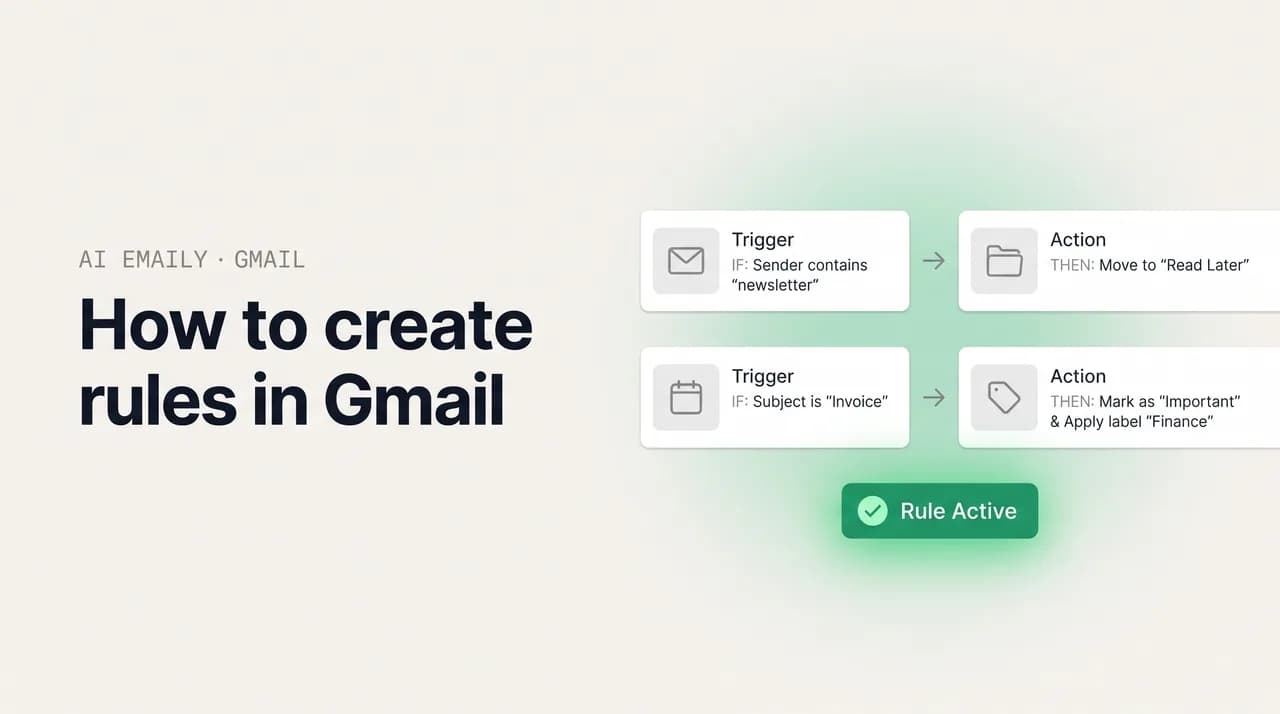
Gmail rules are called filters. To create one, open search options, set criteria like sender or keyword, click Create filter, then pick actions: apply a label, archive, forward, star, or delete. Filters run on Google's servers around the clock, so your inbox sorts itself even when Gmail is closed on every device.
Learn how to create rules in Gmail to auto-sort, label, archive, and forward email. Gmail calls rules filters — here's the full setup, recipes, and fixes.
On this page
- 01Does Gmail have rules, or only filters?
- 02How do you create a rule (filter) in Gmail step by step?
- 03What can a Gmail rule actually do?
- 04Which rule recipes auto-organize an inbox best?
- 05How do you translate Outlook rules into Gmail filters?
- 06What advanced rule combinations are worth knowing?
- 07What are the limits of Gmail rules?
- 08How do you fix a Gmail rule that is not working?
- 09How does AI Emaily turn plain-English rules into action across every account?
- 10Where does this leave your inbox?
Does Gmail have rules, or only filters?#
If you came here searching for Gmail rules, you are in the right place — you just need to know one thing before you start. Gmail does not have a feature literally named rules. Google calls the same thing a filter. A filter is a saved instruction that tells Gmail what to do with email that matches a set of conditions: this sender, that subject line, anything with an attachment over 10 MB, and so on. The moment a matching message arrives, the filter fires and Gmail handles it the way you told it to — label it, archive it, forward it, star it, or send it straight to the trash. That is exactly what a rule does in Outlook or Apple Mail. Same job, different name.
The naming gap trips up a lot of people, especially anyone moving from Microsoft Outlook, where Rules is a top-level menu item you can point at. In Gmail there is no menu called Rules. You build the same automation through the filter system, which lives behind the search bar and inside Settings. Once you make that mental swap — rule equals filter — everything else falls into place, and you can build the kind of self-sorting inbox where promotions skip straight to a label, receipts archive themselves into a folder you only check at tax time, and messages from your boss get starred before you have even opened the app.
Functionally, then, Gmail absolutely has rules — they are just labeled filters. The word rule describes a behavior pattern (when X happens, do Y), and that is precisely what a Gmail filter encodes. Google chose the word filter because the feature grew out of the search bar: you describe the email you are looking for, and then instead of merely finding it, you tell Gmail to take a standing action on every message that matches now and in the future. That search-and-act lineage is why it is called a filter rather than a rule, but the outcome is identical to an inbox rule anywhere else.
There is one important difference in how Gmail's version works under the hood, and it is a difference in your favor. Gmail filters run server-side. The logic lives on Google's infrastructure and executes the instant mail is delivered, before it ever reaches a device. That means a filter sorts your inbox whether you are at your laptop, asleep with your phone face-down, or signed out entirely for a week. Outlook's classic desktop rules, by contrast, have historically run client-side for many rule types — the Outlook app on your computer had to be open and connected for those rules to fire, which is why people who relied on them sometimes opened a laptop after vacation to a flood of unsorted mail. Server-side execution is the quiet superpower of Gmail rules, and it is the reason a well-built filter set can run untouched for months.
This guide walks through the whole thing from scratch. You will learn how to create a rule (filter) step by step, a set of copy-and-adapt recipes for the most common auto-organizing jobs, a direct translation table for anyone bringing Outlook rules over to Gmail, advanced combinations that go beyond the basics, the limits worth knowing about before you lean on filters too hard, and how to fix the usual problems when a rule does not behave. At the end we will look at how an AI email client handles this differently — by letting you describe the rule in plain English and having an agent carry it out across every account you connect, not just one Gmail address.
One more clarification helps before you build anything, because it shapes how every rule you write behaves. Gmail labels are not the same as folders. In a folder system, a message is stored in exactly one place. A label, on the other hand, is a tag that sits on top of a message wherever it lives — so a single email can carry two or three labels at once and still be findable in All Mail. When a Gmail rule files an email, what it really does is stick a label on it and, if you also chose to skip the inbox, hide it from your main view. The mail is not moved out of existence the way a folder move implies; it is tagged and routed. Keep that picture in mind and the recipes later will feel intuitive rather than surprising.
The one-line version
How do you create a rule (filter) in Gmail step by step?#
There are two front doors to the same destination. You can start from the search bar, which is faster and lets you preview exactly which messages a rule will catch, or you can start from Settings, which is tidier when you are building several rules in a row. We will use the search-bar method as the main path because the live preview saves you from building a rule that quietly matches the wrong mail. You do all of this on a computer — open mail.google.com in a browser. The mobile app cannot build rules, which we cover in its own section below.
- 1
Open Gmail on the web
Go to mail.google.com in a desktop browser and sign in. Rules (filters) are per-account, so if you manage more than one address, make sure you are in the inbox you want the rule to live in.
- 2
Click the search options icon
At the top of Gmail is the long search box. On its right edge is a small sliders icon, sometimes labeled Show search options. Click it to open the panel with fields for From, To, Subject, Has the words, Doesn't have, Size, Date within, Search location, and an attachment checkbox.
- 3
Define your criteria
Fill in the conditions that describe the mail you want the rule to catch — a sender address in From, a keyword like invoice in Has the words, or a whole domain like @company.com. You can fill more than one field; each extra field narrows the match.
- 4
Click Search to preview the match
Run the search to see exactly which existing messages fit your criteria. This is your sanity check. If the wrong emails appear, tweak the conditions before going any further — especially before a rule that archives or deletes.
- 5
Click Create filter
Reopen the search options panel and click Create filter at the bottom right. Gmail switches to the actions screen, where you choose what should happen to matching mail.
- 6
Choose the actions
Tick what Gmail should do: Skip the Inbox (Archive it), Mark as read, Star it, Apply the label, Forward it to, Delete it, Never send it to Spam, Always or Never mark as important, Categorize as, or Send template. You can combine several at once.
- 7
Decide whether it applies to existing mail
Optional but powerful: tick Also apply filter to matching conversations to run the actions on every existing email that matches, not just future ones. Leave it unticked to act only on new arrivals.
- 8
Click Create filter to save
Confirm and the rule goes live immediately. From this moment it runs automatically on Google's servers, handling matching mail no matter which device you read your email on.
That is the whole loop, and the reason the search-bar method beats the alternative is the preview step: you see the real messages your criteria will catch before you attach any action to them. Build a rule blind and you might archive the wrong newsletter or, worse, trash mail you needed. Search first, confirm the list, then create — it costs ten extra seconds and saves you from rules that misfire.
If you would rather start from Settings — useful when you are auditing or building a batch — the path lands on the same actions screen. Click the gear icon in the top right, choose See all settings, open the Filters and Blocked Addresses tab, and click Create a new filter at the bottom. That page also lists every rule you already have, each with an Edit and a Delete link, so it is the place to manage and clean up your set later.
A handy shortcut skips the criteria panel entirely. Open any email that represents the kind of mail you want to automate, click the three-dot More menu at the top of the message, and choose Filter messages like these. Gmail pre-fills the sender for you, so you can jump straight to choosing actions. This is the fastest way to build a rule for a specific person or service — open one of their emails, filter messages like it, and decide what should happen to the rest.
It is worth understanding what each criteria field actually targets, because a rule is only as good as the conditions you feed it. The From field matches the sender and accepts a single address, a partial address, or a whole domain like @company.com. The To field matches the recipient, which is more useful than it sounds — if you use Gmail's plus-addressing trick ([email protected]), you can route mail by the address you handed out. Subject matches words anywhere in the subject line. Has the words searches the subject and body together and supports Gmail's full search syntax, including quotes for exact phrases and parentheses for grouping. Doesn't have lets you carve out exceptions. Size matches messages above or below a threshold, and Date within narrows by recency. The attachment checkbox limits the rule to mail carrying files. Mix these thoughtfully and you can describe almost any slice of your inbox.
The single biggest mistake people make at this stage is writing a rule that is too broad. A criterion like the word meeting or order feels specific in your head but matches an enormous swath of real mail — calendar invites, shipping updates, casual mentions in replies, marketing blasts. Because rules act silently and instantly, an over-broad condition can archive or delete things you needed before you ever notice. The preview step exists precisely to catch this. Treat the Search button as a dress rehearsal: if more than a handful of unexpected messages appear, add a second condition, swap a loose keyword for an exact quoted phrase, or pin the rule to a specific sender domain before you commit.
Be careful with auto-delete rules
What can a Gmail rule actually do?#
Each rule pairs one set of conditions with one or more actions. The conditions decide which mail the rule catches; the actions decide what happens to it. You can stack several actions on a single rule — label and archive and mark-as-read all at once — which is how one rule can quietly file an entire category of email without you ever seeing it land. Here is the full menu of actions Gmail offers and what each one is good for.
| Action | What it does | Best for |
|---|---|---|
| Skip the Inbox (Archive it) | Removes the message from the inbox immediately; it stays searchable and in All Mail. | Newsletters, receipts, and notifications you want kept but not in your face. |
| Apply the label | Tags the message with a label (Gmail's version of a folder), and one message can carry several. | Sorting mail by project, client, sender, or category. |
| Mark as read | Marks the message read so it never adds to your unread count. | Low-priority alerts you only need on record. |
| Star it | Adds a star so the message stands out in the Starred view. | Important senders or anything you want surfaced fast. |
| Forward it to | Sends a copy to another address; the destination must be verified first. | Routing invoices to accounting or alerts to a teammate. |
| Delete it | Sends the message straight to Trash, where it is purged after 30 days. | Recurring junk you never want to read — use with care. |
| Never send it to Spam | Whitelists the sender so Gmail never files them as spam. | Critical senders whose mail keeps getting misfiled. |
| Mark as important / Never important | Forces Gmail's importance marker on or off for the match. | Tuning the Priority Inbox and importance markers. |
| Categorize as | Drops the message into a tab like Promotions, Social, Updates, or Forums. | Steering mail into the tabbed inbox the way you prefer. |
| Send template | Auto-replies with a saved Gmail template; templates must be enabled first. | Standard acknowledgments and routine first responses. |
The two actions people reach for most are Apply the label and Skip the Inbox, almost always together. The combination is the backbone of an auto-organizing inbox: the label files the mail where it belongs, and skipping the inbox keeps it from cluttering your main view. You still see a count next to the label in the sidebar, so nothing is hidden — it is just routed. Pair that with Mark as read on the truly low-stakes stuff and your unread badge starts reflecting only mail that genuinely needs you.
A point worth underlining, because it causes a lot of confusion: applying a label on its own does not remove a message from the inbox. In Gmail, Inbox is itself effectively a label, and adding another one does not take Inbox away. So if your goal is to label mail and get it out of your face, you need both Apply the label and Skip the Inbox in the same rule. Choosing only the label leaves the message sitting in your inbox with a tag on it — filed, but still in the way.
Never send it to Spam is the action people forget exists, and it solves a real and frustrating problem: legitimate mail that Gmail keeps misclassifying. If a client, an invoice, or a service you depend on keeps landing in the Spam folder, a rule with Never send it to Spam guarantees it reaches you from then on. It is the inverse of a delete rule — instead of suppressing mail, it protects it. Pair it with a label so the rescued mail is also filed where you expect it, and with Always mark as important for senders you truly cannot miss.
The importance and Categorize actions are about correcting Gmail's guesses rather than sorting from scratch. Gmail tries to decide on its own which mail is important and which tab it belongs in, and it is often right, but not always. If a particular sender keeps getting buried under a wrong importance guess, or keeps landing in Promotions when you want it in Primary, these actions let you overrule the automatic system for that sender permanently. You are not fighting Gmail so much as telling it your preference once and having it stick.
Which rule recipes auto-organize an inbox best?#
The fastest way to learn rules is to copy working ones and adapt them to your own senders. The recipes below cover the jobs that clear the most clutter for the most people. Each row tells you the criteria to enter, the actions to pick, and the practical effect. Build a handful of these and your inbox starts maintaining itself. Brand names, addresses, and keywords are examples — swap in your own.
| Goal | Criteria to set | Actions to choose |
|---|---|---|
| File newsletters out of sight | Has the words: unsubscribe | Apply label Newsletters + Skip the Inbox + Mark as read |
| Auto-archive receipts and orders | From: receipts@ or Has the words: order confirmation | Apply label Receipts + Skip the Inbox |
| Highlight mail from your manager | From: [email protected] | Star it + Always mark as important + Never send to Spam |
| Quarantine social notifications | From: facebookmail.com OR linkedin.com OR x.com | Apply label Social + Skip the Inbox + Mark as read |
| Route invoices to accounting | Subject: invoice OR Has the words: amount due | Forward to accounting@ + Apply label Invoices |
| Keep client mail in one place | From: @clientdomain.com | Apply label Client – Acme + Star it |
| Silence a noisy automated alert | From: [email protected] | Skip the Inbox + Mark as read + Apply label Alerts |
| Catch large attachments for cleanup | Size: greater than 10 MB | Apply label Big files (review and clear periodically) |
| Protect a critical sender from spam | From: a bank or government domain | Never send it to Spam + Always mark as important |
| Tame promotions you still want occasionally | Has the words: % off OR sale OR deal | Apply label Deals + Skip the Inbox |
A few notes on getting these to behave. For the newsletter rule, matching on the word unsubscribe is a clever catch-all because legitimate bulk senders are legally required to include an unsubscribe link, so the word appears in almost every newsletter and very rarely in personal mail. For sender-based rules, filtering on a whole domain — @clientdomain.com rather than one person's address — captures everyone at that company in a single rule, which is far less maintenance than one rule per contact. And whenever you build a rule that archives or deletes, tick Also apply filter to matching conversations only after you have confirmed the preview looks right, so you do not bulk-archive something you meant to keep visible.
Think of these recipes as a layered system rather than a list of one-offs. The most effective auto-organizing setups follow a rough hierarchy. At the top sit your protect rules — the handful that make sure mail from your bank, your manager, or a key client never gets buried or misfiled. Build those first, with Star it and Always mark as important, so the stuff that matters is impossible to miss. Below that sit your file-and-forget rules: newsletters, receipts, social notifications, and automated alerts that you want kept on record but never want cluttering your inbox. These are the Apply-label-plus-Skip-the-inbox-plus-Mark-as-read combinations, and they do the bulk of the decluttering. At the bottom sit your cleanup rules — the size-based and promotion rules you check occasionally and clear in batches. A set built this way feels deliberate: important mail surfaces, routine mail routes itself, and junk collects in a corner you sweep when you feel like it.
Two refinements make these recipes noticeably better in practice. First, use labels you will recognize at a glance, and consider nesting them — a parent label Finance with children Receipts, Invoices, and Statements keeps the sidebar tidy and lets you collapse a whole category at once. Second, resist the urge to attach Delete to anything in the file-and-forget tier. Archiving keeps the mail searchable in All Mail at no real cost, so unless a sender is genuinely worthless forever, archive instead of delete. You lose nothing by keeping it, and you avoid the small heartbreaks that come from a delete rule quietly trashing something you later needed. Reserve Delete for true, recurring junk you have watched a label-only rule catch cleanly first.
You also do not need a giant rule set to feel the difference. Most people get the biggest cleanup from just three rules: one for newsletters, one for receipts, and one to star mail from key people. Build those three, live with them for a week, and only then add more where the clutter still bothers you. Starting small keeps the set easy to reason about and makes it obvious which rule is responsible when something behaves unexpectedly — a habit that pays off far more than launching twenty rules at once and trying to untangle them later.
How do you translate Outlook rules into Gmail filters?#
Switching from Outlook to Gmail is where the rule-versus-filter confusion bites hardest, because Outlook hands you a friendly Rules wizard with named conditions and a long list of actions, while Gmail asks you to think in terms of search criteria. The good news: nearly everything an Outlook rule does has a clean Gmail equivalent. The main conceptual shift is that Outlook moves mail into folders, whereas Gmail applies a label and usually skips the inbox — the effect is the same, but a Gmail message can carry several labels at once, which a single Outlook folder cannot. Here is how the common Outlook rule pieces map across.
| Outlook rule element | Gmail filter equivalent | Notes |
|---|---|---|
| Move the item to a folder | Apply the label + Skip the Inbox | A label behaves like a folder; skipping the inbox completes the move feel. |
| From people or public group | From: field | Use a full domain (@company.com) to match a whole group at once. |
| With specific words in the subject | Subject: field | Gmail matches the words anywhere in the subject. |
| With specific words in the body | Has the words: field | Quote exact phrases to avoid loose matches. |
| Flag the message | Star it | Stars are Gmail's flags; Priority Inbox can surface them. |
| Mark as read | Mark as read | Identical action and intent. |
| Forward to people or group | Forward it to | Gmail requires you to verify the forwarding address first. |
| Permanently delete / delete it | Delete it | Gmail sends to Trash and purges after 30 days, not instant erase. |
| Categorize / assign category | Categorize as or Apply the label | Tabs (Promotions, Social) or labels both work depending on intent. |
| Mark as high importance | Always mark as important | Feeds Gmail's importance markers and Priority Inbox. |
| Stop processing more rules | No direct equivalent | All matching Gmail filters run; order them so actions don't conflict. |
| Client-only, runs when Outlook is open | Always server-side, runs 24/7 | Gmail filters do not depend on any app being open. |
The last two rows are worth dwelling on because they cause the most surprise. Outlook lets you add a stop processing more rules step so one rule can short-circuit the rest. Gmail has no such switch — every filter that matches a message will run, in the order they appear in your filter list. In practice this is rarely a problem, but if two rules give conflicting instructions (one says archive, another says keep in inbox), the combined result can look odd. The fix is to design rules so their actions complement rather than fight each other, and to test with a real message after building anything complex.
The other big mental adjustment is the move from folders to labels. In Outlook, an email lives in exactly one folder. In Gmail, the same email can wear a Client – Acme label and an Invoices label and still be findable in All Mail. That flexibility means you can stop agonizing over which single folder a message belongs in. If you genuinely want the strict one-place-only feel of Outlook folders, just be disciplined about applying a single label per rule and always pairing it with Skip the Inbox — that recreates the folder experience while keeping Gmail's search advantages.
A few Outlook habits do not carry over at all, and it is better to know that than to hunt for a setting that does not exist. Outlook's run rules now button, which forces all your rules across an existing folder, has no exact twin — the closest equivalent is ticking Also apply filter to matching conversations on each rule as you create or edit it. Outlook's defer-delivery and certain time-based rules do not map to Gmail filters either; scheduling lives in Gmail's separate Schedule send feature, not in the filter system. And Outlook's ability to play a sound or show a desktop alert per rule simply is not a Gmail filter action. If you relied on any of those, plan to handle them another way rather than expecting a one-to-one translation. For the core jobs people actually use rules for — sorting, flagging, forwarding, and cleanup — the mapping above covers nearly everything, and the server-side reliability you gain usually outweighs the few features that do not come across.
What advanced rule combinations are worth knowing?#
Once the basics click, a few techniques let you build rules that feel genuinely smart. The first is combining criteria within a single rule. The search-options panel treats multiple filled-in fields as an AND — From this sender AND subject contains this word. To express OR, type it explicitly in a field using Gmail's search operators: from:(amazon.com OR ebay.com OR etsy.com) in the From field catches mail from any of those three in one rule. You can also use parentheses, quotes for exact phrases, and a minus sign to exclude. So has:attachment subject:(report OR summary) -draft would catch reports and summaries with attachments while skipping anything marked draft. The rule box accepts the same syntax as the search bar, so learning how to use Gmail search operators pays off twice.
The second technique is layering multiple rules into a pipeline. Because every matching filter runs, you can break a complex goal into simple, readable rules instead of one tangled monster. For instance, one rule labels everything from a client domain Client – Acme, a second rule stars anything from that domain whose subject contains urgent, and a third archives the routine status updates from their automated system. Each rule does one clear thing, and together they produce nuanced behavior that is easy to audit later. When a rule misbehaves, you only have to inspect one small instruction rather than untangle a giant one.
A third move is using the size and date criteria for housekeeping. A rule that labels everything larger than 10 MB gives you a standing big files view to clear when you are near your storage limit. The fourth is the Send template action paired with a tight criterion — for example, auto-acknowledging mail sent to a support alias with a short we got your message reply, which buys you time without leaving senders in silence. Use that one sparingly and only where an automatic reply is genuinely welcome, since nobody enjoys a robotic response to a personal note.
A fifth, often-overlooked technique is using rules to keep wanted mail out of the spam folder. Gmail's spam filter is aggressive by design, and it occasionally swallows legitimate mail — a receipt from a small vendor, a one-time passcode, a message from a contact whose domain looks unfamiliar. A rule with the single condition From: that-sender and the single action Never send it to Spam acts as a permanent whitelist for that sender. This is the cleanest fix for the recurring my client says they emailed but I never saw it problem, and it costs you nothing because the rule only ever prevents misfiling; it never adds clutter. Pair it with Always mark as important for senders you truly cannot miss.
| Operator | What it matches | Example in a rule |
|---|---|---|
| from: | A sender address or domain | from:(amazon.com OR ebay.com) |
| to: | A recipient, including plus-addresses | to:[email protected] |
| subject: | Words in the subject line | subject:(invoice OR receipt) |
| OR | Either condition (must be capitalized) | from:linkedin.com OR from:x.com |
| - (minus) | Excludes a term | subject:report -draft |
| " " | An exact phrase, not loose words | "order confirmation" |
| has:attachment | Any message carrying a file | has:attachment larger:10M |
| larger: / smaller: | Messages above or below a size | larger:25M |
These operators combine into sharp, single-line conditions. from:[email protected] has:attachment filename:pdf in the Has the words field builds a rule that fires only on PDF attachments from your boss — nothing else. subject:(quote OR estimate OR proposal) from:@clients.com catches new-business mail across three subject phrasings from anyone at a client domain. The minus sign is just as useful for carving out exceptions: from:@acme.com -subject:newsletter labels everything from Acme except their marketing mail. Because the filter panel mirrors the search bar, the smoothest workflow is to compose your operator string in the search box, run it, eyeball the results, and only then click Create filter — your typed query carries straight into the criteria.
Here is the honest ceiling on all of this, though. Every one of these techniques still matches on literal text and metadata. A rule that targets invoice cannot tell an actual invoice from a colleague writing did you see that invoice? It has no sense of meaning, urgency, or context — only whether the characters match. It cannot notice that a long thread has gone quiet and needs a nudge, that a vendor's tone turned urgent, or that two messages from different senders are really about the same project. That gap between what you mean and what a keyword can match is the fundamental limit of rule-based automation, and it is exactly the line where AI-driven approaches start to pull ahead. We will return to that after covering the practical limits and fixes.
What are the limits of Gmail rules?#
Rules are powerful, but they are not magic, and knowing the boundaries up front saves frustration later. None of these limits should stop you from using rules — they just shape how far you can lean on them before you need a smarter layer.
- They cannot understand intent. A rule matches text and metadata, never meaning. The word invoice in a rule catches every message containing it, not just genuine invoices, so noisy criteria create noisy results.
- There is a cap on how many you can have. Gmail allows up to 1,000 filters per account. Most people never approach that, but heavy users who build a rule per sender can, and crowded filter lists become hard to maintain long before they hit the ceiling.
- You can only build and edit them on the web. The Gmail mobile apps let you read mail and apply labels by hand, but you cannot create or change a rule from a phone — you need a desktop browser.
- They do not act retroactively unless you tell them to. By default a new rule only touches mail that arrives after you save it. Existing mail stays put until you tick Also apply filter to matching conversations, and even then Forward never applies to old messages.
- Forwarding requires a verified destination and only works going forward. You must confirm the forwarding address before a rule can use it, and the Forward action never resends mail that arrived before the rule existed.
- Conflicting rules can produce muddled results. Because all matching filters run with no stop processing switch, two rules with opposing actions on the same message can leave it in an unexpected state.
- Spam, Trash, and certain system mail are exempt. Rules generally do not run on messages Gmail has already routed to Spam or Trash, so a rule will not pull a misfiled message back out on its own.
The intent limitation is the one that matters most over time. As your rule set grows to handle every edge case, you end up maintaining a brittle thicket of keyword rules that each catch a few false positives and miss a few real matches. The maintenance cost creeps up, and the inbox is never quite sorted the way a human would do it. That is not a flaw you can fix with more rules — it is the nature of keyword matching, and it is the strongest argument for letting something that reads meaning take over the sorting.
How do you fix a Gmail rule that is not working?#
When a rule does not behave, the cause is almost always one of a short list of usual suspects. Work through these in order and you will resolve the large majority of problems without guesswork.
- 1
Check the criteria for an over-tight match
Go to Settings, then Filters and Blocked Addresses, click Edit on the rule, and compare its conditions against a real message that should have matched. A stray space, the wrong field, or an exact-phrase quote that doesn't match are the most common culprits.
- 2
Confirm you are testing new mail, not old
Rules skip existing email unless you applied them retroactively. Send yourself a fresh test message that matches, or re-edit the rule and tick Also apply filter to matching conversations.
- 3
Look for a conflicting rule
Because all matching rules run, another rule may be undoing this one. Scan your filter list for a second rule that touches the same mail and adjust the actions so they don't fight.
- 4
Verify a forwarding address if forwarding fails
Forward only works to an address you've confirmed under Settings, then Forwarding and POP/IMAP. Unverified addresses are silently skipped.
- 5
Make sure the message isn't already in Spam or Trash
Rules generally don't run on mail Gmail pre-sorted into Spam or Trash. Add a Never send it to Spam rule for senders that keep getting misfiled.
- 6
Rebuild the rule from a sample email
If nothing else works, open a message that should match, choose Filter messages like these from its menu, and recreate the rule from Gmail's pre-filled criteria — this sidesteps a malformed condition.
If a rule is matching too much rather than too little — archiving or deleting mail you wanted — the fix is the mirror image: tighten the criteria. Add a second condition (a sender domain alongside the keyword), switch a loose keyword to an exact quoted phrase, or add a minus-sign exclusion for the term that is causing false hits. And before you ever attach a Delete action to a rule, run it for a while with Apply label instead, so you can see what it would have deleted in a safe label before trusting it to throw mail away.
There is a deeper reason rules are so prone to these quiet failures, and it is worth naming because it is the same reason a different approach can help. Rules match literal text. They have no understanding of what a message means — only whether its raw content contains the exact strings you typed. So a rule built to catch invoices will sail right past a message that says your statement is ready, because the word invoice never appears. You end up patching one literal rule with another, and another, chasing every phrasing a sender might use, and any new wording slips through until you notice and add yet another rule. The maintenance never quite ends, because language is more varied than any list of exact strings can cover.
If you take one practical habit from this guide, make it the dress rehearsal: never save a rule with an archive or delete action without first clicking Search and reading the matches. That single discipline prevents almost every painful rule mistake. The second habit worth keeping is a periodic review — every few months, open Settings, Filters and Blocked Addresses, and skim your rules. Delete the ones that no longer apply, tighten any that have drifted, and you will keep the set lean enough to trust. Rules are not a set-and-forget tool in the way people hope; they reward a little upkeep.
How does AI Emaily turn plain-English rules into action across every account?#
Gmail filters do one provider's sorting with keyword logic. That is genuinely useful, and if Gmail is your only mailbox and your needs are simple, the recipes above will carry you a long way. But the two limits we kept running into — rules that only understand literal text, and rules that only work inside one Gmail account — are exactly the gaps an AI email client is built to close. AI Emaily is an AI-native email client that works across every account you connect, Gmail and Outlook and any IMAP mailbox alike, with one rule system that spans all of them instead of a separate filter list per provider.
The first difference is how you create a rule. Instead of opening a search panel and translating your intent into criteria fields, you describe what you want in plain English: label anything from my accountant as Finance and keep it out of my inbox, or star emails from clients when they mention a deadline. AI Emaily's rules brain reads that sentence and builds the rule for you. It ships with 15 ready-made templates for the jobs people automate most — newsletters, receipts, VIP senders, travel, and so on — and it suggests AI-matched rules based on the patterns it sees in how you already handle mail, so you are not starting from a blank box. The keyword-versus-meaning gap narrows because the system understands what an invoice or a deadline actually is, not just whether a word appears.
The second difference is what happens after the rule matches. A Gmail filter applies labels and archives — it sorts, but it does not act. AI Emaily pairs the rules brain with an AI agent that can go a step further: draft the reply a matched email needs, summarize a long thread before you open it, or surface the one message in a pile that genuinely requires you today. Crucially, the agent works under your control. In Copilot mode it prepares the action and waits for your approval before anything is sent, with undo and a full audit trail, so automation never means losing the final say. You get the hands-off sorting of a great rule set plus a layer that handles the response, across all your mailboxes from one place.
The cross-account part deserves a closer look, because it is where the everyday friction of multiple inboxes disappears. If you run a personal Gmail, a work Outlook account, and maybe a project mailbox on your own domain, Gmail filters can only ever touch the Gmail one. The other two need their own, separate rule systems with their own quirks and their own maintenance. AI Emaily collapses that into a single place: you write a rule once — keep anything about the Q3 launch together and flag it — and it runs the same way no matter which account the mail arrives in. There is no re-learning Outlook's Rules wizard, no rebuilding the same logic three times, and no mail slipping through because it landed in the account you forgot to set up. One rule, every inbox.
It also changes how maintenance feels over time. A keyword rule set tends to decay: senders change addresses, a new newsletter slips past your conditions, a rule that once worked starts catching the wrong mail as your work shifts. Keeping it current is a recurring chore. Because AI Emaily's rules understand categories of mail rather than brittle exact strings, they adapt as your patterns change, and the AI-matched suggestions surface new rules worth adding before clutter piles up. The result is closer to an inbox that stays sorted on its own than one you are forever re-tuning by hand.
You can try it without committing anything. AI Emaily's Free plan is $0 and connects your accounts with the plain-English rules and core agent so you can feel the difference on your own inbox. Pro is $12.42 per month billed annually for the heavier automation and higher limits. If keeping a single Gmail filter list current has started to feel like a part-time job, it is worth seeing what describing a rule once — and having it run everywhere — feels like instead. You can create an account at app.aiemaily.com/signup.
- Plain-English rules with an AI-matched brain — describe the outcome and let it recognize concepts (receipts, newsletters, VIPs), not just exact text.
- 15 ready-made templates plus AI-matched suggestions, so you start from working examples instead of an empty panel.
- An AI agent that drafts replies, summarizes threads, and surfaces what needs you — with your approval, undo, and an audit trail.
- One rule system across every account you connect — Gmail, Outlook, IMAP — set up and adjusted from any device, including your phone.
Where does this leave your inbox?#
Gmail rules are filters, and now you can build them with intent. Start by remembering the vocabulary swap so you stop hunting for a Rules menu that does not exist. Create your first rule from the search bar, preview it before saving, and pick the actions — label, archive, star, forward — that match the job. Lean on the recipe table for the common cases, use the Outlook translation map if you are migrating, and reach for the advanced operator tricks only when a simple rule cannot express what you need.
Keep the limits in mind: rules match text not meaning, they only build on the web, and they sort one Gmail account. For a lot of people that is plenty, and three good rules will transform a messy inbox in an afternoon. When you outgrow keyword logic — when you want rules you can write in plain English, that understand what your mail means, that run across every account, and that can act on a message rather than just file it — that is the moment an AI email client like AI Emaily earns its place. Either way, the goal is the same: an inbox that sorts itself so the only mail in front of you is the mail that needs you.
Frequently asked
See it in AI Emaily
Keep reading
Sources

Written by
Nafiul HasanNafiul Hasan is an entrepreneur and AI automation system builder with 10+ years of experience turning messy, manual workflows into reliable automated systems. He designs and ships AI enterprise solutions end-to-end — the agent logic, the data plumbing, and the product people actually use — and founded AI Emaily to give busy professionals their attention back. He writes here from the builder's seat: what works, what breaks, and how to put AI to work without giving up control.