How to create filters in Gmail

The short answer
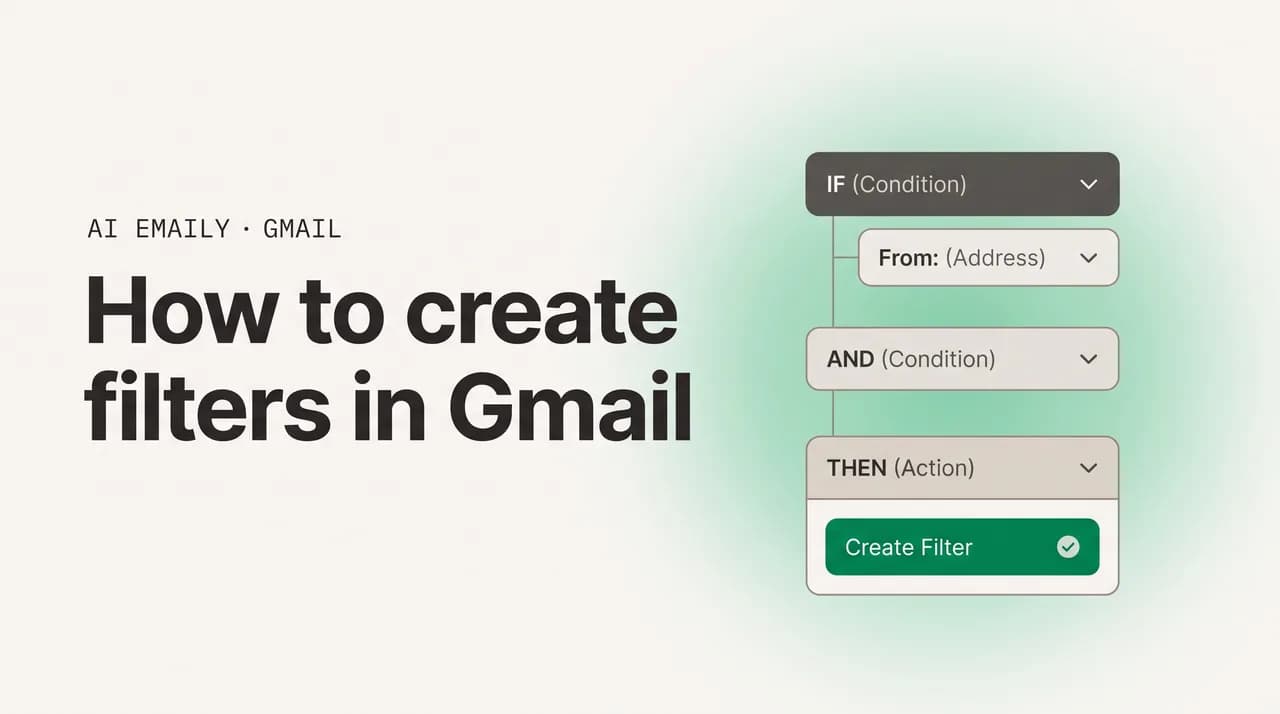
To create filters in Gmail, click the filter icon in the search bar, set your criteria, click Create filter, then pick actions like skip the inbox, apply a label, star, forward, or delete. Filters run on incoming mail automatically. They are desktop-only to set up but apply everywhere you read email.
Learn how to create filters in Gmail step by step: skip the inbox, auto-label, star, forward, and delete. 10+ recipes, edit and export tips, and fixes.
On this page
- 01What does a Gmail filter actually do?
- 02How do you create a filter in Gmail step by step?
- 03What does each Gmail filter action mean?
- 04What are the most useful Gmail filter recipes?
- 05How do you build search operators into a filter?
- 06How do you create a filter from a message you already have?
- 07How do you edit, delete, export, and import filters?
- 08Can you create Gmail filters on the mobile app?
- 09Why is your Gmail filter not working?
- 10How do AI Emaily's rules and AI triage go beyond filters?
- 11Putting your Gmail filters to work
What does a Gmail filter actually do?#
A Gmail filter is a small automatic rule that watches your incoming mail and acts on the messages that match conditions you set. You describe what an email looks like — who it is from, what is in the subject, whether it has an attachment — and then you tell Gmail what to do with it: file it under a label, archive it out of the inbox, star it, forward it, mark it read, or send it straight to the trash. Once the filter is saved, you never touch it again. Every new message that matches gets handled the moment it arrives. Gmail has no separate feature called rules, so how to create rules in Gmail and how to create a filter are the same question with two names.
If you have ever opened Gmail to find seventy unread messages and only three of them mattered, filters are the fix. They do the sorting you would otherwise do by hand, and they do it instantly, every time, without you being there. A well-built set of filters turns a noisy inbox into something closer to a sorted desk: receipts in one pile, newsletters in another, real conversations from real people front and center.
This guide walks through every part of Gmail filters from the ground up. You will learn the fastest way to create one from the search bar, what each filter action means and when to use it, more than ten copy-and-adapt recipes for the situations most people actually face, how to build a filter directly from a message that is already in your inbox, and how to edit, delete, export, and import filters once you have a system going. We also cover the one thing that trips everyone up — why filters cannot be created on the phone — and a troubleshooting section for when a filter quietly does nothing.
One note before we start, because it explains a lot of confusing behavior later: a Gmail filter only acts on mail that arrives after you create it. It does not reach back and reorganize the thousands of emails already sitting in your inbox unless you explicitly tell it to. There is a checkbox for that, and we will get to it, but the default is forward-looking only.
It also helps to understand where filters sit relative to the rest of Gmail's organization tools. Labels are the categories you sort mail into. Search operators are the precise language you use to describe a set of messages. Filters are the automation that ties the two together — they use search-style criteria to find mail and apply labels (and other actions) to it without you lifting a finger. If you already know how to search Gmail, you are most of the way to writing a good filter, because a filter is essentially a saved search with an action attached. Everything you can express in the search box, you can express in a filter's conditions.
Filters are also genuinely old technology by software standards, and that cuts both ways. On the plus side, they are stable, predictable, and run on Google's servers, so they work the same whether you are at a laptop or reading on a train. On the minus side, they have not changed much in years: they match literal text rather than meaning, they cannot be created on a phone, and they only know the fixed list of actions Gmail gives them. We will be honest about those limits throughout, because knowing where filters stop is the key to using them well — and to recognizing when you have outgrown them.
How do you create a filter in Gmail step by step?#
The quickest path to a new filter is the search bar at the top of Gmail. Almost everyone misses this because the entry point is a single small icon, but it is by far the most flexible way in: you describe the email, Gmail shows you exactly which messages match, and only then do you commit to a filter. You do all of this on a computer — open mail.google.com in a browser. The mobile app cannot build filters, which we explain in its own section below.
Here is the full sequence, from an empty search box to a working filter.
- 1
Open Gmail on the web
Go to mail.google.com in a desktop browser and sign in to the account you want the filter to live in. Filters are per-account, so if you manage more than one address, make sure you are in the right inbox.
- 2
Click the filter icon in the search bar
At the top of Gmail is the long search box. On its right edge is a small icon of horizontal sliders, sometimes called Show search options. Click it to open the search-and-filter panel.
- 3
Describe the emails you want to catch
Fill in any of the fields: From (sender address), To (recipient or alias), Subject, Has the words, Doesn't have, Size, Date within, and Has attachment. You do not need to fill every field — one is enough. The more you add, the narrower the match.
- 4
Search first to preview the match (optional but smart)
Click Search to see exactly which existing emails fit your criteria. This is your safety check. If the results look wrong, adjust the fields before going further — especially before you build a filter that deletes.
- 5
Click Create filter
When the criteria are right, reopen the search options panel and click Create filter at the bottom. Gmail switches to the actions screen, where you choose what should happen to matching mail.
- 6
Choose one or more actions
Tick the actions you want — for example Skip the Inbox, Apply the label, and Mark as read. You can combine several at once. We break down every action in the next section.
- 7
Decide whether to apply it to existing mail
At the bottom is Also apply filter to matching conversations, with a count of how many messages already match. Tick it if you want Gmail to sweep your existing mail now. Leave it unticked to act only on future arrivals.
- 8
Click Create filter to save
Confirm and the filter goes live immediately. From this moment, every new message that matches is handled automatically, no matter what device you read your email on.
That is the whole loop. The reason the search-bar method beats the others is the preview step: you get to see the real messages your criteria will catch before you attach any action to them. Build a filter blind and you might archive the wrong newsletter or, worse, trash mail you needed. Search first, confirm the list, then create — it takes ten extra seconds and saves you from filters that misfire.
There is a second way in, through Settings, that lands on the same actions screen. Click the gear icon in the top right, choose See all settings, open the Filters and Blocked Addresses tab, and click Create a new filter at the bottom. This route is handy when you are already in settings managing your existing filters, but for a fresh filter the search bar is faster because it doubles as the preview.
Preview before you commit
What does each Gmail filter action mean?#
Once your criteria are set and you click Create filter, Gmail presents a list of actions. Each one tells Gmail what to do with a matching message. You can select several at the same time — a single filter can label, archive, and mark as read all at once. Understanding exactly what each action does is the difference between a filter that helps and one that hides mail you needed. Here is every action, what it does, and when to reach for it.
| Action | What it does | When to use it |
|---|---|---|
| Skip the Inbox (Archive it) | Removes the message from your inbox while keeping it in All Mail and searchable. It is not deleted. | Newsletters, receipts, automated notifications, CC threads — anything you want kept but not crowding the inbox. |
| Mark as read | Opens the message in a read state so it never adds to your unread count. | Pair with Skip the Inbox for low-priority mail you will review on your own schedule, not on arrival. |
| Star it | Adds a star so the message stands out and can be found in the Starred view. | Mail from VIPs, key clients, or anything you want flagged for follow-up the moment it lands. |
| Apply the label | Tags the message with a label you pick or create. Labels are Gmail's version of folders, and one message can carry several. | Sorting by sender, project, client, or category so related mail groups together automatically. |
| Forward it to | Sends a copy to another address. The forwarding address must be verified first in Settings. | Routing leads to a shared inbox, sending receipts to an accountant, or distributing certain mail to a teammate. |
| Delete it | Sends the message straight to Trash, where it is permanently removed after 30 days. | Persistent junk from a sender you never want to see. Use sparingly and test the criteria first. |
| Never send it to Spam | Guarantees matching mail always reaches you, overriding Gmail's spam filter. | Trusted senders, clients, or services whose messages keep landing in spam by mistake. |
| Mark it as important / Never mark as important | Forces Gmail's importance marker on or off for matching mail. | Correcting Gmail's automatic importance guesses for senders it consistently gets wrong. |
| Categorize as | Files the message into a tab — Primary, Social, Promotions, Updates, or Forums. | Steering specific senders into the right category tab when Gmail's automatic sorting disagrees with you. |
A few of these deserve extra attention because they behave in ways people do not expect. Skip the Inbox is the most useful action and the most misunderstood: it does not delete anything. The message lands in All Mail, fully searchable, and any label you applied is attached — it simply does not appear in the main inbox. Think of it as filing rather than discarding. This is the action that does the heavy lifting in almost every good filter setup.
Applying a label, on its own, does not remove a message from the inbox. In Gmail, Inbox is itself effectively a label, and adding another one does not take Inbox away. So if your goal is to label mail and get it out of your face, you need both Apply the label and Skip the Inbox in the same filter. This single misunderstanding is behind a large share of the inbox is still cluttered complaints we will revisit in troubleshooting.
Delete is powerful and unforgiving. A filter that trashes mail will do so silently, forever, on every future match. If your criteria are even slightly too broad, you will lose messages without knowing. The safe pattern is to archive-and-label first, watch what the filter catches for a week, and only switch to Delete once you are certain the match is clean. There is no need to be timid with filters, but Delete is the one action where a preview is non-negotiable.
Never send it to Spam is the action people forget exists, and it solves a real and frustrating problem: legitimate mail that Gmail keeps misclassifying. If a client, an invoice, or a service you depend on keeps landing in the Spam folder, a filter with Never send it to Spam guarantees it reaches you from then on. It is the inverse of a delete rule — instead of suppressing mail, it protects it. Pair it with a label so the rescued mail is also filed where you expect it.
The importance and categorize actions are about correcting Gmail's guesses. Gmail tries to decide on its own which mail is important and which tab it belongs in, and it is often right, but not always. If a particular sender keeps getting buried under a wrong importance guess, or keeps landing in Promotions when you want it in Primary, the Mark it as important and Categorize as actions let you overrule the automatic system for that sender permanently. You are not fighting Gmail so much as telling it your preference once and having it stick.
Labeling alone does not clear the inbox
What are the most useful Gmail filter recipes?#
The fastest way to learn filters is to copy ones that already work and adapt them to your own senders. Below are more than ten recipes for the situations most people face, each written as criteria plus the actions to apply. Type the criteria into the corresponding fields in the filter panel — From, Subject, Has the words — and the operators below also work typed directly into the search bar. Brand names, addresses, and keywords are examples; swap in your own.
| Goal | Criteria (what to match) | Actions to apply |
|---|---|---|
| Tame all newsletters | Has the words: unsubscribe OR list:* | Skip the Inbox, Apply label "Newsletters", Mark as read |
| Collect receipts and orders | Subject: receipt OR invoice OR "order confirmation" | Skip the Inbox, Apply label "Receipts" |
| Spotlight your boss or VIPs | From: [email protected] OR [email protected] | Star it, Mark as important, Never send to Spam |
| Auto-archive social notifications | From: [email protected] OR @linkedin.com OR @x.com | Skip the Inbox, Apply label "Social", Mark as read |
| Label everything from one sender | From: [email protected] | Apply label "Project X" |
| Forward leads to a shared inbox | To: [email protected] | Forward to [email protected], Apply label "Leads" |
| Rescue mail from spam | From: @importantvendor.com | Never send it to Spam, Apply label "Vendors" |
| Catch attachments from your boss | From: [email protected], Has attachment: ticked | Apply label "Boss / Files", Star it |
| Quietly delete known junk | From: [email protected] | Delete it |
| Route plus-alias mail | To: [email protected] | Skip the Inbox, Apply label "Shopping" |
| Mark CC threads as read | Has the words: cc:(me) | Skip the Inbox, Mark as read, Apply label "FYI" |
| Find only big files from a sender | From: [email protected], Size: greater than 5 MB | Apply label "Large files" |
The newsletter recipe is the single highest-impact filter most people can build. Marketing mail, product updates, and digests are the bulk of inbox noise, and almost all of them contain the word unsubscribe somewhere, or arrive on a mailing list that Gmail recognizes with list:*. Archiving and labeling that mail in one stroke — and marking it read so it does not nag you — typically clears more clutter than any other single rule. You still get every newsletter; you just read it in the Newsletters label when you choose to, instead of in the inbox when it chooses.
The plus-alias recipe is a quiet power move. Gmail ignores anything after a plus sign in your address, so [email protected] and [email protected] both deliver to [email protected]. Hand out a different alias to each service when you sign up, and you can filter on the To field with surgical precision — every store gets +shopping, every newsletter gets +news — without depending on the sender's address or subject line at all. It is the cleanest way to sort mail by where you gave out your address.
Notice how often Skip the Inbox and Apply label travel together in these recipes. That pairing is the backbone of a calm inbox: the label files the message where it belongs, and the archive keeps it out of the main view. Add Mark as read for anything you do not need to see the instant it arrives, and reserve Star for the short list of people and topics that genuinely deserve to jump the queue.
The forwarding recipe is worth a closer look because it does work no other action can. A forward filter quietly copies matching mail to another address — a shared team inbox, an accountant, a virtual assistant — the moment it arrives, without you touching it. Sales leads sent to a general address can fan out to the right rep; every receipt can land in your bookkeeper's inbox automatically; a project alias can route updates to everyone who needs them. The one prerequisite is that the destination address is verified in Settings first, or the forward silently does nothing, which is a common source of why is my filter not forwarding confusion.
When you build these recipes, resist the urge to make one giant filter that tries to do everything. It is cleaner to keep filters focused — one for newsletters, one for receipts, one for your VIPs — than to cram a dozen senders and five actions into a single rule that becomes impossible to reason about later. Small, single-purpose filters are easier to edit, easier to delete when a project ends, and easier to debug when one of them misbehaves. A tidy list of ten clear filters beats three sprawling ones every time.
Combine OR to cover several senders at once
How do you build search operators into a filter?#
The Has the words field is where filters become genuinely precise, because it accepts the same search operators Gmail uses everywhere. Anything you can type into the search bar to find mail, you can type here to match mail. This means a single Has the words line can express conditions the separate fields cannot, and you can mix operators freely. Here are the operators that matter most inside filters.
| Operator | What it matches | Example |
|---|---|---|
| from: | A specific sender address or domain | from:[email protected] |
| to: | A specific recipient or alias | to:[email protected] |
| subject: | Words in the subject line | subject:(invoice OR receipt) |
| has:attachment | Any message with a file attached | from:[email protected] has:attachment |
| filename: | Attachments of a specific type or name | filename:pdf |
| list: | Mail sent through a mailing list | list:* |
| larger: / smaller: | Messages above or below a size | larger:10M |
| OR / AND | Combine or require multiple conditions | subject:(quote OR estimate) |
| - | Exclude a term (minus sign) | from:@acme.com -subject:newsletter |
| " " | An exact phrase | "order confirmation" |
These operators combine into sharp, single-line conditions. from:[email protected] has:attachment filename:pdf in the Has the words field builds a filter that fires only on PDF attachments from your boss — nothing else. subject:(quote OR estimate OR proposal) from:@clients.com catches new-business mail across three subject phrasings from anyone at a client domain. The minus sign is just as useful for carving out exceptions: from:@acme.com -subject:newsletter labels everything from Acme except their marketing mail.
Because the filter panel mirrors the search bar, the smoothest workflow is to compose your operator string in the search box, run it, eyeball the results, and only then click the filter icon and Create filter — your typed query carries straight into the criteria. You get the preview and the precise condition in one move. If you want a full reference of every operator Gmail supports, our companion guide on how to use Gmail search operators goes deeper than the table above.
How do you create a filter from a message you already have?#
Sometimes the email you want to filter is already sitting in front of you, and it is faster to start from that message than to retype the sender into the search panel. Gmail builds a filter from any open message and pre-fills the sender for you, so this is the natural way to say more like this one — never let another email from this sender clutter my inbox. It is especially quick for one-off senders you want to label, archive, or block.
There are two entry points, depending on what is on screen.
- 1
Open the message or select it in the list
Open the email you want to filter, or tick its checkbox in the message list. The sender of this message becomes the starting point for the filter.
- 2
Open the More menu
With the message open, click the three-dot More menu at the top of the message. If you selected it from the list, the same option appears in the toolbar's three-dot menu.
- 3
Choose Filter messages like these
Click Filter messages like these. Gmail opens the search-and-filter panel with the From field already filled in with this sender's address.
- 4
Refine the criteria if needed
Adjust or add fields — narrow to a subject, add a keyword, or widen to the whole domain. The pre-filled sender is a starting point, not a fixed value.
- 5
Click Create filter and pick actions
Click Create filter, choose your actions (label, archive, star, delete), and optionally tick Also apply to matching conversations to sweep existing mail from this sender. Save, and you are done.
This message-first route is the one to reach for when a particular sender has just annoyed you — a store that emails daily, a tool sending too many alerts, a list you cannot find the unsubscribe link for. Open one of their emails, choose Filter messages like these, and in three clicks every future message from them is archived and labeled, or trashed, on arrival. It is the manual answer to a noisy sender, and it pairs naturally with the matching-conversations checkbox to clean up the backlog they have already left in your inbox.
It is also the easiest way to learn what good criteria look like, because Gmail does the first draft for you. When you choose Filter messages like these, the From field is already populated with the exact sender address, formatted correctly. You can study that, then experiment — widen it to the whole domain by deleting everything before the @ sign, or narrow it by adding a subject keyword. Starting from a real message and adjusting outward teaches the criteria language faster than staring at an empty panel trying to remember how to type a sender's address.
How do you edit, delete, export, and import filters?#
Filters are not set-and-forget forever — senders change, projects end, and a rule that made sense in January can be dead weight by June. All of your filters live in one place: the gear icon, then See all settings, then the Filters and Blocked Addresses tab. Every filter you have ever made is listed there with its criteria, and each has an Edit and a Delete link. This is also where Gmail hides two features almost nobody knows about — export and import — which turn your filter set into a portable, backupable file.
Managing existing filters takes only a few clicks.
- 1
Open the Filters and Blocked Addresses tab
Click the gear icon, choose See all settings, and open Filters and Blocked Addresses. Every filter is listed with the criteria it matches on.
- 2
Edit a filter to change its criteria or actions
Click Edit next to a filter, adjust the criteria, click Continue, then change the actions. Save with Update filter. This is also where you retroactively tick Also apply to matching conversations on an existing filter.
- 3
Delete filters you no longer need
Click Delete next to a filter and confirm. To clear out several at once, tick the checkbox beside each filter and use the bulk Delete button.
- 4
Export filters to a backup file
Tick the filters you want to save, then click Export at the bottom. Gmail downloads an .xml file describing those filters — a backup you can keep or move to another account.
- 5
Import filters from a file
Click Import filters at the bottom, choose your .xml file, click Open file, then Create filters. Imported filters are added to the bottom of your existing list without overwriting anything.
Export and import are the unsung heroes of filter management. The export gives you an .xml file that captures the exact criteria and actions of whichever filters you ticked. That file is genuinely useful in three ways: it is a backup if you ever wipe filters by accident, it is how you copy a working set from one Gmail account to another, and it is editable in any text editor if you are comfortable hand-tweaking the XML. Setting up a new work account becomes a one-minute import instead of an afternoon of clicking.
One detail to keep in mind on import: Gmail appends imported filters to the bottom of your existing list rather than replacing what is there. That is safe — you will never lose current filters by importing — but it does mean you can end up with duplicates if you import the same file twice. After a large import, it is worth a quick scan of the list to delete any rules that now overlap. Filters apply in the order they appear, so duplicates rarely break anything, but a tidy list is easier to reason about later.
Filters run on Gmail's servers
Can you create Gmail filters on the mobile app?#
This is the question that catches almost everyone, so let us be direct: no, you cannot create, edit, view, or delete filters in the Gmail mobile app on iPhone or Android. There is no filters screen in the app, and there is no workaround inside it. Filter management lives exclusively in Gmail on the web. If you only have a phone in front of you, the move is to open mail.google.com in your phone's browser and request the desktop site — the full settings, including Filters and Blocked Addresses, then become reachable, though the layout is cramped on a small screen.
Here is the part that matters and that the mobile limitation obscures: filters you create on a computer absolutely do apply on mobile. Because they run on Google's servers, not on the device, a filter that archives newsletters will archive them before they ever reach your phone. So the workflow is simply split by device — build and adjust filters at a desktop, then read your already-sorted mail anywhere. The only thing you cannot do on the phone is the setup itself.
This split is one of the clearer signs of how old filters are as a feature. They were designed for a desktop-first era, and they never grew a mobile authoring interface. For most people the limitation is a minor annoyance — you set filters up once and rarely touch them — but if you live on your phone and want to create or tweak rules on the go, plain Gmail filters will frustrate you. It is one of the gaps a more modern, cross-device approach closes, which we come to shortly.
If you must manage filters from a phone and cannot get to a computer, the desktop-site trick is the only real option. In Chrome on Android or Safari on iPhone, open mail.google.com, then use the browser's menu to request the desktop version of the site. Gmail's full settings appear, including the gear menu and the Filters and Blocked Addresses tab, and you can technically create and edit filters from there. Be warned that the interface is built for a wide screen, so fields are tiny and the search-options panel is awkward to tap accurately — it works in a pinch, but it is not pleasant. Most people who try it once decide to wait until they are back at a real keyboard.
Why is your Gmail filter not working?#
When a filter seems to do nothing, the cause is almost always one of a handful of predictable problems rather than a Gmail bug. Filters are literal — they do exactly what their criteria say and nothing more — so a filter that misfires is usually a filter whose criteria do not match what you think they match, or whose actions are not what you expected. Here are the usual suspects, from most common to least, and how to fix each.
- It does not apply to old mail. Filters act only on messages that arrive after they are created. To clean up existing mail, edit the filter, step through to the last screen, tick Also apply filter to matching conversations, and save — Gmail sweeps the backlog on the spot.
- The criteria match nothing. If the matching-conversations count reads zero, your conditions are wrong. Run them as a search first; an empty result list means a misspelled address, a subject phrase that never appears, or an operator typo.
- You labeled but did not archive. The mail is filed correctly but still in the inbox because Apply the label does not remove Inbox. Add Skip the Inbox (Archive it) to the same filter to clear it from the main view.
- A category tab is overriding the filter. Gmail's automatic Promotions, Social, and Updates sorting can sometimes outrank a manual filter. Add Categorize as: Primary, or turn off the competing tabs in Settings, so your filter wins.
- Two filters conflict. An earlier filter may delete or archive a message before a later one can label it. Review the order in Filters and Blocked Addresses and remove or merge rules that fight each other.
- The forwarding address is not verified. A Forward to action silently fails until the destination address is confirmed. Add and verify it under Settings, then Forwarding and POP/IMAP, before relying on the filter.
- The filter was never actually saved. It is easy to set criteria, see the preview, and close the panel without clicking the final Create filter. Open Filters and Blocked Addresses and confirm the rule is in the list.
If you work through that list and a filter still misbehaves, the fastest diagnostic is to strip it back. Copy the criteria into the search bar exactly as the filter has them and look at what comes back. The search results are the ground truth of what the filter sees. If the search returns the wrong messages, or none, the problem is the criteria, full stop — fix them there and rebuild. If the search returns exactly the right messages but the filter still is not acting on new mail, the problem is the action side: a missing Skip the Inbox, an unverified forward, or a category tab winning. Separating the matching from the acting this way isolates almost every filter failure in under a minute.
There is a deeper reason filters are so prone to these quiet failures, and it is worth naming because it is the same reason a different approach can help. Filters match literal text. They have no understanding of what a message means — only whether its raw content contains the exact strings you typed. So a filter built to catch invoices will sail right past a message that says your statement is ready, because the word invoice never appears. You end up patching one literal rule with another, and another, chasing every phrasing a sender might use, and any new wording slips through until you notice and add yet another rule. The maintenance never quite ends, because language is more varied than any list of exact strings can cover.
Filters do not reach backward by default
How do AI Emaily's rules and AI triage go beyond filters?#
Gmail filters are a solid foundation, and everything above is worth setting up. But they show their age in three places, and those gaps are exactly what AI Emaily is built to close. AI Emaily is an AI-native email client that works across every account you connect — Gmail, Outlook, Yahoo, iCloud, any IMAP mailbox — so the same organization applies everywhere instead of being trapped inside one provider's settings page. If your life is spread across a personal Gmail and a work address on another provider, you stop maintaining two separate, incompatible sets of rules.
The first gap filters have is that they are brittle and literal. A Gmail filter matches the exact text you typed; it has no idea that order confirmation, your receipt, and payment successful all mean the same thing, so you end up writing several overlapping rules to catch one category. AI Emaily's rules and brain let you write what you want in plain English — keep receipts out of my inbox and file them under Finance — and the AI matches the concept, not just the literal string. It recognizes that an invoice, a receipt, and an order confirmation belong together without you enumerating every phrasing a sender might use. You describe the outcome; the brain handles the variations.
The second gap is that filters only do the small set of actions Gmail offers, on a one-message-at-a-time basis. On top of rules, AI Emaily adds AI triage that reads your incoming mail the way an assistant would — surfacing what genuinely needs you, grouping the rest by what it is, and drafting replies you can approve. It is the difference between a rule that files a message and an assistant that understands your inbox and tells you what actually deserves attention this morning. The literal filter is still there underneath when you want deterministic behavior; the AI layer sits on top for everything that is fuzzier than a string match.
The third gap is the mobile one. Because Gmail filters can only be created on a desktop, the place most people actually read email — their phone — is the one place they cannot adjust their rules. AI Emaily treats every device as a first-class place to set up and change how your mail is organized, so you are never told this has to be done on a computer. You manage your inbox where you live in it.
- Plain-English rules with an AI-matched brain — describe the outcome and let it recognize concepts (receipts, newsletters, VIPs), not just exact text.
- AI triage that surfaces what needs you, groups the rest, and drafts replies you approve — beyond the fixed list of filter actions.
- Works across every account you connect — Gmail, Outlook, Yahoo, iCloud, any IMAP — so one set of rules covers your whole email life.
- Set up and adjust rules from any device, including your phone, instead of being locked to the desktop web.
AI Emaily has a free plan at $0 to start organizing across your accounts, and a Pro plan at $12.42 per month billed annually for the full AI triage and rules brain. If filters have taken you as far as a single provider's settings page can, it is a natural next step — the same instinct to automate your inbox, with an assistant that understands meaning and follows you to every device and account. You can create an account at app.aiemaily.com/signup.
Keep your filters, add a brain on top
Putting your Gmail filters to work#
Filters are the closest thing Gmail has to an automatic assistant, and a handful of well-chosen ones change how your inbox feels every single day. Start with the search bar: describe the mail, preview the match, click Create filter, and pick your actions. Lead with Skip the Inbox and Apply the label paired together — that one combination does most of the work — add Mark as read for anything that does not need you on arrival, and save Star and Delete for the short lists that truly warrant them. Build the newsletter rule first; it clears the most noise for the least effort.
From there, grow the system deliberately. Use the recipes above as starting points, lean on search operators in the Has the words field when you need precision, and build filters straight from annoying senders with Filter messages like these. Once you have a set you trust, export it as a backup and to seed any other account. Remember the two rules that explain most confusion — filters only touch mail that arrives after they are made unless you tick the matching-conversations box, and they can only be created on a desktop even though they run everywhere.
Whatever you do next, the habits in this guide carry over. Describe the mail precisely, preview before you commit, file rather than destroy until you trust a rule, and keep each filter focused on one job. Those instincts make for good Gmail filters today, and they translate directly to any smarter system you adopt later — the difference is only how much the tool understands on your behalf. A filter does exactly what you spell out; an AI assistant fills in the meaning you would otherwise have to enumerate by hand.
And when literal, single-provider filters stop being enough — when you want rules that understand meaning instead of matching strings, triage that tells you what matters, and the freedom to manage all of it from your phone across every account at once — that is the line where filters end and AI Emaily begins. Set your filters up well today; you will know when you have outgrown them.
Frequently asked
See it in AI Emaily
Keep reading
Sources

Written by
Nafiul HasanNafiul Hasan is an entrepreneur and AI automation system builder with 10+ years of experience turning messy, manual workflows into reliable automated systems. He designs and ships AI enterprise solutions end-to-end — the agent logic, the data plumbing, and the product people actually use — and founded AI Emaily to give busy professionals their attention back. He writes here from the builder's seat: what works, what breaks, and how to put AI to work without giving up control.