How to use labels as folders and group emails in Gmail

The short answer
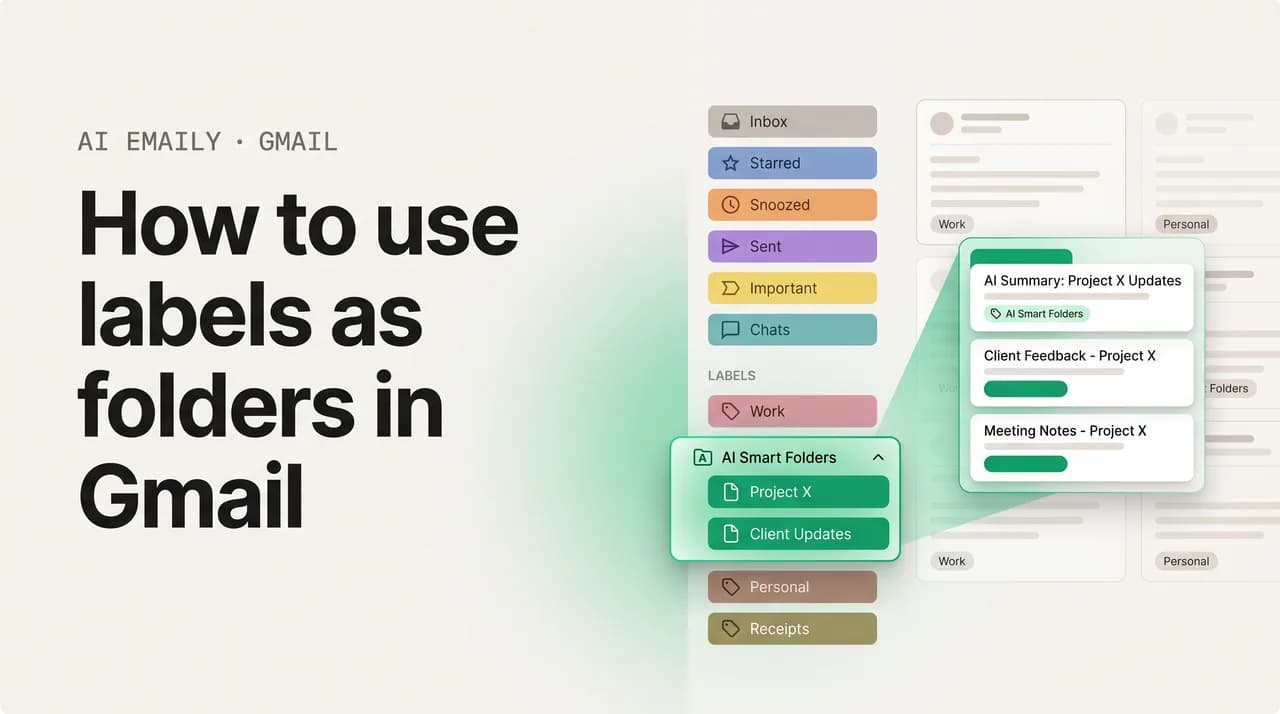
To use labels as folders in Gmail, apply a label and archive the email so it leaves the inbox but stays findable. Use Move to for one-click filing, nested labels for a folder tree, and filters that skip the inbox and apply a label to auto-file new mail. One label per email keeps it folder-clean.
How to use labels as folders in Gmail: make labels behave like folders, move emails into them, auto-file with filters, and build a folder-like tree.
On this page
- 01Why does Gmail use labels instead of folders?
- 02How do you make a label act like a folder in Gmail?
- 03How do you move an email into a folder in Gmail?
- 04How do you auto-file emails into folders with a filter?
- 05How do you build a folder tree with nested labels in Gmail?
- 06How do you set up Gmail folders when switching from Outlook or Apple Mail?
- 07Why should you use one label per email like a folder?
- 08How do you move emails into folders in the Gmail mobile app?
- 09Why are my Gmail labels not working like folders? (troubleshooting)
- 10How does AI Emaily organize mail for you across every account?
- 11Putting it all together
Why does Gmail use labels instead of folders?#
If you have ever opened Gmail expecting a tidy column of folders down the side and instead found a list of colored "labels," you are not alone, and you are not doing anything wrong. Gmail simply organizes mail differently from Outlook, Apple Mail, and almost every other email program you have probably used. Once you understand the one idea behind that difference, making Gmail behave like the folder-based inbox you are used to becomes straightforward, and this entire guide is about doing exactly that.
Here is the core difference. In a traditional folder system, every email lives in exactly one place. When you drag a message into a "Clients" folder, it physically moves there and leaves wherever it was before. The folder is a container, and the email is inside it, the same way a paper letter sits in one drawer and nowhere else. That model is intuitive because it matches the physical world, and it is the model Outlook and Apple Mail are built on.
Gmail does not work that way. In Gmail, every email lives in a single master pile called All Mail, and a label is simply a tag stuck onto a message. When you put a "Clients" label on an email, you are not moving it anywhere; you are pinning a sticky note to it that says "this is a client email." The message stays in All Mail, and clicking the "Clients" label in the sidebar just shows you everything wearing that tag. Nothing was relocated. The label is a saved view, not a drawer.
That sounds like a pedantic distinction until you notice what it unlocks. Because a label is a tag and not a container, a single email can wear several labels at once. An invoice from a client could be tagged "Clients," "Finance," and "Q3" simultaneously, and it would show up under all three views without you ever making three copies. In a folder system that is impossible; the email is in Finance or it is in Clients, never genuinely in both. Labels trade the simplicity of "one place" for the flexibility of "as many views as you want," which is why Gmail bet on them.
There is a second, quieter consequence that trips up newcomers. Because the inbox itself is just another label in Gmail, removing an email from your inbox does not delete it or even hide it; it simply takes the "Inbox" tag off while leaving every other tag in place. That single mechanic, archiving, is the secret to making labels feel exactly like folders, and most of the friction people feel with Gmail comes from not knowing it. We will use it constantly below.
So the honest answer to "does Gmail have folders?" is: no, not technically, but it has something that does the same job and a little more, once you set it up. The rest of this guide is a practical playbook for getting folder-like order out of Gmail's label system, written for people who liked folders just fine and want that experience back. We will cover how to make a label act like a folder, how to move an email into a "folder," how to auto-file mail with filters, how to build a nested folder tree, a migration map for people coming from Outlook and Apple Mail, the one-label discipline that keeps it all clean, how it works on your phone, and what to do when it misbehaves.
The one sentence that makes Gmail click
How do you make a label act like a folder in Gmail?#
A folder does two things that a freshly created label does not do on its own. First, when you put something in a folder, it leaves your main view; it is filed away, out of sight. Second, you can open that folder later and find everything you filed there. A bare Gmail label only gives you the second half: it collects tagged mail into a view, but applying it does not move anything out of your inbox. To get true folder behavior, you have to pair the label with archiving, and you have to make the label visible in your sidebar so it reads like a folder.
Let us start by creating the label and getting it to show up like a folder in the left rail. If you already have labels, skip to the next section on moving mail; if you are starting fresh, here is the full setup on the web, which is where this is easiest to configure.
- 1
Open the labels manager
On the desktop web, click the gear icon in the top right, choose "See all settings," and open the "Labels" tab. This is the master list of every label in your account, the closest thing Gmail has to a folder manager. You can also scroll the left sidebar to the bottom and click "Create new label" for the quick version.
- 2
Create the label with a folder-style name
Click "Create new label," then type a name the way you would name a folder, such as "Clients," "Receipts," or "Travel." Keep names short and concrete. If you want subfolders, you will nest labels in a later step, so for now just create the top-level names you would have made as folders.
- 3
Make sure the label shows in the sidebar
In the Labels tab, each label has a "Show" / "Hide" toggle in the "Show in label list" column. Set the ones you want to behave like folders to "Show" so they sit permanently in your left rail. Use "Show if unread" only for labels you want to appear just when they have new mail; for a true folder feel, choose "Show."
- 4
Color-code it so it scans like a folder
Hover the label in the sidebar, click the three-dot menu, and pick "Label color." A consistent color per area, for example green for finance and blue for clients, turns a flat list of labels into something your eye reads as a set of distinct folders. This is optional but makes a long list far easier to navigate.
- 5
Decide whether to keep it out of the inbox by default
A label alone does not pull mail from the inbox. That happens at the moment you file each email (next section) or automatically via a filter (the section after). Knowing this is the difference between a label that feels like a folder and one that just adds clutter on top of your inbox.
Once a label is created and set to "Show," it sits in your sidebar looking and behaving almost exactly like a folder: click it, and you see everything filed under it. The only missing piece is the act of filing, which in Gmail means applying the label and removing the email from the inbox in one motion. Gmail gives you a single command that does both, and it is the closest thing to dragging a message into a folder. That is the next section.
One thing worth internalizing now: the label in your sidebar is permanent and reusable, but it is empty of meaning until you start putting mail in it. Folders feel solid because you fill them. Labels feel flimsy at first because people create a dozen of them and then keep working out of the inbox, never filing anything. The fix is not more labels; it is the habit of moving mail into them, which we turn to now.
It also helps to set your label list the way you would lay out a filing cabinet: the drawers you open daily within easy reach, the ones you rarely touch tucked away. In the Labels settings tab you can reorder nothing manually, but the "Show," "Hide," and "Show if unread" toggles let you control exactly which labels are always present and which appear only when they have new mail. Set your three or four working folders to "Show" so they are one click away at all times, and let the seasonal or archival ones stay quiet under "Show if unread" so they surface only when something lands in them. A sidebar that mirrors how often you actually reach for each area is what makes the label system feel like a well-organized cabinet rather than a wall of tags.
How do you move an email into a folder in Gmail?#
This is the action most people are really searching for: I have an email in my inbox, and I want it out of my inbox and into a folder. In Gmail the command is called "Move to," and it does precisely what dragging into a folder does in Outlook: it applies the chosen label and archives the message in one click, so it disappears from the inbox and reappears only when you open that label. There is also a related command, "Labels," which only tags the email and leaves it in the inbox, which is useful but is not folder behavior. Knowing which is which is the whole game.
Here is how to move a single email, or a whole batch, into a label so it behaves like a folder on the desktop web.
- 1
Select the email or emails
Open a message, or from the inbox list, tick the checkboxes to the left of several messages to file them all at once. Batch filing is one of the fastest ways to clear an inbox, so do not overlook the checkboxes.
- 2
Click the Move to icon
In the toolbar above the email, click the "Move to" button; its icon is a folder with an arrow. A menu of all your labels appears. This is the command that mimics a folder move, because it both labels and archives.
- 3
Choose the destination label
Click the label you want, or start typing to filter the list and create a new one on the fly with "Create new." The moment you pick it, Gmail applies that label and removes the email from the inbox. It is now "in" that folder.
- 4
Confirm it left the inbox
Return to the inbox and the email is gone from the list; click the label in the sidebar and there it is. It also still lives in All Mail, which is normal and is your safety net, not a duplicate.
- 5
Use the keyboard shortcut for speed
Turn on keyboard shortcuts in Settings, then select a message and press "v" to open "Move to," type the first letters of the label, and hit Enter. Pressing "v" then a label is the fastest way to file in Gmail, and it is the muscle memory that finally makes filing feel quick and automatic.
Notice the contrast with the "Labels" command (the tag-shaped icon, or the "l" shortcut). "Labels" only sticks the tag on and leaves the email sitting in your inbox; you would then have to archive it separately to finish the job. "Move to" rolls both into one. If you want folder behavior, reach for "Move to" or "v." If you genuinely want an email to live in two views at once, for example to keep it in the inbox while also tagging it "Follow up," then "Labels" or "l" is the right tool. Most of the time, for folder-like filing, you want "Move to."
If you ever file something by mistake, recovery is easy. Open All Mail or use search, find the message, and either re-apply the "Inbox" label to bring it back, or use "Move to" again to send it to the right label. Because nothing is ever truly deleted by archiving, a misfile in Gmail is far more forgiving than a misfile in a folder system, where a buried email can feel genuinely lost. This is the upside of everything living in All Mail. Knowing how to use Gmail search operators makes recovery faster still, since in:anywhere finds a message regardless of which label it ended up under.
Move to vs Labels, in one line
How do you auto-file emails into folders with a filter?#
Filing by hand is fine for one-off emails, but the real power of folders shows up when mail files itself before you ever see it. In Outlook you would call these rules; in Gmail they are called filters, and a filter can do the exact two-step you have been doing manually, apply a label and archive, automatically, the instant a matching email arrives. Set up a handful of these and a large slice of your incoming mail walks straight into the right folder and never touches your inbox. This is what how to create rules in Gmail means in practice: one filter carrying a label and an archive action together.
The crucial setting is a checkbox most people miss: "Skip the Inbox (Archive it)." Applying a label in a filter, on its own, does not remove anything from the inbox; the email shows up labeled and still in your face. Ticking "Skip the Inbox" alongside "Apply the label" is what produces true folder behavior, routing the message out of the inbox and into the label in one move. Forget that checkbox and your filters will feel useless; remember it and they feel like magic.
Here is how to build a filter that auto-files a sender, like a newsletter, a billing service, or a particular client, into a folder.
- 1
Open the search options
On the desktop web, click the small "Show search options" icon (the sliders) on the right side of the search bar at the top of Gmail. A panel drops down where you define what the filter should match.
- 2
Define what to match
Enter your criteria, most commonly the sender's address in the "From" field, but you can also match a subject, words in the body, a recipient, or whether there is an attachment. Keep the first filter simple, such as from:[email protected], so you can confirm it behaves before you get fancy.
- 3
Click Create filter
At the bottom of the search panel, click "Create filter." Gmail switches to a list of actions to take on every email that matches your criteria from now on.
- 4
Check Skip the Inbox and Apply the label
Tick "Skip the Inbox (Archive it)" and tick "Apply the label," then choose your label or create a new one. This pairing is what turns the filter into an auto-filer; the email arrives, gets tagged, and is archived straight into the label without ever appearing in the inbox.
- 5
Optionally apply it to existing mail
Check "Also apply filter to matching conversations" before you finish, and Gmail will sweep your existing mail into the label too, instantly populating your new folder with everything that already matches. Then click "Create filter" to save.
A few patterns are worth setting up on day one because they remove the most inbox noise for the least effort. Route every newsletter into a "Reading" label that skips the inbox, so your subscriptions pile up quietly in one place to browse when you choose rather than interrupting you. Send receipts and order confirmations to a "Receipts" label the same way, which makes expense season a single search instead of an archaeology dig. Funnel automated notifications from tools and apps into a "Notifications" label so the genuinely human mail in your inbox is not buried under robot chatter.
Be deliberate about which mail you let skip the inbox, though. Auto-filing is wonderful for predictable, low-urgency streams like newsletters, receipts, and notifications. It is risky for anything you must not miss, because an email that skips the inbox is an email you have to remember to go look for. A common middle path is to apply the label automatically but not archive, so important client mail is pre-sorted into its folder yet still appears in the inbox until you have dealt with it. Reserve full skip-the-inbox filing for streams you are comfortable reviewing on your own schedule.
You can edit, disable, or delete any filter later from Settings, under the "Filters and Blocked Addresses" tab, where every rule you have ever made is listed with "edit" and "delete" links. Revisit this list every few months; filters quietly accumulate, and an old rule auto-filing mail from a service you no longer use is a common reason a folder fills with junk you forgot you were routing there.
Skip the Inbox means you must go find it
How do you build a folder tree with nested labels in Gmail?#
Folders rarely live flat. Most people who came from Outlook or Apple Mail had a tree: a "Projects" folder with "Project A," "Project B," and "Project C" tucked inside it, or a "Clients" folder with a subfolder per client. Gmail supports this through nested labels, also called sublabels, and they behave just like subfolders. A nested label is written with a slash in its full name, so "Clients" can have children that read as "Clients/Acme" and "Clients/Globex," and in the sidebar the parent gets a small triangle you click to expand and collapse the children. It is a folder tree in every way that matters.
Here is how to build one out, either by nesting under labels you already have or by creating the hierarchy from scratch.
- 1
Create the parent label first
Make the top-level label that will act as the parent folder, for example "Clients" or "Projects." This is the container the subfolders hang under. You can create it from the sidebar's "Create new label" or in the Labels settings tab.
- 2
Create the child and nest it
Click "Create new label" again, type the child's name such as "Acme," then tick "Nest label under" and choose the parent "Clients" from the dropdown. Gmail stores its full name as "Clients/Acme" and shows it indented beneath the parent, exactly like a subfolder.
- 3
Repeat for each subfolder
Add the rest of the children the same way, nesting each under the right parent. You can go more than one level deep, for example "Clients/Acme/Invoices," though two levels is plenty for most people and keeps the tree readable.
- 4
Re-parent an existing label if needed
To turn a flat label into a child, hover it in the sidebar, open the three-dot menu, choose "Edit," tick "Nest label under," and pick its new parent. This is how you reorganize a messy flat list into a proper tree without recreating anything.
- 5
Expand and collapse to keep the rail tidy
Click the triangle next to any parent label to collapse its children out of view when you are not using them, so the sidebar stays short. Collapsing parents is the trick to keeping a deep folder tree from overwhelming the left rail.
A couple of limits are worth knowing so the tree does not surprise you. Gmail will not let you nest a label under one of its system labels, so you cannot create a subfolder inside Inbox, Sent, Trash, or Spam the way some mail apps allow. Your nested tree has to live among your own custom labels. And when migration tools move an Outlook mailbox into Gmail, any folders that sat under a system folder get re-homed; the migrator typically creates a stand-in custom label and nests your folders under that, which is why a freshly migrated account sometimes shows a slightly different shape than the original.
Resist the urge to recreate an enormous, deeply nested folder tree just because you had one before. The flexibility of labels often means you need fewer of them. Where Outlook pushed you to file the same email into one of several folders and agonize over which, Gmail lets a single message carry two tags, so categories that used to demand their own folder can become a second label you add when relevant. Many people who switch find that a dozen well-named labels plus good search replaces forty folders, and the result is faster to file into and easier to keep tidy.
How do you set up Gmail folders when switching from Outlook or Apple Mail?#
If you are arriving from Outlook or Apple Mail, the hardest part is not the mechanics; it is the mental switch from "file it in the one right folder" to "tag it and archive it." The good news is that almost every folder habit you have maps cleanly onto a label habit once you learn the translation. The table below lines up the Outlook and Apple Mail concept you know against the Gmail equivalent and the exact action to take, so you can keep working the way you always have while Gmail quietly does it with labels underneath.
| What you did in Outlook / Apple Mail | The Gmail equivalent | How to do it in Gmail |
|---|---|---|
| Create a folder | Create a label | Sidebar "Create new label," or Settings to Labels to "Create new label" |
| Create a subfolder | Nest a label (sublabel) | Create the label and tick "Nest label under" the parent |
| Drag an email into a folder | Move to a label (label + archive) | Select the email, click "Move to," pick the label, or press "v" |
| The email is in one folder only | The email can carry several labels | Use "Labels" to add more tags; "Move to" for single-folder behavior |
| Set up a rule | Create a filter | Search options to "Create filter" to "Skip the Inbox" plus "Apply the label" |
| Archive / file away | Archive (removes the Inbox tag only) | Click "Archive," or it happens automatically inside "Move to" |
| Search inside one folder | Search the whole account, then narrow | Search box with label:clients or in:anywhere plus your terms |
| Folder for one project | Nested label tree under a parent | Parent label "Projects" with children "Projects/Q3," etc. |
Work through that table once and the rest follows. A practical migration sequence looks like this. Before you move anything, prune; the cleaner your Outlook or Apple Mail folder list, the cleaner the labels you end up with, since cluttered folders simply become cluttered labels. Recreate your top folders as top-level labels, set them to "Show" so they sit in the sidebar, and rebuild any subfolders as nested labels under the right parents. Then build a few filters for your predictable streams so new mail starts auto-filing immediately. Finally, change your habit: when you finish with an email, press "v" and file it instead of letting it sit, the same beat as dragging it into a folder used to be.
The one habit to actively unlearn is filing the same email into several places. In a folder world that was impossible, so you trained yourself to pick the single best folder. In Gmail you can over-tag, slapping three labels on everything, which quietly recreates the clutter you were escaping. The discipline that keeps a migrated Gmail account feeling like clean folders is mostly about restraint, which is the next section.
Why should you use one label per email like a folder?#
Labels tempt you with a freedom folders never offered: an email can wear as many tags as you like. That freedom is genuinely useful in moderation, but it is also the single fastest way to turn a folder-like Gmail into a confusing mess. If you want your labels to feel like folders, adopt a simple rule of thumb: most emails should get exactly one label, the one that answers "where would I look for this later?" Treat that primary label as the folder the email lives in, and add a second label only when it earns its place.
The reason is about retrieval, not tidiness for its own sake. The whole point of filing is being able to find something again without thinking. When every email has one clear home, future-you knows exactly which label to open. When emails routinely carry three or four overlapping labels, every label's view becomes a soup of half-relevant messages, the same email keeps showing up in place after place, and you lose the crisp "this is where that lives" certainty that made folders feel reliable. Over-labeling does not add organization; it dissolves it.
A workable system looks like this. Give each email one primary label that acts as its folder, chosen by the most durable fact about it, usually the project, client, or category it belongs to. Reserve a tiny set of secondary, action-style labels, such as "Follow up," "Waiting on," or "Important," for the rare cases where a cross-cutting status genuinely helps, and strip them off once the action is done. And lean on search for everything else; you do not need a "2026" label when typing a date into the search bar finds the same mail in a second. Search is so strong in Gmail that it absorbs most of the need for extra labels.
- Pick the label by asking "where will I look for this in three months?" not "what is this email about?" The first question yields one answer; the second yields several and invites over-tagging.
- Keep a short, fixed set of labels rather than minting a new one for every situation; a folder tree you can hold in your head beats an exhaustive one you cannot.
- Use a second label only for a genuinely cross-cutting status, and remove it when the status ends, so action labels stay meaningful instead of accumulating.
- Let search, not labels, handle one-off retrieval by date, sender, or keyword; Gmail's search is the reason you can get away with far fewer labels than you had folders.
- Review your label list a few times a year and merge or delete the ones you never click; an unused label is just visual noise in the sidebar.
How do you move emails into folders in the Gmail mobile app?#
Everything above works on the Gmail app for iPhone and Android too, with the same vocabulary, just tucked behind taps instead of toolbar buttons. The mobile app is where a lot of filing actually happens, in the gaps of a day, so it is worth knowing the gestures cold. The two commands carry over exactly: "Move to" files an email into a label and out of the inbox (folder behavior), while "Label" only tags it and leaves it where it is.
To file an open email on mobile, tap the three-dot menu in the top right of the message and choose "Move to," then pick the label; the email leaves the inbox and lands in that label, just like on the web. To file several at once, touch and hold the first message until it is selected, tap the others to add them, then use the three-dot menu and "Move to." If you only want to add a tag without filing the message away, choose "Label" instead of "Move to" from the same menu, and the email keeps its place in the inbox.
- Tap the sender's avatar (or long-press a row) to enter selection mode, then batch-file many emails into a label in one "Move to," which is the quickest way to clear an inbox on a phone.
- Open the hamburger menu on the left to see your labels and nested sublabels exactly as they appear on the web, including the colors and the parent-and-child tree you built.
- Swipe actions can be set to Archive in the app's settings, which removes a handled email from the inbox in one gesture; pair that with a quick "Move to" when you also want it filed.
- Filters are created on the desktop web, not in the mobile app, but every filter you make there runs on all your devices, so mail you set to skip the inbox stays out of your phone's inbox too.
- If a label is missing from the mobile menu, it may be set to "Hide" in label list; flip it to "Show" in desktop settings and it appears on mobile as well.
Why are my Gmail labels not working like folders? (troubleshooting)#
When labels do not behave the way folders did, the cause is almost always one of a handful of predictable things, and each has a quick fix. Run through these before assuming Gmail is broken; in nearly every case a setting is doing exactly what it was told, just not what you expected. The recurring theme is that Gmail separates two actions folders blended into one: tagging an email and removing it from the inbox. Most folder-like complaints trace back to doing one without the other, and once you see that pattern, the fixes below are obvious.
- Emails stay in the inbox after you label them: you used "Labels" (tag only), not "Move to" (tag and archive). Use "Move to" or press "v," or archive the message after labeling it.
- A filter labels mail but it still lands in the inbox: the filter is missing the "Skip the Inbox (Archive it)" checkbox. Edit the filter and tick it so matching mail is archived into the label.
- An email you filed reappears in the inbox: someone replied, and new activity on a conversation can pull it back to the inbox. Re-file it, or mute the thread if you never want it resurfacing.
- A label is not in the sidebar: it is set to "Hide" or "Show if unread" in Settings to Labels. Switch it to "Show" so it sits in the rail permanently like a folder.
- You cannot find a filed email: it is not lost, it is in All Mail and under its label. Search with label:thename, or open All Mail; archiving never deletes anything.
- You cannot nest a label where you want: Gmail blocks nesting under system labels like Inbox or Sent. Nest under one of your own custom labels instead.
- Deleting a label seems to delete the mail: it does not; removing a label only removes the tag, and the emails remain in All Mail. They simply lose that one view.
- The sidebar feels endless: collapse parent labels with their triangle, and set rarely-used labels to "Show if unread" so they appear only when relevant.
Archiving is not deleting
How does AI Emaily organize mail for you across every account?#
Everything so far is the manual craft of bending Gmail's labels into folders: create them, color them, file with "Move to," build filters that skip the inbox, nest a tidy tree, and hold the line on one label per email. It works, and it is worth learning. But it still rests on you, every day, deciding where each message goes and remembering to file it, and filters only catch the predictable senders you thought to write rules for. The messy middle, the genuinely new sender, the email that could plausibly go in two places, the stuff you never built a rule for, still lands in your inbox and waits for your judgment.
AI Emaily is built to take that recurring decision off your plate. It is an autonomous AI email client that reads each incoming message the way you would, understands what it actually is, a receipt, a client request, a newsletter, a meeting invite, an automated alert, and files it into the right place without you writing a rule for every case. Where a Gmail filter needs you to anticipate the sender in advance, AI Emaily's triage reasons about mail it has never seen before, so the long tail of one-off senders that normally clutters an inbox gets sorted too.
You teach it the way you would teach an assistant, in plain language rather than rule builders. Tell it "keep receipts out of my inbox and group them," "always surface anything from my biggest client," or "route every newsletter to a reading pile," and the rules brain turns that intent into consistent filing it applies going forward. It handles the equivalent of label-and-archive automatically, so your inbox holds what needs you and the rest is organized, findable, and out of the way, the folder-clean state this whole guide is chasing, maintained without the daily upkeep.
The part that matters most if you live in more than one account is that AI Emaily is provider-agnostic and gives you a single unified inbox across all of them. Gmail labels only ever organize one Gmail account; if you also have an Outlook address, a work mailbox, and an old account, each keeps its own separate folders, and you switch between them all day. AI Emaily connects Gmail, Outlook, and the rest into one place and applies the same organization across every account at once, so you are not rebuilding a folder system three times or hopping between apps to stay on top of mail.
You stay fully in control of how much it does on its own. AI Emaily runs in Manual, Copilot, or Autopilot: it can simply suggest where something belongs and wait for your nod, or quietly file the routine streams on its own once you trust it, and every action is logged with one-tap undo, so nothing is ever filed beyond recovery. It works across every provider you already use, so there is no new address to adopt. The free plan is $0 to start, and Pro is $12.42 a month billed annually for full autopilot and unlimited automated organizing. You can connect an inbox in a few minutes at app.aiemaily.com/signup.
Where AI Emaily picks up where Gmail filters stop
Putting it all together#
Gmail does not have folders, but it has something that does the same job once you know the trick: a label is a tag, the inbox is just another tag, and All Mail holds everything. To make a label behave like a folder, you apply it and archive the message, which is exactly what the "Move to" command, and the "v" shortcut, do in one motion. Set your labels to "Show" so they sit in the sidebar, color them so they scan like distinct folders, and you have rebuilt the folder column you missed, with the bonus that an email can live in two views when it genuinely needs to.
From there, let mail file itself. Build filters for your predictable streams, newsletters, receipts, notifications, and remember the one checkbox that makes them work, "Skip the Inbox (Archive it)," paired with "Apply the label." Recreate any folder hierarchy with nested labels under a parent, keep the tree shallow, and resist the temptation to over-tag; one durable label per email, plus Gmail's excellent search, replaces far more folders than you would guess. If something seems off, it is almost always a label set to "Hide," a filter missing the archive checkbox, or the harmless fact that archived mail lives quietly in All Mail.
Set this up once and Gmail feels as orderly as the folder-based inbox you came from. Maintain it day to day with a single habit, file each finished email instead of letting it pile up, and you keep that order. And when even that habit is more upkeep than you want, an AI email client that reads each message, files it into the right place across every account, and learns from plain-language instructions can hold the folder-clean inbox for you, so you spend your attention on the mail that needs a person and let the sorting take care of itself.
Frequently asked
See it in AI Emaily
Keep reading
Sources

Written by
Nafiul HasanNafiul Hasan is an entrepreneur and AI automation system builder with 10+ years of experience turning messy, manual workflows into reliable automated systems. He designs and ships AI enterprise solutions end-to-end — the agent logic, the data plumbing, and the product people actually use — and founded AI Emaily to give busy professionals their attention back. He writes here from the builder's seat: what works, what breaks, and how to put AI to work without giving up control.