How to snooze and pin emails in Outlook

The short answer
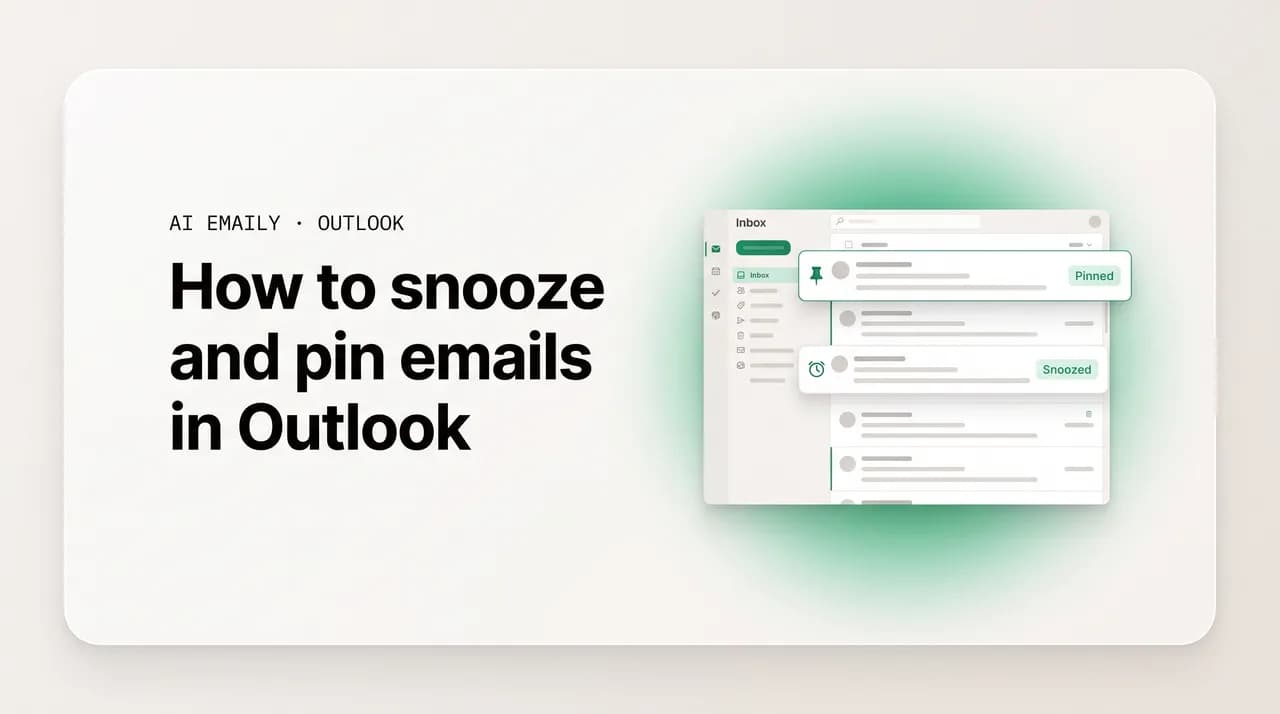
To snooze emails in Outlook, right-click a message in new Outlook or the web, choose Snooze, and pick a preset or custom time; it moves to the Snoozed folder and returns to the top of your inbox then. To pin, click the pin icon to lock it on top. Classic Outlook has no native snooze; flag with a reminder.
How to snooze emails in Outlook to resurface them later, pin messages to the top, the classic Outlook workarounds, plus mobile and snooze vs pin vs flag.
On this page
- 01What do snooze and pin actually do in Outlook?
- 02Which version of Outlook are you using?
- 03How do you snooze an email in new Outlook and on the web?
- 04How do you set a custom snooze time in Outlook?
- 05Where do snoozed emails go, and how do you unsnooze them?
- 06How do you pin an email to the top in Outlook?
- 07How do you snooze a message in classic Outlook with no native button?
- 08What is the cleanest classic Outlook workaround if a flag is not enough?
- 09How do you snooze emails in the Outlook app on Android and iOS?
- 10Snooze vs pin vs flag: which one should you use?
- 11Why does snooze or pin not work, and how do you fix it?
- 12How does AI Emaily's follow-up autopilot beat manual snoozing across every account?
- 13Putting snooze and pin to work
What do snooze and pin actually do in Outlook?#
Your inbox has two opposite problems, and Outlook gives you one tool for each. The first problem is the message you cannot deal with yet. A contract you can only sign after a call on Thursday, a reply you owe but not until the numbers come in, a flight confirmation you will need the morning you travel and not before. Right now it just sits in the inbox, sliding down the list as newer mail arrives, until it is buried under things that matter less. Snooze is the answer to that: it removes the message from your inbox now and brings it back, at the top, at a future time you choose. You get the email out of sight without getting it out of mind, and it returns exactly when it becomes useful.
The second problem is the opposite. Some messages need to stay visible no matter how much new mail lands on top of them. The address for tomorrow's meeting, the project brief you keep reopening, the booking reference you check three times a day. Sorting by date pushes them down within hours. Pin is the answer to that: it locks a message to the very top of your inbox, in its own Pinned section, where it stays regardless of how you sort the list, until you unpin it. One feature defers a message into the future; the other holds a message in the present. Together they let you decide what your inbox shows you and when, instead of leaving that to the clock.
Both features sound simple, and in the version of Outlook most people are moving to they are. The complication, and the reason a guide like this is worth reading, is that there is no single Outlook. At least three programs answer to the name, and they do not all support these features. New Outlook for Windows is the modern, redesigned app Microsoft has been rolling out to replace the old desktop client; it has both snooze and pin. Outlook on the web is the browser version you reach at outlook.com or through a work portal, and it shares its engine with new Outlook, so the two behave almost identically. Classic Outlook is the long-standing desktop application with the dense ribbon across the top, and here is the catch that trips up the most people: classic Outlook has no native snooze button and no pin at all. It needs workarounds, which this guide covers in full.
It is worth separating these two features from a third one people constantly confuse them with: the flag. Flagging marks a message as needing follow-up and can attach a reminder, but it does not remove the message from your inbox the way snooze does, and it does not lock it to the top the way pin does. A flagged email stays exactly where it is in the list, just with a colored marker and, optionally, an alert that fires later. The three tools overlap in purpose but behave differently in practice, and choosing the wrong one is why an inbox that should feel organized still feels noisy. We give snooze, pin, and flag a side-by-side comparison table further down so you can pick the right one every time.
Throughout, the steps describe Outlook as it works in 2026. Microsoft updates these apps often, and as new Outlook gradually absorbs features the classic client never had, the wording of a button or the exact spot in a menu can drift. But the underlying logic, right-click to snooze, click the pin icon to pin, has been stable since these features arrived, and the troubleshooting section near the end covers what to do when a control is genuinely missing from your screen.
Which version of Outlook are you using?#
Before any of the steps make sense, you need to know which Outlook is in front of you, because snooze and pin are available in some versions and entirely absent from others. There are three you are likely to meet, and they are quick to tell apart once you know what to look for.
New Outlook for Windows is the redesigned app Microsoft has been pushing to replace the classic desktop client. It has a cleaner, flatter look, a simplified ribbon, and a toggle in the top-right corner usually labeled New Outlook or Try the new Outlook. It supports both snooze and pin natively, exactly as the web does, because the two share the same underlying engine. If you see that toggle switched on, you are in the modern app and everything in the main sections below applies directly.
Outlook on the web is the browser version, reached at outlook.com or through the webmail portal your employer provides for a Microsoft 365 work or school account. It looks and behaves almost exactly like new Outlook for Windows, snoozes the same way, and pins the same way. Anything this guide says about new Outlook applies to the web too, so the two are treated together throughout. This is also where snooze first appeared, years before it reached the desktop, which is why so much of the older advice online points people to the browser.
Classic Outlook is the traditional desktop program that has come with Microsoft Office and Microsoft 365 for years. It has the full, dense ribbon across the top with tabs like File, Home, Send / Receive, and View. This is the version with no native snooze button and no pin feature at all. If your inbox has that dense ribbon and no New Outlook toggle, you are in classic, and you will want the workarounds section rather than the main steps. The good news is there are genuine substitutes, including a trick that uses Outlook on the web against the very same mailbox.
One more category is worth a mention: Outlook for Mac and the mobile apps for iPhone and Android. The Mac app and the modern mobile apps behave like new Outlook, with snooze available and a Snoozed folder to match; mobile gets its own section later because the gestures are different and genuinely faster once set up. The single most useful thing to settle first is this: are you in the modern experience that has snooze and pin built in (new Outlook, the web, Mac, mobile), or the classic desktop client that does not? That answer decides whether you follow the main steps or jump to the workarounds.
Find the New Outlook toggle first
How do you snooze an email in new Outlook and on the web?#
This is the version most people are moving to, and it is the easiest place to snooze a message, because the control is one right-click away. New Outlook for Windows and Outlook on the web work identically here, so these steps cover both. There are two ways to reach Snooze: right-clicking the message in the list, or hovering over it to reveal a small toolbar with a clock icon. Both lead to the same menu of times. Pick whichever feels faster for you; the right-click is more discoverable, the hover toolbar is quicker once you know it is there.
- 1
Open Outlook and find the message
Open new Outlook for Windows, or go to outlook.com or your work webmail in a browser and sign in. Find the email in your inbox that you want to deal with later rather than now. Snooze works on a single message at a time from the message list; you do not need to open the email first, though you can snooze from inside an open message too.
- 2
Right-click the message, or hover for the toolbar
Right-click the email in the list to open a context menu, or move your mouse over the message without clicking and look for the small row of icons that appears on its right edge, one of which is a clock. Either route gets you to the Snooze command. On a touchscreen, a long-press on the message opens the same context menu.
- 3
Choose Snooze from the menu
In the context menu, click Snooze. (Via the hover toolbar, click the clock icon instead, which is the Snooze button.) In some versions the command may read Snooze, in others Remind me, but it is the same feature. A small panel opens listing suggested times.
- 4
Pick a preset time
A short list of presets appears, typically Later today, Tomorrow, This weekend, and Next week, each showing the exact date and time it resolves to so there is no guesswork. Click the one that fits when you actually want the message back. The email vanishes from your inbox the moment you choose.
- 5
Or set a custom date and time
If none of the presets fit, click Choose a date, or the calendar option at the bottom of the panel, to open a date picker and a time field. Select the exact day and time you want the message to return, then confirm. This is the option to use for anything tied to a specific deadline rather than a vague later.
- 6
Confirm and let it disappear
Once you pick a time, Outlook moves the message out of the inbox and into the Snoozed folder automatically; there is no separate save button. At the moment you chose, it reappears at the top of your inbox, usually marked unread so it stands out, as if it had just arrived. Until then, you will not see it in the inbox at all.
Snooze to a time, not just a day
How do you set a custom snooze time in Outlook?#
The presets, Later today, Tomorrow, This weekend, Next week, cover the common cases, but plenty of real situations do not fit them. A renewal you must review on the 14th, a reply you owe an hour before a 4 p.m. call, an invoice you want to revisit first thing on the first of the month. For all of these you want a custom snooze time, and Outlook makes it available right alongside the presets.
To set one, open the Snooze menu exactly as above, by right-clicking the message or using the hover toolbar's clock icon, and instead of clicking a preset, click Choose a date (the label may also read Pick a date or simply show a small calendar). A date picker opens, and below or beside it a time field. Choose the day, then set the hour and minute, then confirm. The message snoozes to that precise moment and returns to the top of the inbox then.
Two things about the time are worth understanding. First, the snooze resolves in the time zone tied to your account, not necessarily the one your laptop's clock is showing if you are traveling, so a message snoozed to 9 a.m. comes back at 9 a.m. in your account's home zone. For most people these match and it never matters; if you work across zones, set the time deliberately. Second, the preset times themselves have fixed default hours, Later today usually adds a few hours, Tomorrow lands in the morning, This weekend points at Saturday morning, and Next week at Monday morning. If those defaults do not suit how you work, the custom picker is the way to override them on a per-message basis.
There is no separate global setting in the standard Outlook interface to permanently change what Later today or Tomorrow morning mean, which surprises people who want their snoozes to land at, say, 7 a.m. every time. The practical workaround is to use Choose a date for the messages that matter and accept the presets for the ones that do not. If you find yourself overriding the presets constantly, that is a signal worth noting, because it usually means snooze defaults are not flexible enough for your actual schedule, a gap the product section near the end of this guide speaks to directly.
A snoozed message is not gone, just hidden
Where do snoozed emails go, and how do you unsnooze them?#
When you snooze a message, it does not vanish into thin air and it is not deleted. Outlook moves it into a dedicated folder called Snoozed, which sits in your folder list on the left, alongside Inbox, Sent Items, Drafts, and the rest. Every message you have snoozed and that has not yet returned lives there, fully intact and fully searchable. This matters for peace of mind: nothing you snooze is ever at risk, and you can look in on it whenever you like.
At the time you chose, the message leaves the Snoozed folder on its own and reappears at the top of your inbox, typically marked unread so it stands out against the mail you have already seen. To you it looks like a brand-new arrival, even though it is the same email you set aside days ago. That is the whole point: the message comes back at the moment it is useful, with the prominence of something new, rather than staying buried where you first read it.
Sometimes you need a message back before its snooze fires, or you snoozed something by mistake. That is what unsnoozing is for, and it is straightforward.
- 1
Open the Snoozed folder
In the folder list on the left of new Outlook or the web, click Snoozed. If you do not see it, the folder list may be collapsed; expand it, or look under a More or All folders heading. Every currently snoozed message appears here, each showing the time it is due to return.
- 2
Find the message you want back
Locate the email you want to return to your inbox now. You can scroll the list or use the search box at the top, since snoozed messages are indexed like any other mail. The due-back time shown next to each one helps you confirm you are unsnoozing the right message.
- 3
Unsnooze it, or snooze it to a new time
Right-click the message and choose Snooze again. To bring it back immediately, pick an option like Unsnooze or set the time to now; to push it further out, simply choose a later preset or a new custom date. Unsnoozing returns the message to your inbox right away, where it behaves like any normal email.
Check the Snoozed folder weekly
How do you pin an email to the top in Outlook?#
Pinning is the mirror image of snoozing. Where snooze pushes a message into the future and out of sight, pin holds a message in the present and keeps it visible, locking it to the very top of your inbox no matter how much new mail arrives or how you sort the list. It is built into new Outlook for Windows and Outlook on the web, and it is the right tool whenever you have an email you will need to glance at repeatedly over the next hours or days, an address, a reference number, a brief you keep reopening, and you do not want it sliding down the list.
Pinned messages gather under a small Pinned section at the very top of the inbox, above your regular mail. If you pin several, they stack there in the order you pinned them. There is usually a little arrow next to the word Pinned that lets you collapse or expand that section, so it does not crowd out the rest of your inbox when you have a few items pinned at once. Here is how to pin a message.
- 1
Find the message in your inbox
Open new Outlook or the web and locate the email you want to keep at the top. Pinning works on messages in the Inbox; it is meant to keep something prominent there, so this is where the feature is most at home.
- 2
Hover over it, or right-click it
Move your mouse over the message in the list to reveal the small row of action icons on its right edge, one of which is a pin (it looks like a thumbtack). Alternatively, right-click the message to open the context menu, which also contains a Pin command.
- 3
Click the pin icon, or choose Pin
Click the thumbtack icon, or select Pin from the right-click menu. The message immediately jumps to the top of your inbox and slots into the Pinned section. It will now stay there regardless of how new mail arrives or how you have chosen to sort the list.
- 4
Unpin when you no longer need it up top
When the message no longer needs to stay visible, hover over it again and click the same pin icon, now shown as filled or as an unpin action, or right-click and choose Unpin. The email leaves the Pinned section and drops back into its normal place in the list according to your sort order, exactly where its date would otherwise put it.
Pinning lives in the Inbox, and is shared in shared mailboxes
How do you snooze a message in classic Outlook with no native button?#
Here is the part that frustrates the most people. Classic Outlook for Windows, the traditional desktop application with the full ribbon, has no native snooze button and no pin feature. Microsoft built both into new Outlook and the web but, as of 2026, has not added them to the classic client. So if you right-click a message in classic Outlook expecting a Snooze command, you will not find one. That is not a setting you have switched off; the feature genuinely is not there.
This does not leave you stuck, though, because classic Outlook has a long-standing feature that achieves much of the same outcome through a different mechanism: a flag with a reminder. It is not identical to snooze, the key difference is that a flagged message stays in your inbox rather than disappearing into a Snoozed folder, but it does the most important job, surfacing the message back to your attention at a time you choose. Here is how to set it up.
- 1
Right-click the message and hover over Follow Up
In classic Outlook, right-click the email you want to resurface later. In the context menu, hover over Follow Up to open its submenu. (You can also click the Follow Up button in the Home ribbon's Tags group with the message selected.) This is the flagging system, which doubles as the closest thing classic Outlook has to snooze.
- 2
Choose Add Reminder
From the Follow Up submenu, click Add Reminder. A small dialog opens where you can set a flag and, more importantly, attach a reminder with a specific date and time. This is the part that makes the flag behave a little like a snooze: instead of a silent marker, you get an alert at a moment you pick.
- 3
Set the reminder date and time
In the reminder dialog, tick the Reminder checkbox if it is not already on, then set the date and time you want to be alerted about this message. Choose the moment you will actually be able to deal with it, just as you would with a real snooze. Click OK.
- 4
Wait for the pop-up, and act on it
At the time you set, classic Outlook shows a reminder pop-up for the message, the same style of alert you get for calendar appointments. From there you can open the email and handle it, or click Snooze in the reminder window to be reminded again shortly, or Dismiss it. Note this is the reminder dialog's own Snooze, which only re-alerts you; it is not the same as snoozing the message itself.
What is the cleanest classic Outlook workaround if a flag is not enough?#
The flag-with-reminder approach has one real shortcoming: the message never leaves your inbox. A flag adds a marker and an alert, but the email keeps its place in the list, so your inbox does not actually get any cleaner. If the whole reason you wanted to snooze was to clear clutter and see only what needs you right now, a flag falls short. There are two better options, depending on how often you do this.
The cleanest workaround, and the one worth knowing if you snooze often, is to use Outlook on the web against the very same mailbox. Your classic desktop Outlook and the browser version at outlook.com (or your work webmail) are two windows onto the same account. So you can keep classic Outlook open for everything else and, when you need to snooze a message, do it in a browser tab instead. Because snooze is a real, server-side feature on the web, the message moves to the Snoozed folder on the account itself, which means it disappears from your classic Outlook inbox too, and reappears there when the snooze fires. You get genuine snooze behavior, not just a flag, without leaving classic Outlook behind.
The second option, when you do not want the message hanging around even with a reminder on it, is to move it out of the inbox to a holding folder and rely on a reminder or a task to bring it back. Create a folder called something like Waiting or Later, drag the message there to clear it from the inbox, and add a flag-with-reminder or a task so you are prompted to retrieve it at the right time. This is more manual than snooze and the message will not auto-return to the inbox, you fetch it yourself when reminded, but it does keep the inbox clean, which the flag alone does not.
Third-party add-ins exist that bolt a snooze button onto classic Outlook directly, and some people swear by them. They can work well, but they are software you install into your email client, which is worth a moment's thought: an add-in that can move and resurface your mail has meaningful access to it. Before installing one, check who makes it and what permissions it asks for, and treat it the way you would any tool with a key to your inbox. If you are comparing options, weigh a native, server-side feature against a bolted-on one, because the version that lives inside the mail service itself is generally the more dependable.
The two-window trick is the most reliable classic workaround
How do you snooze emails in the Outlook app on Android and iOS?#
The Outlook mobile app, on both iPhone and Android, has full snooze support, and on a phone it is arguably faster to use than on a computer, because you can wire it to a swipe. The app also keeps the same Snoozed folder as the web and new Outlook, so a message you snooze on your phone disappears from your inbox everywhere and comes back everywhere at the time you set. There are two ways to snooze on mobile: from inside or beside a message, or with a swipe gesture you configure once.
The basic route is to open the message, or long-press it in the list, tap the menu (often a three-dot icon), and choose Snooze, then pick a preset, Later today, Tomorrow, This weekend, or a custom Pick a date, just as on the desktop. The exact taps differ slightly between iOS and Android and between app versions, but the destination is the same Snooze panel. The faster route, once set up, is the swipe, and it is worth configuring because it turns snoozing into a single flick.
- 1
Open the mobile app's settings
In the Outlook app, tap your profile picture or the menu icon in the top-left corner, then tap the gear icon for Settings, usually near the bottom of the menu that slides out. This is where the app's mail behavior, including swipe gestures, is configured.
- 2
Find Swipe options under Mail
In Settings, under the Mail heading, tap Swipe options (it may read Swipe actions). Outlook lets you assign a different action to a left swipe and a right swipe on a message in the list, so you can have, say, Archive on one side and Snooze on the other.
- 3
Assign Snooze to a swipe direction
Tap either Swipe left or Swipe right and choose Schedule, which is the app's label for snooze, from the list of available actions. Confirm your choice. You only do this once; the setting sticks until you change it.
- 4
Snooze with a swipe from then on
Back in your inbox, swipe a message in the direction you assigned, but only part-way, just far enough to reveal the action, then release. The Snooze panel opens with its presets and a Pick a date option. Choose a time and the message leaves your inbox immediately, moving to the Snoozed folder.
Snooze syncs across every device
Unsnoozing on mobile mirrors the desktop. Open the app's folder list, tap Snoozed, tap the message you want back, and choose Unsnooze, or open the Snooze options again and pick a new time to push it further out. Because the Snoozed folder is the same one the web and new Outlook use, anything you unsnooze on your phone shows up in your inbox on every device.
One honest gap to flag: at the time of writing, pin is primarily a desktop-and-web feature. The mobile app's strength is snooze and swipe gestures rather than pinning a message to the top of the phone inbox, so if pinning is central to how you work, lean on the desktop or web for that and use mobile mainly for snoozing on the go. Microsoft moves features between surfaces over time, so this can change; check your app's current menu if you are unsure.
Snooze vs pin vs flag: which one should you use?#
These three features overlap enough that people reach for the wrong one constantly, then wonder why their inbox still feels cluttered. The quickest way to choose is to ask what you want to happen to the message. Do you want it gone now and back later? Snooze. Do you want it pinned in view the whole time? Pin. Do you want it marked for follow-up but left exactly where it is, ideally with an alert? Flag. The table below lays out how each one actually behaves so you can match the tool to the job at a glance.
- Reach for snooze when the message is not actionable yet and would only be clutter until then, a confirmation you need on travel day, a reply you owe after a meeting that has not happened.
- Reach for pin when you need the same message in front of you over and over for a short stretch, a meeting link, a reference number, a brief you keep reopening through the week.
- Reach for a flag when you want to track that a message needs follow-up but you want it to stay put in the list, often paired with a reminder, which is also the main classic Outlook substitute for snooze.
| Behavior | Snooze | Pin | Flag |
|---|---|---|---|
| What it does | Hides the message now, returns it to the top of the inbox later | Locks the message to the top of the inbox now | Marks the message for follow-up, optionally with a reminder |
| Leaves the inbox? | Yes, moves to the Snoozed folder | No, stays in the inbox (at the top) | No, stays exactly in place |
| Comes back on its own? | Yes, at the time you choose | No, stays until you unpin | No, but a reminder can alert you |
| Best for | Things you cannot act on yet | Things you must see repeatedly now | Things you want tracked in place |
| New Outlook and web | Yes | Yes | Yes |
| Classic Outlook | No native support (use a flag or web) | No support | Yes, with reminders |
| Mobile app | Yes, including swipe | Limited | Yes |
Why does snooze or pin not work, and how do you fix it?#
Most snooze and pin problems trace back to one of a few causes, almost always tied to which version of Outlook you are in or where the message currently lives. Here are the issues that come up most, and what to do about each.
- There is no Snooze or Pin command anywhere. You are almost certainly in classic Outlook, which has neither feature natively. Confirm by checking the top-right corner for a New Outlook toggle; if there is none and you see a dense ribbon, switch the toggle on to move to new Outlook, or use the web-in-a-tab workaround described earlier.
- Snooze is missing but you are in new Outlook or the web. Make sure you are acting on a single message from the inbox; some bulk or multi-select views hide the command. Try right-clicking the message directly, or hovering to reveal the clock icon, rather than looking for it in the top ribbon.
- You cannot find your snoozed messages. They are in the Snoozed folder in the left-hand folder list, not in the inbox. If the folder list is collapsed or you do not see Snoozed, expand the list or look under a More or All folders heading; the folder only appears once you have snoozed at least one message.
- A snoozed message did not come back at the right time. Snooze resolves in the time zone tied to your account, not your device's local clock if you are traveling. Check the account time zone in settings, and remember that presets like Tomorrow use a fixed default hour rather than the current time.
- Pin is missing or grayed out. Pinning is designed for the Inbox; you will not find it in arbitrary folders. Make sure you are in the Inbox and acting on a normal message, and that you are in new Outlook or the web rather than classic.
- All your messages suddenly look pinned, or a pin will not clear. This is usually a sort or view quirk rather than a real pin. Check the inbox sort order and the Pinned section's collapse arrow; unpin individual messages with the same icon you used to pin them, and if the whole list seems stuck, reset the sort to date.
- Pins changed in a shared mailbox without you touching them. Pins in a shared mailbox are stored on the mailbox and shared by everyone with access. A teammate pinning or unpinning affects what you see. If pins keep shifting, it is collaboration, not a bug, treat shared-mailbox pins as a team signal.
- Snooze on mobile does nothing or the swipe is wrong. Confirm you assigned Schedule to the swipe direction in Settings, under Mail, then Swipe options, and swipe only part-way to reveal the action rather than flicking the message all the way across, which may trigger a different action like Archive or Delete.
Snooze is a personal stopgap, not a tracking system
How does AI Emaily's follow-up autopilot beat manual snoozing across every account?#
Snooze and pin are genuinely useful, and if you live in one Outlook inbox and stay on top of the Snoozed folder, they will serve you well. But it is worth being honest about what they are: manual tools for hiding and re-surfacing individual messages, one at a time, in one account. They do not understand why you snoozed something, they do not notice when the other person never wrote back, and they do nothing at all for the other inboxes you keep, the Gmail, the second work account, the support alias. You are still the system. Snooze just moves the work to later; you still have to do all of it.
AI Emaily is an AI-native email client built around a different idea: that the inbox should act on your behalf, not just hold mail until you get to it. It connects Outlook and every other provider you use, Gmail, iCloud, IMAP, the lot, into one place, and it treats deferral and follow-up as something the software should manage, not something you should babysit. Where Outlook gives you a snooze button and a Snoozed folder to check, AI Emaily gives you a follow-up autopilot that watches your threads and closes the loops you would otherwise lose.
The clearest difference is loop-closing. When you snooze a message in Outlook, the message comes back at the time you set, and that is the entire promise. It does not know whether the thing you were waiting on has happened. AI Emaily's follow-up autopilot tracks the threads where you are owed a reply and resurfaces them based on what actually occurred, did they respond, did they not, has the deadline you mentioned arrived, so the message that returns to your attention is the one that genuinely needs you, not just the one whose timer ran out. It can also draft the nudge for the person who went quiet, so closing the loop is a glance and an approval rather than a fresh task you have to remember to start.
It works across every account at once, which is where manual snoozing breaks down hardest. Outlook's snooze and pin live inside Outlook; they do nothing for your other inboxes, so if you run two or three accounts you are juggling two or three separate Snoozed folders and pin lists, with no single view of what you are deferring. AI Emaily unifies all of it. One place shows everything you have set aside and everything waiting on a reply, regardless of which provider it arrived on, so a follow-up does not slip simply because it was in the inbox you checked less often that week.
And it keeps you in control the whole way. Following AI Emaily's approach, nothing leaves your outbox without your say-so by default, the agent surfaces, drafts, and proposes, and you approve, so you get the upside of an inbox that chases things down without handing over the keys. The honest framing is this: Outlook's snooze and pin are good manual tools, and this guide has shown you how to use them well. AI Emaily is what you reach for when manual is no longer enough, when you are tired of being the only thing standing between a snoozed message and a dropped ball, across more inboxes than one tool can comfortably manage.
Try the follow-up autopilot free
Putting snooze and pin to work#
To recap the practical part: in new Outlook for Windows and on the web, snoozing a message is a right-click (or a hover and a click on the clock icon) followed by a preset or a custom date, and the message moves to the Snoozed folder until it returns to the top of your inbox at the time you set. Pinning is the same gesture aimed at the thumbtack icon, and it locks a message to the top in its own Pinned section until you unpin it. Unsnoozing is a trip to the Snoozed folder and a fresh choice of time. The mobile app does all the snoozing too, and a one-time swipe setup makes it the fastest place to do it.
The one thing to keep firmly in mind is the version split. Classic Outlook for Windows has neither feature natively, so there you flag a message with a reminder, keep Outlook on the web open in a tab for real snooze against the same mailbox, or move messages to a holding folder, the web-in-a-tab trick being the closest thing to genuine snooze without installing anything. Match the tool to the job using the snooze-versus-pin-versus-flag table above, and your inbox will start showing you what you need when you need it, instead of burying it under whatever arrived most recently.
Where these manual tools stop is at the edge of a single inbox and a single timer. They hide and resurface messages; they do not notice when a reply never came, and they do not span the several accounts most people actually run. If you find yourself snoozing the same thread again and again, or losing follow-ups in the inbox you check least, that is the point where a tool built to chase things down on your behalf earns its place. AI Emaily connects Outlook and every other provider, watches the threads you are owed a reply on, and closes the loops automatically, with your approval, so the work snooze defers does not quietly become work that never gets done. Whether you stay fully manual or let an agent take the follow-ups, the goal is the same: an inbox you direct, instead of one that directs you.
Frequently asked
See it in AI Emaily
Keep reading
Sources

Written by
Nafiul HasanNafiul Hasan is an entrepreneur and AI automation system builder with 10+ years of experience turning messy, manual workflows into reliable automated systems. He designs and ships AI enterprise solutions end-to-end — the agent logic, the data plumbing, and the product people actually use — and founded AI Emaily to give busy professionals their attention back. He writes here from the builder's seat: what works, what breaks, and how to put AI to work without giving up control.