How to schedule send an email in Outlook and delay delivery

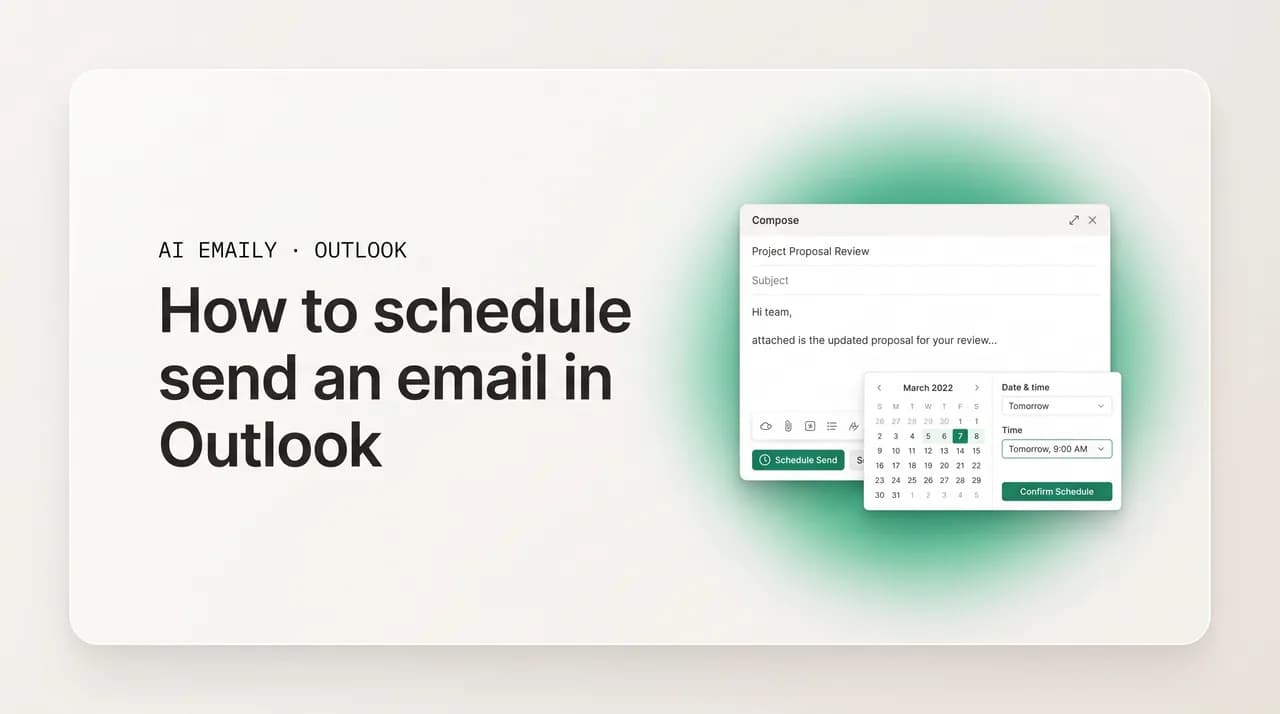
The short answer
To schedule send an email in Outlook, click the arrow next to the Send button, choose Schedule send, and pick a date and time. In classic Outlook, use Options, then Delay Delivery, and set Do not deliver before. New Outlook and the web send server-side, so your PC can be off; classic usually needs Outlook running.
How to schedule send an email in Outlook on new Outlook, the web, classic, and mobile, plus delay delivery, whether your PC must be on, and editing or canceling a send.
On this page
- 01What does scheduling a send in Outlook actually do?
- 02Which version of Outlook are you using?
- 03How do you schedule send in new Outlook and on the web?
- 04How do you delay delivery in classic Outlook?
- 05Does your computer need to be on for a scheduled email to send?
- 06How do you view, edit, or cancel a scheduled email?
- 07How do you schedule send in the Outlook mobile app?
- 08When is the best time to schedule an email to send?
- 09Why is schedule send or delay delivery not working in Outlook?
- 10What are the limits and tips you should know?
- 11How does AI Emaily schedule and send later across every account?
- 12What should you remember about scheduling email in Outlook?
What does scheduling a send in Outlook actually do?#
You have written the message. It is good, it is ready, and the only thing wrong with it is the clock. It is 11 p.m. and you do not want your manager to see you working that late. It is Saturday and the client should not hear from you until Monday. It is the middle of your workday but the recipient is asleep eight time zones away, and a 3 a.m. arrival means your email lands at the bottom of a pile by the time they wake up. Schedule send, which Outlook also calls delay delivery, exists for exactly this gap between when a message is finished and when it should arrive.
When you schedule a send in Outlook, you are telling the program to hold the message and release it at a future moment you choose, rather than firing it the instant you click Send. The big practical question, and the one that causes most of the confusion, is where that holding happens. In some versions the message is held on Microsoft's servers, so it goes out at the appointed time no matter what your computer is doing. In others it is held locally in your Outbox, so the program has to be open and running for the send to fire. That single distinction decides whether you can schedule an email Friday night and switch everything off for the weekend, or whether you have to leave your machine awake. We pin it down in its own section below, because it is the thing people most need to get right.
There is a second source of confusion worth clearing up at the start: there is no single Outlook. At least three programs answer to the name, and they do not schedule mail the same way. New Outlook for Windows is the modern, redesigned app Microsoft has been rolling out to replace the old desktop client; it shares its engine with Outlook on the web, so the two behave almost identically. Classic Outlook is the long-standing desktop application that has shipped with Microsoft Office and Microsoft 365 for years, with the familiar ribbon across the top. And Outlook on the web is the browser version you reach at outlook.com or through your work portal. The schedule controls live in different places in each, and the behavior, especially the does-my-computer-need-to-be-on question, differs between them. Knowing which Outlook you are in is half the battle, so this guide treats each one separately.
It is also worth being clear about what scheduling is and is not, because people confuse it with two neighboring features. Scheduling is about controlling when a finished message is sent. Snoozing is about controlling when a message you received comes back to the top of your inbox; it acts on incoming mail, not outgoing. Recall, or undo send, is about catching or pulling back a message after you have sent it. Scheduling sits in front of all of that: you decide the future send time up front, and then you are free to forget about it.
There is also a quiet professional benefit. The timestamp on an email is information the reader sees whether you intend it or not, and over time those timestamps add up to an impression of how you work. A message that arrives at 2 a.m. can read as frantic or as a subtle expectation that the reader should be up answering too. Scheduling lets you separate the moment you do the work from the moment it is seen, so you can be the night owl or weekend catcher-upper you actually are without advertising it. For managers especially, every late-night send to a direct report signals what is normal on the team, and scheduling is the cheapest way to stop sending that signal by accident.
Throughout, the steps describe Outlook as it works in 2026. Microsoft refreshes these apps often, and the wording of a button can drift over time as new Outlook absorbs features from the classic client. But the underlying flow, compose, find the schedule control, pick a time, has been stable for years. If a label reads a little differently on your screen, the logic still holds, and the troubleshooting section near the end covers what to do when a control is genuinely missing.
Which version of Outlook are you using?#
Before the steps make sense, you need to know which Outlook is in front of you, because the controls and, more importantly, the behavior differ between them. There are three you are likely to meet, and they are easy to tell apart once you know what to look for.
New Outlook for Windows is the redesigned app Microsoft has been pushing to replace the classic desktop client. It has a cleaner, flatter look, a simplified ribbon, and a toggle in the top-right corner usually labeled New Outlook or Try the new Outlook. Crucially, it shares its underlying engine with the browser version, which is why the two schedule mail the same way and hold scheduled messages on Microsoft's servers. If you see that toggle switched on, you are in the modern app.
Classic Outlook is the traditional desktop program that has come with Microsoft Office and Microsoft 365 for years. It has the full, dense ribbon across the top with tabs like File, Home, Send / Receive, and View, and when you compose a message you get a ribbon inside the message window too, with an Options tab. This is the version that hides scheduling under Delay Delivery, and where, in most setups, your computer needs to stay on for a scheduled message to go out. If your message window has an Options tab with a Delay Delivery button, you are in classic.
Outlook on the web is the browser version, reached at outlook.com or through the webmail portal your employer provides for a Microsoft 365 work or school account. It looks and behaves almost exactly like new Outlook for Windows, schedules the same way, and holds messages server-side. Anything this guide says about new Outlook applies to the web too, so the two are treated together throughout.
One more category is worth a mention: Outlook for Mac and the mobile apps for iPhone and Android. The Mac app and the modern mobile apps behave like new Outlook, scheduling server-side, and mobile gets its own section later. The key takeaway: identify whether you are in the new, server-side experience (new Outlook, the web, Mac, mobile) or the classic, locally held one, because that determines both where the button lives and whether your machine has to be awake when the message sends.
Find the New Outlook toggle first
How do you schedule send in new Outlook and on the web?#
This is the version most people are moving to, and it is the simplest place to schedule a message, because the control sits right next to the Send button where you would hope to find it. New Outlook for Windows and Outlook on the web work identically here, so these steps cover both. The whole flow takes a few seconds once you know where to look, and the message is held on Microsoft's servers, which means your computer does not need to stay on for it to go out.
- 1
Open Outlook and start a new message
Open new Outlook for Windows, or go to outlook.com (or your work webmail) in a browser and sign in. Click New mail in the top-left to open a fresh compose window. If you are replying to or forwarding an existing message, the same schedule control appears in that reply window too, so you do not have to start from a blank email.
- 2
Write your email as normal
Fill in the recipient in the To field, add a subject line, and write your body text. Attach files, add a signature, and proofread exactly as you would for a message you were about to send immediately. Scheduling does not change anything about how you compose; it only changes when the finished message leaves.
- 3
Click the arrow next to the Send button
At the top of the compose window, the Send button has a small dropdown arrow (a caret) attached to its right edge. Click that arrow, not the button itself. Clicking Send sends immediately; clicking the arrow opens a short menu. This is the single step people miss most often, because the arrow is easy to overlook next to the larger Send button.
- 4
Choose Schedule send
In the small menu that appears, click Schedule send. In some versions of the web app this option may be labeled Send later instead, but it is the same feature. A panel opens offering a few suggested times, such as Later today or Tomorrow morning, each with a specific date and time shown so you know exactly what you are choosing.
- 5
Pick a preset or choose a custom time
If one of the suggested times fits, click it. If not, choose the Custom time option to open a calendar and clock, then select the exact day, hour, and minute you want. New Outlook schedules using the time zone tied to your account, which matters and is covered in its own section below. Confirm your choice.
- 6
Confirm, and watch it leave
Click the final Send or Schedule button to lock it in. The compose window closes and the message moves into your Drafts folder, marked with its scheduled send time, where it waits until the moment arrives. Because the send is held on Microsoft's servers, you can now close the browser or shut down the computer; the message will still go out on schedule.
Click the arrow, not the button
How do you delay delivery in classic Outlook?#
Classic Outlook, the traditional desktop application with the full ribbon, does not call the feature schedule send. It calls it delay delivery, and it lives in a different place: not next to the Send button, but on the Options tab inside the message window. It comes with the most important caveat in this whole guide, which is that in most setups the message is held in your local Outbox and will only go out while Outlook is running. We cover that in full in the next section; first, here is how to set the delay.
There are two ways in. The quick path is the small More options arrow at the corner of the Tags group on the Options tab, which opens the message Properties dialog directly. The clearer path, and the one these steps follow, is the dedicated Delay Delivery button on the same tab. Both end up in the same place.
- 1
Open classic Outlook and start a new message
Open classic Outlook and click New Email in the top-left of the Home tab to open a compose window. As with the modern app, you can also do this from a reply or forward; the Options tab and its Delay Delivery button appear in those windows too.
- 2
Write your email, then go to the Options tab
Compose your message in full: recipients, subject, body, attachments, and signature. Then, in the ribbon along the top of the message window, click the Options tab. This is a different ribbon from the main Outlook window; it only appears while you are composing or reading a message.
- 3
Click Delay Delivery
On the Options tab, in the More Options group, click Delay Delivery. This opens the message Properties dialog box. (If you do not see a Delay Delivery button, click the small arrow at the corner of the Tags or More Options group to open the same Properties dialog directly.)
- 4
Tick Do not deliver before and set the date and time
In the Properties dialog, under Delivery options, find the checkbox labeled Do not deliver before. Tick it, then use the date and time dropdowns next to it to choose exactly when you want the message to go out. This is the field that controls the delay; everything else in the dialog can be left as is.
- 5
Close the dialog and click Send
Click Close to dismiss the Properties dialog and return to your message. Then click Send as normal. The message does not leave straight away; instead it moves into your Outbox and sits there, held, until the delivery time you set. To the recipient, nothing is different; the delay is entirely on your side.
In classic Outlook, Send does not mean sent
Does your computer need to be on for a scheduled email to send?#
This is the single most important question about scheduling in Outlook, and the answer is not the same across versions. Getting it wrong is how people end up with a Monday-morning message that never went out because their laptop was closed all weekend. The rule comes down to where the message is held while it waits: on Microsoft's servers, or in your local Outbox.
In new Outlook for Windows, Outlook on the web, the Mac app, and the mobile apps, scheduling is server-side. The message is handed to Microsoft and held there, so it goes out at the appointed time whether your computer is on, asleep, closed, or switched off, and whether or not the app is running. You can write an email Friday night, schedule it for Monday at 8 a.m., shut everything down for the weekend, and it will still send. This is one of the main practical advantages of the modern Outlook experience over the classic one.
In classic Outlook, the answer is usually the opposite, and this is where the trouble starts. When you use Delay Delivery with a typical account setup, the message is held locally in your Outbox, not on a server, and it only goes out while Outlook is open and running at the scheduled time. If your computer is asleep, shut down, or simply has Outlook closed when the moment arrives, the message waits in the Outbox and goes out the next time Outlook is open and connected, which may be much later than you intended. For a message timed to land first thing Monday, that can mean it sits until you open Outlook Monday afternoon.
There is one exception, and it depends on the account. If yours is a Microsoft Exchange account running in online mode (rather than the more common Cached Exchange Mode), the delayed message is submitted to the Exchange server queue and can go out at the scheduled time even if Outlook is later closed. But most classic installations use Cached Exchange Mode by default, where the message is held locally and Outlook must be running, and this server-side behavior does not apply at all to Outlook.com, IMAP, or POP accounts, which always hold the message locally. Unless you know for certain you are on Exchange in online mode, assume classic Outlook needs to be running.
The table below sums up the difference, because it is the fact people most often get wrong. If keeping your computer awake is not practical, and for an overnight or weekend send it rarely is, the cleanest fix is to schedule from new Outlook, the web, or mobile, all of which hold the message server-side and remove the requirement entirely.
| Where you schedule | Where the message is held | Does your PC need to be on? |
|---|---|---|
| New Outlook for Windows | On Microsoft's servers | No. The message sends at its scheduled time even if your computer is off. |
| Outlook on the web (outlook.com or work webmail) | On Microsoft's servers | No. Server-side, so the send is independent of your device. |
| Outlook for Mac (modern) | On Microsoft's servers | No. Behaves like new Outlook; the send does not depend on the Mac being awake. |
| Outlook mobile (iPhone and Android) | On Microsoft's servers | No. The phone can be off or out of signal when the scheduled time arrives. |
| Classic Outlook, typical setup (Cached Exchange, Outlook.com, IMAP, POP) | Locally, in your Outbox | Yes. Outlook must be open and running at the delivery time, or the message waits. |
| Classic Outlook, Exchange account in online mode | On the Exchange server queue | No, in this specific case. But most classic installs use Cached Exchange Mode instead. |
The reliable rule of thumb
How do you view, edit, or cancel a scheduled email?#
Scheduling an email is only half the job; the other half is being able to find it again, change your mind, or fix a typo before it goes out. Where Outlook keeps your queued messages depends, once again, on which version you are using, and knowing the location is what turns scheduling from a fire-and-forget gamble into something you can trust.
In new Outlook, the web, the Mac app, and mobile, a scheduled message waits in your Drafts folder, marked with the date and time it is set to send. This is a little surprising if you are used to the classic client, where scheduled mail sits in the Outbox instead. Either way the habit is the same: any time you schedule something important, take two seconds to open the relevant folder, Drafts in modern Outlook, Outbox in classic, and confirm the message is there with the time you expected. That single check catches the two most common mistakes, sending immediately by accident and setting the wrong time, before they can do any harm.
Editing a scheduled message in new Outlook and on the web works through a small but logical quirk: you cannot change the body while the send is queued. To edit, open the message from Drafts, cancel the scheduled send (which unlocks it back into an ordinary draft), make your change, then schedule it again. The steps below walk through that. In classic Outlook, the equivalent is to open the message from the Outbox, which pauses the send, edit it, and either resend with a new delay or remove the delay entirely.
- 1
Open the folder where the message is waiting
In new Outlook, on the web, on Mac, or on mobile, open the Drafts folder; the scheduled message shows its send time. In classic Outlook, open the Outbox instead. If you do not see the folder in the sidebar, expand the folder list (or tap the menu on mobile) to reveal it.
- 2
Open the scheduled message
Click or tap the message to open it. In new Outlook and on the web you will see a banner showing when it is set to send, along with controls to edit or cancel. In classic Outlook, simply opening the message in the Outbox stops it from leaving while you have it open.
- 3
Cancel or pause the scheduled send
In new Outlook and on the web, click the option to cancel the scheduled send (sometimes shown as Cancel send or an Edit control on the banner). This does not delete the message; it converts the queued send back into an ordinary, editable draft. In classic Outlook, opening the message from the Outbox has already paused it.
- 4
Edit the message
Make your edits: fix the typo, change a recipient, swap an attachment, or rewrite the whole thing. The message now behaves like any normal draft. Take care here, because in new Outlook the scheduled send is off until you set it again.
- 5
Reschedule, send, or delete
When the message is right, schedule it again using the arrow next to Send (new Outlook and web) or Delay Delivery on the Options tab (classic), setting the same time or a new one. To cancel the email entirely instead of rescheduling, delete the draft (new Outlook, web) or delete the message from the Outbox (classic) so it never goes out.
Canceling a send leaves a draft, not a sent message
How do you schedule send in the Outlook mobile app?#
Scheduling on a phone is just as server-side as in new Outlook, so a message you queue from the Outlook mobile app goes out at its scheduled time even if your phone is off, asleep, or out of signal. The control is reached a little differently from desktop. Use the tabs below for the path on your device; the underlying logic, compose, find the schedule control, pick a time, is the same on both, and the scheduled message waits in your Drafts folder until it sends.
Open the Outlook app and make sure you are on the account you want to send from. Tap the compose button, the pencil icon, usually in the bottom-right corner, then write your email in full: recipients, subject, and body, exactly as for an immediate send.
When the message is ready, look near the Send button at the top. Press and hold (long-press) the Send button, or tap the small arrow or clock icon beside it, to bring up the schedule options. A panel appears with a few suggested times plus an option to choose a custom date and time.
Tap a suggested time, or pick a specific date and time and set the exact moment, then confirm. The message moves into your Drafts folder, marked with its send time, and waits there until it goes out. Because Outlook schedules server-side, your phone does not need to be on or connected when the time arrives.
Scheduling works most reliably on Microsoft 365, Exchange, and Outlook.com accounts. If you have added a personal account from another provider, the option may be limited; keep the app updated through the Play Store, as an out-of-date app is the most common reason the control is missing.
It is the Outlook app, not Apple Mail
When is the best time to schedule an email to send?#
Scheduling gives you control over timing, which raises the question of what timing is best. The honest answer is that it depends on your goal and your audience, but years of large-scale send data point to some reliable patterns worth using as a starting point. Treat the table below as a default to test against, not a law; the only way to know for sure is to watch your own replies and opens.
The broad consensus across studies of billions of emails is that mid-week mornings perform best for most professional and marketing mail. Tuesday, Wednesday, and Thursday tend to edge out the rest of the week, and a window of roughly 8 a.m. to 11 a.m. in the recipient's local time catches people as they triage their inbox at the start of the day. Monday mornings fight the weekend backlog and Friday afternoons arrive after people have mentally clocked out, though some 2026 data shows certain audiences responding well on those days too, which is exactly why testing beats dogma.
What matters more than the single perfect minute is avoiding the obvious dead zones and matching the send to the message's purpose. A cold sales email, a newsletter, and a personal note all want different timing. The table gives sensible defaults; the reasoning column is there so you can adapt rather than follow blindly. Remember that Outlook schedules in your own time zone, not the recipient's, so for an audience in another zone, convert their ideal local time into yours before you set the schedule.
| Email type | Suggested send window | Why this window |
|---|---|---|
| Professional or work email to a colleague | Tue to Thu, 8 to 10 a.m. their local time | Lands at the top of the inbox during morning triage, before the day fills up with meetings and fires. |
| Cold outreach or sales email | Tue to Thu, 8 to 11 a.m. their local time | Mid-week mornings show the strongest open and reply rates across most large data sets; Mondays and Fridays underperform for cold sends. |
| Newsletter or marketing email | Tue or Thu, 9 to 11 a.m., or a secondary evening slot | Mid-morning catches commuters and early triagers; some lists respond to an early-evening window when people relax and browse. |
| Message to a different time zone | Whatever maps to morning in their zone | Convert their ideal local time into your own time zone before scheduling, since Outlook fires in your zone, not theirs. |
| Internal note you wrote after hours | Next business morning, around 8 a.m. | Avoids signaling late-night work and keeps the message from being buried by everything else that arrives overnight. |
| Time-sensitive reminder before an event | The morning of, or the evening before | Close enough to the event to be actionable, far enough ahead that the reader still has time to respond or prepare. |
Outlook schedules in your time zone, not the reader's
Why is schedule send or delay delivery not working in Outlook?#
When scheduling does not behave, it is almost always one of a small handful of causes, each with a quick fix. Because the feature differs between versions, the first step is always to confirm which Outlook you are in, since a fix that applies to classic may not apply to new Outlook.
The most frequent issue by far is the classic Outlook computer-must-be-on trap. If you used Delay Delivery and the message did not go out at the scheduled time, the likely reason is that Outlook was not open and running at that moment; the message is sitting in your Outbox and will go out the next time Outlook is open and connected. This is not a bug, it is how Delay Delivery works with a typical local account. The fix is to leave Outlook running until the send time, or far more practically, to schedule from new Outlook, the web, or the mobile app, all of which send server-side.
The second most common problem is not finding the control, which is a location issue rather than a fault. In new Outlook and on the web, it is the dropdown arrow next to Send, labeled Schedule send or sometimes Send later. In classic Outlook, it is not next to Send at all; it is the Delay Delivery button on the Options tab inside the message window. People who learned the feature in one version routinely look in the wrong place in the other. If you have confirmed the right version and it is still absent, an update usually restores it.
A third cause is the message sending at the wrong time, which is nearly always a time-zone mismatch. Outlook fires the send using the time zone tied to your account, not the recipient's zone. Confirm your account time zone in Outlook's settings, correct it if needed, then cancel and reschedule the message. Remember too that Outlook does not convert to the recipient's local time, so an email that arrives at an odd hour for them may have sent at exactly the time you set in your own zone.
The list below covers the rest of the usual suspects. If you work through all of them and scheduling still refuses to behave, the catch-all fixes, update the app, restart Outlook, refresh the browser, check your connection, almost always shake it loose.
- Classic Outlook, PC was off: the message is held in your Outbox and only sends while Outlook is open and running. Schedule from new Outlook, the web, or mobile to send server-side instead.
- Looking in the wrong place: in new Outlook and the web, use the arrow beside Send (Schedule send or Send later); in classic, use Delay Delivery on the Options tab. They are not in the same spot.
- Wrong time zone: Outlook schedules in your account's time zone, not the recipient's. Confirm it in settings, then cancel and reschedule the message.
- Stuck in the Outbox: in classic Outlook, a delayed message can stall if Outlook hits a connection or send/receive problem. Open and close the message, or trigger a manual Send / Receive, to nudge it.
- Outdated app: update the Outlook mobile app from the Play Store or App Store, or update your desktop Outlook; an old version can hide or break the option.
- Add-ins interfering: in classic Outlook, a misbehaving add-in can disrupt sending. Start Outlook in safe mode to test whether an add-in is the culprit.
- Account type limits: on classic Outlook, server-side delay only applies to Exchange in online mode; Outlook.com, IMAP, and POP always hold the message locally.
- Connectivity at send time: server-side scheduling needs no device connection to fire, but classic Outlook's local hold needs a working connection when Outlook is open at the send time.
A scheduled email is not a recalled email
What are the limits and tips you should know?#
Scheduling in Outlook is reliable once you know which version you are in, but it has edges worth knowing before you build a workflow on it. The table below collects the key behaviors and tips in one place. None are dealbreakers; they are simply the contours of the feature, and most trace back to the same root distinction between the server-side modern apps and the locally held classic client.
The headline behavior is the one already covered: new Outlook, the web, Mac, and mobile schedule on Microsoft's servers and do not need your device on, while classic Outlook's Delay Delivery usually holds the message locally and needs Outlook running. If you remember nothing else, remember that, because it is the thing that turns a confident Monday-morning send into a message that quietly waited in the Outbox.
Beyond that, the recurring themes are familiar: timing is anchored to your account zone rather than the recipient's, scheduled mail waits in Drafts in modern Outlook and the Outbox in classic, and to edit a queued message you cancel or pause its send first. The table also notes where Outlook's native scheduling stops, at recurring sends and automatic follow-ups, which it does not do on its own.
| Behavior or limit | What it means | What to do about it |
|---|---|---|
| Server-side vs local hold | Modern Outlook holds scheduled mail on Microsoft's servers; classic Outlook usually holds it locally in the Outbox. | For sends that must go out while your PC is off, use new Outlook, the web, Mac, or mobile rather than classic Delay Delivery. |
| Schedules in your account time zone | The send fires at your chosen time in your account's zone, not the recipient's and not necessarily your device clock. | Verify your time zone in Outlook's settings and convert the recipient's local time into your own before scheduling. |
| Scheduled mail waits in Drafts (or the Outbox) | New Outlook, the web, Mac, and mobile keep it in Drafts; classic Outlook keeps it in the Outbox. | Check the right folder after scheduling to confirm the send time and catch an accidental immediate send. |
| Editing requires canceling or pausing first | A queued send is locked; you cannot freely edit it while it is scheduled. | Cancel the send (modern) or open it from the Outbox (classic), edit, then reschedule or resend. |
| No built-in recipient time-zone adjustment | Outlook will not auto-convert your time to land at the reader's local morning. | Do the conversion yourself, or use a client that handles recipient-time scheduling for you. |
| No native recurring or follow-up scheduling | Outlook schedules one send at one time; it has no built-in repeat or automatic follow-up. | Schedule each send individually, or use an assistant that supports sequences and timed follow-ups. |
Modern Outlook keeps scheduled mail in Drafts, not the Outbox
How does AI Emaily schedule and send later across every account?#
Everything above is about Outlook's native scheduling, which is genuinely capable once you know which version you are in. Where it runs out of road is the moment your email life stops being one Outlook account in one app. If you run a work Microsoft 365 address in new Outlook, a personal Outlook.com account, a Gmail address, and maybe an iCloud or Fastmail mailbox on the side, you are now juggling several scheduling interfaces, each in a different place, each with its own quirks, and, for classic Outlook, its own rules about whether your computer has to be awake. AI Emaily is built for that reality.
AI Emaily is an AI-native email client that connects Outlook alongside every other major provider, Gmail, iCloud, Fastmail, Proton, and any standard IMAP mailbox, into one place. Schedule send and send-later are built in, work the same way across all of them, and are fully server-side, so a queued message goes out at its time regardless of whether any device is on. There is no version maze and no Outbox-versus-server guesswork: you learn one consistent way to say send this later. The arrow-hunt in new Outlook, the buried Delay Delivery button in classic, the separate Apple Mail behavior on iPhone, all of it collapses into a single predictable action.
What goes beyond any native client is that AI Emaily has an agent that can act, not just a button you press. You can ask it in plain language to draft a reply and send it tomorrow morning in the recipient's time zone, or to write a polite follow-up and queue it for Tuesday if you have not heard back, and it will prepare the message in your voice and schedule it for you. The agent runs in one of three modes you control: Manual, where it only does what you click; Copilot, where it drafts and proposes and waits for your approval before anything sends; and Autopilot, where it handles routine sending on its own within the limits you set. Every action is logged and anything can be undone, so handing off scheduling never means handing off control.
That combination, one inbox across every provider, consistent server-side scheduling everywhere, and an agent that can draft and time messages on your behalf, makes scheduling feel less like a per-app chore and more like something your email handles for you. You stay in charge of what goes out and when; the tedious parts, including whether some machine somewhere needs to be on, stop being your problem.
AI Emaily has a Free plan at $0, and a Pro plan at $12.42 per month billed annually for the full agent and multi-account power. If your scheduling has outgrown a single Outlook account, or you are tired of guessing whether a delayed message will actually leave, you can connect your mailboxes and try it at app.aiemaily.com/signup. The point is not that Outlook's scheduling is bad; it is that once your email spans several accounts and versions, one place to schedule, with the same reliable behavior everywhere and an agent that can do it for you, is a meaningful upgrade.
If you live in more than one inbox
What should you remember about scheduling email in Outlook?#
Scheduling an email in Outlook is one of the highest-return habits you can pick up in a few minutes, and once it clicks you will wonder how you sent mail any other way. The core move never changes: write the message, find the schedule control, pick a time, and let Outlook handle the rest. The only thing that changes is where the control lives and what happens behind the scenes, and both depend on which version you are in.
In new Outlook and on the web, the control is the dropdown arrow next to Send (Schedule send, or Send later in some versions), the message waits in Drafts with its send time shown, and the send is server-side, so your computer can be off. In classic Outlook, the control is the Delay Delivery button on the Options tab, the message waits in the Outbox, and, in most setups, Outlook has to be open and running at the send time. The Mac and mobile apps match new Outlook: server-side, reliable even with the device off.
The two things that trip people up most are both avoidable. First, the computer-must-be-on question: if you need a send to fire while your machine is off, do not rely on classic Outlook's Delay Delivery; use new Outlook, the web, or mobile instead. Second, time zones: Outlook fires in your account's zone, not the recipient's, so check the setting and convert when it matters. Keep those in mind, glance at the Drafts or Outbox folder to confirm anything important, and the feature is dependable.
If your email has grown past a single Outlook account, scheduling is also a good reason to look at a client built for many inboxes at once. AI Emaily connects Outlook and every other provider, schedules the same server-side way across all of them, and adds an agent that can draft and time messages in your voice, with undo and an audit trail so you stay in control. Whether you stick with native Outlook or move to one place for everything, the lesson is the same: you should decide when your email arrives, not the clock that happened to be running when you finished writing it.
Frequently asked
See it in AI Emaily
Keep reading
Sources

Written by
Nafiul HasanNafiul Hasan is an entrepreneur and AI automation system builder with 10+ years of experience turning messy, manual workflows into reliable automated systems. He designs and ships AI enterprise solutions end-to-end — the agent logic, the data plumbing, and the product people actually use — and founded AI Emaily to give busy professionals their attention back. He writes here from the builder's seat: what works, what breaks, and how to put AI to work without giving up control.