How to set out of office and automatic replies in Outlook

The short answer
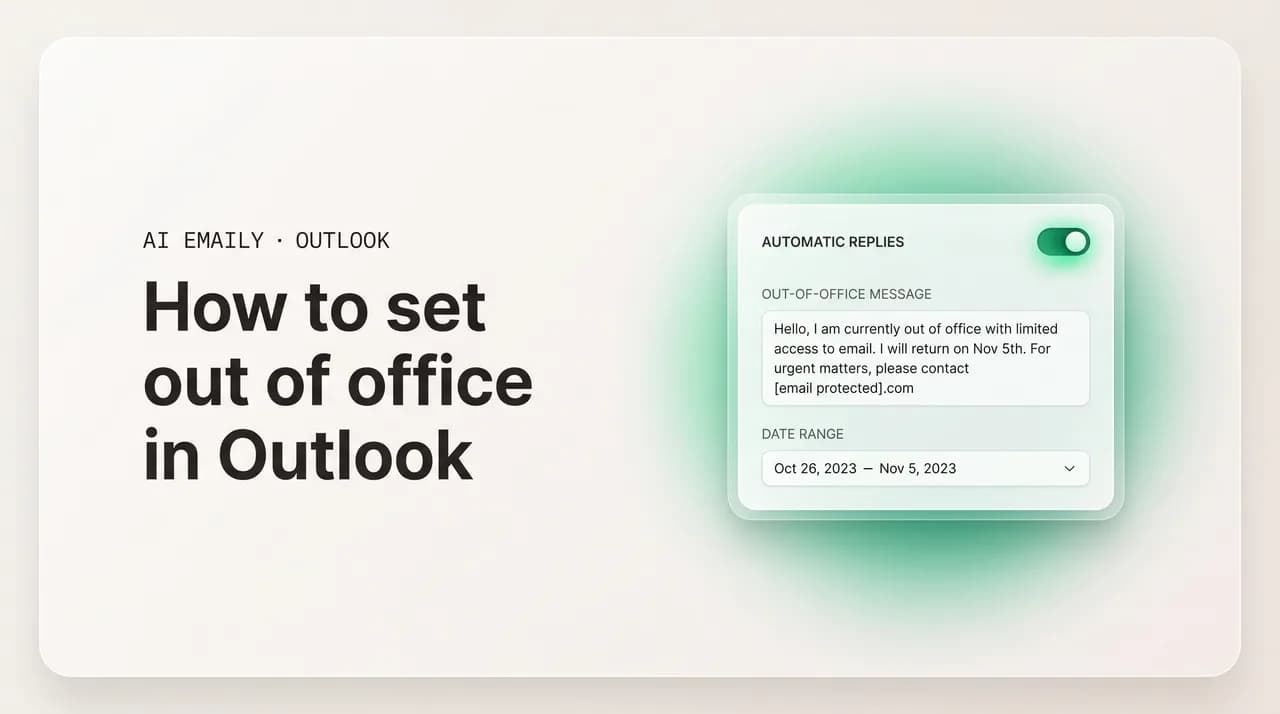
To set out of office in Outlook, open automatic replies, write your message, and set a time period. New Outlook and the web use Settings then Accounts then Automatic replies; classic Outlook uses File then Automatic Replies; IMAP and POP accounts need a rule plus a saved template instead.
Set out of office and automatic replies in Outlook: new Outlook, web, classic, IMAP rule workaround, scheduling, mobile, plus fixes for greyed-out replies.
On this page
- 01What are automatic replies and out of office in Outlook?
- 02Which version of Outlook am I using?
- 03How do I set automatic replies in the new Outlook and on the web?
- 04How do I set out of office in classic Outlook?
- 05What is the difference between internal and external replies?
- 06How do I schedule a time period for automatic replies?
- 07How do I set an out of office reply for IMAP or POP accounts?
- 08What should my out of office message say?
- 09Where can I find more out of office message examples?
- 10How do I set out of office in the Outlook mobile app?
- 11How do I turn off automatic replies in Outlook?
- 12Why are my automatic replies greyed out or not sending?
- 13How does AI Emaily handle away replies and keep acting while you are out?
- 14Putting it all together
Out of office replies are the safety net that lets you actually log off. You set one message once, and every sender who emails you while you are away gets a calm, automatic answer that says when you are back and who to contact in the meantime. Done right, an automatic reply protects your time, sets expectations, and stops the slow panic of an inbox that nobody is watching.
The catch is that "how to set out of office in Outlook" does not have one answer anymore. Microsoft now ships several different Outlooks, and the automatic replies feature lives in a different place in each one. The new Outlook for Windows and Outlook on the web both bury it under Settings. Classic Outlook for Windows keeps it on the File menu where it has lived for years. And if your email is a personal Gmail, iCloud, or other IMAP or POP account connected to Outlook, the real automatic replies feature is not available at all, so you have to fake it with a rule and a saved template.
This guide walks through every one of those paths step by step. You will learn how to turn on automatic replies in the new Outlook and on the web, how to do it in classic Outlook, how to write different messages for people inside and outside your company, how to schedule a start and end time so replies switch themselves off, and how to block your calendar and decline meetings for the same window. We will cover the IMAP and POP workaround in full, point you to a library of ready-to-paste message examples, show the mobile steps for iPhone and Android, explain how to turn replies off, and fix the two problems everyone hits: the automatic replies button that is greyed out, and replies that simply are not sending. At the end we look at how an AI-native client like AI Emaily handles away replies differently, by continuing to triage and act on your inbox while you are gone instead of just parking a single canned response.
American spelling, plain steps, no fluff. Let us get your inbox covered.
What are automatic replies and out of office in Outlook?#
In Microsoft's world, "out of office" and "automatic replies" are the same feature. Older versions called it the Out of Office Assistant; current versions call it Automatic Replies. Both names describe a server-side rule that watches your mailbox and sends a one-time reply to anyone who emails you while the feature is on. It is the email equivalent of an away message: senders learn that you are out, when you will return, and who can help while you are gone.
The single most important thing to understand before you start is that true automatic replies require an Exchange or Microsoft 365 account. The feature runs on Microsoft's servers, which is why replies keep going out even when your computer is asleep, your laptop is closed, and Outlook is not open. Work and school accounts are almost always Exchange or Microsoft 365, so they get the real feature. Personal accounts on outlook.com and hotmail.com also support it through Outlook on the web.
If your account is a personal Gmail, Yahoo, iCloud, or other mailbox connected to Outlook over IMAP or POP, the built-in Automatic Replies feature is not available. Those accounts do not have an Exchange server running the rule for them, so Outlook hides or greys out the option. The workaround, covered later in this guide, is to build a rule that replies using a saved template, with the large caveat that it only works while Outlook is open and running on your machine.
Knowing which type of account you have tells you which section below to follow. If you are not sure, a quick rule of thumb: a work or school email handed to you by an IT department is Exchange or Microsoft 365; a free address you signed up for yourself on Gmail, Yahoo, or iCloud is IMAP or POP.
Exchange and Microsoft 365 versus IMAP and POP
Which version of Outlook am I using?#
Because the steps differ by version, it is worth taking ten seconds to confirm which Outlook is in front of you. There are three you are likely to meet, and each puts automatic replies somewhere different.
The new Outlook for Windows is the modern app Microsoft has been rolling out to replace the classic desktop client. It looks almost identical to Outlook on the web because it is built from the same code. The fastest tell is a Try the new Outlook toggle in the top-right corner of the window. If that toggle is present and switched on, you are in the new Outlook.
Classic Outlook for Windows is the long-standing desktop application that ships with Microsoft Office and Microsoft 365 apps. Its giveaway is the traditional ribbon with a File tab in the top-left corner. If you can see File, Home, Send / Receive, View and so on across the top, you are in classic Outlook.
Outlook on the web, sometimes called OWA or Outlook.com, runs entirely in your browser at outlook.office.com for work accounts or outlook.com for personal ones. There is no File menu; settings live behind a gear icon in the top-right corner. The new Outlook for Windows and Outlook on the web share the same automatic replies screen, so their steps are effectively identical.
Match yourself to one of those three and jump to the matching section. If you use more than one, set automatic replies in whichever you happen to have open, because the setting is stored on the account, not the app, so turning it on in the web also turns it on for the desktop client signed in to the same mailbox.
| Version | How to recognize it | Where automatic replies live |
|---|---|---|
| New Outlook for Windows | "Try the new Outlook" toggle, top-right, switched on | Settings (gear) then Accounts then Automatic replies |
| Outlook on the web / Outlook.com | Runs in a browser, gear icon top-right, no File menu | Settings (gear) then Accounts then Automatic replies |
| Classic Outlook for Windows | Traditional ribbon with a File tab top-left | File then Automatic Replies (Out of Office) |
| Outlook for Mac (new) | Mac app; Tools menu in the menu bar | Tools then Automatic Replies |
| IMAP or POP account (any app) | Personal Gmail, Yahoo, iCloud added to Outlook | No built-in feature; use a rule plus saved template |
How do I set automatic replies in the new Outlook and on the web?#
The new Outlook for Windows and Outlook on the web share one automatic replies screen, so these steps cover both. This is the path most people now follow, since Microsoft keeps moving users onto the new app, and it is the right starting point if you have an Exchange, Microsoft 365, or outlook.com account.
The whole process takes under a minute. You open Settings, find the Automatic replies panel, flip the toggle, type your message, and save. Everything else, like scheduling and external messages, is optional and layered on top of those basics.
One small wrinkle worth knowing: in the new Outlook for Windows there are two doors to the same room. You can use the gear icon in the top-right corner, or you can open the View tab on the ribbon and choose View settings. Both land you in the same Settings dialog, and from there the route to Accounts then Automatic replies is identical. If a guide you are following mentions one route and your window shows the other, do not worry; they reach the same panel. The reason both exist is that the new Outlook is still settling its interface, and Microsoft has kept the older View settings entry point alongside the universal gear icon.
Once you save, the new Outlook shows a small notice at the top of your message list confirming that automatic replies are turned on, often with a quick link to turn them off again. Keep an eye out for that banner: it is your reminder that the feature is live, and it is the single fastest way to switch replies off later without digging back through Settings. If you scheduled a time period, the banner will note the window, and it clears itself automatically when the end time passes.
- 1
Open Settings
Select the gear icon in the top-right corner of the window. In the new Outlook for Windows you can also open the View tab and choose View settings. Both routes open the same Settings dialog.
- 2
Go to Accounts, then Automatic replies
In the Settings dialog, choose Accounts in the left column, then select Automatic replies. On some personal outlook.com layouts the path is Settings then Mail then Automatic replies instead; if you do not see it under Accounts, look under Mail.
- 3
Turn on automatic replies
Flip the Turn on automatic replies toggle to the on position. The message fields below it become active once the toggle is on.
- 4
Write your internal message
Type the reply you want people inside your organization to receive in the first text box. Use the small formatting toolbar to add bold text, a link to a colleague's address, or bullet points if you like.
- 5
Add scheduling and external options if you want them
Optionally tick Send replies only during a time period and set a start and end time, and tick Send replies outside your organization to add a separate external message. Both are covered in detail in their own sections below.
- 6
Save
Select Save to switch the feature on. Automatic replies start immediately, or at your chosen start time if you scheduled a window. A banner usually appears at the top of your mailbox reminding you that automatic replies are on.
Set the schedule and forget it
How do I set out of office in classic Outlook?#
Classic Outlook for Windows keeps automatic replies on the File menu, exactly where long-time users expect it. This is the desktop application with the traditional ribbon and a File tab in the top-left corner. As with the new app, the real Automatic Replies feature only appears for Exchange and Microsoft 365 accounts; if your default account is IMAP or POP, the option will be greyed out or missing, and you should follow the workaround section instead.
- 1
Open the File menu
Select File in the top-left corner of the classic Outlook ribbon to open the account information screen, sometimes called Backstage view.
- 2
Select Automatic Replies (Out of Office)
On the Info tab, choose Automatic Replies (Out of Office). If you have more than one account, first pick the correct mailbox from the dropdown at the top, then open Automatic Replies.
- 3
Choose Send automatic replies
In the Automatic Replies dialog, select Send automatic replies. This activates the message tabs and the scheduling option.
- 4
Set a time range (optional)
Tick Only send during this time range, then set the Start time and End time. Outlook turns replies off automatically at the end time. Leave this unticked if you would rather switch replies off yourself when you return.
- 5
Write your messages
On the Inside My Organization tab, type the message for colleagues. Switch to the Outside My Organization tab to write a separate message for external senders, and choose whether it goes to anyone outside your organization or only to your contacts.
- 6
Select OK
Choose OK to save and turn on automatic replies. Classic Outlook shows a yellow notification bar across the top of your inbox while the feature is active so you do not forget it is running.
What is the difference between internal and external replies?#
Both classic and new Outlook let you send one message to people inside your organization and a different message to people outside it. This separation is one of the most useful parts of the feature, because the right tone and the right amount of detail differ sharply between the two audiences.
Internal replies, labeled Inside My Organization in classic Outlook, go only to other people on the same Exchange or Microsoft 365 tenant, which usually means your coworkers. Because they share your workplace context, you can be specific: name the colleague covering for you, mention the project or distribution list to use, and give a precise return date. There is little risk in sharing that detail with people who already work alongside you.
External replies, labeled Outside My Organization in classic Outlook or controlled by the Send replies outside your organization box in the new app, go to everyone else: clients, vendors, recruiters, and strangers. Keep these shorter and more guarded. State that you are away, give a return date if you wish, and point to a general contact such as a shared support or sales address rather than a named individual's personal line.
Crucially, you can also choose who outside your organization hears from you at all. Outlook offers two options: reply to everyone outside your organization, or reply only to people already in your Contacts. The contacts-only option is the safer default, because it stops your away message from answering newsletters, marketing blasts, and spam, every one of which would otherwise get a polite note confirming that your address is live and monitored, which is exactly what a spammer wants to learn.
There is a definition worth nailing down here, because it trips people up. "Inside my organization" does not mean everyone you have ever emailed, nor everyone with your company's domain in their address. It means specifically other accounts on the same Exchange or Microsoft 365 tenant as you. A contractor with a yourcompany.com address that is actually hosted on a separate tenant will be treated as external, and a sister company sharing your tenant will be treated as internal. If you are ever unsure how Outlook will classify a particular sender, send yourself a test from an outside address before you go away and confirm which message comes back.
A practical tip on detail: write the internal version first, then strip it down for the external one rather than starting from scratch. The internal message is where you can afford specifics, so get it right, then copy it across, remove the named colleague and any internal jargon, and soften the contact line to a shared address. This keeps the two messages consistent in tone and return date while protecting the information that only coworkers should see.
| Setting | Who receives it | What to include |
|---|---|---|
| Internal / Inside My Organization | Coworkers on the same Microsoft 365 or Exchange tenant | Specific cover person, project or team to contact, exact return date |
| External, contacts only | Only people already saved in your Outlook Contacts | Short note, return date, a general contact address |
| External, anyone outside | Every external sender, including unknown ones | Minimal detail; avoid naming people; expect spam to receive it too |
Prefer contacts only for external replies
How do I schedule a time period for automatic replies?#
Scheduling is the difference between an away message that takes care of itself and one you have to remember to switch off. When you set a start and end time, Outlook turns replies on at the start and off at the end with no further action from you, which is exactly what you want for a planned vacation, a conference, or a long weekend.
In the new Outlook and on the web, tick Send replies only during a time period inside the automatic replies panel, then pick a start date and time and an end date and time. In classic Outlook, the equivalent is Only send during this time range on the File then Automatic Replies dialog. Either way, replies begin at the start moment and stop at the end moment, and the away banner clears itself when the window closes.
Scheduling also unlocks a set of calendar actions that only appear once a time period is defined. These let your out of office do more than send email: it can also keep your calendar honest while you are gone. Depending on your Outlook version and account, you will see options to block your calendar for the period, automatically decline new invitations that fall inside it, and decline and cancel meetings you already have during that window.
Block my calendar for this period creates an all-day event marking you as out, so colleagues checking your availability see at a glance that you are away. Automatically decline new invitations sends a decline to any meeting request for a time inside your out of office window, so you do not return to a calendar full of meetings booked while you were unreachable. Note that you still receive the invitation email; it is the response that is automated, not the deletion of the invite. Decline and cancel my meetings goes further and clears existing meetings on your calendar during the period, notifying organizers that you will not attend. Use that last one carefully, since canceling a recurring series or a meeting you are hosting affects everyone on the invite.
- 1
Turn on scheduling
In the automatic replies panel, tick Send replies only during a time period (new Outlook and web) or Only send during this time range (classic). This reveals the date and time pickers and the calendar options.
- 2
Set start and end
Choose the start date and time and the end date and time. Replies fire only inside that window, and Outlook switches the feature off for you at the end.
- 3
Block your calendar (optional)
Tick Block my calendar for this period to add an all-day out of office event so coworkers see your status when they look you up.
- 4
Decline new invitations (optional)
Tick Automatically decline new invitations to send a decline to any meeting request landing inside your window. You still receive the invite email; only the response is automatic.
- 5
Cancel existing meetings (optional)
Tick Decline and cancel my meetings to clear meetings already on your calendar for the period and notify the organizers. Use this carefully for recurring or hosted meetings.
How do I set an out of office reply for IMAP or POP accounts?#
If your account is a personal Gmail, Yahoo, iCloud, or any other mailbox connected to Outlook over IMAP or POP, the built-in Automatic Replies feature is not available, because there is no Exchange server to run it. The Automatic Replies button will be greyed out or absent. Instead, you create the behavior yourself with two pieces: a saved email template containing your away message, and a rule that replies to incoming mail using that template.
Before you build it, be honest about the one big limitation. Because this approach runs inside Outlook on your computer rather than on a server, Outlook must stay open and connected the entire time you are away for the rule to fire. Close the app, sleep the laptop, or lose your connection, and the replies stop. For a single day at your desk that is fine; for a two-week vacation it is not. If you cannot leave a machine running, the better answer is to set the auto-reply in your provider's own webmail instead: Gmail has a Vacation responder in its settings, and iCloud and Yahoo have their own equivalents that run on their servers regardless of whether Outlook is open.
The provider-webmail route is genuinely the more reliable one for personal accounts, so it is worth a sentence of detail. In Gmail, open Settings, the gear icon, then See all settings, stay on the General tab, scroll to Vacation responder, set a first and last day, write your subject and message, and save; it runs on Google's servers whether or not any desktop app is open. iCloud Mail offers an Automatic reply or Auto-Reply under its settings on icloud.com, and Yahoo Mail has a Vacation response under Settings then More settings then Vacation response. All three keep replying around the clock, which is exactly what the Outlook rule cannot promise. Use the Outlook rule only when you specifically need everything to live inside Outlook and you are confident the machine will stay on.
If you do want the Outlook rule, here is the full process. First create the template, then build the rule that uses it.
- 1
Compose your away message
On the Home tab, select New Email and write the message you want sent automatically, including a subject line such as "Out of office" and your return date in the body.
- 2
Save it as an Outlook Template
In the new message window, choose File then Save As. In the Save as type dropdown, select Outlook Template (.oft), give it a name, and save. Close the message window without sending; choose No if asked to save a draft.
- 3
Open the Rules wizard
Go to File then Manage Rules and Alerts (or Home then Rules then Manage Rules and Alerts in some layouts), then select New Rule. Under Start from a blank rule, choose Apply rule on messages I receive and select Next.
- 4
Choose your conditions
To reply to everything, leave all conditions unchecked and select Next, then confirm you want the rule applied to every message. To narrow it, tick a condition such as where my name is in the To box so only mail addressed directly to you triggers a reply.
- 5
Select reply using a specific template
On the actions screen, tick Reply using a specific template. Then in the rule description below, click the underlined a specific template link, switch the Look In box to User Templates in File System, choose the template you saved, and select Open.
- 6
Finish and turn the rule on
Select Next through the exceptions screen, give the rule a clear name like "Out of office auto-reply," make sure Turn on this rule is ticked, and select Finish. Leave Outlook open and connected for the whole time you are away. When you return, reopen Manage Rules and Alerts and untick or delete the rule.
Outlook must stay open for the rule to work
What should my out of office message say?#
A good automatic reply answers four questions in a few short lines: that you are away, when you will be back, who to contact if it is urgent, and when the sender can expect a response from you. Anything beyond that is usually noise. Keep it warm but brief, and resist the urge to over-explain why you are out.
Here is a clean, all-purpose internal message you can adapt. Notice how it covers the four points and offers a clear next step without making promises you cannot keep.
- Lead with the essentials: that you are away and your return date, in the first line where it is impossible to miss.
- Give one clear contact for urgent matters, ideally a shared address rather than a single person's personal line.
- Set expectations about reply time so senders know roughly when to hear back instead of guessing.
- Keep external versions shorter and avoid naming individual coworkers or sharing internal detail.
- Skip the jokes and the life story; a calm, professional note ages better than a clever one you forget to turn off.
Where can I find more out of office message examples?#
If you want ready-to-paste wording for specific situations, like maternity and parental leave, medical leave, holidays, a role change, or a hard out with no checking at all, we keep a dedicated library of more than twenty out of office templates you can copy and adjust. Each one is written to drop straight into the message box in any version of Outlook.
Read the companion guide, How to write an out-of-office message (with 20+ examples and templates), for the full set, plus advice on tone, what to leave out, and how to handle external versus internal wording. Pair it with this guide: use the templates post to decide what to say, and use this one to set it up in your version of Outlook.
Whatever you choose, write the message once and reuse it. Most people keep a short personal stash of two or three out of office texts, a quick one-day note, a longer vacation version, and a hard-out version, and simply paste the right one into Outlook each time rather than rewriting from scratch.
How do I set out of office in the Outlook mobile app?#
The Outlook app for iPhone and Android can set automatic replies too, and for Exchange and Microsoft 365 accounts the setting syncs with the desktop and web, so turning it on in the app turns it on everywhere. This is handy when you decide to extend a break while you are already away from your computer.
The path is the same on both iOS and Android. The mobile app even exposes the same scheduling and external-message choices you get on the desktop, including separate messages for inside and outside your organization.
- 1
Open the app menu
Tap your profile picture or the menu icon in the top-left corner of the Outlook app to open the navigation pane.
- 2
Open Settings
Tap the gear icon, usually in the bottom-left corner of the menu, to open Settings.
- 3
Pick your account
Under Mail accounts, tap the account you want to set out of office for. Automatic replies are configured per account, so choose the right mailbox if you have several.
- 4
Tap Automatic Replies and turn it on
Select Automatic Replies and toggle it on. If the option is missing or greyed out, that account is IMAP or POP and does not support the feature; set the responder in that provider's webmail instead.
- 5
Choose who replies and write your message
Pick Reply to everyone or Reply only to my organization. If you reply to everyone, you can turn on Use different messages to write separate internal and external notes, then type your message and save.
How do I turn off automatic replies in Outlook?#
If you scheduled a time period, you do not need to do anything: Outlook switches automatic replies off at the end time you set, and the away banner disappears on its own. This is the cleanest approach and the reason scheduling is worth the extra few seconds.
If you turned replies on without a schedule, you have to switch them off manually, and it is easy to forget, which is how people end up sending away messages a week after they are back at their desk. In the new Outlook and on the web, open Settings then Accounts then Automatic replies and flip Turn on automatic replies to off. In classic Outlook, the yellow banner across the top of your inbox has a Turn off button you can click directly, or open File then Automatic Replies and choose Do not send automatic replies. On mobile, return to Settings, your account, Automatic Replies, and toggle it off.
A fast shortcut in both desktop apps: when automatic replies are on, a notification bar sits at the top of your inbox. The fastest way to stop replies is to click the Turn off link right there in that bar, with no menu diving required.
Why are my automatic replies greyed out or not sending?#
Two problems account for almost every out of office support ticket: the Automatic Replies button is greyed out or missing, and replies are switched on but senders never receive them. Both have clear, common causes you can usually fix yourself.
When automatic replies are greyed out, the overwhelmingly likely reason is that the account is not an Exchange or Microsoft 365 mailbox. The feature simply does not exist for IMAP and POP accounts such as personal Gmail, Yahoo, or iCloud, so Outlook disables the button. The fix is to use the rule-plus-template workaround above, or set the responder in your provider's own webmail. A second possibility on a work account is that your IT administrator has restricted the feature, or that Outlook is open against the wrong default account; switch to your Exchange account first and try again. Occasionally a corrupted Outlook profile causes it, which a profile repair or a quick restart of Outlook clears.
When replies are not sending, the cause is usually one of a handful of things. External replies are a frequent culprit: by default many organizations only allow automatic replies to people inside the company, and the administrator must enable external replies for them to leave the building at all. Check that you have ticked Send replies outside your organization, and if external mail still does not go out, your admin's remote domain settings may be blocking it. Another common reason is that the feature is genuinely off or its scheduled window has already ended, so confirm the toggle is on and that today's date falls inside any time period you set. Remember too that Outlook sends only one automatic reply per sender per session, by design, to avoid mail loops, so a sender who emails you twice hears back only once. Finally, automatic replies are commonly caught by recipients' junk filters, so a reply that looks missing may simply be sitting in the sender's spam folder rather than never having been sent.
Two subtler causes are worth checking if the obvious ones come up clean. The first is a time zone mismatch on a scheduled window: if your account's time zone is set differently from where you actually are, replies can appear to start or stop hours off from what you intended, so confirm the time zone in Outlook's settings matches your real location before you rely on the schedule. The second applies only to the IMAP rule workaround, where people sometimes report that nothing goes out because the rule is set to reply but the machine went to sleep, or because Outlook flagged the saved template as a draft rather than firing it; reopen Manage Rules and Alerts, confirm the rule is ticked as active, and make sure your computer's power settings will not sleep the network connection while you are away.
| Symptom | Most likely cause | Fix |
|---|---|---|
| Automatic Replies is greyed out or missing | Account is IMAP or POP, not Exchange or Microsoft 365 | Use the rule-plus-template workaround, or set the responder in your provider's webmail |
| Greyed out on a work account | Admin restriction or wrong default account selected | Switch to your Exchange account; ask IT if the feature is locked down |
| External senders get no reply | External replies disabled, or admin remote-domain block | Tick Send replies outside your organization; ask your admin to allow external replies |
| Nobody gets a reply | Feature is off, or the scheduled window has ended | Confirm the toggle is on and today is inside the time period |
| A sender only got one reply | Outlook sends one reply per sender per session by design | Working as intended; it prevents mail loops |
| Reply seems missing | Caught by the recipient's junk or spam filter | Ask the sender to check spam; this is on their side, not yours |
How does AI Emaily handle away replies and keep acting while you are out?#
Outlook's automatic replies do one thing well: they park a single canned message in front of every sender while you are gone. But the inbox itself keeps filling. When you come back, the away note has done its job and the real work, sorting the noise, spotting the few things that actually mattered, drafting the responses, is still waiting for you in full. The away message bought the sender some patience; it did nothing to lighten your return.
AI Emaily is an AI-native email client built around that gap. It connects to Outlook and Microsoft 365 alongside Gmail, iCloud, and any other account you use, so it works across every mailbox at once rather than one provider at a time. Like Outlook, it can send a polished automatic away reply, with internal and external versions and a schedule, on every connected account from one place. The difference is what it does for the rest of the time you are away.
While you are out, AI Emaily keeps triaging on Autopilot. It reads incoming mail as untrusted input, sorts it by what genuinely needs a human, files the routine receipts and notifications, and drafts replies to the messages that can be handled cleanly, so the work is done rather than merely deferred. You set the boundaries: in Copilot mode every send waits for your approval, so nothing leaves your name without a glance from you, and every action is logged and reversible. When you return, you are not staring at two thousand unread messages and an away message you forgot to turn off; you are reviewing a short stack of drafts and a tidy, already-sorted inbox.
It is genuinely free to start. The Free plan is $0 and connects your accounts with the core away-reply and triage features; Pro is $12.42 per month billed annually when you want the full Autopilot automation across every mailbox. If an away message that keeps your inbox moving while you are gone sounds better than one that just holds the door, you can create an account at app.aiemaily.com/signup and have it set up before your next vacation.
An away reply that also does the work
Putting it all together#
Setting out of office in Outlook comes down to finding the automatic replies screen in your version and filling it in. In the new Outlook and on the web, that is Settings then Accounts then Automatic replies. In classic Outlook, it is File then Automatic Replies. On an IMAP or POP account, there is no built-in feature, so you build a rule that replies using a saved template, and you keep Outlook open the whole time, or set the responder in your provider's webmail instead.
Wherever you set it, do three things to save yourself grief: schedule a start and end time so replies switch themselves off, write a separate, shorter message for external senders and prefer the contacts-only option, and use the calendar choices to block your time and decline meetings that fall inside your window. For wording, lean on the companion templates guide rather than reinventing the message each trip.
And remember what the away message can and cannot do. It sets expectations beautifully; it does not empty your inbox. If you would rather come back to a sorted inbox and a stack of ready drafts than a wall of unread mail, a tool like AI Emaily that keeps triaging across all your accounts while you are out is worth a look. Either way, you now have every path to a working out of office, so go ahead and log off with a clear conscience.
Frequently asked
See it in AI Emaily
Keep reading
Sources

Written by
Nafiul HasanNafiul Hasan is an entrepreneur and AI automation system builder with 10+ years of experience turning messy, manual workflows into reliable automated systems. He designs and ships AI enterprise solutions end-to-end — the agent logic, the data plumbing, and the product people actually use — and founded AI Emaily to give busy professionals their attention back. He writes here from the builder's seat: what works, what breaks, and how to put AI to work without giving up control.