How to Spot a Phishing Email: 12 Red Flags to Catch in 2026

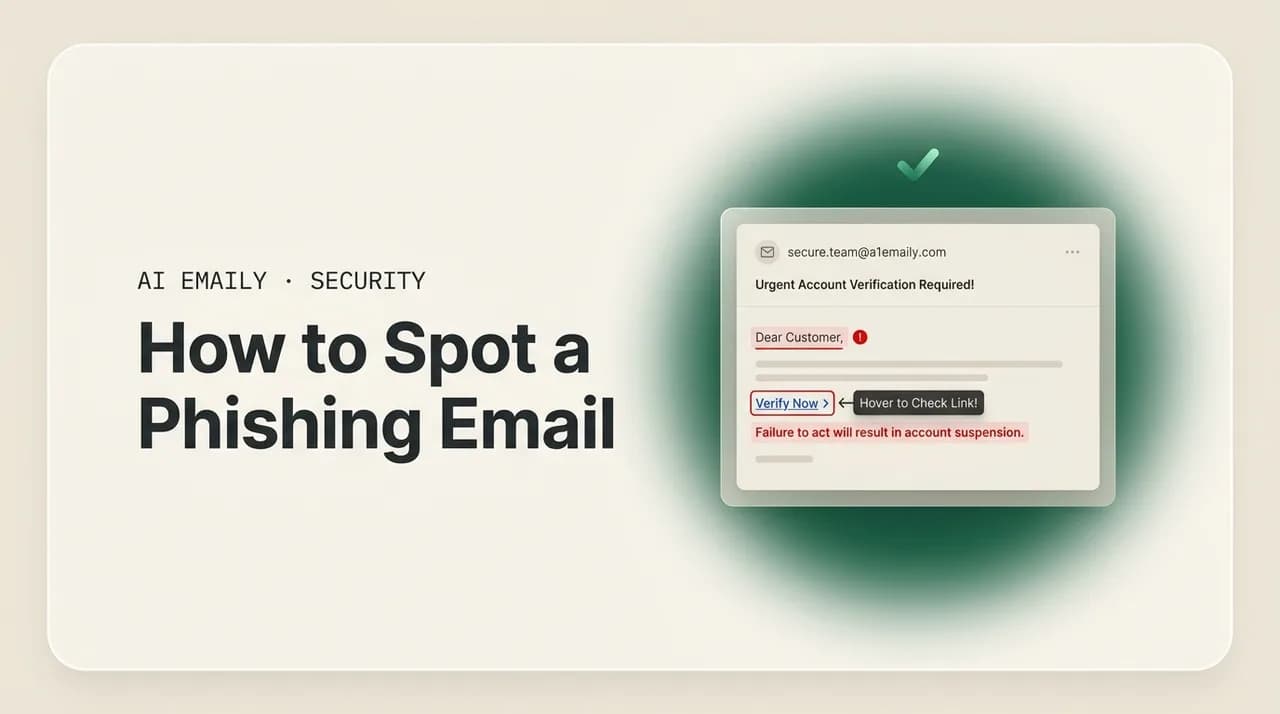
The short answer
To spot a phishing email, check the real sender address for a lookalike domain, hover links to see where they actually go, treat any urgent demand or unexpected attachment as suspect, and verify requests through a separate channel. Grammar is no longer a reliable tell now that attackers write with AI. If you spot one, report it and delete it.
How to spot a phishing email in 2026: 12 red flags, sender and link checks, AI-phishing signs, and what to do if you catch one. A plain-English guide.
On this page
- 01What is the anatomy of a phishing email?
- 02What are the 12 red flags of a phishing email?
- 03How do you check the sender's address and domain?
- 04How do you check a link before clicking it?
- 05Why are unexpected attachments dangerous?
- 06How do urgency and emotional manipulation work?
- 07Why are AI-generated phishing emails harder to spot?
- 08What should you do if you spot a phishing email?
- 09How does AI Emaily flag phishing and warn you?
- 10Putting it all together
Phishing is the single most common way attacks start. Year after year, the data points the same direction: the overwhelming majority of breaches that begin with a human action begin with a phishing email — a message engineered to make you click a link, open a file, hand over a password, or move money before you stop to think. It is cheaper than hacking software, it scales to millions of inboxes at once, and it targets the one part of the system that cannot be patched: the person reading the email. That is why learning to spot a phishing email is not a niche IT skill. It is basic literacy for anyone with an inbox, and in 2026 the stakes are higher than they have ever been.
Here is what has changed, and why this guide exists. For two decades, the advice for catching phishing leaned heavily on one tell: bad writing. Misspellings, broken grammar, a stilted greeting from a "bank" that clearly was not written by a native speaker — these were the cracks that gave a scam away. That era is ending. Attackers now use the same generative-AI tools everyone else has, and those tools write fluent, professional, grammatically flawless email in any language and any tone. A 2025 industry report from the security-training firm KnowBe4 found that the large majority of phishing emails it analyzed showed signs of AI assistance, and the FBI has formally warned that criminals are using AI to produce highly targeted, contextually aware messages with perfect grammar. The typo tell is dead. The skills that replace it are the subject of this guide.
The reassuring news is that the underlying anatomy of a phishing email has not changed at all. AI makes the writing better; it does not change what the attacker actually needs you to do. Every phishing email, no matter how polished, still has to point you somewhere dangerous — a fake login page, a malicious attachment, a request to send money or credentials — and that destination almost always leaves a trace you can check. The sender address can be inspected. The link can be hovered. The request can be verified through a second channel. The emotional pressure to act now is itself a signal. Once you know where to look, a beautifully written phishing email is often easier to catch than an old clumsy one, because the very perfection starts to feel off.
This guide is the practical, no-hype version of how to do that. We will start with the anatomy of a phishing email — the parts every one shares — so the red flags make sense rather than being a list to memorize. Then a twelve-point checklist you can keep beside your inbox, followed by deep dives on the three checks that catch the most attacks: reading the real sender address and its domain, inspecting links before you click, and handling unexpected attachments. We will cover the psychology of urgency and emotional manipulation, then the 2026 shift to AI-generated phishing. After that, an exact step-by-step for what to do when you spot one — including who to report it to in the United States and why reporting beats deleting. We close with an honest look at how AI Emaily flags suspicious mail for you, a long FAQ, and a short conclusion. By the end you will have a method, not just a warning.
Two quick orientations before we begin. First, terms. Plain phishing is the mass-mailed version — the same lure sent to thousands of people. Spear phishing is targeted at a specific person, often using real details about you or your company to seem legitimate, and it is where AI does the most damage because it can personalize at scale. Business email compromise (BEC) is the high-value variant aimed at organizations — the fake CEO asking finance to wire money, the spoofed vendor sending a new invoice. The detection skills in this guide apply to all of them; the companion guide on what business email compromise is goes deeper on the workplace version. Second, the mindset that runs through everything here: treat email as untrusted input. An email arriving in your inbox is a claim, not a fact — a claim about who sent it and what they want. Verifying that claim before you act on it is the whole game.
What is the anatomy of a phishing email?#
Before listing red flags, it helps to understand what a phishing email is built to do, because every warning sign is just a place where the construction shows. A phishing email is not trying to inform you. It is trying to get you to take a specific action that benefits the attacker, and to take it quickly, before the part of your brain that asks questions wakes up. Strip away the styling and every phishing email has the same four working parts, and each part is a place you can catch it.
The first part is the impersonation — the disguise. The email claims to be from someone you trust: a bank, a delivery service, a colleague, your IT department, a well-known brand, sometimes your own boss by name. This is what gets you to lower your guard, and it lives in two places that often disagree with each other: the friendly display name you see at a glance, and the actual email address underneath it. Attackers can put anything they want in the display name. Making the real address convincing is much harder, which is exactly why checking it is so effective.
The second part is the pretext — the story. There is always a reason you supposedly need to act: a payment failed, a package is held, your account will be suspended, a document is waiting for your signature, a password is expiring, an invoice is overdue. The pretext is designed to feel plausible and slightly alarming, plausible enough that acting feels reasonable and alarming enough that you do it now. The more the story pressures you to hurry, bypass normal process, or keep it quiet, the more suspicious it should make you.
The third part is the payload — the dangerous thing the whole email exists to deliver. It is almost always one of three: a link to a fake website that harvests whatever you type into it (most often a login page that steals your password), an attachment that installs malware when opened, or a direct request for sensitive information or a money transfer. Everything else in the email — the logos, the formatting, the urgent story — is set dressing around the payload. Find the payload and you have found the point of the email.
The fourth part is the call to action — the push to engage with the payload right now. "Click here to verify." "Open the attached invoice." "Reply with your details." "Confirm your password to avoid suspension." The call to action fuses the pretext and the payload into a single urgent instruction, and the urgency is not incidental — it is the mechanism. Pressure is how the attacker stops you from doing the very checks this guide is about. Recognizing that the push to hurry is itself part of the attack is one of the most protective instincts you can build.
Hold those four parts in mind and the red flags below stop being a list to memorize and become a set of questions. Who really sent this? Why am I being told to act now? Where does this actually want me to go, and what does it want me to do there? Phishing relies on you skipping those questions. Asking them, every time, is the skill.
The one habit that beats almost every phishing email
What are the 12 red flags of a phishing email?#
Here is the checklist version — the twelve signals that, alone or in combination, mark an email as worth a second look. No single flag is proof; legitimate mail occasionally trips one. But phishing emails tend to trip several at once, and any one of them should slow you down before you click, open, or reply. Keep this table beside your inbox until the checks become automatic.
| # | Red flag | What to look for |
|---|---|---|
| 1 | Sender address mismatch | The real email address does not match the display name or the brand it claims to be (e.g. "PayPal" from paypa1-secure.com). |
| 2 | Lookalike or odd domain | A domain that is almost right but misspelled, hyphenated, on the wrong extension, or using swapped letters (rn for m, 0 for o). |
| 3 | Urgency or threats | Pressure to act immediately — suspension, legal action, a closing window, a fine — to stop you from thinking or verifying. |
| 4 | Requests for credentials | Any email asking you to confirm, verify, or re-enter a password, PIN, code, or full card number. Legitimate firms do not. |
| 5 | Suspicious or mismatched links | A link whose real destination (on hover) differs from its text, uses a URL shortener, an IP address, or a misspelled domain. |
| 6 | Unexpected attachments | A file you did not ask for, especially .zip, .html, .iso, or anything prompting you to enable macros or content. |
| 7 | Generic or wrong greeting | "Dear Customer," "Dear user," or your email address used as a name — a sign of mass-mailing, not a real relationship. |
| 8 | Money or payment requests | Asks to pay an invoice, change bank details, buy gift cards, or wire funds — the core of business email compromise. |
| 9 | Too good to be true | Refunds, prizes, inheritances, or overpayments you never expected. If it is unexpected and valuable, it is bait. |
| 10 | Spoofed or off branding | Logos slightly wrong, low-resolution, outdated, or formatting that does not match the brand's real emails. |
| 11 | Mismatched reply-to | The reply-to address differs from the sender, quietly routing your reply to the attacker instead of the real company. |
| 12 | Out-of-character requests | A known contact asking for something unusual — secrecy, a gift card, a wire, a login — in a way they never normally would. |
Count flags, do not hunt for one
How do you check the sender's address and domain?#
If you only ever learn one phishing check, make it this one, because the sender's real address is where most attacks give themselves away. The trap is that email clients show you a friendly display name — "Apple Support," "Your Bank," "Maria from Accounting" — and that name is something the sender types in freely. It is decoration, not identity. Anyone can put "PayPal" or your CEO's name in the display field of an email they send. What they cannot fake as easily is the actual address behind it, so your first move on any suspicious message is to reveal that address and read it carefully.
On a computer, hover your cursor over the sender's name, or click it, to expose the full email address. On a phone, tap the sender name or the little arrow next to it to expand the details. Now read the part after the @ — the domain — because that is the true claim of origin. Ask one question: does this domain belong to the organization it claims to be? A real message from your bank comes from the bank's own domain. A phishing email comes from something that is close but not quite: a misspelling, an extra word, a different extension, or a public free-mail address dressed up with a corporate display name.
The example below shows the same email as your inbox first presents it and as it really is once you expose the address. The display name looks impeccable. The domain does not survive a second of scrutiny.
The hardest version of this trick is the lookalike domain — also called a homoglyph or typosquat attack — and it is worth knowing specifically because it is built to beat a quick glance. Attackers register domains that are visually almost identical to the real one. They swap an 'm' for an 'rn' (microsoft vs micros0ft or rnicrosoft), a lowercase 'l' for a capital 'I' or the number '1', a zero for the letter 'o', or — most insidiously — a Latin letter for an identical-looking character from another alphabet, like a Cyrillic 'а' that renders exactly like the English 'a'. Some clients quietly display these internationalized domains in their deceptive form rather than showing the encoded "xn--" version that would expose the substitution. Security researchers note that registering hundreds of such lookalikes for a target brand costs an attacker only a few dollars and an afternoon, so they are everywhere.
Because lookalikes are designed to pass a glance, do not rely on a glance. Read the domain character by character, the way you would proofread a password. Compare it letter for letter against an address you know is real — an older email from the same company, or the address printed on the back of your card. If anything is hyphenated, padded with extra words, on an unusual extension (a bank using .info or .top), or just slightly off, treat the whole message as suspect. And remember the limit of this check: the sender address can be outright forged through a technique called spoofing, where the visible "From" is faked even though the message did not really come from that domain. A clean-looking address is reassuring but not proof; the deeper verification lives in the email's technical headers, which the companion guides on telling if an email is fake and reading email headers walk through. For everyday spotting, exposing and reading the real address catches the large majority of attacks in seconds.
The display name is not the sender
How do you check a link before clicking it?#
The link is the payload in most phishing emails — usually a path to a fake login page that captures whatever you type — so learning to see where a link really goes, without going there, is the second high-value skill. The core trick phishing relies on is that the visible text of a link and its actual destination are two completely separate things. The blue underlined words can say "https://www.yourbank.com/login" while the link underneath points somewhere entirely different. Reading the visible text tells you nothing. Revealing the real destination tells you everything.
To reveal it without clicking: on a computer, hover your mouse over the link and look at the bottom corner of the window or the small tooltip that appears — it shows the true URL the link will open. On a phone, press and hold the link (do not tap) until a preview panel slides up showing the full address; then cancel. Once you can see the real URL, read it the same way you read a sender's domain: find the core domain — the part right before the first single slash — and ask whether it belongs to the organization the email claims to be from. Everything else in a URL is noise designed to reassure you.
That last point is where people get fooled, so it is worth slowing down on. Attackers stuff trusted-looking words into the parts of a URL that do not control where it goes. The real destination of a web address is the registered domain that sits immediately before the first single slash, reading left to right. Subdomains in front of it and folders after it can say anything. So yourbank.com.secure-login.ru is not your bank — the real domain is secure-login.ru, and "yourbank.com" is just a subdomain label the attacker added. Likewise, secure-login.ru/yourbank.com/verify is not your bank either; everything after that first slash is a folder path on the attacker's site. Find the domain immediately before the first single slash, and judge the link by that alone.
A few extra link tells round out the check. Be wary of URL shorteners (bit.ly, tinyurl, and the like) in unexpected mail — they hide the true destination by design, which is exactly why phishing loves them; if a real company is sending you to its own site, it rarely needs to disguise the address. Be wary of links that are raw IP addresses (a string of numbers like 192.0.2.10) instead of a domain name, which legitimate organizations almost never use in email. And know that the padlock icon and "https" mean only that the connection is encrypted, not that the site is honest — attackers get free certificates too, so a fake login page can show a perfectly good padlock. The padlock protects the traffic; it does not vouch for the destination.
Two newer wrinkles deserve a mention. First, QR codes in email — sometimes called "quishing" — are links you cannot hover. An image telling you to scan a code to reset multifactor authentication, pay an invoice, or track a package moves the malicious link onto your phone's camera, where the usual hover check does not exist and image-based lures slip past text filters; this style of attack rose sharply through 2025 and into 2026. If an email asks you to scan a QR code to do something sensitive, treat it exactly like a suspicious link and verify through the company's real app or site instead. Second, when in any doubt, do not click at all — navigate to the site yourself. Open a browser, type the address you know, or use a bookmark, and log in there. If the email's claim is real, you will see it in your account. If it is not, you have lost nothing. Typing the address yourself sidesteps every link trick in this section at once.
When in doubt, do not click — navigate there yourself
Why are unexpected attachments dangerous?#
If a link is the most common phishing payload, a malicious attachment is the most damaging, because opening the wrong file can install malware — ransomware, a keylogger, a remote-access tool — directly onto your device. The governing rule is simple and worth holding firmly: be suspicious of any attachment you were not expecting, even if it appears to come from someone you know. A genuine sender almost always gives the file context — you asked for it, you are mid-conversation about it, it fits what you do together. An attachment that arrives out of nowhere, especially paired with an urgent reason to open it ("see the attached invoice / receipt / delivery notice / resume"), is a classic delivery method for malware and deserves real caution before you double-click.
Some file types are far riskier than others, and knowing which ones lets you calibrate your suspicion rather than fearing every PDF. The table below groups the common ones. The dangerous tiers are files that can run code or scripts, archive files that hide what is inside until you open them, and Office documents that ask you to "enable content" or "enable macros" — that prompt is one of the oldest and most reliable malware triggers there is, and you should essentially never click it on a document you did not expect. Even formats people assume are safe, like PDFs and HTML files, can carry malicious links or scripts, so "lower risk" never means "open without thinking."
| Risk level | File types | Why / what to do |
|---|---|---|
| High — can run code | .exe .msi .scr .bat .cmd .js .vbs | Programs and scripts that execute on open. Essentially never legitimate to receive by email — do not open. |
| High — hides contents | .zip .rar .7z .iso .img | Archives and disk images conceal what is inside until opened, a common way to smuggle the files above past filters. |
| High — macro lure | .docm .xlsm .pptm (and any "enable content" prompt) | Office files that ask to enable macros or content. The prompt is a classic malware trigger — never enable it on unexpected files. |
| Medium — deceptive | .html .htm .svg | Can open a local fake login page or run scripts in your browser. Unexpected HTML attachments are very often phishing. |
| Lower — still verify | .pdf .docx .xlsx | Usually safe to view, but can embed malicious links or, rarely, exploits. Confirm you expected it; never act on links inside blindly. |
The right move with any unexpected attachment is the same verify-first habit from earlier: do not open it, and confirm with the sender through a separate channel that they actually sent it. A short message — "Did you just email me a zip file?" — costs nothing and catches the case where a contact's account has been compromised and is being used to mail malware to everyone they know, which is exactly why "it came from someone I know" is not enough on its own. When you do legitimately need to open a file you are unsure about, viewing it inside your browser's webmail preview rather than downloading it adds a layer of distance, and a modern email service will scan attachments for known malware before they ever reach you. But the front-line defense is your own caution: an attachment you did not expect, in a message that wants you to open it urgently, is guilty until proven innocent.
Never enable macros or content on a file you did not expect
How do urgency and emotional manipulation work?#
Every technical check in this guide can be defeated by one thing: a reader who is too rushed or too rattled to run it. That is why urgency and emotional pressure are not side effects of phishing — they are the central technique. The attacker's real target is not your software, it is your judgment, and the fastest way to switch off judgment is to flood it with emotion and a ticking clock. Understanding the specific levers they pull is what lets you feel the manipulation as it happens, which is often the first thing you notice about a sophisticated phishing email even before you spot a single technical flaw.
The pressure usually pulls one or more of a small set of levers, and security awareness frameworks tend to group them the same way: authority, urgency, fear, scarcity, and reward. Authority is the email that appears to come from your boss, your bank, the tax authority, or IT — we are wired to comply with perceived authority, so attackers borrow it. Urgency is the artificial deadline: "within 24 hours," "immediately," "before end of day," designed to collapse the window in which you might think. Fear is the threat of loss: a suspended account, a security breach, a legal penalty, a missed payment — alarm makes people act first and reason later. Scarcity is the closing opportunity, the "limited time" hook. And reward is the too-good-to-be-true upside: the refund, the prize, the overpayment to return. The flavors differ; the function is identical — get you to act before you verify.
The example below is the kind of message that combines several levers in a few short lines. Notice that there is nothing misspelled in it — it could easily be written by AI — and yet the shape of it is pure manipulation.
The defense is to treat the feeling itself as a red flag. When an email makes your pulse rise — fear of losing access, anxiety about a payment, the thrill of an unexpected refund, the reflex to obey a boss — recognize that reaction as the intended effect, and let it trigger the opposite of what the email wants. The email wants speed; give it deliberation. Slow down, reread, run the sender and link checks, and above all verify through a separate channel, because legitimate organizations build in time and rarely threaten instant, irreversible consequences over email. A real bank will not permanently close your account in the next hour because you did not click a link; a real CEO can wait the two minutes it takes you to confirm an unusual money request through a known number. The presence of intense time pressure on a consequential action is, by itself, one of the most dependable signs you are being phished — possibly more dependable now than any spelling check, for reasons the next section makes clear.
Let the feeling be the alarm
Why are AI-generated phishing emails harder to spot?#
For most of email's history, the easiest way to catch a scam was to read it: awkward phrasing, broken grammar, and obvious misspellings were the cracks that exposed a fake. That heuristic is no longer reliable, and pretending otherwise is dangerous. Attackers now use the same generative-AI writing tools as everyone else, and those tools produce fluent, polished, professional prose in any language on demand. The 2025 KnowBe4 phishing-trends research found that the great majority of analyzed phishing emails showed signs of AI assistance, and the FBI has publicly warned that criminals are leveraging AI to craft highly targeted phishing with perfect grammar and contextual awareness. The grammar-error tell that a generation of users was trained on has essentially stopped working.
It is worth being concrete about what AI changes, because it is not the anatomy of the attack — it is the production quality and the scale. AI lets an attacker generate flawless, brand-accurate copy instantly, which removes the language mistakes that used to give scams away and lets a non-native speaker target any market perfectly. It lets them personalize at volume: AI can scrape a target's public footprint — role, employer, recent posts, named colleagues — and write a message tailored to that one person, so spear phishing that once took real effort per target can now be mass-produced. And it collapses the time and cost of a campaign. Multiple analyses through 2025 and 2026 reported that AI-assisted lures see markedly higher click rates than older human-written ones, and that AI-generated phishing had become the leading email threat to organizations — which is precisely why the read-it-for-typos defense is no longer enough on its own.
So if grammar is out, what is in? The good news is that everything else in this guide still works, and several of the checks actually get more powerful as the writing gets better. AI can perfect the words; it cannot easily fix the infrastructure underneath. The sender still has to come from somewhere, so the real address and its lookalike domain are as checkable as ever. The link still has to point to the attacker's site, so hovering to read the real destination is unchanged. The attachment is still a file that does what it does. The request is still something you can verify through a separate channel. And the manufactured urgency is, if anything, a stronger signal now: when the prose is flawless, the artificial pressure to act fast is one of the few behavioral tells left. The shift in 2026 is a shift in emphasis — away from reading the message for mistakes, and toward checking the message's origin, destination, and demands. A well-written email that wants your password in a hurry is not safer than a clumsy one; in 2026 it is more likely to be the real threat.
Good grammar is no longer a sign of a safe email
What should you do if you spot a phishing email?#
Spotting it is most of the battle; handling it correctly is the rest, and it takes about a minute. The two governing principles are: do not engage with the email in any way, and report it before you delete it. Engaging means clicking links, opening attachments, replying, or — a subtle one — loading remote images, since a tracking pixel can quietly confirm to the sender that your address is live and worth more attacks. Reporting, meanwhile, matters more than people assume: a deleted phishing email protects exactly one inbox, while a reported one helps providers and authorities pull the malicious link or sender offline before it reaches the next thousand people. The scams that get taken down fastest are the ones that get reported, not just trashed. Here is the exact sequence.
- 1
Do not click, open, reply, or load images
Touch nothing in the message — no links, no attachments, no reply, and do not enable remote images or scan any QR code. Each of those can confirm you are a live target or trigger the payload. If you only read it, you are safe; the danger is in the interaction.
- 2
Confirm your suspicion with a quick check
Expose the real sender address and read the domain; hover any link to see where it truly goes. If it claims to be a company or person you deal with, verify through a separate channel — the number on the company's real site, or a direct message to the colleague. Never use contact details supplied by the suspicious email itself.
- 3
Report it as phishing inside your email client
Use your provider's built-in "Report phishing" or "Report spam" control rather than just deleting. This trains the provider's filters, removes the sender from your view, and feeds the wider takedown system. CISA's guidance is explicitly to report suspicious messages to your provider or security team.
- 4
At work, report to your IT or security team
If it landed in a work inbox, forward it to your internal security or IT contact (or use the company's phishing-report button) so they can warn colleagues and block the sender across the organization. Targeted attacks rarely hit just one person — your report can stop the rest.
- 5
Report it to the authorities (United States)
Forward the message to the Anti-Phishing Working Group at [email protected], and report the attempt to the FTC at ReportFraud.ftc.gov. Where your client offers "Forward as attachment," use it — a normal forward strips the technical headers investigators need. CISA also accepts reports of suspicious activity.
- 6
If you lost money or data, escalate and lock down
If you sent money, credentials, or sensitive data, file a complaint with the FBI's Internet Crime Complaint Center at ic3.gov, then act fast: change the exposed password (and anywhere you reused it), enable two-factor authentication, contact your bank if money or card details were involved, and watch for follow-on fraud.
- 7
Delete the email — after you have reported it
Once reported and, if needed, escalated, delete the message so you do not click it later by mistake. Deleting is the last step, not the first: report first so the scam can be stopped for others, then remove it from your own inbox.
One special case deserves its own note: if you already clicked or entered something before realizing, do not panic, but move quickly, because speed limits the damage. If you typed a password into a fake page, change that password immediately on the real site and anywhere you reused it, and turn on two-factor authentication so a stolen password alone is not enough. If you opened an attachment, disconnect the device from the network and run a security scan, and at work tell IT at once. If you sent money or financial details, contact your bank or card issuer right away — fast reporting is often what makes a transaction recoverable — and file with IC3. Mistakes happen to careful people, especially against AI-grade lures; what protects you is reacting fast and honestly rather than hoping it was nothing.
Report first, delete second
How does AI Emaily flag phishing and warn you?#
Everything above is something you can and should learn to do by eye — and you should, because no tool catches everything. But running every check on every message, every day, is a lot to ask of a busy human, and the AI-grade lures described earlier are designed specifically to slip past a tired reader. This is where the inbox itself can do some of the watching for you. AI Emaily is an AI email client built around the principle stated at the top of this guide: email is untrusted input. It does not assume a message is safe because it looks polished or claims a trusted name. It inspects each one and surfaces the risk to you, so the checks you would otherwise have to remember to run are run automatically, on every message, before you act.
Concretely, here is what that looks like, described honestly — these are protections, not a guarantee that nothing dangerous will ever reach you. AI Emaily runs its own AI phishing and scam detection algorithm over incoming mail, weighing exactly the signals this guide covers: sender and lookalike-domain mismatches, links whose real destination differs from their text, the patterns of urgency and credential-harvesting language, and the markers of impersonation and business email compromise. When a message looks dangerous, it places a clear suspicious-email warning banner at the top of it — a plain-language heads-up that this message has phishing traits and that you should verify before clicking, replying, or opening anything — so the moment of caution arrives when you need it, instead of after you have clicked. It also blocks tracking pixels by default, which stops the quiet remote-image beacons that confirm your address is live and that often ride along with phishing and spam, keeping you off the lists that draw more of it.
The list below sums up what AI Emaily does on the phishing front, and what it does not pretend to do.
- Own AI phishing and scam detection algorithm that scores incoming mail on sender, domain, link, and language signals — the same red flags in this guide, checked automatically on every message.
- Clear suspicious-email warning banners placed at the top of risky messages, in plain language, so you get the prompt to verify before you click, reply, or open an attachment.
- Tracking-pixel blocking on by default — remote image beacons are stopped, so opening a message does not confirm to a sender that your address is live and worth more attacks.
- Email treated as untrusted input by design: AI Emaily inspects messages for risk rather than assuming polished, trusted-looking mail is safe — directly countering AI-written lures.
- Works across Gmail, Outlook, and every provider you connect, so the same detection and warnings protect all your inboxes in one place, not just one account.
- Private by default: AI Emaily never trains its models on your mail and does not sell your data — the inspection serves you, not an ad profile.
- Honest about limits: the banner is a strong prompt to slow down and verify, not a promise that every threat is caught. Your own checks from this guide remain the final line.
The way to think about it is layered defense. Your judgment — exposing the sender, hovering the link, distrusting urgency, verifying through a second channel — is the foundation, and this guide exists to make that judgment sharp. AI Emaily sits on top of it as a safety net: a second set of eyes that catches the message you were about to skim past at the end of a long day, and a banner that puts the brakes on right when an AI-perfect lure is trying to rush you. It does not replace the habits; it backstops them. If you want to read more about the detection itself, the spam-protection feature page and the security overview go into detail, and you can try the whole thing free — details in the box at the end of this guide. For now, the takeaway is simple: a private inbox that treats email as untrusted and warns you about suspicious messages turns the checklist above from something you must remember into something that mostly happens for you.
A safety net, not a substitute for judgment
Putting it all together#
Phishing is the most common way attacks begin, and in 2026 the old defense of reading an email for typos no longer holds — AI writes lures that are fluent, personalized, and convincing. The skills that replace it are not complicated, and they have not changed even as the writing has. Expose the real sender address and read its domain character by character against one you know is genuine. Hover or long-press links to see where they truly go, judging by the domain just before the first single slash, and when in doubt, navigate to the site yourself instead of clicking. Treat any unexpected attachment — and especially any "enable content" prompt — as guilty until proven innocent. Recognize manufactured urgency, fear, and authority as the manipulation they are, and let that feeling trigger deliberation rather than haste. And whenever a message asks for money, credentials, or account access, verify it through a separate channel you already trust before you act.
When you do spot one, do not just delete it — touch nothing in the message, report it to your email provider and, at work, to your security team, and in the United States to the APWG, the FTC, and IC3 if you lost anything, then delete it. Reporting is what takes the scam down for everyone else. And let your inbox carry some of the load: a private, AI-native client like AI Emaily that treats email as untrusted input, runs its own phishing-detection algorithm, raises a clear warning banner on suspicious messages, and blocks the tracking pixels that feed more spam your way — without ever training on your mail — is a safety net under the judgment this guide has built. To go deeper, the companion pieces on telling if an email is fake, real phishing examples, and what business email compromise is build directly on these skills. Stay a little suspicious, run the checks, and the polished modern phishing email becomes just another message you saw through.
Frequently asked
See it in AI Emaily
Keep reading
Sources
- CISA — Teach Employees to Avoid Phishing / Recognizing and Reporting Phishing
- FTC — How to Recognize and Avoid Phishing Scams
- FBI — Internet Crime Complaint Center (IC3) and public warnings on AI-enabled phishing
- Anti-Phishing Working Group (APWG) — report phishing to [email protected]
- KnowBe4 — Phishing Threat Trends Report (2025): majority of phishing emails show AI assistance

Written by
Nafiul HasanNafiul Hasan is an entrepreneur and AI automation system builder with 10+ years of experience turning messy, manual workflows into reliable automated systems. He designs and ships AI enterprise solutions end-to-end — the agent logic, the data plumbing, and the product people actually use — and founded AI Emaily to give busy professionals their attention back. He writes here from the builder's seat: what works, what breaks, and how to put AI to work without giving up control.