How to Tell if an Email Is Fake or Real: A Step-by-Step Check

The short answer
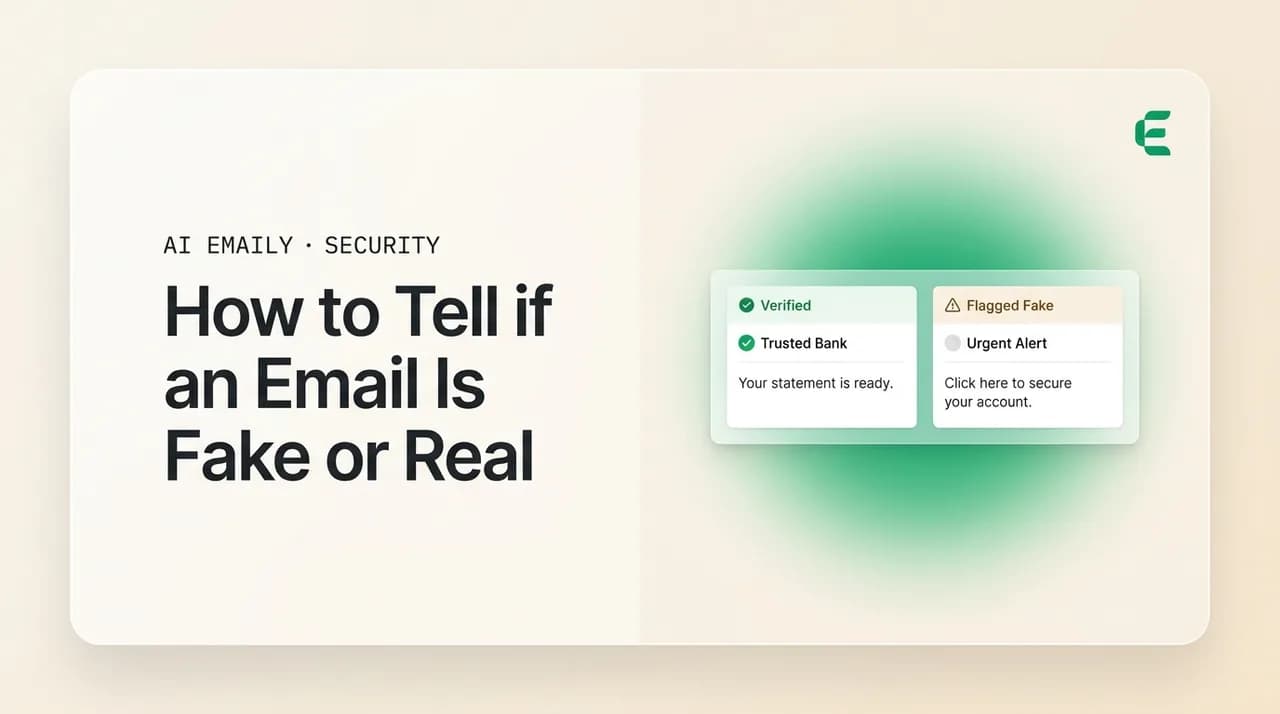
To tell if an email is fake, ignore the display name and read the real sender address, hover every link to see its true destination, and check the headers for SPF, DKIM, and DMARC pass or fail. When anything asks for money, passwords, or urgency, verify out of band by calling a number you already trust.
Learn how to tell if an email is fake or real: check the true sender address, inspect links and headers, spot lookalike domains, and verify out of band.
On this page
- 01Why can't you tell a fake email from a real one at a glance?
- 02Step one: how do you check the real sender address?
- 03Step two: how do you inspect every link before clicking?
- 04Step three: how do you read the headers for SPF, DKIM, and DMARC?
- 05Step four: how do you spot a lookalike or homoglyph domain?
- 06Step five: when should you verify out of band — and how?
- 07What other tells reveal a fake email?
- 08What is a fast checklist to verify any email?
- 09How does AI Emaily verify senders and warn on fakes automatically?
- 10What's the bottom line on telling a fake email from a real one?
Why can't you tell a fake email from a real one at a glance?#
Most people decide an email is real in under two seconds. They see a familiar logo, a name they recognize in the sender line, a tone that sounds about right, and they relax. That snap judgment is exactly what attackers design for. Every signal you scan in that first glance — the display name, the brand colors, the signature, the friendly greeting — is content the sender fully controls and can copy in minutes. None of it is proof of anything. A fake email and a real one look identical at the surface because the surface is the easiest part to forge.
The reliable signals live one layer down, in places your eye skips: the actual email address behind the display name, the true destination of each link, and the authentication results buried in the message headers. Those are far harder to fake convincingly, and they are where this guide spends most of its time. Learning to look past the glance and check the layer underneath is the single skill that separates people who get caught from people who do not.
The stakes rose sharply in the last two years. The old advice — watch for bad grammar, clumsy logos, and obvious typos — assumed scammers were sloppy. Many no longer are. AI-generated phishing now produces messages with flawless spelling, on-brand formatting, and copy that can mirror your own writing style or reference a real conversation you actually had. ScamAdviser and others have documented that the typo era is ending: the tells you were taught to spot have largely been engineered out (see Sources). That does not mean detection is hopeless. It means the easy visual tells are no longer enough, and the technical checks below matter more than ever.
Here is the good news. The mechanics of email have not changed, and neither have the things a sender genuinely cannot fake without effort. An attacker can copy a logo for free, but they cannot easily make their link point to the real bank, pass a domain's DMARC policy, or answer the official support line when you call it. This post is a step-by-step routine built entirely on those hard-to-fake signals: read the real sender, inspect the links, read the headers, spot lookalike domains, verify out of band, and weigh the softer tells. By the end you will have a repeatable check you can run on any suspicious message in about a minute — and you will see how AI Emaily runs most of that check for you, automatically, before the message ever reaches your eyes.
Two quick definitions to keep straight. A fake email is any message engineered to look like it comes from someone it does not — a forged or impersonated sender. Phishing is the most common goal of a fake email: tricking you into clicking, logging in, paying, or replying. Not every fake is phishing (some are spam or pranks) and not every phishing attempt forges the sender, but they overlap heavily. If you want the broader red-flag list, our guide on how to spot a phishing email is the companion to this one; here we focus tightly on the question is this specific sender who they claim to be.
Step one: how do you check the real sender address?#
Start where the lie usually starts: the From line. Every email has two separate pieces there, and conflating them is the most common reason people get fooled. The first piece is the display name — the friendly, human-readable label like Apple Support or Sarah from Accounting. The second is the actual email address, the part with the @ in it. The display name is free text. A sender can type literally anything into it, including the exact name of a company they have nothing to do with. The address is the part that actually has to route mail, and it is far more revealing.
Attackers exploit this gap with a trick called display-name spoofing. They set the display name to PayPal or to your CEO's real name, while the underlying address is something like [email protected] or a random Gmail address. Mimecast and Mesh both describe this as one of the most effective impersonation methods precisely because it needs no technical sophistication — just a deceptive label (see Sources). And it is brutally effective on phones, because most mobile mail apps show only the display name by default and hide the address entirely. On a phone, CEO Pat Reynolds and an imposter look exactly the same until you tap to expand the sender.
So your first move on any email you are unsure about is to reveal and read the full address. Do not skim the name — read the characters after the @. That domain (the part after the @, like apple.com) is the claim the email is making about who sent it. If the message says it is from your bank but the domain is a free webmail address or an unrelated company, you are done: it is not from your bank. Real organizations send transactional mail from their own domains, not from gmail.com, outlook.com, or a string of random words.
There is one more nuance worth understanding, because it explains why the address alone is necessary but not sufficient. The visible From address can itself be forged in some cases — true spoofing, where the message is crafted to display a real domain it has no right to use. This is exactly the gap that the header checks in step three are designed to close, and it is why a single signal is never the whole story. Think of the sender address as the claim, and the authentication results as whether that claim survives scrutiny. A clumsy fake fails at the address; a sophisticated one passes the address and has to be caught later, in the headers or by verifying out of band.
A practical habit makes all of this faster: build a mental model of what each sender you care about normally looks like. Your bank always sends from one or two specific domains. Your payroll system, your delivery services, your two or three most important work contacts — each has a real address you have seen many times. Once you know the genuine pattern, an imposter stands out immediately, because the deviation is obvious even when the fake is otherwise polished. Most successful impersonations work not because the fake is perfect but because the target never knew what the real one looked like in the first place.
- 1
Expand the sender on desktop
In Gmail, click the small triangle or the sender name to reveal the full address; in Outlook, hover or double-click the sender. You want to see the complete address, not just the friendly name.
- 2
Tap the sender on mobile
Most phone apps hide the address. Tap the sender name (or the avatar) to expand the message details until the actual email address appears. Never judge a mobile email by the display name alone.
- 3
Read the domain after the @
Ignore everything before the @ and focus on the domain. Does it match the organization the email claims to be from, character for character? A real Netflix email comes from a netflix.com domain, not netflix-billing.com or a webmail address.
- 4
Check the Reply-To address
Open the full header or details and look at Reply-To. Legitimate mail usually replies to the same domain it came from. If the From says one company but Reply-To points somewhere else entirely, treat that mismatch as a strong sign of a fake.
The display name is not the sender
Step two: how do you inspect every link before clicking?#
The whole point of most fake emails is to get you to click something. The link text you see and the place the link actually goes are, like the display name and the address, two completely separate things. A link can say www.yourbank.com in blue underlined text while pointing to a malicious site that has nothing to do with your bank. The visible text is a label the sender chose; the real destination is hidden in the link's underlying address. Your job is to reveal the real destination before you commit to it.
On a desktop, this is easy and risk-free: hover your mouse over the link without clicking. Your browser or mail client shows the true destination in a small tooltip or in the status bar at the bottom of the window. Read it carefully. Does the domain match where the link claims to send you? Pay attention to the part right before the first single slash — that is the real domain. Tricks like yourbank.com.secure-login.ru put the trusted name early to reassure you, but the actual domain is the last one before the slash (here, secure-login.ru), not the first.
On a phone there is no hover, so use a long-press instead: press and hold the link until a preview of the destination address pops up, then read it and cancel. Do not tap. Hovering and long-pressing are endorsed across security guidance as the safe way to reveal a link's target without visiting it (see Sources). If your client will not show you the destination at all, that is itself a reason to be cautious — and a reason a client that warns you about links is worth having.
Watch for a few specific link tricks. Shortened links (bit.ly and similar) hide the destination entirely — a real company rarely needs to shorten a link in a transactional email, so treat shorteners in unexpected mail as opaque and risky. QR codes are links you cannot hover at all; Microsoft and others have flagged QR-code phishing as a fast-growing vector precisely because the destination is invisible until you scan, and because the scan often happens on a phone where the address is hard to read (see Sources). And a link that does not match the email's own claimed domain — a message from your bank whose buttons all go to an unrelated site — is one of the cleanest tells there is.
Pay attention to consistency across the whole message, too. In a genuine email from a real company, the links generally all point to the same trusted domain — the unsubscribe link, the help link, the main call to action. In many fakes, the attacker only bothers to redirect the one button they want you to click, leaving the others pointing at the real company, or they route everything through a single suspicious domain. Either pattern is informative: a message where one critical link goes somewhere unexpected while the rest look fine deserves the same suspicion as one where everything is wrong. The mismatch is the signal, not the count.
It also helps to know how attackers disguise the destination itself. Beyond shorteners, they use open redirects (a legitimate domain that bounces you onward to a malicious one), look-alike domains we cover in step four, and long, padded addresses designed to push the real domain off the visible edge of a tooltip on a narrow screen. The defense against all of these is the same discipline: find the real domain — the last label group before the first single slash — and judge that, not the reassuring text wrapped around it. If you cannot clearly see where a link goes, treat that uncertainty itself as a reason not to click.
Never log in from an email link when in doubt
Step three: how do you read the headers for SPF, DKIM, and DMARC?#
This is the most technical step and the most decisive one, because it checks signals the sender's display tricks cannot touch. Every email carries a hidden block of metadata called the headers, and inside them most major providers stamp the results of three authentication checks: SPF, DKIM, and DMARC. Together these answer the question your eyes cannot: did this message actually come from a server authorized to send for the domain it claims, and was it tampered with on the way?
Here is what each one verifies, in plain terms. SPF (Sender Policy Framework) checks whether the message came from a server the domain's owner authorized to send mail — it answers where did this come from. DKIM (DomainKeys Identified Mail) adds a cryptographic signature so the receiving server can confirm the message was not altered in transit and really originated from the claimed domain — it answers was this tampered with. DMARC (Domain-based Message Authentication, Reporting and Conformance) ties the two together and, crucially, checks alignment: it confirms that the domain you actually see in the From line matches the domain that passed SPF or DKIM, and it tells receivers what to do on failure. TechTarget and Valimail describe the division of labor this way: SPF checks the sending server, DKIM checks the message contents, and DMARC checks the visible sender identity and the policy (see Sources).
Why all three? Because the first two each have a gap that the third closes. A message can pass SPF and still be spoofed in the visible From address; it can pass DKIM and still be sent under a domain that is not the one you see. Only DMARC verifies that the domain in front of your eyes is the one that authenticated. As Valimail puts it, an aligned DMARC pass is the strongest single signal that a sender is who they claim to be. So when you read the headers, DMARC=pass is the result that matters most.
Reading raw headers can look intimidating the first time, but you are only hunting for one line. Providers like Gmail, Outlook, and Yahoo write a summary header called Authentication-Results into every message they deliver, and it states the verdicts in a compact, readable form — something like spf=pass, dkim=pass, dmarc=pass, each followed by the domain it checked. You do not need to parse the dozens of Received lines above it or understand the cryptographic detail. Find Authentication-Results, read the three verdicts, and note the domain attached to each. That is ninety percent of the value with almost none of the complexity.
It helps to know why a legitimate email sometimes fails one of these checks, so you do not over-react to a single fail. Forwarding is the classic cause: when a message is forwarded through a mailing list or an auto-forward rule, the path changes and SPF can break even though the original sender was honest, which is part of why DMARC was designed to pass on either SPF or DKIM rather than requiring both. So a lone SPF fail on forwarded mail is weak evidence on its own. A DMARC fail, by contrast — meaning nothing aligned to the visible sender — is a much stronger signal, especially on mail that claims to be from a large organization that you know authenticates its messages. Weight the verdicts accordingly rather than treating every fail as identical.
- 1
Open the original message or source
In Gmail, open the email, click the three-dot menu, and choose Show original. In Outlook, open the message, then File, Properties, and read the Internet headers box. This reveals the hidden metadata.
- 2
Find the Authentication-Results line
Search the header text for Authentication-Results. Major providers summarize all three checks here, written as spf=pass, dkim=pass, and dmarc=pass (or fail). This single line usually tells you most of what you need.
- 3
Read the verdicts in order
A clean message typically shows spf=pass, dkim=pass, and dmarc=pass. A dmarc=fail or a spf=fail on mail claiming to be from a big, well-run brand is a serious red flag, because those organizations almost always authenticate properly.
- 4
Cross-check the domain that passed
Note which domain SPF and DKIM actually verified, and confirm it is the same domain you see in the From line. A pass for a domain other than the one displayed is exactly the alignment gap DMARC is designed to catch.
| Check | What it verifies | Plain-English question | What a fail can mean |
|---|---|---|---|
| SPF | The sending server is authorized by the domain owner | Did this come from an allowed server? | Sent from an unauthorized server — possible spoof, or a misconfigured legit sender |
| DKIM | A cryptographic signature proves the message was not altered | Was this tampered with in transit? | Signature missing or broken — content may be forged or modified |
| DMARC | Alignment: the visible From domain matches what passed SPF/DKIM | Is the sender really who the From line claims? | The visible sender does not match an authenticated domain — strong spoof signal |
| Reply-To | Where replies are routed (not an auth check, but revealing) | Will my reply go back to the real sender? | Points to an unrelated address — a common impersonation tell |
A pass is not a guarantee, and a fail is not always an attack
Step four: how do you spot a lookalike or homoglyph domain?#
Once you are reading the real sender domain and the real link destinations, attackers' next move is to make a fake domain look like a real one. This is where lookalike domains come in, and they are more convincing than most people expect. The simplest version is a near-miss spelling: paypa1.com with the number one standing in for the letter L, micros0ft.com with a zero, or amaz0n-security.com. At a glance, and especially on a small screen, these read as the real thing.
A subtler and more dangerous version is the homoglyph or homograph attack. Here the attacker uses characters from other alphabets that look identical to Latin letters. The Cyrillic small letter a, for instance, is visually indistinguishable from the Latin a in most fonts, so a domain can be spelled with one swapped character and appear perfectly normal. Security researchers note that Cyrillic, Greek, Armenian, and Cherokee all contain usable lookalike glyphs (see Sources). These internationalized domain names are encoded behind the scenes in a format called Punycode, which begins with the prefix xn-- — so a domain that looks like example.com might actually be xn--exmple-9cf.com under the hood. Many modern browsers now display the Punycode form precisely to expose this trick.
Another family of tricks plays with structure rather than spelling. Attackers add a trusted brand name as a subdomain or a prefix so it appears early and reassuringly: apple.com.secure-id.net, or login-microsoft.support-team.co. The real domain is always the last label group before the first single slash — secure-id.net and support-team.co in those examples — not the familiar name planted in front. Reading domains from right to left, starting at the slash and working backward, is the habit that defeats this entire category.
Why does this trick the eye so reliably? Because we read left to right and stop as soon as we see something familiar. Our attention latches onto apple.com at the start of apple.com.secure-id.net and quietly assumes the rest is just a path or a harmless suffix. Attackers know this and front-load the trusted name on purpose. Forcing yourself to find the slash first and read backward from it inverts your natural reading order and removes the advantage they are counting on. It feels unnatural for a week and then becomes automatic.
Lookalike domains are also where authentication and domain-reading have to work together, because this is the case that defeats either one alone. A determined attacker can register a convincing lookalike — say, a domain that reads as your bank's name with one substituted character — and configure SPF, DKIM, and DMARC on it correctly, earning a genuine pass. The headers will say everything checks out, because for that fake domain it does. The only thing that catches it is reading the domain itself and noticing it is not the real one. This is precisely why the checklist layers these steps rather than relying on any single test: a clean DMARC pass for the wrong domain is still the wrong domain.
| Lookalike technique | What you see | What it really is | How to catch it |
|---|---|---|---|
| Character swap | paypa1.com, micros0ft.com | A different domain using 1 for l or 0 for o | Read each character slowly; numbers in a brand name are suspect |
| Homoglyph / IDN | exаmple.com (Cyrillic а) | xn--exmple-9cf.com in Punycode | Watch for xn-- in the address bar; retype the domain by hand |
| Added subdomain | apple.com.secure-id.net | A domain owned by secure-id.net | The real domain is the last group before the first slash |
| Brand prefix / hyphen | netflix-billing.com | A new domain that is not netflix.com | Real brands use their own domain, not hyphenated variants |
| Wrong TLD | yourbank.co or .info | A copycat on a different top-level domain | Confirm the exact extension the real brand uses (.com vs .co) |
Type the domain, don't trust the render
Step five: when should you verify out of band — and how?#
Here is the rule that catches even flawless fakes, including AI-written ones that pass every visual test: when an email asks you to do anything consequential, verify it through a channel that did not come from the email. This is called out-of-band verification, and it is the single most reliable defense you have, because it sidesteps the attacker's entire setup. They control the email, every link in it, and every phone number printed inside it. They do not control the official number on the back of your bank card or the colleague's extension you already have saved.
Out-of-band means exactly that: confirm using contact details you obtain independently, never the ones provided in the suspicious message. If an email claims to be from your bank, call the number on your physical card or the bank's official website that you navigate to yourself. If it claims to be your CEO asking for an urgent wire transfer or gift cards, message or call them on a channel you already use — Slack, their known mobile, a walk to their desk. Security guidance is unanimous here: when in doubt, verify the sender through a separate channel you trust (see Sources). The few minutes it takes is nothing against the cost of being wrong.
Which emails warrant this? Any message that involves money, credentials, or urgency. A request to pay an invoice, change banking details, buy gift cards, reset a password, confirm a login, open an unexpected attachment, or share personal data should all trigger an out-of-band check before you act. This is exactly how business email compromise (BEC) succeeds — a convincing email impersonating an executive or vendor, asking finance to move money fast — and a single confirming phone call to a known number is what stops it. If you want the deeper version of that scenario, our piece on business email compromise walks through it; the defense is always the same independent-channel check.
- 1
Pause on anything urgent or financial
Manufactured urgency is the attacker's main tool — it exists to stop you from verifying. Treat pressure to act now as a reason to slow down, not speed up. Real organizations can wait the ten minutes it takes you to confirm.
- 2
Find the contact detail yourself
Get the phone number or email from an independent source: the official website you navigate to, the back of your card, a printed statement, or a contact you already have saved. Never use the number, link, or address printed in the suspicious email.
- 3
Confirm the specific request
Ask plainly: did you just email me asking to change the wire details? Did support actually request my login? A real party will happily confirm or deny. An impersonator's request will quietly evaporate.
- 4
Report and delete if it fails
If verification shows the email is fake, report it (to your IT or security team, or as phishing in your mail app) so the sender gets flagged for everyone, then delete it. Do not reply to the email to ask if it is real — that just talks to the attacker.
Urgency plus a money or password ask equals stop
What other tells reveal a fake email?#
The technical checks above are your backbone, but a handful of softer signals round out the picture — useful as supporting evidence, never as the sole basis for trust. Treat these as tiebreakers that nudge your confidence, not as proof on their own, because skilled attackers can fake any one of them.
Logo and brand misuse is common but cuts both ways. A pixelated, stretched, or outdated logo suggests a lazy fake — but a perfect logo proves nothing, since images are trivial to copy straight from the real company's site. The more telling version is logo plus context: a brand's logo on a message sent from an unrelated domain, or a logo paired with a request the real company would never make by email. If a logo looks suspiciously like it was lifted, a reverse image search can sometimes reveal it being reused across known scam pages, though this is a niche check most people will not need.
Tone and language still matter, just less than they used to. Generic greetings (Dear Customer, Dear User) from a company that knows your name, mismatched formality, or a request that simply does not fit the relationship are all worth noticing. The classic typo-and-grammar tell is fading fast — AI writes clean copy now — so do not clear an email just because the writing is polished. Conversely, genuinely broken English from a major brand is still a strong negative signal; large companies proofread their mail.
Unexpected attachments deserve real caution. An invoice, shipping notice, or document you were not expecting — especially as a .zip, a file that asks you to enable macros, or anything with a double extension like invoice.pdf.exe — is a frequent malware delivery method. The safe default is to not open an unexpected attachment until you have verified the sender out of band. Our guide on whether it is safe to open an email attachment breaks this down file type by file type.
Finally, the oldest tell of all: too good to be true. Lottery wins you did not enter, refunds you are not owed, inheritances from strangers, and prizes with a fee to claim them are all evergreen scams. So are requests to pay by gift card, wire transfer, or cryptocurrency, which are favored precisely because they are hard to reverse (see Sources). If an email offers something for nothing or insists on an unusual payment method, that alone is enough to walk away — no header check required.
- Generic greeting from a company that should know your name
- Mismatch between the friendly display name and the real address
- Links whose true destination does not match the claimed domain
- Unexpected attachments, especially .zip, macro-enabled, or double-extension files
- Requests for passwords, codes, or payment by gift card, wire, or crypto
- Manufactured urgency or threats (account closing, legal action, last warning)
- A Reply-To address on a different domain than the From address
- An offer that is too good to be true or a fee to claim a prize
Polished does not mean genuine in 2026
What is a fast checklist to verify any email?#
When you are unsure about a message, you do not need to run a forensic investigation. Run this checklist top to bottom — it takes about a minute and resolves the large majority of cases. Stop and treat the email as fake the moment any single high-weight check fails; you do not need every box to be red.
Work it in order, because the steps are arranged from fastest to most involved. Reading the sender and hovering a link take seconds and catch most clumsy fakes. The header check and out-of-band call take a little longer and catch the sophisticated ones. If the first two pass but the email still asks for money or credentials, do not skip straight to trust — go to the out-of-band step, which is the one that catches polished fakes the earlier steps miss.
| # | Check | What you're looking for | Fail = red flag if... |
|---|---|---|---|
| 1 | Real sender address | Expand past the display name; read the domain after the @ | Domain is webmail or unrelated to the claimed brand |
| 2 | Reply-To | Where a reply would actually go | It points to a different domain than the From address |
| 3 | Link destinations | Hover (or long-press) every link and read the true domain | The real domain differs from the email's claimed domain |
| 4 | Lookalike domain | Character swaps, homoglyphs (xn--), added subdomains, wrong TLD | The domain is a near-miss copy of the real one |
| 5 | Headers (SPF/DKIM/DMARC) | Show original; read Authentication-Results | dmarc=fail or spf=fail on mail from a major brand |
| 6 | The ask | Money, passwords, urgency, unexpected attachments | Any of these are present — escalate to step 7 |
| 7 | Out-of-band verification | Confirm via a number/channel you obtained independently | The real party did not send it — or you cannot confirm |
When in doubt, do nothing irreversible
How does AI Emaily verify senders and warn on fakes automatically?#
Running the seven-step checklist by hand works, but it depends on you remembering to do it on every message, every time, on every device — including the rushed ones, the late-night ones, and the ones on a phone where the address is hidden. That is a lot to ask of human discipline, and attackers count on the one email you wave through. AI Emaily is built to run that check for you, before a suspicious message ever earns your trust.
AI Emaily is an AI-native email client that works across every account you connect — Gmail, Outlook, iCloud, Yahoo, and any standard IMAP mailbox — so the same protection covers your whole email life rather than one provider. When mail arrives, it does the unglamorous verification automatically: it reads the true sender address behind the display name, evaluates the SPF, DKIM, and DMARC authentication results in the headers, inspects where links actually point, and flags lookalike and homoglyph domains that imitate senders you trust. The things this guide asks you to check manually are the things it checks on every message.
When something does not add up, you get a clear, plain-language warning at the top of the message instead of a silent guess — this sender failed authentication, this link does not go where it claims, this domain is a near-match for one you know — so you can decide with the facts in front of you. AI phishing detection and suspicious-message warnings are part of the core experience, not a buried setting. And because the system recognizes patterns rather than just exact addresses, it can flag a first-time sender impersonating a known contact even when a simple block list would miss it.
Privacy is the part we are most deliberate about, because an email client that protects you from attackers but mines your mail itself is not actually private. AI Emaily does not train its models on your email, full stop. Detection runs in service of you, your data stays yours, and the analysis exists to warn you — not to build a profile or feed a training set. If how AI reads and stores mail is a concern for you, that is the right instinct; our security page lays out the model in detail.
- Works on every account you connect — Gmail, Outlook, iCloud, Yahoo, IMAP — one set of defenses everywhere
- Reads the real sender address and SPF/DKIM/DMARC results automatically, on every message
- Inspects link destinations and flags lookalike and homoglyph domains before you click
- Plain-language warnings on suspicious mail, plus a screener for first-time senders impersonating known contacts
- Private by design: never trains on your email, and the analysis serves you, not a training set
Get the manual check done for you
What's the bottom line on telling a fake email from a real one?#
Telling a fake email from a real one comes down to refusing to trust the glance and checking the layer underneath. The display name, the logo, and the polished writing are all things a sender controls and can copy in minutes — they are not evidence. The evidence lives in the real sender address behind the name, the true destination of every link, and the SPF, DKIM, and DMARC results in the headers. Read those, watch for lookalike domains, and you will catch the large majority of fakes.
For the sophisticated ones that pass every technical test — the AI-written, perfectly branded, correctly authenticated fakes from lookalike domains — one habit closes the gap: when an email asks for money, credentials, or urgent action, verify it through a channel you obtained independently. A thirty-second call to a number you already trust beats any amount of staring at the message. And never take an irreversible action on an email you cannot confirm.
If running that routine on every message sounds like more vigilance than anyone can sustain, you are right — which is the whole reason AI Emaily runs it for you. It reads the real sender, checks authentication, inspects links, flags imitation domains, and warns you in plain language, across every account you connect, without training on your mail. You can pick up the manual checklist above for any single email; for the constant, automatic version across your whole inbox, you can start free at app.aiemaily.com/signup. Either way, the goal is the same: decide with the facts, not the first impression.
Frequently asked
See it in AI Emaily
Keep reading
Sources
- Mimecast — What is Email Spoofing? Identify Fake Sender Scams
- Mesh — What is Display Name Spoofing and how can you prevent it?
- TechTarget — How SPF, DKIM and DMARC work together
- Valimail — Understanding email authentication headers
- Punycoder — IDN Homograph Attack: Unicode Domain Phishing Explained
- ScamAdviser — How to Spot AI-Generated Phishing Emails in 2026
- PowerDMARC — Is This Email Real? How To Spot Fake Emails
- Microsoft Security Blog — Phishing actors exploit routing and misconfigurations to spoof domains

Written by
Nafiul HasanNafiul Hasan is an entrepreneur and AI automation system builder with 10+ years of experience turning messy, manual workflows into reliable automated systems. He designs and ships AI enterprise solutions end-to-end — the agent logic, the data plumbing, and the product people actually use — and founded AI Emaily to give busy professionals their attention back. He writes here from the builder's seat: what works, what breaks, and how to put AI to work without giving up control.