How to Read Email Headers to Catch a Fake Sender

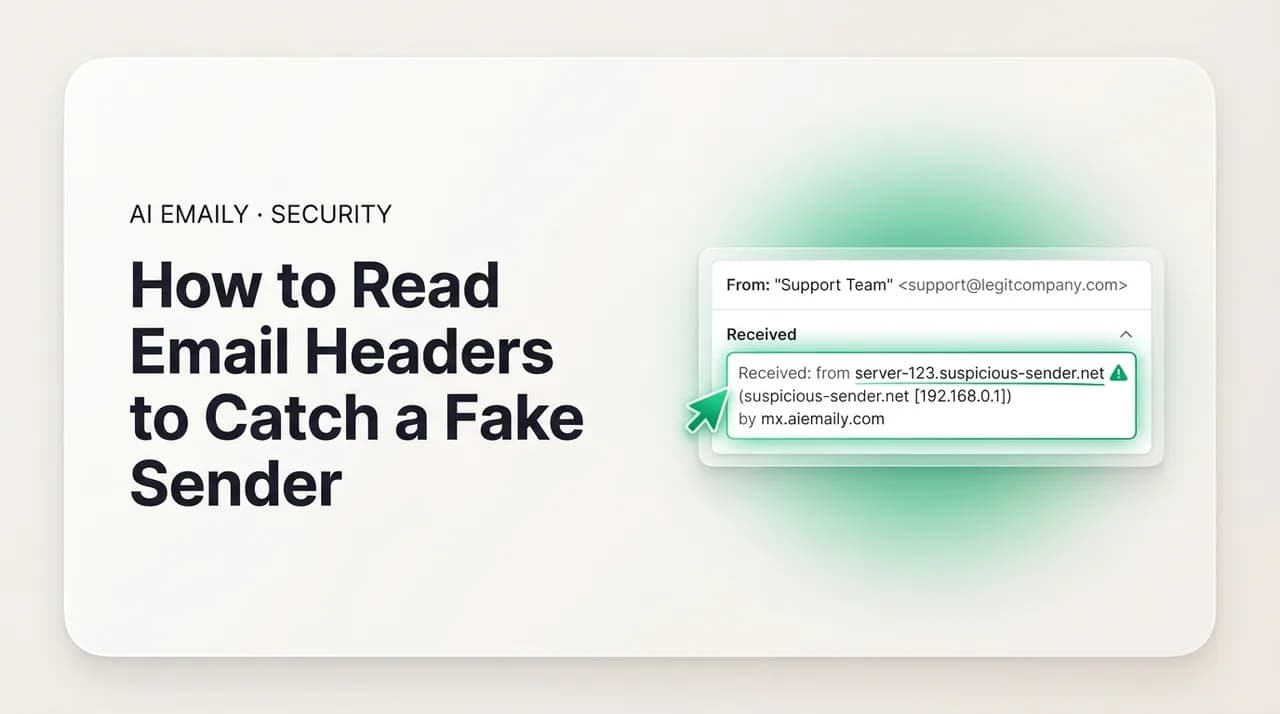
The short answer
To check email headers, open the message source (Show original in Gmail, Properties in Outlook) and find the Authentication-Results line for SPF, DKIM, and DMARC. Read the Received chain bottom-up to trace the route and IP, then compare From, Return-Path, and Reply-To. A DMARC fail or mismatched addresses signals a forged sender.
Learn how to check email headers: view the source in Gmail, Outlook, Apple Mail, and Yahoo, read the Received chain, check SPF/DKIM/DMARC, and trace a sender.
On this page
- 01What are email headers, and why should you read them?
- 02What information is actually inside an email header?
- 03How do you view the full email header in your mail app?
- 04How do you read the Received chain from the bottom up?
- 05How do you read the SPF, DKIM, and DMARC result lines?
- 06How do you find the originating IP and trace it?
- 07What do Message-ID, Return-Path, and Reply-To reveal?
- 08How do you spot spoofing in the headers?
- 09Which email header analyzer tools should you use?
- 10How does AI Emaily read auth results and flag failures for you?
- 11Putting it together: your two-minute header check
What are email headers, and why should you read them?#
Every email you receive arrives with a hidden record attached to it — a block of technical metadata that travels invisibly above the message you actually read. This is the header. The part you see in your inbox (the sender's name, the subject, the body) is the easy, friendly surface. The header is the machinery underneath: who the message claims to be from, every mail server it passed through on its way to you, the time it was handled at each stop, the cryptographic checks that ran along the way, and a string of internal identifiers that the mail system uses to route, sort, and trace the message. If the visible email is the front of an envelope, the header is the full postal record — every cancellation stamp, every sorting-facility mark, and the return address the post office actually used rather than the one printed for show.
That distinction is the entire reason headers matter for catching fakes. The friendly surface of an email is content the sender fully controls. A scammer can type any name into the display field, paste any logo into the body, and copy the tone of a real company in minutes. None of that is proof of anything, because all of it is forgeable for free. The header contains a different class of information: records stamped by the mail servers that handled the message, and the verdicts of authentication checks that the sender cannot easily fake. Those are the signals that survive scrutiny. When you want to know whether an email genuinely came from the person or company it claims, the header is where the honest answer lives.
Reading raw headers has a reputation for being intimidating, and the first time you open one it earns that reputation — you are met with a wall of colons, IP addresses, encoded strings, and lines that wrap unhelpfully across the screen. But almost none of that wall matters for the question most people are actually asking. You are not trying to understand every field. You are hunting for a handful of specific lines: the authentication results, the chain of servers the message traveled, the originating address, and a few sender fields that tend to give a forgery away. This guide walks through exactly those lines, in the order you should read them, so you can run a confident check on any suspicious message in a couple of minutes.
Why bother learning this at all when spam filters already exist? Because filters are probabilistic and headers are evidence. A filter gives you a yes-or-no guess based on patterns; the header lets you verify the claim yourself when the stakes are high — a wire-transfer request, a password-reset notice, a message from your bank, an email from your boss asking for something urgent. The most damaging email attacks, including business email compromise and targeted phishing, are specifically engineered to slip past filters by looking legitimate. In those moments, the ability to open the header and read it is the difference between trusting a forgery and catching it. Security guides from Sendmarc, Valimail, and others describe header analysis as the single most reliable way to verify an email's true origin (see Sources).
One more reason to learn this skill in 2026 specifically: the old visual tells are gone. The advice to watch for bad grammar, clumsy logos, and obvious typos assumed scammers were sloppy. AI-generated phishing now produces messages with flawless spelling, on-brand formatting, and copy that can mirror a real conversation. When the surface is perfect, the surface is useless as a signal — and the technical layer underneath becomes the only place left to look. That is the header. By the end of this guide you will know how to open it on every major email service, how to read the parts that count, and how AI Emaily reads those same authentication results for you automatically, so the check happens on every message instead of only the ones you remember to investigate.
Headers are evidence; the inbox view is a claim
What information is actually inside an email header?#
Before you open one, it helps to know the cast of characters you are looking for, because a header is not random noise — it is a predictable set of fields, most of which you can safely ignore. The fields fall into a few groups: identity fields that name the sender and recipient, routing fields that record the journey, authentication fields that carry the security verdicts, and identifier fields the mail system uses to track the message. Knowing which group a line belongs to tells you instantly whether it deserves your attention.
The identity group is the most familiar. From is the visible sender — the address shown in your inbox, and the one a forger most wants you to trust. To, Cc, and Subject are self-explanatory. The catch is that the From address is also the easiest field to spoof outright, which is why it can never be read in isolation; you have to check it against the authentication results and the technical return address described below.
The routing group is the heart of header analysis. Received lines are stamped by every mail server that touches the message, each one adding its own line at the top as it hands the message along. Read in the right order, they reconstruct the message's entire journey from origin to inbox, including timestamps at each hop. There can be one Received line or a dozen, and the chain is where you trace where a message truly came from. We give it its own section below because it is that important.
The authentication group is where the verdicts live. Authentication-Results is the summary line your provider writes, stating whether SPF, DKIM, and DMARC passed or failed, each followed by the domain it checked. You will sometimes also see a separate Received-SPF line and a DKIM-Signature block; those are the raw inputs, but the Authentication-Results summary is what you read first. This group answers the security questions directly and is the fastest path to a verdict.
The identifier and address group rounds it out. Return-Path is the technical bounce address — the envelope sender the mail system actually used, which can differ from the visible From. Reply-To, when present, tells your client where a reply should be sent, which forgers sometimes redirect to an account they control. Message-ID is a unique fingerprint assigned to the message, useful for spotting forgeries and tracing a specific email. Date is the claimed send time. Finally, you will see many lines beginning with X- — these are non-standard, provider-specific fields (like spam scores or X-Originating-IP) that vary from one service to another and are bonus information rather than core signals.
That is the whole map: identity (who it claims to be), routing (where it went), authentication (whether the claim checks out), and identifiers (how the system tracks it). The next sections take these in the order you should read them on a suspicious message — view the header, read the authentication results for a fast verdict, trace the Received chain and originating IP if you need to dig deeper, then weigh the sender-address fields. Here is a compact reference to keep beside you while you read your first few.
| Header field | What it holds | Why it matters |
|---|---|---|
| From | The visible sender address shown in your inbox | The claim the email makes about its origin — and the easiest field to forge, so never trust it alone |
| Received | One line per mail server that handled the message, with timestamps | The message's full route; read bottom-up to trace where it really came from |
| Authentication-Results | Your provider's summary of SPF, DKIM, and DMARC verdicts | The fastest, most reliable signal of whether the sender is genuine |
| Return-Path | The technical bounce (envelope sender) address | Often reveals the real sending domain when it differs from the visible From |
| Reply-To | Where a reply is routed, if different from From | A reply address on an unrelated domain is a classic impersonation tell |
| Message-ID | A unique identifier assigned to the message at creation | A fingerprint for tracing a specific email; an odd or mismatched domain here is suspicious |
| X- fields (e.g. X-Originating-IP) | Non-standard, provider-specific extras like spam scores or sender IP | Useful bonus context, but varies by provider and is not always present |
How do you view the full email header in your mail app?#
You cannot read a header until you reveal it, and every email service hides it behind a slightly different menu — which is the first stumbling block for most people. The good news is that the option always exists; you just have to know where each provider buried it. The labels vary (Show original, View message source, View raw message, All headers, Internet headers) but they all do the same thing: expose the full, raw header text so you can read it or copy it into an analyzer. Below are the exact steps for the four services most people use, on both desktop and where relevant mobile.
A note before you start: on most providers, viewing the header is a read-only, completely safe action. You are not opening attachments, clicking links, or loading remote content — you are just asking the mail app to show you metadata it already received. So even for a message you strongly suspect is malicious, opening its header to investigate is safe, as long as you do not interact with anything else in the message. That is part of what makes header analysis such a useful tool: it lets you scrutinize a dangerous email without taking any of the risky actions the email wants you to take.
One important limitation to set expectations: viewing full headers is reliably available on the desktop and web versions of these services, and on a few mobile apps, but several mobile apps either hide the option or show only a partial header. If your phone will not surface the full source, the standard move is to forward the message to yourself and open it on a computer, or use the web version in your phone's browser. Reading a header on a cramped phone screen is unpleasant anyway, since the long lines wrap badly, so a larger screen is genuinely the better tool for this job.
On the web (mail.google.com), open the email, click the three-dot "More" menu in the top-right corner of the open message, and choose "Show original." Gmail opens a new tab with the full raw header and message, plus a tidy summary box at the top showing SPF, DKIM, and DMARC results — Gmail does some of the analysis for you. There is a "Copy to clipboard" button there if you want to paste the header into an external analyzer.
In the Gmail mobile apps, the full "Show original" view is limited; you can see basic details by tapping the sender, but to read the complete header reliably, open the message in a desktop browser or forward it to yourself and use the web version. Google's own support documentation describes the "Show original" path as the way to trace an email with its full header (see Sources).
When your phone hides the header, forward it to yourself
How do you read the Received chain from the bottom up?#
Once the header is open, the Received lines are where you trace the message's actual journey — and the single most important rule is that you read them from the bottom up. This trips up nearly everyone at first, because we instinctively read top to bottom. But the chain is built in reverse: each mail server that handles the message adds its own Received line at the top, pushing the earlier ones down. So the line at the very bottom of the Received stack is the first server that touched the message (closest to the sender), and the line at the very top is the last server (your own mail provider, closest to you). To follow the route in the order it actually happened, start at the bottom and work your way up.
Think of it as a stack of dated stamps where each new handler stamps on top of the previous one: the bottom stamp is the origin, the top stamp is the final delivery. The Sendmarc and iptrackeronline header guides both emphasize this bottom-up direction as the foundation of tracing an email's origin (see Sources). Get the direction right and the rest follows naturally.
What are you looking for as you read down to the bottom? The originating server — specifically, the bottom-most Received line that contains a real, public IP address. That line typically records where the message genuinely entered the mail system, and the IP it names is the address you can later look up to identify the true source. Each Received line generally follows a readable pattern: it names the server that received the message, the server it received it from (often with that server's hostname and IP in parentheses), the server's own identity, and a timestamp. You do not need to decode every token. Find the bottom line with a public IP, note that IP, and note the hostname beside it — that is the origin.
Timestamps are the second thing to read, because they expose a specific kind of tampering. As you move up the chain (forward in time), each hop's timestamp should be the same as or later than the one below it. The message can only move forward through time as it is handed from server to server. If you see timestamps that run backward — a server higher in the chain claiming an earlier time than one below it — or impossibly large gaps between hops, that is a strong signal that someone manually inserted fake Received lines to disguise the message's true origin. Forgers sometimes prepend bogus Received headers to make a message look like it came from a trusted source; inconsistent timestamps are how that forgery shows itself.
A practical caution: only the Received lines added by servers you trust are themselves trustworthy. An attacker controls everything below the point where the message entered a legitimate mail system, so they can write whatever they like into the lower Received lines, including fake hostnames designed to look reassuring. The lines you can rely on are the ones stamped by your own provider and other reputable mail systems near the top. This is why the originating IP — the public IP at the bottom, recorded by the first legitimate server to accept the message — is more reliable than any hostname the lower lines claim. The IP is harder to fake convincingly than a self-asserted name, which is exactly why the next section focuses on it.
Here is what a simplified Received chain looks like once you orient yourself. Read it from the bottom (the origin) to the top (your inbox), and notice how the timestamps move steadily forward as the message climbs.
Trust the bottom IP, not the hostnames below it
How do you read the SPF, DKIM, and DMARC result lines?#
If you only read one part of a header, read this one. The Authentication-Results line is the fastest and most reliable way to judge whether an email is genuine, because it carries the verdicts of three checks that a forger cannot easily pass. Major providers — Gmail, Outlook, Yahoo and others — run these checks on every incoming message and stamp the outcome directly into the header as a compact summary, usually reading something like spf=pass, dkim=pass, dmarc=pass, each followed by the domain it evaluated. Find that line, read the three verdicts, and note the domain attached to each. That single step gives you most of the answer with almost none of the complexity of the rest of the header.
Here is what each check actually verifies, in plain terms. SPF (Sender Policy Framework) confirms whether the message came from a server that the domain's owner authorized to send its mail — it answers, did this come from an allowed sending server? The domain owner publishes a list of permitted servers in their DNS, and SPF checks the sending IP against that list. DKIM (DomainKeys Identified Mail) adds a cryptographic signature to the message so the receiving server can verify two things: that the message was not altered in transit, and that it genuinely came from the claimed domain — it answers, was this tampered with, and is the signature valid? DMARC (Domain-based Message Authentication, Reporting and Conformance) ties the two together and adds the crucial check of alignment: it confirms that the domain you actually see in the From line matches the domain that passed SPF or DKIM, and it tells receiving servers what to do when a message fails. Valimail and TechTarget describe the division of labor exactly this way — SPF checks the server, DKIM checks the contents, DMARC checks the visible identity and the policy (see Sources).
Why do you need all three rather than just one? Because the first two each leave a gap that the third closes. A message can pass SPF and still display a forged From address, because SPF checks the technical envelope sender, not the name you see. A message can pass DKIM and still be sent under a domain that is not the one in your inbox. Only DMARC verifies that the domain in front of your eyes is the one that authenticated. That is why, when you read the results, DMARC=pass is the verdict that carries the most weight: an aligned DMARC pass is the strongest single signal that a sender is who they claim to be. A DMARC fail on a message claiming to be from a large, well-run organization — the kind that always authenticates its mail — is correspondingly one of the most serious red flags a header can show.
It is worth understanding why a legitimate email occasionally fails one of these checks, so you do not over-react to a single fail. Forwarding is the classic culprit: when a message is forwarded through a mailing list or an auto-forward rule, the path changes and SPF can break even though the original sender was perfectly honest. This is precisely why DMARC was designed to pass when either SPF or DKIM aligns, rather than requiring both. So a lone SPF fail on forwarded mail is weak evidence on its own. A DMARC fail, where nothing aligned to the visible sender, is far stronger evidence of a problem. Weigh the verdicts by their meaning rather than treating every fail as identical — and combine them with the other header signals rather than reading any one in isolation.
One caution that catches people out: a pass is not a guarantee of honesty. Authentication proves that the sender controls the domain that passed — it does not prove the human behind it is trustworthy. An attacker who registers a convincing lookalike domain (say, a name that reads like your bank's with one swapped character) and sets up SPF, DKIM, and DMARC on it correctly can earn a genuine DMARC pass for that fake domain. The header will say everything checks out, because for that domain it does. The only thing that catches this is reading the domain name itself and noticing it is not the real one. So always read the authentication verdict alongside the actual domain it applies to, never as a standalone yes-or-no. This table summarizes how to interpret each result.
| Check | What it verifies | What pass means | What fail can mean |
|---|---|---|---|
| SPF | The sending server is on the domain owner's authorized list | Came from a server the domain permits to send | Unauthorized server (possible spoof) — or a legit message forwarded, which breaks SPF harmlessly |
| DKIM | A cryptographic signature confirms the message was not altered and matches the domain | Contents intact and signed by the claimed domain | Signature missing or broken — content may be forged, modified, or stripped in transit |
| DMARC | Alignment: the visible From domain matches what passed SPF or DKIM, plus the owner's policy | The visible sender genuinely authenticated — strongest single signal | The visible sender did not match an authenticated domain — a strong spoofing indicator |
| Alignment (within DMARC) | Whether the authenticated domain is the same one you see in From | What you see is what authenticated | Something authenticated, but not the domain shown to you — classic forged-From pattern |
A pass proves domain control, not honesty
How do you find the originating IP and trace it?#
When the authentication results leave you uncertain, or when you simply want to know where a message physically came from, the originating IP address is the answer. As covered above, you find it in the Received chain: read from the bottom up and locate the bottom-most Received line that contains a real, public IP address. That IP is where the message entered the mail system — the closest thing a header gives you to a physical return address. Some providers also stamp a separate X-Originating-IP or X-Sender-IP header, which can name the sender's IP directly; when present, that is a convenient shortcut, but it is non-standard and not always there, so the Received chain remains the dependable source.
Be careful to take the public IP, not a private one. You will sometimes see addresses in the ranges starting with 10., 172.16. through 172.31., or 192.168. — these are private, internal addresses used inside an organization's own network, and they tell you nothing about the external origin. The IP you want is a routable public address, which is what the first legitimate, internet-facing mail server records when it accepts the message. If the bottom line shows a private address, move up the chain to the first public IP. That is your originating address.
Once you have the IP, you trace it with a reverse lookup. A reverse DNS lookup (or PTR lookup) turns the numeric IP into the hostname registered to it, which often reveals the network or provider it belongs to. A WHOIS or IP-ownership lookup goes further and tells you which organization owns the IP block, along with the country, region, and internet service provider behind it. Free tools make this trivial: paste the IP into a service like MXToolbox's reverse-lookup, an IP geolocation tool, or AbuseIPDB, and you get back the owner, location, and any history of abuse reports associated with that address. iptrackeronline and others describe extracting the IP from the Received chain and looking it up as the standard way to map an email to a real-world source (see Sources).
What does the result actually tell you? Mainly, whether the origin is consistent with the claim. An email purporting to be a shipping notice from a major US retailer that traces back to a residential broadband connection in an unrelated country, or to a hosting provider with a long list of abuse reports, has just contradicted itself — the claimed sender and the physical origin do not match, which is a strong signal of forgery. Conversely, mail from a large company usually originates from that company's own mail infrastructure or a reputable email-sending platform, which the lookup will identify. The geolocation is approximate (it points to the network's registration, not the person), so treat it as corroboration rather than proof, and weigh it alongside the authentication results rather than on its own. The originating IP is one strong evidence point among several: combined with a DMARC fail, a mismatched Return-Path, or a backward timestamp, it turns a hunch into a confident conclusion.
- 1
Find the bottom public IP in the Received chain
Read the Received lines from the bottom up and locate the lowest line containing a routable public IP (ignore private ranges like 10.x, 172.16–31.x, and 192.168.x). That address is where the message entered the mail system.
- 2
Check for an X-Originating-IP shortcut
Scan for an X-Originating-IP or X-Sender-IP header. If your provider stamped one, it names the sender's IP directly — a handy confirmation, though not every provider includes it.
- 3
Run a reverse DNS and WHOIS lookup
Paste the IP into a reverse-lookup or IP-ownership tool (MXToolbox, an IP geolocation service, or AbuseIPDB). You will get the hostname, the owning organization, the country, the ISP, and any abuse history tied to that address.
- 4
Compare origin to claim
Ask whether the physical origin fits the email's claim. A note from a US bank that traces to consumer broadband in an unrelated country, or to a flagged hosting provider, has contradicted itself — read that as a strong forgery signal alongside the authentication results.
The IP is a lead, not a confession
What do Message-ID, Return-Path, and Reply-To reveal?#
Beyond the route and the authentication verdicts, a small set of address and identifier fields quietly give away a large share of forgeries — often faster than anything else, because forgers frequently overlook them. The reason these fields are so revealing is that they serve the mail system's plumbing rather than the human reader, so a scammer focused on making the visible email look right will sometimes leave the technical fields pointing somewhere they did not intend you to see. Three are worth checking on any suspicious message: Return-Path, Reply-To, and Message-ID.
Return-Path is the technical bounce address — the envelope sender that the mail system actually used to route the message and to send any delivery failures. It is set behind the scenes and is not the same field as the visible From, which is why it is so useful: a forger can put your bank's address in the From line, but the Return-Path frequently still shows the real sending infrastructure. When Return-Path and From belong to the same organization's domain, that consistency is reassuring. When the visible From says one trusted company but the Return-Path points to an unrelated domain or a random address, that mismatch is a strong sign the visible sender is forged. This is also the domain that SPF actually checks, which is why a From/Return-Path mismatch so often accompanies an SPF or DMARC failure.
Reply-To tells your email client where to send a reply, and it only appears when the sender wants replies to go somewhere other than the From address. There are legitimate uses — a newsletter sent from a no-reply address that routes replies to a support inbox, for example. But Reply-To is also a favorite tool of impersonation attacks, and especially of business email compromise. A classic technique: the From line shows your CEO's real address (or a convincing lookalike), the message reads exactly like something they would send, and the Reply-To quietly points to an attacker-controlled account. You read the familiar name, hit reply, and your message goes straight to the scammer rather than your boss. Whenever a message asks you to reply with anything sensitive, check whether Reply-To matches the From domain before you respond.
Message-ID is a unique identifier stamped onto the message when it is created, typically formatted as a string followed by an at sign and a domain — something like a long random token @ the sending domain. It serves as the message's fingerprint, used for threading and tracing. For forgery detection, two things are worth a glance. First, the domain portion after the at sign usually reflects the genuine sending system, so a Message-ID whose domain has nothing to do with the claimed sender is a minor red flag. Second, a missing Message-ID, or an oddly malformed one, can indicate a message generated by crude bulk-spam tooling rather than a legitimate mail server. On its own a Message-ID is rarely decisive, but it adds a data point, and it is invaluable when you need to reference one specific message to your IT team or to a provider's abuse desk.
The power of these three fields is in how they corroborate one another and the authentication results. Any single mismatch might have an innocent explanation, but they tend to fail together on a forgery: the From says a trusted brand, the Return-Path points elsewhere, SPF fails because the sending domain does not match, DMARC fails because nothing aligns to the visible sender, and a Reply-To redirects your response to a stranger. That cluster is far more convincing than any one line. When you read a header, gather these signals together and weigh the pattern, exactly as the spoofing-detection guides from Trustifi and ExchangeDefender recommend (see Sources).
Check Reply-To before you reply to anything sensitive
How do you spot spoofing in the headers?#
Now put the pieces together into a single routine for catching a forged sender. Spoofing is the practice of making an email appear to come from someone it does not, and while the inbox view is designed to make a spoof look flawless, the header is where the deception almost always leaves fingerprints. No single line is a perfect detector — that is why this guide layered them — but a forged message typically trips several of these wires at once, and that cluster of signals is what gives you confidence. Here is the order to read them and what each one is telling you.
Start with the authentication results, because they are the fastest verdict. A DMARC fail on a message claiming to be from an organization that you know authenticates its mail is the strongest single header signal of spoofing. An SPF fail or softfail adds weight, especially when combined with anything else, though remember it can have an innocent cause on forwarded mail. A DKIM fail or a missing signature on mail from a major brand is also suspicious. If the authentication block is clean, the message is probably genuine — but confirm the domain it authenticated is the real one, because a lookalike domain can pass cleanly for itself.
Next, compare the address fields. Does the visible From domain match the Return-Path domain? A mismatch where From claims a trusted company but Return-Path points to an unrelated relay is a hallmark of a forged sender. Does Reply-To match the From domain, or does it redirect to an unrelated address — the business-email-compromise pattern? And read the From domain itself slowly, character by character: a swapped letter (a one for an L, a zero for an O) or a homoglyph from another alphabet turns a real domain into a fake one that the eye glides right over. Microsoft and others note that combining authentication failures with mismatched addresses gives high confidence that a message is malicious (see Sources).
Then read the Received chain for the route. Does the originating IP, looked up, fit the claimed sender, or does a note from a domestic bank trace to an unrelated country or a flagged host? Do the timestamps move steadily forward as you read up the chain, or do they jump backward or leave impossible gaps that suggest inserted fake Received lines? A route that contradicts the claim, or a chain with tampered timestamps, is a serious problem. Even one obviously forged Received line is enough to distrust the whole message.
Watch specifically for display-name spoofing, because it is the most common technique and it lives at the boundary between the inbox view and the header. The display name is free text the sender types in, so an attacker can set it to a real company or a real person's name while the underlying address is something entirely different — or even paste a fake email address into the display-name field itself, so a phone shows a plausible-looking address that is not the true sender. The header is where you confirm the actual address behind the friendly label. On mobile especially, where the display name is often all you see, expanding to read the real From address is the move that defeats this trick.
Finally, weigh the cluster rather than any single wire. One mismatch can be innocent; a legitimate newsletter might fail SPF on a forward, or use a Reply-To for genuine reasons. But forgeries tend to fail in groups: DMARC fails, the From and Return-Path disagree, the originating IP contradicts the claim, the Reply-To redirects elsewhere, and the domain is a near-miss spelling. When several of those line up, you are not guessing anymore — you are reading the evidence of a spoof. The table below maps each header signal to what it indicates and how strongly to weight it.
| Header signal | What you see | What it suggests | Weight |
|---|---|---|---|
| DMARC fail | dmarc=fail on mail from a brand that authenticates | The visible sender did not authenticate — likely spoofed | Strong |
| From / Return-Path mismatch | From says a trusted brand; Return-Path is an unrelated domain | The technical sender is not the claimed one | Strong |
| Suspicious Reply-To | Reply-To points to an unrelated webmail address | Replies routed to an attacker — classic BEC pattern | Strong (in context) |
| Lookalike From domain | paypa1.com, a homoglyph, or a brand as a subdomain | A fake domain dressed up as a real one | Strong |
| Originating IP contradicts claim | Domestic-brand mail traced to an unrelated country or flagged host | Physical origin does not match the sender | Moderate to strong |
| Backward or impossible timestamps | A higher Received line dated earlier than a lower one | Fake Received lines inserted to hide the origin | Strong |
| Lone SPF fail on forwarded mail | spf=fail but DKIM/DMARC pass; message was forwarded | Often a harmless forwarding artifact | Weak alone |
Forgeries fail in clusters, not alone
Which email header analyzer tools should you use?#
Reading a raw header by hand is a valuable skill, but you do not have to do it manually every time — and for a long, messy header, you probably should not. Email header analyzer tools take the raw text you copied from Show original or View raw message and parse it into a clean, readable report: the hops laid out as a timeline, the authentication results highlighted, the originating IP identified and located, and delays between servers flagged. They turn a wall of text into a structured summary in seconds. For anyone investigating an occasional suspicious message, a good analyzer is the fastest path from raw header to verdict.
Three free tools cover almost every need. Google's Admin Toolbox Messageheader is the friendliest starting point, especially for Gmail users: paste a header and it draws the server hops as a color-coded timeline, highlights delays, and summarizes SPF, DKIM, and DMARC results in plain language. MXToolbox's Email Header Analyzer is the most thorough — it parses the header per the RFC standard, breaks out every Received hop with timing, identifies the originating IP, and ties in its broader suite of DNS, blacklist, and IP-reputation lookups so you can investigate the source without leaving the page. Microsoft also offers a Message Header Analyzer that does the same parsing job and integrates with the Microsoft ecosystem. EmailAnalytics, GlockApps, and Warmy all rank these three as the leading free analyzers (see Sources).
Using them follows the same simple loop regardless of which you pick. Open the suspicious email, reveal its source through your provider's menu (Show original, Properties, All Headers, or View raw message), select and copy the entire header text, then paste it into the analyzer and read the report. Because you are only copying text — never forwarding the message to the tool or clicking anything inside it — this is a safe way to inspect even a clearly malicious email. The analyzer does the tedious parsing; you focus on the verdict: do SPF, DKIM, and DMARC all pass, does the originating IP fit the claim, and do the timestamps run forward without gaps?
A few related tools round out an investigation when the header alone is not enough. IP-reputation services like AbuseIPDB tell you whether an originating IP has been reported for abuse. WHOIS lookups reveal when a sender's domain was registered — a domain created days ago and already emailing you about your account is a glaring sign of a freshly minted copycat. URL and link checkers from vendors such as EasyDMARC let you safely test where a link in the message points without clicking it. None of these is essential for a basic check, but each one closes a gap that a determined forger might exploit.
The honest limitation of all these tools is the one that matters most: they are manual, one-message-at-a-time utilities. They work beautifully on the suspicious email you already decided to investigate — but they do nothing for the message you trusted at a glance and never thought to check. That is the real gap in header analysis as a defense. The skill is reactive by nature: it protects you only on the emails you remember to scrutinize, and the most dangerous forgeries are precisely the ones designed to look unremarkable enough that you never reach for the analyzer at all. Closing that gap is exactly what an inbox that reads the headers for you, on every message, is built to do.
| Tool | Best for | What it shows |
|---|---|---|
| Google Admin Toolbox Messageheader | A fast, friendly first look (great for Gmail) | Color-coded hop timeline, delay flags, plain-language SPF/DKIM/DMARC summary |
| MXToolbox Email Header Analyzer | The most thorough single-message analysis | Full RFC parse, every Received hop with timing, originating IP, plus DNS/blacklist/IP lookups |
| Microsoft Message Header Analyzer | Microsoft and Outlook users | Standards-based parse of hops and authentication results, integrated with the Microsoft ecosystem |
| AbuseIPDB / WHOIS / URL checkers | Going deeper on the source | IP abuse history, domain registration age, and safe link-destination checks |
Copy the header, never forward the email to a tool
How does AI Emaily read auth results and flag failures for you?#
Everything above is a manual, reactive routine: you have to suspect a message, remember to open its header, know where each provider hides it, read the right lines, and run the IP through a tool. That works for the email you already distrust. It does nothing for the forgery engineered to look ordinary — the one you glance at, accept, and act on before any instinct tells you to investigate. The fundamental weakness of header analysis as a personal defense is that it only fires on the messages you choose to check, and attackers design their best work to never trigger that choice. AI Emaily exists to close that gap by reading the headers for you, automatically, on every message that reaches your inbox.
AI Emaily reads the authentication results — SPF, DKIM, and DMARC — on each incoming email and flags messages that fail authentication or arrive unauthenticated, so a forged or unverified sender is surfaced before you act on it. Instead of you remembering to open Show original and squint at the Authentication-Results line, the inbox performs that check on every email and raises a clear, plain-language warning when something does not add up. Suspicious messages get a visible flag rather than blending in. The work you would otherwise do by hand, one message at a time and only when you happened to be suspicious, happens continuously and invisibly across your whole inbox.
The reason that matters is coverage. A human checking headers protects a handful of emails a week — the ones that felt off. An inbox checking headers protects all of them, including the ninety-something percent you would have trusted on sight. Because the dangerous forgeries are specifically the ones built to look unremarkable, automatic checking on every message is the only approach that actually defends against the attacks designed to slip past human attention. AI Emaily turns header analysis from a skill you occasionally remember to use into a baseline that is always on.
Crucially, this happens privately. AI Emaily does not train its models on your mail — your messages are not used as training data, full stop. The analysis serves you and only you. For a tool that reads every email to detect forgeries, that privacy stance is not a footnote; it is the whole point. You should not have to trade your correspondence to a model's training set in exchange for protection from forged senders. The detection runs on your behalf, and your mail stays yours.
AI Emaily works across every email account you connect — Gmail, Outlook, Yahoo, and the rest — rather than locking you into one provider's walled garden. Forgeries do not respect provider boundaries, and neither should your defense: whether a spoofed message lands in your work Outlook or your personal Gmail, the same authentication check and the same flag apply. One inbox, one consistent layer of protection, across all the addresses you actually use. That is a meaningfully different posture from learning four different providers' header menus and checking each one by hand.
You can use it at no cost. The Free plan is $0 and includes the automatic authentication checks and spoof flagging described here, so reading auth results and catching forged senders is not gated behind a paywall. If you want the full assistant — deeper automation across a high-volume inbox and the broader feature set — Pro is $12.42 per month on annual billing. Either way, the header-reading protection is part of the baseline experience. You can connect an account and start at app.aiemaily.com/signup; if you want to understand the privacy and security architecture in more depth first, the security overview and documentation lay it out.
- Reads SPF, DKIM, and DMARC on every incoming message and flags failures — no manual Show original required.
- Surfaces forged and unauthenticated senders with a clear warning, so dangerous mail stops blending in.
- Checks every email automatically, including the ones you would have trusted at a glance — closing the reactive gap.
- Private by design: AI Emaily never trains on your mail, so detection serves you and your messages stay yours.
- Works across every account you connect — Gmail, Outlook, Yahoo, and more — for one consistent layer of protection.
- Free plan is $0 with spoof flagging included; Pro is $12.42/month on annual billing for the full assistant.
Turn a reactive skill into an always-on check
Putting it together: your two-minute header check#
You now have everything you need to read a header with confidence, so here is the whole routine compressed into a sequence you can run on any message that gives you pause. The point is not to become a forensic analyst — it is to have a fast, repeatable check that turns a vague unease into a clear answer in about two minutes, using only the hard-to-fake signals that live below the inbox surface.
First, open the source. Use Show original in Gmail, Properties or View message source in Outlook, All Headers or Raw Source in Apple Mail, or View raw message in Yahoo. This is a safe, read-only action even on a malicious email, because you are only revealing metadata, not interacting with anything. If your phone hides the full header, forward the message to yourself and open it on a computer.
Second, read the verdict. Find the Authentication-Results line and read SPF, DKIM, and DMARC. A clean spf=pass, dkim=pass, dmarc=pass on a domain spelled exactly like the real sender is reassuring; a DMARC fail on mail from a brand that authenticates is a serious red flag. This single line answers most questions on its own.
Third, check the addresses. Compare the visible From domain to the Return-Path — a mismatch is a strong forgery sign. Confirm Reply-To matches the From domain, especially before replying with anything sensitive. Read the From domain slowly for swapped characters or homoglyphs that turn a real name into a lookalike.
Fourth, trace the route if doubt remains. Read the Received chain bottom-up, find the originating public IP, and look it up — does the physical origin fit the claimed sender? Check that the timestamps move forward without backward jumps or impossible gaps. For a quick parse, paste the whole header into Google Messageheader or MXToolbox and let the tool lay it out.
Fifth, weigh the cluster and verify out of band when it counts. No single signal is decisive, but a forgery usually trips several at once. When the pattern points to a spoof — or whenever a message asks for money, credentials, or urgent action — confirm through a channel you found independently rather than anything in the email. And for an always-on version of this entire routine, let an inbox like AI Emaily read the authentication results and flag failures on every message automatically, so the check no longer depends on you remembering to run it. The skill is worth having; the automation is worth having for the days you forget to use it.
When the stakes are high, verify out of band
Frequently asked
See it in AI Emaily
Keep reading
Sources
- Google Workspace Admin Help — Trace an email with its full header (Show original)
- Sendmarc — How to Read Email Headers: A Comprehensive Guide
- Valimail — How to read email headers: Decode SPF, DKIM, and DMARC
- TechTarget — How SPF, DKIM and DMARC work together
- iptrackeronline — Email Header Analysis: Trace an Email's Origin and Spot Spoofing
- Trustifi — Email Header Analyzer: How to Read Email Headers and Spot Phishing
- Microsoft Learn — Troubleshooting and Identifying Spoofing Attacks
- EmailAnalytics — Email Header Analyzers: The Ultimate Guide and 5 Tools to Use
- MxToolbox — Email Header Analyzer, RFC822 Parser
- Google Admin Toolbox — Messageheader analyzer

Written by
Nafiul HasanNafiul Hasan is an entrepreneur and AI automation system builder with 10+ years of experience turning messy, manual workflows into reliable automated systems. He designs and ships AI enterprise solutions end-to-end — the agent logic, the data plumbing, and the product people actually use — and founded AI Emaily to give busy professionals their attention back. He writes here from the builder's seat: what works, what breaks, and how to put AI to work without giving up control.