How to use @mentions in Outlook to flag the right people

The short answer
To use @mentions in Outlook, type the @ symbol followed by a contact's name in the body of an email, then pick them from the list. Their name is highlighted, they're automatically added to the To line, and their copy gets an @ icon. Filter Mentioned Mail to find every message that mentions you.
How to use @mentions in Outlook: type @ and a name in the body, pick a contact, and they're highlighted and added to To. Filter Mentioned Mail to find yours.
On this page
- 01What does an @mention actually do in Outlook?
- 02How do you @mention someone in an Outlook email step by step?
- 03What happens when you mention someone — for you and for them?
- 04How do you find email that mentions you in Outlook?
- 05What's the difference between mentions in email and mentions in comments or Loop?
- 06Do @mentions work the same in new Outlook, classic, and the web?
- 07How do you @mention someone in Outlook on your phone?
- 08What's the etiquette for using @mentions well?
- 09Why isn't the @ working in Outlook — and how do you fix it?
- 10How does AI Emaily surface what needs you across every account?
- 11Putting it all together
What does an @mention actually do in Outlook?#
You're three paragraphs into an email to a group, and one line genuinely needs a single person to act — Priya has to approve the budget before Friday, but she's buried in the thread with six other people who are only there to stay informed. You could add a sentence at the top spelling out who you mean, hope she reads far enough, and hope she doesn't assume someone else has it. Or you could type a single character — @ — start spelling her name, pick her from the list, and let Outlook do the flagging for you. That's the entire promise of the @mention, and it's one of the quietly most useful features Outlook has shipped in years.
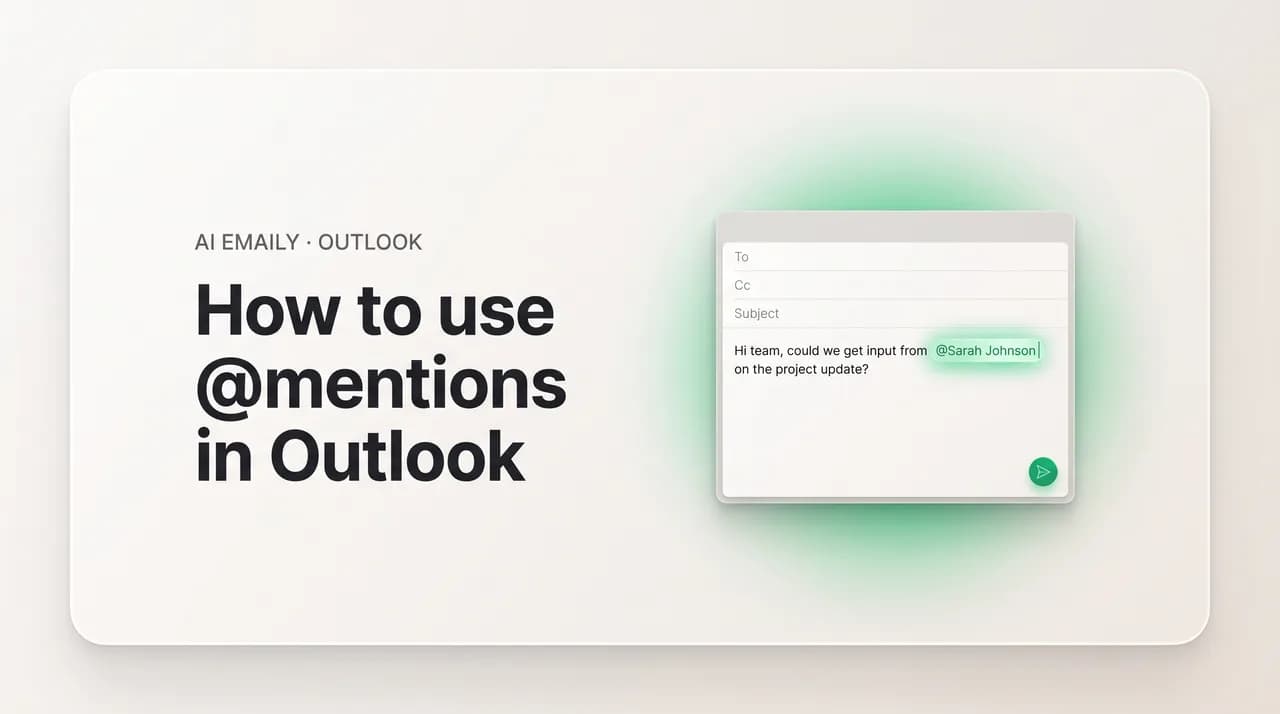
An @mention in an Outlook email is a way to call out a specific person inside the body of a message so it's unmistakable that you're talking to — or about — them. You type the @ symbol followed by the first few letters of their name, choose them from the suggestions Outlook offers, and three things happen at once. Their name gets highlighted in the body so it visually jumps off the screen. They're automatically added to the To line if they weren't already on the message, so a mention can never point at someone who won't actually receive it. And on their end, their copy of the email picks up a small @ icon in the message list, marking it as a message where they were personally called out.
That last part is the piece most people miss, and it's what turns a nice formatting trick into a real productivity tool. Because Outlook tags every message where you were mentioned with that @ icon, you can filter your entire inbox down to just the messages that name you — the ones where someone specifically asked for your attention or your action — and skip past the dozens where you were merely cc'd for awareness. In a busy inbox, that filter is the difference between scanning a hundred messages to find the three that need you and seeing those three immediately.
It's worth being clear about what an @mention is not, because there's a common misconception. Mentioning someone is not the same as sending them a separate alert or a push notification that pings their phone the way a Teams mention might. In a plain email, the @mention is a flag and an addressing shortcut, not a louder bell. The email still arrives as an email. What the mention adds is visibility — the highlight, the automatic To-line placement, and the @ icon — so that within the normal flow of mail, the right person can see at a glance that this one is for them. (Mentions inside collaborative surfaces like Loop components or document comments do generate notifications, and we'll untangle that distinction later, because it trips up a lot of people.)
The feature is genuinely cross-platform, which is part of why it's worth learning once and using everywhere. @mentions work in classic Outlook for Windows, in the new Outlook for Windows, in Outlook on the web, in Outlook for Mac, and in the Outlook mobile apps for iPhone and Android. The exact look of the contact picker and the precise label on the filter shift a little from version to version, but the core gesture — type @, pick a person, watch them get highlighted and added to To — is the same everywhere. This guide walks through all of it: how to mention someone step by step, exactly what changes when you do, how to find the mail that mentions you, how email mentions differ from the mentions you'll see in comments and Loop, the small differences between new and classic and web, how it behaves on a phone, the etiquette that keeps mentions useful instead of annoying, and what to do when the @ key stubbornly refuses to do anything.
The one-sentence version
How do you @mention someone in an Outlook email step by step?#
The mechanics are simple enough that you'll have them memorized after doing it once, but it's worth walking through carefully because two small details — where you type the @ and how the contact suggestions work — are where people occasionally get stuck. The first rule is that mentions live in the body of the message, not in the subject line and not in the To or Cc fields. You can mention someone in the body of an email you're composing, in a reply, or in the body of a calendar event or meeting invite. The place you cannot mention them is the subject; the @ there is just an ordinary character.
Start composing or replying as you normally would. When you reach the point in your sentence where you want to call someone out, type the @ symbol and then immediately begin typing their name — first name or last name both work. As soon as Outlook recognizes the @ followed by letters, it pops up a small list of matching contacts drawn from your address book and your organization's directory, narrowing as you type more letters. You don't have to spell the whole name; a few characters is usually enough to surface the right person.
From that list, click or tap the contact you mean. The instant you select them, the @mention is created: their name appears in the message body, highlighted (typically in a blue or accent color so it stands out from the surrounding text), and — this is the part that quietly does the heavy lifting — if that person wasn't already on the email, Outlook adds them to the To line automatically. You don't have to flip back up to the recipient fields and add them by hand. The mention and the addressing happen in one motion. If they were already a recipient, nothing changes in the To line; they just get the highlight and the @ icon on their copy.
By default the mention inserts the contact's full display name — first and last. You're not stuck with that. You can trim the mention down after it's created: click into it and delete the parts you don't want, for example leaving just the first name so the sentence reads naturally as "Can @Priya confirm the numbers?" The highlight and the underlying link to the contact stay intact as long as you keep the @ and at least part of the name. There's an important corollary here, though, and it's the one people overlook: if you delete the entire mention — the @ symbol and the whole name — Outlook treats that as removing the person, and they drop off the To line. So editing a mention down to a first name is fine; deleting it wholesale un-invites them.
Once you've placed your mention (or several — you can mention more than one person in a single message), finish writing and send the email exactly as you always do. There's no special send button and no extra confirmation step. The recipients you mentioned receive the message like any other email, with their name highlighted in the body and the @ icon on their copy in their message list. The steps below lay out the full sequence.
- 1
Start composing or replying
Open a new email, a reply, or a calendar event in Outlook. Mentions work in the message body of any of these — but not in the subject line, and not in the To/Cc fields directly.
- 2
Type @ where you want to call someone out
In the body, at the point in your sentence where you want to flag a person, type the @ symbol followed immediately by the first few letters of their first or last name.
- 3
Pick the contact from the suggestions
Outlook shows a list of matching contacts from your address book and directory. Click or tap the person you mean. You only need to type enough letters to narrow the list to the right name.
- 4
Watch them get highlighted and added to To
Their name appears highlighted in the body, and if they weren't already on the message, Outlook automatically adds them to the To line. You don't need to add them as a recipient manually.
- 5
Trim the name if you like, then send
Optionally shorten the mention — for example, delete the last name to leave just the first. Keep the @ and at least part of the name intact. Then send the email as usual. Deleting the whole mention removes them from To.
A few letters is all you need
What happens when you mention someone — for you and for them?#
Understanding exactly what an @mention changes — on your side as the sender and on the recipient's side — is what lets you use it deliberately rather than as a vague gesture. The effects are concrete and worth spelling out, because each one solves a specific small problem that comes up constantly in email.
On your side, the moment you select a contact from the suggestion list, two things happen. The name is highlighted in the body of the message in an accent color, visually separating the person you're flagging from the rest of your prose. And that person is added to the To line if they weren't already there. This second effect is more useful than it sounds. A frequent email failure is asking someone to do something in the body of a message they were never actually sent — they were on Cc, or not on the message at all, and the request quietly evaporates. Because a mention forces the person onto the To line, an @mention is, in effect, a guarantee that the person you're asking will receive the ask. You physically cannot mention someone who won't get the email.
On the recipient's side, the effects are what make the feature worth adopting across a team. Their name shows up highlighted in the body, so when they open the message, the line that concerns them is impossible to miss even in a long email. More importantly, their copy of the message gets a small @ icon next to it in their message list — in the inbox view, alongside the sender and subject. That icon is a persistent marker that says "you were personally named in this one." It stays there whether or not they've read the message, so even while scanning an unread inbox, a recipient can see which messages singled them out versus which ones merely landed in their box for background awareness.
There's a subtle but important point about what the mention does not do, and getting this right prevents disappointment. In a standard email, the @mention does not fire off an extra notification — there's no special pop-up, no separate alert, no badge beyond the normal new-mail indicator. The mention's whole job is visibility within the ordinary arrival of email: the highlight, the To-line placement, and the @ icon. If you need to genuinely interrupt someone — a true ping — email isn't the channel for it regardless of mentions, and that's by design; email is asynchronous. What the mention buys you is that when the recipient does look at their mail, the message that needs them stands out and is filterable. The table below summarizes who sees what.
| Effect | On your side (sender) | On their side (recipient) |
|---|---|---|
| Name highlighted in body | You see the linked, accent-colored name as you type | The line that concerns them stands out in the message |
| Added to To line | They're auto-added to To if not already a recipient | They actually receive the email — the ask can't be missed |
| @ icon in message list | Not shown on your sent copy | Their inbox copy gets an @ icon marking the mention |
| Mentioned Mail filter | Not applicable to your own outbox | They can filter their inbox to just messages mentioning them |
| Extra notification / alert | None — it's a flag, not a ping | None beyond normal new-mail indicators (in plain email) |
A mention guarantees delivery of the ask
How do you find email that mentions you in Outlook?#
This is where mentions stop being a courtesy you extend to others and start being a tool that saves your own time. Because Outlook tags every message that names you with an @ icon, it can also filter your inbox to show only those messages — the Mentioned Mail view. If you've ever wished you could cut through a flooded inbox to just the threads where someone specifically asked for you, this is the feature that does it, and most people don't know it exists.
The fastest way to spot mentions without doing anything special is the @ icon itself. Every message where you were mentioned carries that icon in the message list, right alongside the sender and subject. So even with no filter applied, you can scan down a busy inbox and your eye can pick out the messages that named you. That's useful on its own, but the real power is filtering the list down to only those messages so nothing else is in the way.
Where you find the Mentioned Mail filter depends on your version of Outlook, and the label differs slightly. In classic Outlook for Windows, look above the message list for the filter options — by default the list shows All, and next to it you'll find a Mentioned Mail option. Click Mentioned Mail and the view collapses to just the messages where you were @mentioned. Click All again to return to the full inbox. In new Outlook for Windows and Outlook on the web, the equivalent is usually labeled "Mentions me" — you'll find it among the filter or view options above the message list; selecting it filters the view to mentioned-only messages. The concept is identical across versions; only the wording ("Mentioned Mail" versus "Mentions me") and the exact placement vary.
There's a requirement worth knowing, because it explains why the feature sometimes appears to be missing. The Mentioned Mail filter — and the @ icon that powers it — depends on a compatible mail server. It's available for recipients on Exchange Server 2016, Exchange Server 2019, Exchange Online (which includes Microsoft 365 work and school accounts), or Outlook.com. If you're on an older on-premises Exchange server or a third-party mail account connected through IMAP, the mention may still highlight the name in the body, but the @ icon and the filter view may not appear, because that part of the feature lives on Microsoft's mail platform rather than purely in the client. For the vast majority of people on Microsoft 365 or Outlook.com, it just works.
Once you know the filter is there, it changes how you triage. A practical routine: when your inbox is overwhelming, switch to Mentioned Mail (or "Mentions me") first thing and clear the messages that personally named you — those are the highest-probability action items — before you even look at the rest. Then drop back to All for everything else. It's a simple two-pass approach that ensures the mail where someone explicitly asked for you never gets buried under newsletters, notifications, and FYIs. The steps below show how to switch the view.
- 1
Look for the @ icon in your message list
Every message where you were mentioned shows a small @ icon next to it in the inbox — no filtering needed. You can scan for these directly to spot messages that named you.
- 2
Find the filter above the message list
In classic Outlook for Windows, look above the message list where it says All. In new Outlook and on the web, look for the view or filter options in the same area.
- 3
Choose Mentioned Mail (or "Mentions me")
In classic Outlook, click Mentioned Mail. In new Outlook or on the web, choose "Mentions me." The list filters down to only the messages where you were @mentioned.
- 4
Clear those first, then switch back to All
Work through the mentioned messages — they're your most likely action items — then click All again to return to the full inbox for everything else.
Triage mentions first
What's the difference between mentions in email and mentions in comments or Loop?#
Here's the distinction that confuses people most, and clearing it up changes how you use the @ symbol across Microsoft 365. The word "mention" gets used for several related-but-different features, and they don't all behave the same way. The @mention in a plain email is one thing. The @mention you make in a document comment, or inside a Loop component, or in a Teams chat is another. They share the @ gesture and the idea of calling someone out, but what happens afterward — especially whether a notification is sent — is genuinely different.
An @mention in the body of a regular Outlook email, which is everything we've covered so far, is fundamentally a visibility flag inside the mail itself. It highlights the name, adds the person to To, and tags their copy with the @ icon. It does not, on its own, generate a separate notification beyond the normal arrival of the email. The mention's power is that it makes the right line and the right message stand out and become filterable — not that it pings anyone.
An @mention in a comment — in a Word document, an Excel spreadsheet, a PowerPoint slide, attached to a OneNote page — works differently and louder. When you @mention someone in a comment on a shared document, that action sends them a notification, typically an email with a deep link that drops them straight onto the exact paragraph, cell, or slide where they were tagged. The point of a comment mention is to pull a person into a specific spot in a collaborative file and tell them about it. So if you've ever been surprised to get an email saying "so-and-so mentioned you in a comment," that's this feature — and it behaves more like a true notification than an email body mention does.
Loop components add yet another flavor, and they increasingly show up inside Outlook itself, which is why they're easy to conflate with email mentions. A Loop component is a portable, live piece of content — a table, a task list, a paragraph — that you can embed inside an email (or a Teams chat, or a Word doc) and that stays in sync everywhere it's shared. Edit it in the email and it updates wherever else it lives. When you @mention someone inside a Loop component, you draw their attention to that component specifically, and they get a notification about it; they can make edits right there in Outlook or click through to open the component in the Loop app. So a Loop mention sits somewhere between an email mention and a comment mention: it's embedded in your email, but it behaves like a collaborative-surface mention that notifies and links.
Why does this distinction matter in practice? Because it tells you which tool to reach for depending on what you actually want. If you want to flag a person within the flow of an email so the message stands out and lands on their To line — an action item inside ordinary correspondence — use a plain email @mention. If you want to pull someone into a specific point in a shared document and notify them there — a collaborative edit or a question about a particular passage — use a comment mention. If you're working in a live, co-edited block of content embedded in your mail and want a teammate to engage with that block, a Loop mention is the fit. The table below lines them up so the differences are easy to see at a glance.
| Where you mention | What it does | Sends a notification? | Best for |
|---|---|---|---|
| Email body (plain message) | Highlights name, adds to To, @ icon on their copy | No — visibility flag within normal mail arrival | Flagging an action item or person inside correspondence |
| Document comment (Word/Excel/etc.) | Notifies the person with a deep link to that spot | Yes — email with a jump-to link | Pulling someone into a specific passage, cell, or slide |
| Loop component (in Outlook) | Flags a live, synced block of content for them | Yes — notification, with a link to the Loop app | Co-editing an embedded block and inviting engagement |
| Teams chat / channel | Pings them inside Teams with a notification | Yes — Teams notification | Real-time or near-real-time team conversation |
Same @ symbol, different outcomes
Do @mentions work the same in new Outlook, classic, and the web?#
Microsoft is in the middle of a long migration from classic Outlook — the dense, long-standing desktop application for Windows — to new Outlook, a rebuilt, lighter app that shares much of its foundation with Outlook on the web. Both are called "Outlook," which causes endless confusion. The good news for this topic is that @mentions behave almost identically across all three. The core gesture is the same everywhere; only a couple of labels and the exact placement of the filter differ. You don't need to relearn anything when your organization flips you to new Outlook.
In all three — classic Outlook for Windows, new Outlook for Windows, and Outlook on the web — you mention someone the same way: type @ in the body of a message, start typing a name, and pick the contact from the suggestion list. In all three, the result is the same: the name is highlighted, the person is added to the To line if they weren't already, and their copy gets the @ icon. That consistency is deliberate; mentions are a mature feature that Microsoft has carried forward across the redesign rather than reinventing.
The one place you'll notice a difference is the filter for finding messages that mention you. Classic Outlook for Windows labels it Mentioned Mail, found above the message list next to All. New Outlook for Windows and Outlook on the web tend to label the equivalent "Mentions me," found among the filter or view controls in the same region above the list. Same function — show me only the mail that names me — different wording and a slightly different spot. If you've moved from classic to new Outlook and went looking for "Mentioned Mail" and couldn't find it, that's why: look for "Mentions me" instead.
Outlook for Mac belongs in this picture too. It supports @mentions the same way — type @ in the body, choose a contact, get the highlight and the automatic To-line add. The mention experience is consistent with the Windows and web versions. As with everywhere else, the @ icon and the Mentioned Mail filter depend on the account being on a compatible server (Exchange 2016/2019, Exchange Online, or Outlook.com), so a Mac connected to a Microsoft 365 account gets the full experience.
If there's a single practical takeaway, it's this: don't let the new-versus-classic split worry you for mentions specifically. Unlike some features that genuinely disappeared or changed in new Outlook, the mention is stable across the family. Learn the gesture once and it transfers — to your desktop, your browser, your Mac, and, as the next section covers, your phone. The only thing to adjust is which word you look for when you want to filter your inbox down to the messages that mention you.
Lost "Mentioned Mail" after switching to new Outlook?
How do you @mention someone in Outlook on your phone?#
A lot of email gets read and answered on a phone, often in the gaps of a day, so it matters that mentions work on mobile too — and they do. The Outlook apps for iPhone and Android both support @mentions, using the same fundamental gesture as the desktop. If you're replying from your phone and need to flag a specific person in a group thread, you don't have to wait until you're back at a computer.
To mention someone in Outlook mobile, open a new email or a reply and tap into the message body. Type the @ symbol and then start typing the person's name. Just as on the desktop, a list of matching contacts appears; tap the one you mean. The mention is inserted, the name is highlighted, and the person is added to the To line if they weren't already on the message. Then send as normal. The whole flow mirrors the desktop experience, adapted to a touch keyboard.
There's a useful reading-side benefit on mobile as well. When you're scanning your inbox on your phone and you've been mentioned in a message, you can look for the @ mention of your name to quickly see where your attention is needed. On a small screen, where it's easy for important asks to scroll past, having your own name flagged inside messages helps the ones that need you stand out. The behavior is consistent with the desktop: a mention is a visibility aid, helping the right message and the right line surface even on a phone.
A couple of honest caveats keep expectations realistic on mobile. The dedicated Mentioned Mail filter — the one-tap view that collapses your inbox to only messages mentioning you — is most prominent on the desktop and web; the mobile apps emphasize spotting mentions inline (via the highlighted name and, where supported, the @ marker) more than a separate filtered folder. And as on every platform, the @ icon and any mention-filtering capability depend on the account being on a compatible Microsoft server. The practical upshot: mentioning people from your phone works reliably and is genuinely handy for flagging someone in a quick reply; the richest tools for finding mentions of yourself still live on the desktop and web, where the Mentioned Mail or "Mentions me" filter is one click away.
Mobile mentions: easy to send, scan inline to find
What's the etiquette for using @mentions well?#
Like any attention tool, @mentions are powerful precisely because they cut through noise — and that power is exactly why they curdle when overused. A mention that reliably means "you specifically need to do something here" is enormously valuable to a team. A mention sprayed across every name in every email means nothing, and people quickly learn to ignore the @ icon entirely, which destroys the very signal that made it useful. Good mention etiquette comes down to one principle: mention sparingly, and mention for a reason.
The clearest reason to mention someone is to assign or request an action. If you need a specific person to do something — review this, approve that, answer this question, own this task — mention them. The mention highlights their name, guarantees they're on the To line, and lets them later filter their inbox to find exactly the messages where they were asked to act. That's the feature working as intended: "@Priya, can you confirm the figures by Thursday?" is a textbook mention. The person knows it's for them, and the system marks it so they can find it again.
This dovetails with the broader, time-tested email convention about To versus Cc, and mentions reinforce it nicely. Put people who need to respond or take action on the To line; put people who only need to be informed on Cc; and limit the message to people who actually need to read it. Because an @mention forces the mentioned person onto the To line, mentioning is a natural fit for action-required recipients and a poor fit for FYI recipients — you wouldn't mention someone you only want to keep in the loop, because doing so promotes them to To and implies you need something from them. Use mentions to mark the doers, not the watchers.
From there, a handful of habits keep mentions sharp rather than noisy. The list below captures the ones that matter most, and the table after it turns the core do's and don'ts into a quick reference you can keep in mind while writing.
- Mention to assign or request, not to decorate. If you're not asking the person to do or notice something specific, you probably don't need to mention them — a normal Cc is enough.
- One ask, one clear owner. If a message has an action, mention the single person who owns it. Mentioning five people for one task diffuses responsibility and everyone assumes someone else has it.
- Trim to the first name for a natural tone. Editing the mention down to just the first name ("Can @Priya take this?") reads more like writing and less like a system-generated tag, while keeping the highlight and To-line link.
- Don't mention people who should only be informed. Because a mention adds them to To, mentioning an FYI recipient implies you need something from them. Keep watchers on Cc, unmentioned.
- Put the ask near the mention. A mention flags who; your sentence should make crystal clear what you need and by when. The highlight draws the eye — give it something actionable to land on.
- Avoid mentioning for routine, low-stakes notes. Save the @ for messages where standing out genuinely matters. If everything is a mention, nothing is.
- Remember mentions aren't a ping. In plain email, a mention is a visibility flag, not an interruption. If something is truly urgent, pick up the phone or use a real-time channel — don't assume the @ alone conveys urgency.
| Situation | Do | Don't |
|---|---|---|
| Asking one person to act | Mention them by name with a clear, specific ask | Bury the request in a paragraph with no mention |
| Keeping people informed | Add them to Cc, unmentioned | Mention FYI recipients (it forces them onto To) |
| A task that needs an owner | Mention the single person who owns it | Mention several people for one undivided task |
| Tone of the mention | Trim to first name so it reads naturally | Leave clunky full names mid-sentence everywhere |
| Frequency | Reserve mentions for messages that genuinely need attention | Mention in every email until the @ means nothing |
| Urgency | Use a real-time channel for true emergencies | Assume an email mention pings or interrupts them |
Make the @ mean something
Why isn't the @ working in Outlook — and how do you fix it?#
If you typed @ and a name and nothing happened — no suggestion list, no highlight, no auto-add to To — the cause is almost always one of a few ordinary things rather than a broken Outlook. Run through this list before assuming something's wrong; in most cases the fix is quick and the feature is behaving exactly as designed once you spot the condition you missed.
- You typed the @ in the wrong place. Mentions only work in the body of a message (or a calendar event). The @ in the subject line, or in the To/Cc fields, is just a plain character. Fix: type the @ inside the message body and start the name there.
- You didn't pick a contact from the list. Typing @name as plain text isn't a mention — a real mention is created when you select someone from the suggestion popup. If no popup appeared, delete and retype the @ slowly; if it still doesn't appear, the contact may not be resolvable (see below). Fix: choose the person from the suggestions so Outlook creates the linked mention.
- The person isn't in your address book or directory. Outlook suggests contacts it can find — your organization's directory and your saved contacts. If you're trying to mention someone Outlook doesn't recognize, no suggestion appears. Fix: add them as a contact, or type their full email address; once Outlook resolves it, the mention can form.
- Your account is on an unsupported server. The @ icon and the Mentioned Mail filter require Exchange 2016/2019, Exchange Online, or Outlook.com. On an older on-premises Exchange or a third-party IMAP account, the highlight may work but the icon and filter may not. Fix: this is an account-platform limitation, not a setting — the full feature lives on supported Microsoft mail servers.
- You're on a very old or unusual client. The mention feature shipped to the major modern Outlook clients (classic and new Windows, web, Mac, and mobile). A heavily outdated build or a non-Outlook mail app won't have it. Fix: update Outlook to a current version, or use a supported client.
- The Mentioned Mail filter is missing, not the mention. If mentions work when you send but you can't find the filter to see mail that mentions you, you're likely looking under the wrong name. Fix: in classic Outlook look for "Mentioned Mail" above the list; in new Outlook and the web look for "Mentions me."
- Autocorrect or a paste swallowed the @. Occasionally pasting text or an aggressive autocorrect can mangle the @ so Outlook doesn't register it. Fix: delete the character and type the @ fresh from the keyboard, then immediately type the name.
How does AI Emaily surface what needs you across every account?#
Everything above is the best you can do inside Outlook's own walls, and Mentioned Mail is genuinely one of Outlook's better ideas: a way to filter your inbox down to the messages where someone explicitly named you. But notice its boundaries. It only catches the messages where a person remembered to type @ and pick you — and it only works inside that one Outlook account. The far larger category of mail that actually needs you — the direct question buried in a thread where no one mentioned anyone, the deadline implied but not flagged, the reply someone's clearly waiting on, the same urgent issue arriving across your work Outlook and your personal Gmail — sails right past a feature that only knows about literal @mentions in a single mailbox. Closing that gap is part of what AI Emaily is built to do. AI Emaily is an AI-native email client that connects to every provider — Outlook, Gmail, iCloud, Fastmail, Proton, and any IMAP inbox — so it works on top of the email you already use rather than asking you to switch addresses.
The most relevant piece for this topic is AI triage and priority surfacing. Where Outlook's Mentioned Mail can only filter on the explicit @ icon, AI Emaily reads the actual substance of your incoming mail and surfaces what needs you — questions directed at you, requests waiting on a reply, time-sensitive items, threads where you're the bottleneck — whether or not anyone happened to type your name with an @. It's the same instinct behind Mentioned Mail ("show me the mail that's actually for me") taken further: not just the messages that named you, but the messages that need you, identified by meaning rather than by a single symbol. The result is a top-of-inbox view of genuine action items instead of a filter that's only as good as other people's mention habits.
AI Emaily also carries the collaborative-mention idea forward in a way that fits an AI-native client. It supports @mentions in team comments — so you can pull a colleague into a specific message or thread the way you'd mention someone in a document comment, with the context attached — and it brings that across every account you've connected, not just one Microsoft tenant. Combined with priority surfacing, that means the two halves of "what needs my attention" — the things others flag for you and the things the system recognizes as needing you — live in one place, across all your inboxes, instead of being split between a single Outlook's Mentioned Mail filter and whatever you can manually keep track of everywhere else.
AI Emaily is free to start at $0, with a Pro plan at $12.42 per month billed annually for higher volume and the full agent and triage toolkit. If you've ever leaned on Mentioned Mail to find what matters and wished it worked across every account and caught the asks nobody thought to @mention, it's a more complete way to see what genuinely needs you — on the exact same Outlook inbox you have now, plus the rest. You can create an account at app.aiemaily.com/signup and connect your mailboxes in a few minutes.
From "who named me" to "what needs me"
Putting it all together#
The short answer to "how to use @mentions in Outlook" is a single gesture: in the body of an email, reply, or calendar event, type the @ symbol, start spelling someone's name, and pick them from the suggestion list. The moment you do, Outlook highlights their name, adds them to the To line if they weren't already a recipient, and marks their copy of the message with an @ icon. You can trim the inserted name down to just a first name for a natural tone — but delete the whole mention and you remove the person from To, so edit, don't erase.
To find the mail that mentions you, use the @ icon and the filter built around it. In classic Outlook for Windows it's "Mentioned Mail" above the message list; in new Outlook and on the web it's "Mentions me." Switch to it to collapse your inbox to just the messages that personally named you — your most likely action items — then return to All for everything else. The feature works across new Outlook, classic, the web, Mac, and the mobile apps, with only labels and placement differing; the @ icon and filter need a compatible Microsoft server (Exchange 2016/2019, Exchange Online, or Outlook.com).
Keep two distinctions in mind. First, an email-body mention is a visibility flag, not a notification — it makes the right message and line stand out, but it doesn't ping; mentions in document comments and Loop components are the ones that genuinely notify with a link. Second, mentions are only valuable while they stay meaningful: mention to assign or request action, keep informational recipients on Cc, and don't mention so often that the @ becomes noise. And when the @ won't work, it's almost always a wrong-field, no-contact-picked, or unsupported-account issue rather than a bug.
Finally, if the reason you came looking for Mentioned Mail is that important asks keep slipping past you, it's worth questioning the boundary of the feature rather than just your habits. Mentioned Mail catches only what others remembered to @mention, in one account. An AI-native client like AI Emaily reads the meaning of your mail and surfaces what actually needs you — across Outlook and every other provider — and adds @mentions in team comments on top. Mentions in Outlook are a genuinely good tool; AI Emaily is what they point toward once you want "show me what's for me" to work everywhere, not just where someone typed an @.
Frequently asked
See it in AI Emaily
Keep reading
Sources

Written by
Nafiul HasanNafiul Hasan is an entrepreneur and AI automation system builder with 10+ years of experience turning messy, manual workflows into reliable automated systems. He designs and ships AI enterprise solutions end-to-end — the agent logic, the data plumbing, and the product people actually use — and founded AI Emaily to give busy professionals their attention back. He writes here from the builder's seat: what works, what breaks, and how to put AI to work without giving up control.