How to request and set up read receipts in Outlook

The short answer
To set up read receipts in Outlook, request one per message under the Options tab, or set a default for all mail in File, Options, Mail, Tracking. The catch: the recipient is prompted and can decline, receipts work reliably only inside your own Microsoft 365 organization, and many clients ignore them — so a receipt is a hint, not proof.
How to set up read receipts in Outlook: request one per message, set a default for all mail, and read the tracking. Plus why the recipient can decline.
On this page
- 01What is a read receipt in Outlook, and what's the catch?
- 02Read receipt vs delivery receipt: which one do you actually want?
- 03Which version of Outlook are you using?
- 04How do you request a read receipt on a single message?
- 05How do you set read receipts for all messages by default?
- 06How do read receipts work in new Outlook and on the web?
- 07How do you read the tracking results once they come back?
- 08Why do read receipts so often never arrive?
- 09Read receipt vs delivery receipt: what's the difference?
- 10What are the alternatives when you really need to know it was seen?
- 11Can you use read receipts in Outlook on your phone?
- 12How do you turn off or change read receipt responses in Outlook?
- 13Read receipts not working? A quick troubleshooting checklist
- 14How does AI Emaily's read tracking work across every account?
- 15Putting it all together
What is a read receipt in Outlook, and what's the catch?#
You sent an important email — a proposal, a deadline reminder, a contract that needs a signature — and now you're staring at your inbox wondering the same thing everyone wonders: did they actually read it? Not "did it arrive," but did a human open it and take it in? That itch is what sends most people searching for "how to set up read receipts in Outlook," hoping there's a setting that quietly reports back the moment their message is opened.
Outlook does have that setting, and this guide shows exactly where it lives in every version — classic Outlook, new Outlook, the web, and mobile. But there's a catch you deserve to hear first, because it reshapes how much you should rely on what comes back. A read receipt in Outlook is a request, not a tracker. When you send one, Outlook asks the recipient's email program to notify you when the message is opened — and the recipient decides whether that notification is ever sent. They can click "No" when prompted, set their client to never respond, or use an app that ignores the request entirely. So a read receipt that arrives tells you something real, but one that doesn't arrive tells you almost nothing.
It helps to separate two things Outlook can report, because people conflate them constantly. A delivery receipt confirms that your message reached the recipient's mailbox — a fact about the network, and fairly reliable. A read receipt claims the recipient opened the message — a fact about a person, and people can decline to share it. Delivery is about the envelope arriving; reading is about someone choosing to tell you they opened it. The first is mostly dependable; the second is, at best, a polite hint.
There's a second limit that matters as much as the recipient's choice: where the receipt can travel. Read and delivery receipts work most reliably when you and your recipient are inside the same Microsoft 365 or Exchange organization. The moment you email someone on a different provider — a client on Gmail, a vendor on their own domain, a friend on iCloud — the receipt depends on their email program supporting and honoring the request, and a great many don't. So even setting aside the recipient's choice, the technology itself is patchy across the open internet.
So the real version of "how to set up read receipts in Outlook" is several questions in one. How do I request a receipt on a single message, or on every message automatically? Where do I read the results? And — the question that saves the most disappointment — why do they so often never come back, and what can I do instead when I genuinely need to know an email was seen? This guide answers all of them plainly, version by version, then shows a more honest way to think about whether your email is landing.
The one-sentence version
Read receipt vs delivery receipt: which one do you actually want?#
Before you turn anything on, it's worth deciding which receipt you're really after, because Outlook offers two and they answer different questions. Choosing the wrong one is a common reason people feel let down by the feature — they wanted to know an email was read, turned on the receipt that only confirms delivery, and drew the wrong conclusion from it.
A delivery receipt fires when your message is accepted into the recipient's mailbox. It tells you the email cleared the journey from your outbox to their mail server without bouncing — it didn't vanish into a typo'd address or get rejected. What it does not tell you is whether a human ever looked at it; a message can sit unread for a week and still have generated a delivery receipt on day one. Delivery receipts earn their keep when your worry is "did this even arrive?" — emailing an address you're unsure of, or someone whose inbox tends to swallow mail.
A read receipt is meant to fire when the recipient opens the message. This is the one most people actually want, because the real question is rarely "did it arrive" but "did they see it." The trouble is that delivery is a network event Outlook can mostly observe on its own, while reading is a human action the recipient's software has to volunteer — and that the recipient can refuse. So a read receipt is inherently softer than a delivery receipt: more meaningful when it works, far less dependable about working at all.
There's a subtle trap worth naming. A read receipt confirms the message was opened in an email client, not that anyone actually read or understood it. Someone can open an email to clear the bold, or their preview pane can register it as opened while they skim something else. So even a successful read receipt reports "this message was displayed," not "this person absorbed your request and agrees." Keep that gap in mind before you treat a receipt as a commitment. The table later in this guide lays the two types side by side so you can pick deliberately.
Want both? Request both
Which version of Outlook are you using?#
Where read-receipt settings live — and how much control you get — depends entirely on which Outlook is on your screen, so sort this out first. Microsoft has spent recent years moving people from the long-standing desktop application to a rebuilt, lighter one, and confusingly both are called "Outlook." They look similar but differ sharply here: classic Outlook has the richest controls, including a true global default; new Outlook and the web have leaner, per-message controls; and the picture changes again on mobile.
Classic Outlook is the traditional Windows desktop program that ships with Microsoft Office and Microsoft 365. It has a dense ribbon across the top with tabs like File, Home, Send / Receive, and View. This is the only version with a genuine "request a receipt on every message I send" default buried in File → Options, and it's also where you'll find the clearest per-message checkboxes. If your ribbon is busy and a new message opens with an Options tab full of tracking controls, you're in classic Outlook.
New Outlook for Windows is the redesigned app Microsoft is steadily making the default. It's cleaner and faster, built on much of the same technology as Outlook on the web, with a "New Outlook" toggle in the top-right corner that flips between the two. New Outlook lets you request a read receipt on an individual message, but it dropped the classic global default — there's no single switch to request receipts on all mail. It also leans on having a Microsoft 365 or Exchange account; basic personal Outlook.com mailboxes have limited support.
Outlook on the web (sometimes still called Outlook Web App or OWA) is what you use in a browser at outlook.office.com for work accounts. Like new Outlook, it offers per-message read receipts on supported accounts but no all-messages default, and shares the same settings engine, so the two behave almost identically. The web is also where you'll manage how you respond to other people's receipt requests.
Then there's the account question, which sits on top of the version question and is easy to overlook. Read receipts behave most predictably on a Microsoft 365 or Exchange work or school account, especially when both sender and recipient are on the same organization. A personal account, or any email sent to someone outside your organization, leans entirely on whether the recipient's email program supports and honors the request. So the practical question is two-part — which app, and what kind of account — and the rest of this guide is organized around both.
Check the toggle first
How do you request a read receipt on a single message?#
The most common thing people want is to attach a read receipt to one specific email — the proposal, the invoice, the message that actually matters — without nagging every recipient forever. This per-message approach is the right default for almost everyone, because requesting receipts on all your mail tends to annoy regular correspondents and makes you look like you're surveilling routine chatter. Reserve receipts for the handful of emails where knowing it was opened genuinely changes what you'd do next.
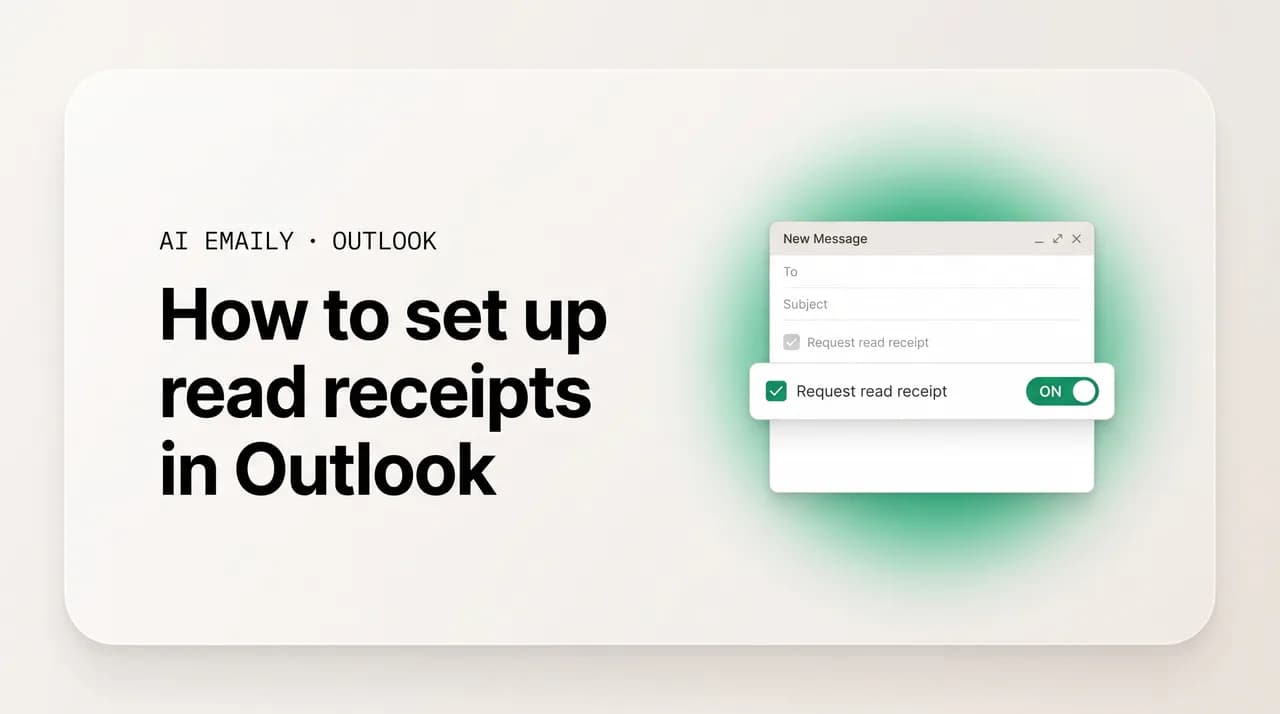
In classic Outlook, the controls sit inside the message you're composing, not in the inbox. Start a new email, then go to the Options tab on the ribbon — a different tab from the Message tab where you type, and where Outlook keeps tracking settings. In the Tracking group there, you'll find two checkboxes: "Request a Delivery Receipt" and "Request a Read Receipt." Tick the read receipt to ask for notification when the message is opened, the delivery receipt to confirm it reached the mailbox, or both. Then finish your email and click Send. The request rides along invisibly; the recipient is the one who sees the prompt.
In new Outlook and on the web, the path is similar in spirit but lives in a menu rather than a ribbon tab, and only on supported Microsoft 365 or Exchange accounts. While composing, open the options menu — often the three-dot "More options" menu in the compose toolbar — and look for "Show message options" or a "Read receipt" / "Delivery receipt" entry. Enable it there, then send. If you don't see the option at all, your account type usually doesn't support it in those apps, and the classic desktop app is your fallback.
The steps below walk through the classic Outlook path, since it's the most widely used and the most explicit. Whichever version you're in, the principle is identical: you set the request on the individual message before sending, and what comes back depends on the recipient's choice and their email program.
- 1
Start a new message
In classic Outlook, click New Email to open a fresh composition window. Write your email as you normally would — the receipt request is added to this one message, so compose it first.
- 2
Open the Options tab
On the ribbon at the top of the message window, click the Options tab. This is separate from the Message tab where you type your text. Tracking and delivery controls live under Options.
- 3
Find the Tracking group
On the Options tab, locate the Tracking group. You'll see two checkboxes: "Request a Delivery Receipt" and "Request a Read Receipt."
- 4
Tick the receipt you want
Check "Request a Read Receipt" to be notified when the recipient opens the message, "Request a Delivery Receipt" to confirm it reached their mailbox, or both for the fullest picture.
- 5
Send the message
Click Send. The request travels with the email invisibly. The recipient — not you — sees any prompt, and whether a read receipt comes back is up to them and their email program.
Per-message is the polite default
How do you set read receipts for all messages by default?#
If you want every outgoing email to request a receipt — a choice that makes sense for some compliance-heavy or sales roles, less so for everyday mail — classic Outlook has a global default that turns the request on automatically, so you never have to remember the per-message checkbox. This is the single most important version-specific fact here: the all-messages default exists only in classic Outlook on the desktop. New Outlook, Outlook on the web, and Outlook for Mac do not offer it, so if you need this behavior, you need the classic Windows app.
The setting lives in Outlook's main options, not inside a message. Go to File in the top-left corner, choose Options, then select the Mail tab. Scroll down to the Tracking section — it's well below the fold. There you'll find a block headed "For all messages sent, request:" with two checkboxes: "Delivery receipt confirming the message was delivered to the recipient's e-mail server" and "Read receipt confirming the recipient viewed the message." Tick the read receipt box (and the delivery box if you want it), then click OK. From that point on, every message you send carries the request automatically.
Think hard before flipping this on, because the consequences are bigger than they first appear. With the global default active, Outlook attaches a request to all your mail — so every recipient who hasn't switched off receipt prompts gets asked to confirm they read your email, every single time. For a high-volume sender that's a lot of small prompts, and frequent correspondents will notice. Many find it intrusive, and it can subtly sour relationships where it isn't warranted. For most users, the per-message approach above is the better fit; reserve the global default for when you genuinely need a record on everything.
If you later regret it, reversing it is the same path: File → Options → Mail → Tracking, untick the boxes, click OK. And remember that even with the default on, all the usual limits still apply — recipients can decline, external clients may ignore the request, and a missing receipt still doesn't mean the email went unread.
- 1
Open File → Options
In classic Outlook, click File in the top-left corner, then choose Options near the bottom of the menu. If you don't see the menu, press Alt then F then T to jump straight to Options.
- 2
Go to the Mail tab
In the Outlook Options window, select Mail in the left-hand column. This page holds composition and sending behavior, including tracking.
- 3
Scroll to the Tracking section
Scroll well down the Mail page until you reach the Tracking heading. Under it is a block labeled "For all messages sent, request."
- 4
Tick the receipt boxes
Check "Read receipt confirming the recipient viewed the message," and "Delivery receipt confirming the message was delivered to the recipient's e-mail server" if you also want delivery confirmation.
- 5
Click OK
Click OK to save. From now on, every message you send automatically requests the receipts you ticked. To undo it later, return to the same screen and clear the boxes.
The global default can annoy people fast
How do read receipts work in new Outlook and on the web?#
If you're in new Outlook for Windows or Outlook on the web, the receipt controls are leaner than classic Outlook's, and there are two differences worth knowing up front so you're not hunting for settings that don't exist. First, you can still request a read receipt on an individual message. Second, there is no all-messages global default — Microsoft removed that switch from the newer experience, so per-message is your only option here.
To request a receipt while composing in new Outlook or on the web, open the message's options menu — usually the three-dot "More options" or "More actions" menu in the compose toolbar — and look for "Show message options" or direct "Request a read receipt" / "Request a delivery receipt" entries. Enable what you want there before sending. The exact wording and placement shift slightly as Microsoft updates the interface, but the controls always sit in the compose window's options rather than in a ribbon tab, because new Outlook doesn't have the dense classic ribbon.
The account question bites harder in the newer apps. Read receipts in new Outlook and on the web are reliably available on Microsoft 365 and Exchange accounts — typically work or school mailboxes — and the most dependable results come when both you and your recipient are inside the same organization. Basic personal Outlook.com, Hotmail, or Live accounts have limited or no read-receipt support in these apps, so if the option is missing or greyed out, your account type is the likely reason. There's no setting you can flip to add it; it's a function of the mailbox.
Because new Outlook and the web share a settings engine, they also share the same approach to the other side of receipts — how you respond when someone requests one from you. That's controlled in the web settings under message handling rather than in any per-message control, and we cover it in the section on turning receipts off below. The short version for sending: per-message only, supported accounts only, and the same recipient-can-decline reality as everywhere else in Outlook.
No all-mail switch in the new apps
How do you read the tracking results once they come back?#
Requesting a receipt is only half the job; the other half is finding the answers when they arrive, and Outlook reports them in two different places. Knowing where to look saves you from concluding nothing happened when a receipt is actually sitting in your inbox, or in the message's own tracking record.
The simplest place receipts show up is your inbox itself. When a recipient's email program honors your request, you receive a small notification — a short email with a subject like "Read: [your subject line]" or "Delivered: [your subject line]" — telling you the original was opened or delivered, often with a timestamp. These arrive as ordinary messages, landing among your regular mail. If you request receipts often, a rule helps: routing anything with "Read:" or "Delivered:" in the subject into a dedicated folder keeps them tidy and easy to scan.
Classic Outlook also keeps a consolidated tracking record on the original message itself, which is the better view when you've emailed several people and want the whole picture at once. Open your Sent Items folder, double-click the message you sent to open it in its own window, and look for a Tracking button or a Tracking option on the ribbon (it typically appears once at least one receipt has come back). The Tracking view lists each recipient alongside the status Outlook has recorded — delivered, read, or nothing yet — so instead of piecing together scattered notification emails, you see a single summary of who has done what. If the Tracking button isn't there, it usually means no receipts have been returned yet, which on its own is not evidence the message went unread.
Two cautions about interpreting what you see. An empty or partial tracking list is ambiguous by design — a recipient who declined, whose client ignored the request, or who read on a phone that didn't prompt shows nothing, indistinguishable from someone who truly hasn't opened the message. And timestamps normally reflect when the message was opened, but client quirks and recipient settings can shift or suppress that. Read the tracking as a set of positive signals — these specific people confirmed opening — not as a complete attendance sheet.
- Inbox notifications: receipts arrive as small "Read: …" or "Delivered: …" emails with a timestamp; consider a rule to file them into a dedicated folder.
- Per-message tracking (classic): open the sent message from Sent Items in its own window and click the Tracking button to see a per-recipient summary.
- A blank tracking list is not proof of an unread email — a decline, an unsupported client, or a mobile read all show as nothing.
- Timestamps usually reflect the open time, but recipient settings and client quirks can shift or suppress them.
- Delivery and read statuses are separate columns — don't read "delivered" as "read."
Why do read receipts so often never arrive?#
This is the section that turns a frustrating mystery into a clear-eyed expectation, because almost everyone who relies on read receipts eventually hits the same wall: they requested one, the email was obviously received, and no receipt ever came back. That silence is not a bug, and it's rarely a sign your message went unread. It's the read-receipt system working exactly as designed — and understanding the half-dozen ordinary reasons it stays quiet stops you from drawing the wrong conclusion at the worst moment.
The biggest reason, by far, is that the recipient can simply decline. When your request arrives, the recipient's email program typically prompts them with a yes-or-no choice: send the confirmation, or don't. Plenty of people reflexively click "No" for privacy, and plenty more have set their client to never send receipts at all, so they're never even asked. There is no way to force a read receipt — the entire mechanism is built on the recipient's cooperation, and a meaningful share choose not to cooperate. A declined request looks identical, from your side, to an email that was never opened.
The second big reason is that the receipt only travels reliably inside your own organization. Read receipts are most dependable when sender and recipient share a Microsoft 365 or Exchange system that can handle the request end to end. Email someone on a different provider — a client on Gmail, a partner on their own mail, a friend on iCloud or Yahoo — and the receipt now depends on their email program choosing to honor a request that originated outside their world. Many simply don't, and the request quietly evaporates. Cross-organization receipts fail far more often than they succeed.
Then there's the client-support problem, which compounds the first two. Read receipts are an old, loosely-followed convention, and email programs vary enormously in whether they implement it. Webmail interfaces, mobile apps, and privacy-focused clients are especially likely to skip the prompt — so your recipient can read your message in full without their software ever offering to notify you, or while it silently suppresses the request. Reading on a phone is one of the most common ways a perfectly-read email generates no receipt at all.
A few smaller factors round out the list. Sent to a distribution list, alias, or group address, receipts often won't come back for the individuals behind it. Organizational policy can strip requests — some IT departments configure their mail systems to block or modify them for privacy and compliance. And a recipient who has globally turned off sending receipts never triggers one. Stack these together and the honest conclusion is that a missing read receipt is the norm, not the exception, and tells you very little. The table below summarizes the common causes.
| Why a receipt didn't arrive | What's happening | Can you do anything? |
|---|---|---|
| The recipient declined | They clicked "No" at the prompt, or set their client to never send receipts | No — receipts are voluntary and can't be forced |
| Recipient is outside your organization | Cross-provider receipts depend on the recipient's client honoring the request | No reliable fix; expect silence from external contacts |
| Their email client ignores receipts | Many webmail, mobile, and privacy-focused clients skip the request entirely | No — it's the recipient's software, not your settings |
| Read on a phone | Mobile apps frequently don't prompt or report, so a read email returns nothing | No — this is one of the most common silent reads |
| Sent to a list, alias, or group | Receipts often don't resolve for the individuals behind a shared address | Email people directly if you need per-person signal |
| Blocked by policy | An IT department configured the mail system to strip or modify receipt requests | Ask IT; otherwise nothing from your side |
No receipt is not proof of an unread email
Read receipt vs delivery receipt: what's the difference?#
Because the two receipt types are easy to confuse and answer genuinely different questions, it's worth seeing them side by side before you decide which to request. The short framing: a delivery receipt is about the network, a read receipt is about a person, and the network is far more cooperative than people are.
A delivery receipt confirms the message reached the recipient's mail server — the envelope arrived. It's generated by mail infrastructure rather than by a human decision, which is why it's comparatively reliable: there's no "No" button on delivery. A read receipt, by contrast, claims the message was opened, which requires the recipient's software to volunteer the information and the recipient not to decline. That single difference — automatic infrastructure versus voluntary human action — explains nearly every way the two behave differently, from how often they succeed to how much you can trust them.
Use the comparison below to pick deliberately. If your worry is "did this arrive at a possibly-wrong address," a delivery receipt is the right, dependable tool. If your worry is "did they actually see it," a read receipt is what you want — just go in knowing it's the softer of the two and will often stay silent even when the answer is yes.
| Delivery receipt | Read receipt | |
|---|---|---|
| What it confirms | Message reached the recipient's mail server | Message was opened in the recipient's client |
| Who generates it | Mail infrastructure, automatically | The recipient's software, with their consent |
| Can the recipient decline? | No — it's a network event | Yes — they can click No or disable receipts |
| Reliability | High within reach of the mail system | Low to moderate; often never arrives |
| Best question it answers | "Did it arrive at all?" | "Did they see it?" (loosely) |
| Confirms a human acted? | No — just that it was delivered | That it was opened, not read or understood |
What are the alternatives when you really need to know it was seen?#
If read receipts are this unreliable, what do you do when knowing an email was opened genuinely matters — a sales follow-up, a contract, a time-sensitive request? There are alternatives, but each comes with real trade-offs, and honesty about them matters more than a tidy recommendation. The blunt truth is that no method gives you reliable, consent-free read confirmation across every provider, because the open nature of email won't allow it.
The most common alternative is third-party email-tracking tools — sales and productivity add-ins that embed a tiny, invisible tracking pixel in your message. When the recipient's email program loads images, the pixel loads from the tool's server, and the tool logs an "open" — without asking permission the way a read receipt does, so it works across providers and doesn't depend on a "Yes." That's the appeal, and also the problem. Tracking pixels raise genuine privacy concerns: you're collecting open data about people who never agreed to it, which is increasingly frowned upon and, in some contexts, legally sensitive. They're also far from perfect — many clients now block remote images or strip pixels by default, privacy tools neutralize them, and a single open can be over-counted by reopens or scanners. Pixel tracking trades the recipient's consent for broader reach, but buys a noisier, ethically murkier signal in return.
A second, simpler alternative is to stop trying to detect reads silently and just ask. A short, direct line — "Could you reply to confirm you've seen this?" — gets you something a read receipt never can: an actual human acknowledgment, on the record, that the person not only opened the message but registered what it asked. It feels lower-tech, but for anything important it's often the most reliable and respectful option, because it treats the recipient as a participant rather than a target. For genuinely critical matters, a confirmed reply or a quick message on another channel beats any automated open-tracking.
The honest bottom line is that there's no clean way to get guaranteed, cross-provider read confirmation without either the recipient's cooperation (read receipts, replies) or a privacy trade-off (tracking pixels). Knowing that frees you from chasing a perfect tracker that doesn't exist, and points you toward the right tool for the stakes: a delivery receipt to confirm arrival, a read receipt as a soft hint, a tracking add-in when you accept the trade-offs, and a plain request for confirmation when it truly counts.
For anything critical, just ask
Can you use read receipts in Outlook on your phone?#
Mobile is where a lot of email gets read, so it's a fair question whether you can request and receive read receipts from the Outlook apps on iOS and Android — and the answer has shifted recently. For a long time the mobile apps had no read-receipt controls at all. More recent versions of Outlook for iOS and Android added delivery and read receipt support, so on an up-to-date app you may be able to request a receipt when composing, and respond to incoming requests, much as on desktop.
Two caveats keep this from being a full solution. Availability depends on a recent enough app version and, as on desktop, a supporting account — so older installs or basic personal accounts may not show the option. And the same fundamental limit applies as everywhere else: the recipient must still approve sending a read receipt, so you can never guarantee one comes back. Mobile support changes where you can request a receipt, not whether the recipient gets to decline.
There's a quieter side to mobile receipts worth flagging, because it cuts the other way. On the receiving end, mobile email apps have historically been inconsistent about read-receipt requests — some don't prompt at all, which is a big reason emails read on phones so often generate no receipt. As the apps add support, it's worth checking your own settings so you're not unintentionally sending read receipts you'd rather not, or conversely missing prompts you'd want to answer. The practical takeaway for senders is unchanged: you can increasingly request receipts from a phone, but a read email on the recipient's phone remains one of the most common ways a receipt silently never arrives.
Mobile changed where, not whether
How do you turn off or change read receipt responses in Outlook?#
So far we've focused on requesting receipts, but the other half of the feature is how Outlook responds when someone requests a receipt from you — and many people search for read receipts precisely because they're tired of being prompted, or because they discovered Outlook was confirming their reads without them realizing. You have full control over this, and it's a different setting from the request controls covered above.
In classic Outlook, the response behavior lives in the same Tracking area as the global request default. Go to File → Options → Mail, scroll to the Tracking section, and find the block governing read receipts you receive. You'll have three choices: "Always send a read receipt," "Never send a read receipt," or "Ask each time whether to send a read receipt." "Never" silently declines every request, so recipients never learn you opened their mail. "Ask each time" gives you the per-message prompt, which many people prefer because it keeps the decision in your hands. Pick whichever matches how private you want your reading to be, then click OK.
In new Outlook and on the web, the same control sits in settings rather than a ribbon. Open Settings (the gear icon), go to Mail, then "Message handling," and find the read receipts option, where you can choose to never send or to be asked each time. This is the place to look if you keep getting prompts you find intrusive, or want to be sure you're not auto-confirming reads.
One important note about the "Do not ask me about sending receipts again" checkbox that appears on the prompt itself. If a read-receipt request pops up and you tick that box while clicking "No," Outlook quietly changes your setting to never send receipts from then on. That's convenient if it's what you wanted, but it surprises people who only meant to decline one message. If your receipts behavior suddenly changed, that checkbox is the usual culprit — and you can always reverse it from the Tracking settings above.
- 1
Open your tracking settings
Classic Outlook: File → Options → Mail → Tracking. New Outlook or the web: Settings (gear) → Mail → Message handling. Both pages control how you respond to others' receipt requests.
- 2
Find the read-receipt response option
Look for the choice governing read receipts you receive — typically "Always send," "Never send," or "Ask each time whether to send a read receipt."
- 3
Choose your behavior
Pick "Never send a read receipt" to silently decline every request, or "Ask each time" to keep the per-message prompt and decide case by case. "Always send" auto-confirms your reads.
- 4
Save
Click OK (classic) or let the web setting save automatically. If your behavior had changed unexpectedly, check whether the prompt's "Do not ask me again" box had flipped you to never-send.
Read receipts not working? A quick troubleshooting checklist#
If receipts aren't behaving — you can't find the setting, or you're requesting them and nothing comes back — the cause is almost always one of a handful of ordinary things rather than a fault. Run through this list before assuming Outlook is broken; in most cases the feature is working exactly as intended, and the issue is a condition you hadn't accounted for.
- You're looking for the all-messages default in the wrong app. The global "request on all mail" setting exists only in classic Outlook (File → Options → Mail → Tracking). New Outlook, the web, and Mac don't have it — request per message instead.
- The per-message option is missing in new Outlook or the web. This usually means your account type doesn't support it. Read receipts are most reliable on Microsoft 365 / Exchange accounts; basic personal Outlook.com mailboxes have limited support. Fall back to the classic desktop app.
- You requested a receipt but none came back. The recipient most likely declined, is outside your organization, used a client that ignores receipts, or read on a phone. None of these are fixable from your side, and none mean the email went unread.
- You can't find the per-message checkboxes in classic Outlook. They're on the Options tab of the message window (in the Tracking group), not the Message tab where you type. Open a new message and switch tabs.
- Receipts are arriving but cluttering your inbox. They come as ordinary "Read: …" and "Delivered: …" emails. Create a rule to route anything with those subjects into a dedicated folder.
- Outlook is sending receipts you didn't intend. You may have ticked "Do not ask me about sending receipts again" on a prompt, which flips you to a fixed behavior. Reset it under Tracking → choose "Ask each time" or "Never send."
- Your organization blocks receipts by policy. Some IT departments strip or modify receipt requests for privacy and compliance. If receipts never work for external mail despite correct settings, ask your IT team whether a policy is in play.
- You're emailing a list, alias, or group. Receipts often won't resolve for individuals behind a shared address — email people directly if you need per-person signal.
How does AI Emaily's read tracking work across every account?#
Everything above is the best you can do inside Outlook's own walls — and notice the shape of what you're left with: a read receipt the recipient can decline, that breaks the moment you email anyone outside your organization, and that goes silent on most phones and many clients. You either accept a hint that frequently never arrives, or reach for a tracking pixel that quietly surveils people who never agreed to it. That gap — between the dishonest pixel and the unreliable receipt — is part of what AI Emaily is built to handle differently. AI Emaily is an AI-native email client that connects to every provider — Outlook, Gmail, iCloud, Fastmail, Proton, and any IMAP inbox — so it works on top of the email you already use rather than asking you to switch addresses.
On read tracking specifically, AI Emaily takes a privacy-first, opt-in stance rather than the all-or-nothing posture of receipts and pixels. Open tracking is something you turn on deliberately, per message or per context — a tool you reach for on the emails that matter, not a default that silently watches everyone you write to. And because the same client protects you on the receiving end, its privacy mode blocks inbound tracking pixels by default, so other senders can't quietly log when you open their mail. It's two-way honesty: you decide when you track, and you're shielded from being tracked without consent.
Because AI Emaily sits across all your accounts at once, your read statuses and sending tools aren't fragmented the way Outlook's are — a receipt that works inside one Microsoft 365 org but nowhere else. You get one consistent place to see signals and act on them, whether the message went to a colleague, a client on Gmail, or a contact on their own domain. Paired with the agent — which drafts replies in your voice and surfaces what needs a response, with every send waiting for your approval in Copilot mode — the result is an inbox that helps you understand what's landing without covert tracking or betting your follow-up on a receipt that may never come.
AI Emaily is free to start at $0, with a Pro plan at $12.42 per month billed annually for higher volume and the full agent, tracking, and automation toolkit. If you've ever requested a read receipt and stared at silence wondering whether your email was seen — or felt uneasy about embedding a hidden pixel to find out — it's a more honest way to handle the same question, on the exact same Outlook inbox you have now. You can create an account at app.aiemaily.com/signup and connect your mailbox in a few minutes.
Honest tracking, both directions
Putting it all together#
The honest answer to "how to set up read receipts in Outlook" starts with which Outlook you're using. In classic Outlook, request a receipt on a single message from the Options tab's Tracking group, or turn on a default for all mail under File → Options → Mail → Tracking — the only place that global switch exists. In new Outlook and on the web, you can request a receipt per message through the compose options menu on a supported Microsoft 365 or Exchange account, but there's no all-mail default. Recent mobile apps can increasingly do the same, on supported accounts and versions.
Once requested, receipts arrive as small "Read:" or "Delivered:" emails, and classic Outlook gathers a per-recipient summary on the sent message under its Tracking button. But the result you'll meet most often is silence — and the most useful thing here is knowing that silence is normal. Recipients can decline, the request breaks across organizations, many clients ignore it, and phones frequently read mail without reporting. A missing read receipt is almost never proof an email went unread, so don't escalate or assume based on one.
When you genuinely need to know an email was seen, match the tool to the stakes: a delivery receipt to confirm arrival, a read receipt as a soft hint, a tracking add-in only if you accept its privacy trade-offs, and — for anything critical — a plain request for the recipient to reply and confirm. And if the uncertainty is a recurring source of stress, question the setup rather than the recipients. An AI-native client like AI Emaily replaces the decline-able receipt and the covert pixel with opt-in open tracking you control and a privacy mode that blocks inbound pixels, across Outlook and every provider you use. Read receipts were never going to give you certainty. Knowing that — and choosing honest tools for the moments that matter — is the real answer.
Frequently asked
See it in AI Emaily
Keep reading
Sources

Written by
Nafiul HasanNafiul Hasan is an entrepreneur and AI automation system builder with 10+ years of experience turning messy, manual workflows into reliable automated systems. He designs and ships AI enterprise solutions end-to-end — the agent logic, the data plumbing, and the product people actually use — and founded AI Emaily to give busy professionals their attention back. He writes here from the builder's seat: what works, what breaks, and how to put AI to work without giving up control.