My Email Was Hacked: How to Recover It and Lock It Down

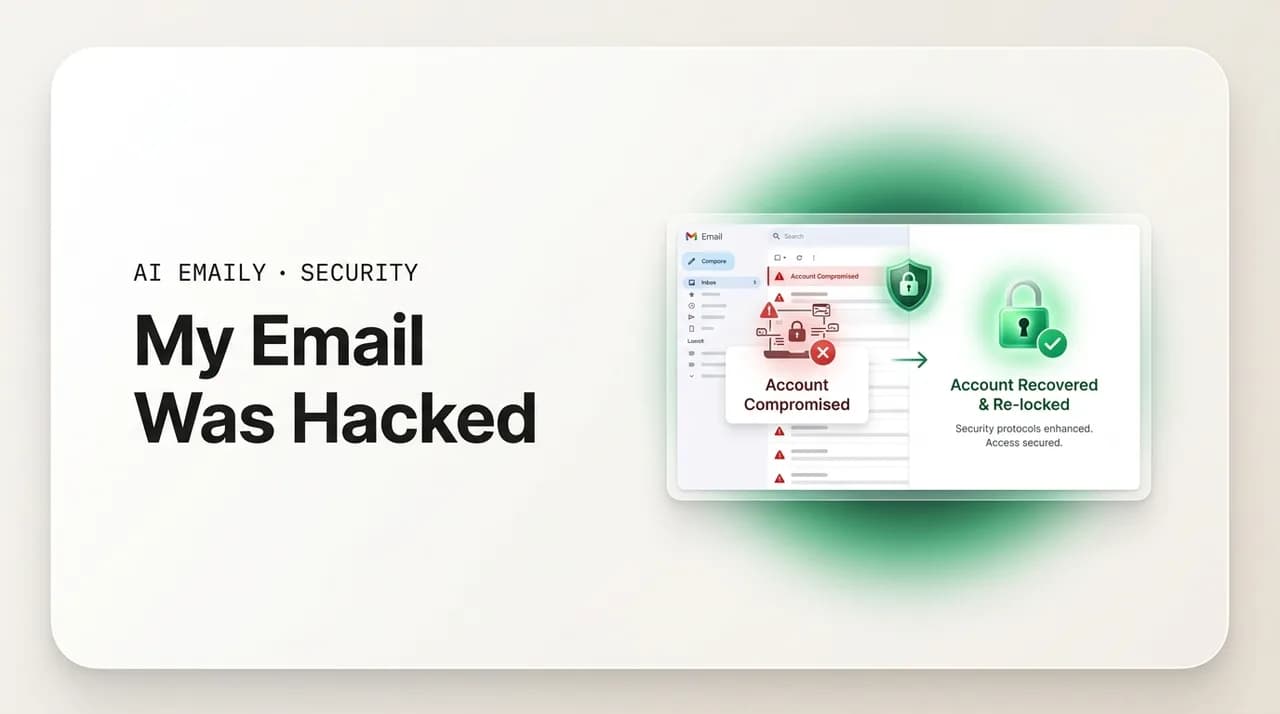
The short answer
To recover a hacked email, regain access through your provider's account-recovery page, immediately change the password, and turn on two-factor authentication. Then sign out all sessions, undo the attacker's hidden changes — forwarding rules, filters, recovery email, and app passwords — notify your contacts, and reset any account that shared the password.
Email hacked? Recover it through your provider's account-recovery page, change the password, turn on 2FA, sign out all sessions, and undo hidden rules.
On this page
- 01What are the signs your email has been hacked?
- 02Step 1: How do you regain access to a hacked email account?
- 03Step 2: How do you change the password and turn on two-factor authentication?
- 04Step 3: How do you sign out all sessions and devices?
- 05Step 4: How do you undo the attacker's hidden changes? (the critical cleanup)
- 06Step 5: Should you notify your contacts, and how?
- 07Step 6: How do you secure other accounts that share the password?
- 08How do you harden your email after recovery?
- 09How does AI Emaily help prevent the hack in the first place?
- 10Putting it all together
If your email has been hacked, the most important thing to understand is why it is an emergency and not just an inconvenience: your email account is the master key to your entire digital life. Think about what a "forgot password" link does. It sends a reset to your email. Your bank, your social media, your cloud storage, your shopping accounts, your work tools — almost every one of them will hand control to whoever can read the messages in your inbox. So an attacker who controls your email does not just have your email. They have a path into everything that trusts your email to prove you are you. That is the real stake, and it is why the right response to a compromised inbox is to move quickly and methodically, in that order.
The good news is that recovery is a known, walkable process, and most people get their account back. Both Google and Microsoft run dedicated account-recovery flows built precisely for this situation — for when you are locked out, or when you can still log in but suspect someone else has been inside. This guide turns those flows, plus the cleanup that has to follow them, into a clear sequence you can follow under stress. We are not going to pad it with reassurance and then leave out the hard parts. The hard part, the one that catches people, is not regaining access — it is the cleanup afterward, undoing the quiet changes an attacker makes to keep a way back in even after you have changed your password. Skip that and you can be locked out again within hours. We will not skip it.
Here is the shape of what follows so you can jump to where you are. First, the signs your email is actually hacked, so you can tell a real compromise from a false alarm. Then the recovery itself, in six ordered steps: regaining access through Gmail's and Microsoft's recovery pages; changing the password and turning on two-factor authentication so a stolen password alone is no longer enough; signing out every other session and device to evict an attacker who is still logged in; the critical cleanup, where you hunt down and undo the forwarding rules, filters, recovery-contact changes, and app passwords the attacker may have planted; notifying your contacts before the account is used to scam them; and securing every other account that shared the same password, because that is how the next breach starts. After the steps, a post-recovery hardening table, an honest look at how a private, AI-native inbox like AI Emaily helps prevent the phishing that usually causes this in the first place, a long FAQ, and a short close.
One mindset to carry through all of it: assume the attacker did more than the obvious. A hacker who got into your inbox rarely just reads it and leaves. They set up ways to keep reading it after you lock the front door — a hidden forwarding rule, a filter that auto-deletes the security alerts, a second recovery email that is theirs. Recovery is not finished when you can log back in. It is finished when every door they could have left open is closed. With that in mind, let us start by confirming you have actually been hacked.
Act fast, but in order — and from a device you trust
What are the signs your email has been hacked?#
Sometimes a hack is obvious — you cannot log in at all, because the attacker changed your password to lock you out. But many compromises are quieter, because a smart attacker wants to keep reading your mail without tipping you off. Knowing the full range of signals helps you catch a hack early, when the cleanup is smaller, and also helps you decide whether something is a genuine compromise or an innocent glitch. The signs below are the ones security teams and providers cite most often. One alone may have a harmless explanation; two or more together is a strong signal to start the recovery process now.
The most unambiguous sign is being locked out: your correct password suddenly stops working and you never changed it. Attackers frequently change the password as their first move to keep you out while they work. Close behind is evidence the account has been used to send mail you did not write — friends or colleagues reply to messages you never sent, your sent folder contains spam or scam emails (or your sent folder is suspiciously empty because the attacker deleted the evidence), or contacts tell you they received a strange link or money request "from you." Because a compromised inbox is most valuable as a launchpad for scamming the people who trust you, outbound abuse is one of the earliest things victims notice.
Then there are the quieter signals, the ones that reveal an attacker trying to stay hidden. Watch for changes to your account settings that you did not make: a new or altered recovery email address or backup phone number, a changed signature, a new mail forwarding address, or filters and rules you did not create — attackers add these early to keep control and to hide their tracks. Watch for security notifications you do not recognize: alerts about a login from an unfamiliar device, country, or time; password-reset emails for your other accounts that you did not request; or notices that your recovery settings changed. And watch for the inbox behaving oddly — emails disappearing or marked read before you have seen them, or expected messages (like security alerts) simply never arriving, which can mean a filter is silently deleting them. The table below collects the signals so you can scan them quickly.
| Sign | What you might notice | Why it happens |
|---|---|---|
| Locked out | Your correct password no longer works, though you never changed it. | The attacker changed the password to keep you out while they use the account. |
| Sent mail you didn't write | Spam or scam messages in your sent folder, or contacts replying to emails you never sent. | A compromised inbox is used to scam your trusted contacts and spread phishing. |
| Changed recovery settings | A new recovery email or phone number you don't recognize. | Attackers reroute recovery to themselves so they can take the account back later. |
| Forwarding or rules added | Auto-forwarding to an unknown address, or new filters that move or delete mail. | Persistence — they keep reading your mail and hide security alerts after you lock them out. |
| Unfamiliar login alerts | Sign-in notifications from a device, location, or time that isn't you. | Someone else is actively logging into the account. |
| Reset emails you didn't request | "Reset your password" messages for your other accounts arriving unprompted. | The attacker is using your inbox to break into your other accounts. |
| Missing or pre-read mail | Expected emails never arrive, or messages are read/deleted before you see them. | A hidden filter is diverting or deleting mail, often to hide the attacker's activity. |
Hacked, or just a glitch?
Step 1: How do you regain access to a hacked email account?#
Everything else depends on getting back in, so this is step one. The route differs depending on whether you are fully locked out or can still log in but suspect intrusion. If you can still sign in, do not relax — go straight to changing your password (step 2) and the cleanup (step 4), because the attacker may still have a session open. If you are locked out, your path is your provider's account-recovery flow, which is designed to verify it is really you and restore access even when the password and recovery details have been tampered with. Do this from a device and network you have used to access the account before if you can: providers weigh familiar signals, and recovering from a recognized device and location markedly improves your odds.
A word on what these flows are doing, because it lowers the frustration. Recovery is identity verification under adversarial conditions — the provider has to let the real you back in while keeping the attacker out, and the attacker may have changed the very recovery contacts the system would normally use. So you will be asked to prove yourself in other ways: a code to a phone or alternate email still under your control, a passkey or security key, knowledge of when the account was created, frequent contacts, old passwords, labels you use. Answer as much as you can, as accurately as you can; partial, honest answers from a familiar device often succeed even when no single proof is conclusive. Below are the specific flows for the two largest providers.
- 1
Go to the official recovery page directly
For Google, go to accounts.google.com and start the sign-in; when your password fails, choose "Forgot password?" or "Try another way." For Microsoft accounts (Outlook.com, Hotmail, Live), go to account.live.com/acsr or use Microsoft's sign-in helper. Type the address yourself — never reach a recovery page through a link in an email, which could be a phishing trap exploiting your panic.
- 2
Enter the account and attempt verification
Provide the email address, then work through the verification prompts: a code sent to a recovery phone or alternate email you still control, a passkey or security key, or an authenticator prompt. If a recovery method still belongs to you and the attacker missed it, this is the fastest road back.
- 3
Use "Try another way" if your recovery options were changed
If the attacker altered your recovery phone and email, exhaust the alternatives. Google's recovery offers fallback questions — device sign-in codes, account creation date, security questions, frequently contacted addresses. Microsoft routes you to a recovery form (account.live.com/acsr) where you supply identity details; the more accurate detail you give, the better.
- 4
Recover from a familiar device, browser, and location
Run recovery on a computer and network you have signed in from before, in a browser you normally use. Providers treat recognized devices and locations as positive signals. If your only devices may be compromised by malware, use a different clean device — but still one tied to you where possible.
- 5
Complete Microsoft's recovery form thoroughly if prompted
If Microsoft cannot verify you automatically, its recovery form asks for past passwords, contacts you email, subject lines of recent messages, and account details like creation date and linked services. Fill in everything you can; submissions are reviewed and a strong set of details is what gets the account restored.
- 6
If automated recovery fails, escalate to support
When self-service recovery will not verify you, look for the option to contact the provider's support or, for a work or school account, your IT administrator — a Google Workspace or Microsoft 365 admin can reset your password and restore access directly. For consumer accounts, keep your recovery-request reference and follow up; do not hand details to any third-party "recovery service" promising guaranteed access.
Two cautions while you are in the recovery flow. First, beware of scams that prey on exactly this moment. Searching "recover hacked Gmail" or "Microsoft account help" surfaces fake support numbers and third-party "recovery experts" who will take your money and your data and deliver nothing — or make things worse. Use only the official provider pages named above, reached by typing the address yourself. Neither Google nor Microsoft has a paid recovery hotline that you find through a search ad. Second, if you genuinely cannot regain access after exhausting the official options, and the account is tied to financial accounts or identity, treat it as an identity-theft situation: secure the downstream accounts directly with each provider (call your bank, freeze credit if needed) and, in the United States, you can report identity theft and get a recovery plan at IdentityTheft.gov. Losing an email account is painful, but the damage is limited by how fast you protect everything that account could unlock.
Don't trust "recovery services" from a search ad
Step 2: How do you change the password and turn on two-factor authentication?#
The instant you are back in, change the password — and understand that this single act does two jobs: it locks out an attacker who knew your old password, and it is the trigger that, on most providers, ends their active sessions when you choose to sign out everywhere (step 3). Do not reuse your old password or a small variation of it; if the old one leaked in a breach, so has every near-twin. Create a long, unique password you have never used anywhere else — a passphrase of several unrelated words, or a string from a password manager. Length beats complexity, and uniqueness beats both: the reason most accounts get hacked is not a brilliant crack but a password reused from a site that was breached, so the one rule that matters most is that this password exists nowhere else.
Changing the password is necessary but not sufficient, because a password alone is a single point of failure — leak it once and the account is open. Two-factor authentication (2FA), also called two-step verification, fixes that by requiring a second proof at login: something you have (a code from an authenticator app, a tap on your phone, a hardware security key, or a passkey) on top of something you know (the password). With 2FA on, a stolen or guessed password is no longer enough to get in, which is why providers and security agencies treat it as the highest-value step you can take to keep an account locked after you reclaim it. Turn it on now, as part of recovery — not "later."
- 1
Set a long, unique password you've never used
Use a passphrase of several unrelated words or a generated string from a password manager. Make it unique to this account — never reused or a tweak of an old one. If the account had a password you used elsewhere, that reuse is likely how it was breached; the fix is a password that exists in exactly one place.
- 2
Turn on 2FA in your account's security settings
In Google, open your Google Account → Security → 2-Step Verification → Get started, and follow the prompts. In a Microsoft account, go to Security → Advanced security options → Two-step verification → Turn on. Both walk you through adding a second factor in a few minutes.
- 3
Prefer an authenticator app or passkey over SMS
Choose an authenticator app (time-based codes) or, better, a passkey or hardware security key, rather than text-message codes. SMS can be intercepted through SIM-swapping; app-based and hardware factors are far stronger. SMS 2FA is still vastly better than none, so if that's all you can set up, set it up.
- 4
Save your backup recovery codes somewhere safe
When you enable 2FA, the provider gives one-time backup codes for when you lose your phone. Save them offline — printed, or in your password manager — not in the email account itself. Storing recovery codes in the inbox they protect defeats the purpose.
- 5
Re-verify your recovery email and phone are yours
Confirm the recovery email address and phone number on the account are genuinely yours and current. The attacker may have changed them (you'll fix that in step 4); locking 2FA to a recovery contact the attacker controls would just hand them a way back in.
2FA is the lock that keeps them out — turn it on during recovery
Step 3: How do you sign out all sessions and devices?#
Here is the trap that catches people who think they are done after changing the password: the attacker may still be logged in. Email accounts keep you signed in across browsers and devices for convenience, and those existing sessions can survive a password change unless you explicitly end them. So an attacker with an open session can keep reading your mail — and even reset your new password using the access they still hold — minutes after you thought you locked them out. The fix is to force every session except your current one to sign out, which invalidates the attacker's access tokens and boots them from the account.
Both major providers expose this directly. In a Google Account, open the Security section and find "Your devices," which lists every device currently or recently signed in; you can review them and sign out of ones you do not recognize, or sign out everywhere. (On many setups, changing your Google password already prompts you to sign out other sessions — confirm it actually happened.) In a Microsoft account, you can sign out everywhere from the account's devices/security area, which signs you out of services and most apps across devices after a short delay. Do this right after the password change and 2FA, while you still have the account's full attention. The list below is the quick version.
- In Google: Google Account → Security → "Your devices" → review the signed-in devices → sign out of any you don't recognize, or sign out of all sessions. Confirm the sign-out actually ran after your password change.
- In a Microsoft account: open your account security/devices page and use the option to sign out everywhere; it ends sessions across services and most apps after a brief propagation delay.
- Treat any unfamiliar device in the list as the attacker — sign it out, and note the device type and location, which can help if you report the incident.
- After signing everyone out, sign back in only on your own trusted devices, and re-authenticate your phone, computer, and mail apps with the new password and 2FA.
- If forwarding or filters reappear or you get signed out again shortly after, an attacker session or a malicious connected app still has access — revisit the cleanup in step 4 and revoke connected apps and app passwords.
A password change alone may not evict an attacker
Step 4: How do you undo the attacker's hidden changes? (the critical cleanup)#
This is the step people skip, and skipping it is the most common reason a "recovered" account gets compromised again days later. A capable attacker does not just read your mail and leave — they plant ways to keep their access and to hide it, so that even after you change the password and sign everyone out, they retain a foothold or can quietly walk back in. Security teams describe these as persistence and defense-evasion techniques, and they are alarmingly routine: forwarding rules that copy your mail to the attacker, filters that auto-delete the security alerts that would warn you, a swapped recovery email or phone so they can reset the account again, and app-specific passwords or connected apps that grant access without ever touching your main login or its 2FA. Recovery is not done until you have walked through and reversed every one of these. Go through the checklist below in your account settings, methodically.
- 1
Remove mail forwarding you didn't set up
Check your forwarding settings for any address you don't recognize and delete it. In Gmail: Settings → "Forwarding and POP/IMAP." In Outlook on the web: Settings → Mail → Forwarding. Auto-forwarding is the classic way an attacker keeps reading your incoming mail — including password resets — after you lock them out.
- 2
Delete filters and rules you didn't create
Attackers add filters/rules that auto-delete, archive, or forward specific messages — often anything mentioning "password," "security," or a bank — to hide their activity and your alerts. In Gmail: Settings → "Filters and Blocked Addresses." In Outlook: Settings → Mail → Rules. Remove anything unfamiliar; read each rule's actions before deleting so you understand what was being hidden.
- 3
Reset your recovery email and phone number
Confirm the recovery email address and backup phone on the account are yours. Attackers swap in their own so they can reset the password again later — this is a primary persistence trick. Remove any you don't recognize and set them to contacts only you control, then make sure your 2FA isn't tied to a number the attacker added.
- 4
Revoke app passwords and connected apps
App-specific passwords and third-party app connections (OAuth) can grant ongoing access that bypasses your main password and even 2FA. In Google: Security → review "Your connections to third-party apps & services" and remove unknown ones, and delete any app passwords you didn't create. In Microsoft: review app passwords and connected apps and revoke anything unfamiliar.
- 5
Check signature, auto-reply, and account aliases
Look at your email signature and any vacation/auto-reply for injected links or messages, and check whether the attacker added a send-as alias or alternate "from" address. These are used to spread scams in your name or quietly receive replies. Reset the signature, turn off any auto-reply you didn't set, and remove unknown aliases.
- 6
Review recent activity and security events
Open your account's recent security activity (Google: Security → recent security activity / where you're signed in; Microsoft: recent activity) to see logins, location, and changes. This confirms whether your cleanup stuck and helps you spot anything you missed. If suspicious changes reappear after this, an active session or connected app still has access — repeat steps 3 and 4.
If a forwarding rule keeps coming back, access is still open
To make the hunt concrete, the example below contrasts what a clean account's settings should show against the telltale changes an attacker leaves behind. Use it as a mental checklist while you work through each settings page — anything in the right-hand column is something to remove and investigate.
Two practices make this cleanup more reliable. First, do it in the right order relative to the earlier steps: change the password and force-sign-out sessions first, then remove the persistence (forwarding, filters, recovery contacts, app passwords). If you remove a forwarding rule while the attacker still has an open session, they can simply add it back; cut access first, then clean. Second, be thorough about connected apps and app passwords specifically, because they are the foothold people most often miss. An app password or an authorized third-party app can keep reading and sending your mail indefinitely, completely independent of your login password and your 2FA — which is exactly why revoking them is essential, and why a stubborn account that keeps misbehaving usually has one of these still attached. When in doubt, revoke everything you do not actively use and re-authorize only the apps you recognize.
Cut access first, then clean — and revoke connected apps
Step 5: Should you notify your contacts, and how?#
Yes — and reasonably soon, because a compromised inbox is most dangerous to the people who trust your name. Attackers use a hijacked account to send phishing and scam messages to your contacts, knowing that a request "from you" sails past suspicion that a stranger's would not. Common plays include a panicked "I'm stranded and need money" message, a malicious link or attachment "you have to see," or a fake invoice or gift-card request. Warning your contacts protects them from being scammed in your name and lets them disregard anything dubious they may have already received. It also flags, gently, that they should be cautious of any odd message that arrived from you during the compromise window.
Send the heads-up through a channel other than the hacked account, especially while you are still cleaning it up — text, a phone call, a message on another platform, or a different email account. Keep it short and non-alarming: explain that your email was compromised, that any unusual message, link, or money request that appeared to come from you should be ignored and not clicked, and that you have now secured the account. You do not need to share details of how it happened. If the account was used to send scams to a specific list of people, reach out to those people directly. The example below is a template you can adapt — the goal is clarity and reassurance, not a confession.
One more contact-related task that protects you rather than them: if any messages in your account contained sensitive information that the attacker could now exploit — banking details, identity documents, passwords stored in old emails, anything used for security verification — treat that information as exposed and act accordingly. Tell affected parties (your bank, your employer) if specific sensitive data was in the inbox, and change anything that was sitting in plain text. This is also a reason, going forward, not to use your inbox as a filing cabinet for secrets: the next section on hardening covers that, but the immediate point is that a hacked inbox means assuming everything readable inside it has been read.
Warn contacts through a different channel — and assume your inbox was read
Step 6: How do you secure other accounts that share the password?#
This step is non-negotiable, and it is the one that turns a single recovered account into a genuinely closed incident. If your email password was reused — even with small variations — on any other site, those accounts are now at high risk, and not in theory. The dominant way accounts get taken over is credential stuffing: attackers take huge lists of username-and-password pairs leaked from past breaches and automatically try them across many other services, betting on the well-documented habit of password reuse. Surveys have found a large majority of people reuse passwords across sites, and the lists fueling these attacks are vast — threat researchers in 2025 catalogued credential-stuffing datasets containing billions of email-and-password pairs. So if your email and its password were exposed, assume every account that shared that password is a target, and get ahead of it.
Work through your important accounts and give each a unique password, prioritizing by damage potential: financial accounts (banking, payment apps, anything with stored cards) first, then accounts that hold identity or can be used to reset others (your other email accounts, your phone carrier, government and tax logins), then social media (which can be used to scam your network), then shopping and everything else. Turn on two-factor authentication everywhere it is offered while you are in each account. To find out which of your accounts were caught in known breaches, check your email address at a reputable breach-notification service such as Have I Been Pwned (haveibeenpwned.com), which tells you where your address has appeared in public breaches so you know which passwords to prioritize. The list below is the working order.
- Change the password on any account that shared the hacked email's password — even close variations — starting with the highest-risk ones.
- Priority order: financial accounts first (banking, payments, stored cards) → other email and identity accounts (carrier, government/tax) → social media → shopping and the rest.
- Make every new password unique, and turn on two-factor authentication on each account as you go.
- Check your email address at a breach-notification service like Have I Been Pwned to see which accounts were exposed and which passwords to change first.
- Use a password manager to generate and store unique passwords, so you never have to reuse one again — reuse is the root cause this step exists to fix.
- Watch your financial and email accounts for unexpected reset emails or logins over the following weeks; follow-on attempts are common after a breach.
Password reuse is how the next breach starts
How do you harden your email after recovery?#
Once the account is yours again and the downstream cleanup is done, the goal shifts from emergency response to making a repeat far less likely. Most hardening is straightforward and pays for itself the first time it stops an attack. The table below is a post-recovery checklist: each row is a concrete control, why it matters, and the action to take. None of it is exotic — it is the same small set of habits that separate the accounts that get retaken from the ones that stay secure. Work down it once now, and revisit it occasionally; the companion guide on how to protect your email from hackers expands each item into a full checklist.
| Harden this | Why it matters | Do this |
|---|---|---|
| Unique, strong password | Reuse is the No. 1 cause of account takeover via credential stuffing. | Use a long, unique passphrase or a password-manager-generated one — used nowhere else. |
| Two-factor authentication | A stolen password alone can't get in once a second factor is required. | Keep 2FA on; prefer an authenticator app, passkey, or hardware key over SMS. |
| Recovery email & phone | Attackers reroute these to retake the account; outdated ones lock you out. | Set recovery contacts you fully control and review them periodically. |
| Connected apps & app passwords | They grant access that bypasses your password and 2FA entirely. | Audit connected third-party apps and app passwords; revoke anything you don't use. |
| Forwarding, filters & rules | The classic persistence trick — they quietly copy or hide your mail. | Periodically review forwarding and rules; remove anything you didn't set up. |
| Phishing awareness | Phishing is how most inbox compromises start in the first place. | Verify unexpected login/security/payment emails through a separate channel; never reuse passwords on a page reached from a link. |
| Don't store secrets in email | A breached inbox exposes everything readable inside it. | Move passwords, IDs, and financial documents out of your inbox into secure storage. |
| Keep devices clean & updated | Malware can steal sessions and passwords, undoing every other step. | Run reputable security software, install updates, and recover from a clean device after any compromise. |
The two habits that prevent most repeat hacks
How does AI Emaily help prevent the hack in the first place?#
Recovering a hacked account is reactive — you are cleaning up after the fact. The better outcome is not getting hacked, and since the overwhelming majority of inbox compromises start with phishing (a message that tricks you into entering your password on a fake page or installing something), the highest-leverage prevention lives at the inbox itself, in catching the lure before you fall for it. This is where the email client you use actually matters. AI Emaily is an AI email client built on a security-first principle: email is untrusted input. It does not assume a message is safe because it looks polished or claims a trusted name. It inspects each one and surfaces the risk to you — so the phishing message that would otherwise have led to a hacked account gets flagged before you act on it.
Here is what that looks like in practice, described honestly — these are protections that meaningfully lower your risk, not a guarantee that nothing dangerous will ever reach you. AI Emaily runs its own AI phishing and scam detection over incoming mail, weighing the signals that mark a credential-harvesting attack: lookalike sender domains, links whose real destination differs from their text, and the patterns of urgency and password-prompting language. When a message looks dangerous, it places a clear suspicious-email warning banner at the top — a plain-language heads-up to verify before you click, reply, or open anything — which is exactly the moment of caution that prevents a hack. Because forwarding rules are a hallmark of an active compromise, AI Emaily can flag suspicious forwarding and rule changes so the silent persistence trick that keeps attackers in does not stay silent. And it connects to your accounts with minimum-scope OAuth — requesting only the access it needs rather than blanket control — and is private by default: it never trains its models on your mail and does not sell your data. The list below sums it up, including what it does not pretend to do.
- AI phishing and scam detection over incoming mail — scoring lookalike domains, deceptive links, and urgency/credential-harvesting language, the signals behind most account takeovers — so the lure is caught before you enter a password.
- Clear suspicious-email warning banners on risky messages, in plain language, delivering the prompt to verify at the moment that prevents a compromise rather than after it.
- Flags suspicious forwarding and rule changes — the classic persistence trick of a hacked inbox — so the silent rerouting of your mail doesn't stay silent.
- Minimum-scope OAuth access: AI Emaily connects to your accounts requesting only the permissions it needs, not blanket control, shrinking what's exposed if anything goes wrong.
- Works across Gmail, Outlook, and every provider you connect, so the same detection and warnings protect all your inboxes in one place.
- Private by default: never trains its models on your mail and never sells your data — the inspection serves your security, not an ad profile.
- Honest about limits: the detection and banners lower your risk substantially but are not a guarantee. Strong, unique passwords and two-factor authentication remain essential.
The way to think about it is prevention plus hygiene. The recovery steps in this guide are what you do after a compromise; a private, security-first inbox is part of how you avoid the next one. AI Emaily backstops the human moment where hacks actually begin — the rushed click on a convincing fake login — by flagging the suspicious message before you act, and it watches for the forwarding-rule persistence that lets an attacker linger. It is not a substitute for the fundamentals: turn on two-factor authentication, never reuse passwords, and keep your devices clean. But pairing those fundamentals with an inbox that treats every message as untrusted, warns you about phishing, flags suspicious forwarding, asks only for minimum-scope access, and never trains on your mail meaningfully lowers the odds you will ever need this recovery guide again. If you want to read more, the security overview and the documentation go into detail, and you can try it free — see the box at the end.
Prevention is the real fix — but keep the fundamentals
Putting it all together#
A hacked email account is an emergency because your inbox is the master key to everything that resets a password to it — but it is a recoverable one, if you move fast and in order. Confirm the compromise from the signs: a password that suddenly fails, mail you did not send, changed recovery settings, forwarding or filters you did not create, unfamiliar logins, or reset emails you never requested. Then walk the six steps. Regain access through your provider's official recovery page — accounts.google.com for Google, account.live.com/acsr for Microsoft — from a device and network you have used before, and ignore any "recovery service" from a search ad. Change the password to something long and unique, and turn on two-factor authentication so a stolen password is no longer enough. Sign out all sessions and devices to evict an attacker who is still logged in. Then do the cleanup that most people skip and most attackers count on: remove unknown forwarding, delete filters and rules you did not create, reset your recovery email and phone, and revoke app passwords and connected apps — cutting access first, then clearing the persistence.
Finally, look outward and forward. Notify your contacts through a channel other than the hacked account, so the people who trust your name are not scammed by it, and assume everything readable in the inbox was read. Secure every other account that shared the password, in order of damage — financial first, then identity, then social, then the rest — because credential stuffing turns one leaked password into many open doors; a breach-notification service like Have I Been Pwned shows you where to focus, and a password manager makes "never reuse" stick. Then harden what is left with the checklist above, the two highest-value habits being two-factor authentication everywhere and unique passwords everywhere. And because nearly every one of these incidents begins with a phishing message, give your inbox a role in preventing the next one: a private, AI-native client like AI Emaily that treats email as untrusted input, flags phishing and suspicious forwarding before you act, asks only for minimum-scope access, and never trains on your mail is prevention working where the attack actually starts. Recovery proves you can get the account back. Prevention is how you make sure you do not have to.
Frequently asked
See it in AI Emaily
Keep reading
Sources
- Google Account Help — Secure a hacked or compromised Google Account
- Microsoft Support — How to recover a hacked or compromised Microsoft account
- FTC — Hacked Email (consumer.ftc.gov) and IdentityTheft.gov recovery plans
- CISA — Recognizing and reporting compromised accounts / phishing guidance
- Have I Been Pwned — check whether your email address has appeared in known data breaches

Written by
Nafiul HasanNafiul Hasan is an entrepreneur and AI automation system builder with 10+ years of experience turning messy, manual workflows into reliable automated systems. He designs and ships AI enterprise solutions end-to-end — the agent logic, the data plumbing, and the product people actually use — and founded AI Emaily to give busy professionals their attention back. He writes here from the builder's seat: what works, what breaks, and how to put AI to work without giving up control.