Email Folders vs Labels: Which Strategy Actually Keeps You Organized?

The short answer
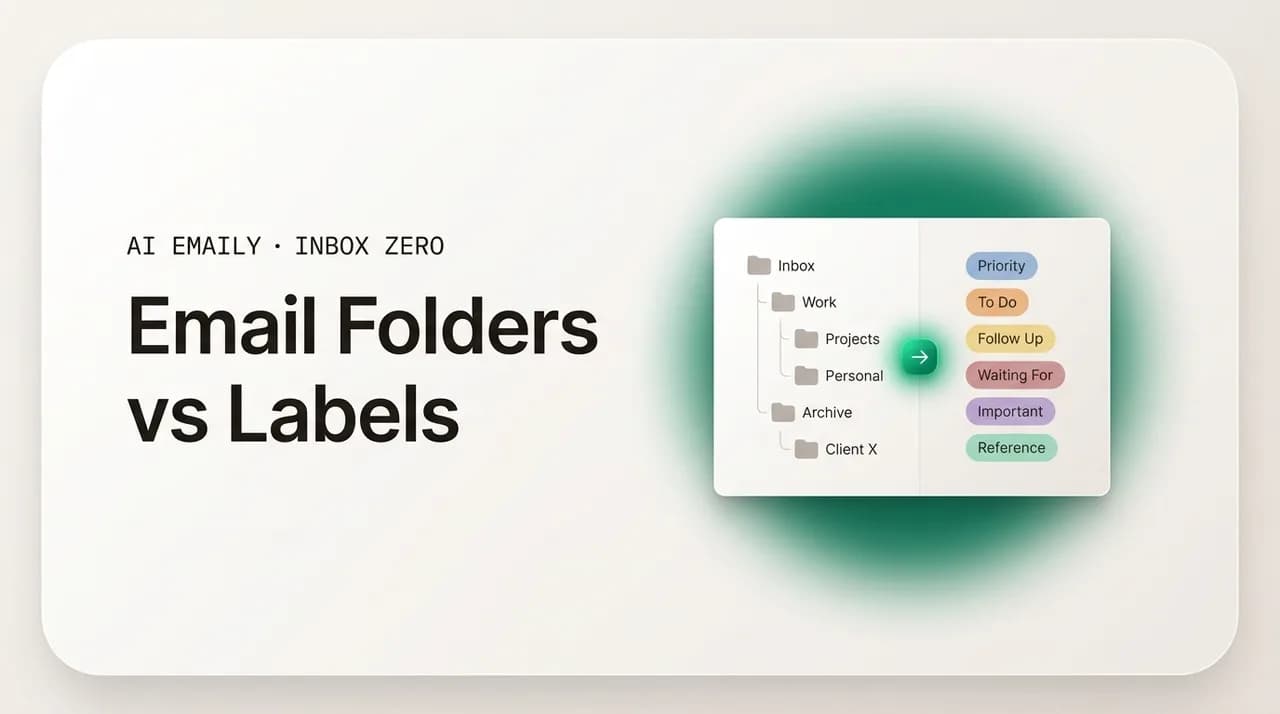
Email folders vs labels comes down to one difference: a folder files a message in one place, while a label is a tag, so one message can wear several at once. Gmail uses labels, Outlook and most IMAP clients use folders. The modern answer skips manual filing: AI reads each message and applies categories, labels, and priority for you.
Email folders vs labels: the real difference is one place vs many tags. How Gmail and Outlook differ, the search-first debate, and the modern AI answer.
On this page
- 01Folders or labels: why does this debate never end?
- 02What is an email folder, exactly?
- 03What is an email label, exactly?
- 04What is the key difference: one place vs many tags?
- 05How do Gmail labels and Outlook folders actually work?
- 06What are the real pros and cons of each?
- 07Search-first vs filing: do you even need folders?
- 08When should you use folders, and when labels?
- 09What is the modern answer: AI categories and smart views?
- 10How does AI Emaily replace manual filing across providers?
- 11Folders or labels: what should you actually do?
Folders or labels: why does this debate never end?#
Ask ten people how to organize email and you will start an argument. Half of them swear by folders, a tidy filing cabinet where every message has its drawer, and the other half insist labels are the only sane way to tag mail that belongs to more than one thing at once. Both camps have a point, and both are partly describing a problem the other does not have, which is why the debate has run for two decades without a winner. The confusion is not really about which is better; it is that folders and labels are two answers to two slightly different questions, and most people have never been told which question they are actually asking.
The stakes feel high because email is where work piles up. A folder structure you choose today is one you will live inside for years, filing into it a dozen times a day and hunting through it when you need something back. Pick the wrong model and you feel the friction constantly: the message you filed under one project that actually belonged to three, the folder tree so deep you forget where things went, the labels you set up with great intentions and stopped applying by the second week. The model you choose shapes how findable your mail is and how much of your day you spend sorting it, so it is worth getting right rather than copying whatever your last app defaulted to.
This guide settles the debate by being precise about what each thing is. We start with the plain definitions, because the single difference between them, one place versus many tags, explains almost everything that follows. Then we look at how the two big email worlds implement them: Gmail, built entirely on labels even when it shows you something that looks like a folder, and Outlook, built on folders even when it offers something that looks like a tag. We weigh the honest pros and cons of each, walk through the search-first debate over whether you even need to file at all, and give you a clear rule for when to reach for which.
Then we get to the part that changes the question. The whole folders-versus-labels argument assumes a human is going to do the filing, and the uncomfortable truth is that most people never keep it up, no matter which model they pick, because filing every message by hand is tedious work demanded at the exact moments you have the least patience for it. The modern answer is not a better folder tree or a smarter labeling scheme; it is removing yourself from the per-message filing decision entirely and letting software that reads your mail apply the categories, labels, and priority for you. We will show how that works, how AI Emaily does it across every provider, and why it makes the original debate mostly beside the point.
If you have ever rebuilt your folder structure for the third time, or looked at a label you created six months ago and could not remember what it was for, this guide is for you. The goal is not to crown a winner; it is to help you understand the trade-off clearly enough to choose well, and then to show you the approach that makes the choice matter a lot less, because the structure maintains itself instead of waiting on your willpower.
Two answers to two questions
What is an email folder, exactly?#
A folder is a container, and a message can only be in one of them at a time. This is the model email inherited from the physical world and from the desktop file system, where it has been the dominant metaphor since the first graphical mail clients. You think of folders the way you think of a filing cabinet: drawers labeled Clients, Invoices, Travel, Personal, and when a piece of paper arrives you decide which drawer it belongs in and put it there. The defining feature, the one that matters for this whole debate, is exclusivity: a document is in exactly one drawer, never two, and to find it again you go to that drawer.
When you move a message into a folder, you are physically relocating it. It leaves your inbox and lives in the folder you chose, and it appears nowhere else. If you file a client's invoice into a folder called Client A, it is in Client A and only Client A; it is not also in Invoices, because it cannot be in two places at once. To make it appear in both, you would have to keep a second copy, which most people learn the hard way is a maintenance nightmare, two copies that drift out of sync, twice the clutter, and no clear answer to which one is real.
This exclusivity is both the strength and the weakness of folders. The strength is cleanliness: every message has exactly one home, every folder shows a non-overlapping set of mail, there is never any double-counting, and the mental model is dead simple, drawers and the things in them. The weakness is rigidity: real email is rarely about exactly one thing, and the moment a message belongs to two categories you are forced to pick a single winner and lose the other dimension. The invoice from Client A that is also part of Project Atlas and also a tax document has to be filed as one of those, and when you later go looking under the wrong one, it is not there.
Folders also tend to grow into hierarchies, folders inside folders, which solves nothing and usually makes things worse. A Clients folder with a subfolder per client, each with subfolders for projects and years, looks organized but creates exactly the decision fatigue that sinks folder systems: every message now requires a multi-step decision about where in the tree it goes, and every retrieval requires remembering the path. Research on email organization is consistent here, people who build deep hierarchies are measurably less productive at finding mail than people with a flat handful of folders, because the cost of navigating the tree outweighs the tidiness it provides. Folders work best kept shallow and small, a few clear drawers, not a cathedral of nested compartments.
Folders are the native model of Outlook, Apple Mail, Thunderbird, and essentially every traditional IMAP email client, which matters because IMAP, the protocol most desktop and mobile mail apps speak, only understands folders. When you set up an account in Outlook or Apple Mail, the structure you see is a folder tree, and any organizing you do maps onto moving messages between those folders. This is why folders feel like the default to so many people: for the entire history of desktop email, they were the only option the underlying protocol offered.
One message, one home
What is an email label, exactly?#
A label is a tag you attach to a message, and a single message can carry as many labels as you want at once. This is a fundamentally different model from folders, and the difference is not cosmetic, it changes what is possible. Instead of moving a message into a container, you stick a marker on it, the way you might put several colored sticky notes on one paper document, and the message itself stays exactly where it is. The labels do not move the message; they point at it. Apply five labels to one email and that email now shows up in five different views, but there is still only one email, sitting in one place, wearing five tags.
Think of it this way: a folder is a drawer you put the paper into, while a label is a sticky note you put on the paper. With sticky notes, nothing stops you from putting four notes on the same document, Client A, Invoice, Project Atlas, Taxes, all at once. The document is not copied or moved; it just becomes findable under any of those four headings. Click Invoice and it is there; click Client A and it is there too; click Taxes and there it is again, the same single document, not a copy. That is the entire promise of labels: a message can be about several things at once and be findable under every one of them without duplication.
This solves the exact problem that breaks folders. Email is multidimensional, a single message is often a client and a project and a document type and a status all at once, and labels let you capture every one of those dimensions on the same message instead of forcing a single-winner choice. You never have to decide whether the invoice goes under Client A or Invoices, because it goes under both, plus Project Atlas, plus anything else that fits. When you later go looking, it does not matter which dimension you remember first, because it is filed under all of them, and the lost-message problem that comes from filing under the wrong single folder largely disappears, because there is no single folder to get wrong.
Labels carry their own catch, and it is a big one in practice. Because a message can have many labels, doing labels properly means applying several accurate tags to every message, which is far more per-message work than dropping a message into one folder. Tagging an email Client A plus Invoice plus Project Atlas plus Needs-reply is four decisions where a folder asked for one, and across a day of mail it is exactly the kind of repetitive effort people start strong on and quietly abandon. This is the dirty secret of label systems: more powerful than folders in theory, more demanding in practice, so the richness they promise only materializes if the labels actually get applied, which, done by hand, they usually do not.
Labels are most famously the model of Gmail, which is built entirely on labels under the hood, but they appear elsewhere too: Outlook has colored Categories that behave like labels, Apple Mail has flags and tags, and many modern clients offer some form of additive tagging alongside folders. The label idea is not exclusive to Google; it is a general approach to organizing mail that any client can offer. But Gmail is the purest expression of it, to the point that Gmail does not really have folders at all, which is the source of endless confusion for people switching between mail apps, and the subject of the next section.
- A label is a tag on a message, not a container the message moves into.
- One message can carry many labels at once and appear under every one of them, with no duplication.
- Labels capture the multidimensional reality of mail, client and project and type and status on one email.
- The catch is effort: doing labels properly means applying several tags to every message, which by hand people abandon.
- Gmail is built entirely on labels; Outlook's colored Categories and Apple Mail's tags are label-style additions on top of folders.
Labels are sticky notes, not drawers
What is the key difference: one place vs many tags?#
Strip away every other detail and the difference between folders and labels comes down to a single property: a folder puts a message in one place, a label can put a message in many places at once. Everything else, the clean exclusivity of folders, the multidimensional flexibility of labels, the maintenance trade-offs, the cross-client confusion, flows directly from that one distinction. If you internalize nothing else from this article, internalize that folders are one-place and labels are many-tags, because that single fact tells you what each one is good for and where each one breaks.
The practical consequence shows up the instant a message is about more than one thing, which in real email is most of the time. Consider an invoice from a client that relates to a specific project and that you will need at tax time. With folders, you face a choice you cannot win cleanly: file it under Client A and it vanishes from your Invoices view; file it under Invoices and it is not with the rest of that client's mail; file it under Taxes and it is in neither of the other two. You pick one, you lose the others, and months later when you look under the dimension you happened not to choose, it is not where you expect. With labels, you simply apply Client A and Invoice and Taxes and Project Atlas, all four, to the one message, and it is findable under every one of them, because the message never moved and the tags all point at it.
The flip side is that folders give you something labels do not: guaranteed non-overlap and a single source of truth for where a thing lives. When every message is in exactly one folder, a folder is a complete, clean set, you are seeing all of it and nothing doubled, and there is never any ambiguity about whether you have already filed something. Label systems, because the same message appears in many views, can feel busier and make it harder to answer simple questions like how much mail is truly left, since the same message counts under several labels. Folders trade flexibility for cleanliness; labels trade cleanliness for flexibility. Neither trade is free.
It also helps to notice that a folder is really just a special case of a label, one each message is allowed exactly one of. Take a label system, add a rule that every message must have exactly one label and no more, and you have reinvented folders. This is why labels are often called the more general, more powerful model: folders are labels with a restriction. The restriction buys cleanliness and simplicity at the cost of expressing that a message is about several things, which is the cost that bites in a real inbox full of mail that refuses to belong to just one category.
The table below lays the two side by side on the dimensions that actually decide which fits a given inbox. Read it less as a scorecard and more as a description of a trade-off: there is no universally correct answer, only a question of whether your mail is mostly one-thing-at-a-time, in which case folders' cleanliness is a fine fit, or mostly many-things-at-once, in which case labels' flexibility is worth the extra effort, an effort that, as we will get to, you no longer have to spend yourself.
| Property | Folders (one place) | Labels (many tags) |
|---|---|---|
| How many a message can have | Exactly one, it lives in a single folder | As many as you want, all at once |
| What happens when you file | The message is moved into the folder | A tag is attached; the message does not move |
| Multidimensional mail | Forces a single-winner choice, you lose the other dimensions | Captures every dimension on one message |
| Risk when retrieving | Filed under the wrong single folder and you cannot find it | Findable under any of its tags, hard to lose |
| Cleanliness / counting | Clean, non-overlapping, one source of truth | Same message appears in many views, busier to count |
| Per-message effort | Low, one decision per message | Higher, several accurate tags per message |
| Native to | Outlook, Apple Mail, Thunderbird, IMAP clients | Gmail (entirely); tags/categories elsewhere |
A folder is a label you can only use once
How do Gmail labels and Outlook folders actually work?#
The clearest way to understand the difference is to watch how the two dominant email systems implement it, because Gmail and Outlook sit on opposite sides of the divide, and the way each one behaves, including the way each one fakes the other, explains most of the confusion people hit when they switch tools or connect one to the other.
Gmail is built entirely on labels, with no real folders underneath at all. Every message lives in one big store, your All Mail, and what you think of as moving a message is actually just changing which labels are attached to it. Your inbox is a label. Sent is a label. Spam, Trash, Important, Starred, all labels. When you archive a message, you are not moving it to an Archive folder, you are removing the Inbox label, which makes it leave the inbox view while it continues to sit in All Mail. Apply a label called Project Atlas and you add it alongside whatever the message already has, so the message now appears under Project Atlas, in All Mail, and anywhere else its labels place it. A single Gmail message can carry Inbox, Important, Client A, Invoice, and Project Atlas at once and show up in every one of those views, because there is only ever one copy and the labels all point at it. This is why Gmail's organizing feels different from a desktop client: you are never relocating mail, you are tagging it.
Gmail does show labels in a left-hand list that looks like a folder tree, which fuels the belief that Gmail has folders. It does not. What looks like moving a message into a folder is Gmail swapping one label for another, removing Inbox and adding your chosen label, so the message appears to have moved when really it was retagged. You can lean into this and use a single label per message to mimic folders if you genuinely prefer the one-place model, our guide on how to use labels as folders in Gmail walks through exactly that, but you are still using labels, just with folder-like discipline. The deeper guide on how to create labels in Gmail covers the mechanics of building and nesting them.
Outlook is built on folders, the traditional one-place model. When you move a message to a folder in Outlook, you physically relocate it; it leaves the inbox and lives in that folder, and it appears nowhere else. File a message under Client A and it is in Client A, full stop, not also in Invoices unless you copy it. This is the classic filing-cabinet behavior, shared by Apple Mail, Thunderbird, and essentially every IMAP client, because the IMAP protocol itself is built around folders. To set this up cleanly, our guide on how to create folders in Outlook covers the structure, and Outlook's Search Folders, covered in how to create search folders in Outlook, add a saved-search layer on top that we will come back to.
Outlook does offer a label-style feature, Categories, the colored tags you apply to a message, and a single message can carry several at once, which makes them behave like labels layered on top of the folder model. This is the closest Outlook gets to Gmail's approach: file the message in one folder for its home, then apply as many colored Categories as you like for the dimensions a single folder cannot capture. In practice Categories are underused because, like all hand-applied labels, they require effort most people do not sustain, but they are the right tool when you need a message findable along more than one axis in a folder-based client.
Where this gets genuinely messy is when you connect the two, most commonly when you access a Gmail account inside Outlook or Apple Mail over IMAP. Because IMAP only understands folders, Gmail's labels are presented to Outlook as folders, each label becoming a folder, so a label called Family shows up as a folder called Family. That mapping works until a message has more than one label, and then the model breaks in a way that surprises people: Outlook, which expects each message to live in exactly one folder, sees the same message in several label-folders and downloads a separate copy into each. A message labeled Inbox, Family, and Important shows up as three copies in Outlook, one per folder, even though in Gmail it is a single message wearing three labels. This is not a bug so much as an impedance mismatch, a many-tags system forced through a one-place protocol, and it is the single most common source of confusion for people running Gmail through a desktop client.
Gmail labels become duplicate copies inside Outlook
What are the real pros and cons of each?#
Now that the mechanics are clear, it is worth weighing folders and labels honestly, because each is genuinely better at some things and genuinely worse at others, and the marketing-flavored claim that one is simply superior does not survive contact with a real inbox. The right frame is not which wins but which trade-off fits your mail, and to choose well you need to see both sides of each.
Folders are strong on simplicity and cleanliness. The mental model, one message, one drawer, is the easiest thing in email to understand, and it asks only a single decision per message, which keeps the per-message effort low. A folder shows a clean, complete, non-overlapping set, so you always know you are seeing everything filed there and nothing doubled, and counting what is left is trivial. Folders also degrade gracefully when you stop maintaining them: an un-filed message just sits in the inbox, and the folders you did fill stay accurate. And they work everywhere, because IMAP and every traditional client speak folders natively, so a folder structure is portable in a way a Gmail label system is not.
Folders are weak on exactly the thing email demands most: handling messages that belong to several categories. The single-winner problem is real and constant, because real mail is multidimensional and folders force you to flatten it into one choice, so you regularly lose a dimension and later cannot find the message under the axis you happened not to pick. Deep hierarchies make this worse by adding navigation cost on top of the filing decision, and the research is clear that heavy folder users find mail more slowly, not faster, than people who barely file at all. Folders also offer no way to express status or priority, a folder cannot say this message needs a reply today, so the nothing-slips job goes undone.
Labels are strong on flexibility and findability. Because a message can wear many tags, labels capture the full multidimensional reality of mail, client and project and type and status on one message, and that message stays findable under every one of those dimensions, so the lost-under-the-wrong-folder problem largely disappears. Labels compose beautifully with search and saved views, since a message tagged along several axes can be pulled up by any combination of them. And because nothing is ever moved or copied, there is exactly one true copy of each message no matter how many views it appears in, which avoids the duplication mess folders create when you try to file something in two places.
Labels are weak on effort and on clarity-of-count. Doing them properly means applying several accurate tags to every message, meaningfully more work than dropping a message into one folder, and it is precisely the work people start with enthusiasm and abandon within weeks, leaving a system that promises richness and delivers a handful of half-applied tags. The same message appearing under many labels also makes the inbox feel busier and harder to count, since it shows up under several headings. And pure label systems like Gmail's do not travel cleanly to folder-based clients, as the IMAP duplication problem shows. The table makes the trade-offs explicit so you can match them to how your own mail behaves.
| Pros | Cons | |
|---|---|---|
| Folders | Simple mental model; one decision per message; clean non-overlapping sets; easy to count; portable across every IMAP client | Single-winner problem on multidimensional mail; deep hierarchies slow retrieval; no way to express priority or status; lose a message under the wrong drawer |
| Labels | Capture every dimension on one message; findable under any tag; one true copy, no duplication; compose with search and saved views | Several tags per message is real effort people abandon; busier to count; pure label systems do not map cleanly to folder-based clients over IMAP |
Match the model to your mail
Search-first vs filing: do you even need folders?#
Before you invest in any organizing scheme, it is worth confronting a question that makes the whole folders-versus-labels debate optional: do you need to file mail at all, or can you just search for it when you need it? This is the search-first position, and it has more evidence behind it than most filers want to admit. The argument is simple, modern email search is fast and good, so the time you spend filing a message into the perfect folder is time you could have skipped entirely, because you will find the message later by typing a few words into the search box regardless of where it sits.
The research genuinely favors search over filing for retrieval. A well-known study found that people who relied on search found their email faster than people who carefully filed it into folders, and that filers did not retrieve mail any more successfully for all their effort, they just spent it up front. Follow-on work using keystroke-level modeling and eye-tracking has measured folder navigation adding several seconds per message to retrieval compared with a search, because scanning a hierarchy and remembering a path is slower than typing a query. The counterintuitive finding is that elaborate folder systems can make you slower at the one thing they are supposed to help with, while a flat inbox plus search is quick and requires no upkeep.
This works because you remember email by content, not by location. When you go looking for a message, what surfaces is who it was from, roughly when it arrived, and a word or two it contained, the sender, the subject, the attachment name, and search is built to match exactly those. You almost never think first which folder did I file this in, you think who sent it and what was it about, which is precisely the information search uses and precisely what a folder path throws away. Filing asks you to do work now, deciding and remembering a location, to save work later, when search does that later work for free off the information you naturally retain.
But pure search-first has real limits, and the honest experts land on a hybrid rather than abolishing structure entirely. Search is excellent for retrieval, pulling back a specific message you know exists, but it is poor at the other job organizing does, surfacing what needs you now and keeping things from slipping, because you cannot search for a message you have forgotten you need to act on. It also struggles when you cannot remember the distinguishing words, when many messages match your query, or when you want to see everything about a project at once. A common practical recommendation is roughly eighty percent search, twenty percent structure: lean on search for the archive of everything you might one day need, and keep a small amount of structure, a few labels or folders and a way to flag what needs action, for the active work where surfacing matters more than retrieving.
The takeaway is not that filing is worthless but that heavy filing is mostly wasted, and that reframes the entire folders-versus-labels question. If search handles retrieval, then the job left for organization is not filing-for-findability at all, it is surfacing-for-action, making sure the mail that needs you reaches you and the noise stays out of the way. That is a different job, and notably it is the job neither folders nor labels do well on their own, because both are static containers and neither understands which messages actually need you. Which points at what the real modern answer has to be: not a better way to file by hand, but a system that reads your mail, files it for you so retrieval is covered, and surfaces what needs you so nothing slips, none of which depends on you deciding and remembering a location for every message.
Eighty percent search, twenty percent structure
When should you use folders, and when labels?#
With the trade-offs and the search-first caveat in hand, here is a practical rule for choosing, because while the modern answer makes the choice matter less, plenty of people are organizing by hand today and deserve a clear heuristic rather than a shrug. The rule has three parts: match the model to your mail, keep whatever you choose small, and lean on search for retrieval so your structure only has to carry the active, action-oriented work.
Reach for folders when your mail is mostly one-thing-at-a-time and you value a clean, countable inbox over expressive flexibility. If you receive a manageable volume from a stable set of senders, and most messages clearly belong to a single bucket, Personal, one client, one project, then folders' simplicity is a genuine strength, not a limitation, and the single-winner problem rarely bites because your mail rarely is two things at once. Folders also win when you live in a folder-based client like Outlook or Apple Mail and want your structure to be portable and to behave predictably over IMAP, since labels do not map cleanly into that world. Keep the folder set shallow and small, a handful of drawers, never a deep tree, because the moment you nest folders three levels deep you have traded the simplicity that was folders' whole advantage for the navigation cost that is their whole weakness.
Reach for labels when your mail is multidimensional, which for most knowledge workers it is. If a typical message is a client and a project and a document type and a status all at once, labels are the only model that lets you capture all of that without picking a losing winner, and the ability to find a message under any of its dimensions is worth real money when you are hunting for the one invoice tied to the one project for the one client. Labels also win when you want to compose saved searches and views across several axes, and when you are in Gmail, where labels are simply the native model and fighting them by pretending they are folders is more friction than leaning in. The catch, again, is effort: labels only deliver if they actually get applied, so a label system you maintain by hand is only as good as your discipline, which history says erodes.
Use both together when your client supports it, which is often the best hand-tuned answer. In Outlook, file each message into one folder for its home and apply colored Categories for the extra dimensions, getting folders' clean home plus labels' multidimensional findability. In Gmail, use a small number of labels with folder-like discipline for the top-level cut and additional labels for the dimensions, since it is all labels anyway. The general principle is the one our guide on how to organize your inbox develops at length: a small set of top-level buckets for the broad what-kind-of-mail cut, plus stackable tags for the dimensions a single bucket cannot express, plus a way to flag what needs action. That combination is what a complete hand-built system looks like.
And in every case, do less filing than your instincts demand, because search covers retrieval and over-structuring is the classic mistake. Build the smallest structure that handles your active, action-oriented mail, the projects in flight, the clients you are actively serving, the things you need to act on, and let everything else fall into a flat archive that search will retrieve from on demand. The steps below put the decision in order. But notice what every one of these recommendations quietly assumes: that you will keep doing the filing, message after message, day after day. That assumption is the weak link in all of it, and it is the thing the modern answer removes.
- 1
Read the shape of your mail
Mostly one-thing-at-a-time and low volume? Folders fit. Mostly many-things-at-once, clients crossed with projects? Labels fit. The shape of your mail decides, not the app.
- 2
Keep whatever you pick small and shallow
A handful of folders or a manageable set of labels. Never a deep nested tree, which trades simplicity for navigation cost and slows the very retrieval it is meant to help.
- 3
Use both if your client allows it
In Outlook, one folder for the home plus colored Categories for extra dimensions. In Gmail, a few disciplined labels for the top cut plus more for the dimensions.
- 4
Lean on search for retrieval
Do not file for findability, search handles that off content you naturally remember. Reserve your structure for active work and surfacing what needs action.
- 5
Notice the assumption you are making
Every rule above assumes you will keep filing by hand forever. That is the part that fails on a busy week, and the part the modern AI approach removes entirely.
The best hand-built system, and its weak link
What is the modern answer: AI categories and smart views?#
Step back and notice what the whole folders-versus-labels debate has in common: every position in it assumes a human does the filing. Folders versus labels, search-first versus structure, flat versus nested, all of these are arguments about how you should spend the effort of organizing, and they all take for granted that you will spend it. The modern answer questions the premise. What if you do not file at all, and software that reads your mail does the categorizing, the labeling, and the prioritizing for you, on arrival, automatically? That is not a better move in the old debate; it is a different game, and it is where email organization has actually gone.
The shift that makes it possible is AI that reads a message rather than matching its envelope. Old-fashioned filters only look at the from-address and the subject line and do exactly what you told them, which is why they file the colleague who writes about an invoice into your receipts pile and miss the newsletter that changed sending domains. A modern classifier reads who sent the message, what it actually says, what the sender seems to want from you, and how you have treated similar mail before, and forms a judgment the way you would if you had unlimited patience. That jump from string-matching to comprehension is what lets software handle the messy middle of an inbox, the receipt that is also a support thread, the message that is sort of a promotion but from a sender you do business with, that rigid rules and hand-filing both struggle with.
In this model, categories fill themselves. Instead of you deciding which folder each message goes in, the AI reads each arriving message and assigns it to the right top-level bucket, the broad cut that separates real conversations from receipts, newsletters, notifications, and promotions, so your main view holds the mail actually addressed to you and the rest is filed where you can find it. This is the folder job, the one-place cut, done for you by comprehension rather than a brittle from-address rule.
Labels get applied automatically too, and stacked, which is the part hand-built systems can describe but never sustain. Because the classifier has already read the message, it can tag it across every dimension at once, Client A, Project Atlas, Invoice, Needs-reply, all on one email, consistently, on arrival. The chore that sinks manual labeling, applying several accurate tags to every message forever, simply disappears when something that has read the message applies the tags for you. The multidimensional richness labels always promised becomes real, because the labels are actually, reliably there, which they almost never are when a human is supposed to apply them.
Priority is the layer neither folders nor labels ever provided, and it is where reading meaning pays off most. A folder cannot tell you a message needs a reply today, and a label only does if you remember to flag it, but an AI that reads intent, what the sender actually wants, and your history, how fast you usually respond to people like this, can separate the mail that needs you from the mail that merely informs you, surfacing the former and muting the latter. That is the surfacing-for-action job the search-first analysis identified as the real remaining work, and it is handled by design rather than by you flagging messages by hand.
Smart views tie it all together. A smart view, also called a saved search or search folder, the same idea as Outlook's Search Folders or a saved Gmail search, is not a place a message lives but a live query: show me every unread message from a client that needs a reply, gathered into one list that updates as new mail arrives. Because the AI has filled the categories, stacked the labels, and set the priority accurately, smart views can compose all of that into exactly the lists you need, and they cost nothing in filing because nothing is moved. This is the resolution of the whole debate: folders' one-place cut and labels' many-tags richness both get applied automatically, search handles retrieval, and smart views surface what needs action, none of it requiring you to file a single message by hand. The table contrasts the old hand-built world with this one.
| Job | Hand-built folders or labels | AI categories, labels, and smart views |
|---|---|---|
| The one-place cut | You file each message into a folder by hand | AI reads and assigns the category on arrival |
| Multidimensional tags | You apply several labels per message, so you mostly do not | AI stacks every relevant label automatically and consistently |
| Priority / nothing-slips | No folder or label does this; flag by hand or skip it | AI reads intent and history to surface what needs you |
| Retrieval | Hunt the folder tree, or fall back to search anyway | Search plus AI-applied tags; findable under any dimension |
| Composed reading | Build saved searches by hand if your client allows | Smart views compose categories, labels, and priority into live lists |
| Upkeep | Depends on your daily discipline, which erodes | Files on arrival; you supervise and correct the occasional miss |
The debate assumed you do the filing
How does AI Emaily replace manual filing across providers?#
Everything above describes how AI organization should work; AI Emaily is where it works, built in as the default behavior of the inbox rather than bolted on as a side panel you have to remember to open. AI Emaily is an AI-native email client, your mail lives inside it, so the categorizing, labeling, and prioritizing happen on arrival, in the place you actually read, with no copy-paste loop, no separate dashboard, and no second app to check. You open your inbox and it is already organized, which is the only version of organization that survives contact with a busy day, because nothing about it depends on you remembering to file.
Categories fill themselves automatically, which is the folder job done for you. Every message is read by sender, content, intent, and your history, and assigned to the right top-level bucket, the broad cut that separates real conversations from receipts, newsletters, notifications, and promotions, so your main view holds the mail actually addressed to you and the rest is filed where you can find it. Because the classifier reads meaning rather than matching the from-address, it handles the messy middle, the receipt that is also a support thread, the newsletter from a sender you also do business with, that rigid filters and one-folder filing always got wrong. You get the clean one-place cut that folders promise, without making the cut yourself.
Labels are applied automatically and they stack, which is the label job done for you, including the part hand-built systems never sustain. AI Emaily reads each message and tags it across every dimension that matters, client, project, invoice, needs-reply, all on one message at once, so the multidimensional reality of mail is captured without you applying a single tag by hand. The chore that breaks every manual label scheme, applying several accurate tags to every message forever, is exactly the chore a comprehension-based classifier does reliably and consistently. The richness you wanted from labels, pulling up everything for a client or a project in one query, becomes real because the labels are reliably there rather than half-applied and abandoned.
Priority surfaces what matters and mutes the rest, the layer neither folders nor labels ever offered. The same reading that categorizes and labels a message also judges how much it deserves from you now, separating the direct question that needs a same-day reply from the FYI that can wait, so the nothing-slips job is handled by design rather than by you flagging messages by hand. And smart views compose all of it, categories, labels, priority, and read signals, into live lists: every unread message from a client that needs a reply, in one place, updating as new mail lands, with no manual filing behind it. That is the search-first analysis's surfacing-for-action job, built in.
Rules and the brain are how the organization becomes yours rather than generic, and they map directly onto the choose-well advice above. You set rules in plain language, the way you would brief an assistant, label anything about Project Atlas as Atlas, replies and forwards included, mail from my accountant is always Finance and never archived, and AI Emaily follows them, giving deterministic certainty for the cases you care about. Underneath, the brain learns from how you actually treat your mail, which senders you prioritize, which categories you read, which you ignore, and folds every correction back in, so the categories, labels, and priority converge on your judgment rather than a vendor's defaults. Rules on top for guarantees, the learning brain underneath for coverage, is the layered approach, done for you. The detail of that engine lives in our rules brain feature, and the retrieval side, search across everything the AI has tagged, in smart search.
Two facts make this materially different from the organizing built into any single mail service, and they speak directly to the cross-provider mess this article opened with. First, it works across every provider, Gmail, Outlook, iCloud, Fastmail, Proton, IMAP, so you get one consistent system of categories, labels, priority, and rules over all your inboxes at once, instead of Gmail's labels in one place, Outlook's folders in another, and the IMAP duplication problem in between. The moment you have a personal account in one place and a work account in another, a single unified system is worth far more than two provider-specific schemes you have to think about separately, and it sidesteps the labels-become-duplicate-folders problem entirely because the organizing is done by the client, not forced through a protocol mismatch. Second, it is private by default: the organizing happens inside your client, grounded in your own mail, and your email is never used to train models, so you get comprehension-grade organization without routing your correspondence through a consumer chatbot. And because AI Emaily is an agent, not just an organizer, the same understanding that files a message can act on it, turning a needs-reply into a drafted response, archiving on a rule, surfacing what needs you, always with your approval, undo, and an audit trail.
The plans are simple. The Free plan is $0 and includes AI organization, categories, labels, priority, and smart views, so you can put automatic, comprehension-based organizing on your real inbox without paying anything, which is enough for most people to feel the difference between a flat pile they re-sort every morning and an inbox that arrives already organized. Pro is $12.42 per month billed annually and adds the deeper automation, custom rules at scale, the full agent that can act on mail with your approval and an audit trail, and the cross-provider power-user features. If you have rebuilt your folder tree one too many times, or watched another label scheme erode by the second week, the version where the categories and labels apply themselves, across every account you own, private by default, is a couple of minutes away at app.aiemaily.com/signup.
- AI-native client: categorizing, labeling, and prioritizing happen on arrival, inside the inbox you read, with no second app.
- Categories fill themselves, the one-place folder cut done for you by reading sender, content, intent, and history.
- Labels apply automatically and stack, client plus project plus invoice plus needs-reply on one message, the chore manual systems abandon.
- Priority surfaces what needs you and mutes what merely informs, the layer neither folders nor labels ever offered.
- Smart views compose categories, labels, and priority into live lists, with search covering retrieval and nothing filed by hand.
- Rules in plain language plus a learning brain: deterministic guardrails over AI comprehension, the layered approach done for you.
- Works across Gmail, Outlook, iCloud, Fastmail, Proton, and IMAP, one consistent system that sidesteps the labels-as-duplicate-folders mess.
- Private by default, organizing runs in your client and your mail is never used to train models.
- Free is $0 with AI organization built in; Pro is $12.42/mo billed annually for the full agent and power-user features.
One system over every inbox, private by default
Folders or labels: what should you actually do?#
If you take one thing from this guide, take the distinction that resolves the debate: a folder files a message in one place, a label tags it so it can live in many at once, and a folder is really just a label you are only allowed to use once. Folders are clean, simple, and rigid; labels are flexible, multidimensional, and demanding. Gmail is built on labels, Outlook and the IMAP world on folders, and connecting the two creates the duplicate-copy mess that proves they are genuinely different models, not two words for the same thing. Neither is universally better; the right hand-built choice depends on whether your mail is mostly one thing at a time or mostly many things at once.
The search-first evidence then reframes the question. Because you find mail by content and modern search matches content directly, heavy filing rarely pays for itself, and the job left for organizing is not retrieval but surfacing, making sure what needs you reaches you and the noise stays out of the way. That is a job neither folders nor labels do on their own, which is the clue that the real modern answer is not a better filing scheme but a system that reads your mail, applies the one-place cut and the many-tags richness for you, covers retrieval with search, and surfaces what needs action, none of it depending on you filing by hand.
That is what AI Emaily does, inside the inbox you already use, across every provider, private by default, with an agent that can act on the understanding rather than just display it. The Free plan puts comprehension-based categories, labels, priority, and smart views on your real mail for $0, so the cost of finding out whether the folders-versus-labels question even needs answering anymore is nothing but the few minutes it takes to connect an account. If you are done rebuilding the same folder tree and watching the same labels go unused, the inbox where the categories and labels apply themselves is waiting at app.aiemaily.com/signup.
Stop choosing, start letting it sort
Frequently asked
See it in AI Emaily
Keep reading
Sources

Written by
Nafiul HasanNafiul Hasan is an entrepreneur and AI automation system builder with 10+ years of experience turning messy, manual workflows into reliable automated systems. He designs and ships AI enterprise solutions end-to-end — the agent logic, the data plumbing, and the product people actually use — and founded AI Emaily to give busy professionals their attention back. He writes here from the builder's seat: what works, what breaks, and how to put AI to work without giving up control.