How to Organize Your Inbox: A System That Survives Real Workdays

The short answer
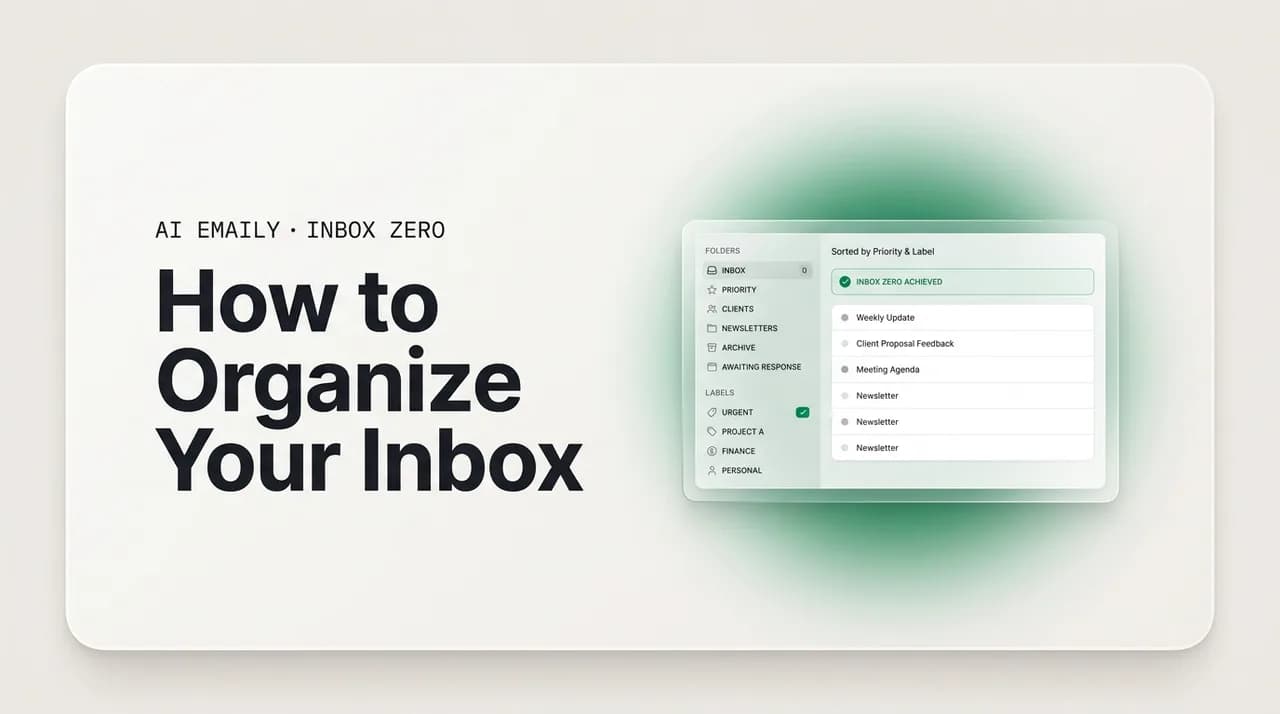
Organize your inbox by picking one simple system, a handful of folders or labels keyed to how you work, then automate it: filters and rules sort incoming mail on arrival, priority views surface what needs you, and a weekly cleanup stops decay. Organized means findable and nothing slips, not a perfect taxonomy you file by hand.
How to organize your inbox with a system that survives real workdays: pick a structure, set up folders and labels, auto-sort with rules, and maintain it.
On this page
- 01What does an organized inbox actually mean?
- 02Which inbox organization system should you pick?
- 03How do you set up folders, labels, and categories?
- 04How do you auto-sort your inbox with filters and rules?
- 05How do you add priority and smart views?
- 06Should you search for emails or file them in folders?
- 07How do you keep your inbox organized over time?
- 08How does AI Emaily organize your inbox automatically?
- 09What is the fastest way to get an organized inbox?
What does an organized inbox actually mean?#
Most people who want to organize their inbox picture the end state as something tidy: folders neatly labeled, every message filed where it belongs, the unread count at zero, a column of color-coded tags running down the side. That image is appealing and almost entirely beside the point. An inbox is not a filing cabinet you keep for its own sake; it is a tool you use to get two things done. The first is finding any message you need, quickly, when you need it. The second is making sure nothing that matters slips past you unanswered. If your inbox does those two things reliably, it is organized, no matter how messy it looks. If it fails at either one, it is disorganized, no matter how many beautiful folders you have built.
Hold that definition in mind, because it changes every decision that follows. Organized means findable plus nothing slips. Everything else, the folder hierarchy, the label colors, the rules, the smart views, is just machinery in service of those two outcomes, and machinery that does not serve them is decoration. A great deal of email advice gets this backward. It tells you to build an elaborate structure, to file diligently, to process to zero every day, as though the structure were the goal. The structure is a means. When you judge a system by whether you can find things and whether things slip, rather than by how impressive the folder tree looks, you make very different choices, and they are almost always simpler ones.
The reason this matters is that the impressive systems are the ones that fail. A taxonomy with forty folders nested three levels deep looks organized in a screenshot and collapses in practice, because every incoming message becomes a decision, which folder, which sub-folder, file now or later, and that decision tax, paid dozens of times a day at the worst possible moments, is more than anyone can sustain. The folders sit half-empty, the inbox swells with everything you meant to file and never did, and the system that looked organized produces a worse outcome than no system at all: now you cannot find things because they are scattered across folders you abandoned, and things slip because the pile you meant to triage grew faster than you could read it.
So this guide is not about building the prettiest inbox. It is about building one that holds up on a normal Tuesday, when you have back-to-back meetings, two fires to put out, and ninety new messages by lunch. That means a system simple enough to maintain without thinking, automated enough that incoming mail organizes itself, and forgiving enough that one bad week does not unravel it. We will walk through how to pick a system that fits how you work, how to set up folders, labels, and categories without drowning in them, how to auto-sort with filters and rules so the inbox organizes itself on arrival, how to layer priority and smart views on top, the real debate between searching and filing, how to maintain the whole thing over time, and finally how AI Emaily does most of this automatically across whatever email service you already use, so the system runs without the manual grind that breaks every other approach.
The only two tests that matter
Which inbox organization system should you pick?#
Before you create a single folder, you need to decide what kind of system you are building, because the structure you choose determines whether the whole thing is maintainable. There is no universal best system; there is only the one that matches how you actually work and how much mail you get. But the choices are fewer than the internet suggests, and they cluster into three approaches that cover almost everyone. The honest truth that ties them together is that the best system is the simplest one you will actually keep up, and every approach below errs toward fewer categories rather than more, because every category you add is a decision you pay for on every message for as long as the system exists.
The first approach is the four-folder system, sometimes called action-based organization. Instead of sorting by topic, you sort by what a message demands of you. Four top-level buckets cover the overwhelming majority of inbox traffic: Action, for anything that needs a reply, a decision, or a follow-up; Reference, for things you will need to look up later, receipts, confirmations, travel documents, contracts; Reading, for newsletters and longer pieces you genuinely intend to read but not right now; and Archive, for everything that is done, kept out of sight but searchable. The power of this approach is that it maps to the only question that matters when a message lands, what do I do with this, and it stays small no matter how much mail you get, because you are sorting by verb, not by subject, and there are only so many verbs.
The second approach is PARA, a system popularized by Tiago Forte for organizing your whole digital life that adapts cleanly to email. PARA stands for Projects, Areas, Resources, and Archives. Projects are things you are actively working on with a defined end, the product launch, the hiring round, the house move. Areas are ongoing responsibilities with no end date, your team, your finances, a specific client relationship. Resources are topics you keep material on but have no obligation to maintain, an industry you follow, a skill you are learning. Archives hold anything from the other three that is now inactive. PARA shines for people whose work is genuinely project-shaped, because it keeps each project's mail together and lets you archive the whole thing in one move when the project ends, which is the moment most folder systems start to rot.
The third approach is label-based organization, which is less a single system than a philosophy: keep almost everything in one place and use stackable tags to describe messages along multiple dimensions at once. This is the natural fit for Gmail, where labels are first-class and a single message can carry several. Instead of deciding the one folder a message belongs in, you tag it Client and Project-Atlas and Invoice, and it shows up under all three without being copied anywhere. The strength is that it solves the problem every folder system has, that a real message is usually several things at once, and the weakness is that applying labels by hand is even more work than dragging to one folder, so it only becomes practical when the labeling is automated, which is exactly where the rules and AI later in this guide come in.
The table below lays the three side by side so you can match one to how you work. Read it as a starting point, not a prescription; most durable real-world systems are hybrids, a four-folder action structure for the daily flow, a few project labels layered on top, an aggressive single archive behind it all. The mistake is not picking the wrong system; it is picking a complicated one. Start with the simplest version that fits, and add structure only when you feel an actual pain that the extra structure would solve.
| System | How it sorts | Best for | Watch out for |
|---|---|---|---|
| Four-folder (action-based) | By what the message demands of you: Action, Reference, Reading, Archive | Most people; high-volume inboxes; anyone who wants the smallest workable structure | Requires you to decide an action when filing, which is the moment to automate |
| PARA | By commitment: Projects, Areas, Resources, Archives | Project-driven work where mail clusters around defined initiatives with end dates | Areas and Resources blur together; needs a weekly pass to keep buckets honest |
| Label-based | By stackable tags describing several dimensions at once (Client + Project + type) | Gmail users; multidimensional mail where one message is genuinely several things | Manual tagging never gets kept up; only practical when labeling is automated |
| Single-archive + search | Barely sorts at all: one archive, find everything by search | People with strong search habits who hate filing and trust search to deliver | Loses the at-a-glance structure; leans entirely on search quality |
Pick fewer buckets than feels right
How do you set up folders, labels, and categories?#
Once you have picked an approach, the setup is where most people sabotage themselves, because the temptation is to build the entire structure up front, every folder you might ever need, every label for every conceivable topic. Resist it. The structure you build on day one should be embarrassingly small, because a structure you outgrow is easy to extend and a structure you over-build is almost impossible to prune. Start with the minimum, live with it for two weeks, and let real friction tell you what to add. This is the single most reliable way to end up with a system you actually use rather than a museum of categories you set up once and abandoned.
Begin with your top-level buckets and nothing else. If you chose the four-folder system, create exactly those four: Action, Reference, Reading, Archive. If you chose PARA, create Projects, Areas, Resources, Archives and add the specific project and area sub-folders only for initiatives that are genuinely live right now, not ones you anticipate. If you chose label-based, create a small set of labels for the dimensions you actually search by, your two or three most active clients or projects, your handful of recurring message types, and stop. In every case the rule is the same: one level of nesting at most. Every additional sub-folder is a decision tax you pay on every inbound message, and the deeper the tree, the higher the tax and the faster the system collapses under it.
Then decide, deliberately, whether you are using folders or labels as your primary tool, because the two behave differently and the choice shapes everything downstream. Folders are mutually exclusive, a message lives in exactly one, which keeps the view clean but forces you to pick a single home for mail that is genuinely several things. Labels are additive, a message can carry several at once, which solves the multidimensional problem but means you have to apply more than one tag per message to capture it fully. In Gmail, prefer labels, they are the native model and far more flexible. In Outlook, iCloud, and most IMAP clients, folders are the primary structure and the colored categories play the supporting role labels do elsewhere. We go deep on this trade-off in the companion guide on email folders versus labels; for setup purposes, just commit to one as your backbone so you are not maintaining two competing structures.
The example below shows a lean, real-world structure built on the four-folder backbone with a few labels layered on for the dimensions that genuinely need them. Notice how small it is. There is no Personal folder with eleven sub-folders, no Newsletters folder broken out by publisher, no client folder for a client you emailed twice last year. There are four buckets that answer the only question that matters when mail arrives, plus three labels for the cross-cutting threads you actually look things up by. This is roughly the ceiling of what a person can maintain by hand. Anything more elaborate is a candidate for automation, not for your fingers.
- Start with only your top-level buckets; add sub-structure later when real friction demands it.
- Cap nesting at one level deep, every extra sub-folder is a decision tax on every message.
- In Gmail lead with labels; in Outlook, iCloud, and IMAP lead with folders.
- Pick one backbone, folders or labels, so you are not maintaining two competing structures.
- If your structure is too big to maintain by hand, that is a signal to automate it, not to try harder.
How do you auto-sort your inbox with filters and rules?#
Here is the move that separates an inbox that stays organized from one that decays within a week: stop filing by hand and let incoming mail sort itself. Every major email service has a feature for this, called filters in Gmail and rules in Outlook, and it is the closest thing to a free lunch in email. A filter or rule watches your incoming mail, checks each message against conditions you define, and takes an action automatically when a message matches, applying a label, moving it to a folder, marking it read, starring it, or skipping the inbox entirely. Set the rules up once and your inbox almost organizes itself from then on, because the tedious filing work that always lost to a busy day is now done by the machine the instant the mail arrives.
The principle behind good rules is to automate the predictable and reserve your attention for the unpredictable. A large share of your incoming mail is utterly routine: the same newsletters, the same notification senders, the same vendors, the same receipt formats, arriving over and over. None of that needs a human decision, and yet the unsorted version makes you decide about each one every time it lands. Rules let you make the decision once and have it apply forever. The newsletter you always skim later gets labeled Reading and skips the inbox; the GitHub or Jira notifications get labeled and archived; the receipts get labeled Finance and filed in Reference. What is left in your main view, once the predictable mail has been routed away, is the unpredictable mail that genuinely warrants a person looking at it, which is exactly the mail you want to see.
Studies of email behavior consistently find that people who pair filters with labels manage their inbox far more efficiently than people who rely on either alone, and the reason is structural rather than motivational: the combination removes the per-message decision from the busiest part of your day. The steps below walk through setting up a rule from scratch in both Gmail and Outlook. The mechanics differ slightly between services, but the shape is identical everywhere, define what to match, define what to do, and let it run. Start with your three or four highest-volume routine senders, the mail that clutters your inbox most and needs you least, because automating those gives you the biggest visible win for the least effort and proves the approach before you invest more in it.
- 1
Find a message that represents a category
Open a typical newsletter, notification, or receipt, the kind of routine mail you want handled automatically from now on. You will build the rule from its sender or subject.
- 2
Open the rule builder
In Gmail, click Show search options in the search bar (or Filter messages like this from the message menu). In Outlook, go to Settings, then Mail, then Rules, then Add new rule.
- 3
Define the match conditions
Match on the sender's address for precision, or on a subject keyword or the list-unsubscribe marker for a whole class. Keep conditions tight enough to avoid catching real conversations by mistake.
- 4
Choose the actions
Apply a label or move to a folder, and add Skip the Inbox (archive) for newsletters and notifications, Mark as read for pure FYI mail, or Star it for VIP senders. Stack actions as needed.
- 5
Apply to existing mail and save
Check the option to apply the rule to matching messages already in your inbox, so it cleans up the backlog as well as future mail, then save. Watch it for a few days and tighten if it over- or under-matches.
Rules are brittle by design
How do you add priority and smart views?#
Sorting mail into folders and labels answers what is this, but it does not answer the more urgent question, what needs me right now. Two messages can both be from clients, both be tagged correctly, both sit in the right folder, and be completely different in urgency: one is a quick FYI, the other is a decision your client is blocked on. Organization by type does not surface that difference, and so the final layer of a real system is priority, a way to float the mail that needs you above the mail that merely informs you. This is the layer that satisfies the second of our two tests, that nothing important slips, because a message can be filed perfectly and still be missed if it never gets surfaced.
Most email services ship a built-in version of this. Gmail's Priority Inbox splits your mail into Important, Starred, and Everything Else, learning over time which senders and threads matter to you. Gmail's Multiple Inboxes feature lets you carve your screen into custom sections driven by your own searches or labels, an unread-from-VIPs panel beside a needs-reply panel beside everything else. Outlook's Focused Inbox does a blunter two-way split, Focused and Other, learning from your behavior which mail deserves the Focused tab. None of these is a complete priority system, they sort by a rough sense of importance rather than by what a message actually asks of you, but they are a reasonable starting layer, and turning one on is a five-minute win.
The more powerful tool, and the one worth learning, is the smart view, also called a saved search or search folder. A smart view is not a place a message lives; it is a live query that gathers every message matching a rule and updates as new mail arrives. Show me every unread message from a client that I have not replied to is a smart view; the messages stay wherever they are filed, and the view simply assembles them on demand. Smart views are the most flexible piece of the whole system because they compose, you can build a view on top of your folders, labels, and read state all at once, and they cost nothing in filing because nothing is moved. The catch is that a smart view is only as good as the structure feeding it: if your labels are wrong, the view inherits the error, which is why getting the sorting right is the foundation and the views are the payoff.
The example below shows what a priority-aware inbox surfaces once you layer views on top of a sorted structure. Notice that it is organized by what each message demands of you and the time pressure behind it, not by topic, and that the top items each carry a visible reason they were surfaced. That reason matters more than it looks. The difference between a tool you trust and one you second-guess is whether it shows its work, because a priority list you cannot interrogate is just another thing to worry about, while one that tells you why each item rose to the top lets you act on it without re-checking everything underneath.
Sort by verb, surface by urgency
Should you search for emails or file them in folders?#
There is a long-running debate in email circles that you should understand before you invest hours in any folder structure, because it might save you most of that work. The question is simple: when you need to find an old message, are you better off having filed it carefully in a folder, or just searching for it? For decades the assumption was filing, that a deliberate, memorable folder structure would let you navigate straight to anything. The research tells a different and somewhat humbling story, and it has a direct bearing on how much structure is worth building.
The landmark finding comes from IBM Research, which studied how people actually retrieve email and found that searching was substantially faster than browsing folders: finding a message by search took about 17 seconds on average, while finding the same message by clicking through folders took around 58 seconds, more than three times as long. Other studies have reached similar conclusions, with search consistently beating folder navigation, and they found something else worth sitting with: people who had carefully filed their mail were no more successful at finding it than people who relied on search, despite all the effort the filing took. The deliberate structure you build to make retrieval easier does not, on average, make retrieval easier. It mostly just costs you the filing time up front.
This is why a growing number of productivity experts advocate a search-first approach: keep a minimal folder structure for active work, dump everything else into a single archive, and trust search to find it. Once you are done with a message you either delete it or archive it, your inbox holds only mail you are still working on, and the years of accumulated correspondence sit in one place where modern search retrieves it in seconds. The appeal is obvious once you accept the research, you get the retrieval speed of search without paying the filing tax at all, and the filing tax, paid on every message at the worst moment, is precisely the cost that breaks most organization systems.
That said, search-first is not the whole answer, and the honest position is a blend. Search is unbeatable for retrieval, finding the one specific message you remember exists. It is weak for the other job, knowing at a glance what is in front of you and what state your work is in. A label or a smart view tells you, without searching, that there are three client threads awaiting your reply right now, which is information search cannot give you because you do not know to search for it. So the durable pattern is to use light structure for the present, a few action folders or labels and a priority layer that shows you the current state of your work, and to lean on search for the past, archiving aggressively and trusting retrieval rather than building deep folders for things you are done with. File the present; search the past. The mistake the research warns against is building an elaborate filing system for the archive, where search already wins.
| Job | Search wins | Structure wins | Practical rule |
|---|---|---|---|
| Finding one specific old message | Yes, about 3x faster than folder browsing in studies | No, careful filing does not improve retrieval success on average | Archive aggressively and search; do not build deep folders for the past |
| Knowing the current state of your work | No, you can't search for what you don't know exists | Yes, a label or view shows awaiting-reply threads at a glance | Keep light structure and a priority layer for active mail |
| Grouping a project's whole history | Partial, search assembles it but you must remember the terms | Yes, a project label or folder keeps it together for free | Use one label or folder per live project; archive when it ends |
| Day-to-day filing effort | Near zero, nothing to file | High, the per-message decision is what breaks systems | Minimize filing; automate what structure you do keep |
File the present, search the past
How do you keep your inbox organized over time?#
Every organization system, no matter how well designed, decays without maintenance, and understanding why is the key to keeping yours alive. The decay is not a sign of failure or weak discipline; it is entropy doing what entropy does. Senders you filtered change their addresses and start landing in your inbox again. Projects end but their folders linger as dead weight. Labels multiply until you have forty and use six. New categories of mail appear that your rules never anticipated. A system is a snapshot of how your mail looked when you built it, and your mail never stops changing, so the structure and reality drift apart a little more every week. The only question is whether you have a cheap habit for closing that gap or whether you let it widen until the system is useless.
The single most effective maintenance habit is a short weekly review, fifteen minutes, same time each week, where you clear the small backlog and adjust the machinery. In that window you do three things. First, you empty whatever has accumulated in your main view that the rules did not catch, filing or archiving it so you start the next week clean. Second, you notice patterns, the same uncaught newsletter you have manually filed three times this week is telling you to write a rule for it, and the folder you have not opened in two months is telling you to archive it. Third, you make one small adjustment, add a rule, retire a label, fix a filter that is over-matching. Fifteen minutes a week is the difference between a system that compounds and one that quietly rots; the cost is trivial and the alternative is rebuilding from scratch every few months when the chaos becomes unbearable.
Layer two complementary rhythms on top of the weekly pass. A quick daily skim, a couple of minutes, keeps new mail from piling into an overwhelming heap and gives your rules a chance to prove they are working, so problems surface while they are small. A longer monthly or quarterly session handles the structural drift the weekly pass is too short for: this is when you prune dead folders, mass-unsubscribe from newsletters you never actually read, archive completed projects in bulk, and audit your rules end to end to catch the ones silently misfiring. The cadence matters less than the consistency. Regular small maintenance always beats waiting for the clutter to grow into a crisis, because a crisis cleanup is a miserable multi-hour slog and a weekly tidy is barely noticeable.
The deeper truth, and the one that sets up everything in the next section, is that maintenance is the real cost of a manual system, and it is a cost that never ends. You do not organize your inbox once; you re-organize it continuously, forever, against an inflow that never stops and a structure that always drifts. For some people the weekly fifteen minutes is a fair price and the habit sticks. For most, the maintenance is exactly the part that fails, not because they are undisciplined, but because the genuinely busy weeks, the ones where you most need the system to hold, are precisely the weeks you skip the review, and a few skipped reviews compound into collapse. That recurring, fragile, manual upkeep is the problem a modern AI email client is built to remove, by doing the sorting, labeling, and prioritizing automatically so there is far less for the weekly habit to catch up on.
- A 15-minute weekly review, clear the backlog, spot patterns, make one small fix, is the highest-leverage habit.
- Add a 2-minute daily skim to keep mail from piling and to verify your rules are working.
- Run a monthly or quarterly deep pass to prune dead folders, mass-unsubscribe, and audit rules.
- Regular small maintenance always beats a quarterly crisis cleanup; consistency matters more than cadence.
- The busy weeks you most need the system are the weeks you skip maintenance, which is why automation matters.
The Sunday fifteen minutes
How does AI Emaily organize your inbox automatically?#
Everything to this point assumes you are the engine, that you pick the system, build the folders, write the rules, set the priority, and run the weekly maintenance forever. That is the manual path, and it works for people who genuinely keep up the upkeep. But the upkeep is the part that breaks, and the deeper fix is not a cleverer folder structure or more willpower; it is removing yourself from the per-message decision entirely, which is the one move that actually scales past the volume where manual systems collapse. AI Emaily is built around exactly that idea. It is an AI-native email client that does the organizing for you, automatically, inside whatever inbox you already use, so the system runs without the manual grind, and it does it across every layer this guide has described.
It starts with categorization. Instead of you deciding what each message is, AI Emaily reads every incoming message, the sender and your history with them, the actual content and structure, and what the message is trying to get you to do, and assigns the right category on arrival. A receipt is recognized as a receipt, a newsletter as a newsletter, a real client question as something that needs a reply, and the difference from an old-fashioned filter is that the AI reads meaning rather than matching a from-address, so it handles the messy middle of an inbox that rigid rules always got wrong. On top of categories it applies labels, and because the labeling is automatic it can stack several on one message, Client and Project-Atlas and Invoice all at once, the multidimensional tagging that manual labeling never keeps up with because doing it by hand is too much work.
Priority is the next layer, and it is where the second of our two tests, that nothing slips, gets answered. AI Emaily does not just sort by type; it surfaces what needs you, floating the client blocked on your decision and the thread where the ball is in your court above the FYIs and confirmations, and it shows its reasoning so you can see why something rose to the top rather than having to trust a black box. Smart views compose categories, labels, and read state into live lists, unread mail from VIPs that you have not answered, this project's open threads, so you read through the lens of what you need rather than scrolling a flat pile. The structure this guide told you to build by hand is built and maintained for you, continuously, against the inflow that never stops.
For the cases you want guaranteed, there are rules and a brain. You can write rules in plain language, label anything about Project Atlas as Atlas, replies included, file order confirmations under Receipts but never store promotions, always surface mail from these three people, and the deterministic rule is honored exactly while the AI handles the open-ended majority that no rule could anticipate. This is the layered approach the manual sections gestured at, hard guardrails over flexible comprehension, done for you instead of by you. And because the brain learns from your corrections, when it does misjudge something, your fix is not wasted, it teaches the system to handle mail like that better next time, so the same misfile fades rather than repeating, and the weekly maintenance that breaks manual systems shrinks to almost nothing.
Two things make this usable for real email rather than a novelty. First, it works across every provider, Gmail, Outlook, iCloud, Fastmail, Proton, and IMAP, applying one consistent system of categories, labels, priority, and rules over all of your inboxes at once, instead of leaving you with Google's idea of organization in one account and Microsoft's in another. Second, it is private by default: the organizing happens inside your own client, grounded in your actual mail, and your email is never used to train models, which is the privacy trade-off that makes most people hesitate to let AI near their inbox. You get comprehension-grade organization without routing your correspondence through a consumer chatbot.
The Free plan is $0 and includes AI categorization, labeling, and priority on your real inbox, which is enough for most people to feel the difference between a flat pile they re-sort every morning and an inbox that arrives already organized. The Pro plan is $12.42 per month billed annually and adds the deeper automation, custom rules at scale, the full Copilot agent that can act on your mail with your approval and an audit trail, and the cross-provider power-user features. The free tier exists precisely so the cost of finding out whether an organized inbox changes your day is nothing but the couple of minutes it takes to connect an account at app.aiemaily.com/signup. If you want the tool-led version of this story rather than the system-led one, the companion guide on using AI to organize your inbox covers the feature angle in depth.
- AI categorization reads sender, content, intent, and your history to sort every message on arrival, no manual filing.
- Auto-applied, stacking labels capture the dimensions, client, project, type, that manual tagging always abandons.
- Priority surfaces what needs you with a visible reason, so nothing important slips and you don't second-guess the list.
- Smart views compose categories, labels, and read state into live lists you read through instead of a flat pile.
- Plain-language rules plus a learning brain: hard guardrails over flexible AI, done for you, shrinking the weekly upkeep.
- Works across Gmail, Outlook, iCloud, Fastmail, Proton, and IMAP, one consistent system over every inbox.
- Private by default, the organizing runs in your client and your mail is never used to train models.
- Free is $0 with AI organization built in; Pro is $12.42/mo billed annually for the full agent and power-user tools.
An organized inbox without the disclosure cost
What is the fastest way to get an organized inbox?#
If you take one thing from this guide, take this: an organized inbox is not a pretty folder tree, it is one where you can find anything fast and nothing important slips, and the reason your past attempts decayed is not weak discipline but that manual filing demands tedious work at the worst possible moment, on every message, forever, and that demand always loses to a busy week. The fix is not a better taxonomy; it is removing yourself from the per-message decision as much as you can, automating the predictable mail with rules, leaning on search for the archive instead of deep folders, and keeping only the light structure and priority layer that tell you the current state of your work.
The manual version of that is real and achievable: pick the simplest system that fits how you work, build an embarrassingly small structure, automate your highest-volume routine senders with filters, layer a priority view on top, archive aggressively and trust search for the past, and protect a fifteen-minute weekly habit to keep it from drifting. Do that and you will have an inbox that holds up on a normal Tuesday, which is the only test that counts. The catch is the weekly habit, the part that fails on the busy weeks you most need it, which is exactly why the cost of a manual system is not the setup but the endless upkeep.
AI Emaily removes most of that upkeep by doing the organizing automatically, categorizing, labeling, and prioritizing every message on arrival across every provider you use, honoring the rules you set in plain language, learning from your corrections, and keeping your mail private. The Free plan puts that on your real inbox for $0, so finding out whether an inbox that arrives already organized changes your day costs nothing but the few minutes it takes to connect an account. If you are tired of being the person who re-sorts the same pile every morning, the organized inbox is waiting at app.aiemaily.com/signup.
The one move that scales
Frequently asked
See it in AI Emaily
Keep reading
Sources
- Forte Labs: The PARA Method, a simple system for organizing your digital life
- Chris Bailey: Stop organizing your email into folders, searching is faster (IBM study)
- Mailbird: Building an efficient folder and tagging system, the complete 2026 guide
- Keeping: Gmail rules and filters, the complete guide (2026)

Written by
Nafiul HasanNafiul Hasan is an entrepreneur and AI automation system builder with 10+ years of experience turning messy, manual workflows into reliable automated systems. He designs and ships AI enterprise solutions end-to-end — the agent logic, the data plumbing, and the product people actually use — and founded AI Emaily to give busy professionals their attention back. He writes here from the builder's seat: what works, what breaks, and how to put AI to work without giving up control.