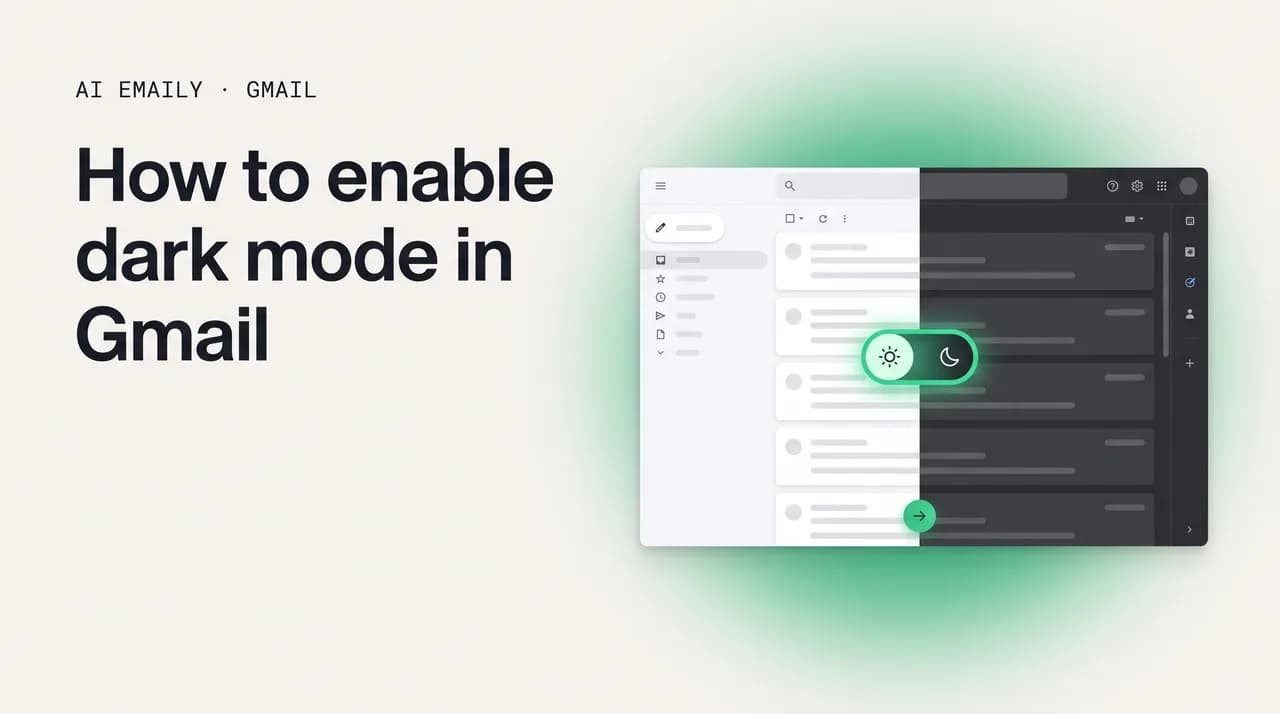
How to enable dark mode in Gmail

The short answer
To enable dark mode in Gmail on the web, open Settings, choose Themes, and pick the Dark tile. On Android, go to the menu, Settings, General settings, Theme, and select Dark or System default. On iPhone, Gmail follows your iOS appearance, or you can set its Theme to Dark in the app.
How to enable dark mode in Gmail on web, Android, and iPhone, plus how to revert to light, sync with your system theme, and fix dark mode when it won't work.
On this page
- 01Why turn on dark mode in Gmail in the first place?
- 02How do you turn on dark mode in Gmail on the web?
- 03How do you enable dark mode in the Gmail app on Android?
- 04How do you enable dark mode in the Gmail app on iPhone and iPad?
- 05How do you turn dark mode off and go back to light in Gmail?
- 06How does Gmail's dark mode interact with your operating system theme?
- 07Why do some emails look different from others in dark mode?
- 08What exactly happens to dark mode on each device?
- 09Why is Gmail dark mode not working, or only half working?
- 10Does dark mode actually help with eye strain and accessibility?
- 11How does AI Emaily ship polished light and dark across web and every device?
- 12Putting it all together
Why turn on dark mode in Gmail in the first place?#
Dark mode flips Gmail's interface from a bright white background with dark text to a dark background with light text. The inbox list, the sidebar, the toolbar, the compose window, and most of the chrome around your mail all go dark, so a screen that used to glow white now sits quietly in shades of charcoal and gray. It is the same Gmail, with the same buttons in the same places, wearing a darker coat. For a lot of people that single change is the difference between an inbox that feels harsh and one that feels comfortable to sit in for hours.
The most common reason people search for how to enable dark mode in Gmail is comfort in low light. A bright white inbox in a dim room is the screen equivalent of someone flicking the lights on at full brightness while you are trying to relax. At night, in bed, on an early flight, in a dark office at the end of the day, a glowing white panel is the thing your eyes fight against. Dark mode lowers the amount of light the screen throws at you, which most people find easier on the eyes when the room around them is already dark.
There are practical reasons too. On phones and laptops with OLED screens, dark pixels draw less power than bright ones, so a darker interface can stretch battery life a little. Many people simply prefer the look: a dark inbox reads as calmer, more focused, and less cluttered, and it matches the dark theme they have already set across the rest of their phone or computer. And for anyone who is sensitive to glare or works late, dark mode is less a style choice than a way to keep using email without a headache. Whatever your reason, turning it on takes under a minute once you know where the control lives, and this guide covers every place it hides.
It also helps to know what dark mode is not, because that sets the right expectations. It is not a feature that rewrites your emails. It is not something you buy or install. And it is not a single account-level preference that flips your inbox dark on every screen the moment you set it once. It is a presentation choice, applied per surface, that changes how Gmail's own interface is painted. Hold that framing and you will avoid the two disappointments people most often hit: expecting the inbox on their phone to change because they darkened it on their laptop, and expecting every newsletter and receipt to suddenly read as light text on black. Neither happens, and neither is supposed to.
Here is the one thing worth understanding before you start, because it explains almost every question people have afterward. Gmail does not have a single, universal dark mode switch that follows you everywhere. It has three separate places to turn dark mode on, one for each surface, and they do not talk to each other. The web app remembers a theme per browser and account. The Android app stores its theme on the device. The iPhone app mostly follows your iOS system appearance, with its own setting layered on top. Set dark mode on your laptop and your phone stays exactly as it was; switch your phone to dark and the web in your browser does not change. That is not a bug, it is just how Gmail is built, and once you know it, the rest of this guide makes sense.
We will walk through it in order. First, how to enable dark mode on the web app, step by step, since that is where most people start. Then Android, then iPhone and iPad, each with its own steps because each works differently. After that, how to turn it back off and return to a light look on any device. Then we explain how Gmail's theme interacts with your operating system's light or dark setting, which is the source of most of the confusion. A comparison table lays out exactly what happens on each device side by side. Then a focused troubleshooting section for when dark mode does not work, or only half-works and your emails still open on white. We close with a short note on eye strain and accessibility, a look at how a modern email client handles light and dark across every device at once, and a FAQ covering the questions people ask most.
How do you turn on dark mode in Gmail on the web?#
On a computer, dark mode in Gmail lives inside the Themes picker, the same screen you would use to put a photo or a colored background behind your inbox. Dark mode is just one of those themes: a solid dark tile near the start of the list. There is no separate toggle in a menu and no setting buried three levels deep. You open the theme picker, click the dark tile, and save. The whole thing takes well under a minute.
There are two ways into the theme picker, and both end up in the same place. The fast route is the Quick Settings panel that slides out from the gear icon; it shows a small Theme strip you can expand. The thorough route is the full Settings screen under the Themes tab. We will use the gear-icon route below because it is the one most people reach for, and note the alternative where it matters. Follow these steps in the Gmail web app, signed in to the account you want the dark theme on.
- 1
Open Gmail in your browser
Go to mail.google.com and sign in to the account you want to change. Dark mode on the web is stored per account and per browser, so if you use more than one Google account, make sure you are on the right one before you start. The change you make here affects this account in this browser only.
- 2
Click the Settings gear icon
In the top-right corner of the inbox, just under your profile picture, click the gear icon. This opens the Quick Settings panel, which slides in from the right edge and shows a handful of common options, including a Theme section near the top.
- 3
Open the Theme picker
In the Quick Settings panel, find the Theme section and click "View all" beneath the small row of theme thumbnails. This opens the full theme picker, a grid of background options. (If you prefer the long way, click "See all settings" instead, then open the "Themes" tab at the top, then "Set theme" — it lands in the same grid.)
- 4
Select the Dark theme tile
Near the start of the grid, before the photo backgrounds, you will see a small set of solid color tiles. One of them is a solid dark, almost-black square labeled Dark. Click it. The inbox behind the picker switches to dark right away so you can preview the look before you commit.
- 5
Click Save
At the bottom of the theme picker, click "Save." Gmail closes the picker and the dark theme stays applied. There is no separate confirmation; the moment you save, dark mode is on for this account in this browser, and it will still be on the next time you open Gmail here.
Dark theme, not full dark mode
Two details are worth knowing once the dark theme is on. First, because the setting is tied to your browser profile, it does not travel with your account to a different computer or a different browser automatically. If you sign in to the same Gmail account on a work laptop and a home desktop, you may need to flip on the dark theme in each place. The same is true if you use Chrome on one machine and Safari on another. It is a per-browser preference, not an account-wide one.
Second, the web Dark theme is entirely independent of whatever your operating system is set to. You can run Windows or macOS in light mode and still have a dark Gmail in the browser, or the reverse. The web app does not read your system's light or dark setting at all, which is different from how the mobile apps behave. We will come back to that difference later, because it trips people up when they switch between their laptop and their phone and expect the two to match.
It is also worth knowing how dark mode relates to the other backgrounds in that same theme grid, because the Dark tile sits right alongside them. Gmail's themes were originally a way to put a photo, a landscape, a texture, or a flat color behind your inbox. Dark mode is simply one of those flat options, the near-black one, so choosing it replaces any photo background you had before. If you later pick a scenic photo theme, you leave dark mode; if you pick the Light tile, you get the plain white look. There is no way to combine a photo background with dark mode on the web, since they are mutually exclusive choices in the same grid. For most people that is fine, a dark interface is cleaner than a photo behind a busy inbox anyway, but it explains why selecting Dark wipes out a background you may have set months ago and forgotten about.
How do you enable dark mode in the Gmail app on Android?#
On Android, Gmail has its own dark mode setting inside the app, and it gives you three choices rather than a simple on or off. You can force Dark, force Light, or pick System default, which tells Gmail to follow whatever your phone is set to. On Android 10 and later, System default is the option most people want, because it lets Gmail go dark automatically whenever your phone does, including on any night schedule you have set, without you ever touching Gmail again.
The setting lives a few taps deep, under the app's General settings rather than under any individual account, so it applies to every account you have added to the Gmail app at once. Here is how to find it.
- 1
Open the Gmail app and tap the menu
Launch Gmail on your Android phone or tablet. In the top-left corner, tap the menu icon, the three stacked horizontal lines (the "hamburger" menu). This slides out the navigation drawer with your labels and, at the bottom, Settings.
- 2
Open Settings, then General settings
Scroll to the bottom of the drawer and tap "Settings." On the settings screen, tap "General settings" at the very top. The theme control is a general app preference, not tied to one inbox, so it lives here rather than under a specific account.
- 3
Tap Theme
On the General settings screen, tap "Theme." A small dialog opens with three options: Light, Dark, and System default. Whichever is currently active shows a filled dot beside it.
- 4
Choose Dark or System default
Tap "Dark" to keep Gmail dark all the time, regardless of what your phone does. Or tap "System default" so Gmail follows your phone: dark when your phone is in dark mode, light when it is light. System default is the best pick if you already run a dark theme or a sunset-to-sunrise schedule on your phone.
- 5
Confirm and back out
The moment you tap your choice, Gmail applies it; there is no Save button. Tap outside the dialog or use the back gesture to return to your inbox, which is now in the theme you picked. If you chose System default, the look will change automatically the next time your phone switches between light and dark.
Don't see a Theme option on Android?
One thing surprises people on Android: choosing Dark here is not the same as turning on your phone's system-wide dark mode. Gmail's setting controls Gmail only. Your other apps stay on whatever they were. If you want everything on your phone to go dark together, that is a separate switch in your phone's own Settings, usually under Display, called Dark theme or Dark mode, and that is exactly what Gmail's System default option then follows. So you have a choice: set Gmail alone to Dark, or set your whole phone to dark and let Gmail's System default ride along with it.
As on the web, the messages themselves are a partial exception. Gmail's Android dark mode darkens the app's interface and inverts many simpler emails so they read as light text on dark, but richly designed HTML emails, newsletters, receipts, marketing mail, often keep their original light background because the sender built them that way. A dark inbox with the occasional white-backed email open inside it is normal and not a sign that anything failed.
There is one extra control on Android that the web does not have, and it is easy to miss. When you read a message, some versions of Gmail show a small toggle at the top of an email, a sun-and-moon or contrast icon, that lets you flip an individual message between Gmail's darkened rendering and the sender's original light design. If a particular email looks wrong in dark mode, washed out, low-contrast, or with text that has half-disappeared, tap that toggle to switch just that message back to its original colors without leaving dark mode for the whole app. It is a per-message escape hatch for the rare email that Gmail's automatic darkening handles badly, and knowing it exists saves you from turning dark mode off entirely just because one newsletter rendered poorly.
How do you enable dark mode in the Gmail app on iPhone and iPad?#
On iPhone and iPad, dark mode in Gmail works differently from Android in one important way: Gmail leans heavily on your device's system appearance. Apple's iOS has had a system-wide Dark appearance since iOS 13, and many apps, Gmail included, take their cue from it. So the simplest way to get a dark Gmail on an iPhone is to put the whole phone into Dark appearance, and Gmail goes dark right along with everything else.
That said, recent versions of the Gmail app for iOS also include their own Theme setting, the same Light, Dark, and System default choices you get on Android, so you can override the system if you want Gmail dark while the rest of your phone stays light, or vice versa. There are therefore two routes, and which one you use depends on whether you want just Gmail to change or your whole phone.
- 1
Decide: just Gmail, or the whole phone?
If you want everything on your iPhone, including Gmail, to be dark, use the iOS system route below. If you want to control Gmail on its own, leaving other apps as they are, use the in-app Theme route. The in-app setting, where available, wins for Gmail specifically.
- 2
System route: open iOS Settings
Open the iOS Settings app, tap "Display & Brightness," and under Appearance at the top, tap "Dark." Every app that follows the system, Gmail among them, switches to dark immediately. You can also turn on "Automatic" here to have your phone move between light and dark on a schedule, sunset to sunrise or custom hours.
- 3
In-app route: open the Gmail menu
Open the Gmail app, tap the menu icon (the three lines) in the top-left corner, scroll to the bottom of the drawer, and tap "Settings." This is the same path as on Android.
- 4
Tap Theme and choose your option
In Gmail's Settings, tap "Theme." Choose "Dark" to force Gmail dark regardless of your phone, "Light" to force it light, or "System default" to follow your iPhone's appearance. System default is the tidy choice if you already use iOS Automatic or run your phone in Dark appearance.
- 5
Return to the inbox
Whichever route you use, the change takes effect at once with no Save step. Back out to your inbox to see the new look. If you chose the system route or System default, Gmail will keep matching your iPhone whenever its appearance changes.
If you do not see a Theme option inside the Gmail app on your iPhone, two things are usually going on. Either the app is out of date, in which case open the App Store, find Gmail, and update it; or your build of Gmail simply hands theming entirely to iOS, in which case the system route is your control. Either way, switching your iPhone to Dark appearance in Display & Brightness will reliably give you a dark Gmail, because Gmail respects the system setting even when it has no in-app override of its own.
The same message caveat applies here as everywhere. Gmail on iOS darkens its own interface and adapts many plain emails, but it does not force every HTML email into dark. Newsletters and heavily designed messages often stay on their light background by design, so do not be surprised to open a perfectly normal-looking white email inside an otherwise dark inbox. That is the message author's design showing through, not a fault in your settings.
One iPhone-specific habit is worth building. Because iOS makes it so easy to schedule appearance changes, the Automatic option in Display & Brightness moves your whole phone, Gmail included, between light and dark on a timetable, the most comfortable long-term setup on an iPhone is usually Automatic at the system level plus Gmail on System default. You set it once and never think about it again: the phone, and Gmail with it, brightens in the morning and dims at night to match the light around you. If you instead lock Gmail to a fixed Dark while the rest of the phone runs Automatic, Gmail will stay dark even in bright daylight, which some people want and others find harder to read outdoors. Decide which you prefer, then set it deliberately rather than leaving it to chance.
How do you turn dark mode off and go back to light in Gmail?#
Turning dark mode back off is the exact reverse of turning it on, on whichever surface you enabled it, and just as quick. The key thing to remember is the same per-surface rule: switching back to light on your laptop does nothing to your phone, and vice versa. If you enabled dark mode in more than one place, you have to switch each one back. Here is the short version for each.
- On the web: click the gear icon, open the Theme section, click "View all," pick the Light theme tile (the solid white square) or any photo background you prefer, and click "Save." The inbox returns to a light look immediately.
- On Android: tap the menu, then Settings, then General settings, then Theme, and choose "Light." (If you had it on System default, switching your phone out of dark mode will also return Gmail to light, since System default just follows the phone.)
- On iPhone or iPad: if you used Gmail's in-app Theme, tap the menu, Settings, Theme, and choose "Light." If Gmail was simply following iOS, go to Settings, Display & Brightness, and select "Light" under Appearance, which returns Gmail and every other system-following app to light at once.
One subtlety on mobile is worth calling out. If you have Gmail set to System default and you only want Gmail back in light without disturbing the rest of your dark phone, switch Gmail's Theme explicitly to "Light" rather than changing the phone. That overrides the system for Gmail alone and leaves all your other apps dark. Conversely, if you are happy for everything to flip together, changing the system appearance is the one-tap way to do it. Pick the approach that matches whether you want Gmail to move on its own or in lockstep with the device.
How does Gmail's dark mode interact with your operating system theme?#
This is the question behind most of the confusion, so it is worth slowing down on. Your phone or computer has its own light or dark setting, and Gmail has its own. How those two interact depends entirely on which surface you are using, and the rules are not the same across web and mobile. Getting this straight in your head explains why your laptop and your phone can look different, why Gmail sometimes changes by itself, and why sometimes it stubbornly does not.
On the web, Gmail ignores your operating system completely. The web Dark theme is a manual choice stored in your browser, full stop. Run macOS or Windows in dark mode and your browser Gmail stays light until you pick the Dark theme yourself; run your OS in light mode and you can still set Gmail dark. The two have nothing to do with each other. So if you turned your computer dark and expected Gmail in the browser to follow, that is why it did not, the web app simply does not look at the system setting.
On mobile, it is the opposite by default. Both Android and iPhone offer Gmail a System default theme option that explicitly follows the device. When that is selected, your phone's light or dark setting drives Gmail directly: flip the phone to dark and Gmail goes dark; set a sunset schedule and Gmail darkens at dusk. If instead you set Gmail to a fixed Dark or Light, you have overridden the system for Gmail alone, and Gmail no longer cares what the phone does. So on mobile you are choosing between two modes of behavior, follow the device, or hold a fixed theme, while on the web there is only ever the fixed, manual theme.
Want dark at night, light by day?
Why do some emails look different from others in dark mode?#
Once dark mode is on, you will notice that not every email looks the same, and understanding why removes most of the frustration. Gmail handles three broad kinds of message differently. Plain-text emails, the simple ones with no fancy formatting, are easy for Gmail to adapt, so they usually flip cleanly to light text on a dark background. Lightly styled emails, with a bit of color but no fixed background, often adapt too, though sometimes imperfectly. And richly designed HTML emails, the kind brands send with full-bleed images, colored panels, and a hard-coded white background, generally keep their original light look, because Gmail cannot safely repaint them without risking unreadable text or a scrambled layout.
This is not Gmail being lazy; it is Gmail being careful. An email is essentially a small web page, and the sender controls its colors. If a designer set white backgrounds behind dark text and Gmail forcibly inverted only the background to black, the dark text would vanish into it. So rather than gamble, Gmail leaves heavily designed emails alone and darkens only what it can do reliably: its own interface and the simpler messages. The result is a dark inbox where the chrome is consistently dark but the reading pane varies message to message, which is exactly the trade-off that keeps every email readable.
If a specific email genuinely looks broken, not just light, but low-contrast or with text bleeding into its background, you have a couple of options. On mobile, use the per-message light/dark toggle described earlier to view that one email in its original colors. On the web, there is no such per-message toggle; if a message is unreadable, you can open it in its own window, or temporarily switch back to the Light theme to read it. These cases are rare, and they are usually a sign of an email that was poorly built for any dark client, not a problem with your Gmail settings.
What exactly happens to dark mode on each device?#
Because the behavior genuinely differs by surface, here is a side-by-side reference. Use it to set expectations before you start, and to diagnose anything that looks off afterward. The short story: web is manual and per-browser, mobile can follow the system or be fixed, and on every surface designed HTML emails may keep their light background.
| Surface | Where to set it | Follows your OS theme? | Scope of the setting | Do emails go dark too? |
|---|---|---|---|---|
| Gmail web (browser) | Gear icon, Theme, View all, Dark tile, Save | No, fully manual | Per account, per browser | Interface only; messages stay light by default |
| Gmail on Android | Menu, Settings, General settings, Theme | Yes, if set to System default | All accounts in the Gmail app on that device | Interface plus many plain emails; rich HTML often stays light |
| Gmail on iPhone / iPad | iOS Display & Brightness, or in-app Theme | Yes, by default (and via System default) | The Gmail app on that device | Interface plus many plain emails; rich HTML often stays light |
| Whole phone (system) | Android: Display, Dark theme. iPhone: Display & Brightness | It is the OS theme | Every app that follows the system | Depends on each app; Gmail follows when set to System default |
Why is Gmail dark mode not working, or only half working?#
If you enabled dark mode and something still looks wrong, the cause is almost always one of a small handful of things. Work through them in order, from the most common and most easily mistaken-for-a-bug to the genuinely technical. The single most frequent one is not a bug at all, so start there.
- 1
Your emails open on white, but the inbox is dark
This is expected, not broken. Gmail darkens its own interface, but it does not force individual messages dark, because most HTML emails are designed for a light background and forcing them dark would scramble their layout and hide text. So a dark inbox with white-ish messages inside is dark mode working correctly. There is no setting to fully invert every email's content in Gmail itself; that behavior is controlled by the sender's design.
- 2
The web theme didn't stick after you closed the tab
Make sure you clicked Save in the theme picker, not just clicked the dark tile. The tile previews the theme; Save commits it. Also confirm you are signed in to the same Google account, in the same browser profile, where you set it. The web theme is stored per account per browser, so a different profile, a guest window, or another account will look untouched.
- 3
There's no Theme option in the mobile app
Update the Gmail app. Dark mode and the Theme control require a recent app version; older builds simply lack the setting. Open the Play Store (Android) or App Store (iPhone), find Gmail, and tap Update. On older Android phones, also update Android System WebView, which Gmail relies on to render correctly in dark mode.
- 4
Dark mode looks broken in your browser specifically
If you have a browser extension that forces dark mode on websites (a "dark reader" type add-on), it can fight Gmail's own theme and produce muddy, half-inverted, or unreadable results. Disable that extension for Gmail, or turn off Gmail's own Dark theme and let the extension do the work, but not both at once. Likewise, an experimental browser flag that forces dark on all pages can clash; if you turned one on, that is a likely culprit.
- 5
Gmail won't go dark even though your OS is dark
On the web, that is by design, the web app ignores the system theme, so set the Dark theme manually. On mobile, check that Gmail's Theme is set to System default (or Dark) rather than a fixed Light, since a fixed Light overrides the system. If everything is set correctly and it still won't follow, close the app fully and reopen it, or restart the device, to clear a stale state.
- 6
Still stuck? Clear the slate
On the web, clear your browser cache and cookies for Gmail, or try a different browser, to rule out a corrupted local state. On mobile, force-close Gmail and reopen it; if needed, clear the app's cache (Android) or offload and reinstall the app (iPhone). On rare occasions a Gmail-side bug delays the dark theme rolling out; if a setting that should exist truly isn't there after updating, waiting a day for the rollout can resolve it.
Two dark modes fighting each other
Does dark mode actually help with eye strain and accessibility?#
Dark mode is often sold as an eye-strain cure, and the honest answer is more nuanced than the marketing. What dark mode reliably does is reduce the total amount of light your screen emits. In a dark room, that smaller burst of light is less jarring, causes less glare, and feels more comfortable, which is why so many people instinctively reach for it at night. If you read email in bed, on a red-eye flight, or in a dimly lit office, that comfort is real and immediate, and it is the main reason dark mode is worth turning on.
In a bright room, the picture flips. Light text on a dark background can actually be harder to read in well-lit conditions, because your pupils widen to take in the dark screen and then the bright text smears slightly, an effect some people experience as halos around letters. This is why dark mode is not universally better; it is better in low light and often worse in bright light. The ideal setup for most people is therefore not fixed dark, it is automatic: let your device and Gmail switch to dark in the evening and back to light during the day, so you always get the mode that suits the room.
From an accessibility standpoint, the right choice is the one that works for the individual. Many people with light sensitivity, migraines, or certain visual conditions strongly prefer dark interfaces and find them genuinely easier to use for long stretches. Others, including many people with astigmatism, find light backgrounds sharper and read faster on them. Dark mode is a tool, not a verdict; the accessible move is to make both modes available and easy to switch between, which is exactly what an automatic, system-following setup gives you. Whatever the research says in aggregate, your own comfort over a long session is the measurement that matters.
A few practical habits make dark mode work better whichever way the science leans. Match the mode to the room rather than committing to one forever, which is what automatic schedules are for. Keep your screen brightness reasonable instead of cranking it, since a very bright screen undoes much of dark mode's glare benefit in a dim room, and a too-dim screen strains your eyes in a bright one. And give any new mode a few days before judging it; the first hour in an unfamiliar theme often feels worse than it is simply because it is unfamiliar. If after a fair trial light or dark clearly feels better to you, trust that, your eyes are the only benchmark that counts here.
- Reduces glare and emitted light, which most people find more comfortable in dark rooms and at night.
- Can extend battery life on OLED screens, since dark pixels draw less power than bright ones.
- May read worse in bright rooms; light-on-dark can blur slightly for some eyes, especially with astigmatism.
- Best used automatically, dark at night, light by day, rather than locked to one mode all the time.
- Accessibility is individual: offer both modes and make switching easy rather than declaring one universally better.
How does AI Emaily ship polished light and dark across web and every device?#
Once you have wrestled with three separate theme settings that do not sync, a per-browser web theme, a per-device Android setting, an iPhone that mostly defers to iOS, you start to notice how much friction lives in something as simple as making your inbox dark. AI Emaily is an email client built to remove that kind of friction, and a consistent light and dark theme across every surface is part of how it does that. It connects to the mail you already have, Gmail and every other major provider, so this is not about leaving your inbox behind; it is about putting a calmer, more consistent surface in front of it.
AI Emaily ships a carefully designed light theme and a dark theme on web, macOS, iOS, and Android, and the experience is built to feel like one product rather than three loosely related apps. The dark theme is a real, deliberate dark, not a forced inversion: contrast, spacing, and the single green accent that marks the things that matter are all tuned so a dark inbox is genuinely comfortable to read for hours, not just dimmer. You set your preference once, and it is the same considered look wherever you open your mail, instead of a manual hunt through settings on each device.
The deeper point is what AI Emaily does on top of theming. It is an AI-native client with an agent that can triage your inbox, draft replies in your voice, summarize long threads, and surface what actually needs you, with you in control: nothing important goes out without your approval, and there is an audit trail for what the agent does. So the dark mode you came here to enable becomes one small, pleasant detail of a client that also quietly handles the work of staying on top of email, across the same web and mobile surfaces where you used to manage three disconnected theme settings.
- Polished light and dark themes on web, macOS, iOS, and Android, set once and consistent everywhere.
- A real dark theme tuned for contrast and long-session comfort, not a forced color inversion.
- Works on top of Gmail and every major provider, so you keep your existing address and mail.
- An AI agent that triages, drafts, and summarizes, with human approval before anything sends and a full audit trail.
Putting it all together#
Enabling dark mode in Gmail comes down to one rule and three short procedures. The rule: Gmail has no single universal switch, so the web, Android, and iPhone are each set separately and do not sync with one another. On the web, click the gear, open Themes, pick the Dark tile, and Save, a manual choice stored per browser that ignores your operating system. On Android, go to the menu, Settings, General settings, Theme, and choose Dark or System default. On iPhone, switch iOS to Dark appearance, or set Gmail's own Theme to Dark or System default. To turn it off anywhere, reverse the same path and choose Light.
Two things will save you from most of the confusion afterward. First, individual emails staying on a white background inside a dark inbox is normal, not a bug; Gmail darkens its interface but lets senders' HTML emails keep their light design. Second, if you want dark at night and light by day, the cleanest setup is an automatic schedule on your device plus Gmail's System default on mobile, so the theme follows the room rather than locking to one look. Beyond that, if dark mode misbehaves, an out-of-date app, a wrong account or browser profile, or a dark-mode browser extension fighting Gmail's own theme covers nearly every case.
If juggling a separate theme on every device sounds like more bother than it should be, that is exactly the kind of small friction a modern email client is meant to erase. AI Emaily gives you one polished light and dark experience across web and every device, on top of the Gmail account you already use, with an agent that helps with the actual work of email rather than just its appearance. Whether you stay in Gmail or try something built to feel calmer from the first screen, you now know exactly where every dark-mode switch lives and how to make your inbox comfortable to look at, day or night.
Frequently asked
See it in AI Emaily
Keep reading

Written by
Nafiul HasanNafiul Hasan is an entrepreneur and AI automation system builder with 10+ years of experience turning messy, manual workflows into reliable automated systems. He designs and ships AI enterprise solutions end-to-end — the agent logic, the data plumbing, and the product people actually use — and founded AI Emaily to give busy professionals their attention back. He writes here from the builder's seat: what works, what breaks, and how to put AI to work without giving up control.