How to Manage Email With AI in 2026: The Complete Playbook

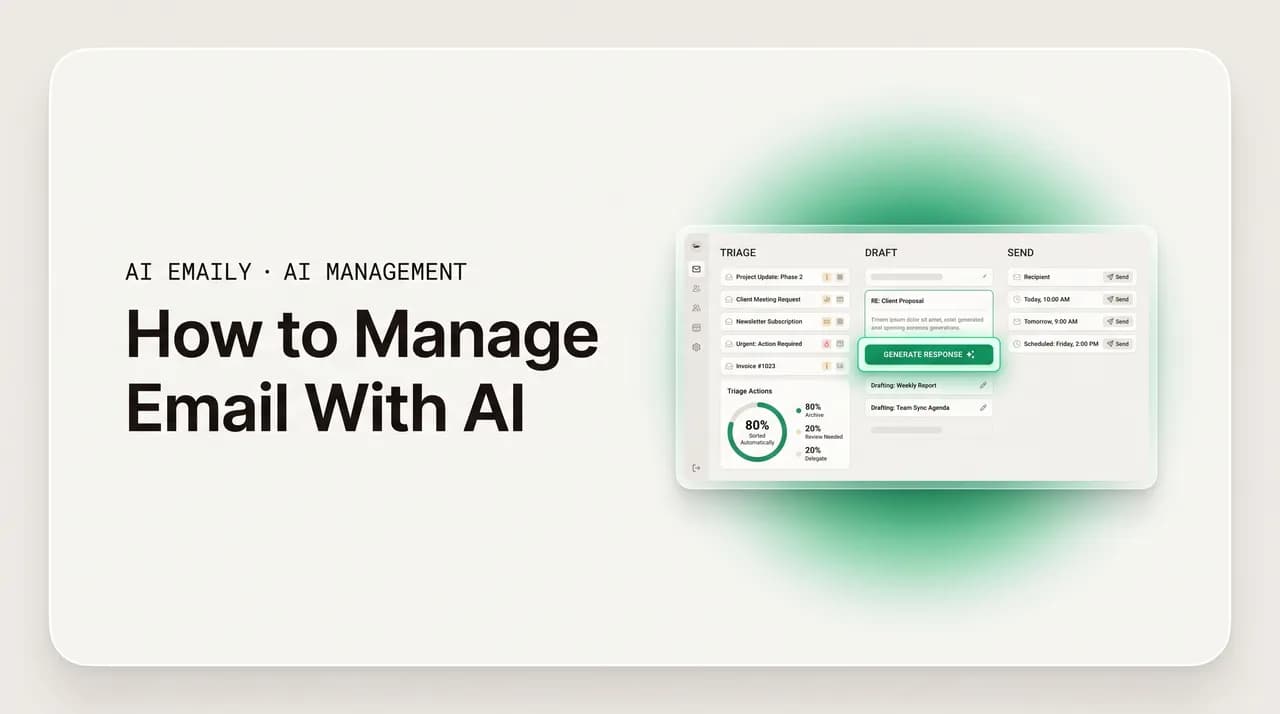
The short answer
Managing email with AI means handing the seven repetitive jobs of an inbox — triage, summarizing, drafting, prioritizing, replying, cleanup, and follow-up — to software that reads your mail and acts on it. The fastest path is an AI-native client like AI Emaily that does all seven across every account, privately, with undo and audit.
How to manage email with AI in 2026: the 7 jobs AI can do, a day at inbox zero, tool types compared, privacy, and why an AI-native client wins.
On this page
- 01What does "managing email with AI" actually mean?
- 02What are the seven jobs AI can do in your inbox?
- 03How does AI triage your inbox?
- 04How does AI summarize long emails and threads?
- 05How does AI draft replies in your voice?
- 06How does AI prioritize what matters most?
- 07How does AI auto-reply to routine email?
- 08How does AI clean up your inbox?
- 09How does AI follow up so nothing slips?
- 10What does a day at inbox zero with AI look like?
- 11What are the three kinds of AI email tools?
- 12Why does an AI-native client win for managing email?
- 13How does AI Emaily manage your email?
- 14Is it safe and private to manage email with AI?
- 15How do you start managing your email with AI?
- 16The bottom line on managing email with AI
The average professional now spends close to thirteen hours a week on email — roughly 2.6 hours a day, or about 28 percent of the workweek, by McKinsey's much-cited estimate. The volume keeps climbing: a typical office worker receives around 120 messages a day, executives often pass 200, and people running several client inboxes can clear 300. The cruel part is how little of it earns the time. By most counts, only about a third of the mail that lands needs a thoughtful reply. The other two-thirds — newsletters, notifications, automated receipts, courtesy CCs, threads that resolved themselves — is noise you still have to wade through to find the few messages that matter.
That is the math behind email overload, and it is why "just get to inbox zero" advice has always rung hollow. The problem was never that you lacked discipline. It is that the inbox makes you do the same low-value work over and over: read each new message to decide if it matters, figure out which ones are urgent, write the same replies you have written a hundred times, file things into folders, unsubscribe from lists you never joined, and remember to chase the people who never wrote back. None of it is hard. It is relentless, and it eats the hours you would rather spend on actual work.
AI is the first tool that genuinely changes that equation, because for the first time the software can do the reading, the deciding, the drafting, and the acting — not just the searching and filtering that older rules offered. A modern AI email assistant can scan a message, understand what it is about, decide how urgent it is, summarize a forty-message thread into a sentence, draft a reply in your voice, file what needs filing, and surface only what truly needs you. Done well, this is the difference between processing email and supervising it.
This is the complete playbook for managing email with AI in 2026. We will define what "managing email with AI" actually means, because the phrase covers everything from a chatbot you paste into to an autonomous agent that runs your inbox. Then we will break down the seven distinct jobs AI can take off your plate, walk through a realistic day at inbox zero, compare the three kinds of tools you can choose between, and be straight about privacy — because email is among the most sensitive data you own. We build AI Emaily, an AI-native email client, so we will make the case for that approach plainly and with the trade-offs on the table. By the end you will know which jobs to hand to AI, in what order, and which kind of tool fits the way you actually work.
What does "managing email with AI" actually mean?#
"Managing email with AI" is a fuzzy phrase that hides a real distinction, and getting it clear up front saves you from buying the wrong tool. At its broadest, it means using artificial intelligence to handle the work of an inbox: deciding what matters, condensing what is long, writing what needs writing, and doing the routine actions — filing, replying, cleaning up, following up — that consume your day. But there are two very different ways software can do that, and they are not interchangeable.
The first way is assistive. You bring the AI to a single task: paste an email into a chatbot and ask for a reply, highlight a thread and click "summarize," ask a writing tool to make a draft sound more polite. The AI is genuinely useful here, but it is a helper you operate one task at a time — it does not see your whole inbox, does not act on its own, and the moment you finish the task you are back to doing everything else by hand. This is the model most people first encounter, because it is how a general chatbot works.
The second way is operational. The AI lives inside your mailbox, sees every message as it arrives, and works continuously across your whole inbox rather than one message at a time. Instead of you carrying each task to the AI, the AI is already on the task: it reads the thread without you pasting it, learns your voice from your sent mail and keeps it, and can file, label, schedule, and — with your permission — send. This is what an AI-native email client does, and it is a categorically different kind of help.
The reason the distinction matters: managing email is not one job, it is a stack of small repetitive jobs done dozens of times a day. An assistive tool helps you do each one a little faster; an operational tool removes most of them entirely. For an occasional hard email, the first is plenty; for an inbox you have to clear every day, the second is what gives you your hours back. Most of this guide is about the operational kind, because that is where the real time savings live — but we will be honest about where the assistive kind is the smarter, cheaper choice.
The question that picks your tool
What are the seven jobs AI can do in your inbox?#
Managing email breaks down into seven distinct jobs. Older tools — filters, rules, canned responses — could touch a couple of them mechanically. AI is the first thing that can do all seven, and do them by understanding the actual content rather than matching keywords. Knowing the seven by name is useful because it lets you delegate deliberately: you can hand AI one job, see how it does, and add the next when you trust it. Here is the full list, and then a short section on each.
| Job | What AI does | The shift from old tools |
|---|---|---|
| Triage | Sorts incoming mail into what matters and what doesn't, by meaning | Filters matched a sender or keyword; AI reads intent and learns |
| Summarizing | Condenses long messages and threads into a line you can act on | No old equivalent — you read the whole thing or guessed |
| Drafting | Writes replies in your voice with the thread's context built in | Canned templates didn't fit; AI drafts the actual reply |
| Prioritizing | Ranks what's left so the urgent and important rise to the top | The inbox sorted by recency, a poor proxy for importance |
| Auto-replying | Handles routine responses, with approval or, for low-stakes mail, alone | Out-of-office autoreplies were blunt; AI replies in context |
| Cleaning up | Unsubscribes, archives, and declutters so the inbox stays clear | Manual one-by-one filing; AI works at the category level |
| Following up | Tracks who hasn't replied and drafts the nudge so nothing slips | Depended on your memory; AI watches for the silence |
How does AI triage your inbox?#
Triage is the first and most valuable job, because it is the one you do most. Every message that arrives makes you read at least the first line to answer one question: does this matter, and how much? Multiply that micro-decision by 120 messages a day and you have the single biggest tax email charges. AI triage takes that decision off your hands.
The old way of sorting mail was mechanical. Filters and rules match a sender, a subject line, or a keyword and move the message to a folder. They work until reality gets messy — a newsletter from a domain you also get real mail from, an urgent request that doesn't contain the word "urgent," a client writing from a personal address your rule has never seen. Rules cannot read intent, so they break on anything they weren't explicitly told about.
AI triage reads the actual content. It understands that a message is a meeting request, a sales pitch, a customer complaint, a receipt, or a genuine question that needs an answer, and sorts accordingly — not by matching a string but by understanding what the email is for. Crucially, it learns: the more you confirm or correct its decisions, the more tailored to you it gets within a week or two. The result is an inbox where the noise is already set aside and the things that need you are grouped and waiting, so you start at the messages that matter instead of from zero every time.
How does AI summarize long emails and threads?#
The second job is summarizing, and it solves a specific pain: the message or thread that is too long to skim and too important to ignore. A twelve-reply thread where a decision got made somewhere in the middle. A wall-of-text update from a colleague who writes like they're paid by the word. A forwarded chain with "see below" stacked eight deep. You need the gist and the action items, not the prose.
AI summarization reads the whole thing and gives you the short version: what it is about, what was decided, and what — if anything — you need to do. Good summaries are not just shorter; they are actionable. They pull out the question you are being asked, the date you are held to, the decision you are expected to weigh in on. For a long thread, the best tools summarize the conversation rather than the latest message, so you get the arc — who proposed what, what was agreed, where it stands — instead of a summary of the last reply that assumes you read the first eleven.
The time math is straightforward. Reading a long thread to extract one decision might cost three or four minutes; a summary costs ten seconds. But the deeper value is cognitive: a summary lets you decide whether a thread needs you at all without spending the attention to read it. Half the long threads in your inbox don't actually require your input — a summary tells you that in a glance, so you move on instead of getting pulled in.
How does AI draft replies in your voice?#
The third job is drafting, and it is where AI saves the most writing time — if it sounds like you. A draft that reads like a generic assistant wrote it is not a time-saver, because you have to rewrite it before you'd put your name on it. The standard to hold any drafting tool to is whether the output sounds like you on a normal day.
An AI-native email client learns your voice from your sent mail. It has read how you actually write — that you open with the person's first name, keep replies short, sign off with just your initials to colleagues and your full name to clients — and it drafts in that register. Because it also has the thread, the draft already knows the context: it answers the actual question, references what was said, and lands at the right length. You are not starting from a blank reply box or a generic template; you are starting from a draft that is ninety percent there.
This is the clearest place to feel the difference between assistive and operational AI. A general chatbot can imitate your voice, but only from samples you paste in that session, and it forgets the moment you close the tab — so every email is a fresh round of pasting your style and the thread. An inbox-native tool learns your voice once and keeps it, with the thread already in hand, so the draft is waiting when you open the message rather than something you have to set up each time. For the volume of replies most people send, that gap is the whole game.
How does AI prioritize what matters most?#
Prioritizing is the fourth job, and it picks up where triage leaves off. Triage sorts mail into matters / doesn't-matter. Prioritizing ranks the stuff that matters, so that within the pile of things needing you, the genuinely urgent and important float to the top and the merely-routine waits its turn. The two jobs are related but distinct: you can have an inbox that is well-triaged and still face a dozen things that all feel equally pressing.
AI prioritization works by combining signals from the content and your behavior. Who is this from, and do you usually reply to them quickly? Is there a deadline or a time-sensitive ask? Is this a thread you started, suggesting you care about it? Is the sender a known VIP — your boss, a key client, your co-founder — or a list? The best tools let you teach it explicitly, too: mark a sender as important and their mail rises; mute a thread and it stops competing for your attention even when it gets new replies.
The payoff is that you stop triaging by recency. The default inbox is sorted newest-first, a terrible proxy for importance — it puts the latest newsletter above a client question from this morning. AI prioritization reorders the things that need you by how much they need you, so the first message you see is the one most worth your time. For anyone whose inbox is a stream of competing demands, this is the difference between reacting to whatever shouts loudest and working down a list that actually reflects what matters.
How does AI auto-reply to routine email?#
Auto-replying is the fifth job, and it is the one people are most curious and most cautious about — rightly. There is a world of difference between an AI that drafts a reply for you to approve and an AI that sends on its own, and a good tool lets you choose where on that spectrum each kind of email sits.
Start with the safe version. For most mail, "auto-reply" means the AI prepares a complete, in-your-voice reply and holds it for your one-click approval. You open the message, the reply is ready, you read it, and you send — or tweak first. Nothing leaves your outbox without you saying yes. This fits the overwhelming majority of email, because most replies benefit from a half-second human glance even when the AI got them right.
Then there is genuine automation for the narrow band of mail where it is safe: the routine, low-stakes responses you send the same way every time — acknowledging receipt of a document, confirming you'll be at a meeting, sending a standard answer your support inbox gets daily. For these, a well-built tool can handle the reply end to end, but only for the categories you have explicitly defined, and always with the ability to see what was sent and undo it. The principle that should govern any auto-reply feature: you decide what is automatic and what waits, the default leans toward asking, and there is always a record and an undo. Automation you cannot see or reverse is a liability, not a feature.
Approval-first is the right default for sending
How does AI clean up your inbox?#
Cleaning up is the sixth job, and it addresses the backlog and ongoing clutter that make an inbox feel hopeless: the thousands of unread messages, the newsletters you stopped reading months ago, the promotional mail from a store you bought from once, the receipts and notifications that pile up because archiving them one by one is too tedious to bother with.
AI helps with cleanup in two directions. Backward, it works through the existing mess: it identifies the subscriptions you never open and offers to unsubscribe in bulk, groups thousands of old promotional and notification emails for one-click archiving, and surfaces the senders clogging your inbox. Instead of triaging a five-figure backlog by hand, you make a handful of category-level decisions and the AI executes them. Forward, it keeps the inbox clean by routing recurring noise automatically — receipts to a folder, newsletters to a reading bundle, notifications archived after you've seen them — so the clutter never rebuilds.
The unsubscribe piece deserves a mention because it is where the most lasting cleanup happens. Most inbox clutter is subscriptions you forgot you have. An AI that detects every list you're on and unsubscribes from the ones you never read does not just clean today's inbox — it stops a slice of tomorrow's mail from ever arriving. That is the difference between mopping the floor and fixing the leak.
How does AI follow up so nothing slips?#
The seventh job is following up, and it is the one most people do worst because it depends entirely on memory. You send an important email and get no reply. The thread scrolls down. A week later you realize the deal, the answer, or the introduction never happened — not because anyone said no, but because the ball was dropped and nobody was tracking it. Follow-up is where money and relationships quietly leak out of an inbox.
AI handles follow-up by watching for replies that do not come. When you send a message that expects a response, the tool tracks it, and if the recipient goes quiet for a set period, it surfaces the thread again — or, better, drafts the follow-up for you. "Just circling back on this" is a message you have written a thousand times; an AI writes it for you, in your voice, at the right interval, so the nudge goes out without you having to remember it was owed. For sales pipelines, recruiting threads, and any work where persistence is the whole job, automated follow-up is the difference between a process and a prayer.
Tie the seven jobs together and a pattern emerges. Individually, each is a small relief — a few minutes saved here, a dropped thread caught there. Together, they are the entire workload of managing an inbox: deciding, reading, writing, ranking, replying, clearing, and chasing. A tool that does one of the seven is a useful add-on. A tool that does all seven, across every account, is no longer an add-on — it is an assistant that runs your email while you supervise. That is the shift worth understanding, and it is exactly what the next section shows in motion.
What does a day at inbox zero with AI look like?#
Theory is one thing; a day is another. Here is what managing email with AI looks like in practice, for someone who has handed the seven jobs to an AI-native client and kept themselves in the loop where it counts. The point is not that you stop touching email — it is that you touch it deliberately, a few times a day, and supervise rather than process.
- 1
8:30 a.m. — Open to a triaged inbox, not a pile
Overnight, the AI triaged everything that arrived. You open your mail to a short list of what needs you — six or seven messages, each with a one-line summary — instead of forty-seven undifferentiated unreads, with the newsletters, receipts, and notifications already sorted out of the way. You read the summaries first and know in thirty seconds what your morning's email actually contains.
- 2
8:35 a.m. — Clear the easy replies with approval
Three of the seven have drafts already written in your voice, with the thread's context built in. You read each, tweak one word, and approve all three. Nothing sent without your glance; the three replies that would have taken fifteen minutes of writing took two minutes of reading, because the AI had the context you'd otherwise have re-supplied by hand.
- 3
8:40 a.m. — Handle the two that need real thought
Two messages need actual decisions — a pricing question from a client, a scheduling conflict. The AI can't make those calls and doesn't try. But it summarized the long thread behind the pricing question so you didn't read twelve replies to answer, and offered three meeting times for the scheduling one by reading your calendar. You write the substance; it removed the busywork around it.
- 4
11:00 a.m. — Routine mail handled itself
While you were heads-down on real work, a document-received acknowledgment and a standard FAQ reply went out automatically — categories you'd explicitly set to autopilot. You didn't see them in the moment, but they're in the audit log, in your voice, and reversible with one click. The inbox didn't interrupt you, and the senders still got a prompt reply.
- 5
4:00 p.m. — A second pass, not a second slog
Afternoon mail has been triaged the same way. You do a five-minute pass: approve a few drafts, summarize one long thread, snooze two things to tomorrow. The AI flags that a proposal you sent Monday still hasn't gotten a reply and offers a follow-up draft; you approve it, and the thread you'd otherwise have forgotten gets its nudge.
- 6
End of day — Inbox zero, in under twenty minutes total
Across two short passes and a few automatic actions, the inbox is clear. The mail that needed you got you; the mail that didn't got handled or filed. You spent under twenty minutes on email and missed nothing — not because you were disciplined, but because the AI did the six repetitive jobs and left you the one that needed judgment.
The contrast with a normal email day is the whole argument: that same volume, without AI, is two-plus hours of triaging, writing from scratch, dreading long threads, and forgetting the follow-up. The catch, and it is a real one, is that this day depends on the AI actually being able to act on your inbox — to triage, draft, send, file, and follow up — not just answer questions about it. That capability is exactly what separates the kinds of tools you can choose, which is the next thing to get straight.
What are the three kinds of AI email tools?#
When people say they want to "manage email with AI," they reach for one of three categories of tool, and the categories are easy to confuse because they all use the word AI. They are not equivalent. They differ on the one axis that decides whether you get your hours back: how much of the work the tool can actually do on your real inbox versus how much you still do by hand. Here is each, plainly.
First, general chatbots — ChatGPT, Claude, Gemini, Microsoft Copilot, and the like. These are large language models in a chat window. They are superb writers and capable summarizers, and for a single email they are genuinely useful: paste a thread in, ask for a reply or summary, get an excellent result. Their limit is structural. By default they do not live in your inbox, so you carry every email in by hand and the draft back out by hand. They do not remember your correspondence between sessions, do not learn and keep your voice, and cannot send, file, or follow up. They help with one task at a time; they do not manage an inbox. Some now offer connectors and agent modes that read recent mail, but for everyday email the copy-paste loop is still the reality.
Second, plugins and add-ons — tools like Fyxer, MailMaestro, and various browser extensions that layer onto Gmail or Outlook. These are a real step up from a chatbot because they connect to your actual inbox: they can read your mail, learn your style from past emails, and draft replies in place. The trade-off is that they are bolted onto an app that was not built for them, so they are limited by what the host app's extension points allow, they often focus on one or two of the seven jobs (usually drafting and summarizing), and they typically sit on one provider at a time. They reduce the copy-paste tax without removing it, and rarely do the full job of running an inbox.
Third, AI-native email clients — apps where the AI is not an add-on but the foundation. This category includes Superhuman, Shortwave, and AI Emaily. Because the client owns the whole inbox, the AI can do all seven jobs: triage, summarize, draft in your voice, prioritize, reply, clean up, and follow up — and actually act, not just suggest. The trade-off is that you adopt a new email app instead of keeping your old one; for the depth of help, most people find that trade worth it, but it is a real switch and worth naming. The comparison below puts the three side by side.
| General chatbot | Plugin / add-on | AI-native client | |
|---|---|---|---|
| Examples | ChatGPT, Claude, Gemini, Copilot | Fyxer, MailMaestro, extensions | Superhuman, Shortwave, AI Emaily |
| Sees your inbox | No by default — you paste | Yes, via the host app | Yes — it is the inbox |
| Jobs it covers | Drafting, summarizing (one at a time) | Usually drafting + summarizing | All seven, end to end |
| Acts (file/send/follow up) | No — you copy back and send | Limited by host app | Yes — with your chosen level of control |
| Learns and keeps your voice | Only from pasted samples, forgets | Yes, from past mail | Yes, from your sent mail |
| Across multiple accounts | No concept of your inboxes | Usually one provider at a time | Every provider, one place |
| Best for | Occasional hard emails, low volume | Auto-drafts on your current inbox | Running a real inbox, every day |
Read the table by the row that matches your bottleneck. The occasional difficult email at low volume? A general chatbot is a fine, often free choice. Auto-drafts on the Gmail or Outlook you already use, mostly for help writing? A plugin fits. But the daily grind of an inbox — reading, deciding, replying, clearing, and chasing, across more than one account — is covered in full only by the AI-native row, because only that category can actually do the seven jobs rather than help with one at a time. The next section is about why, for managing email rather than writing the odd message, the AI-native approach wins.
Why does an AI-native client win for managing email?#
If the job is writing a single hard email, a chatbot is the right tool and we will not pretend otherwise. But if the job is managing email — the whole inbox, every day — an AI-native client wins, for reasons that are structural rather than marketing. The advantages come down to three things a bolt-on or a chat window cannot match.
It acts on the inbox, not just talks about it. This is the dividing line. A chatbot generates text and hands it back for you to deal with. A plugin can draft in place but is fenced in by what the host app permits. An AI-native client owns the inbox, so it can do the full loop: read the thread, triage it, draft the reply, file the message, schedule the send, track the follow-up, archive the noise — the seven jobs, executed, not suggested. Managing email is mostly action, not writing, and only the tool that can take action removes the work. Everything else leaves you as the hands that carry the AI's output back into the inbox.
It works in your voice, persistently. Because an AI-native client reads your sent mail, it builds a durable model of how you write and keeps it. Every draft starts in your register, with the thread's context already in hand. You are not re-teaching your style each session the way you must with a chatbot. The voice is learned once and applied everywhere, which is what makes "approve a draft in two seconds" possible rather than "rewrite the draft so it sounds like me."
It covers every account in one place. Most people do not have one inbox; they have a work address, a personal address, maybe a freelance or shared mailbox. A chatbot has no concept of your inboxes. A plugin usually sits on one provider. An AI-native client built to be provider-agnostic connects Gmail, Outlook, and the rest into a single unified inbox, so the same AI does the same seven jobs whether the mail came to your work address or your side project. You manage one inbox with one assistant instead of repeating your whole email life across several apps. Put the three advantages together — it acts, it keeps your voice, it covers everything — and the reason becomes plain: managing email is a continuous, multi-account, action-heavy job, and only a tool built as the inbox can do it.
"Helps me write" versus "runs my inbox"
How does AI Emaily manage your email?#
We build AI Emaily, so read this section knowing that — but the case rests on the seven jobs and the trade-offs already on the table, not on adjectives. AI Emaily is an AI-native email client built to be an autonomous chief of staff for your inbox: it does all seven jobs across every account, in your voice, privately, and — the part that makes it trustworthy rather than nerve-wracking — at exactly the level of control you choose, always with undo and a full audit trail. Here is how it manages your mail.
It does the seven jobs, end to end. AI triage sorts every incoming message by what it means and learns what you treat as important. Summaries condense long threads to a line. Drafting writes replies in your voice with the thread's context built in. Prioritization surfaces what matters while an AI screener holds unknown senders at the door. Auto-reply handles the routine, and rules plus a learned "brain" keep the inbox organized and clean. Follow-up tracking catches the threads that went quiet and drafts the nudge. These are not separate apps stitched together; they are one assistant doing the whole workload.
It runs at three levels of control, with undo and audit on all of them, because the right amount of automation differs for different mail and different people. In Manual, the AI suggests and you do everything. In Copilot, it prepares each action and waits for your one-click approval, so a draft is ready but nothing sends until you say yes; this is the mode most people live in. In Autopilot, it handles the routine categories you have explicitly defined on its own. Across all three, every action is logged and reversible, so you get the speed of automation without ever losing the ability to see and reverse what happened.
It covers every provider and works as one inbox. AI Emaily connects Gmail, Outlook, and other providers into a single unified inbox, so the seven jobs run the same way across all of them — including shared inboxes with delegation, so a team can run a support or sales mailbox together with the AI triaging and drafting underneath. One assistant, every account, one place to manage it all.
On pricing, the line is honest. AI Emaily has a genuinely free plan at $0 to start managing email with AI today — real triage, summaries, and drafting, not a crippled demo. Pro is $12.42/mo on annual billing for the full assistant, below the premium AI-native clients and in line with a single chatbot subscription, except you are paying for a tool that does the seven jobs rather than a window that writes paragraphs. Autopilot is $20.75/mo on annual billing for the deepest automation, the AI screener, and the heaviest follow-up and rules work. Run the whole workflow on the free plan first and upgrade only when the time it gives back makes the case for you. Start at app.aiemaily.com/signup.
Is it safe and private to manage email with AI?#
This is the question that should give you pause, and the right answer is: it depends entirely on the tool's data posture, which you should check rather than assume. Email is among the most sensitive data you own — contracts, medical notes, legal threads, financial details. Handing it to an AI is reasonable only if you know where it goes and what is done with it. There are three questions that matter, and the honest tools answer all three clearly.
The first: is your email used to train the provider's models? This is the big one. Some consumer chatbot tiers may use what you paste to improve their models unless you find and flip the opt-out. Some inbox AI scans your mail to power features by default — not necessarily training on it, but processing it more than you might expect, with rollouts that have drawn real criticism for being switched on without clear consent. The standard to demand is private by default: your mail is not used to train anyone's model, full stop, not as a setting you have to discover. AI Emaily does not train on your mail. That is the baseline, not a toggle.
The second: is your content encrypted and protected at rest? Sensitive data should be encrypted, and the crown jewels — the OAuth tokens that connect your accounts, any keys you bring — should be protected to a higher standard than ordinary storage and never logged in the clear. The third: can you see and control what the AI does? This is where undo and an audit trail matter for privacy as much as for trust; a tool you can inspect is a tool you can hold accountable. There is a genuine trade-off worth naming: a fully end-to-end-encrypted mail service can't offer server-side AI features, because the whole point of E2E encryption is that the server can't read your mail, and any tool that triages and drafts has to read your content to do the job. The right posture is to protect that access rigorously — no training on your mail, encryption, least-privilege access, and a visible record — so the tool can do the work without your data becoming the product.
Three questions to ask any email AI
How do you start managing your email with AI?#
You do not flip a switch and hand over your whole inbox on day one, and you should not. The way to adopt AI email management without anxiety is to delegate in order, building trust one job at a time. Here is the path most people follow — and the further down the list you want to go, the more you will need a tool that can actually act.
- 1
Week 1 — Let AI triage and summarize
Start with the two jobs that touch no one else's inbox: triage and summarizing. Let the AI sort your incoming mail and condense your long threads, while you keep doing everything else by hand. This is pure upside with zero risk — you are just reading a better-organized inbox — and it lets you feel whether the tool understands your mail before you give it more.
- 2
Week 2 — Turn on drafting, approve everything
Once triage feels right, let the AI draft replies, but keep approval on every send. Read each draft, correct the voice where it's off, and approve. Two things happen: you save real writing time immediately, and the tool learns from your edits, so the drafts get more like you each day. Nothing sends without you, so the stakes stay low.
- 3
Week 3 — Automate the routine, low-stakes replies
Now pick the narrow set of mail you'd send the same way every time — receipt acknowledgments, standard confirmations, common FAQ answers — and let the AI handle those end to end. Define the categories explicitly, keep everything logged and reversible, and leave the rest on approval. You're automating only what's genuinely safe.
- 4
Week 4 — Add cleanup and follow-up
Finally, let the AI work on the backlog and the leaks: bulk-unsubscribe from lists you never read, route recurring noise automatically, and turn on follow-up tracking so the threads that go quiet get nudged. By now you trust the tool's judgment, so handing it the housekeeping and the chasing is a small step — and it's the one that keeps the inbox clear for good.
Start free, delegate gradually
The bottom line on managing email with AI#
Email overload was never a discipline problem. It is a volume problem — 120 messages a day, two-thirds of them noise, each one demanding the same small repetitive decisions — and for the first time there is software that can make those decisions for you. Managing email with AI means handing the seven jobs of an inbox to a tool that can read your mail and act on it. Do it well and a two-hour email day becomes a twenty-minute one, not because you tried harder but because the machine did the parts that never needed a human.
The tool you pick decides how much of that you actually get. A general chatbot is a brilliant writer for the occasional hard email and a poor inbox manager, because it cannot see your mail or act on it without you in the loop for every step. A plugin layers helpful drafts onto the inbox you have but is fenced in by the host app and usually covers only a job or two. An AI-native client is the one that can do all seven jobs, in your voice, across every account, because it is built as the inbox rather than bolted onto one. For managing email — as opposed to writing the odd message — that is the category that wins, and it wins for structural reasons, not marketing ones.
It is worth being honest about why the distinction is easy to miss. Try a chatbot on one impressive email and the result is dazzling, and it is tempting to assume it scales to your whole inbox. But a single great draft and a cleared inbox are different achievements. The first is a writing problem the models have largely solved. The second is a workflow problem — deciding, reading, ranking, replying, clearing, and chasing, across dozens of messages and more than one account — that a chat window was never built to solve. Judge an email AI by the second standard, and the field reorganizes around the tool that removes the work rather than the one that writes the prettiest paragraph.
That is what AI Emaily was built to do. It is an AI-native email client that runs your inbox like a chief of staff — all seven jobs, in your voice, across every provider — at the level of control you choose, from Manual to Copilot to Autopilot, always with undo and a full audit trail. It is private by default, with no training on your mail. And it starts free, with Pro at $12.42/mo on annual billing. If you want help writing the words, a chatbot will do nicely. If you want your email actually managed — the seven jobs handled, privately, everywhere — that is the AI-native answer. Start at app.aiemaily.com/signup.
Frequently asked
See it in AI Emaily
Keep reading
Sources
- Mailbird — Email overload statistics and the 2026 productivity guide
- alfred_ — Email overload statistics in 2026
- Fyxer — 7 best email assistants in 2026 for your inbox
- Newmail — AI email triage: complete guide and best practices
- Missive — The 8 best AI email assistants in 2026: from inbox helpers to autonomous agents
- Qualtir — AI email automation in 2026: trends, statistics, and what to expect
- Mailbird — Email privacy in the age of AI: protection guide 2026

Written by
Nafiul HasanNafiul Hasan is an entrepreneur and AI automation system builder with 10+ years of experience turning messy, manual workflows into reliable automated systems. He designs and ships AI enterprise solutions end-to-end — the agent logic, the data plumbing, and the product people actually use — and founded AI Emaily to give busy professionals their attention back. He writes here from the builder's seat: what works, what breaks, and how to put AI to work without giving up control.