550 5.7.1 Unable to Relay: Why It Happens and the Fix


The short answer
You get 550 5.7.1 unable to relay when the server you connected to is not the final destination for a recipient's domain and does not trust you to pass mail along. The usual causes are no authentication, a sending IP that is not allow-listed on a connector, or the wrong server endpoint. Fix whichever one applies.
550 5.7.1 unable to relay means the server won't carry your mail: you're unauthenticated, on an unlisted IP, or on the wrong endpoint. Here's the fix.
On this page
- 01What does 550 5.7.1 unable to relay actually mean?
- 02What causes unable to relay, and how do you confirm each one?
- 03Fix 1: how do I authenticate the sender?
- 04Fix 2: how do I allow-list the device with a connector?
- 05Fix 3: am I pointed at the wrong endpoint?
- 06How do I tell which cause I have?
- 07How do I stop it coming back?
- 08Where does AI Emaily fit?
A scanner that worked for a year stops emailing PDFs. A CRM sends its first invoice reminder and the log fills with 550 5.7.1 unable to relay. The message never arrives, and the person who set it up left the company in 2022.
This page covers the relay-refusal flavour of the 5.7.1 family only. If you are looking at a rejection for content, reputation or policy, that is a different problem. Here the reader is almost always an app, printer, scanner or CRM, so the fix is about authentication, connectors and allow-listed IPs. The Exchange Online details below were checked against Microsoft's documentation in October 2026.
What does 550 5.7.1 unable to relay actually mean?#
The first digit, 5, is a permanent failure under the SMTP standard in RFC 5321, so retrying the same message the same way will not help. The 5.7.1 part is the enhanced status code, and Microsoft's own NDR reference lists 'Unable to relay' as one of its meanings. The server is telling you that you asked it to deliver mail to a domain it does not host, and it has no reason to trust you with that job.
Servers are strict about this because an open relay is an open door for spammers. A server will accept mail for its own domains from anyone. For anything else it wants proof you are an authorised sender, either a login or a known source address.
What causes unable to relay, and how do you confirm each one?#
There are three real causes, plus one lookalike. The table maps each to the clue that confirms it and the fix further down.
| Cause | How to confirm | Fix |
|---|---|---|
| Device sent without logging in | Settings show no username or password, and the host is smtp.office365.com or another submission server | Fix 1: turn on authentication, or switch to a method that does not need it |
| Sending IP not allow-listed | Host is your MX endpoint on port 25, you have no inbound connector, or the public IP changed | Fix 2: create or correct the inbound connector |
| Wrong endpoint for the job | Mail to your own domain works but external recipients fail, or the host and port do not match the method | Fix 3: pair the right host, port and method |
| Recipient domain's MX points at a server that does not accept it | Every message to one specific domain fails, whatever you send from | Not your fix. The domain owner must correct the MX record |
Fix 1: how do I authenticate the sender?#
Use this when your device points at smtp.office365.com. Microsoft calls it client SMTP submission, and it requires a Microsoft 365 mailbox login. It is the only method that works from any IP address, which matters for apps hosted by a third party.
- 1
Set the server, port and encryption
Server smtp.office365.com, port 587 (recommended) or 25, with STARTTLS on. Microsoft says to use the DNS name, not an IP address. If the device defaults to port 465, it does not support the TLS versions this method needs.
- 2
Enter full mailbox credentials
Use the licensed mailbox's address and password, or OAuth where the device supports it. Microsoft says basic authentication for client submission is scheduled for deprecation, so check the vendor's timeline before building anything new on it.
- 3
Check that SMTP AUTH is enabled for that mailbox
Microsoft notes SMTP AUTH is disabled by default for organisations created after January 2020, but it can be switched on per mailbox in the admin centre. A login that is correct but refused often means this switch is off.
- 4
Match the From address to the login
If the device sends from a different address than it logs in with, the login account needs Send As permission on that mailbox. Without it you get a different error, 5.7.60, rather than unable to relay.
Fix 2: how do I allow-list the device with a connector?#
Use this when the device cannot log in, such as an older scanner, or when it sends more than a mailbox allows. Microsoft calls it SMTP relay. Instead of a password, Microsoft 365 recognises the device by a TLS certificate or by its public IP address, using an inbound connector.
- 1
Find the public IP the device sends from
Use the address Microsoft 365 sees, not the device's internal one. It must be static and used only by your organisation. Microsoft states that dynamic IP addresses are not supported for the IP-based connector.
- 2
Create the inbound connector
In the Exchange admin centre go to Mail flow, then Connectors, then Add a connector. Choose 'Your organization's email server' as the source. Under authentication, pick the certificate option if your device has a certificate, or enter the public IP address.
- 3
Point the device at your MX endpoint on port 25
The host is your domain's MX target, in the form contoso-com.mail.protection.outlook.com. It is not smtp.office365.com. Use any address in a verified accepted domain as the sender; it does not need a mailbox.
- 4
Add the source to your SPF record and test
Without an SPF entry the mail may land in junk even after the relay error clears. Send a test message and confirm the recipient actually gets it.
Fix 3: am I pointed at the wrong endpoint?#
This is the cause behind most scanner tickets. The device has a host and port from one method and credentials, or none, from another. Pointing the device at the tenant MX with no connector is Direct Send, and Microsoft says Direct Send delivers only to recipients inside your Microsoft 365 organisation. External addresses such as Gmail are rejected, and unable to relay is one way that rejection shows up.
The table lays out the four methods Microsoft documents. Pick one and make every setting agree with it.
| Method | Host | Port | How it proves identity | External recipients |
|---|---|---|---|---|
| Client SMTP submission | smtp.office365.com | 587 or 25 | Mailbox login | Yes |
| SMTP relay | Your MX endpoint | 25 | Connector with certificate or static IP | Yes |
| Direct Send | Your MX endpoint | 25 | None | No |
| High Volume Email | Per Microsoft's HVE setup | 587 | HVE account login or OAuth | No |
Do not turn this into an open relay
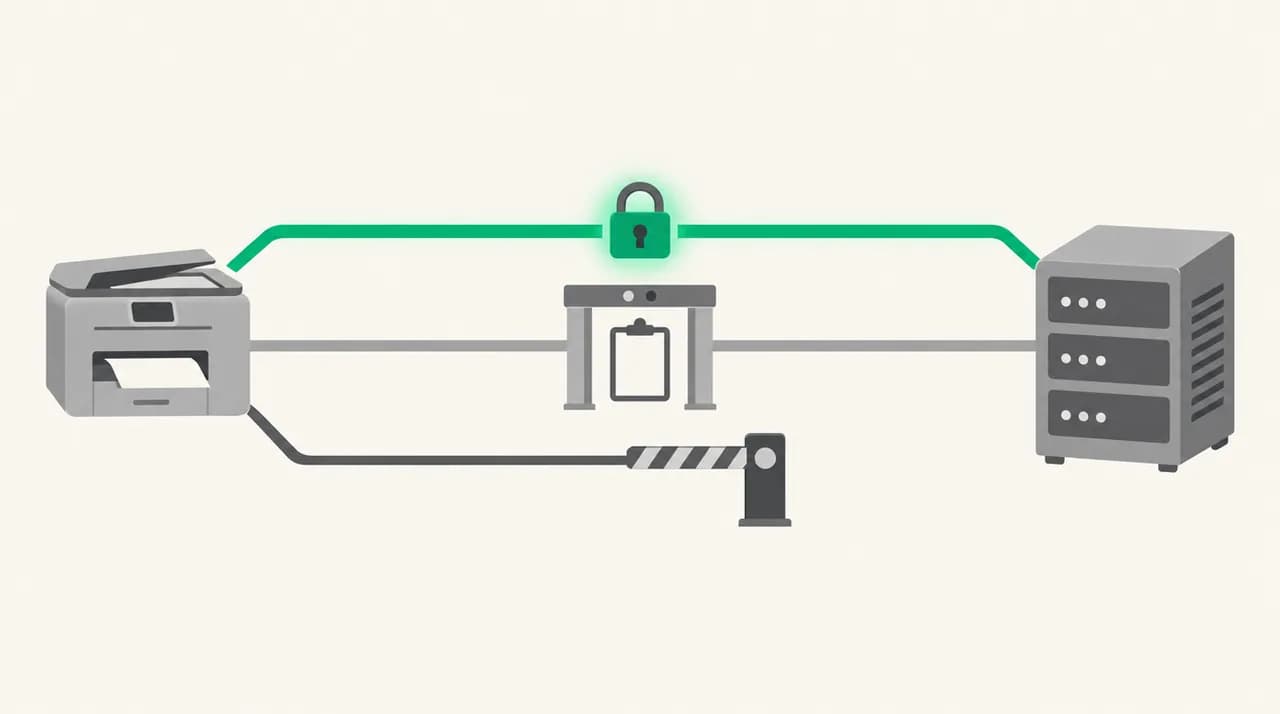
How do I tell which cause I have?#
Start with the sentence just after the code. 'Unable to relay' with no login in the device settings points to Fix 1 or Fix 3. If the device has a login but still fails, check SMTP AUTH on the mailbox. If it has no login and the host is the MX endpoint, you are in Fix 2 territory.
Then run two quick tests. Send to an address inside your own domain, then to an outside one. If the first works and the second fails, you are in Direct Send, and you need Fix 2 or Fix 1. If both fail, look at the authentication and port settings first, then the connector.
Also read the neighbouring codes. Microsoft lists 5.7.57, 'Client was not authenticated to send anonymous mail during MAIL FROM', as the error for devices relaying through smtp.office365.com with a configuration problem. That is a closely related failure with its own fix path.
How do I stop it coming back?#
Most relapses are changes nobody linked to email. An ISP renews your public IP, a firewall rule blocks port 25, a password rotates, or someone sets up a second device by copying the wrong settings.
- Ask your ISP for a static public IP if you rely on an IP-based connector, and write it into the connector's name.
- Use a dedicated mailbox or service account for each device, with its own password, so rotation does not break everything at once.
- Keep a one-page record of each device: method, host, port, sender address and who owns it.
- Re-test after any firewall, router or licence change. A blocked port 25 looks like a relay problem from the device's side.
- Prefer a method Microsoft still actively supports. Basic authentication for client submission is on a retirement path, so plan the move before it is forced.
- If you can, run SMTP relay through a server you control. Microsoft says a local mail server is easier to configure for relaying than Microsoft 365.
Where does AI Emaily fit?#
Everything above is plumbing between a machine and a mail server, and it breaks quietly because nobody reads the logs. We build AI Emaily, and we do not fix printers. We do not replace SMTP relay for scanners or apps either.
What we do touch is the human side of the same inbox. You connect your Outlook mailbox by signing in, as described in our connect-Outlook documentation, rather than by pasting server settings, and AI Emaily then triages and drafts replies there, with you approving what is sent. If relay failures are one of many messages burying you, that is the part we handle. There is a 7-day free trial, card required and $0 if you cancel before day 7, and the details are on the pricing page at aiemaily.com/pricing.
Frequently asked
See it in AI Emaily
Keep reading
Sources

Written by
Nafiul HasanNafiul Hasan is an entrepreneur and AI automation system builder with 10+ years of experience turning messy, manual workflows into reliable automated systems. He designs and ships AI enterprise solutions end-to-end — the agent logic, the data plumbing, and the product people actually use — and founded AI Emaily to give busy professionals their attention back. He writes here from the builder's seat: what works, what breaks, and how to put AI to work without giving up control.