What Is SMTP? How the Email Sending Protocol Works

The short answer
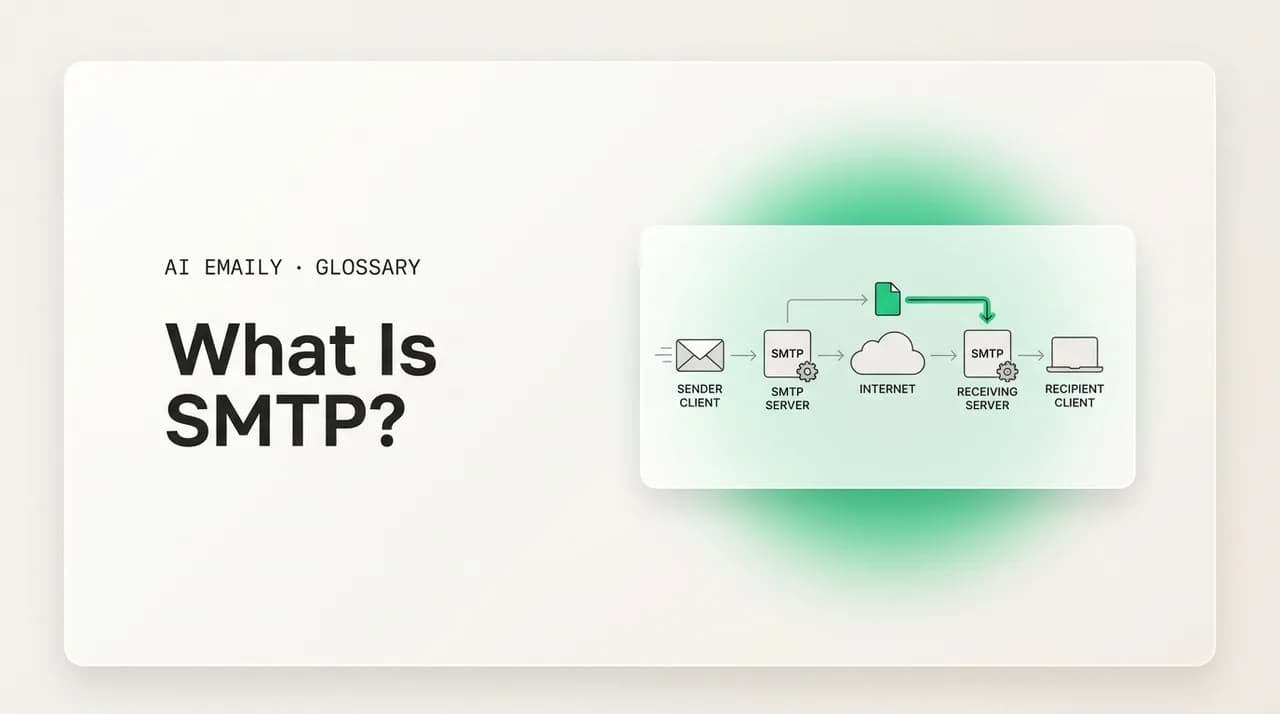
SMTP (Simple Mail Transfer Protocol) is the internet standard for sending and relaying email between servers. When you hit send, your client hands the message to an SMTP server, which routes it server-to-server until it reaches the recipient's mail system. SMTP only pushes mail outward — IMAP and POP3 are what fetch it back.
What SMTP is, how the email sending protocol works end to end — envelope, handshake, relays, MTA-to-MTA hops — plus SMTP vs IMAP/POP3, the ports (587, 465, 25), authentication, security, and common error codes.
On this page
- 01What is SMTP, in plain English?
- 02How does SMTP work, step by step?
- 03What is the SMTP envelope, and how is it different from the message?
- 04What does a real SMTP conversation look like?
- 05What is the difference between SMTP and IMAP or POP3?
- 06What is an SMTP server, and what does it actually do?
- 07Which SMTP ports should you use — 587, 465, or 25?
- 08How does SMTP authentication (SMTP AUTH) work?
- 09How is SMTP secured — TLS, SPF, DKIM, and DMARC?
- 10What do SMTP error codes and reply codes mean?
- 11Why does SMTP still matter after 40 years?
- 12Where does AI Emaily fit in?
Every email you have ever sent traveled on the same protocol. You typed the message, hit send, and within a second or two it was gone — off your screen and on its way to someone who might be across the office or across the planet. The thing that carried it there is SMTP, the Simple Mail Transfer Protocol, and it has been doing this same job since 1982. It is one of the oldest pieces of the internet still in everyday use, and almost nobody who relies on it could tell you what it does.
That is by design. SMTP is plumbing — invisible when it works, noticed only when something breaks: a message that bounces, a "relay denied" error, an email that silently never arrives. When that happens, the explanations you find are written for system administrators and assume you already know what a mail transfer agent is, what port 587 means, and why STARTTLS matters. This guide does not assume any of that.
Here is what you will get, in plain English: what SMTP actually is and what the words behind the acronym mean; how a message physically moves from your outbox to someone else's inbox, step by step; the difference between SMTP and the protocols that fetch your mail (IMAP and POP3), because confusing them is the most common mistake; the ports SMTP uses and which one to configure; how authentication keeps strangers from sending mail as you; how the protocol is secured today; and the error codes you will actually see when something goes wrong.
We will keep it concrete, with a ports table you can use as a setup reference, a worked example of a real SMTP conversation, and a plain-language tour of the error numbers. By the end you will understand the one protocol that every email in the world depends on — and why, despite being forty years old, it is not going anywhere.
What is SMTP, in plain English?#
SMTP stands for Simple Mail Transfer Protocol. It is the standard set of rules — a protocol — that computers use to send email to one another across the internet. When you send a message, your software does not magically place it in the recipient's inbox; it speaks SMTP to a mail server, which then speaks SMTP to other mail servers, passing the message along until it reaches the system that holds the recipient's mailbox. SMTP is the language of that conversation, and the rules for how mail moves from one machine to the next.
Break the name down and it explains itself. "Simple" because the original protocol was deliberately minimal — a small set of text commands a human could read. "Mail" because it carries email. "Transfer" is the key word: SMTP's entire job is moving mail from a sender to a destination. "Protocol" because it is an agreed standard that any compliant mail server understands, which is why an email sent from a tiny self-hosted server still arrives at a giant provider — they both speak the same protocol.
The one fact that clears up most confusion: SMTP is a sending and delivery protocol, not a retrieval one. It pushes mail outward and hands it off, server to server, toward the recipient. It does not pull mail down into the app where you read it — that is a different job done by IMAP or POP3. A useful mental model: SMTP is the postal service that picks up your letter and carries it to the destination post office; IMAP and POP3 are how you open your mailbox and take the letter out. Same postal system, opposite directions.
SMTP was first defined in 1982 as RFC 821 and updated over the years — most significantly by RFC 5321 in 2008, the modern specification in force today. Extensions added along the way (collectively called ESMTP, Extended SMTP) brought things the original lacked: authentication, encryption negotiation, message size limits, and more. When people say "SMTP" today they almost always mean this extended version, even though the core commands have barely changed in four decades.
The core idea in one line
How does SMTP work, step by step?#
When you hit send, a short chain of handoffs begins, and SMTP governs most of it. The message does not jump straight from your laptop to your friend's phone — it passes through several mail servers, each accepting it and forwarding it closer to the destination. Understanding those steps makes every later piece (ports, authentication, errors) make sense, because each step is where a specific thing can succeed or fail.
First, your email client connects to your outgoing SMTP server — the submission server — and authenticates. This is the server your mail app uses for sending: smtp.gmail.com, smtp.office365.com, or whatever your provider assigns. Your client logs in with your username and password (or a token), proving you are allowed to send, then hands over the message. The act of a user's mail program submitting a new message to this first server has a name — submission — and its own dedicated port, which we will get to.
Second, the submission server figures out where the message goes. It reads the recipient's domain — the part after the @ — and asks DNS for that domain's MX (Mail Exchange) record, which names the server responsible for receiving mail for the domain. This lookup turns "[email protected]" into an actual server address to connect to. For the full mechanics, see what-is-an-mx-record.
Third, your server opens a new SMTP connection to the recipient's mail server and relays the message across. This server-to-server hop is SMTP's central job — one mail transfer agent (MTA) talking to another, the sending server now acting as a client to the receiving one. There may be more than one hop: large mail systems route through several internal servers, so the message can pass MTA to MTA several times before it lands.
Fourth, the recipient's mail server accepts the message and files it into the right mailbox — or rejects it if the address does not exist, the mailbox is full, or filters flag it. At this point SMTP's job is essentially done: the mail has been transferred to the destination system. The recipient has not seen it yet; it is sitting on their server waiting.
Fifth — the part SMTP does not do — the recipient opens their email app, which connects to that server using IMAP or POP3 and pulls the new message down to read it. The send half of the journey was all SMTP; the read half is a different protocol entirely.
- 1
Submission
Your email client connects to your outgoing SMTP (submission) server, authenticates with your login, and hands over the message.
- 2
MX lookup
The submission server reads the recipient's domain and queries DNS for its MX record to find which server receives that domain's mail.
- 3
Relay (MTA → MTA)
Your server opens a fresh SMTP connection to the recipient's mail server and transfers the message — possibly through several hops.
- 4
Delivery
The recipient's mail server accepts the message and stores it in the right mailbox, or rejects it with an error if it cannot.
- 5
Retrieval (not SMTP)
The recipient's app fetches the stored message using IMAP or POP3 so they can read it — a separate protocol from sending.
What is the SMTP envelope, and how is it different from the message?#
Here is a distinction that trips up almost everyone and explains a surprising amount of email behavior: the SMTP envelope is not the same as the email's From and To headers you see in your client. SMTP carries two layers — the envelope, which servers use for routing, and the message itself (headers plus body), which is the content. They can disagree, and often do.
The envelope is the routing information exchanged before the message content is sent. It has two key parts: the envelope sender, given in the MAIL FROM command (the return-path, where bounces go), and the envelope recipient, given in one or more RCPT TO commands (the address the server delivers to). Servers act only on the envelope — they do not read the visible From and To headers to decide where mail goes; they route purely on MAIL FROM and RCPT TO.
The message — everything after the DATA command — contains the headers you actually see: From, To, Cc, Subject, Date, and the body. These are written for humans and email clients to read, and they are independent of the envelope. That is exactly how a BCC recipient gets a copy without appearing in any visible header: their address is added as an envelope RCPT TO but left out of the headers. It is also why a mailing list can show "To: [email protected]" while the message was delivered to your personal address.
The practical takeaway: the envelope is the address on the outside of the postal envelope the carrier reads; the From/To headers are the salutation written inside the letter. The carrier delivers based on the outside; the reader sees the inside. Most of the time they match, but the protocol does not require it — and that gap is the root of both useful features like BCC and abusable tricks like sender spoofing, which is why the authentication checks we cover later exist.
Envelope vs. headers
What does a real SMTP conversation look like?#
SMTP is a text-based protocol, which means a basic exchange is human-readable — you can literally watch the back-and-forth. The client sends a command, the server replies with a three-digit status code and a short message, and they take turns until the mail is transferred. Seeing one real exchange makes the whole protocol click, because every concept above — handshake, envelope, message, codes — appears in it.
Below is a simplified transaction in which a client connects to a mail server and sends one short message. Lines the client sends are the commands (HELO/EHLO, MAIL FROM, RCPT TO, DATA, QUIT); lines the server sends back start with a number — the SMTP reply code. Codes in the 200s mean success, 354 means "go ahead and send the message body," and the 200s at the end confirm the message was accepted.
A few things to notice. The greeting (220) and the EHLO handshake come first — EHLO is the modern "hello" that asks the server which extensions it supports, and the server's 250 reply lists them, including whether it offers STARTTLS for encryption and AUTH for login. The older HELO command exists for plain SMTP; EHLO is what enables the extended features nearly every server uses now.
Then come MAIL FROM and RCPT TO — the envelope being built, sender first, then one recipient per RCPT TO line. Only after the envelope is set does DATA transfer the message, which is why the From/To headers inside the body are sent separately from the envelope addresses above. The lone dot on its own line is the agreed end-of-message marker. The final 250 is the moment that matters: the receiving server has taken responsibility for the message. Before that 250 it is not yet delivered; after it, delivering or bouncing is the receiving server's problem.
EHLO vs HELO
What is the difference between SMTP and IMAP or POP3?#
This is the comparison worth getting right, because mixing these up is behind a huge share of "my email won't work" problems. SMTP, IMAP, and POP3 are all email protocols, but they do opposite jobs. SMTP sends mail. IMAP and POP3 receive it — they pull messages from a server down into the app where you read them. Every working email setup uses two protocols at once: one for sending (SMTP) and one for receiving (IMAP or POP3).
Think of it as a two-way street with one-way lanes. When you send, your client speaks SMTP to push the message out. When you check for new mail, the same client speaks IMAP or POP3 to fetch what has arrived. They are configured separately — your account settings have an "outgoing (SMTP) server" and an "incoming (IMAP/POP) server," often on different hostnames and ports — which is exactly why you can sometimes receive mail fine but fail to send, or vice versa. One lane is broken; the other is not.
IMAP (Internet Message Access Protocol) and POP3 (Post Office Protocol version 3) differ from each other too, though both receive. POP3 is the older approach: it downloads messages to one device and, by default, removes them from the server — mail lives on your machine, and a second device sees nothing. IMAP keeps mail on the server and syncs it across every device, so your phone, laptop, and webmail all show the same inbox, the same read/unread state, the same folders. For modern multi-device life, IMAP is what almost everyone wants; we cover that distinction in depth in imap-vs-pop3.
So the clean summary: SMTP is outbound, IMAP and POP3 are inbound, and "SMTP vs IMAP" is not really a contest — they are partners that handle the two halves of email, not competitors. If sending fails, check your SMTP settings; if receiving fails, check your IMAP or POP3 settings. The table below lines them up side by side.
| Protocol | Direction / job | What it does |
|---|---|---|
| SMTP | Outbound (send + relay) | Pushes your mail from your client to a server, then server-to-server toward the recipient |
| IMAP | Inbound (receive, synced) | Keeps mail on the server and syncs it across all your devices — modern default |
| POP3 | Inbound (receive, download) | Downloads mail to one device and (by default) removes it from the server |
One more practical note. When you set up an email account in any client, you are configuring two connections: outgoing (always SMTP) and incoming (your choice of IMAP or POP3, with IMAP the default now). A surprising number of "broken email" tickets come down to the SMTP half being misconfigured — wrong port, authentication off, a typo in the server name — while the IMAP half works perfectly, which is why mail arrives but won't send. Knowing the two halves are independent tells you exactly where to look.
Diagnosing send vs. receive problems
What is an SMTP server, and what does it actually do?#
An SMTP server is a computer (or cluster) running software that speaks SMTP — it accepts outgoing mail and routes it onward. When your email app sends a message, it connects to an SMTP server and hands the message over; that server takes responsibility for getting it to the destination. Common ones you have used without thinking: smtp.gmail.com, smtp.office365.com, smtp.mail.yahoo.com. Behind each is software like Postfix, Exim, or Microsoft Exchange.
The software that moves mail is generically called a mail transfer agent, or MTA. An MTA receives a message and relays it toward its destination, MTA to MTA, until it reaches the one responsible for the recipient's mailbox. The program you write and read mail in — Outlook, Apple Mail, a webmail page — is a mail user agent (MUA). The MUA hands mail to an MTA via SMTP, and the chain of MTAs carries it the rest of the way. For the full picture, see what-is-a-mail-server.
It helps to distinguish two roles an SMTP server plays, because they map to two of the ports we are about to discuss. A submission server accepts new mail from authenticated users (your mail app logging in to send) — the first hop, requiring you to prove who you are. A relay or MX server accepts mail from other servers on the public internet (the server-to-server hops) and does not require user login, because the other server is not a person. The same software often does both, but they are logically separate functions on different ports, for good security reasons.
Why this matters to you: when an app asks for your "outgoing mail server" or "SMTP server," it wants the hostname of your provider's submission server. Get that hostname, the port, and the security setting right and sending works; get any wrong and you see the errors we cover at the end.
MUA vs. MTA
Which SMTP ports should you use — 587, 465, or 25?#
Ports are where most SMTP setup confusion lives, because three numbers are in circulation and they are not interchangeable. A port is just a numbered channel a server listens on; SMTP uses different ports for different jobs and different security models. Picking the right one is usually the difference between mail that sends and a connection that hangs. Here is what each port is for.
Port 587 is the modern submission port — the one you should use to send mail from an email client in almost every case. It is defined specifically for message submission by authenticated users, and the standard flow is to connect in plain text and then upgrade to encryption with STARTTLS before logging in or sending. When a provider's setup guide tells you to use port 587 with "STARTTLS" or "TLS," this is what they mean. If you are configuring a mail app and unsure, 587 is the default to reach for.
Port 465 is the SMTPS port — submission over an implicitly encrypted connection. Here the TLS encryption is established immediately, before any SMTP command is sent, rather than upgrading mid-conversation. Port 465 was deprecated for a while, then formally reinstated for this purpose; today it is a valid, common alternative to 587. Some providers prefer it and label it "SSL" or "TLS" (as opposed to "STARTTLS"). Functionally, 587-with-STARTTLS and 465-with-implicit-TLS both get you an encrypted, authenticated submission — pick whichever your provider documents.
Port 25 is the original SMTP port, and today it is for server-to-server relay — MTA to MTA — not for you. It is the port receiving servers listen on to accept mail from the rest of the internet. Because spammers abused it heavily, most providers and cloud hosts now block outbound port 25 from ordinary connections, which is precisely why you must use 587 or 465 to submit your own mail. If a setup guide tells you to send on port 25 from a desktop client, that is dated advice; the path is mostly closed now.
| Port | Role | Encryption | Use it for |
|---|---|---|---|
| 587 | Submission (client → server) | STARTTLS (upgrade to encrypted) | Sending mail from your email app — the modern default |
| 465 | Submission (SMTPS) | Implicit TLS (encrypted from the start) | Sending mail when your provider prefers SSL/TLS — valid alternative to 587 |
| 25 | Relay (server → server) | Opportunistic / STARTTLS | Server-to-server delivery only; usually blocked for end users |
| 2525 | Submission (fallback) | STARTTLS (if offered) | Non-standard alternate some services offer when 587/465 are blocked |
A rule to remember the three: 587 and 465 are for you sending mail (submission, authenticated, encrypted); 25 is for servers handing mail to each other (relay). Filling in a mail client's outgoing-server settings, you want 587 (STARTTLS) or 465 (SSL/TLS) with authentication on. You almost never want 25, and if a connection on 587 simply times out, the alternate port 2525 — offered by some email services when networks block the standard ports — is worth trying before assuming the server is down.
Why the strict separation? Security. Keeping user submission (587/465, login required, encrypted) apart from inter-server relay (25) lets a server enforce authentication on the channel humans use while still accepting anonymous mail from other servers. It also lets networks block outbound 25 to choke off spam-spewing malware without breaking legitimate clients, which submit on 587/465. The port you choose is really a statement about which role you are playing.
Always use an encrypted submission port
How does SMTP authentication (SMTP AUTH) work?#
Original SMTP had a glaring gap: it did not check who was sending. Any machine could connect to a mail server and submit mail claiming to be from anyone — which is how the early internet drowned in spam and forged messages. The fix is SMTP authentication, usually written SMTP AUTH, an ESMTP extension that makes the submission server demand proof of identity before it accepts mail from a client.
In practice, when your email app connects to the submission server (port 587 or 465), the server advertises an AUTH capability in its EHLO response, and your client logs in — classically with your username and password, over the already-encrypted connection. Once authenticated, the server accepts your mail for relay. Without that login, a properly configured submission server refuses to relay, returning a "relay access denied" or "authentication required" error. This is the mechanism that stops a stranger from using your provider's server to send mail as you.
Modern setups increasingly replace the plain password with OAuth-based authentication (often called XOAUTH2). Instead of handing the server your actual password, your client presents a scoped access token issued by the provider after you logged in through their sign-in flow. This is why connecting Gmail or Outlook in a third-party app often opens a provider login page — the app receives a token, not your credentials. It is more secure: the token can be scoped and revoked without changing your password, and your real password never travels to the mail client.
There is an important distinction here: SMTP AUTH proves you are allowed to use this server to send mail. It does not, by itself, prove to the recipient that the message genuinely came from your domain. That second job — letting a receiving server verify a message's origin — is done by separate domain-authentication standards (SPF, DKIM, DMARC), which we touch on next. Authentication to your own server and authentication of your domain to the world are two different layers, and email needs both.
Why your mail app asks you to sign in on a web page
How is SMTP secured — TLS, SPF, DKIM, and DMARC?#
SMTP was designed in an era of trusted networks, so by itself it is neither encrypted nor verified — the original protocol sends everything in clear text and trusts the From address. Modern email layers several security mechanisms on top to fix that. They fall into two groups: transport encryption, which protects the message in transit, and domain authentication, which lets a receiver check that a message really came from the domain it claims.
Transport encryption is handled by TLS (Transport Layer Security), and SMTP uses it two ways. STARTTLS is the opportunistic upgrade: the connection starts in plain text, the client issues a STARTTLS command, and if the server supports it, the two switch to an encrypted channel before any sensitive data is sent — the 587 model. Implicit TLS encrypts the whole connection from the first byte — the 465 model. Either way, TLS protects your login and message content from eavesdroppers on the path. Opportunistic STARTTLS between servers can be downgraded by an attacker, which is why standards like MTA-STS and DANE exist to require server-to-server encryption — but for your client-to-server submission, 587 or 465 gives you reliable encryption.
Domain authentication is a separate layer that exists because SMTP lets the From header be forged (the envelope-vs-header gap). Three DNS-based standards fight this together. SPF (Sender Policy Framework) publishes which servers may send mail for your domain, so a receiver can check whether the sending server is authorized. DKIM (DomainKeys Identified Mail) attaches a cryptographic signature the receiver verifies against a public key in your DNS, proving the message was not altered and came from your domain. DMARC ties SPF and DKIM together and tells receivers what to do — accept, quarantine, or reject — when a message claiming to be from your domain fails both.
The relationship to SMTP, stated plainly: SMTP moves the mail; TLS encrypts the moving; SPF, DKIM, and DMARC let the receiving side decide whether the mail is genuinely from who it claims. SMTP itself enforces none of this — these are checks built around it, mostly via DNS records on the sending domain. That is why a forged email can still travel over SMTP perfectly well but get flagged or rejected on arrival when its domain fails authentication. Secure modern email is SMTP plus encryption plus domain authentication, not SMTP alone.
SMTP alone is not secure email
What do SMTP error codes and reply codes mean?#
Every SMTP reply carries a three-digit code, and learning to read the first digit tells you most of what you need. The codes follow a simple grammar: 2xx means the command succeeded, 3xx means the server needs more input to continue, 4xx is a temporary failure (try again later), and 5xx is a permanent failure (stop, this will not work as-is). When an email bounces, the bounce message usually quotes one of these codes, and knowing the family it belongs to tells you whether it is worth retrying.
The 4xx versus 5xx distinction matters most in daily life. A 4xx is a soft failure — the server is busy, the mailbox is temporarily full, greylisting is asking you to retry — and sending servers automatically try again for hours or days before giving up. A 5xx is a hard failure — the address does not exist, the domain is wrong, the message was rejected as spam or policy — and retrying will not help; the sender gets a bounce. The full anatomy of hard vs. soft bounces is its own topic, but the SMTP code is where the distinction originates.
Many bounces also include a finer-grained "enhanced status code" in the form X.Y.Z (for example 5.1.1), which pinpoints the reason more precisely — 5.1.1 means "bad destination mailbox address," i.e., that recipient does not exist. You do not need to memorize these, but recognizing the dotted code as a detailed companion to the three-digit one helps you read a bounce. The table below covers the codes you will actually run into.
| Code | Family | Meaning |
|---|---|---|
| 220 | Success (2xx) | Service ready — the server is greeting your connection |
| 250 | Success (2xx) | Requested action completed — command (or the whole message) accepted |
| 354 | More input (3xx) | Start sending the message body; end it with a single dot on its own line |
| 421 | Temporary (4xx) | Service not available / too many connections — try again later |
| 450 / 451 | Temporary (4xx) | Mailbox unavailable or local error — often greylisting; retry later |
| 452 | Temporary (4xx) | Insufficient storage / too many recipients — retry later |
| 550 | Permanent (5xx) | Mailbox unavailable or rejected — bad address, blocked, or filtered |
| 551 / 553 | Permanent (5xx) | User not local or address not allowed / invalid — fix the recipient |
| 554 | Permanent (5xx) | Transaction failed — often spam rejection or policy block |
| 535 | Permanent (5xx) | Authentication failed — wrong username, password, or token |
Two codes are worth singling out because you will meet them personally. 535 (authentication failed) is what you hit when your mail app's SMTP login is wrong — a mistyped password, an expired token, or a provider that now requires an app password or OAuth; the fix is in your account settings, not the recipient's. 550 is the classic bounce: the address is wrong, the mailbox is closed, or your message was rejected, and because it is a 5xx, no retrying changes the outcome. A brief 421 or 450 is usually nothing to worry about — the receiving server asking the sender to come back shortly, which it does automatically.
The broader point: SMTP fails loudly and informatively. Unlike a message that silently vanishes, a returned SMTP error tells you what happened and whether it is permanent. When an email does not arrive, read the bounce code first: a 4xx means "wait," a 5xx means "something is wrong, fix it," and a 535 means "the problem is on your sending side, not the recipient's." That single first digit usually points you straight at the cause.
A 5xx will not fix itself
Why does SMTP still matter after 40 years?#
It is reasonable to wonder how a protocol from 1982 still runs the world's email. SMTP got the hard part right: a simple, universal, text-based standard that any two mail servers can speak to move a message reliably from one to the other. That universality is the whole point — it is why an email from a hobbyist's home server still reaches a Fortune 500 inbox, and why no single company controls email the way one controls a given chat app.
What changed over four decades was not the core but the layers around it. The original gaps — no authentication, no encryption, no sender verification — were filled by extensions (ESMTP, SMTP AUTH) and security standards built alongside it (TLS, SPF, DKIM, DMARC). The base stayed stable while the ecosystem hardened — a sign of good design. Replacing SMTP would mean getting every mail server on earth to switch at once, which is effectively impossible, so instead it was improved in place.
For you, the practical relevance is steady. Every email you send, SMTP carries. Every "could not send" error, every bounce, every "check your outgoing server settings" prompt is SMTP surfacing. Understanding it — the submission step, the right port, the need for authentication and encryption, the meaning of an error code — turns those moments from mysterious failures into things you can diagnose. The protocol is invisible until it breaks, and now you know what is behind the curtain.
Where does AI Emaily fit in?#
SMTP is the layer beneath whatever app you use to send mail — you do not touch it directly, your email client does, on every message. AI Emaily is an AI-native email client: when you connect an account it handles the SMTP submission, authentication, and encryption for you, and the IMAP retrieval on the receiving side too. You connect Gmail, Outlook, or any IMAP/SMTP provider once, and the protocol details — the right port, the OAuth login, the TLS — are configured behind the scenes.
Because AI Emaily speaks standard SMTP and IMAP, it works with any compliant provider rather than locking you to one mailbox, and brings every connected account into one place. On top it adds AI drafting and an agent that helps you work through your inbox, but the transport underneath is the same open protocols email has always run on — and it is private by design: your mail works for you, not to train models for anyone else. How the AI layer works on top of standard email is in the product docs and the AI agent overview.
Standard protocols, one inbox
Frequently asked
See it in AI Emaily
Keep reading
Sources

Written by
Nafiul HasanNafiul Hasan is an entrepreneur and AI automation system builder with 10+ years of experience turning messy, manual workflows into reliable automated systems. He designs and ships AI enterprise solutions end-to-end — the agent logic, the data plumbing, and the product people actually use — and founded AI Emaily to give busy professionals their attention back. He writes here from the builder's seat: what works, what breaks, and how to put AI to work without giving up control.