IMAP vs POP3: What's the Difference? (Plain-English Guide)

The short answer
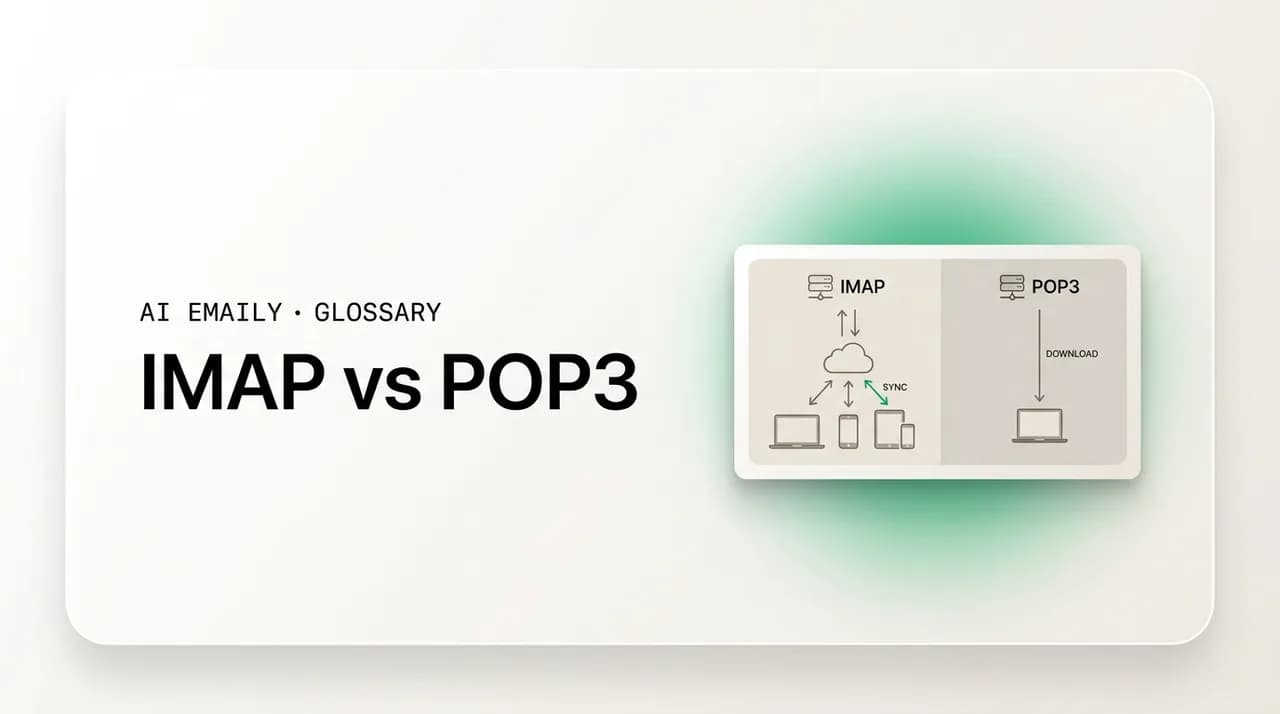
IMAP vs POP3 are two ways an email client fetches your mail: IMAP keeps messages on the server and syncs them across every device, while POP3 downloads them to one device and removes the server copy by default. IMAP uses port 993, POP3 uses port 995, and sending always uses SMTP. For multi-device email, choose IMAP.
IMAP vs POP3 explained in plain English: IMAP keeps your mail on the server and syncs it across every device, while POP3 downloads it to one device. Which to choose, the ports each uses, and why IMAP is the modern default.
On this page
- 01What are IMAP and POP3 in plain English?
- 02How is IMAP different from POP3? (the side-by-side)
- 03How does IMAP keep your email in sync across devices?
- 04How does POP3 download mail to one device?
- 05What ports do IMAP, POP3, and SMTP use?
- 06What actually happens to a message under each protocol? (worked example)
- 07IMAP vs POP3: which one should you use?
- 08Why is IMAP the modern default for email?
- 09How does AI Emaily fit into IMAP and POP3?
- 10The bottom line on IMAP vs POP3
Somewhere in your email app's settings — the screen most people open exactly once and never again — there is a choice between two acronyms: IMAP and POP3. They look interchangeable, they both "get your email," and the setup wizard usually picks one for you before you have a chance to think about it. So why does it matter which one you use? Because the two protocols answer a single question very differently: where does your email actually live — on the server, or on your device? That one difference decides whether the same inbox shows up identically on your laptop, your phone, and the web, or whether each device ends up with its own partial, drifting copy of your mail.
This is a glossary explainer, so we will keep it plain and practical. You will get a clear definition of each protocol, the one mental model that makes the difference obvious, a side-by-side comparison, the exact ports each uses (and where SMTP fits in, because sending mail is a separate job entirely), a worked example showing what happens to a message under each protocol, and a short, honest answer to the only question most people are really asking: which one should I pick? Spoiler, for almost everyone in 2026 the answer is IMAP — but it is worth understanding why, because the few cases where POP3 still makes sense are real.
If you have ever set up an email account and seen fields like "incoming mail server," "IMAP," "POP," port numbers, and "SSL/TLS," this is the guide that explains what every one of those means and how they fit together — without assuming you know what a protocol is. By the end you will be able to read any mail-setup screen and know exactly what it is asking and what to put in it.
What are IMAP and POP3 in plain English?#
Both IMAP and POP3 are protocols — agreed-upon sets of rules — that let an email program on your device (a "client," like Apple Mail, Outlook, or AI Emaily) talk to the mail server that holds your incoming messages and pull them down so you can read them. They are both about receiving mail. They are not about sending it; that is a different protocol called SMTP, which we cover below. So when you set up an account, you are really configuring two halves: an incoming protocol (IMAP or POP3) and an outgoing one (SMTP).
POP3 stands for Post Office Protocol version 3. The name is the metaphor: it treats the mail server like a physical post office box. Your client connects, collects whatever is waiting in the box, brings it home to your device, and — by default — empties the box so it does not collect mail twice. POP3 is the older of the two, dating to the 1980s, and it was designed for a world where you checked email from one computer over a slow, intermittent dial-up connection. Download everything, hang up, read offline. That was the whole job.
IMAP stands for Internet Message Access Protocol. Instead of moving your mail home and emptying the box, IMAP leaves the messages on the server and lets your client view and manage them in place — like reading the documents on a shared drive rather than downloading copies to your hard disk. Your device shows you what is on the server, and when you read, delete, flag, or file a message, that change is made on the server. IMAP arrived later, designed for a world where you might check the same account from several places and expect it to look the same everywhere.
That is the whole distinction in one sentence: POP3 downloads your mail to a device, IMAP keeps your mail on the server and syncs it. Everything else — the multi-device behavior, the storage trade-offs, the folder handling — flows from that single design choice. Hold onto it and the rest of this guide is just consequences of that one fact.
The core idea in one line
How is IMAP different from POP3? (the side-by-side)#
Now that the metaphor is set, here is the direct comparison. The first row — where your mail lives — is the one that causes every other difference. Read it as cause, and the rest as effects.
| IMAP | POP3 | |
|---|---|---|
| Where your mail lives | On the server; the client views it in place | Downloaded to one device; server copy removed by default |
| Multi-device sync | Yes — read/delete/flag syncs everywhere | No — each device has its own separate copy |
| Read/unread, flags, folders | Stored on the server, consistent across devices | Local to each device; not shared |
| Server storage used | Higher — all mail stays on the server | Lower — mail is moved off the server |
| Local storage used | Lower — only what you open is cached | Higher — full copies live on the device |
| Works offline | Cached mail yes; full mailbox needs a connection | Yes — downloaded mail is fully local |
| If a device is lost | Mail is safe on the server | Mail on that device may be the only copy |
| Default secure port | 993 (IMAP over SSL/TLS) | 995 (POP3 over SSL/TLS) |
| Best for | Multiple devices, modern email, the default | One device, offline archiving, tight server quotas |
A few things to notice in that table. The trade-offs are mirror images: IMAP uses more server storage and less device storage; POP3 uses less server storage and more device storage. IMAP keeps your read/unread state, flags, and folder structure consistent everywhere because that information lives on the server; POP3 cannot, because each device only knows about the mail it personally downloaded. And the "if a device is lost" row is the one that quietly matters most — with IMAP your mail is always safe on the server, while with default POP3 the only copy of a downloaded message may be on the laptop you just left in a taxi.
The most important practical line is "multi-device sync." In the 1980s and 90s, when POP3 was the norm, most people had exactly one computer that received their email, so a protocol that downloaded everything to that one machine was perfectly sensible. Today the average person reads email on a phone, a laptop, and sometimes a tablet and a web browser too. The moment you have more than one device, IMAP's keep-it-on-the-server model is what makes the inbox behave the way you now expect — read it on your phone at breakfast and it is already marked read on your laptop at your desk.
The one-line rule of thumb
How does IMAP keep your email in sync across devices?#
IMAP's superpower is synchronization, and it is worth understanding the mechanism because it explains both why IMAP is the modern default and why it occasionally behaves in ways POP3 never did. With IMAP, the server is the single source of truth. Your mail, your folders, and the state of every message — read or unread, flagged or not, replied-to, deleted — are all recorded on the server. Each device you connect is a window onto that one authoritative copy, not a separate owner of its own copy.
So when you open a message on your phone, your phone tells the server "mark this read," and the server records it. The next time your laptop or the webmail page checks in, it asks the server for the current state and sees that the message is already read. Delete a message on one device and it disappears from all of them, because the deletion happened on the server. Move a message into a "Receipts" folder on your laptop and that folder — and the message inside it — shows up on your phone, because folders are server-side too. This is why a modern inbox feels like one inbox no matter where you open it: under the hood, every device is reading and writing the same server-held mailbox.
IMAP is also efficient about how much it downloads. Rather than pulling every full message the way POP3 does, an IMAP client typically fetches the headers first — sender, subject, date — so it can show you the list quickly, and only downloads a message's full body and attachments when you actually open it. Most clients keep a local cache of recently opened mail so you can read it offline, but the full mailbox lives on the server. That is why an IMAP account can hold years of mail and gigabytes of attachments while your phone, which has only cached a slice of it, stays responsive.
The trade-off side of synchronization is that IMAP needs server storage and a connection to be fully itself. Your provider gives you a mailbox quota — a few gigabytes on a free plan, more on paid — and because IMAP keeps everything on the server, a busy account with large attachments can fill that quota over time. When it fills, new mail can bounce until you archive or delete some. POP3 sidesteps this by moving mail off the server, which is one of the few genuine advantages it still has, and we will come back to it.
It is also worth knowing that IMAP does its syncing through a small vocabulary of operations that any IMAP client and server agree on: selecting a folder, fetching headers or full bodies, setting flags (read, flagged, answered, deleted), copying messages between folders, and expunging deleted ones. You never see these directly, but they are what your app is doing in the background every time it refreshes — and because they are standardized, the same account works the same way whether you open it in Apple Mail, Outlook, Thunderbird, or AI Emaily. That standardization is a quiet reason IMAP became universal: a provider only has to speak IMAP once, and every compliant client can talk to it correctly.
Why a deleted email vanishes everywhere with IMAP
How does POP3 download mail to one device?#
POP3's behavior is simpler, and the simplicity is the point. When your client checks mail over POP3, it connects to the server, downloads the waiting messages to the device, and then — in the classic default configuration — tells the server to delete them. The mail now lives on that one device. From that moment, anything you do with it (read it, reply, file it, delete it) happens purely locally and is invisible to the server and to any other device.
This has a clean upside and a sharp downside. The upside: your mail is fully local, so you can read it with no connection, it does not count against your server quota, and you have a durable personal archive on your own machine. For a single computer that is always the place you do email, this works fine and always has. The downside: there is no synchronization at all. If you add a second device, it will only ever see mail that arrives after you set it up — and worse, if both devices use the delete-on-download default, they will race each other for incoming mail, each grabbing whatever it happens to fetch first, so your messages scatter unpredictably between them. Read and unread states, folders, and flags are local to each device and never shared.
Most providers and clients offer a "leave a copy on the server" option for POP3, which keeps the message on the server after downloading instead of deleting it. This softens the worst of the single-device problem — a second device can then also download the same mail — but it is a patch, not real sync. The copies are still independent: marking a message read on one device does nothing on the other, and deletions do not propagate. You also lose POP3's storage advantage, because mail now accumulates on the server just as it would with IMAP. In practice, "leave a copy on the server" with POP3 gives you the downsides of both protocols and the strengths of neither.
There is also a subtle data-safety angle. With default POP3, the only copy of a downloaded message may be on your device. If that device is lost, stolen, or its disk fails before you have a backup, that mail is simply gone — the server no longer has it. IMAP's server-held model is, in effect, a continuous off-device backup of your mail. This is one reason the industry moved decisively toward IMAP as people accumulated years of important email they could not afford to lose to a single hardware failure.
Default POP3 can be the only copy of your mail
What ports do IMAP, POP3, and SMTP use?#
Whenever you set up an account manually, you will be asked for port numbers. A port is just a numbered door on the server for a particular kind of traffic — the server listens for IMAP on one door, POP3 on another, and outgoing SMTP on yet another. Using the right port (and the right encryption setting) is what lets the connection happen securely. Here is the full set you will ever need.
The rule for receiving mail in 2026 is simple: use the encrypted ports. For IMAP that is 993, and for POP3 it is 995 — both wrap the connection in SSL/TLS so your username, password, and mail are encrypted in transit rather than sent in the clear. The older unencrypted ports (143 for IMAP, 110 for POP3) still exist for legacy compatibility, but you should not use them unless a connection layer like a VPN is providing the encryption, and most modern providers have disabled them entirely.
| Protocol | Job | Secure port (use this) | Legacy / plaintext port |
|---|---|---|---|
| IMAP | Receive mail, kept on server | 993 (SSL/TLS) | 143 (STARTTLS or plaintext) |
| POP3 | Receive mail, downloaded to device | 995 (SSL/TLS) | 110 (STARTTLS or plaintext) |
| SMTP | Send mail | 587 (STARTTLS) or 465 (SSL/TLS) | 25 (server-to-server / legacy submission) |
SMTP — the Simple Mail Transfer Protocol — is the third name on that list, and it is worth being clear that it does a completely different job. IMAP and POP3 bring mail in; SMTP sends mail out. Every email account uses SMTP for sending regardless of whether the incoming side is IMAP or POP3. So a typical IMAP setup is really "IMAP on 993 for receiving, SMTP on 587 for sending," and a POP3 setup is "POP3 on 995 for receiving, SMTP on 587 for sending." When people write "imap vs pop3 vs smtp," the honest answer is that it is not a three-way contest: the real choice is IMAP vs POP3 for receiving, and SMTP is the constant that handles sending either way.
On the two SMTP sending ports, the modern recommendation is port 587, which uses STARTTLS to upgrade the connection to encrypted before any credentials are sent. Port 465, once deprecated and then formally reinstated for SMTP-over-implicit-TLS, is also widely supported and equally secure; many providers accept both. Port 25 is the original SMTP port but is now reserved mainly for server-to-server delivery and is commonly blocked by networks and ISPs for client sending to cut down on spam, so you should not use 25 to send mail from an email app. If you want the deeper version of how sending works end to end, see the SMTP explainer linked at the end of this guide.
What actually happens to a message under each protocol? (worked example)#
The fastest way to feel the difference is to follow a single email through both protocols across the same two devices — a phone and a laptop. Imagine a message from your accountant lands in your inbox on Monday morning. You glance at it on your phone over coffee, then sit down at your laptop an hour later to deal with it. Here is what each protocol does with that one message.
Under IMAP, the message arrives on the server. Your phone, connected over IMAP, shows it as unread. You open it on the phone; the phone tells the server "mark read," and the server records it. An hour later your laptop connects, asks the server for the current state, and shows the message already marked read — you are not re-notified about something you have seen. You move it into a "Tax" folder on the laptop; that folder and the message inside it appear on your phone too. If you later delete it on the laptop, it disappears from the phone. One message, one consistent state, everywhere.
Under default POP3, the same message arrives on the server, and whichever device checks mail first wins. Say your phone checks first: it downloads the message and the server deletes its copy. Now the message exists only on your phone, marked read there. When your laptop checks mail an hour later, the message is simply not there — the server no longer has it, and the laptop never saw it. The "Tax" folder you make on the laptop is a local folder the phone knows nothing about. To deal with the email on your laptop, you would have to go back to your phone. The two devices are not one inbox; they are two separate inboxes that happened to share an address.
If you switched POP3 to "leave a copy on the server," both devices could download that message — but they would each have their own independent copy, each with its own read/unread state. Marking it read on the phone would not mark it read on the laptop, deleting it on one would not remove it from the other, and your inbox count would disagree between devices. That is the in-between state that feels broken precisely because POP3 was never designed to keep two devices in agreement. IMAP was, which is why the IMAP version of this story is the one that matches how you expect email to behave.
Read this if you only remember one example
IMAP vs POP3: which one should you use?#
For the overwhelming majority of people in 2026, the answer is IMAP. If you read email on more than one device — a phone and a laptop, a work machine and the web, anything beyond a single computer — IMAP is the protocol that makes the same inbox show up consistently everywhere and keeps your mail safely on the server. It is the default that modern email apps and providers assume, the one Gmail, Outlook, iCloud, and effectively every mainstream service are built around, and the one that matches what people now mean by "my inbox." If you are unsure which to pick, pick IMAP and stop thinking about it.
POP3 still has a small set of legitimate uses, and it is worth being honest about them rather than pretending it is obsolete. POP3 makes sense when a single device is the deliberate, permanent home for an account — say, one desktop in a back office that is the only place that account is ever read. It makes sense when you specifically want mail pulled off the server and archived locally, for example to keep a personal copy on your own disk independent of a provider. And it makes sense when server storage is genuinely tight and you would rather not let mail accumulate against a small quota; because POP3 moves messages off the server, it keeps the mailbox lean. Those cases are real but narrow.
There is also a middle path many people end up wanting without knowing the name for it: keeping a long-term local archive while still syncing across devices. The clean way to get that is to use IMAP for everyday access on all your devices and, separately, take periodic backups or exports of your mail for the archive — rather than reaching for POP3, which forces an all-or-nothing download model. IMAP plus a backup gives you sync and a durable copy; POP3 gives you a durable copy at the cost of sync. For most people the first is clearly better.
It also helps to retire a couple of myths that keep POP3 alive in people's heads longer than it should be. The first is that POP3 is more private or more secure because the mail "leaves" the server. It is not — both protocols are equally secure over their encrypted ports (993 and 995), and where your mail sits has no bearing on the encryption protecting it in transit; what matters for privacy is your provider's policies and your account security, not the fetch protocol. The second is that POP3 is faster or lighter. On a modern connection IMAP's header-first approach is typically the more responsive of the two, because it shows you the message list without downloading every full body and attachment first the way POP3 does. The real, narrow case for POP3 is the one above — a single device and a deliberate desire to keep mail off the server — not speed or privacy.
A practical note if you are switching an existing account from POP3 to IMAP: do not just delete the old setup, because any mail that POP3 already downloaded and removed from the server lives only on that device and will not magically reappear under IMAP. Before you switch, make sure your important old mail is either still on the server or safely backed up, then add the account fresh as IMAP. Going the other direction — IMAP to POP3 — is rarely something you want, and if you do it, remember that the delete-on-download default can start stripping mail off the server, so set it to leave copies unless you are certain.
And if you are choosing for a brand-new account, you usually do not have to choose at all. Most modern providers and clients default to IMAP (or to a provider-specific sync protocol that behaves like IMAP, such as Microsoft's Exchange ActiveSync or Gmail's native sync), and the setup wizard will configure it correctly the moment you enter your address and password. The port-and-protocol screen we have been describing is the manual path you only need when automatic setup does not recognize your provider — which, in 2026, is rare.
Whichever you choose, keep it encrypted
Why is IMAP the modern default for email?#
It helps to see why the whole industry settled on IMAP, because the reasons are the same reasons it is almost certainly the right choice for you. The first is the obvious one: devices multiplied. Email was designed around a single computer and a dial-up line; today the same person carries a phone, opens a laptop, and checks webmail on a borrowed machine, all expecting one coherent inbox. Only a server-of-record model — IMAP, or the provider-native sync protocols that work the same way — can deliver that, and so it won by default the moment the smartphone made multi-device the norm rather than the exception.
The second reason is data safety. Keeping mail on the server means a lost or broken device never means lost mail. For individuals that is peace of mind; for businesses it is closer to a requirement, because email is a system of record that needs to survive hardware failures, departing employees, and device theft. IMAP's server-held model is, in practice, a continuous backup, and that durability is part of why it became the professional standard.
The third reason is that modern email is more than a list of plain messages. People rely on folders, labels, flags, search across years of mail, and consistent read/unread state — and all of that only works across devices if the state lives on the server. POP3 cannot offer it because each device only knows its own downloaded slice. IMAP can, because the organization lives where every device can see it. As email grew from a simple inbox into an organized, searchable, long-lived archive, the protocol that kept that structure server-side was the only one that could keep up.
None of this means IMAP is flawless. It depends on server storage you can fill, it needs a connection for the full mailbox, and a careless deletion propagates everywhere. But these are manageable trade-offs — bigger quotas, local caching for offline, and a moment's care before deleting — against a model that simply matches how email is used now. POP3 solved the problem of its era well; IMAP solves the problem of ours. That is the entire story behind "IMAP is the default."
How does AI Emaily fit into IMAP and POP3?#
Because all of this is about how email is fetched and synced, it is worth a short note on where a modern client lands. AI Emaily is an AI-native email client, and it is built on the IMAP side of this story: it keeps your mail on the server and syncs it, so the same inbox looks identical whether you open it on your laptop, your phone, or the web. It connects over the standard secure ports and supports any IMAP provider, alongside Gmail and Outlook through their official OAuth sign-in — so you connect once, securely, without copying server names and port numbers into a form by hand.
The point of the IMAP model here is a single, synced, unified inbox. Connect more than one account — a work address, a personal one, a side project — and AI Emaily brings them together in one place, with read state, folders, and changes staying consistent across every device, exactly the way IMAP is meant to work. There is no POP3-style scattering of mail across machines and no per-device drift to manage. And because it uses OAuth where providers offer it, you are not handing a password into a settings screen; you authorize access and can revoke it any time.
On top of that synced inbox, AI Emaily reads your mail to help you act on it — drafting replies in your voice, surfacing what needs attention — while staying private by design: your mail is yours, used to work for you, not to train models for anyone else. In its default Copilot mode nothing sends until you approve it, so the protocol underneath stays exactly what you expect (IMAP for receiving, SMTP for sending) and you keep final say over everything that goes out. You can start free at app.aiemaily.com/signup; the Free plan connects your inbox with AI drafting at $0, and Pro is $12.42/month billed annually when you want it across everything.
IMAP done for you
The bottom line on IMAP vs POP3#
The whole difference comes down to one question — where does your email live? POP3 downloads it to a single device and, by default, clears it off the server; IMAP keeps it on the server and syncs it to every device you connect. Everything else follows from that: IMAP keeps multiple devices in agreement and keeps your mail safe on the server, while POP3 keeps mail local and off the server at the cost of any real sync. The ports follow the same logic — 993 for secure IMAP, 995 for secure POP3, and SMTP on 587 or 465 for sending no matter which you choose.
For almost everyone in 2026, the right choice is IMAP. It matches how email is actually used — across a phone, a laptop, and the web at once — and it is the default that modern providers and clients are built around. POP3 keeps a narrow place for single-device setups, deliberate local archiving, and tight server quotas, but those are the exceptions, not the rule. When you are unsure, pick IMAP, use the encrypted ports, and you will have an inbox that behaves the way you expect everywhere you open it.
And if you would rather not think about any of it, that is fine too — a good modern client sets up IMAP correctly the moment you sign in and keeps the whole inbox in sync for you. That is the model AI Emaily is built on: one synced inbox across every device, the secure protocol handled automatically, and your mail kept private and yours. The acronyms matter less once the inbox just works.
Frequently asked
See it in AI Emaily
Keep reading
Sources

Written by
Nafiul HasanNafiul Hasan is an entrepreneur and AI automation system builder with 10+ years of experience turning messy, manual workflows into reliable automated systems. He designs and ships AI enterprise solutions end-to-end — the agent logic, the data plumbing, and the product people actually use — and founded AI Emaily to give busy professionals their attention back. He writes here from the builder's seat: what works, what breaks, and how to put AI to work without giving up control.