What Is an Email Client? Definition, Examples, and How It Works

The short answer
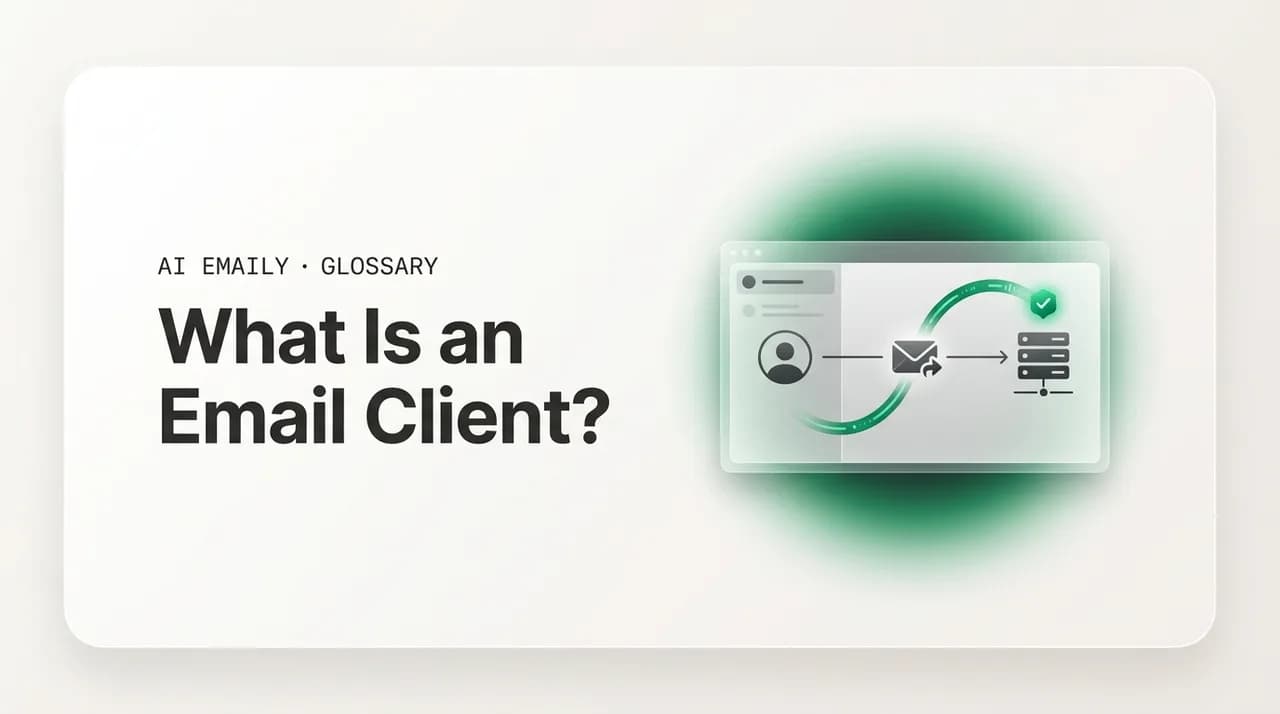
An email client is a program — desktop, mobile, web, or AI-native — you use to read, write, send, and organize email from one or more accounts. It connects to your mail provider over protocols like IMAP and SMTP, then presents your inbox in an interface built for getting through it. Outlook, Apple Mail, and Thunderbird are common examples.
An email client is the program you use to read, write, and manage email. This guide defines it, explains how it works with IMAP and SMTP, covers desktop, mobile, web, and AI clients, gives examples, and shows how to choose one.
On this page
- 01What is an email client, exactly?
- 02What's the difference between an email client and webmail?
- 03How does an email client actually work?
- 04What are the main types of email clients?
- 05What are some examples of email clients?
- 06How do you choose the right email client?
- 07How does a message travel through an email client?
- 08Where does AI Emaily fit?
- 09The bottom line on email clients
You check email every day, probably dozens of times, almost always inside the same window or app. That window — the thing with your inbox on one side and the message on the other, the compose button, the folders, the search bar — is your email client. Most people use one constantly without ever naming it, the way you drive a car without thinking about the transmission. It is simply "my email." But it is a specific kind of software with a specific job, and understanding what it is and how it works explains a surprising amount about why email behaves the way it does — why a message you delete on your phone disappears from your laptop, why your sent mail shows up everywhere, why some setups lose your folders and others keep them perfectly in sync.
The short version: an email client is the program you use to access an email account — to read incoming mail, write and send new messages, and organize what piles up. It is the front end. Behind it sits the email server, the machine that actually stores your mail and ships it across the internet. The client is what you see and touch; the server is the engine you never look at. Knowing where the line falls between the two is the single most useful thing you can learn about how email works, because almost every confusing email moment lives right on that line.
This guide is the complete plain-English reference. We will start with a tight definition, then draw the line between an email client and webmail — the distinction that trips up the most people. We will walk through how a client actually works, including the protocols (IMAP, POP3, SMTP) that let it talk to a server without you ever seeing them. We will cover the four main types of client — desktop, mobile, web, and the newer AI-native kind — with real examples of each, including Outlook, Apple Mail, the Gmail app, and Thunderbird. Then a practical section on how to choose one, a comparison table, a worked example of a message making the round trip, and a short note on where a modern AI email client fits. The FAQ at the end answers the specific questions people actually search.
No jargon without a translation, and nothing assumed. By the end you will know exactly what an email client is, what it does that the server does not, and how to pick one that fits the way you work — whether that is one inbox or six, one device or four. And it matters more than it looks: most of the friction people feel with email — the lost messages, the same account behaving differently on two devices — comes from not knowing where the client ends and the server begins. See the seam and you can fix the right thing: change the client when the experience is the problem, leave the account alone when it is not.
What is an email client, exactly?#
An email client is a software application that lets you access and use an email account — reading received messages, composing and sending new ones, replying and forwarding, and organizing mail into folders, labels, or searches. It is the program that sits between you and your email; you interact with the client, and the client talks to the mail server on your behalf. When you open Outlook, tap the Mail app on your phone, or load your inbox in a browser, you are using an email client.
The formal term for this in the technical world is mail user agent, usually shortened to MUA. "User agent" means software that acts on a user's behalf — your browser is a user agent for the web, and an email client is a user agent for email. The MUA is the human-facing piece of the system. It does not store your mail long-term, route it across the internet, or decide where it goes; those are the server's jobs. The client's job is the experience: presenting your mail in a usable interface, letting you act on it, and translating your clicks into the requests a server understands.
It helps to name the three roles in any email system so the client's place is clear. The MUA is the client — the app you use. The MTA, or mail transfer agent, is the server software that relays mail across the internet; it is the postal network. The MDA, or mail delivery agent, drops an incoming message into the right mailbox — the carrier putting the letter in your box. You only ever touch the first one. The MTA and MDA run on servers you never see, moving and storing mail while the client gives you a window onto the result.
So when someone asks what an email client does, the honest one-sentence answer is: it is the interface you use to work with an email account, while the actual sending, routing, and storage happen on servers it connects to. Everything else — the features, the design, the AI, the platform it runs on — is variation on that core role. The client is the cockpit; the servers are the aircraft and the air traffic system. Get that mental model and the rest of email stops being mysterious.
One useful clarification: the email client is not the same as your email address, account, or provider, even though people use all four words loosely. The provider runs the servers (Google, Microsoft, Fastmail, your employer); the account is the mailbox on those servers; the address is its label; the client is the software you use to reach in. You can change clients without touching the other three — switch from Apple Mail to a different app and your provider, account, and address are all the same. That separation is exactly why a client is low-risk to try: it is the one piece you can swap out without disrupting anything underneath.
The definition in one line
What's the difference between an email client and webmail?#
This is the distinction that confuses the most people, partly because the line has genuinely blurred over the years. The classic definition: an email client is a dedicated program installed on your device — Outlook on a PC, Apple Mail on a Mac, the Mail app on your phone — while webmail is your email accessed through a web browser, with nothing installed, like opening Gmail or Outlook.com at a web address. With a client, the software lives on your machine. With webmail, the software lives on the provider's servers and you reach it through the browser you already have.
The practical differences follow from that. A traditional installed client can often work offline — it downloads your mail so you can read and write without a connection, syncing when you reconnect. Webmail almost always needs the internet, because the application itself is loaded from the web each time. A client can pull several accounts from different providers into one unified inbox; webmail typically shows you one provider's mail per tab. A client stores mail (and the program) on your device, which means it uses local storage and is tied to that machine; webmail stores everything in the cloud, so you reach the same inbox identically from any browser on any computer without setup.
Here is where it gets slippery, and where a lot of online definitions quietly go out of date. Webmail is itself a kind of email client — it is a web-based mail user agent. The honest framing is that "email client" is the broad category (any program you use to access email) and the meaningful split is by where the software runs: a desktop or mobile app installed locally, versus a web app running in the browser. People often use "email client" to mean specifically the installed-app kind and "webmail" to mean the browser kind, and that shorthand is fine in conversation — just know that webmail is a client too, not a different species.
The blur deepened because the categories converged. Modern webmail like Gmail added offline support, desktop notifications, and keyboard shortcuts that make it feel like an installed app. Modern installed clients sync everything to the cloud so you no longer lose mail when a laptop dies. And a third option emerged that sits cleanly between them: web apps that you log into in a browser but that behave like full clients — unified inboxes, real offline support, deep features — the model most new email products, including AI-native ones, are built on. There is a historical edge to all this: for years webmail genuinely was the weaker option — slow, feature-thin, online-only — and that era is when the mental split between "email client" and "webmail" hardened. The technology caught up, but the language stuck. So the clean way to hold it today: ask not "client or webmail?" but "where does this run — installed on my device, or loaded in my browser?" That question has a clear answer; the labels are just shorthand for it, and an older article calling webmail inferior to a "real" client is describing a moment that has passed.
| Installed client (desktop/mobile) | Webmail (browser) | |
|---|---|---|
| Where it runs | Installed on your device | Loaded in a browser |
| Setup | Install the app, add the account | None — just log in |
| Works offline | Often yes (downloads mail) | Usually only in offline mode |
| Multiple accounts | Commonly unified into one inbox | Typically one provider per tab |
| Where mail lives | Synced to device + server | In the provider's cloud |
| Access anywhere | Needs the app installed | Any browser, no setup |
| Examples | Outlook app, Apple Mail, Thunderbird | Gmail.com, Outlook.com |
One more practical note, because it answers a common follow-up. Whether you use an installed client or webmail, your actual email account is the same thing — a mailbox on a provider's server (Gmail, Outlook/Microsoft 365, Fastmail, your company's mail server, whatever). The client or webmail is just the way you get at it. That is why you can read the very same inbox in the Gmail web interface, the Gmail mobile app, and Apple Mail on your Mac all at once: three different clients, one account behind them. The account is the mailbox; the client is the key and the door you walk through. Changing clients does not change your email address or your mail — it changes the experience of using it.
The simplest way to tell them apart
How does an email client actually work?#
At its core, an email client does two things: it fetches incoming mail from a server so you can read it, and it hands outgoing mail to a server so it can be sent. To do both it speaks specific protocols — agreed-upon languages that clients and servers use to talk. You never see these in action, but they are why your mail shows up and why it sends, and knowing the three main ones explains nearly every email setup question you will ever hit.
For receiving mail, there are two main protocols, and the difference between them matters a lot in practice. IMAP (Internet Message Access Protocol) keeps your mail on the server and syncs the client to it — the client shows you what is on the server, and any action you take (read, delete, file into a folder) updates the server, so every device sees the same state. POP3 (Post Office Protocol version 3) instead downloads mail to the one device and, in the classic setup, removes it from the server, so your mail lives on that single machine. IMAP is what you want for modern multi-device life: read on your phone, see it read on your laptop. POP3 is older, single-device, and increasingly rare for everyday use. (We have a full IMAP-versus-POP3 comparison if you want to go deeper.)
For sending mail, there is essentially one protocol: SMTP (Simple Mail Transfer Protocol). When you hit send, your client connects to your provider's outgoing SMTP server and hands over the message — recipients, subject, body, attachments. From there the SMTP server takes over the routing: it looks up where the recipient's mail lives and relays the message across the internet, server to server, until it reaches the recipient's mailbox. The client's part is small — compose and hand off. The protocols and servers do the rest. (Our SMTP explainer walks through the sending side step by step.)
Putting it together, a working email client is configured with a few key pieces: your account credentials, an incoming server setting (an IMAP or POP3 server address and port), and an outgoing server setting (an SMTP server address and port), nearly always secured with TLS encryption so nobody can read the connection in transit. For the big providers you almost never see any of this — you type your address and password (or sign in with a button), and the client auto-configures the servers behind the scenes. The settings still exist; the client just fills them in. When you add a less common account, you sometimes have to enter them by hand, which is the one moment most people ever glimpse the machinery.
- 1
You open the client
It connects to your incoming mail server using IMAP (or POP3) and your saved credentials, over an encrypted TLS connection.
- 2
It fetches your mail
With IMAP, the client syncs to what is on the server — new messages, read state, folders — so every device stays in lockstep.
- 3
You read and organize
Reading, deleting, and filing happen in the client; with IMAP those actions sync back to the server and show up everywhere.
- 4
You compose and send
When you hit send, the client hands the message to your outgoing SMTP server, which routes it to the recipient.
- 5
It keeps everything in sync
The client periodically checks the server (or gets pushed updates) so your inbox reflects reality without manual refreshing.
A few things worth clearing up. First, with IMAP the client is not where your mail "lives" — the server holds the canonical copy and the client mirrors it. That is why you can lose your laptop, add the same account on a new one, and watch your whole mailbox reappear: it was on the server the whole time. With POP3, mail pulled down to one device and removed from the server is genuinely only there — which is why POP3 setups are where people accidentally lose mail. Second, sending and receiving use different servers and protocols — SMTP out, IMAP/POP3 in — which is why an account can sometimes receive fine but fail to send: one of the two halves is misconfigured.
Third, modern clients layer plenty on top of the raw protocols — push notifications, server-side search, threading that groups a back-and-forth into one conversation, spam filtering, calendar sync. Some runs in the client, some on the server, and a good client makes the seam invisible. But underneath every email client, no matter how polished, the same basic loop is running: connect to a server, fetch what is new, let you act on it, hand off what you send. Once you see that loop, the difference between any two clients is mostly about how good the experience on top of it is.
IMAP keeps mail in sync; POP3 pulls it to one device
What are the main types of email clients?#
Email clients come in four broad types, and the difference is mostly about where they run and what they are built to do. Most people use several without thinking of them as different categories — the Mail app on the phone, Outlook on the work laptop, Gmail in the browser. Naming the types makes it easier to choose deliberately rather than just using whatever came pre-installed.
Desktop clients are programs installed on a computer — Windows, macOS, or Linux. They tend to be the most full-featured: deep folder management, powerful rules and filters, offline access to downloaded mail, support for many accounts at once, and integration with the desktop (notifications, calendar, file system). They are the traditional "power user" tools and still the heart of how a lot of professional and high-volume email gets handled. Microsoft Outlook (desktop), Apple Mail on macOS, Mozilla Thunderbird, and Mailbird are the well-known examples.
Mobile clients are apps on a phone or tablet, built around touch, glanceability, and notifications. They are how most people now check mail most of the time. They favor speed and triage — swipe to archive, quick replies, smart notifications — over the deep configuration of a desktop app. The Gmail app, the Outlook mobile app, Apple Mail on iPhone and iPad, and Spark are common ones. Many people pair a mobile client for on-the-go triage with a desktop or web client for real work.
Web clients (webmail) run in a browser with nothing installed, as covered above — Gmail.com, Outlook.com, Yahoo Mail, Proton Mail's web app. The draw is zero setup and access from literally any computer. Modern web clients have closed most of the gap with installed apps, adding offline modes, keyboard shortcuts, and notifications. And then there is a fourth, newer type worth calling out on its own.
AI-native clients are the recent category: email clients built around an AI assistant rather than having AI bolted on afterward. Instead of just showing your inbox, they draft replies in your voice, summarize long threads, triage and prioritize what matters, and can take actions on your behalf with your approval. They usually connect to your existing accounts (Gmail, Outlook, any IMAP provider) so you keep your address and mail and just change the experience. AI Emaily is one example of this type. The point of the category is to cut the time email takes, not just to display it.
These categories overlap more than they used to, which is a feature, not a contradiction. Outlook exists as a desktop app, a mobile app, and a web app — same brand, three client types — and they sync to the same account. The Gmail app on your phone and Gmail.com in your browser are two clients for one mailbox. Many AI-native clients ship as both a web app and mobile apps. So in real life you rarely pick "a type" in the abstract; you pick a product, and that product gives you the surfaces (desktop, mobile, web) you need, ideally all syncing to the same accounts. The type framing is useful for understanding the landscape, but what you actually choose is a client that covers the devices you live on.
The reason the AI-native type is worth separating out is that it changes the job, not just the surface. Desktop, mobile, and web clients differ in where they run; an AI-native client differs in what it does — it tries to reduce how much email you handle manually rather than only making manual handling nicer. That is a different value proposition, which is why it is treated as its own category even though, technically, an AI-native client is usually also a web and mobile client underneath.
It is also worth drawing the line between an AI-native client and a traditional client that has had AI features added to it. Plenty of established clients now include a "write with AI" button, and those are useful — but bolting a feature on is different from building the whole experience around an assistant. In an AI-native client, the assistant is not a button you remember to press; it works as you go, sorting what arrives and having a draft ready when you open a message that wants a reply. With a bolt-on, the manual workflow is still the main path; with an AI-native client, the assisted path is the main one and you step in to direct. Both are legitimate; they just aim at different amounts of the work.
What are some examples of email clients?#
It is easier to hold the categories with concrete names attached, and these are the clients most people encounter. Each one is a real, widely used email client; together they cover the whole spread from traditional desktop software to the newer AI-native kind.
Microsoft Outlook is the most widely used client in business. It comes as a desktop app (Windows and Mac), a mobile app, and a web app (Outlook on the web), all tied into the Microsoft 365 world of calendar, contacts, and Teams. It is feature-dense and deeply embedded in corporate IT, which is why it dominates the workplace. Apple Mail is the default client on Mac, iPhone, and iPad — clean, fast, tightly integrated with Apple's ecosystem, and the client most Apple users simply use without choosing it. The Gmail app and Gmail web are Google's clients for Gmail (and other accounts you add), known for strong search, labels instead of folders, and conversation threading; Gmail on the web is the most-used webmail in the world.
Mozilla Thunderbird is the long-running free, open-source desktop client — a favorite of people who want full control, support for any IMAP/POP account, and no tie to a single provider. It is the classic "bring your own accounts" client. Beyond these, the landscape includes plenty more: Yahoo Mail (web and app), Proton Mail (privacy-focused, encrypted), Spark and Mailbird and Airmail (third-party clients that unify multiple accounts with a nicer interface), eM Client, and Mailspring, among others. Most of them are some combination of the four types — a desktop or mobile app, a web app, or both — wrapped around the same underlying protocols.
AI Emaily is an example of the newer AI-native client. Rather than being a provider you migrate to, it connects to the accounts you already have — Gmail, Outlook, and any IMAP inbox — and adds an AI layer on top: drafting replies in your voice, summarizing long threads, triaging what matters, and handling the busywork with your approval before anything sends. It is mentioned here as a representative of the AI-native category alongside the established clients; the broader point is that whatever you use, it is an email client doing the same fundamental job, with different strengths layered on top.
| Client | Type | Best known for |
|---|---|---|
| Microsoft Outlook | Desktop + mobile + web | The business standard; deep Microsoft 365 integration |
| Apple Mail | Desktop + mobile | Default on Mac/iPhone; clean and integrated |
| Gmail (app + web) | Mobile + web | Strong search, labels, threading; top webmail |
| Mozilla Thunderbird | Desktop | Free, open-source, provider-agnostic |
| Proton Mail | Web + mobile | Privacy and end-to-end encryption |
| Spark / Mailbird / eM Client | Desktop + mobile | Third-party clients unifying accounts |
| AI Emaily | AI-native (web + mobile) | AI drafting, summaries, and triage across your inboxes |
A useful way to read that list: the first few are tied to a provider or platform (Outlook to Microsoft, Apple Mail to Apple, Gmail to Google), while the rest are provider-agnostic — they connect to whatever accounts you have. That split matters when choosing. If your whole life is in one ecosystem, the matching client is often the path of least resistance. If you have accounts scattered across Gmail, a work Outlook, and an old IMAP address, a provider-agnostic client that pulls them into one place is usually the bigger upgrade. Either way, none of these is more "real" email than another — they are all clients, all talking the same protocols, all just different doors into your mailboxes.
You can use more than one — but unifying helps
How do you choose the right email client?#
There is no single best email client — the right one depends on how you actually work. But the decision comes down to a handful of concrete questions, and answering them honestly points you at the right kind of client fast. Run through these before you install anything.
How many accounts do you have, and from where? If you live entirely in one provider — say, just Gmail — that provider's own client is the simplest path and works perfectly. If you have several accounts across providers (a personal Gmail, a work Microsoft 365 address, an old IMAP account), a client that unifies them into one inbox will save you the constant tab-and-app switching. Account sprawl is the single biggest reason people outgrow their default client.
Which devices do you use, and do they need to stay in sync? If you check mail on a phone and a laptop and occasionally a different computer, you want IMAP-based sync and ideally a client that exists on all your surfaces (or webmail you can reach anywhere). If you only ever use one machine and want offline access, a desktop client is great. Match the client to the devices you actually touch, not the ones you theoretically might.
How much email do you handle, and how much time does it take? For light, occasional mail, the built-in client on your phone or your provider's webmail is plenty — adding tools would be overkill. If email is a real part of your day — high volume, lots of replies, threads to track — features start to matter: powerful search, rules and filters, threading, snooze, templates, and increasingly AI that drafts and triages for you. The more email costs you in time, the more a better client pays back.
- 1
Count your accounts
One provider? Their own client is simplest. Several? A client that unifies them into one inbox saves the most time.
- 2
Map your devices
Multi-device life needs IMAP sync and a client on every surface you use, or webmail you can reach anywhere.
- 3
Gauge your volume
Light mail: the default app or webmail is plenty. Heavy mail: prioritize search, rules, threading, and AI help.
- 4
Decide on privacy
If encryption and data handling matter, weigh privacy-focused clients and how each treats your mail.
- 5
Check cost and lock-in
Most clients are free; some charge for advanced features. Prefer ones that connect to your existing accounts.
Two more factors round it out. Privacy and security: clients differ in how they handle your mail and whether they support encryption — if that matters to you, weigh it explicitly rather than defaulting. And cost and lock-in: most clients are free, some charge for advanced features, and the best ones connect to your existing accounts rather than forcing you to migrate — so you keep your address and can leave again if it does not work out. A client you can adopt without moving your email is a much lower-risk choice than one that requires switching providers.
The honest summary: if your needs are light and single-provider, use the client that came with your account and do not overthink it. If you have multiple accounts, multiple devices, real volume, or time you want back, look for a client that unifies your inboxes, syncs everywhere, and adds genuine help on top — search, organization, and AI that does some of the work. The goal is not the fanciest client; it is the one that fits the shape of your email life with the least friction.
Pick a client you can try without migrating
How does a message travel through an email client?#
The clearest way to see how an email client fits the whole system is to follow one message from your keyboard to someone else's inbox. Say you are writing to a colleague, [email protected], from your account. Here is the full round trip, with the client's part marked so you can see exactly where it starts and stops.
You open your client and compose — Jordan's address, a subject, the body — and hit send. That is the last point the client touches the message on the way out; its job is to gather what you wrote and hand it off. Behind the scenes, it connects to your provider's outgoing SMTP server over an encrypted connection and delivers it. The SMTP server now owns it: it looks up where example.com's mail lives (via a DNS MX record), relays the message across the internet to that mail server, and that server's delivery agent drops it into Jordan's mailbox. None of that is the client; it is servers and protocols doing the transport.
Now Jordan's side. The mail sits on Jordan's provider's server until their client checks for it. When Jordan opens their email client — the Gmail app, Outlook, an AI-native client — it connects over IMAP, sees a new message, and fetches it for display. If Jordan deletes or files it, the client tells the server, and because it is IMAP, that change shows up on every device. When Jordan replies, the loop runs in reverse: their client hands the reply to their SMTP server, which routes it back to you.
The thing to notice is how little of the journey is the client, and how essential the part it owns is. The client handled exactly two moments on each end — composing and handing off to send, fetching and displaying to read — and the entire middle was servers and protocols you never saw. But those two moments are everything you actually experience of email. The whole quality of "using email" — how fast you can write, how clearly you can read a thread, how little time triage takes, how much it does for you — is the client's part. The transport just has to work and stays out of sight; the client is where the time goes, which is exactly why choosing a good one matters.
Where does AI Emaily fit?#
Everything above describes what every email client has in common — the front end to your mail, talking IMAP and SMTP to servers. The differences between clients are about what they add on top, and that is where an AI-native client like AI Emaily sits. It is an email client in the full sense: it connects to your existing accounts — Gmail, Outlook, and any IMAP provider — pulls them into one place, and gives you a fast interface for reading, writing, and organizing. You keep your address and your mail; the client is what changes.
What it adds on top is the AI layer that defines the category. It drafts replies in your own voice, summarizes long threads so you do not have to read every message, and triages your inbox so the things that need you surface first. In its default Copilot mode it works as an assistant that proposes and waits — it can draft a reply or line up an action, but nothing sends until you approve it, so you keep final say on every message. The aim is plain: cut the time email takes, across all the inboxes you already use, without making you migrate or give up control. If you want the detail, the AI agent feature page covers how the assistant works, and the comparison page shows how it lines up against other clients. You can start free at app.aiemaily.com/signup.
An email client that does some of the work
The bottom line on email clients#
An email client is the program you use to read, write, send, and organize email — the front end to your mailbox, technically a mail user agent (MUA). Behind it, servers store your mail and route it across the internet using protocols the client speaks for you: IMAP or POP3 to receive, SMTP to send. Webmail is a client too — the browser-based kind — so the meaningful question is not "client or webmail" but where the software runs: installed on your device or loaded in your browser.
Clients come in four types — desktop, mobile, web, and the newer AI-native kind — and most products span several surfaces synced to the same accounts. Outlook, Apple Mail, the Gmail app, and Thunderbird are the everyday examples; AI Emaily is an example of the AI-native type. Choosing one comes down to your accounts, your devices, your volume, and your priorities on privacy and cost — and the lowest-risk choice is a client you can try on your existing accounts without migrating your address.
However the categories evolve, the core stays the same: a client is the interface you live in, and a good one gives you back time. If yours just displays your inbox and leaves all the work to you, it may be worth trying one that does some of it for you — drafting, summarizing, and triaging while you keep final say. That is the difference between an email client that shows you your mail and one that helps you get through it.
Frequently asked
See it in AI Emaily
Keep reading
Sources

Written by
Nafiul HasanNafiul Hasan is an entrepreneur and AI automation system builder with 10+ years of experience turning messy, manual workflows into reliable automated systems. He designs and ships AI enterprise solutions end-to-end — the agent logic, the data plumbing, and the product people actually use — and founded AI Emaily to give busy professionals their attention back. He writes here from the builder's seat: what works, what breaks, and how to put AI to work without giving up control.