What Is Email Threading? How Conversation View Works

The short answer
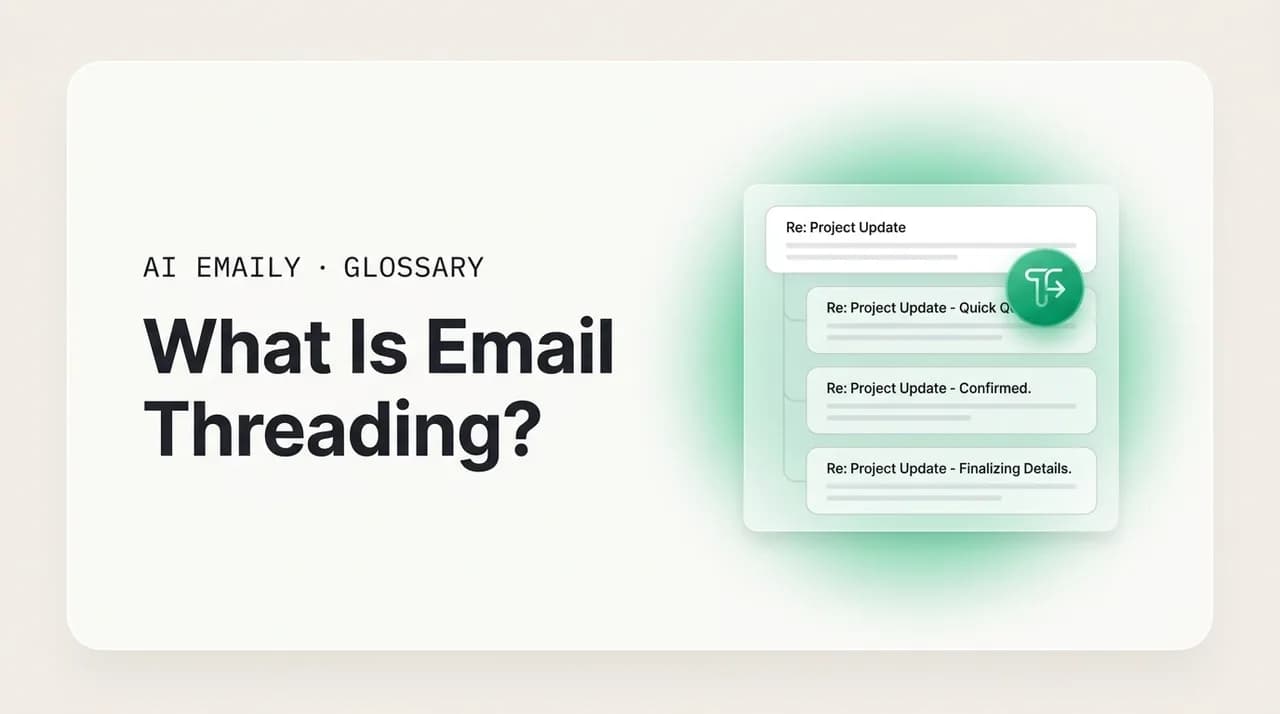
Email threading groups a message and all its replies and forwards into a single collapsible conversation, instead of showing each email as a separate inbox row. Clients build threads from hidden headers — Message-ID, In-Reply-To, and References — with subject lines as a fallback. Gmail calls it Conversation view; Outlook calls it Conversations. Both can be switched off.
Email threading groups a message and all its replies into one conversation instead of separate inbox rows. How it works, and how to turn it on or off.
On this page
- 01What is email threading, exactly?
- 02How does email threading work technically?
- 03How is Gmail conversation view different from Outlook?
- 04How do you turn email threading on or off?
- 05Why do email threads break or group the wrong messages?
- 06How does threading work with labels, folders, and filters?
- 07What are the pros and cons of email threading?
- 08How does AI Emaily handle email threads?
- 09The bottom line on email threading
Open your inbox after a busy morning and you see a single line: "Q3 launch plan — 8." One row, one subject, and a small number telling you eight messages are stacked underneath it. Click, and they unfold in order — your first email, three replies, a forward, two more replies, the latest on top or bottom depending on your settings. That single collapsing row, standing in for a whole back-and-forth, is email threading at work. Without it, those same eight messages would be eight separate lines in your inbox, scattered among everything else that arrived, each with the same subject and no visible sign they belong together.
Most people use threading every day without ever naming it. It is the reason a long discussion does not bury your inbox under near-identical entries, and the reason you can read a conversation top to bottom instead of hunting for "the one with the attachment" among a dozen lookalikes. It is also, occasionally, the reason an important reply hides inside a collapsed thread you have already mentally filed away, or the reason two unrelated emails with the same subject end up glued together when they should not be. Threading is quietly doing a lot of work, and like most things that work quietly, it is worth understanding what it actually does.
This guide explains email threading from the ground up. You will learn what a thread and a conversation view really are, the difference between the two, and how the underlying machinery works — the hidden Message-ID, In-Reply-To, and References headers that let a mail client know two messages belong together, plus the subject-based fallback that fills in when those headers are missing. We will compare how Gmail and Outlook handle threading, since they do it differently enough to surprise people who switch, walk through turning conversation view on and off in each, and dig into the real reasons threads break apart or wrongly merge. We will cover how threading interacts with labels and folders, weigh the genuine pros and cons, and close with a short, honest note on how an AI-native email client treats threads.
No jargon without a plain-English translation, and no "it just groups your emails" hand-waving where the actual mechanism matters. By the end you should understand threading well enough to fix it when it misbehaves and decide, deliberately, whether you want it on at all.
What is email threading, exactly?#
Email threading is the grouping of a message and all of its replies and forwards into a single conversation, displayed as one collapsible item in your inbox rather than as separate, independent emails. A thread is that group — the original message plus everything that branched off it. When your mail program presents the thread as one stacked, expandable unit, that presentation is usually called conversation view. The terms get used loosely: people say "thread," "conversation," and "conversation view" almost interchangeably, and for everyday purposes that is fine. The precise distinction is that the thread is the underlying group of related messages, and conversation view is the way a client chooses to show it.
The point of threading is to map the structure of how email actually works — as an ongoing exchange — onto the way you read it. A real conversation is not a pile of disconnected statements; it is a sequence where each message responds to what came before. Threading preserves that sequence. Instead of you reconstructing "who said what, in what order" from a scattered inbox, the client assembles the chain for you: the question, the answer, the follow-up, the resolution, in one place, in order.
Contrast this with a flat, unthreaded inbox, which is the older default and still the mode some people prefer. There, every message is its own row, sorted only by the time it arrived. A ten-message discussion produces ten rows, interleaved with everything else, all sharing the same subject line ("Re: Q3 launch plan," "Re: Q3 launch plan," "Re: Re: Q3 launch plan"). You can still read them — you just have to find them and order them yourself. Threading does that work up front, trading a flat list of messages for a structured list of conversations.
One more clarification, because it trips people up. Threading does not delete, merge, or rewrite any of your emails. Each message in a thread is still a complete, separate email, with its own sender, timestamp, headers, and body, stored individually. Threading is purely a display and organization layer laid over those individual messages. Turn threading off and the same emails reappear as separate rows; turn it back on and they regroup. Nothing about the underlying mail changes — only how it is shown to you.
Thread vs. conversation view
How does email threading work technically?#
Under the surface, a mail client decides which messages belong together using information that lives in each email's headers — the structured metadata at the top of every message that you normally never see. The reliable, standards-based way to thread relies on three header fields defined by the internet email standards (RFC 5322 and the threading guidance in RFC 5256): Message-ID, In-Reply-To, and References. Together they form a chain that lets any client reconstruct the conversation even if the messages arrive out of order or get mixed in with thousands of others.
Start with Message-ID. Every email is supposed to carry a globally unique identifier, generated by the sending mail system, that looks something like <[email protected]>. It is the email's fingerprint — no two legitimate messages share one. This is the anchor everything else points back to. When you reply to a message, your mail client reads the original's Message-ID and writes it into your reply's In-Reply-To header, which says, in effect, "this message is a direct response to that one." That single link is the most important signal in threading: it ties a reply unambiguously to its parent, regardless of subject line or timing.
The References header extends that link into a full chain. Where In-Reply-To names only the immediate parent, References lists the Message-IDs of the whole ancestry — the original message, then each reply leading up to this one, in order. As a conversation grows, each new message copies the References list it received and appends the ID of the message it is replying to. The result is a breadcrumb trail: any client can read the References header of the newest message and know every email that came before it in the thread, then group them all together and order them correctly. This is why threading survives forwarding, out-of-order delivery, and even moving messages between folders — the relationships are baked into the headers, not inferred from where the messages sit.
When those headers are present and correct, threading is essentially deterministic: the client follows the IDs and reconstructs the exact tree. The example below shows the headers that link three messages into one thread, so you can see the chain forming.
There is a second, weaker method clients fall back on when the header chain is incomplete: subject-based threading. Here the client groups messages that share the same subject line — after normalizing it by stripping prefixes like "Re:", "Fwd:", "RE:", "AW:" (German), or "SV:" (Scandinavian) and trimming whitespace. So "Re: Q3 launch plan" and "Fwd: Q3 launch plan" both reduce to "Q3 launch plan" and get grouped. This is how threading still works when someone replies in a way that drops the References header, or composes a fresh message with the same subject instead of hitting reply.
Subject-based threading is convenient but fragile, and it is the source of most threading mistakes. Two genuinely unrelated emails that happen to share a generic subject — "Hi," "Question," "Invoice," "Meeting" — can be wrongly merged into one thread. Conversely, if someone edits the subject line mid-conversation, the normalized subjects no longer match and the thread can split. Because of this, well-behaved clients prefer the header chain (Message-ID / In-Reply-To / References) and use subject matching only as a tie-breaker or a fallback, often combined with a time window so that messages months apart are not threaded just because their subjects match.
The practical upshot: threading is most reliable when every participant's mail software correctly preserves the threading headers, and least reliable when it falls back to matching subjects. Most modern clients do the right thing, which is why threading usually feels invisible and correct — but the seams show exactly when the headers go missing, as the later section on broken threads explains.
The three headers that matter
How is Gmail conversation view different from Outlook?#
Gmail and Outlook both thread, but they grew up with different defaults and slightly different rules, which is why the same mailbox can feel oddly different depending on which one you open. Knowing the differences saves a lot of confusion, especially if you use both or switch between them.
Gmail was built around threading from the start, and its Conversation view is the historical default. Gmail groups messages primarily by the threading headers, but it adds its own constraint that surprises people: Gmail also requires the subject line to match for messages to stay in the same conversation. If someone changes the subject mid-thread, Gmail starts a new conversation even though the In-Reply-To and References headers still link the messages. Gmail also caps a single conversation at roughly 100 messages — past that, it splits the thread into a fresh conversation with the same subject. And Gmail collapses quoted text (the "…" you click to expand) to keep long threads readable.
Outlook (both classic desktop and the newer Outlook for Windows and the web) groups messages into Conversations, but its default has varied over the years and across versions — sometimes on, sometimes off, depending on the build and account type. Outlook leans more heavily on subject-line matching for grouping than Gmail does, and historically it has been more prone to lumping together unrelated emails that share a subject. Outlook also shows threads differently: it can display a conversation across folders (so a reply you filed elsewhere still appears in the conversation), and its expand/collapse behavior and reading-pane layout differ from Gmail's stacked cards. Apple Mail, by contrast, threads by headers and offers an option to thread by subject as well, and treats conversation view as a per-mailbox toggle.
The table below summarizes how the major clients approach threading, so you can see the differences at a glance.
| Client | Default | How it groups | Notable quirk |
|---|---|---|---|
| Gmail (web & mobile) | Conversation view ON | Headers + matching subject required | Changing the subject splits the thread; caps near ~100 messages |
| Outlook (new / web) | Varies by version | Headers + subject matching (subject-leaning) | Can show a conversation across multiple folders |
| Outlook (classic desktop) | Often OFF by default | Subject + headers; per-folder toggle | More prone to merging unrelated same-subject emails |
| Apple Mail | Organize by Conversation ON | Headers; optional thread-by-subject | Per-mailbox toggle; can highlight messages in a thread |
| Yahoo / others | Usually ON | Headers + subject normalization | Behavior closer to Gmail's default grouping |
The most common cross-client surprise is the subject-change behavior. Because Gmail insists the subject match while Outlook is more willing to follow the header chain across a subject edit, the very same set of emails can appear as one conversation in Outlook and as two separate conversations in Gmail. Neither is wrong — they are applying different rules. If you collaborate with people on different clients, this explains why a thread someone swears is "all in one place" looks split to you, or vice versa.
A second difference worth knowing is how each handles the messages you send. Gmail tucks your sent replies into the conversation in your inbox, so the thread reads as a complete back-and-forth in one view. Outlook can do the same but, depending on settings, may keep sent items more separate. None of this changes the emails themselves — it is all display logic — but it does change how complete a conversation feels when you open it, which is exactly the kind of thing that nudges people to turn threading on or off.
Same emails, different threads
How do you turn email threading on or off?#
Threading is a preference, not a permanent setting, and every major client lets you switch it. If conversation view helps you, leave it on; if you would rather see each message as its own row — a common preference for people who triage high volumes or who find collapsed threads hide things — turn it off. The change is instant and reversible, and it never alters your actual mail. Here is how to toggle it in the clients most people use.
- 1
Gmail (web)
Click the gear icon (Settings) in the top right, then "See all settings." On the "General" tab, scroll to "Conversation view" and choose "Conversation view on" or "off." Scroll down and click "Save Changes" — Gmail reloads with your choice applied.
- 2
Gmail (Android / iOS app)
Tap the menu (three lines), scroll to Settings, choose the account, and toggle "Conversation view" on or off. The mobile setting is separate from the web setting, so you may need to set both.
- 3
Outlook (new for Windows & web)
Open Settings (gear icon) > Mail > Layout. Under "Message organization," select "Group into conversations" or "Show emails individually," then close settings — the change applies immediately.
- 4
Outlook (classic desktop)
Go to the View tab on the ribbon and check or uncheck "Show as Conversations." Outlook asks whether to apply it to the current folder or all folders; pick one. You can also choose conversation settings (like "Show Messages from Other Folders") from the same menu.
- 5
Apple Mail (Mac)
In the menu bar choose View, then check or uncheck "Organize by Conversation." On iPhone or iPad, open Settings > Mail and toggle "Organize by Thread."
A few notes on the toggle. The setting is usually per-account and sometimes per-device, so turning threading off on your laptop does not necessarily turn it off on your phone — check each place you read mail if you want consistency. It is also non-destructive in every client: switching it off simply re-presents your existing emails as individual rows, and switching it back on regroups them, with no risk to the messages. If you are unsure which you prefer, try each for a week. Many people find threading indispensable for project discussions and a nuisance for newsletters and notifications, which is part of why some clients let you tune related behaviors (like whether to expand the latest message automatically).
One thing to watch: in Gmail specifically, conversation view is the only grouping control — there is no separate "thread by subject" option, because Gmail already requires a matching subject. In Outlook and Apple Mail you get finer-grained controls, such as whether to pull in messages from other folders or thread strictly by header. If threading is misbehaving for you, the relevant fix often lives in these secondary settings rather than the main on/off switch.
Off on one device, on another
Why do email threads break or group the wrong messages?#
When threading goes wrong it does so in two opposite ways: a thread splits when it should stay together, or unrelated messages merge into one thread when they should not. Both come down to the headers — either they are missing, altered, or being ignored in favor of subject matching. Understanding the causes turns a frustrating mystery into something you can usually diagnose and sometimes fix.
Threads break apart — the same conversation showing up as two or more separate items — for a handful of recurring reasons. The most common is a changed subject line: in Gmail especially, editing the subject mid-conversation starts a new thread even though the header chain is intact. Another is a reply that drops or mangles the threading headers, which happens with some older clients, certain mailing-list software, web forms, and ticketing systems that send a "reply" without copying the original Message-ID into In-Reply-To and References. Forwarding instead of replying can also break the chain, because a forward may not carry the parent's References. And Gmail's roughly 100-message cap deliberately splits very long threads. When the header link is gone, the client has nothing to connect the messages with, so they land on their own.
Threads wrongly merge — unrelated emails glued into one conversation — almost always because of subject-based grouping. If two separate exchanges share a generic subject like "Hi," "Question," "Update," or "Invoice," a client that leans on subject matching can decide they are the same conversation, especially clients more aggressive about subject grouping. This is why naming things specifically helps: "Re: Q3 launch — vendor quote" is far less likely to collide with someone else's email than "Re: Question." Time windows mitigate this in better clients (messages months apart are not threaded on subject alone), but not every client applies one.
The table below maps the common symptoms to their cause and a practical fix.
| Symptom | Likely cause | What to do |
|---|---|---|
| One conversation split into two | Subject line was edited mid-thread (esp. Gmail) | Keep the subject consistent; or accept the split and search by participant |
| Reply appears as a brand-new email | Sender's client dropped In-Reply-To / References | Reply rather than compose fresh; ask senders to use "Reply," not new messages |
| Forward not joining the thread | Forwarded message lacks the parent's References | Use Reply for ongoing threads; reserve Forward for bringing in new people |
| Unrelated emails merged together | Subject-based grouping on a generic subject | Use specific subjects; switch the client to header-strict threading if available |
| Long thread suddenly splits | Gmail's ~100-message conversation cap | Expected behavior; the new thread keeps the same subject |
| Thread differs between two clients | Different grouping rules (subject vs. header) | Normal cross-client difference — pick the client whose behavior you prefer |
There is a deeper reason threading is imperfect: it depends on every participant's mail software cooperating, and you control only your own. You can keep your subjects clean and always hit Reply, but if a counterpart's ticketing system strips headers or a colleague composes a fresh email each time, the thread will still fracture on your end. That is not a bug in your client so much as the cost of an open, decades-old protocol that lets any software send mail however it likes. The header standard makes threading possible; it cannot force everyone to follow it.
The practical defense is simple habits. Reply instead of starting new messages when you want to stay in a thread. Keep subject lines specific and stable so they neither collide with unrelated mail nor split your own. Forward only to bring someone new into a conversation, not to continue an existing one. And if a particular client groups things in a way you dislike, look for its header-strict or subject-matching options before assuming threading is simply broken — most of the time the behavior is configurable.
Composing a fresh email breaks the thread
How does threading work with labels, folders, and filters?#
Threading and your filing system — labels in Gmail, folders in Outlook and IMAP — are separate layers, and they interact in ways that occasionally confuse. The short version: a thread is a group of messages, and your labels or folders apply to individual messages within it, so a single conversation can carry several labels or even span folders.
In Gmail, labels attach to individual messages, but the conversation view shows you the labels of every message in the thread at once. So a thread can display multiple labels — say "Work," "Project X," and "Receipts" — because different messages in it were labeled differently, by you or by filters. Archiving in Gmail acts on the whole conversation by default (it removes the Inbox label from all of it), which is why archiving a thread and then getting one more reply brings the entire conversation back to the inbox. Filters in Gmail generally apply to messages as they arrive, but because of conversation grouping, a filter that labels an incoming message can effectively color the thread it joins.
In Outlook and traditional IMAP, mail lives in folders, and a message is in exactly one folder at a time. This is where Outlook's "show messages from other folders" option matters: with it on, a conversation can display replies that you (or a rule) moved into different folders, gathering the whole exchange into one view even though the messages are physically filed apart. With it off, you only see the part of the thread that lives in the folder you are looking at. Rules in Outlook, like filters in Gmail, act on individual messages — so a rule can move one reply out of a thread's main folder, which is exactly what makes the cross-folder option useful.
The practical takeaway: do not expect a label or folder to neatly own a whole conversation. Because filing is per-message and threading is per-conversation, the two will sometimes show you a thread with mixed labels, or a conversation whose pieces are scattered across folders. That is working as intended — it is the price of letting you organize at the message level while still reading at the conversation level.
Per-message filing, per-conversation reading
What are the pros and cons of email threading?#
Threading is not universally better than a flat inbox; it is a trade-off, and which side wins depends on how you work. It is worth seeing both columns honestly rather than assuming the default is right for you.
On the upside, threading dramatically reduces inbox clutter — one row stands in for an entire exchange, so a fast-moving discussion does not generate twenty near-identical entries. It preserves context: opening a thread gives you the whole history in order, so you do not reconstruct "what was decided" from scattered messages or re-read the same quoted text five times. It makes catching up efficient, since you can scan one conversation rather than hunting for its parts. And it keeps related attachments and decisions together, which is genuinely helpful for projects and anything with a paper trail.
On the downside, threads can hide messages. A new reply landing inside a thread you have already collapsed and mentally closed can go unnoticed, especially if your client surfaces the conversation without making the new message obvious. Long threads become unwieldy — scrolling through forty messages to find one detail is its own chore, and quoted-text nesting can make them hard to read. Threading can mis-group, merging unrelated same-subject emails or splitting a conversation, as covered above. And some people simply think faster in a flat, chronological list, where every message is visible and nothing is folded away. High-volume triagers, in particular, sometimes prefer seeing each message as a discrete item to act on.
The honest summary: threading is usually a clear win for conversational, project-oriented mail and a mild liability for high-volume, notification-heavy inboxes. The right answer is the one that matches your mail and your habits, which is exactly why every major client makes it a toggle rather than a fixed behavior.
| Pros of threading | Cons of threading |
|---|---|
| One row per conversation cuts inbox clutter | A new reply can hide inside an already-collapsed thread |
| Full history in order — context in one place | Very long threads get unwieldy to scroll and read |
| Faster to catch up on a discussion | Subject-based grouping can merge unrelated emails |
| Related attachments and decisions stay together | A subject edit can split one conversation in two |
| Less re-reading of quoted text | Some people triage faster in a flat, chronological list |
How does AI Emaily handle email threads?#
Most of this guide is about a feature that works most of the time and frays at the edges — when headers go missing, subjects drift, or a long thread buries the one reply that mattered. AI Emaily is an AI-native email client, and it treats threads as the natural unit of work: it groups conversations cleanly using the header chain (Message-ID, In-Reply-To, References) with sensible subject and time-window fallbacks, so threads stay together when they should and unrelated mail stays apart.
Because it reads the whole conversation, AI Emaily can also summarize a long thread — the decisions, the open questions, who is waiting on whom — so you do not scroll through forty messages to catch up, and it surfaces the genuinely new reply inside a busy thread instead of letting it hide. It works across every account you connect — Gmail, Outlook, and any IMAP provider — in one place, so a conversation reads the same wherever it started. It stays private by design: your mail is used to help you read and draft, not to train models for anyone else. And it keeps you in control — in its default Copilot mode it drafts and summarizes but sends nothing until you approve. You can start free at app.aiemaily.com/signup.
Catch up on a long thread in seconds
The bottom line on email threading#
Email threading groups a message and all its replies into one conversation so you read an exchange as a single, ordered unit instead of hunting through a flat list of lookalikes. Under the hood it relies on three headers — Message-ID to name each email, In-Reply-To to point a reply at its parent, and References to record the whole chain — with subject-line matching as a fallback when those headers go missing. That fallback is also where most mistakes come from: generic subjects merge unrelated mail, and edited subjects split conversations apart.
Gmail and Outlook both thread but follow slightly different rules — Gmail requires a matching subject and caps long conversations, Outlook leans more on subject matching and can pull replies across folders — which is why the same messages sometimes look like one thread in one client and two in another. Both let you turn conversation view on or off in a couple of clicks, non-destructively, so you can pick the mode that fits your inbox. And because threading and your labels or folders are separate layers, a single conversation can carry mixed labels or span folders without anything being wrong.
If you want the upside of threading without its frayed edges — buried replies, sprawling chains, the occasional mis-group — that gap is exactly what an AI-native client like AI Emaily is built to close, by threading cleanly and summarizing the long conversations so the important reply never hides. Whether you keep threading on or off, the underlying idea is worth holding onto: email is a conversation, and reading it as one is almost always clearer than reading it as a pile.
Frequently asked
See it in AI Emaily
Keep reading
Sources

Written by
Nafiul HasanNafiul Hasan is an entrepreneur and AI automation system builder with 10+ years of experience turning messy, manual workflows into reliable automated systems. He designs and ships AI enterprise solutions end-to-end — the agent logic, the data plumbing, and the product people actually use — and founded AI Emaily to give busy professionals their attention back. He writes here from the builder's seat: what works, what breaks, and how to put AI to work without giving up control.