What Is a Mail Server (MTA)? How Email Servers Actually Work

The short answer
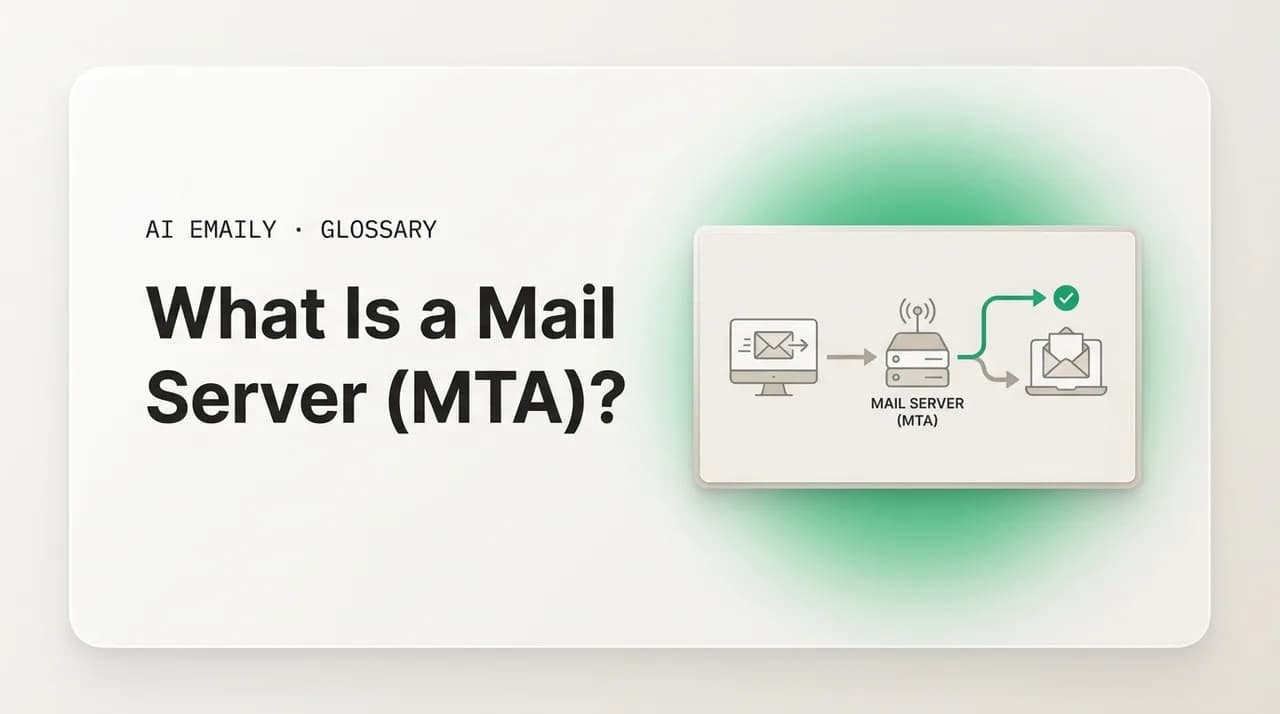
A mail server is the computer that accepts, routes, stores, and delivers email for a domain. It runs an MTA that relays messages to other servers over SMTP, plus a delivery and access layer (IMAP or POP3) that hands mail to your client. Most people use a hosted mail server like Google or Microsoft rather than run their own.
A mail server is the computer that accepts, routes, stores, and delivers email. This guide explains the MTA, MDA, MSA, and MUA, incoming vs outgoing, how a message travels server to server, and why hosting your own is hard.
On this page
- 01What is a mail server, in plain English?
- 02What are the parts of a mail server: MTA, MSA, MDA, and MUA?
- 03What is the difference between incoming and outgoing mail servers?
- 04How does a message travel from one mail server to another?
- 05Hosted vs self-hosted: where do most mail servers actually run?
- 06Why is running your own mail server so hard?
- 07Is a mail server the same as an email client or webmail?
- 08Where does AI Emaily fit with your mail server?
- 09The bottom line on mail servers
You send an email, and a second later it is sitting in someone's inbox on the other side of the planet. It feels instant and simple — type, send, done. But between your send button and their inbox, a small chain of specialized computers did real work: one accepted your message, one figured out where it was supposed to go, one carried it across the internet, one decided it was not spam, and one finally dropped it into the right mailbox. Every link in that chain is some form of mail server, and almost nobody who uses email every day could tell you what any of them actually does.
That is not a knock on anyone. Email was designed to hide this machinery, which is exactly why the words pile up confusingly the moment you look under the hood. Mail server, MTA, MDA, MSA, MUA, SMTP, IMAP, POP3, MX record, relay, queue — they all describe pieces of the same delivery system, and if you have ever set up email for a domain, debugged a bounce, or weighed hosting your own mail against paying for Google Workspace, you have hit this vocabulary with no map.
This guide is the map. We start with the plain-English definition of a mail server, then break the system into its named parts — the MTA that relays mail, the MSA that accepts what you submit, the MDA that delivers it to a mailbox, and the MUA, which is the email program in your hand. We separate the incoming side from the outgoing side, name the protocols that run each (SMTP for sending, IMAP and POP3 for reading), and walk a single message step by step from one server to the next so the journey is concrete rather than abstract.
From there it gets practical: a table comparing the server roles, a worked example tracing a real email's path, and an honest look at the two ways to get a mail server — hosting it yourself versus paying a provider like Google, Microsoft, Proton, or Fastmail — including the unglamorous reasons running your own is far harder than installing the software. We close with where an AI-native email client fits, which is a smaller, more specific place than people assume: a client sits on top of any mail server; it is not the mail server itself.
What is a mail server, in plain English?#
A mail server is a computer — really a piece of software running on a computer — whose job is to accept, route, store, and deliver email on behalf of a domain. When you have an address like [email protected], there is a mail server somewhere that is responsible for everything @example.com: it receives messages addressed to that domain, sends messages out from it, and holds the mailboxes until someone reads them. The post office is the worn-but-accurate analogy. A post office accepts letters you drop off, sorts them, hands them to carriers who route them toward the destination, and holds your incoming mail in a box until you collect it. A mail server does the digital version of every one of those steps.
The word "server" trips people up because it sounds like a single machine in a basement. In practice a mail server is a role, not a box. It can be split across several programs and machines, run as a managed cluster inside Google's or Microsoft's data centers, or be one small virtual server you rent for a few dollars a month. What makes something a mail server is not the hardware but that it speaks the mail protocols and takes responsibility for mail on a domain. That is why "mail server," "email server," and "MTA" get used loosely as if they were the same thing — they overlap, but they are not exact synonyms.
It also helps to separate the mail server from the thing you actually look at. The app on your phone or laptop — Gmail's web interface, Apple Mail, Outlook, AI Emaily — is not the mail server. That is the client, a guest that connects to the server to send and fetch mail. The server is the always-on infrastructure that keeps running whether your laptop is open or shut. Your client comes and goes; the mail server is permanent, because email has to arrive even when you are not there to receive it. Holding mail for you while you are offline is one of the core reasons the server exists at all.
So the one-line definition to carry through the rest of this guide: a mail server is the always-on system that handles email for a domain — accepting it, routing it, storing it, and delivering it — using the standard internet mail protocols, while your email client is the program you use to read and write that mail. Everything below is detail on how that system is built and how a message moves through it.
The core idea in one line
What are the parts of a mail server: MTA, MSA, MDA, and MUA?#
"Mail server" is an umbrella. Underneath it sit several distinct roles, each with a three-letter name that turns up constantly in documentation and bounce messages, and knowing which is which is most of the battle. The four that matter are the MTA, the MSA, the MDA, and the MUA — three on the server side, one the program in your hand. They were given separate names because, in the original design of internet mail, they were separate programs doing separate jobs, and even when one piece of software bundles several today, the roles are worth keeping apart.
The MTA — Mail Transfer Agent — is the heart of a mail server and the part people usually mean by "mail server" without qualification. Its job is transfer: moving a message from one server to another across the internet. When your message needs to get from example.com's servers to gmail.com's servers, MTAs on both ends do the handoff, speaking SMTP to each other. The MTA is the long-haul carrier of the email world. Well-known MTA software includes Postfix, Exim, and Microsoft Exchange's transport service; if you have read a bounce mentioning a "mail transfer agent" or a "relay," that is the MTA talking.
The MSA — Mail Submission Agent — is the front door for outgoing mail. When your client sends a message, it does not hand it straight to the long-haul MTA; it submits it to the MSA first, typically on port 587 with authentication required. The MSA checks you are who you say you are, tidies up the message if needed, then queues it for the MTA to relay. Splitting submission from transfer is a security measure: the MSA enforces "only authenticated users of this domain may send through here," which is a big part of how a mail server avoids being an open relay that spammers abuse. In small setups the MSA and MTA are the same software wearing two hats.
The MDA — Mail Delivery Agent — handles the last step on the receiving side: taking a message the receiving MTA has accepted and placing it into the correct local mailbox. It is the carrier who walks the letter to your specific box rather than just getting it to the right post office, and it is where local delivery rules often run — filing into folders, running filters, applying server-side spam handling. Common MDA software includes Dovecot's delivery component and procmail. Once it has done its job, the message sits in storage waiting for you.
The MUA — Mail User Agent — is the odd one out, because it is not part of the server at all. The MUA is the email client: the program a human uses to compose, send, read, and organize mail. Gmail's web app, Apple Mail, Outlook, Thunderbird, and AI Emaily are all MUAs. The MUA talks to the MSA to submit outgoing mail and to an IMAP or POP3 server to fetch incoming mail. It is named in the same family because, historically, it was one more agent in the chain — but in everyday terms, the MUA is you and your app, and the rest is the server.
A common point of confusion is MTA vs MUA, because the names look almost identical. Hold the difference by the middle letter: Transfer versus User. The MTA transfers mail between servers and never has a human looking at it; it is plumbing. The MUA is the User's agent — the app a person interacts with. An MTA without any MUA still runs perfectly, quietly relaying mail; an MUA without an MTA to hand off to cannot send anything, because it has no carrier. They sit at opposite ends of the chain: the MUA is where a message is born and where it is read, the MTAs are the road in between.
In real deployments, do not expect these to map one-to-one onto separate programs. A hosted provider like Google runs the MSA, MTA, MDA, and IMAP access layer as a fused, distributed system you never see the seams of. A small self-hosted box might run Postfix doing both submission and transfer, plus Dovecot doing both delivery and IMAP access. The four-role model is how the system was specified and how you reason about it; the packaging on any given server is an implementation detail. What stays true everywhere is the flow: a user agent submits to a submission agent, transfer agents carry it across the internet, a delivery agent files it, and another user agent reads it.
How to keep MTA and MUA straight
What is the difference between incoming and outgoing mail servers?#
When you set up an account in any email app, it asks for two servers: an outgoing server and an incoming server. That is not a quirk of the app — it reflects a real split in how mail works. Sending and receiving use different protocols and, often, different software, so a mail server is really two services facing two directions. Understanding the split is what makes account setup, port numbers, and the alphabet soup of SMTP/IMAP/POP3 finally make sense.
The outgoing side is SMTP — the Simple Mail Transfer Protocol. SMTP is the language servers use to push mail: your client uses it to submit a message to your provider's submission server, and your provider's MTA uses it again to relay that message to the recipient's MTA. It is fundamentally a sending and relaying protocol. When an app asks for your "outgoing mail server" or "SMTP server," it wants the machine you submit sent mail to — typically smtp.yourprovider.com on port 587 with your login. Everything that leaves your hands rides SMTP.
The incoming side is a different pair of protocols: IMAP and POP3. These are access protocols — they let your client read and retrieve mail that has already been delivered and is sitting in your mailbox on the server. They do not move mail between servers; they hand already-delivered mail to you. This is what beginners most often get backwards: SMTP does not fetch your inbox, and IMAP does not send anything. Outgoing is SMTP, incoming is IMAP or POP3, and they are separate by design — which is why your app needs both an smtp.* address and an imap.* (or pop.*) address.
The choice between IMAP and POP3 comes down to where your mail lives. IMAP keeps the master copy on the server and syncs it to every device — read a message on your phone and it shows as read on your laptop, because both look at the same server-side mailbox. POP3 is the older model: it downloads mail to one device and, by default, removes it from the server, suiting a single-machine, offline-first setup but playing badly with multiple devices. For anyone who checks mail on more than one screen — nearly everyone now — IMAP is the right incoming protocol and POP3 is largely a legacy choice. Either way, both are incoming; SMTP remains the only outgoing one.
| Direction | Protocol | What it does | Typical port |
|---|---|---|---|
| Outgoing (send) | SMTP | Submits your mail and relays it server to server toward the recipient | 587 (submit) / 25 (relay) |
| Incoming (read) | IMAP | Keeps mail on the server and syncs it to all your devices | 993 (TLS) |
| Incoming (read) | POP3 | Downloads mail to one device, usually removing it from the server | 995 (TLS) |
A note on the ports, because they signal what is happening. Port 25 is the original SMTP port and is still how MTAs relay mail to each other across the internet — server to server. Port 587 is the modern submission port your client uses, with authentication and encryption, which is why it is the MSA's domain rather than the open relay. On the incoming side, port 993 is IMAP over TLS and 995 is POP3 over TLS; the older plaintext ports (143 and 110) still exist but should not be used without encryption. You rarely need to memorize these, but recognizing one tells you instantly whether a setting is about sending or reading and whether it is encrypted.
The cleanest way to hold the picture: a mail server faces outward in two directions. Out to the world is SMTP, the sending and relaying protocol; pulling delivered mail in is IMAP or POP3, the access protocols. Your client speaks SMTP to send and IMAP (or POP3) to read — exactly why every account setup asks for two servers. Get that one distinction and most of email's plumbing stops being mysterious.
The setup screen, decoded
How does a message travel from one mail server to another?#
Now put the parts in motion. The most useful thing you can know about mail servers is the sequence of handoffs a single message goes through, because once you have seen the path, bounces, delays, and spam filtering all stop being magic. The trip has a fixed shape: your client submits the message, your server figures out where it is going, it relays it to the receiving server, that server screens and accepts it, delivers it to a mailbox, and the recipient's client fetches it. Six moves, give or take, each mapping to a part we have already named.
It starts with submission. You hit send, your client (the MUA) opens an SMTP connection to your provider's submission server (the MSA) on port 587, authenticates, and hands over the message — the envelope (who it is from and to) and the content (headers and body). The MSA confirms you are an allowed sender, does any cleanup, and queues the message. At this moment the message has left your device but has not gone anywhere on the internet yet; it is sitting on your provider's machine waiting to be relayed.
Next comes the lookup. Your provider's MTA reads the recipient's domain — the part after the @ — and asks DNS which mail server is responsible for receiving mail for that domain. The answer lives in the domain's MX (Mail Exchange) records, which point to the receiving server's hostname and give each one a priority number so senders know which to try first. Without an MX record the sending MTA does not know where to deliver and the message bounces. This lookup connects "a name like gmail.com" to "an actual server to connect to," and it happens silently on every email.
Then the relay. Armed with the MX answer, your provider's MTA opens an SMTP connection to the recipient's MTA — server to server, often on port 25 — and offers the message. The two servers run the SMTP conversation: the sender names who the mail is from and for, the receiver decides whether to accept, and if it agrees the body streams across. If the receiving server is busy or temporarily refuses, the sending MTA holds the message in its queue and retries later, which is why a delayed email is not necessarily a lost one. This is the long-haul leg — the actual crossing of the internet from one organization's mail system to another's.
The receiving server does not accept blindly. Before or during acceptance it checks whether the sending IP is reputable, whether the message passes SPF, DKIM, and DMARC authentication (which let the receiver verify the mail really came from where it claims), and whether it looks like spam. Based on those answers it may accept to the inbox, accept but route to spam, defer, or reject outright. This screening layer is where most of a mail server's day-to-day intelligence lives, and it is why deliverability is a real discipline rather than a given. Assuming the message passes, the receiving MTA accepts it.
Finally, delivery and retrieval. The receiving MTA hands the accepted message to its MDA, which files it into the recipient's mailbox — applying any folder rules or filters — where it comes to rest in server-side storage. The message is now "delivered," but the recipient has not seen it yet. That happens whenever their client next connects over IMAP and syncs, pulling the message down to their screen; if they are offline, it waits on the server until they return. From send to inbox, the message passed through a submission agent, a DNS lookup, a relay between two transfer agents, a screening gate, a delivery agent, and an access protocol — usually in a second or two.
- 1
Submit
Your client (MUA) sends the message over SMTP to your provider's submission server (MSA) on port 587, authenticated. It is queued, not yet relayed.
- 2
Look up the MX record
Your provider's MTA reads the recipient's domain and queries DNS for its MX records to find which server receives that domain's mail.
- 3
Relay server to server
Your MTA opens an SMTP connection to the recipient's MTA (often port 25) and offers the message; the two servers negotiate and the body is transferred.
- 4
Screen and accept
The receiving server checks IP reputation, SPF/DKIM/DMARC, and spam signals, then accepts to inbox, routes to spam, defers, or rejects.
- 5
Deliver to the mailbox
The receiving MTA hands the message to its MDA, which files it into the right mailbox and runs any filters or folder rules.
- 6
Retrieve
The recipient's client fetches the delivered message over IMAP (or POP3) the next time it syncs, and it appears in their inbox.
Two things about this path explain a lot of downstream behavior. The queue-and-retry nature of the relay step is why email is forgiving: if a receiving server is momentarily unavailable, the sending MTA keeps the message and retries over minutes and hours, so a message can arrive late rather than not at all. And the screening step is where the internet's adversarial reality lives — most attempted email is spam, so receiving servers gatekeep aggressively, and a legitimate message can be filtered purely because the sender's reputation or authentication was not in order. That is the seed of the "why running your own mail server is hard" problem below.
Hosted vs self-hosted: where do most mail servers actually run?#
Knowing what a mail server is leads to a practical question: who runs yours? Either you pay a provider to run it for you — a hosted or managed mail service — or you stand one up yourself on a machine you control, which is self-hosting. The overwhelming majority of email, personal and business, runs on hosted servers, and understanding why is more interesting than the mechanics of either option.
Hosted mail is the default for good reason. When you use Gmail, Google Workspace, Outlook.com, Microsoft 365, Proton Mail, Fastmail, or your registrar's bundled email, you are renting space on someone else's professionally run mail server. They operate the MTA, MSA, MDA, and IMAP layer; keep the servers patched and online; manage the IP reputation that gets your mail accepted elsewhere; and run the spam filtering, backups, and security. You get an address and a mailbox and never think about Postfix or DNS beyond pointing your domain at them. For almost everyone this is the right choice — low cost, high reliability, and the hardest parts handled by people who do it at scale.
The hosted providers differ mainly in what they optimize for. Google and Microsoft are the giants of business email, bundling mail with a full productivity suite and aiming at organizations of every size. Proton Mail leads on privacy, offering end-to-end encryption and a no-logs stance for users who want the provider itself to be unable to read their mail. Fastmail is the independent, no-bloat choice — fast, standards-respecting, IMAP-first, no ad model — favored by people who want a clean mail service and nothing else. All are hosted mail servers; the difference is philosophy, ecosystem, and trust model, not the fundamental job.
Self-hosting is the other path: you rent or own a server, install MTA and IMAP software (Postfix plus Dovecot is the classic pairing, or a bundle like Mailcow or Mail-in-a-Box that packages everything), configure DNS, and become the operator of your own mail server. People do this for control, privacy, learning, or principle — owning your mail end to end has real appeal, and the software is free and capable. But the gap between "I installed the software" and "my mail reliably reaches Gmail inboxes" is wide and full of unglamorous work, the subject of the next section. The table sets the two approaches side by side.
| Hosted / managed | Self-hosted | |
|---|---|---|
| Who runs it | The provider (Google, Microsoft, Proton, Fastmail, etc.) | You — you are the operator and on call |
| Setup effort | Minutes: sign up, point your domain's MX at them | Days to weeks: install, configure DNS, SPF/DKIM/DMARC, TLS, spam filtering |
| Deliverability | Managed for you on warmed, reputable IPs | Your problem — new IPs start cold and are often distrusted |
| Maintenance | Patches, uptime, backups, security handled by the provider | Ongoing patching, monitoring, backups, and blocklist firefighting on you |
| Cost | Low monthly per-mailbox fee (or free tiers) | Server is cheap; your time and the failure risk are the real cost |
| Control / privacy | Provider holds the mail; trust model varies (Proton encrypts E2E) | Full control of data and configuration end to end |
| Best for | Almost everyone — individuals and businesses alike | Hobbyists, specialists, and orgs with strong reasons and the expertise |
The honest summary is that hosted and self-hosted are not really competitors for most people — they answer different questions. Hosted asks "how do I get reliable email with the least hassle?" Self-hosting asks "how do I own and operate my own mail infrastructure?" If your goal is simply email that works on your domain, a hosted provider is almost always the right call; self-hosting earns its place when control or learning is the actual goal and you are prepared to be the operator. Either way, what you end up with is a mail server — the only difference is whose hands are on it.
Hosted is the default for a reason
Why is running your own mail server so hard?#
The software to run a mail server is free, well-documented, and mature. Installing Postfix and Dovecot on a Linux box is an afternoon's work. So why does "do not self-host email" come up so reliably from people who have tried it? Because getting a mail server running is the easy 10%, and the hard 90% is getting other servers to trust and accept your mail. Deliverability — not installation — is the real challenge, and it is a moving, adversarial target.
The root cause is spam. Because the open-relay design of early email was abused mercilessly, the entire receiving side of the internet became suspicious of unknown senders. A new mail server on a fresh IP is treated as guilty until proven innocent: receiving servers may defer it, filter it to spam, or reject it outright simply because they have never seen it. Building a track record — "warming up" an IP by sending small, well-behaved volumes over time — takes weeks and can be undone by one mistake. The big providers have spent years cultivating reputation across vast IP ranges; you start from zero.
Then there is the configuration burden, where small errors have outsized consequences. To be trusted, your domain needs correct SPF, DKIM, and DMARC records so receivers can verify your mail is authentic; a reverse DNS (PTR) record matching your sending hostname; valid TLS certificates; and a clean, non-blocklisted IP. Get any one subtly wrong and your mail silently lands in spam with no error to tell you why — the worst kind of failure, because everything looks fine from your side. Diagnosing it means reading headers, checking blocklists, and interpreting authentication results: real expertise most people do not have and should not need to send email.
Reputation is also fragile and partly outside your control. Share an IP block with a spammer and you inherit their reputation. Get your server compromised and used to send spam, even briefly, and you land on blocklists that take time to escape. Send to too many dead addresses and your bounce rate flags you. Meanwhile the major receiving providers periodically tighten requirements — new authentication mandates, stricter bulk-sender rules — and a self-hoster must keep up or watch deliverability quietly degrade. None of this is the software's fault; it is the cost of operating where unknown senders are assumed hostile.
Finally there is everything else an operator owns: uptime so mail is not lost during outages, patching so a known vulnerability does not get your server hijacked, backups so a disk failure does not erase years of mail, and monitoring so you catch problems first. A hosted provider amortizes all of this across millions of mailboxes and a dedicated team; a self-hoster carries it alone, for one domain, usually as a side responsibility. This is why many technical people who could self-host choose not to — not because they cannot, but because the operational tax outweighs the benefit for ordinary email.
- Deliverability, not installation, is the hard part — new servers are distrusted until they earn a sending reputation, which takes weeks to build and moments to lose.
- Authentication must be exactly right: SPF, DKIM, DMARC, reverse DNS, and TLS all have to align, and small mistakes silently route your mail to spam.
- IP reputation is fragile and shared — a noisy neighbor, a brief compromise, or a high bounce rate can land you on blocklists that are slow to escape.
- Receiving providers keep raising the bar (new sender requirements, bulk-mail rules), so staying deliverable is ongoing work, not a one-time setup.
- You also own uptime, patching, backups, and monitoring — the unglamorous operations a hosted provider handles invisibly across millions of mailboxes.
An open relay is the classic self-host disaster
Is a mail server the same as an email client or webmail?#
This is the distinction people most often blur, and getting it straight clears up a lot. A mail server is the always-on infrastructure that handles mail for a domain. An email client (an MUA) is the program you use to read and write that mail. Webmail is one kind of email client — one that runs in a browser. They are different layers of the same system, and confusing them leads to confused expectations about what each can do.
Think of it as the road and the car. The mail server is the road network and postal depots — standing infrastructure that exists whether or not you are using it, carrying everyone's mail. The email client is your car: the thing you personally get into for your trip. Many cars use the same roads, and many clients can connect to the same mail server. You can read the same Gmail mailbox through Gmail's web client, Apple Mail, Outlook, or AI Emaily — four clients, one mail server holding the actual mail. Swapping clients does not move your mail; it changes the window you look through.
Webmail specifically is the case where the email client is served in a browser by the provider — Gmail's website, Outlook.com, Proton's web app. There is no separate program to install; the client and server come from the same company and you reach it by visiting a URL. A dedicated or third-party client, by contrast, is a separate app that connects to the mail server over IMAP and SMTP. Both are clients; the difference is delivery (browser vs installed app) and whether the client comes from your provider or someone else.
The practical upshot: when something is wrong, the layer tells you where to look. If mail is not arriving at all, that is usually a server or delivery problem — DNS, MX records, the receiving server's filtering. If mail arrives but your app shows it oddly, is missing features, or will not sync, that is usually a client problem. And if you want a different experience — better search, threading, AI drafting — you change the client, not the server, because the experience lives in the MUA while the mail lives on the server. That separation is exactly what makes the next section possible.
Road vs car
Where does AI Emaily fit with your mail server?#
Given everything above, AI Emaily's place is simple and specific: it is a client, not a mail server. It is an AI-native email client — an MUA — that connects on top of whatever mail server already handles your mail. It does not replace Gmail's servers, Microsoft's transport, or your provider's MTA and IMAP layer; it connects to them the way any client does, over the standard protocols, and gives you a better window onto the mail those servers already hold.
Because it sits at the client layer, it works across the mail servers you already use rather than asking you to move. Connect a Gmail account, an Outlook or Microsoft 365 account, and any standard IMAP mailbox, and AI Emaily brings them into one place — sending through each account's SMTP, reading over IMAP, exactly as the protocols intend. Your mail keeps living on your provider's servers; AI Emaily is the unified, intelligent client in front of them. Nothing about your MX records, domain, or provider has to change, because the layer you are upgrading is the client.
What it adds is the AI work an MUA is well placed to do: drafting replies in your voice, triaging and summarizing what lands in the inbox, and handling routine email so you spend less time in it — without becoming a server you have to operate. There is no MTA to harden, no IP reputation to warm, no deliverability to babysit, because that stays your provider's job. AI Emaily is private by design: your mail is used to work for you, not to train models for anyone else. You also keep control of anything that leaves: in its default Copilot mode it drafts and prepares, but nothing sends until you approve it. You can start free at app.aiemaily.com/signup — the Free plan connects your inbox with AI drafting at no cost, and Pro is there when you want it across everything. The mail server keeps doing its quiet job in the background; AI Emaily makes the part you touch — the client — far better.
A client over any mail server
The bottom line on mail servers#
A mail server is the always-on computer that accepts, routes, stores, and delivers email for a domain — the post office of the internet. Underneath the umbrella term sit named roles: the MTA that relays mail server to server over SMTP, the MSA that accepts your authenticated outgoing mail, the MDA that files an accepted message into a mailbox, and the MUA — the email client you actually use, which is not part of the server at all. A mail server faces two directions, outgoing on SMTP and incoming on IMAP or POP3, which is why every account setup asks for two servers.
Follow one message and the system comes into focus: your client submits it, your server looks up the recipient's domain in DNS via its MX record, your MTA relays it to the recipient's MTA, that server screens it for reputation and authentication, its MDA delivers it to a mailbox, and the recipient's client fetches it over IMAP. Most of this runs on hosted mail servers — Google, Microsoft, Proton, Fastmail — because running your own means owning deliverability, authentication, reputation, and operations, far harder than installing the software.
The cleanest takeaway is the layering. The mail server is the infrastructure; the email client is the window. You rarely change the server and frequently want a better client — the layer AI Emaily lives at, sitting on top of whatever mail server already handles your mail across Gmail, Outlook, and any IMAP inbox, while your provider keeps doing the quiet work of delivery. Understand the difference between the road and the car, and the whole of email stops being a black box.
Frequently asked
See it in AI Emaily
Keep reading
Sources

Written by
Nafiul HasanNafiul Hasan is an entrepreneur and AI automation system builder with 10+ years of experience turning messy, manual workflows into reliable automated systems. He designs and ships AI enterprise solutions end-to-end — the agent logic, the data plumbing, and the product people actually use — and founded AI Emaily to give busy professionals their attention back. He writes here from the builder's seat: what works, what breaks, and how to put AI to work without giving up control.