What Is a Unified Inbox? How One Inbox for Every Account Works

The short answer
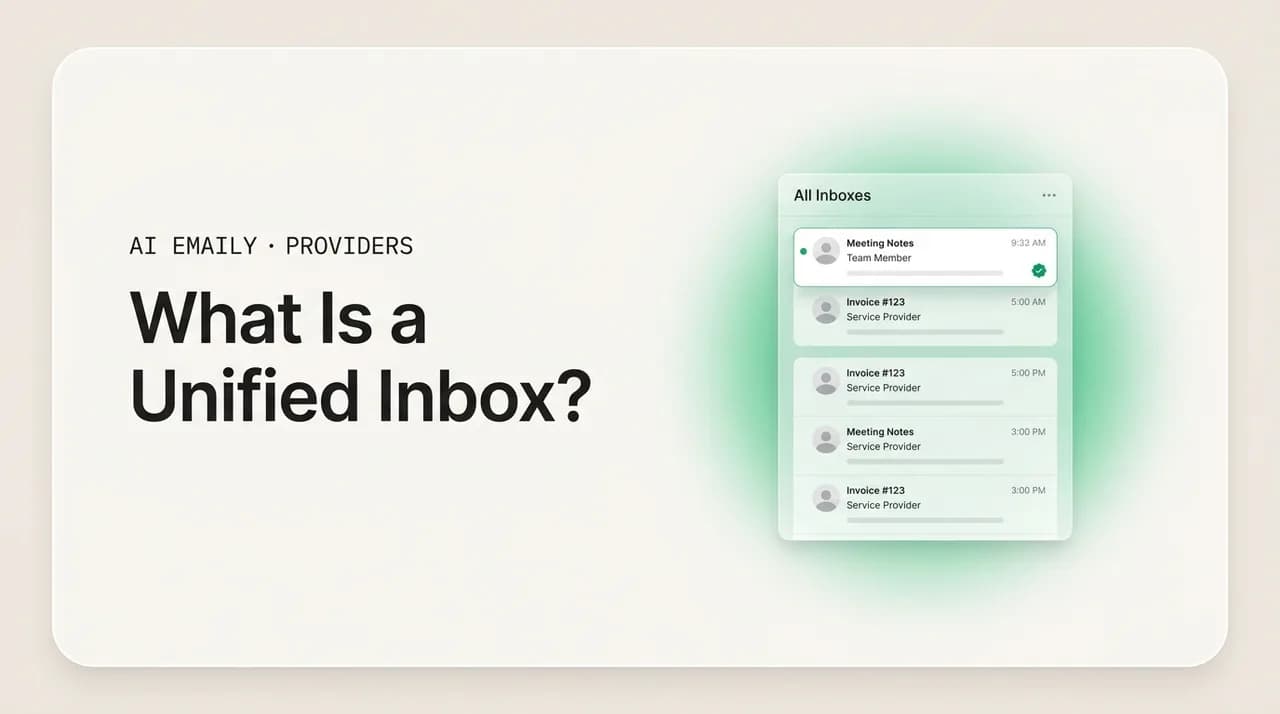
A unified inbox is a single view that merges email from all your accounts — Gmail, Outlook, iCloud, Fastmail, Proton, and any IMAP address — into one stream instead of separate silos. It saves you from app-switching, surfaces everything in one place, and lets you reply from any address. The tradeoff is mixing contexts; good apps let you split the view when you need to.
A unified inbox shows email from every account — Gmail, Outlook, iCloud, and more — in one merged view. Here is how it works, the benefits and tradeoffs, unified vs separate inboxes, and how the major apps handle it.
On this page
- 01What is a unified inbox, exactly?
- 02How does a unified inbox actually work?
- 03Why use a unified inbox? The real benefits
- 04What are the tradeoffs and downsides of a unified inbox?
- 05Unified inbox vs separate inboxes: which is better?
- 06How do different email apps handle the unified inbox?
- 07What should you look for in a unified inbox app?
- 08How does AI Emaily unify your accounts and triage the merged inbox?
- 09The bottom line on the unified inbox
Most people do not have one email account. They have a work address, a personal Gmail, an old iCloud account from when they bought their first iPhone, maybe a Proton or Fastmail account they set up for privacy, and a couple of forgotten addresses that still get the occasional important message. Checking all of them means opening several apps or logging into several websites, and the mental tax of "wait, which inbox was that in?" runs all day. A unified inbox is the answer to that problem: one view that pulls mail from every account you own into a single list, so you read, sort, and reply in one place instead of hopping between five.
The idea is simple, but the details are where it gets interesting — and where the apps that offer a unified inbox genuinely differ. Some merge everything into one undifferentiated stream. Some keep accounts color-coded so you always know which address a message hit. Some let you toggle between the merged view and a single account on demand. And the question of which account a reply goes out from — that small detail trips people up constantly, and a good unified inbox handles it without you thinking about it.
This guide is the complete explainer. You will learn exactly what a unified inbox is and how it works under the hood, the real benefits and the honest tradeoffs, when a unified view beats keeping your inboxes separate (and when it does not), how the major email apps each implement it, and what to look for when you choose one. There is a comparison table mapping the popular apps to how they handle unification, a worked example of how a single merged inbox routes replies, and a plain-language FAQ covering the questions people actually search for.
We will keep it practical. No jargon without explaining it, and a clear recommendation at the end for the people who just want the thing to work. Near the close we look at how an AI-native email client takes the unified inbox a step further — not just merging accounts, but triaging the merged stream so the inbox sorts itself — and why that matters once you have all your mail in one place.
What is a unified inbox, exactly?#
A unified inbox is a single mailbox view that combines incoming email from two or more separate accounts into one continuous list. Instead of opening your Gmail to read work mail, then your iCloud to read personal mail, then Outlook for a side project, you open one inbox and every new message — regardless of which account it landed in — appears together, sorted by time. It is sometimes called a universal inbox, a combined inbox, or an "all inboxes" view, and the terms mean the same thing: all your email, in one place.
The key thing to understand is that a unified inbox is a view, not a new account. Your accounts stay exactly where they are — your Gmail is still Gmail, your Outlook is still Outlook, hosted by their own providers with their own logins and their own rules. The unified inbox does not move or merge the underlying mailboxes; it connects to each one and displays them together in a single interface. Nothing about your actual email addresses changes. You are not creating a new address or forwarding everything into one account (though that is a different, clumsier way people sometimes try to achieve a similar result). You are layering one combined view on top of accounts that remain separate underneath.
That distinction matters because it tells you what a unified inbox can and cannot do. It can show you everything at once, let you reply from the right address, and let you act on any message without leaving the view. It cannot change the fact that each account has its own storage, its own spam filtering, and its own sending limits — those live with the provider. The unified inbox is the windshield through which you see all the lanes of traffic; the cars are still driving on their own roads.
There is also a smaller, in-app meaning of the term worth naming, because it causes confusion. Within a single account, some apps call the merged view of your primary inbox plus other folders a "unified inbox" or "focused" view. But the meaning that matters here — the one people search for when they have several email addresses — is the cross-account one: one inbox that spans multiple separate email accounts from multiple providers. That is what the rest of this guide is about.
The core idea in one line
How does a unified inbox actually work?#
Under the hood, a unified inbox is a client that holds the credentials for each of your accounts, connects to each provider, pulls in the mail, and stitches the results into one list. The mechanics are worth understanding because they explain both why it works and where the small frictions come from.
First, the app connects to each account using the right protocol. For modern providers like Gmail and Outlook, that is usually OAuth — you sign in on the provider's own page and grant the app permission, so the app never sees your actual password and you can revoke access anytime. For other providers it is IMAP, the standard protocol that lets an app read and sync a mailbox while the mail stays on the server; iCloud, Fastmail, Proton (via its Bridge), and effectively any email host support IMAP, often with an app-specific password for security. Sending uses a matching outbound channel — the provider's API for OAuth accounts, or SMTP for IMAP ones.
Second, the app syncs each mailbox and merges the streams. It fetches the messages from every connected account, normalizes them into a common format, and orders the combined set — almost always by date, newest first — into a single list. Because each message carries its account of origin, the app knows which address each one arrived at, which is what lets it color-code, label, or filter by account later. Realtime sync (push, or frequent polling) keeps the merged view current as new mail lands in any account.
Third — and this is the detail people miss — the app handles reply routing. When you open a message that arrived at your work address and hit reply, a well-built unified inbox automatically sends from that same work address, not from whatever your default account happens to be. The from-address follows the conversation. This is the single most important thing to get right in a unified inbox, because sending a reply to a client from your personal Gmail when they wrote to your work address is exactly the kind of small embarrassment people fear when they combine accounts. The example below shows how routing works across a merged stream.
A few practical notes follow from the mechanics. Because the mail still lives on each provider's servers, your storage, spam filtering, and sending limits stay tied to each account — a unified inbox does not pool your Gmail and iCloud quotas into one, it just shows both. Search behavior varies: a good unified-inbox app searches across all connected accounts at once, which is one of the quiet superpowers of the setup, since you no longer have to remember which account a message was in to find it. And the initial sync of a large mailbox can take a while the first time you connect it, after which incremental sync keeps it fast.
The other thing worth understanding is that "unified" is a spectrum, not a switch. The most basic version simply concatenates all your mail into one list. A better version keeps each account visually distinguishable — a colored dot, an account label — so the merge never costs you the context of where a message came from. The best versions let you flip between the unified view and any single account instantly, so you get the one-stream convenience by default but can isolate a single inbox the moment you need to focus on just work or just personal. How an app sits on that spectrum is the main thing that separates a unified inbox you love from one that feels like a cluttered pile.
Reply routing is the test of a good unified inbox
Why use a unified inbox? The real benefits#
The headline benefit is obvious — you stop switching between apps and accounts — but the actual gains run deeper than convenience. When all your mail is in one place, several things get easier at once, and together they change how the whole job of email feels.
The first is the end of app-switching and context loss. Every time you jump from your work mail app to your personal one to a webmail tab, you pay a small attention tax: you lose your place, you re-orient, you sometimes forget which account you were even checking. A unified inbox collapses that into a single surface. You glance once and see everything new, across every address, without a single tab switch. For anyone juggling three or more accounts, this is the difference between email feeling like one task and feeling like five.
The second is that nothing slips through the cracks. The most common reason an important email goes unanswered is not that you ignored it — it is that it arrived in an account you do not check as often. The side-project address, the old iCloud account, the personal Gmail you only open in the evening. A unified inbox surfaces mail from every account in the same stream, so the message that would have sat unseen in a neglected inbox now shows up alongside everything else. You see it because you see all of it.
The third is unified search and unified action. Searching across all your accounts at once means you find a message without first remembering which inbox it was in — which is exactly the thing you usually cannot remember. And acting in one place means archiving, snoozing, flagging, and replying all happen with the same controls regardless of which account a message belongs to, instead of relearning the buttons in each provider's interface. The list below collects the benefits.
- One view, no switching — all new mail from every account in a single stream, glanced at once instead of checked five times.
- Nothing falls through — messages in rarely-checked accounts surface alongside everything else, so the neglected inbox stops hiding important mail.
- Search everywhere at once — find a message across all accounts without remembering which one it was in.
- Reply from the right address automatically — the from-address follows the conversation, so accounts never leak into each other.
- One set of controls — archive, snooze, flag, and label work the same across every account instead of per-provider quirks.
- Consistent rules and signatures — set up filtering, sorting, and closings once and apply them across accounts in the same place.
- Faster triage — a single morning sweep clears every account, instead of a separate pass through each app.
There is a compounding effect worth calling out. Each of these benefits is small on its own, but they stack. The time you save not switching apps, plus the messages you no longer miss, plus the searches that just work, plus replies that go out from the right place — add them up over a working week and the unified inbox is not a minor convenience, it is a meaningfully calmer relationship with email. People who consolidate their accounts rarely go back, and the reason they give is almost always the same: they stopped feeling like email was scattered across the internet and started feeling like it was one manageable thing.
It is also the foundation for everything more advanced. Once your mail is in one place, you can apply one set of rules, one triage system, one assistant to all of it. As long as your accounts are in separate apps, any improvement you make has to be made five times. Unify first, and every later improvement applies everywhere at once. That is why the unified inbox is usually the first move people make when they decide to get serious about taming their email — it is the platform the rest sits on.
The benefit that matters most varies by person
What are the tradeoffs and downsides of a unified inbox?#
A unified inbox is not free of cost, and being honest about the tradeoffs is the only way to set it up well. The core tension is the same thing that makes it useful: it mixes contexts. Pull everything into one stream and your work mail, your personal mail, your newsletters, and your side projects all sit next to each other — which is exactly what some people want and exactly what others find stressful.
The biggest downside is context bleed. Seeing a personal message in the middle of a work-focused morning, or a work escalation while you are off the clock, can pull your attention where you did not want it. The boundary between "work brain" and "personal brain" that having separate apps quietly enforced disappears when everything shares one list. For people who deliberately keep work and life apart, an always-on unified view can feel like the walls came down. This is the single most cited reason people hesitate to combine accounts.
The second is visual clutter and volume. If one of your accounts gets heavy newsletter or notification traffic, merging it into the main stream can bury the personal and work mail you actually care about under noise. A unified inbox that simply concatenates everything makes your busiest account everyone's problem. The fix is not to avoid unification but to filter and sort — but a basic unified inbox without good filtering can genuinely feel worse than separate apps.
The third is the small operational risks: replying from the wrong account if the app routes poorly, losing the at-a-glance sense of which account is which if the app does not label them, and the fact that all your accounts now live behind one app's login — so that app's security and that one device's access matter more. None of these is a dealbreaker; each is something a well-designed app handles. But they are real, and they are the reason "just merge everything" is not always the right call. The table weighs the tradeoffs against the fixes.
| Tradeoff | Why it happens | How a good app fixes it |
|---|---|---|
| Context bleed (work + personal mixed) | One stream removes the boundary separate apps enforced | Split view on demand; per-account focus; mute work after hours |
| Visual clutter from a noisy account | A high-volume account floods the merged list | Filtering, smart sorting, and pulling newsletters out of the main stream |
| Reply from the wrong address | App defaults replies to one account | Auto-route the from-address to match where the mail arrived |
| Losing track of which account | An undifferentiated merge hides the source | Color-coded dots or account labels on every message |
| One login guards everything | All accounts now sit behind one app | Strong app security, device-level protection, OAuth (revocable) over stored passwords |
| Per-account limits still apply | Storage and sending stay with each provider | App shows per-account status; nothing is silently pooled or capped |
The thread running through every fix is the same: the answer to the downsides of a unified inbox is a better unified inbox, not separate apps. Context bleed is solved by being able to split the view when you want to focus. Clutter is solved by filtering and smart sorting. Wrong-address replies are solved by automatic routing. The apps that get a bad reputation for unified inboxes are almost always the ones that do the easy part — concatenating mail — and skip the hard part — keeping it organized and contextual. When you evaluate an app, the tradeoffs above are exactly the checklist: ask how it handles each one.
Beware the dumb merge
Unified inbox vs separate inboxes: which is better?#
This is the real decision, and the honest answer is that it depends on how you work — but for most people with multiple accounts, a unified inbox with the option to split wins. The framing that actually helps is not "merged or separate" as a permanent choice; it is "what is your default, and can you override it?" The best setup gives you a unified default and a one-tap path to a single account when you need focus.
Separate inboxes — keeping each account in its own app or its own clearly walled-off section — make sense when your contexts genuinely should not touch. A clinician with patient mail, a lawyer with privileged client mail, or anyone who treats work and personal as strictly separate may want the friction of switching apps as a feature: it enforces the boundary. Separate inboxes also make sense if one of your accounts is extremely high-volume and would swamp the others, or if you simply check one account constantly and the rest rarely. In those cases, the merge costs more than it gives.
A unified inbox wins for the much larger group: people who have several accounts because life accumulated them, who want to see everything without hunting, and whose contexts overlap more than they are kept apart — the freelancer whose work and personal blur, the person with three Gmail addresses, the household manager fielding mail from several accounts. For them the merged view is simply less work and fewer missed messages, and the rare moment they need to focus on just one account is handled by splitting the view, not by living in five apps.
The decision table below maps common situations to the better default. Notice that almost every row that points to "separate" still benefits from a unified app that can show one account at a time — the conclusion is rarely "use five different apps" and almost always "use one app that can do both."
| Your situation | Better default | Why |
|---|---|---|
| 3+ accounts you all check regularly | Unified | One sweep clears everything; no app-switching tax |
| A neglected account with occasional important mail | Unified | Surfaces the message you would otherwise miss |
| Work and personal that genuinely blur | Unified | The contexts overlap; one view fits how you actually work |
| Strict work/personal separation by choice | Split (one app, switchable) | Keep the boundary, but in one app you can toggle |
| One account is overwhelmingly high-volume | Split or filtered | Stops the busy account from burying the rest |
| Regulated or privileged mail (clinical, legal) | Separate / walled | Compliance and boundary needs outweigh convenience |
| One main account, others rarely touched | Unified (with focus) | See the rest passively without making them a chore |
The practical takeaway is to stop thinking of it as a binary. The question is not whether you will ever want to look at a single account alone — you will — it is whether your everyday default should be one stream or five. For most people the everyday default that saves the most time and misses the least mail is unified, with the ability to drop into a single account whenever a moment calls for focus. The apps that nail this give you exactly that: open to everything, narrow to one with a tap, and never lose track of which message came from where. That combination — one inbox or split, on your terms — is the setup most people end up happiest with.
Default unified, focus on demand
How do different email apps handle the unified inbox?#
Not every app means the same thing by "unified inbox," and the differences are exactly what determine whether the feature feels good in daily use. Some apps merge accounts beautifully; some bolt on a half-version; some of the biggest names do not really offer a true cross-provider unified inbox at all. Here is how the common options actually behave, so you know what you are getting before you move all your mail in.
The native provider apps — Gmail's app, Outlook's app, Apple Mail — sit at very different points. Apple Mail on iPhone, iPad, and Mac has a genuine "All Inboxes" view that merges every account you add (including Gmail, Outlook, iCloud, and IMAP) into one list, and it is one of the better-known true unified inboxes. The Gmail app can show multiple Gmail accounts and added non-Google accounts in an "All inboxes" view too, though the experience is best when your accounts are Google. Outlook's mobile app similarly supports multiple accounts with a Focused/Other split, and a combined view of several accounts. Webmail in a browser — Gmail.com, Outlook.com — is essentially single-account per tab; that is the experience a unified inbox exists to replace.
The third-party email clients are where unified inboxes were really popularized, because merging accounts cleanly is their whole reason to exist. Apps in this category typically connect Gmail, Outlook, iCloud, Fastmail, Proton, and arbitrary IMAP accounts, present a true merged stream with per-account color-coding, route replies to the correct address, search across everything, and let you switch between the unified view and a single account. The quality varies — some are fast and clean, some are heavy or have shut down over the years — but the model is consistent: one app, all providers, one inbox. The table maps the landscape.
| App / approach | True cross-provider unified inbox? | Notes |
|---|---|---|
| Apple Mail (iOS / macOS) | Yes — 'All Inboxes' | Merges Gmail, Outlook, iCloud, IMAP; solid native option on Apple devices |
| Gmail app | Partial — 'All inboxes' | Best with Google accounts; can add others, experience is Gmail-first |
| Outlook app | Partial — multi-account view | Combines accounts with Focused/Other; Microsoft-centric experience |
| Gmail.com / Outlook.com (web) | No — single account per tab | Webmail is one account at a time; the problem a unified inbox solves |
| Third-party clients (general) | Yes — full merge | Connect all providers, color-code, route replies, search across all |
| Forwarding everything into one account | Imitation, not true unified | Clumsy: from-address breaks, no per-account context, one mailbox does it all |
| AI Emaily | Yes — unified + AI triage | All providers in one inbox, one-stream-or-split, with AI sorting the merged view |
A word on the forwarding approach, because people reach for it before they understand a unified inbox. Setting every account to forward into one Gmail does create a single place to read mail, but it is an imitation, not a real unified inbox, and it breaks in ways that matter. Replies go out from the catch-all account, not the address the sender wrote to, so your other addresses leak. You lose the clean sense of which account a message belongs to. And the receiving account inherits all the storage and spam of everything pointed at it. A true unified inbox connects to each account and keeps them distinct underneath — that is the difference between seeing all your mail together and dumping it into one pile.
The practical reading of the landscape: if you live entirely inside one provider's ecosystem, that provider's app may be enough. If you are on Apple devices, Apple Mail's All Inboxes is a real, capable unified inbox. But if you have accounts spread across several providers — a Gmail, an Outlook, an iCloud, a Proton — and you want them genuinely unified with replies routed correctly, search across everything, and the option to split the view, a dedicated client built for multiple accounts is the right tool. And once you are choosing one of those, the next question is whether it just merges your mail or also helps you handle it — which is where the newest generation of email clients changes the equation.
Pick the tool that matches your spread
What should you look for in a unified inbox app?#
If you have decided to consolidate, the difference between an app you love and one you abandon comes down to a handful of features that handle the tradeoffs above. Use this as a checklist when you evaluate any unified-inbox app — it is the same list whether you are looking at a native app or a third-party client.
Start with the non-negotiables. The app must support all your providers — Gmail and Outlook via OAuth, plus IMAP for iCloud, Fastmail, Proton, and anything custom — or it cannot truly unify your mail. It must route replies to the correct from-address automatically. And it must distinguish accounts visually, with color-coding or labels, so the merge never costs you context. An app that misses any of these three has not really solved the problem.
Then the features that make it pleasant rather than just functional: a one-tap switch between the unified view and any single account, so you can focus when you need to; cross-account search that genuinely searches everything at once; consistent rules, filters, and signatures you set once and apply across accounts; and fast, reliable sync so the merged view is always current. Finally, the things that matter more once all your accounts live in one app: real security (OAuth over stored passwords, strong app and device protection) and a clear privacy stance, since you are trusting this app with all of your email. The checklist below collects them.
- Connects all your providers — Gmail, Outlook (OAuth) plus iCloud, Fastmail, Proton, and any IMAP account.
- Routes replies to the correct address automatically — the from-address follows the conversation.
- Distinguishes accounts visually — color-coded dots or labels so you always know the source.
- Switches between unified and single-account views in one tap — convenience by default, focus on demand.
- Searches across all accounts at once — find anything without remembering which inbox it was in.
- Applies rules, filters, and signatures consistently across accounts — set up once, not five times.
- Syncs fast and reliably — the merged view stays current as mail lands in any account.
- Takes security and privacy seriously — OAuth, strong device protection, and a clear stance on your data.
All your mail behind one app raises the stakes
How does AI Emaily unify your accounts and triage the merged inbox?#
Here is where the unified inbox goes from convenient to genuinely calmer. Merging your accounts solves where your mail is — it is all in one place. But it does not, on its own, solve the harder problem: that even in one place, the merged stream is still a pile you have to sort, message by message, all day. The more accounts you unify, the bigger that single pile gets. A plain unified inbox can actually feel busier than separate ones precisely because everything is now in front of you at once. The next step is an inbox that does not just hold all your mail but helps you handle it.
AI Emaily is an AI-native email client built around exactly that. It connects every account you have — Gmail, Outlook, iCloud, Fastmail, Proton, and any IMAP provider — into one unified inbox, with each account distinguishable so you never lose track of which message came from where, and replies routed to the right from-address automatically. That is the table-stakes part, and it does it cleanly. The difference is what happens to the merged stream once it is there: AI Emaily triages it. It reads the combined inbox, sorts what matters from what does not, surfaces the messages that need you, and quietly groups the newsletters and notifications that do not — so the unified view is organized, not just complete. You get one inbox that has already done a first pass for you.
It also respects the boundary problem head-on. Because mixing contexts is the main downside of unification, AI Emaily lets you run your accounts as one stream or split them on demand — see everything together when you want the full picture, or focus on just work or just one account when you need to, without leaving the app or losing the unified default. The triage and the routing stay consistent either way. And because all your accounts now live in one place, it keeps your rules, sorting, and signatures coherent across every account instead of making you configure each provider separately — set it once, and it applies everywhere you write.
You stay in control the whole time, which matters a great deal when one app touches all your mail. In its default Copilot mode, AI Emaily drafts and proposes — triaging, sorting, and writing replies — but nothing sends or gets archived irreversibly without your say; you review and approve. It is private by design: your mail is connected via revocable access, used to organize and draft for you, not to train models for anyone else. You can start free at app.aiemaily.com/signup — the Free plan is $0 and connects your inboxes with AI triage and drafting, and Pro is $12.42/month billed annually when you want the full set across everything. The point of unifying your accounts was never just to see all your mail in one window; it was to make email one calm, manageable thing. An inbox that merges your accounts and then sorts the result gets you the rest of the way there.
Unify, then let it triage
The bottom line on the unified inbox#
A unified inbox is a single view that pulls mail from every account you own into one stream, so you stop switching apps, stop missing messages in neglected accounts, and stop hunting through five places to find one email. The accounts stay separate underneath, with their own logins and providers; the inbox just shows them together and — when it is built well — routes your replies to the right address, color-codes the sources, and lets you search everything at once. For most people with more than one account, that is simply less work and fewer missed messages.
The honest tradeoff is context bleed and clutter, and the fix is not separate apps — it is a better unified inbox that lets you split the view on demand, filters the noise, and keeps each account distinct. Default unified, focus on demand: that is the setup most people end up happiest with. When you choose an app, run the checklist — all your providers, automatic reply routing, visual account labels, a one-tap split, cross-account search, and real security — because those features are what separate a unified inbox you rely on from a pile you abandon.
And once all your mail is in one place, the next gain is an inbox that does not just hold it but helps you handle it. That is what AI Emaily adds — unifying Gmail, Outlook, iCloud, Fastmail, Proton, and IMAP into one inbox, then triaging the merged stream so it sorts itself, with you approving before anything happens. Either way, the principle holds: get all your accounts into one view first, because every other improvement to your email gets easier once they are no longer scattered across the internet.
Frequently asked
See it in AI Emaily
Keep reading
Sources

Written by
Nafiul HasanNafiul Hasan is an entrepreneur and AI automation system builder with 10+ years of experience turning messy, manual workflows into reliable automated systems. He designs and ships AI enterprise solutions end-to-end — the agent logic, the data plumbing, and the product people actually use — and founded AI Emaily to give busy professionals their attention back. He writes here from the builder's seat: what works, what breaks, and how to put AI to work without giving up control.