Auto-Forward Email Rules: Conditional Forwarding Explained

The short answer
Auto-forward email rules route incoming mail to another address automatically, either all of it or only messages that match a condition like sender or subject. Gmail uses a verified address plus filters; Outlook uses inbox rules. External forwarding is often blocked by admins, and forwarding can quietly break deliverability.
Auto-forward rules send incoming mail to another address automatically. Set them up with Gmail filters or Outlook rules, and avoid the deliverability traps.
On this page
- 01What are auto-forward email rules, and when do you actually need them?
- 02Forward everything vs conditional forward -- which one do you want?
- 03How do you set up auto-forwarding in Gmail?
- 04How do you forward only specific emails in Gmail with a filter?
- 05How do you set up an auto-forward rule in Outlook?
- 06How do you forward emails from a specific sender or subject only?
- 07How do you forward email to a team or an external address?
- 08Forward vs redirect -- what is the difference and why does it matter?
- 09What are the deliverability and security risks of auto-forwarding?
- 10How do you stop or disable email forwarding?
- 11How does AI Emaily's unified inbox mean you rarely need forwarding?
- 12Putting it together: forward on purpose, route by design
What are auto-forward email rules, and when do you actually need them?#
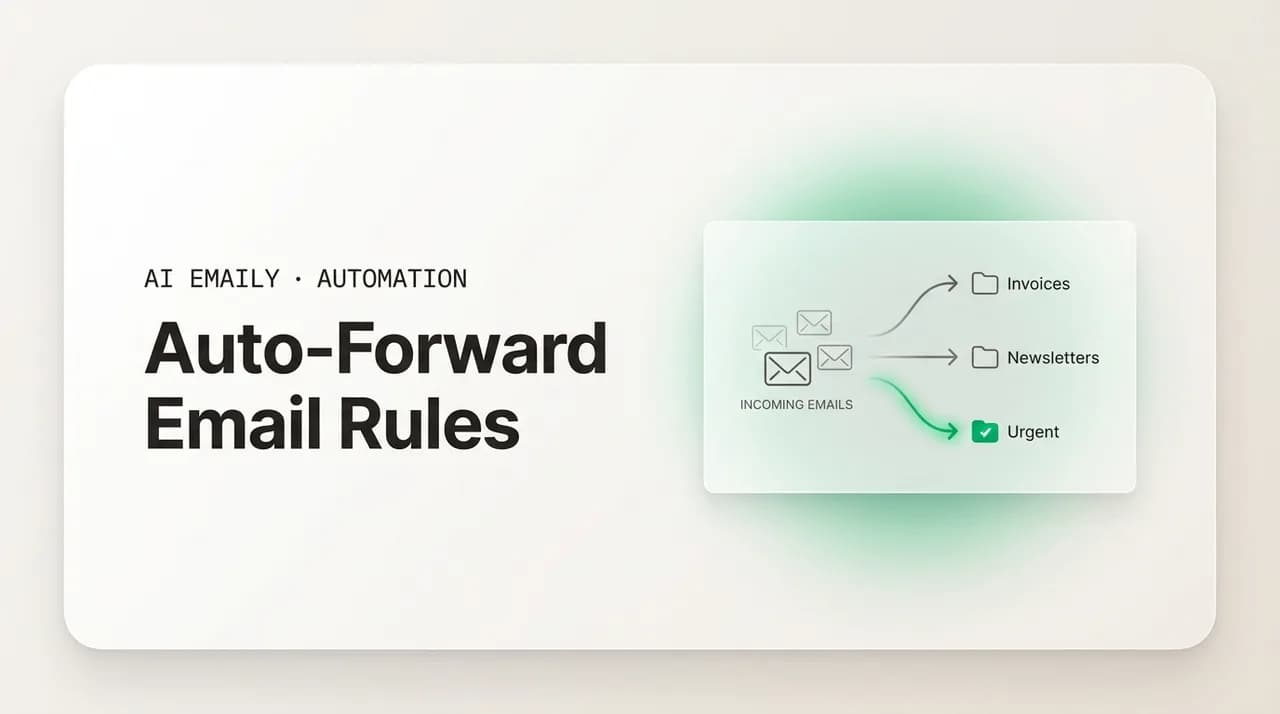
An auto-forward email rule is a standing instruction that tells your mailbox to send a copy of incoming mail to another address automatically, without you touching anything. The mail arrives, the rule fires, and the message is on its way to the second inbox before you have even seen it. That is the whole idea: route mail to where it needs to be handled, on its own, every time.
People reach for forwarding for a handful of recurring reasons, and it is worth being honest about which one applies to you, because the right setup is different for each. The classic case is consolidation -- you have two or three addresses and you are tired of checking all of them, so you funnel the secondary ones into your main inbox. Another is delegation -- an assistant, a colleague, or a teammate needs to see certain mail so they can act on it. A third is routing by topic -- invoices should land with finance, support requests with the support team, applications with the recruiter. A fourth is leaving an address behind -- you changed jobs or providers and want anything sent to the old address to follow you to the new one for a while.
Each of those is a legitimate job, but notice how different they are. Consolidating two of your own inboxes wants a blanket forward-everything rule. Sending only invoices to finance wants a conditional rule that fires on a match and ignores everything else. Forwarding to a teammate at another company crosses an administrative boundary that many organizations deliberately block. Treating all four as the same task is how people end up with forwarding setups that leak, duplicate, or silently stop working. On the Gmail side all of this is filter work — Gmail has no feature called rules, so how to create rules in Gmail means building a filter with a Forward to action.
This guide walks through all of it: the difference between forwarding everything and forwarding only what matches, how to set up auto-forwarding in Gmail and in Outlook step by step, how to build a conditional forward that fires only on a specific sender or subject, what happens when you try to forward to a team or an external address and hit an admin block, the important and frequently misunderstood difference between forwarding and redirecting, the deliverability and security risks that forwarding quietly introduces, and how to turn the whole thing off cleanly when you no longer need it.
We will also be straight with you about something most forwarding tutorials skip: forwarding is a workaround. It exists because most email clients can only show you one mailbox at a time, so the only way to see two inboxes in one place is to physically copy mail from one to the other. That copy is where most of the problems come from -- the broken authentication, the duplicate threads, the replies that go to the wrong place. If your real goal is simply to see all your mail in one inbox, there is a cleaner way to get there than copying messages around, and we will come back to it near the end. But forwarding is genuinely the right answer for plenty of cases, so let us start by getting it right.
Forwarding copies, it does not move
Forward everything vs conditional forward -- which one do you want?#
Before you open any settings screen, decide which of the two fundamental kinds of forwarding you need, because they are configured in completely different places and they fail in completely different ways. Getting this wrong is the single most common forwarding mistake.
A forward-everything rule sends a copy of every message that arrives, no exceptions. There is no condition to evaluate -- if it lands in the mailbox, it gets forwarded. This is what you want when you are consolidating your own addresses or permanently retiring an old one. It is simple, it is reliable, and it is exactly wrong for any case where you only want some of the mail to move.
A conditional forward sends a copy only when the message matches a rule you define -- from a particular sender, with a particular word in the subject, sent to a specific address, carrying an attachment, and so on. Everything that does not match is left alone. This is what you want when you are routing by topic or delegating a slice of your mail. It is more precise and far safer, because you are not blindly relaying your entire inbox to a second address.
The mechanics diverge sharply by provider. In Gmail, forward-everything lives in one place (the Forwarding settings) and conditional forwarding lives in another entirely (Filters), and they behave as separate features. In Outlook, both are built as inbox rules -- a forward-everything rule is just a conditional rule with no condition attached. Knowing which feature you are actually using saves a lot of confusion later, especially when something stops working and you are trying to remember where you set it up.
| Forward everything | Conditional forward | |
|---|---|---|
| Best for | Consolidating your own inboxes; retiring an old address | Routing by topic; delegating a slice of mail to a person or team |
| What it sends | A copy of every single incoming message | A copy only of messages that match your condition |
| Where it lives (Gmail) | Settings > Forwarding and POP/IMAP | Settings > Filters and Blocked Addresses (a filter) |
| Where it lives (Outlook) | An inbox rule with no condition | An inbox rule with a sender/subject/keyword condition |
| Main risk | Relays sensitive or private mail you never meant to share | A too-broad condition forwards more than you intended |
| How to scope it | Cannot be scoped -- it is all or nothing | Tighten the condition (exact sender, exact phrase) |
Forward-everything is a blunt instrument
How do you set up auto-forwarding in Gmail?#
Gmail splits forwarding into two features, and you have to understand both. The Forwarding setting forwards everything. Filters forward only what matches a condition. But both share one non-negotiable first step: before Gmail will forward to any address, that address has to be verified. This is a deliberate anti-abuse measure -- Google does not want anyone quietly relaying your mail to an inbox you do not control, so it sends a confirmation link to the destination and refuses to forward until someone clicks it.
Here is the full flow for forwarding everything. You add and verify the destination address first, then switch forwarding on.
- 1
Open Forwarding settings
In Gmail on the web, click the gear icon, choose See all settings, then open the Forwarding and POP/IMAP tab. (You cannot set this up in the mobile app -- forwarding configuration is web-only.)
- 2
Add a forwarding address
Click Add a forwarding address, type the destination email, and confirm. Gmail immediately sends a verification message to that address.
- 3
Verify the destination
Open the destination inbox, find the Gmail Forwarding Confirmation email, and click the verification link inside (or copy the confirmation code back into Gmail). Forwarding will not work until this is done.
- 4
Turn forwarding on
Back in the Forwarding tab, select Forward a copy of incoming mail to, pick the verified address, and choose what happens to the Gmail copy -- keep it in the inbox, mark it read, archive it, or delete it.
- 5
Save
Scroll down and click Save Changes. Every new message will now be copied to the destination. Existing mail is not forwarded -- forwarding only applies going forward.
Keep a copy in the inbox while you test
How do you forward only specific emails in Gmail with a filter?#
Forwarding everything is rarely what you want. Far more often you want to forward only invoices, only mail from one client, or only messages with a certain word in the subject. That is a job for a Gmail filter, not the Forwarding setting. The destination still has to be a verified address -- add it in the Forwarding tab first if you have not already -- but the rule itself lives under Filters.
- 1
Open the filter builder
In Settings, open Filters and Blocked Addresses, then click Create a new filter. (You can also click the small sliders icon in the search bar.)
- 2
Define the condition
Fill in the fields that describe the mail you want to forward: From for a specific sender, Subject for a phrase, or Has the words for a keyword anywhere in the message. Use the most specific field you can -- an exact sender address is far safer than a loose keyword.
- 3
Create the filter
Click Create filter (bottom right of the condition box) to move to the actions step.
- 4
Choose Forward it to
Check Forward it to and select your verified forwarding address from the dropdown. You can add another verified address from this screen if the one you need is not listed.
- 5
Add any companion actions and save
Optionally also apply a label, mark as read, or archive so the forwarded copy is tidied in your own inbox too. Click Create filter to finish. The rule applies to new mail; tick 'Also apply filter to matching conversations' to run it once over existing mail.
One filter forwards to one address
How do you set up an auto-forward rule in Outlook?#
Outlook handles forwarding entirely through inbox rules -- there is no separate forwarding-settings page the way Gmail has. A forward-everything rule is simply a rule with no condition, and a conditional forward is the same rule with a condition added. The exact menu wording varies slightly between new Outlook, classic Outlook, and Outlook on the web, but the shape is identical: pick a condition, pick the forward action, pick the destination.
Here is the flow for Outlook on the web and the new Outlook for Windows, which is where most people are now.
- 1
Open Rules
Click Settings (the gear), then go to Mail > Rules. Click Add new rule.
- 2
Name the rule
Give it a clear name you will recognize later, like 'Forward invoices to finance' -- not 'Rule 1'. Future-you has to be able to audit this.
- 3
Add a condition
Choose a condition such as From (a specific sender), Subject includes (a word or phrase), or 'Apply to all messages' if you genuinely want to forward everything. The condition is what makes the rule conditional rather than blanket.
- 4
Choose the forward action
Under Add an action, pick Forward to (sends a forwarded copy) or, if you want replies to reach the original sender, Redirect to -- the difference matters and we cover it below. Enter the destination address.
- 5
Save and order it
Click Save. If you have several rules, drag this one into the right position -- Outlook runs rules top to bottom, and you can add 'Stop processing more rules' to a rule so later ones do not also fire on the same message.
Desktop rules vs server rules
How do you forward emails from a specific sender or subject only?#
Conditional forwarding is where forwarding earns its keep, and it is also where most people get burned -- almost always by writing a condition that is broader than they realized. The principle is simple: the more specific the condition, the safer the rule. A condition that matches an exact sender address will only ever forward mail from that sender. A condition that matches the word 'order' anywhere in the message will forward your colleague's email about reordering office supplies, the restaurant confirmation from last night, and the note from your manager about reordering the project backlog. Specificity is safety.
Think about which signal actually identifies the mail you want to route, and build the condition on that signal rather than on a vague keyword:
- By sender -- the cleanest and safest condition. 'From [email protected]' forwards exactly that vendor's mail and nothing else. Use this whenever a single address reliably identifies the category.
- By recipient address -- if you use plus-addressing ([email protected]) or a catch-all, you can forward by the address it was sent to, which is often more reliable than guessing at subjects.
- By subject phrase -- match a distinctive multi-word phrase ('Your invoice from'), not a single common word. Single words are the classic over-match trap.
- By a mailing list or header -- list mail often carries a List-Id or a consistent sender; route on that rather than on the topic, which varies message to message.
- By attachment or size -- useful for routing anything with a PDF to a document inbox, though it casts a wider net than sender-based rules, so pair it with a sender condition where you can.
| You want to forward | Weak (over-matches) | Strong (precise) |
|---|---|---|
| Invoices from one vendor | Subject contains 'invoice' | From [email protected] |
| Support requests | Has the words 'help' | Sent to [email protected] |
| Job applications | Subject contains 'application' | From your ATS sender + subject 'New candidate' |
| A specific newsletter | Has the words 'newsletter' | From [email protected] (or its List-Id header) |
Test the condition before you attach the forward
How do you forward email to a team or an external address?#
Forwarding to one teammate inside your own company usually just works. Forwarding to a team, or to anyone outside your organization, is where things get complicated -- partly for technical reasons and partly because forwarding is the wrong tool for several of these jobs in the first place.
Start with the team case, because the most common mistake here is using forwarding at all. If you want a group of people to handle shared mail -- support@, sales@, hello@ -- a forwarding rule that copies each message to several individual inboxes is a poor fit. Everyone gets their own copy, nobody can see who has already replied, two people answer the same customer, and there is no shared record of the conversation. That is a distribution-list pattern, and it falls apart the moment the team needs to coordinate. A shared mailbox (one inbox several people open and reply from) is the right structure for collaborative mail; a distribution list or forward is only right for pure broadcast, where nobody needs to reply as a team.
Now the external case, which is mostly a security story. Microsoft 365 blocks automatic external forwarding by default. As part of Microsoft's secure-by-default posture, outbound anti-spam policy ships with automatic forwarding to external recipients turned off for all customers, because attackers who compromise a mailbox routinely set up a quiet forward to exfiltrate mail. When a user rule tries to forward externally under this policy, the message does not silently vanish -- the sender of the original mail typically gets a non-delivery report with a 550 5.7.520 Access Denied error noting that external forwarding is disabled. So the mail you expected to arrive externally simply never does, and you may not realize it for days.
Enabling external forwarding is an administrator decision, not a user one, and it is made deliberately. An admin can relax the outbound spam policy, or scope an exception to specific senders or domains, in the Microsoft Defender portal or via Exchange Online PowerShell. The point is that if your external forward is not arriving, the fix is almost never in your own settings -- it is a policy your IT team controls, and they turned it off on purpose.
| Goal | Forwarding is... | Better fit |
|---|---|---|
| See two of your own inboxes in one place | A workaround that breaks auth and duplicates mail | A unified inbox that connects both accounts natively |
| A team handles support@ together | Wrong -- no shared visibility, double replies | A shared mailbox everyone opens and replies from |
| Route invoices to finance | A reasonable fit (conditional forward by sender) | Conditional forward, or a rule in a unified client |
| Send mail to a partner at another company | Often blocked by admin (M365 external block) | Ask your admin; or share via a deliberate channel |
Why external forwarding is locked down
Forward vs redirect -- what is the difference and why does it matter?#
Outlook offers two actions that look almost identical in a menu but behave very differently: Forward and Redirect. Choosing the wrong one is a subtle, common mistake that quietly sends every reply to the wrong person, and it can take weeks to notice.
When you forward a message, it appears to come from you. The subject usually gets an 'FW:' prefix, the original message is wrapped inside the new one, and -- this is the part that bites people -- if the recipient hits reply, the reply comes back to you, the forwarder, not to the original sender. That is correct when you are deliberately inserting yourself into the thread: you forwarded it, so you want to stay in the loop.
When you redirect a message, it arrives looking as if it came straight from the original sender, in its original form, with no 'FW:' and no wrapper. If the recipient replies, the reply goes to the original sender, not to you. You are routing the message through, not taking it over. This is what you almost always want when you are passing mail to the right handler -- you want them to reply to the customer or client directly, as if the message had been addressed to them in the first place.
The rule of thumb: redirect when the next person should own the conversation and reply to the original sender; forward when you want to stay in the loop and have replies come back to you. For routing a customer email to whoever should answer it, redirect is almost always the better choice. For looping a colleague in on a thread you are still part of, forward is right. Gmail filters only offer 'forward' (there is no true redirect in Gmail's filter UI), which is one more reason the two clients behave differently and why a forwarding habit you built in one does not translate cleanly to the other.
Redirect keeps the reply chain honest
What are the deliverability and security risks of auto-forwarding?#
Forwarding feels free -- click a setting, mail flows. But it quietly undermines the three systems that decide whether email lands in the inbox or the spam folder, and it opens a security gap that attackers actively exploit. If you forward important mail and wonder why some of it never seems to arrive, this is almost always the reason.
The deliverability problem is about email authentication. Three standards protect modern email: SPF, which lists the servers allowed to send for a domain; DKIM, a cryptographic signature on the message; and DMARC, which tells receivers what to do when SPF and DKIM disagree with the From address. Plain forwarding breaks them in a predictable way. When your mailbox forwards a message, it goes out from your forwarding server -- an IP that is not on the original sender's SPF list -- while the original From address is unchanged. To the receiving server, that looks exactly like spoofing: a message claiming to be from a domain, arriving from a server that domain never authorized. SPF fails, and if the sender publishes a strict DMARC policy, the forwarded copy can be rejected or junked outright.
DKIM is more resilient -- its signature can survive forwarding because it travels with the message, but only if the forwarder does not alter the content or headers. The moment a forwarding system rewrites the subject, appends a footer, or reformats the body, the DKIM signature breaks too, and now both checks fail. There are mitigations -- SRS (Sender Rewriting Scheme) rewrites the envelope sender so SPF can pass, and ARC (Authenticated Received Chain) lets a forwarder vouch for the original authentication results -- but they have to be implemented by the forwarding service, and most simple consumer forwards do neither. The practical upshot: forwarded mail is meaningfully more likely to be marked as spam or silently dropped than mail delivered directly, and there is nothing the original sender or you can do about it from inside the forwarding rule.
The security problem is the one that gets mailboxes compromised. A quiet auto-forward rule is the single most common payload an attacker installs after breaking into an account -- it lets them read every future message without logging in again, and the victim usually never notices. This is precisely why Microsoft 365 disables external forwarding by default and why Google watches for suspicious forwarding setups. From the defender's side, the lesson is twofold: audit your own forwarding rules periodically (an unfamiliar forward is a red flag that your account may be compromised), and never treat a forwarding block as an obstacle to route around -- it is a control protecting you.
| What forwarding touches | What breaks | Consequence |
|---|---|---|
| SPF (authorized servers) | Forwarding IP is not on the sender's SPF list | SPF fails; under strict DMARC the copy can be rejected |
| DKIM (signature) | Survives only if content and headers are untouched | Any footer or rewrite breaks the signature too |
| DMARC (the verdict) | Both checks can fail at once on a forwarded copy | Mail is junked or dropped, often silently |
| Account security | A hidden forward exfiltrates mail to an attacker | Why M365 blocks external forwarding by default |
Audit your forwarding rules on a schedule
How do you stop or disable email forwarding?#
Turning forwarding off is straightforward once you know which feature created it -- and that is the catch, because forwarding can come from more than one place. If mail is still being forwarded after you thought you stopped it, the cause is almost always a second rule you forgot about, or a different feature than the one you just disabled.
Work through every place a forward can hide. In Gmail there are two: the Forwarding setting (for forward-everything) and any number of Filters (for conditional forwards). Turning off forwarding in the Forwarding tab does nothing to a filter that forwards, and vice versa -- you have to check both. In Outlook, forwards live in Rules, and there may be several; there can also be a mailbox-level forward set by an administrator that you cannot see or remove yourself.
- 1
Disable Gmail forward-everything
Settings > Forwarding and POP/IMAP > select 'Disable forwarding' > Save Changes. This stops the blanket forward but leaves filters untouched.
- 2
Remove Gmail forwarding filters
Settings > Filters and Blocked Addresses. Find any filter whose action includes 'Forward to', then edit it to remove the forward, or delete the filter outright.
- 3
Delete Outlook forward and redirect rules
Settings > Mail > Rules. Toggle off or delete any rule with a Forward to or Redirect to action. Check both web and desktop, since a client-only rule lives on one machine.
- 4
Check for an admin-set forward
If mail still forwards and you have removed every rule you can find, a mailbox-level forward may have been set by IT. Ask your administrator to check the mailbox forwarding configuration in Exchange or your admin console.
Verify it actually stopped
How does AI Emaily's unified inbox mean you rarely need forwarding?#
Step back and look at why you wanted forwarding in the first place. For most people it was never really about forwarding -- it was about not having to check three different inboxes, or making sure the right mail reached the right person. Forwarding is just the workaround that older email clients force on you because they can only show one mailbox at a time. The cleaner answer is to stop copying mail around and instead see every account in one place. That is what AI Emaily is built to do.
AI Emaily gives you a unified inbox across every provider -- Gmail, Outlook, Microsoft 365, Yahoo, iCloud, and any IMAP account -- in a single view. Your personal Gmail and your work Outlook sit side by side, fully searchable together, without forwarding a single message between them. Nothing gets copied, so nothing breaks SPF or DKIM, no thread shows up twice, and replies go from the correct address every time because you are reading the real mailbox, not a forwarded shadow of it. The most common reason to forward -- consolidating your own inboxes -- simply disappears, because there is nothing left to consolidate.
For the cases where you genuinely do want mail routed -- invoices to a folder, a client's thread flagged, a category sent to a teammate -- AI Emaily's rules brain lets you describe what you want in plain English instead of wrestling with separate filter and forwarding screens in each provider. You write 'flag anything from my top three clients' or 'send invoices from our vendors to the finance folder,' and the rule runs across all your connected accounts at once. There is no per-provider verification dance, no remembering whether this one lives under Filters or under Forwarding, and no rule that silently works at your desk but not overnight. One place, plain language, every account.
Because the routing happens inside one client reading your real mailboxes, it sidesteps the deliverability trap entirely. AI Emaily is not relaying your mail to a third address where authentication breaks and copies get junked -- it is organizing the mail you already received, in place. And when you do need to genuinely hand a message to someone, you can forward or redirect deliberately, as a one-off, with the reply behavior you actually intended, rather than standing up a permanent rule that quietly misroutes replies for months.
Privacy is part of the design, not an afterthought. AI Emaily does not train on your mail -- your messages are used to run your inbox, never to build a model. That matters more than usual with forwarding-adjacent features, because the whole point of routing rules is that they touch your most sensitive mail: invoices, contracts, personal threads. You can connect your first account and try the unified inbox and rules on the Free plan at $0, and Pro is $12.42 per month billed annually when you want the full set of automation and AI features. Either way, you spend a lot less time managing forwarding rules and a lot more time with an inbox that already routed itself.
- Unified inbox across every provider -- see Gmail, Outlook, Microsoft 365, Yahoo, iCloud, and IMAP together, so consolidating your own accounts needs zero forwarding.
- Plain-English rules brain -- describe routing in a sentence and it runs across all connected accounts, instead of separate filter and forwarding screens per provider.
- Nothing is copied, so nothing breaks -- no forwarded duplicates, no SPF/DKIM failures, replies always from the right address.
- Private by design -- no training on your mail; routing runs on the inbox you already received, in place.
- Free plan at $0 to start; Pro at $12.42/mo billed annually for the full automation and AI suite.
Forward less, route smarter
Putting it together: forward on purpose, route by design#
Auto-forward email rules are a precise tool when you use them precisely. Decide first whether you need to forward everything or only what matches a condition, because the two live in different places and fail in different ways. In Gmail, verify the destination, then use the Forwarding setting for a blanket forward and a Filter for a conditional one. In Outlook, build everything as an inbox rule, name it clearly, order it, and choose Forward versus Redirect deliberately based on where you want replies to go.
Respect the boundaries that exist for good reasons. External forwarding is blocked by default in Microsoft 365 because a silent forward is a hallmark of a compromised account -- if you need it on, that is an admin decision, not a workaround to chase. And remember that forwarding quietly breaks SPF, DKIM, and DMARC, so forwarded mail is more likely to be junked or dropped than mail delivered directly. Audit your rules on a schedule, because an unfamiliar forward is a warning sign worth acting on.
Most of all, be honest about what you are really trying to do. If the goal is to see all your mail in one place, copying messages between inboxes is the hard way to get there. A unified inbox shows you every account at once with nothing forwarded and nothing broken, and a plain-English rules brain handles the routing that used to take a dozen filters. Forward when a single message genuinely needs to reach one other person -- and let a smarter inbox handle the rest.
Frequently asked
See it in AI Emaily
Keep reading
Sources

Written by
Nafiul HasanNafiul Hasan is an entrepreneur and AI automation system builder with 10+ years of experience turning messy, manual workflows into reliable automated systems. He designs and ships AI enterprise solutions end-to-end — the agent logic, the data plumbing, and the product people actually use — and founded AI Emaily to give busy professionals their attention back. He writes here from the builder's seat: what works, what breaks, and how to put AI to work without giving up control.