How to Automate Email Sorting So Your Inbox Files Itself

The short answer
Automate email sorting by deciding your categories first, then building filters in Gmail and rules in Outlook to auto-label, route, archive, and star incoming mail. Rules handle predictable senders; AI categorization handles the ambiguous messages rules miss. Review monthly so the system keeps filing itself.
Automate email sorting with Gmail filters and Outlook rules, then layer AI categorization on the gray areas. A full setup playbook plus how to maintain it.
On this page
- 01Your inbox can sort itself
- 02Why should you decide your categories before touching a single filter?
- 03How do you set up automatic sorting with Gmail filters?
- 04How do you set up automatic sorting with Outlook rules?
- 05What can automatic sorting actually do: label, route, archive, or star?
- 06Where does rule-based sorting break down?
- 07How does AI categorization handle the gray areas rules miss?
- 08How do you maintain an automated sorting system so it keeps working?
- 09How does AI Emaily auto-sort with AI and rules across every account?
- 10Your inbox, sorting itself from now on
Your inbox can sort itself#
Most inboxes are sorted by hand, one message at a time, forever. A receipt lands and you drag it to a folder. A newsletter lands and you skim it, then leave it. A client emails and you star it so you do not lose it. Each action takes two seconds, and you do it hundreds of times a week. The two seconds are not the problem. The problem is that the work never ends, and the moment you stop, the inbox fills back up.
There is a better arrangement. Your email provider already knows how to file messages the instant they arrive, based on who sent them, what they say, and where they came from. You set the rules once, in plain settings screens, and from then on the inbox sorts itself. Receipts go to a Receipts label. Newsletters skip the inbox and wait in a Read Later folder. Mail from your three most important clients gets starred and pushed to the top. You stop dragging and start reading only what matters.
This guide is the setup playbook. We will decide your sorting categories first, because a filter is only as useful as the bucket it points at. Then we will build automatic sorting in Gmail with filters and in Outlook with rules, step by step, with the exact actions each one supports. We will cover the four moves that do most of the work: auto-label, route, archive, and star. Then we will be honest about where rule-based sorting breaks, because it does, and we will show how AI categorization handles the gray areas that confuse a rigid rule. Finally we will cover maintenance, so the system you build today still works in six months. The Gmail half covers the same ground as how to create rules in Gmail, because a sorting rule and a filter are the same object.
By the end you will have an inbox that files itself, a clear sense of which messages a rule can sort and which need judgment, and a plan to keep the whole thing tuned with a few minutes a month. If you want the short version: rules for the predictable mail, AI for the rest, and a monthly review to catch drift.
One reframe makes the whole project easier. You are not trying to read less mail; you are trying to read it in the right order, in batches, on your terms. Sorting is the mechanism that makes that possible. When receipts and notifications are filed away the moment they arrive, the messages left in your inbox are, by definition, the ones that might need you. The inbox stops being a firehose of everything and becomes a short list of maybes. That shift, from everything to maybes, is the entire payoff, and it is why an hour spent on setup repays itself within the first week.
Sorting is not deleting
Why should you decide your categories before touching a single filter?#
The most common mistake people make is opening the filter screen first. They create a rule for one annoying newsletter, then another for a noisy app, then a third, and six weeks later they have nineteen overlapping rules pointing at folders they cannot remember creating. The fix is to design the destinations before you build the machinery that fills them. Decide where mail should go, and the rules write themselves.
Good categories share three traits. They are few, so you can hold the whole set in your head. They are mutually distinct, so a message rarely belongs in two of them at once. And they map to an action, not just a topic. A folder called Stuff is useless because nothing happens when mail lands there. A label called Receipts is useful because you know exactly what to do with it: nothing now, find it later at tax time. Sort by what you will do with the mail, not by what the mail is about.
For most people, five to eight categories cover almost everything. Start with the buckets below, rename them to fit your life, and resist the urge to add a tenth. Every extra category is one more decision the system has to make and one more place you have to look. Fewer, sharper buckets beat a sprawling tree of folders you never open.
| Category | What lands here | Default action | Why it works |
|---|---|---|---|
| To Respond | Real messages that need a reply from you | Keep in inbox, often starred | This is your actual to-do list, kept small and visible |
| Receipts & Orders | Purchase confirmations, invoices, shipping updates | Label, skip inbox | Searchable when you need them, invisible until then |
| Newsletters & Reading | Subscriptions, digests, content you opted into | Label, skip inbox | Batched for one sitting instead of interrupting all day |
| Notifications | App alerts, social, system messages | Label, skip inbox | Noise you can scan in bulk or ignore safely |
| Finance & Bills | Bank, card, utility, tax, payroll | Label, sometimes star | Time-sensitive money mail kept in one trusted place |
| Travel | Bookings, itineraries, check-ins | Label, star near trip dates | Everything for a trip in one view when you need it |
| Clients / VIP | Your most important named people | Star, push to top | The senders you can never afford to miss |
Notice that several categories share the same action: label and skip the inbox. That is intentional. The point of sorting is to shrink the inbox down to the mail that genuinely needs you, while everything else waits, neatly tagged, in a place you visit on your own schedule. Receipts, newsletters, and notifications do not need to interrupt you. They need to be findable. A label plus skip-the-inbox does both.
Write your final list down before you build anything. A simple note works: category name, the kinds of senders or subjects that belong there, and the action. This list is the blueprint for every filter and rule you are about to create, and it is the thing you will review each month to keep the system honest. Spend ten minutes here and you will save hours of cleanup later.
A quick word on folder trees versus flat labels, because the choice shapes everything downstream. Deep nested folders feel organized but punish you later: you have to remember the exact path to file and to find, and most people give up and dump mail into a top-level folder anyway. Flat categories, where a message gets one clear tag rather than a place three levels deep, are easier to live with and easier to automate. If your provider supports labels, prefer a short flat set of them over a sprawling folder hierarchy. If it only supports folders, keep the tree one level deep. Either way, the rule of thumb holds: if you would hesitate about which bucket a message belongs in, you have too many buckets.
Name buckets after actions, not topics
How do you set up automatic sorting with Gmail filters?#
Gmail calls its sorting rules filters. A filter watches for incoming mail that matches conditions you choose, then performs actions you choose, automatically, the instant the mail arrives. According to Gmail's own documentation, a filter can apply a label, skip the inbox by archiving, mark as read, star, forward, categorize, or delete. That single list of actions is the engine behind everything in this guide, so it is worth knowing what each one does before you build.
There are two ways to create a filter, and the fast way is almost always better. Instead of typing search criteria from scratch, find a message that represents the kind of mail you want to sort, then build the filter from it. Gmail pre-fills the sender for you, and you only adjust from there. Here is the full walkthrough for a label-and-archive filter, the workhorse of inbox sorting.
- 1
Open a representative message
Find one email of the kind you want to auto-sort, such as a newsletter or a receipt. Open it so Gmail can read its sender and subject.
- 2
Start a filter from it
Click the three-dot More menu at the top of the open message, then choose Filter messages like these. Gmail opens the filter builder with the sender already filled in.
- 3
Refine the conditions
Keep the From field if the sender is consistent, or switch to Subject or the Has the words field for keyword matching. Leave criteria broad enough to catch the whole category, narrow enough to avoid false matches. Click Search to preview what it catches.
- 4
Create the filter
Click Create filter at the bottom right of the builder to move from conditions to actions.
- 5
Choose the actions
Check Apply the label and pick or create a label such as Newsletters. Check Skip the Inbox (Archive it) so the mail bypasses the inbox and waits under the label. Add Mark as read if you do not want a bold unread count for that category.
- 6
Apply to existing mail
Check Also apply filter to matching conversations so Gmail sorts the messages already sitting in your inbox, not just future ones. Then click Create filter to finish.
That one filter now does the work you used to do by hand for an entire category. Repeat the pattern for each bucket on your list: a Receipts filter that labels and archives order confirmations, a Notifications filter that labels and archives app alerts, a Finance filter that labels bank mail and leaves it in the inbox so you still see it. The actions change per category, but the steps are identical, so the second filter takes a fraction of the time of the first.
Gmail filters support a few advanced moves that are worth knowing. You can star matching mail to flag it visually, which pairs well with a VIP filter. You can use plus-addressing, where any address like [email protected] still reaches your inbox, then filter on that To address to auto-sort everything you signed up for with that alias. And when filters start to overlap, the Stop processing other filters setting prevents a later filter from undoing what an earlier one did. Reach for these once your basic set is working; you rarely need them on day one.
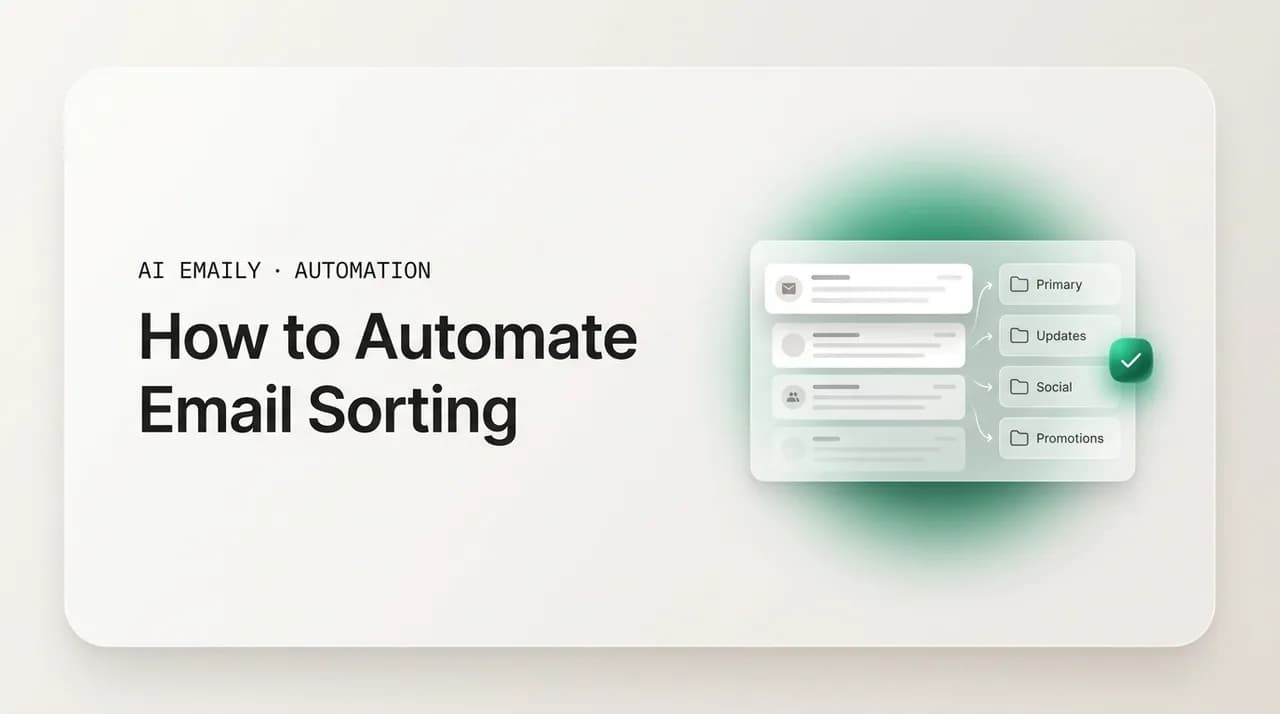
Gmail also has its own tabbed categories, Primary, Promotions, Social, Updates, and Forums, which are a kind of built-in sorting layered on top of your filters. They are convenient and require no setup, but they are coarse and Gmail decides the rules, not you. Treat them as a rough first pass and your own filters as the precise layer on top: your filters always win, so a Receipts filter will pull a confirmation out of the Promotions tab and put it exactly where you want it. If the tabs help, leave them on; if they get in the way, you can turn them off in settings and rely entirely on your filters and labels.
Keyword filters can over-match
How do you set up automatic sorting with Outlook rules?#
Outlook calls its sorting logic rules. The idea is the same as Gmail filters, with one structural difference: Outlook sorts mail into folders rather than applying multiple labels, and it adds color categories on top. A rule watches for incoming mail that matches your conditions and then moves it, categorizes it, flags it, or performs other actions, automatically, as the message is delivered. As with Gmail, the fastest way to build one is to start from a message you already have.
There are two routes. The quick route, Create Rule from a right-click, is enough for most sorting. The full route, Manage Rules and Alerts, gives you templates and finer control when you need conditions a quick rule cannot express. We will walk through both, starting with the quick one.
- 1
Right-click a representative message
In your inbox, right-click an email of the kind you want to sort automatically, then choose Rules, then Create Rule.
- 2
Pick the condition
In the Create Rule dialog, check the box that matches what defines the category: From a sender, Subject contains specific words, or Sent to a particular address. Outlook pre-fills the values from the message you clicked.
- 3
Choose Move to folder
Check Move the item to folder, then click Select Folder. Pick an existing folder or click New to create one such as Newsletters or Receipts, then click OK.
- 4
Run it on existing mail
When Outlook asks, check Run this rule now on messages already in the current folder so it sorts the backlog, not just new arrivals. Click OK to save.
For categories that need more than a single move, use the full rule builder. On the Home tab, open the Rules menu and choose Manage Rules and Alerts, then New Rule. Outlook offers ready-made templates such as Move messages from someone to a folder or Move messages with specific words in the subject to a folder. Pick a template or start from a blank rule, set your conditions, then choose the actions: move to a folder, assign a color category, flag for follow-up, or mark as read. The full builder is also where you reorder rules and add exceptions, which matters because Outlook applies rules in order, top to bottom.
One useful pattern is to categorize without moving. If you want a class of mail tagged but still visible in the inbox, choose Assign it to the category instead of Move it to the folder. Microsoft's guidance is that this works well for important mail you still want to read in the inbox while having it color-coded for instant recognition. Use moves for mail you want out of sight, and categories for mail you want to keep in view but still organize.
If you use both desktop Outlook and Outlook on the web, build your rules in a way that runs on the server so they apply everywhere. Conditions based on sender, recipient, and subject keywords, paired with move or categorize actions, are server-side and will sort your mail on your phone and in the web app even when your desktop is closed. The newer Outlook also surfaces sweep and other one-tap tools for bulk cleanup, but those are manual actions rather than standing rules; for true set-and-forget sorting, the rule engine is still the place to invest. Build the rule once in the manager, confirm it runs on existing mail, and it will keep sorting across every device tied to that account.
Server rules versus client rules
What can automatic sorting actually do: label, route, archive, or star?#
Every sorting system, whatever the provider calls it, is built from a small set of actions. Master these four and you can express almost any sorting workflow you will ever want. They are auto-label, route, archive, and star. Each one answers a different question about a message, and most useful rules combine two or three of them.
Auto-label tags a message so you can find it later, without moving it anywhere permanent. In Gmail this is the Apply the label action; in Outlook the closest equivalent is Assign it to the category, or simply the folder it moves into. Labeling answers the question what kind of mail is this. A message tagged Receipts is instantly findable by clicking the label, and in Gmail a single message can carry several labels at once, which folders cannot do.
Route moves a message to a destination: a folder in Outlook, or in Gmail the combination of a label plus Skip the Inbox so the mail effectively lives under that label instead of in the inbox. Routing answers the question where should this live. It is how you get mail out of the inbox without losing it. You can also route across accounts by forwarding, which is how a message arriving at one address ends up handled in another mailbox.
Archive removes a message from the inbox while keeping it fully searchable. In Gmail this is Skip the Inbox; in Outlook, moving to a folder achieves the same effect of clearing the inbox. Archiving answers the question do I need to see this now. The answer for receipts, shipping updates, and most notifications is no, so they archive on arrival and never demand a glance. Crucially, archived mail is not deleted; it is one search away whenever you want it.
Star, or flag, marks a message as important so it rises to your attention. In Gmail this is the Star it action; in Outlook it is a flag or a colored category. Starring answers the question does this need me soon. It is the right action for VIP senders and genuinely urgent keywords, and it pairs naturally with leaving mail in the inbox rather than archiving it.
| Action | Gmail term | Outlook term | The question it answers |
|---|---|---|---|
| Auto-label | Apply the label | Assign category / folder | What kind of mail is this? |
| Route | Label + Skip Inbox; Forward | Move to folder; Forward | Where should this live? |
| Archive | Skip the Inbox (Archive it) | Move out of Inbox | Do I need to see this right now? |
| Star / flag | Star it | Flag / color category | Does this need me soon? |
| Mark read | Mark as read | Mark as read | Should this count as unread noise? |
| Forward | Forward to | Forward / redirect | Should another mailbox handle this? |
The art is in combining these. A newsletter filter labels and archives and marks as read: tagged, out of the inbox, no unread badge. A VIP rule stars and leaves in the inbox: impossible to miss. A receipts filter labels, archives, and marks as read so your money trail is complete and silent. A travel rule moves to a Travel folder and flags as the trip approaches. Once you think in terms of these four moves, you stop wondering whether your provider can do something. It almost certainly can; you just describe the combination.
Routing across accounts deserves a special mention because it solves a real pain. If you run multiple inboxes, forwarding rules can funnel everything to one place, or push specific senders from a shared address to the right teammate. Done well, this means you check one inbox instead of five. Done carelessly, it creates loops and duplicates, so set forwards deliberately and test them once before trusting them.
Combine actions, do not multiply rules
Where does rule-based sorting break down?#
Filters and rules are wonderful for predictable mail. A receipt from the same store, a newsletter from the same sender, an alert from the same app: these match cleanly because they look the same every time. The trouble starts with mail that does not fit a tidy pattern, and a surprising amount of your inbox is exactly that. Rules are literal. They match the words and addresses you specify and nothing else, which means they break in a handful of predictable ways.
The first failure is ambiguity. A single message can plausibly belong in two buckets. An email from a client that includes an invoice is both client mail and a receipt. A newsletter that contains a personal note from the founder is both reading and a real message. A rule has to pick one bucket based on a keyword or sender, and it will often pick wrong, because the right answer depends on meaning, not on the presence of a word.
The second failure is the new and unknown sender. Rules can only sort senders you have already met and written a rule for. The first email from a new client, a new vendor, a new service, has no rule, so it lands in the inbox unsorted. You can write a rule afterward, but you are always one step behind, building rules to catch mail that already arrived.
The third failure is brittle keywords. The word that defines a category today drifts tomorrow. You filter on the word unsubscribe to catch promotions, and then a colleague mentions unsubscribing from a tool in a real message, and your rule archives a message you needed. Senders change their subject formats, marketers vary their wording to dodge filters, and every change quietly erodes a keyword rule you set months ago and forgot.
The fourth failure is intent. Rules cannot tell an urgent message from a routine one when both come from the same sender. Your bank sends a routine statement and a fraud alert from the same address; a rule treats them identically. The difference that matters to you, urgency, lives in the content and the context, and a literal rule simply cannot see it.
| Where it breaks | Example | What a rule does | What you actually wanted |
|---|---|---|---|
| Ambiguous mail | Client email containing an invoice | Files it as Receipts on the keyword | Treated as client mail; you reply |
| New sender | First email from a new vendor | No matching rule; lands unsorted | Recognized as a vendor and labeled |
| Brittle keyword | Real note that mentions "unsubscribe" | Archives it as a promotion | Kept in the inbox as a real message |
| Intent / urgency | Fraud alert vs. routine statement | Sorts both the same way | Urgent one surfaced; routine one filed |
| Tone shift | Marketer rewords subject lines | Stops matching; clutter returns | Still recognized as a newsletter |
There is also a maintenance failure that creeps in over time. Every rule you add is a small standing promise that the world will keep looking the way it did when you wrote it. Senders rebrand, switch domains, and change subject formats; you change jobs, projects, and priorities. A rule does not notice any of this. It keeps firing on its original conditions, which means a set of rules that was accurate a year ago is quietly wrong today in ways you will not see until something important gets misfiled. Literal rules do not rot loudly; they rot silently, and the only defense is constant review.
None of this means rules are bad. It means rules have a ceiling. They handle the predictable eighty percent of your inbox brilliantly and leave the ambiguous twenty percent unsorted or misfiled. The mistake is trying to climb that ceiling with ever more rules, ever longer keyword lists, ever more exceptions, until you have a tangle nobody can maintain. The smarter move is to let rules do what they are great at and hand the gray areas to something that can read meaning instead of matching strings.
More rules is not the answer to fuzzy mail
How does AI categorization handle the gray areas rules miss?#
AI email categorization reads a message the way a careful assistant would and decides where it belongs based on what it means, not on whether it contains a particular word. Instead of matching a sender against a list, it understands that a message is a shipping update, a meeting request, a sales pitch, or a personal note, even from a sender it has never seen, even when the wording is new. This is precisely the work that breaks a rule, and it is what closes the gap rules leave behind.
Modern AI sorters group mail into a rich set of categories automatically. Some tools file everything into thirty or more smart folders such as finance, travel, social, shopping, and updates, with no rules to write at all. The categorization is contextual: a receipt is recognized as a receipt because of what it says, so the very first email from a brand-new store gets filed correctly with zero setup. There is no list to maintain because the AI is reading meaning rather than checking a sender against a table.
The second thing AI adds is learning. Rules never improve on their own; they do exactly what you wrote until you rewrite them. An AI sorter watches how you actually handle your mail. When you move a misfiled message, archive a category you said you read, or consistently star a certain kind of sender, it adjusts. Over time the sorting bends toward how you really work, which is the opposite of a static keyword rule that drifts further from reality every month.
The third thing AI adds is intent. Because it reads content, it can tell an urgent message from a routine one even when both come from the same address. It can distinguish the fraud alert from the statement, the time-sensitive client request from the casual thread, the real reply from the automated notification. That is the difference rules cannot express, and it is exactly the difference that decides whether a message needs you now or can wait.
The right mental model is two layers, not a replacement. Keep your rules for the predictable mail; they are fast, free, and transparent, and you can read exactly what they do. Add AI on top for the ambiguous mail rules cannot reach. The rules give you precise control where you want it, and the AI gives you coverage everywhere the rules stop. Together they sort the whole inbox, not just the easy part, and you stop building exceptions for cases a rule was never going to get right.
This is also where plain-language sorting changes the game. With a rule engine you think in conditions and actions. With an AI that understands instructions, you can describe what you want in a sentence: keep anything that needs a reply in my inbox, file receipts and confirmations away, and let me read newsletters on the weekend. The system turns that into sorting behavior without you mapping every sender by hand. It is the same goal as a filter, expressed the way you actually think about your mail.
It helps to be clear about what AI is not doing here, because the word makes some people nervous. Categorizing mail is not the same as acting on it. Sorting reads a message to decide where it goes; it does not reply, forward, or delete on your behalf unless you specifically ask it to. That distinction matters for trust. You can hand the gray areas to AI for filing while keeping every consequential action, anything that sends or removes mail, behind your own approval. The sorting becomes invisible and automatic; the decisions that actually matter stay yours. That is the right division of labor, and it is how automated sorting earns its place without ever feeling like a loss of control.
Sorting should not mean reading your mail elsewhere
How do you maintain an automated sorting system so it keeps working?#
A sorting system is not a build-once project. Senders change, your priorities shift, new subscriptions appear, and a rule that was perfect in January quietly misfires by June. The good news is that maintenance is light if you do it on a rhythm. A few minutes a month keeps the whole arrangement honest and stops the slow drift that turns a clean inbox back into a cluttered one.
The biggest lever is restraint at the start. Begin with a small number of high-impact rules, the five or six categories from your blueprint, and add complexity only when a real need shows up. Most of the value comes from a handful of rules; the long tail of niche rules adds maintenance burden out of proportion to what it saves. Resist building a rule for every minor annoyance. If a sender bothers you once a quarter, a rule is rarely worth it.
Give every rule a clear, descriptive name. When you open your rules list in six months, From newsletter@brand to Reading is instantly understandable; an unnamed rule on a cryptic keyword is not. Good names are what let you review the set quickly instead of decoding each one. The same goes for folders and labels: name them after the action you take, so the destination explains itself.
Watch for order and conflicts, especially in Outlook, where rules run top to bottom and an early rule can claim a message before a later one sees it. If a message keeps landing somewhere odd, the cause is usually two rules fighting, or a broad keyword catching more than you meant. In Gmail, the Stop processing other filters setting and careful ordering solve most overlaps. Test a new rule against a sample before you trust it; running it on existing mail first shows you immediately whether it catches what you intended and nothing else.
- 1
Skim what landed where (5 minutes, monthly)
Open each sorted folder or label and glance at the last few weeks. Anything obviously misfiled is a signal that a rule needs tuning or a new pattern has appeared.
- 2
Reclassify the strays
Move misfiled messages back where they belong. In Outlook and Gmail, marking legitimate mail as Not Junk or Not Spam also teaches the provider to handle similar messages better over time.
- 3
Fix or retire the rule behind each stray
For each misfile, either tighten the rule, switch a keyword condition to a sender condition, or delete the rule if it no longer reflects how you work. Do not just move the message; fix the cause.
- 4
Add at most one new rule
If a new recurring sender has appeared, add a single rule for it. Add sparingly; one good rule a month is healthier than ten in a burst you will never maintain.
- 5
Prune the dead weight
Delete rules for senders you no longer hear from and folders you never open. A smaller, current rule set is easier to trust than a large historical one.
Mind the limits, too. Outlook enforces a size cap on server-side rules, commonly cited at around 256 KB, which works out to roughly thirty to forty rules depending on their complexity. If you hit that wall, it is a strong sign you are over-ruling and should consolidate. Combine related rules, replace fragile keyword rules with sender rules, and let an AI layer absorb the long tail you were trying to capture with niche rules. The cap is annoying, but it is also a useful nudge toward a leaner system.
Finally, close the loop. The whole point of maintenance is to keep what gets through and what gets filed matching your real life. Review what landed wrong, release or reclassify it, retire the exceptions that no longer help, and move on. This steady, small habit is what separates a sorting system that keeps working from one that slowly rots. Where you have an AI layer that learns, much of this tuning happens automatically as you correct it; your monthly review then becomes a quick check rather than a repair job.
Put the review on your calendar
How does AI Emaily auto-sort with AI and rules across every account?#
Everything above describes the work: design categories, build filters in Gmail, build rules in Outlook, combine label-route-archive-star, accept that rules break on ambiguous mail, layer AI on the gray areas, and maintain it monthly. AI Emaily is built to do that whole job in one place, across every inbox you have, so you set it up once instead of rebuilding the same logic provider by provider.
It runs both layers at once. AI categorization reads every incoming message for meaning and intent, then sorts it, so a brand-new sender, an ambiguous client-with-invoice, or an urgent alert gets filed correctly without a rule for it. On top of that, plain-English rules and a rules brain let you state how you want mail handled in your own words, and AI Emaily turns that into reliable sorting behavior. You get the precision of rules where you want control and the coverage of AI everywhere rules would stop, instead of choosing between the two.
Because the sorting is contextual, the result shows up as smart views: your inbox organized into the buckets that matter, with what needs a reply kept in front of you and the rest filed where you can find it. It works the same across providers. Gmail, Outlook, and any other account you connect are sorted by the same brain, so you stop maintaining one set of filters in Gmail and a separate set of rules in Outlook and instead manage one consistent system over all of them.
Privacy is part of the design rather than an afterthought. AI Emaily sorts your mail without training models on your content, which is the right default for a tool that reads your inbox to organize it. The aim is a calmer, self-sorting inbox you can trust, not a system that quietly retains your correspondence. You connect your accounts, describe how you want mail handled, and let the combination of AI and rules keep the whole thing filed.
| Capability | Manual filters and rules | AI Emaily |
|---|---|---|
| New, unknown senders | Unsorted until you write a rule | Recognized and sorted on arrival, no rule needed |
| Ambiguous mail | Misfiled on a keyword | Read for meaning, filed by intent |
| Setup style | Conditions and actions per provider | Plain-English rules plus a rules brain |
| Across accounts | Rebuilt separately in each provider | One brain sorts every connected inbox |
| Improvement over time | Static until you rewrite | Learns from how you actually handle mail |
| Privacy | Depends on each provider | Sorts without training on your content |
Pricing is straightforward. The Free plan is $0 and lets you connect an account and put automated sorting to work. Pro is $12.42 per month billed annually and adds the fuller AI categorization, plain-English rules and rules brain, and smart views across all your accounts. If you have spent the afternoon building filters and rules and you are tired of the gray areas they cannot reach, this is the layer that catches them.
You can start at app.aiemaily.com/signup, connect Gmail or Outlook or any other inbox, and watch it sort. Keep the rules you have for the predictable mail; let AI Emaily handle the rest and pull everything into one consistent system across every account.
Keep your rules, add the layer that reads meaning
Your inbox, sorting itself from now on#
An inbox that files itself is not a fantasy; it is a setup. Decide a few sharp categories named after the actions you take. Build filters in Gmail and rules in Outlook to auto-label, route, archive, and star the predictable mail, combining actions instead of multiplying rules. Accept that rule-based sorting breaks on ambiguous senders, brittle keywords, and questions of intent, and hand those gray areas to AI categorization that reads meaning rather than matching strings. Then keep it honest with five minutes a month.
The two layers are the whole point. Rules give you transparent control over the eighty percent that is predictable. AI gives you coverage over the twenty percent that is not, including the new senders and ambiguous messages a rule was never going to get right. Run both and the entire inbox sorts itself, not just the easy half. You go from dragging messages all day to reading only what genuinely needs you.
If you want the two layers in one place across every account, that is what AI Emaily is for: AI categorization and plain-English rules and a rules brain, sorting Gmail, Outlook, and any inbox you connect, privately, with smart views that keep the right mail in front of you. Free is $0 to start; Pro is $12.42 per month billed annually. Set it up once at app.aiemaily.com/signup, and let your inbox file itself from now on.
Frequently asked
See it in AI Emaily
Keep reading
Sources

Written by
Nafiul HasanNafiul Hasan is an entrepreneur and AI automation system builder with 10+ years of experience turning messy, manual workflows into reliable automated systems. He designs and ships AI enterprise solutions end-to-end — the agent logic, the data plumbing, and the product people actually use — and founded AI Emaily to give busy professionals their attention back. He writes here from the builder's seat: what works, what breaks, and how to put AI to work without giving up control.