Email Rules & Filters: A Strategy That Actually Sorts Your Inbox

The short answer
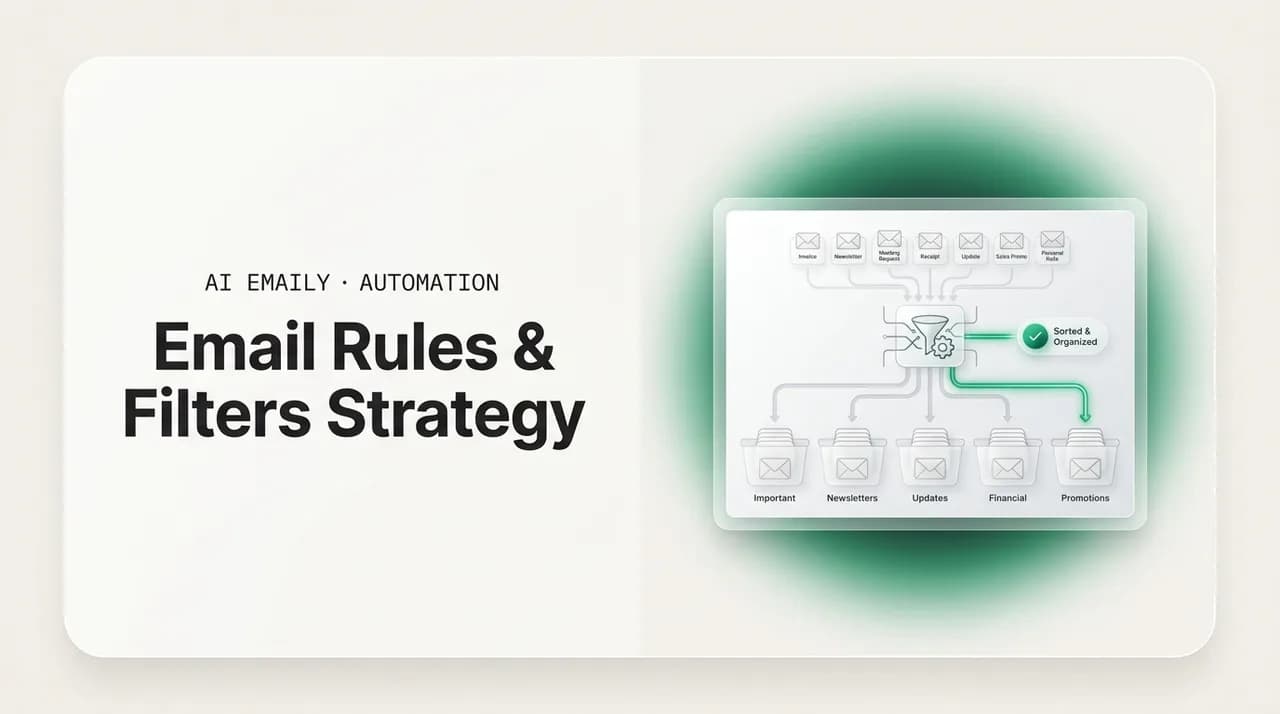
Email rules and filters work best as a small, deliberate system, not a pile of one-off rules. Filter the predictable mail (newsletters, receipts, notifications, VIPs), order rules carefully, name them clearly, and audit monthly so you never quietly miss important mail.
An email filter strategy that actually sorts your inbox: what to filter, rule order, naming, the over-filtering trap, and where AI triage beats rules.
On this page
- 01Why do most email rules and filters quietly fail?
- 02What is the difference between a strategy and a pile of rules?
- 03What is actually worth a rule, and what is not?
- 04How should you order your rules so they do not fight?
- 05How should you name and organize your rules?
- 06What does a good starter rule set look like?
- 07What is the over-filtering trap, and how do you avoid it?
- 08How do you maintain and audit your rules over time?
- 09Rules or AI triage -- where does each one win?
- 10How do AI Emaily's rules and brain make rules smarter?
- 11Putting the strategy to work
Why do most email rules and filters quietly fail?#
Almost everyone who has used email for a few years has a graveyard of rules. You set one up in a hurry to silence a noisy notification, another to file receipts, a third to route a project thread, and then you forget all of them. Six months later your inbox is somehow messier than before, you are missing messages you needed, and you have no idea which rule is responsible.
The problem is rarely the rules themselves. Gmail filters and Outlook rules are both capable tools. The problem is how they get built: reactively, one at a time, with no plan for how they interact, no naming so you can find them later, and no schedule for checking whether they still make sense. A pile of random rules is brittle. Change one sender's address, get a forwarded copy of a thread, or sign up for a new tool, and the whole arrangement starts leaking.
This guide treats email rules and filters as what they actually are: a small automation system that sits between the world and your attention. We will cover what is genuinely worth a rule and what is not, how rule order and stop-processing logic change the outcome, how to name and organize rules so the system stays legible, the over-filtering trap that hides important mail, and a maintenance habit that keeps everything honest. We will also be clear about where rigid rules hit a ceiling and where AI triage does the job better.
Think about the actual cost of getting this wrong. It is not just a messy inbox. It is the unpaid invoice that was filed away before you saw it, the client who concluded you were ignoring them, the security alert that sat unread while someone tried to break into your account, the meeting you missed because the invite got archived by an over-eager rule. Those are not hypotheticals -- they are the predictable consequences of building filters without a plan. The whole reason to take rules seriously is that the downside of bad ones is so much larger than the inconvenience they were meant to solve.
There is also an opportunity cost on the other side. A well-designed rule system can quietly handle the majority of your incoming volume -- the newsletters, the receipts, the deploy notifications, the shipping updates -- so that the only mail competing for your attention is the mail that genuinely needs a human. That is a real productivity gain, measured in fewer interruptions and a shorter inbox. But you only capture it if the rules are trustworthy enough that you are not constantly double-checking them, and that trust comes from design, not volume.
If you only want the mechanics of building a single filter in a specific client, our companion walkthroughs on how to create rules in Gmail and how to create rules in Outlook cover the buttons and menus. This piece is about the strategy that makes those rules worth setting up in the first place. Everything below is provider-agnostic where it can be and provider-specific where the differences actually matter -- because the gap between Gmail filters and Outlook rules is large enough that a strategy that ignores it will break.
Strategy first, buttons second
What is the difference between a strategy and a pile of rules?#
A pile of rules is a stack of independent if-then statements. Each one made sense the day you wrote it. Together they form an unplanned machine whose behavior nobody fully understands, including you. When mail goes missing, you cannot reason about why, because there is no design to reason about.
A strategy is the opposite. You decide, up front, what categories of mail are predictable enough to automate, where each category should land, and how the rules are ordered so they do not fight each other. Then you write the smallest set of rules that delivers that outcome, name them so you can audit them, and review them on a schedule. The rules are the implementation. The strategy is the part that survives.
The most counterintuitive part of this is that fewer rules is usually better. People assume that a more powerful inbox means more rules, but the opposite is true. Every rule you add is another thing that can interact unexpectedly with the others, another thing to audit, another potential place for mail to disappear. A system of eight well-chosen rules that you completely understand will outperform a system of forty you are afraid to touch. When in doubt, do not add a rule -- leave the mail in the inbox and let your own judgment, or AI triage, handle it.
It also helps to think about rules in terms of two verbs: promote and demote. A promote rule increases a message's visibility -- it stars, pins, flags, or surfaces mail you want to be sure to see. A demote rule decreases visibility -- it archives, labels-and-skips, or files mail you do not need cluttering your view. Almost every good rule is cleanly one or the other. The dangerous rules are the ones that demote mail that should have been promoted, which is the entire over-filtering problem in a single sentence. Keeping the promote/demote distinction explicit in your head makes it much harder to write a rule that buries something important.
Three principles separate a strategy from a pile, and they hold whether you live in Gmail, Outlook, Apple Mail, or an IMAP client:
- One rule, one job. A rule that stars VIP senders should not also archive newsletters. When a single rule tries to do several things, you cannot change one behavior without risking the others, and you cannot tell from the rule list what it actually does.
- Automate the predictable, leave the ambiguous. Receipts, shipping notices, calendar invites, and tool notifications arrive in stable, machine-readable shapes. A note from a colleague that might be urgent or might be trivia does not. Rules belong on the first kind. Judgment belongs on the second.
- Design for legibility. A future version of you has to be able to look at the rule list and understand the system in under a minute. If you cannot, the system has already started to rot, and you will be afraid to touch it -- which is how dead rules accumulate.
The one-sentence test
What is actually worth a rule, and what is not?#
The most useful thing you can do before touching a settings screen is sort your incoming mail into two buckets: predictable and ambiguous. Predictable mail looks the same every time and always wants the same handling. Ambiguous mail varies in importance from message to message, even from the same sender. Rules are excellent at the first and dangerous at the second.
Start with the obvious wins -- the categories that are high-volume, low-judgment, and easy to recognize by sender or subject. These are where a handful of rules buy back the most attention with the least risk. Then deliberately decline to automate the categories where a rule would do more harm than good.
| Category | Worth a rule? | What the rule should do |
|---|---|---|
| Newsletters & digests | Yes | Skip the inbox, apply a label or move to a Read Later folder; keep them searchable, out of the way, never deleted automatically |
| Receipts & invoices | Yes | Label and file in one Receipts/Finance folder so they are findable at tax or expense time; do not mark read |
| Automated notifications (tools, social, deploys, tickets) | Yes | Route to a per-tool folder or a single Notifications folder; archive from inbox but keep visible for search |
| Shipping & order updates | Yes | Label as Orders; optionally keep in inbox until delivered, then let them fall away on the next audit |
| VIP senders (boss, top clients, family) | Yes | Star, pin, or label as VIP and always keep in the primary inbox -- a promote rule, never a hide rule |
| Calendar invites & meeting tools | Sometimes | Label so they are easy to scan, but keep visible -- a missed invite is expensive |
| Mail from a coworker or client (mixed content) | No | Leave in the inbox. One person sends proposals, invoices, and chit-chat -- a single sender rule cannot tell them apart |
| Anything with the word 'urgent' or 'invoice' in the subject | No | Subject keywords are trivially spoofed and inconsistent; this is exactly where rigid matching fails |
| Mail you 'might need to act on' | No | If you cannot define the handling in one sentence, do not automate it -- this is the over-filtering trap in miniature |
Notice the pattern in that table. Every 'yes' is either a hide rule for low-stakes noise or a promote rule for high-stakes people. Every 'no' is mail whose importance depends on what is inside the message, which a sender-or-subject rule cannot read. That line -- predictable shape versus content-dependent judgment -- is the single most important distinction in this whole guide. Hold it, and you will avoid most of the ways rules go wrong.
It is worth saying a word about how to recognize the predictable categories in your own inbox, because the table is a starting point, not a template you copy blindly. The best way is to look at the mail you have actually received over the last two weeks and ask, of each sender or type, two questions: does this always arrive in the same shape, and does it always want the same handling? Marketing mail from a brand passes both -- it looks the same and you always want it out of the inbox. A receipt from your payment processor passes both. A message from your manager fails the second test, because sometimes it is a quick approval you can ignore and sometimes it is a fire you need to handle in the next ten minutes. The senders that pass both tests are your rule candidates. The rest are not.
There is a useful intermediate category the table hints at but is worth drawing out: mail that is predictable in shape but where you still want to glance at it. Calendar invites and shipping updates fall here. You can safely label them so they are easy to find and scan, but you should not archive them out of sight, because a missed invite or a misdelivered package is the kind of small failure that compounds. For this middle tier, the right rule is a pure label -- it adds organization without removing visibility. Reserve the skip-the-inbox behavior for mail you are confident you will never need to see in real time, like newsletters.
Be especially careful with two seductive but dangerous categories. The first is mail from a specific person you work with closely. It feels like an obvious rule candidate -- you get a lot of it, it is from a known address -- but it is exactly the kind of mixed-content stream that defeats sender rules. The second is mail matched on a subject-line keyword. Words like 'invoice,' 'urgent,' 'receipt,' or a project codename feel reliable, but subjects are written by humans and machines you do not control, they vary constantly, and they are trivial to spoof. A rule built on a subject keyword will both miss mail you wanted it to catch and catch mail you did not -- the worst of both worlds. When you feel the urge to write one of these, that urge is usually a sign you have reached the boundary where rules stop working and judgment, or AI triage, needs to take over.
Promote, do not hide, your important people
How should you order your rules so they do not fight?#
Rule order is the part nearly everyone skips, and it is where a tidy plan turns into mysterious behavior. Most clients evaluate rules from top to bottom, and what happens when two rules match the same message depends entirely on the client. This is the single biggest behavioral difference between Gmail filters and Outlook rules, so it is worth being precise.
Outlook processes rules in order and supports a 'stop processing more rules' action. When a message matches a rule that ends in stop-processing, no later rule touches it. That makes order load-bearing: a broad 'archive all notifications' rule placed above a narrow 'but keep deploy failures in the inbox' rule will swallow the failures before the narrow rule ever runs. In Outlook, specific rules go first, broad rules go last, and you use stop-processing to lock in the result.
Gmail filters behave differently. Gmail applies every matching filter to a message rather than stopping at the first match, so two filters can both act on the same email -- one labeling it, another archiving it -- and you get the combined effect. There is no native stop-processing in Gmail. That sounds simpler, but it has its own sharp edge: if one filter says 'skip the inbox' and another you forgot about also matches, the message can vanish from your primary view with no single rule obviously to blame.
| Behavior | Gmail filters | Outlook rules |
|---|---|---|
| Where they run | Server-side, 24/7, even with every device off | New Outlook: server-side. Classic Outlook: client-side (only while the app runs) plus optional server-side on Exchange |
| Multiple matches | All matching filters apply (combined effect) | Stops at the first match if 'stop processing more rules' is set |
| Stop processing | Not available | Available, and central to ordering |
| Order matters | Less for labels, but a stray 'skip inbox' filter still bites | Yes -- order plus stop-processing fully determines the outcome |
| Apply to existing mail | Yes, retroactively when you create the filter | Run rules manually on a folder after creating them |
| Sync across devices | Instant, everywhere | Server-side rules sync; client-side rules do not |
Whichever client you use, the ordering instinct is the same: narrow before broad. Put your VIP promote rules at the very top so nothing downstream can hide those people. Put your most specific routing rules next. Put catch-all 'archive everything from this category' rules last, so they only sweep up what nothing more specific has already claimed. In Outlook, end the broad rules with stop-processing. In Gmail, double-check that no broad 'skip inbox' filter overlaps a sender you actually want to see.
The reason this ordering works is worth internalizing rather than memorizing. A specific rule expresses an exception, and exceptions only mean something if they are checked before the general case. 'Keep deploy failures in the inbox' is an exception to 'archive all deploy notifications.' If the general rule runs first and archives everything, the exception has nothing left to act on. Order is how you tell the system which intentions take priority. The most important intention -- never lose sight of my key people and my critical alerts -- belongs at the very top, where nothing can override it.
Outlook's stop-processing deserves a closer look because people misuse it in two opposite ways. Some never use it, and their rules all stack, producing surprising combinations -- a message gets labeled by one rule, moved by another, and flagged by a third, and the result is incoherent. Others slap stop-processing on every rule, which means the first match wins absolutely and a message that should have triggered two sensible actions only gets one. The right approach is in between: use stop-processing on your broad, terminal sweep rules -- the ones whose job is 'and that is the final word on this category' -- and leave it off your promote and label rules, which are meant to layer. A VIP star rule and a project label rule can both reasonably apply to the same message; do not let stop-processing prevent that.
Gmail's all-filters-apply model has the opposite ergonomics. Because there is no stopping, you reason about each filter independently -- does this filter, on its own, do something sensible? -- and then watch only for the one combination that hurts: two filters where one of them removes the message from the inbox. Labels stack harmlessly; a stray archive or skip-inbox is the only thing that can make mail vanish. So in Gmail your audit attention goes almost entirely to the demote filters. A practical trick is to give every skip-inbox filter a distinctive label as well, so that even when a message bypasses the inbox you can see, from the label, exactly which filter sent it there. That single habit turns Gmail's biggest weakness -- silent disappearance -- into something traceable.
One more provider note that trips people up: Gmail filters apply retroactively when you create them, with an explicit 'also apply to matching conversations' checkbox, while Outlook makes you run a rule manually against an existing folder if you want it applied to old mail. This matters at setup time. In Gmail, creating a newsletter filter can instantly tidy thousands of past messages, which is satisfying but also means a misconfigured filter can mis-sort your entire history in one click. Preview the matching messages before you confirm. In Outlook, the retroactive step is opt-in, so the blast radius of a new rule is smaller, but you have to remember to run it or your back-catalog stays untouched.
Never auto-delete in a filter
How should you name and organize your rules?#
Most email clients let you name a rule, and most people leave the auto-generated name in place -- something like 'From: [email protected].' Multiply that by forty rules and your settings screen becomes unreadable. When you cannot tell what a rule does from its name, you stop auditing, and unaudited rules are exactly the ones that quietly break.
A naming convention fixes this for almost no effort. The goal is that the rule list reads like a table of contents: action first, then target, so a glance tells you what each rule does and why. Pick one pattern and apply it to every rule.
- Lead with the action verb (STAR, FILE, SKIP, ARCHIVE, FORWARD) so you can scan the column and instantly see which rules promote versus which hide. Promote rules deserve the most scrutiny.
- Keep your folder and label tree shallow. A handful of top-level homes -- Read Later, Finance, Orders, Notifications, VIP -- beats a deep tree you have to navigate. Rules route into a structure; if the structure is a maze, the rules become a maze too.
- Mirror label names and rule names. If the label is 'Finance,' the rule that fills it should say 'Finance.' Drift between the two is the first sign your system is decaying.
- Date or tag temporary rules. A filter for a one-off project or a noisy launch week should carry a marker like 'TEMP -' so your next audit knows to delete it rather than wonder what it was for.
Your label tree is part of the strategy
What does a good starter rule set look like?#
If you are building from scratch, do not try to design the whole system at once. Start with a small, high-value set that covers the categories almost everyone has, get comfortable with how those rules behave, and add to it only when a clear need appears. The set below is deliberately short -- five rules -- and it follows the promote-before-demote, narrow-before-broad ordering from earlier. It is a sane default for a personal or work inbox in any client.
- 1
Promote your people first
Create one rule that stars or flags mail from your handful of genuinely important senders and keeps it in the inbox. List the addresses explicitly. This rule sits at the top so nothing can hide these people, and it only ever adds visibility.
- 2
File receipts and invoices
Route payment confirmations, invoices, and billing alerts to a single Finance or Receipts folder. Label them, do not mark them read, and keep them searchable -- you will want them at expense or tax time. This is a clean demote rule for predictable mail.
- 3
Corral your tool notifications
Send automated notifications from the apps you use -- tickets, deploys, social, project tools -- to a Notifications folder, skipping the inbox but staying unread so the folder shows a count. Keep it narrow at first: list the specific senders rather than guessing at a catch-all.
- 4
Send newsletters to Read Later
Label marketing mail and digests as Read Later and skip the inbox. This is the single highest-volume win in most inboxes. Never auto-delete -- archive and label so a newsletter you suddenly need is still findable.
- 5
Stop, and watch for two weeks
Resist adding more. Live with these five, skim your skipped folders daily, and notice what still lands in the inbox needing manual sorting. That residue tells you which sixth rule, if any, is actually worth adding -- and which mail is judgment that no rule should handle.
Five rules beat fifty
What is the over-filtering trap, and how do you avoid it?#
Here is the failure mode that turns a productivity habit into a liability. You get enthusiastic, you write aggressive rules to clear the inbox, and slowly your filters start hiding mail you actually needed to see. You do not notice, because the whole point of the rule was to make that mail invisible. You find out when a client asks why you ignored their email, or when an invoice goes unpaid, or when an account-security alert sat unread in a folder for three weeks.
Over-filtering is insidious precisely because it is silent. A rule that fails loudly -- one that never fires -- you will eventually notice and fix. A rule that fires too broadly removes the very signal that would tell you it misfired. The most common culprits are broad 'skip the inbox' or 'mark as read' rules, sender rules on people who send mixed content, and subject-keyword rules that match more than you intended.
- Avoid broad 'mark as read' rules. Marking something read on arrival means you will never see it unless you go looking. Combined with 'skip the inbox,' it is a recipe for invisible mail. Skip the inbox if you must, but leave it unread so the folder shows a count.
- Be wary of sender rules on humans. People are unpredictable. A rule that files everything from a coworker into a project folder will eventually bury the one message from them that was actually urgent. Promote humans; do not hide them.
- Treat subject-keyword rules as fragile. 'Urgent,' 'invoice,' 'action required' -- these appear inconsistently and are easy to spoof. A keyword rule that hides or auto-handles mail based on a word in the subject is a near-certain source of both false positives and missed mail.
- Never let a filter delete or permanently divert security and billing mail. Password resets, login alerts, payment failures, and legal notices are the mail you can least afford to miss. If anything, write a promote rule for these, not a hide rule.
- Watch overlapping filters in Gmail. Because Gmail applies all matching filters, a forgotten 'skip inbox' filter can combine with a new one and pull mail out of your primary view with no obvious cause. When mail goes missing, check for overlap before anything else.
The test for every hide rule
A simple safety net beats clever rules here. Keep a 'Review' or 'Maybe' label that aggressive rules route into instead of archiving outright, and skim it once a day during your first couple of weeks with a new rule. If nothing important ever lands there, graduate the rule to full archive. If important mail keeps showing up, you have caught an over-filter before it cost you anything. The point is to make your filters falsifiable -- to build in a way to notice when they are wrong.
There is a deeper reason over-filtering is the hardest mistake to fix: it inverts the usual feedback loop of automation. With most automation, when something breaks you feel the pain immediately and go fix it. A rule that fails to fire leaves mail in your inbox, which is annoying but visible, so you notice and correct it. A rule that fires too aggressively removes the evidence of its own error. The mail it should not have touched is now somewhere you are not looking, behaving exactly as if the rule were working perfectly. You are flying blind precisely about the rules that can hurt you most. Designing for falsifiability -- the Review label, the unread-but-skipped pattern, the distinctive label on every skip-inbox filter -- is how you restore the feedback loop the automation took away.
It also pays to be conservative about scope at creation time. When you write a new demote rule, start it as narrow as you can and widen it only after it has proven safe. Filter one specific newsletter sender, not 'anything that looks like marketing.' Route one tool's notifications, not 'all notifications.' Narrow rules have a small blast radius: if they misfire, they misfire on a knowable, small set of mail. Broad rules feel efficient but they are exactly the ones that quietly swallow a category wider than you intended. You can always broaden a rule that has earned your trust; you cannot un-miss the mail a too-broad rule hid last week.
How do you maintain and audit your rules over time?#
Rules are not set-and-forget, even though everyone treats them that way. Senders change addresses. Tools you no longer use keep emailing. Projects end but their routing rules live on. A naming convention you stopped following leaves half your rules legible and half opaque. Without maintenance, the system you carefully designed degrades back into a pile -- just a pile you built on purpose, which is somehow worse.
The fix is a short, scheduled audit. The research-backed cadence is roughly monthly to quarterly: a focused thirty-to-sixty-minute pass produces far better long-term results than waiting until everything is broken and doing a panicked full rebuild. Put it on the calendar like any other recurring task. During the audit you are not admiring your rules; you are hunting for the ones that have gone stale or turned dangerous.
- 1
Open the full rule list and read every name
If your naming convention is working, this takes minutes. Any rule whose name you cannot parse is your first cleanup target -- rename it or delete it.
- 2
Hunt for hide rules that may be over-filtering
Sort or scan for anything that archives, marks read, or skips the inbox. For each, ask the falsifiability test: would you know if it misfired? Soften or delete the ones that fail.
- 3
Kill rules for dead senders and finished projects
Tools you dropped, newsletters you unsubscribed from, projects that shipped. Their rules are pure liability now -- they consume processing and can misroute. Delete without sentiment, especially anything tagged TEMP.
- 4
Check for overlap and order problems
In Gmail, look for filters whose conditions overlap, especially 'skip inbox' ones. In Outlook, confirm specific rules sit above broad ones and that stop-processing is where you expect it.
- 5
Spot the rules you keep wishing existed
Notice the manual sorting you did this month that a rule could have handled -- or the judgment calls no rule could capture. The first becomes a new rule; the second is a signal you have hit the ceiling of what rules can do.
Audit forwarding rules especially hard
Rules or AI triage -- where does each one win?#
Everything so far assumes the only tool you have is rigid if-then matching, and within that world the strategy above is the best you can do. But rules have a hard ceiling, and it is worth naming exactly where it sits, because that ceiling is precisely where AI triage takes over.
Rules are deterministic. They match on fields a machine can read without understanding -- sender, subject, header, list-id -- and they do the same thing every time. That is their strength for predictable mail and their fatal weakness for everything else. A filter cannot tell that one email from a client is an urgent contract question and the next is a forwarded meme, because both come from the same address. It cannot recognize an important message from a sender it has never seen. It cannot weigh 'this long internal thread does not actually need me' against 'this two-line note from a new prospect does.' Those are judgments about meaning, and rules do not read meaning.
AI triage closes exactly that gap. Instead of matching fields, it reads the content, considers who the sender is and your history with them, weighs urgency and intent, and sorts accordingly -- the way a thoughtful assistant would. It handles the ambiguous middle that you were told above to leave in the inbox, and it adapts as your mail changes instead of breaking when a sender's address does. It is the answer to every 'No' in the worth-a-rule table.
| Situation | Rigid rules | AI triage |
|---|---|---|
| Newsletter from a known list | Excellent -- exactly what filters are for | Also fine, but a rule is enough |
| Receipt with a predictable subject | Excellent | Fine |
| One sender, several kinds of message | Fails -- one folder for everything | Reads each message and sorts by what it actually is |
| Urgent note from a brand-new sender | Fails -- no rule exists for an unknown address | Catches it from content and urgency signals |
| 'Is this actually important to me?' | Cannot judge meaning | Weighs relationship, intent, and context |
| Sender changes their email address | Breaks until you edit the rule | Keeps working -- it is not matching on the address alone |
This is not rules versus AI as enemies. The right setup uses both: a small, deliberate set of rules for the predictable mail, and AI triage for the ambiguous mail and the judgment calls. Rules give you fast, free, dependable handling of the obvious. AI catches what rules structurally cannot -- the important message from an unknown sender, the mixed-content thread, the thing that matters today but would not have matched any rule you could have written in advance.
Another way to see the division: rules are about identity, AI triage is about meaning. A rule asks 'who sent this and what is in the header?' and acts on the answer. That is perfect when identity reliably predicts handling -- a newsletter list, a payment processor, a deploy bot. AI triage asks 'what is this message actually about, how urgent is it, and does it need me?' which is the right question when identity tells you almost nothing, as with a stranger sending something urgent or a familiar colleague sending something trivial. Most inboxes contain both kinds of mail in large quantities, which is why most inboxes are best served by both tools rather than either alone.
It is also worth being honest about the maintenance asymmetry between the two. Rules require ongoing upkeep because the world they describe keeps changing -- addresses move, tools get swapped, projects end -- and a rule frozen in time slowly drifts out of alignment with reality. AI triage adapts to those same changes without an edit, because it is reasoning about each message rather than matching a fixed pattern, so it does not break when a sender's address changes or a new important contact appears. That does not make triage maintenance-free -- you still steer it and review what it surfaces -- but it does mean the brittle, manual upkeep is concentrated in the rules layer, which is one more reason to keep that layer small and reserve it for the genuinely stable categories.
A practical division of labor
How do AI Emaily's rules and brain make rules smarter?#
AI Emaily is built around exactly this division of labor, so you do not have to choose between dependable rules and intelligent triage -- you get both in one inbox, across every account you connect.
The first half is the rules brain. You write rules in plain English instead of wrestling with condition builders and dropdown menus. 'File all receipts in Finance.' 'Star anything from my top three clients and keep it in the inbox.' 'Send newsletters to Read Later and keep them unread.' AI Emaily turns each sentence into a working rule, and because the rule is plain English, it passes the one-sentence test by design and stays legible at your next audit. It ships with fifteen ready-made rule templates for the predictable categories from this guide -- newsletters, receipts, notifications, shipping, VIPs, and more -- so the boring, high-value rules are a click rather than a project. And because the rules brain is AI-matched, it understands the intent behind a rule rather than matching a literal string, which sidesteps the brittleness that breaks ordinary subject-keyword filters.
The second half is AI triage, and it is what catches everything rules structurally miss. It reads each message, weighs who sent it and your history with them, judges urgency and intent, and surfaces what actually needs you -- including the urgent note from a sender no rule has ever seen and the one important message buried in a mixed thread. This is the ambiguous middle you were told to leave in the inbox; AI Emaily handles it instead of forcing you to encode judgment into rules that cannot hold it. Rules cover the predictable; triage covers the rest. Together they are the whole system this guide describes, running automatically.
It works with every provider -- Gmail, Outlook, and standard IMAP accounts alike -- so the strategy is consistent no matter where your mail lives, and you are not relearning a different rules engine per inbox. It is private by design: AI Emaily does not train on your email, and there is no auto-deletion of mail behind your back, which keeps you safely clear of the over-filtering trap. Sensitive mail like security and billing alerts is surfaced, not buried.
Getting started is free. The Free plan is $0 and lets you put plain-English rules and AI triage on your inbox right away. Pro is $12.42 per month billed annually for heavier automation and the full rules brain. You can connect your first account and have the predictable mail sorting itself in minutes at app.aiemaily.com/signup.
Rules plus a brain, not rules alone
Putting the strategy to work#
Email rules and filters are worth the effort, but only as a deliberate system rather than a reactive pile. The whole strategy fits in a few sentences: filter the predictable mail and leave the ambiguous mail alone; promote your important people instead of hiding them; order narrow rules before broad ones and never auto-delete; name rules so the list reads like a table of contents; and audit monthly so over-filtering and dead rules never get the chance to cost you a message.
Start small. Set up five rules this week -- VIP, receipts, newsletters, notifications, and shipping -- using the order and naming patterns above, and leave everything else in the inbox. That alone will quiet most of the noise without risking the mail that matters. Then notice, over the next month, how much of your manual sorting is judgment that no rule could capture. That residue is the case for AI triage, and it is exactly the gap AI Emaily's rules brain and triage are built to close.
If you want the mechanics for your specific client, our walkthroughs on how to create rules in Gmail and how to create rules in Outlook cover the steps, and our broader email automation guide puts rules in the context of the larger system -- scheduling, follow-ups, and workflows. But the strategy here is the part that matters most: get it right, and the buttons take care of themselves.
Frequently asked
See it in AI Emaily
Keep reading
Sources

Written by
Nafiul HasanNafiul Hasan is an entrepreneur and AI automation system builder with 10+ years of experience turning messy, manual workflows into reliable automated systems. He designs and ships AI enterprise solutions end-to-end — the agent logic, the data plumbing, and the product people actually use — and founded AI Emaily to give busy professionals their attention back. He writes here from the builder's seat: what works, what breaks, and how to put AI to work without giving up control.