Email Workflow Automation: Map, Build & Run Inbox Workflows

The short answer
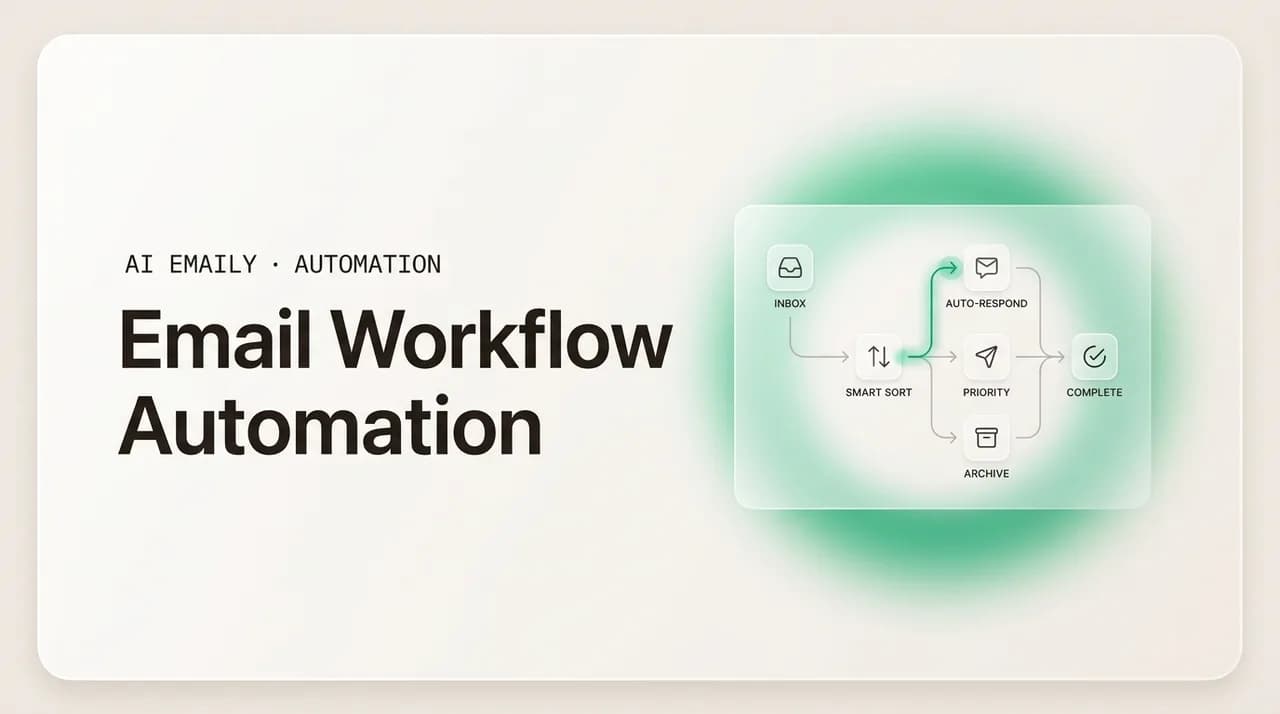
Email workflow automation chains the steps you do by hand into trigger, conditions, and actions: triage, label, route, reply, follow up, log. Build it with in-client rules, a Zapier-style connector, or an AI agent. Match the tool to the job, add guardrails, and let predictable work run itself.
Learn how email workflow automation chains triggers, conditions, and actions. Compare in-client rules, Zapier-style tools, and AI agents, then build your own.
On this page
- 01What is email workflow automation, really?
- 02What are the three parts of every email workflow?
- 03The trigger: what starts the workflow
- 04The conditions: who qualifies
- 05The actions: what gets done
- 06What are the three ways to build an email workflow?
- 07How do in-client rules handle workflows?
- 08When does a Zapier-style connector make sense?
- 09What does an AI agent do that rules cannot?
- 10What are the most common email workflows?
- 11How do you build an email workflow step by step?
- 12Where do Zapier-style tools win over an AI agent, and vice versa?
- 13How do you keep email workflows reliable?
- 14How does AI Emaily run workflows without Zapier?
- 15What does AI Emaily cost, and how do you start?
- 16Conclusion: build workflows that run themselves
A workflow is just a chain of steps you would otherwise do by hand. An invoice lands in your inbox. You read it, tag it "Finance," forward a copy to your bookkeeper, reply to the sender to confirm receipt, and add a reminder to pay it before the due date. Five steps, one message. Now multiply that by the dozens of predictable emails you process every day, and you have a sense of where your time actually goes.
Email workflow automation is the practice of handing those chains to software. Instead of you watching for the invoice and walking it through five manual steps, you describe the chain once and let it run: when an invoice arrives, label it, forward it, confirm receipt, and create the reminder. The trigger fires, the conditions decide whether this message qualifies, and the actions execute in order. You stop being the person who shuffles every message and start being the person who reviews exceptions.
This guide is about the machinery, not the marketing. We are not talking about drip campaigns to a list of leads, though those are workflows too. We are talking about the inbox you live in: the repetitive routing, sorting, replying, and logging that eats an hour a day and never quite ends. We will define the three parts of every workflow, compare the three ways to build them, walk through common patterns you can copy, and show you how to keep them reliable once they are running.
It helps to be honest about why this matters now rather than five years ago. The volume of email has not shrunk; if anything, every tool you adopt sends more of it. What has changed is that the building blocks finally got good enough to handle the parts that used to require a human. For most of email's history, automation meant brittle keyword filters that broke the moment someone phrased a sentence differently than you expected. You could automate the boring 60 percent of your inbox and the other 40 percent stayed manual, because no rule could tell what a message actually meant. That ceiling is gone, and it changes which workflows are worth building.
There is also a real cost to not automating, and it is sneakier than the obvious time spent. Manual inbox work is interruptive: every message you handle by hand pulls you out of focused work, and the cost of the context switch dwarfs the thirty seconds the email itself took. A workflow that quietly files invoices is not just saving you the filing; it is protecting the hour of concentration that filing would have fractured. When you add up the switching cost across a day, the case for automating predictable email becomes overwhelming.
By the end you will be able to map a workflow on paper, pick the right tool to run it, and avoid the failure modes that make people quietly abandon automation after a week. We will keep the advice tool-agnostic where it should be, because the principles outlast any particular product. And because the smartest way to run inbox workflows in 2026 is no longer a tangle of connected apps, we will show how an AI-native email client handles the whole thing in one place.
What is email workflow automation, really?#
Strip away the jargon and a workflow is a recipe: when this happens, check these things, then do these steps. Email workflow automation is that recipe running without you. The word "workflow" matters because it implies more than one step. A single filter that files newsletters into a folder is a rule. A chain that files the newsletter, strips it from your unread count, and surfaces the one you actually read each morning is a workflow. Both start in the same place, which for Gmail users means learning how to create rules in Gmail first.
The shift that makes this worth your attention is sequence. Old-school email rules did one thing per match. Modern workflow automation chains many actions off a single trigger and branches based on what the message contains. As one 2026 industry guide put it, classification, drafting, and routing now happen in one pass, and you review the output instead of doing the work. That is the whole game: collapse the manual chain into a single reviewable pass.
Workflows live on a spectrum of risk. Sorting and labeling are low-stakes; if a rule mislabels a message, you fix one tag. Routing and follow-ups are medium-stakes; a misroute can delay a reply. Sending on your behalf is high-stakes, which is why the responsible default in 2026 keeps a human in the loop before anything irreversible goes out. We will return to that line repeatedly, because where you draw it determines whether your automation is an asset or a liability.
One more distinction is worth making early, because it clears up a lot of confusion. There is a difference between automating outbound campaigns and automating your inbox. Outbound automation, the kind marketing teams run, is about sending planned sequences to a list. Inbox automation, the kind this guide focuses on, is reactive: it responds to mail that arrives, on your terms, in the mailbox you work from every day. The two share the trigger-conditions-actions shape, but the stakes and the tooling differ. A misfire in a marketing sequence annoys a subscriber; a misfire in your inbox can send the wrong thing to your most important client. We hold inbox automation to a higher standard precisely because the blast radius is personal.
Rule vs. workflow
What are the three parts of every email workflow?#
Whatever tool you use, every email workflow decomposes into the same three parts: a trigger that starts it, conditions that decide whether it applies, and actions that execute. Get fluent in these three and you can read or design any workflow, regardless of the platform underneath. Most automation that feels broken is broken at exactly one of these joints, so it pays to name them clearly.
The trigger: what starts the workflow#
The trigger is the event that wakes the workflow up. In inbox automation, the most common trigger is simple: a new message arrives. But triggers can be far more specific. A message from a particular domain. A message with an attachment. A reply landing on a thread you started. A message that has sat unanswered for three days. A scheduled moment, like every weekday at 8 a.m. The trigger answers the question, "When should this even consider running?"
Choosing the right trigger is the first design decision and the one people most often fumble. Too broad a trigger (every incoming email) means your conditions have to do all the filtering. Too narrow a trigger (only emails from one exact address) and the workflow misses the messages you actually wanted to catch. The art is picking a trigger that fires often enough to be useful and rarely enough that the conditions can stay simple.
The conditions: who qualifies#
Conditions are the filter between trigger and action. The trigger says "a message arrived"; the conditions ask "is this the kind of message I built this workflow for?" Conditions test the parts of an email you can see: sender, recipient, subject, body text, attachments, labels already applied, and increasingly, what the message means rather than just what words it contains.
Good conditions are specific without being brittle. "Subject contains the word invoice" will catch real invoices and also catch "Re: question about your invoice process." Layering conditions tightens the net: subject contains invoice, AND the message has a PDF attachment, AND the sender is not in your team. The more conditions you stack with AND, the fewer false positives you get, but the more real matches you risk excluding. This trade-off is the core skill of writing rules, and it is why we devote a whole section below to choosing your tool by how well it handles messy conditions.
The 2026 development worth knowing is meaning-based conditions. Traditional rules match literal text, so they cannot tell "the client is upset" from "the client is delighted" if both emails avoid your keyword list. An AI layer can classify by intent, sentiment, or category, so a condition can be "this looks like a refund request" rather than "the body contains the string refund." That single capability removes most of the brittleness that makes keyword rules frustrating.
Conditions also tend to evolve faster than triggers or actions, and that is normal. The first version of a workflow almost never has the conditions exactly right, because real email is more varied than you remember when you sit down to build. You will discover an edge case the rule missed, or a class of message it caught that it should not have, and you will adjust. Treat your conditions as living, not fixed. The teams who get the most out of automation are the ones who tweak conditions for a couple of weeks after launch and then leave a well-tuned workflow alone, not the ones who expect perfection on the first try and give up when they do not get it.
Start loose, then tighten
The actions: what gets done#
Actions are the steps the workflow performs once a message qualifies. This is where workflow automation earns its name, because a workflow can run several actions in sequence off one trigger. The common inbox actions fall into a handful of families: organize (label, archive, move, mark read), route (forward, assign, delegate), respond (send a reply, send a template, draft a reply for review), follow up (schedule a nudge, snooze, reopen), and log (write to a CRM, create a task, append to a sheet).
The power and the danger both live here. Chaining actions is what turns five manual steps into one automated pass: label it Finance, forward it to the bookkeeper, send a one-line confirmation, and create a reminder. But chaining also compounds mistakes. If a routing action sends a sensitive email to the wrong person, no later action can unsend it. This is why mature workflows separate reversible actions (labeling, which you can undo) from irreversible ones (sending, which you cannot) and treat the irreversible ones with more caution.
A useful mental model: actions that only touch your side of the mailbox are safe to automate freely. Actions that reach other people, or write to systems of record, deserve a review step or a tight, well-tested condition. The whole reliability section later in this guide is really about getting the irreversible actions right.
It is also worth noticing that the ordering of actions within a chain is a design choice, not an afterthought. Run the cheap, reversible steps first and the consequential ones last. If a workflow labels a message, logs it, and then sends a reply, you want the label and the log to happen before the send, so that if you pause the workflow to review the draft, the organizing work is already done and only the irreversible step waits on you. Putting the risky action at the end of the chain is what makes a review step feel natural rather than disruptive: everything safe has already run, and you are confirming only the one thing that genuinely needs a human.
What are the three ways to build an email workflow?#
Once you can describe a workflow as trigger plus conditions plus actions, the next question is what runs it. In 2026 there are three honest answers, and they are not interchangeable. You can use the rules built into your email client, you can wire apps together with a Zapier-style connector, or you can hand the workflow to an AI agent. Each is best at a different class of problem, and the most common mistake is reaching for the heaviest tool when the lightest would do.
In-client rules are the filters and rules native to Gmail, Outlook, or your email app. They are free, instant, and run right where your mail lives, but they match literal text and do one or two actions per rule. Zapier-style connectors (Zapier, Make, n8n) are general-purpose automation platforms that connect hundreds of apps, branch, loop, and transform data, but they cost money, add latency, and require you to think like a plumber. AI agents read and understand the message, then triage, draft, route, and follow up with judgment that rules cannot encode, keeping a human in the loop for anything risky.
The table below lays them side by side. Read it as a map of strengths, not a ranking, because the right answer depends entirely on the job in front of you.
| Dimension | In-client rules | Zapier-style connector | AI agent |
|---|---|---|---|
| Best for | Simple, literal sorting in one mailbox | Connecting many apps across a stack | Understanding and acting on inbox content |
| How it decides | Exact text and field match | Exact match plus filters and branches | Meaning, intent, sentiment, context |
| Steps per trigger | One or two | Many, with branching and loops | Many, chained with judgment |
| Setup style | Built-in rule form | Visual builder, app by app | Plain-English instructions |
| Cost | Free with the mailbox | Per-task or per-credit, scales up | Bundled in the email client |
| Latency | Instant | Seconds to minutes per run | Near-instant in the client |
| Handles messy email | Poorly (brittle keywords) | Better, but still rule-bound | Well (reads what it means) |
| Reach | Your mailbox only | Anything with an API | Your mailbox, plus connected tools |
The lightest-tool rule
How do in-client rules handle workflows?#
If your workflow is "sort predictable mail in one mailbox," in-client rules are usually the right answer and you should not overthink it. Gmail filters and Outlook rules let you match on sender, subject, recipient, and a few other fields, then apply a label, archive, forward, or mark as read. They are free, they run the instant a message arrives, and they live right where your email does, so there is no second app to babysit.
Their ceiling is real, though. Rules match literal text, so they break on the variety that real email throws at them. A filter for "unsubscribe" catches newsletters but also catches a colleague asking how to unsubscribe a customer. Most clients cap how many actions a single rule can take, so a true multi-step chain requires stacking several rules that you have to keep in sync by hand. And rules cannot read meaning, so they cannot tell an urgent client email from a routine one unless the urgency happens to be spelled out in a word you anticipated.
For a deeper treatment of how to build native rules well, including the order they run in and how to avoid conflicts, our companion piece on email rules and filters strategy goes step by step. The short version: native rules are the foundation, excellent for the predictable 60 percent of your inbox, and worth setting up first because they cost nothing and run everywhere.
Where native rules stop
When does a Zapier-style connector make sense?#
Zapier, Make, and n8n are general-purpose automation platforms, and that generality is both their gift and their cost. Zapier alone connects to thousands of apps and has grown into a full automation suite with chatbots, agents, tables, and interfaces. Make leans toward complex, branching scenarios with routers, iterators, and aggregators at a lower price for high-volume builds. n8n offers a code-leaning, self-hostable path for technical teams. All three share the same shape: a trigger in one app, optional filters and transformations, then actions in one or more other apps.
Where they shine is crossing app boundaries. If your workflow has to take an email attachment, save it to cloud storage, create a task in a project tool, and ping a chat channel, a connector is purpose-built for that. As one 2026 walkthrough described, a single email trigger can save an attachment, create a task, and notify a team in one chain. No email client does that natively, and no AI agent should be your file-management backbone. When the job is integration, connectors win.
The costs are equally real. Connectors charge per task or per credit, so a high-volume workflow can get expensive, and the math is genuinely hard to predict because Zapier bills per action while Make bills per credit. They add latency, since runs are polled or queued rather than instant. And they still decide with rules: a connector filter matches fields and branches on values, but it does not understand that a customer sounds frustrated. For inbox work specifically, that means you are often rebuilding brittle keyword logic in a more expensive place. Connectors are the right tool for app-to-app plumbing and the wrong tool for understanding email.
| If the workflow needs to... | Reach for |
|---|---|
| Sort or label mail in one mailbox | In-client rules |
| Move data between three or more apps | Zapier-style connector |
| Loop over rows or transform structured data | Make or n8n |
| Decide based on what an email means | AI agent |
| Draft a reply in your voice and hold for approval | AI agent |
| Forward attachments to storage and open a ticket | Zapier-style connector |
What does an AI agent do that rules cannot?#
An AI agent is the third path, and it is the one built for the part of your inbox that defeats rules: the messages whose handling depends on what they mean. A rule can file everything from your bank. Only an agent can read an incoming email, recognize it as an upset customer asking for a refund, draft a calm reply that references the order, route a copy to the right teammate, and set a follow-up if no human responds, all in one pass that you review.
The capability that unlocks this is comprehension. Where a connector filter asks "does the body contain the word refund," an agent asks "is this person requesting a refund," and gets it right even when the word never appears. That is the difference between automation that breaks on the first unexpected phrasing and automation that bends with the language people actually use. G2's 2026 report on AI in support found that the dominant operating model across vendors is hybrid: AI handles triage, routing, summarization, and suggested replies, while humans stay responsible for resolution. The agent does the reading and the drafting; you keep the judgment that matters.
Crucially, a serious agent is safe by default. The honest reality of 2026 is that most tools calling themselves AI email agents are assistants that label and draft but will not send without approval, and that is the correct design for anything irreversible. The best agents are explicit about it: low-risk work like drafting, summarizing, and organizing can run freely; medium-risk work like routing and follow-ups runs with guardrails; high-risk work like autonomous sending stays gated behind human review until you have earned the right to loosen it. An AI agent is not a replacement for rules. It is the layer that handles the messy 40 percent of your inbox that rules were never able to touch.
It also pays to be precise about what "agent" should mean, because the word is doing a lot of marketing work in 2026. A genuine agent does more than answer a question; it takes a sequence of actions toward a goal, makes decisions along the way, and can chain steps without you specifying each one. For email, that means the difference between a tool that suggests a reply when you ask and a tool that, on its own initiative when a refund request arrives, classifies it, pulls the relevant order context, drafts the response, routes a copy to the right teammate, and queues a follow-up, then presents the whole package for your approval. The first is a helpful feature. The second is a workflow engine that happens to understand language, and that is what makes it worth building your inbox around.
Comprehension is not consent to send
What are the most common email workflows?#
Theory is easier to apply with a catalog. Below are the inbox workflows that show up again and again across roles, each expressed as a trigger and the actions it sets off. You can build any of these with the three approaches above; which tool fits is noted where it matters. Treat this as a menu: pick the two or three that map to your biggest time sinks and build those first.
A pattern to notice across the whole list: the most valuable workflows are not the flashiest, they are the most frequent. Triage runs on every message that arrives, so even a small improvement compounds across hundreds of emails a week. Receipt filing runs every time a vendor invoices you. Follow-up nudges run on every thread that goes quiet, which is exactly the work that slips when you are busy. Frequency is the multiplier. A clever workflow that fires once a month saves you a few minutes a month; a simple one that fires on every incoming message can give you back an hour a day. When you rank candidates, weight them by how often the trigger fires, not by how impressive the chain looks.
| Workflow | Trigger | Actions (the chain) |
|---|---|---|
| Triage incoming mail | Any new message | Classify by priority, label, surface actionable ones, mute the rest |
| Receipt and invoice filing | Email with attachment from a vendor | Label Finance, forward to bookkeeper, log the amount, set a pay reminder |
| Lead routing | Inquiry hits a shared inbox | Detect intent, assign to the right rep, tag the source, log to CRM |
| Support ticket intake | Customer email arrives | Categorize the issue, draft a reply, route to the right queue, open a ticket |
| Follow-up nudge | Sent email unanswered for N days | Resurface the thread, draft a polite follow-up, hold for your approval |
| Newsletter declutter | Bulk or list email arrives | Skip the inbox, label by topic, keep unread count clean |
| VIP fast lane | Message from a key contact | Flag as priority, notify you, never auto-archive |
| Meeting request handling | Email proposing a time | Detect the request, check calendar, draft a reply with options |
Pick by pain, not by novelty
How do you build an email workflow step by step?#
Here is a repeatable process for designing any inbox workflow, whether you build it with native rules, a connector, or an AI agent. The steps are tool-agnostic on purpose; the discipline of mapping before building is what separates automation that lasts from automation you abandon in a week. Work through them in order the first few times, and the sequence will become second nature.
- 1
Pick one painful, repetitive email
Choose a single message type you process by hand often: invoices, leads, support questions, recurring reports. One workflow, one job. Resist bundling several patterns into one mega-workflow; small workflows are easier to test and fix.
- 2
Map the manual steps you take today
Write down exactly what you do with that message, in order: read it, label it, forward it, reply, log it, set a reminder. That list is your action chain. If you cannot describe the steps on paper, you cannot automate them reliably.
- 3
Define the trigger
Decide what should wake the workflow up. A message from a domain? With an attachment? Unanswered after three days? Pick a trigger that fires for the messages you want and stays quiet for the rest, so your conditions can stay simple.
- 4
Write the conditions
Specify which messages actually qualify. Start with one or two conditions, run it, and watch what it catches before tightening. If literal keywords keep misfiring, that is your signal that this workflow wants an AI agent that judges meaning, not text.
- 5
Order the actions, safest first
Sequence the chain so reversible actions (label, archive) run before irreversible ones (send, forward externally). For anything that reaches another person, insert a review or approval step rather than letting it fire blind.
- 6
Test on real mail in a safe mode
Run the workflow in a mode that drafts or suggests instead of sending. Feed it a week of real messages and check every decision. Only promote an action to fully automatic once it has earned your trust on real examples.
- 7
Add guardrails and turn it on
Set exclusions (VIPs, sensitive senders), a kill switch, and a log you can review. Then enable the workflow and watch it for the first few days. Adjust conditions as the inbox surprises you, because it will.
Never automate sending on day one
Where do Zapier-style tools win over an AI agent, and vice versa?#
It is tempting to treat AI agents as the universal upgrade and connectors as the legacy option, but that framing will lead you to the wrong tool half the time. The two excel at genuinely different jobs, and a mature setup often uses both: an agent for the inbox, a connector for the plumbing between systems. Knowing the dividing line saves money and frustration.
Zapier-style tools win when the workflow is fundamentally about moving structured data between apps on deterministic rules. Save every attachment from a vendor to a specific cloud folder. When a deal closes in the CRM, create an invoice in the accounting tool and a project in the delivery tool. Sync a form submission into three systems. These are integration problems with clear inputs and outputs, no judgment required, and often no email content to interpret at all. A connector does them reliably, at scale, across hundreds of apps an email client will never touch directly.
AI agents win when the workflow hinges on understanding email content and exercising judgment. Triage a noisy shared inbox by what each message actually needs. Draft a reply in your voice that references the specific order or thread. Decide which of five teammates should own an ambiguous inquiry. Catch the follow-up that is slipping because the thread went quiet. These are comprehension problems, and a connector's keyword filters will fight you the whole way. The practical 2026 answer is a hybrid: let rules and connectors do the predictable, structured work, and let the agent handle the messy, meaning-dependent parts. The mistake is forcing one tool to do the other's job.
A few practical signals tell you which side of the line a workflow falls on. If you can write the rule as a clean if-this-then-that with no ambiguity, and the data has consistent fields, a connector or even a native rule will handle it cheaply and reliably. If you find yourself wanting to add a dozen keyword variations to cover how differently people phrase the same request, that is the tell that you are fighting the limits of literal matching and the work really wants comprehension. And if the workflow has to read freeform text and produce freeform text in return, like drafting a reply, no amount of connector logic substitutes for an agent that understands language. Listen for those signals and the tool almost picks itself.
Cost behaves differently across the two as well, and it is worth a moment of thought. Connectors typically bill per task or per credit, so their cost scales with volume; a workflow that fires thousands of times a month can get genuinely expensive, and because the billing models differ between platforms the math is hard to forecast. An AI agent bundled into your email client carries no per-action fee, so high-volume inbox work does not punish you for using it. That does not make the agent universally cheaper, since a connector handling a low-volume cross-app sync may cost almost nothing, but it does mean that for the high-frequency, in-mailbox workflows this guide is about, an integrated agent usually wins on both capability and price.
How do you keep email workflows reliable?#
Automation that you cannot trust is worse than no automation, because it fails silently while you assume it is working. The difference between a workflow you forget about (in a good way) and one you rip out after a near-miss is guardrails. Reliability is not a feature you buy; it is a set of habits you build into every workflow from the start. The safe-by-default principle is the one to internalize: a workflow should do the least risky thing until you have explicitly earned the right to let it do more.
The single most important guardrail is human approval before anything irreversible. In 2026 the responsible standard is human-in-the-loop: the system drafts the reply, proposes the route, or stages the send, and a person confirms before it leaves. This is not a limitation to grow out of as fast as possible; it is the design that keeps a confident-but-wrong automation from emailing the wrong client or committing you to something you never said. Reserve full autonomy for narrow, well-tested, low-stakes actions, and keep the rest gated.
Beyond approval, a handful of guardrails cover most failure modes. Exclusions protect the senders and threads that should never be touched by automation, like your biggest client or anything legal. A kill switch lets you pause everything instantly when something looks off, instead of disabling rules one by one in a panic. An audit log records what ran and why, so you can answer "what did it do to that message" after the fact. Undo turns a mistake into a non-event. And a scoped trigger keeps a workflow from firing on mail it was never meant to see. Build these in and your workflows become boring in the best way: dependable, reviewable, and quietly correct.
There is a security dimension that is easy to overlook and important to get right. Email is untrusted input. Anyone can send you a message, and a message can contain text crafted to manipulate an automated agent into doing something it should not, an attack often called prompt injection. A reliable workflow follows your instructions, not instructions buried in an incoming email, and it never treats the content of a message as a command. This is one more reason the approval step matters: a human reviewing a staged action is the backstop that catches a manipulated agent before it acts. Narrow the permissions a workflow has, validate anything that will be displayed or sent, and never let an automated chain reach outside your mailbox on the say-so of a stranger's email.
Finally, reliability is partly about expectations. A workflow does not have to be perfect to be valuable; it has to be better than doing the work by hand and safe when it is wrong. A triage workflow that correctly sorts 95 percent of your mail and surfaces the rest for you is a huge win, even though it is not flawless, because the 5 percent it is unsure about lands in front of you rather than getting silently mishandled. Aim for high accuracy on the cheap actions, a review gate on the expensive ones, and a graceful fallback when the workflow is uncertain. That combination is what makes automation something you trust enough to forget about, which is the entire point.
- Human approval on every send. Draft and stage; let a person confirm before anything leaves your mailbox.
- Exclusions for sensitive senders and threads, so automation never touches your most important relationships.
- A kill switch to pause all workflows at once the moment something looks wrong.
- An audit log that records what ran, on which message, and why, so every action is reviewable.
- Undo for reversible actions, turning a mislabel or misroute into a one-click fix.
- Tight, tested conditions and scoped triggers, so a workflow only ever fires on the mail it was built for.
Treat email content as untrusted input
How does AI Emaily run workflows without Zapier?#
Most people end up stitching together three tools to run their inbox: native rules for sorting, a Zapier-style connector for anything multi-step, and a separate AI assistant for drafting. AI Emaily was built so you do not have to. It is an AI-native email client that runs the full trigger-conditions-actions loop in one place, across every account you connect, so inbox workflows do not need a connector at all.
Two engines do the work. The first is the rules brain: plain-English, multi-condition rules with templates, so you can write "when an invoice arrives from a vendor, label it Finance, forward it to my bookkeeper, and remind me to pay it before the due date" and have it run, no visual builder, no per-task billing, no second app. This is the no-code layer for the predictable part of your inbox, and it lives right where your mail is. If you want the wider view of building these without a developer, our guide to no-code email automation covers the approach end to end.
The second engine is the AI agent, which handles the messages rules cannot: it reads what a message means, then triages, drafts a reply in your voice, routes it to the right place, and sets a follow-up if a thread goes quiet. Because it understands content, it catches the upset customer and the slipping follow-up that keyword filters miss. Together the rules brain and the agent cover both halves of your inbox, the structured and the messy, without a connector in the middle.
What makes it safe is the control model: every workflow runs in Manual, Copilot, or Autopilot. Manual means you do it yourself with the agent assisting. Copilot means the agent drafts and proposes, and you approve before anything sends, which is the human-in-the-loop standard the rest of this guide recommends. Autopilot lets trusted, narrow workflows run on their own, always with undo and a full audit log behind them. You decide how much autonomy each workflow earns, and you can dial it back at any time.
- Rules brain: plain-English, multi-condition rules plus templates run the predictable, structured workflows with no connector and no per-task fees.
- AI agent: reads meaning, then triages, drafts in your voice, routes, and follows up on the messages rules cannot handle.
- Manual, Copilot, Autopilot: choose how much each workflow runs on its own, with human approval as the default for sending.
- Undo and a full audit log on every action, so workflows stay reviewable and reversible.
- Works across every account you connect — Gmail, Outlook, and any IMAP provider — in one private client.
One client instead of three tools
What does AI Emaily cost, and how do you start?#
AI Emaily is private by design: no training on your mail, server-authoritative actions, and encryption for the sensitive parts. It connects to every major provider, so you are not migrating away from Gmail or Outlook, you are running smarter workflows on top of the mail you already have. For CRM-side automation specifically, where emails sync, trigger, and log against your records, our piece on CRM email automation walks through how the agent and rules brain extend into your pipeline.
Pricing is simple. The Free plan is $0 and lets you set up rules and try the workflow engine on a real inbox. Pro is $12.42 per month billed annually and unlocks the full agent across your accounts for the kind of multi-step, meaning-aware workflows this guide describes. You can start free at app.aiemaily.com/signup, connect an account, and have your first workflow running in a few minutes, then upgrade when the agent has earned a place in your day.
Where this fits in the cluster
Conclusion: build workflows that run themselves#
Email workflow automation comes down to one habit: notice the chains you run by hand, then describe them once so software can run them for you. Every workflow is a trigger, a set of conditions, and a sequence of actions. Master those three parts and you can read or design any workflow on any platform.
The tooling choice is not about prestige; it is about fit. In-client rules own the predictable, single-mailbox sorting and cost nothing. Zapier-style connectors own the cross-app plumbing, where structured data moves between systems on deterministic rules. AI agents own the messy, meaning-dependent inbox work that keyword rules were never able to touch. Use the lightest tool that does the job, and reach for the heavier ones only when the work demands them.
Whatever you build, build it safe. Draft before you send, keep a human in the loop on anything irreversible, and wire in exclusions, a kill switch, undo, and an audit log so a confident-but-wrong workflow is a non-event rather than a disaster. Reliability is the difference between automation you forget about and automation you rip out.
If your workflows live inside your inbox, AI Emaily runs the whole loop in one private client: a rules brain for the structured work, an AI agent for the rest, and Manual, Copilot, and Autopilot so you decide how much each workflow runs on its own. Start free at app.aiemaily.com/signup, automate the email you handle most by hand, and let the predictable work run itself.
Frequently asked
See it in AI Emaily
Keep reading
Sources

Written by
Nafiul HasanNafiul Hasan is an entrepreneur and AI automation system builder with 10+ years of experience turning messy, manual workflows into reliable automated systems. He designs and ships AI enterprise solutions end-to-end — the agent logic, the data plumbing, and the product people actually use — and founded AI Emaily to give busy professionals their attention back. He writes here from the builder's seat: what works, what breaks, and how to put AI to work without giving up control.