How to Automate Your Email in 2026: A Step-by-Step Walkthrough

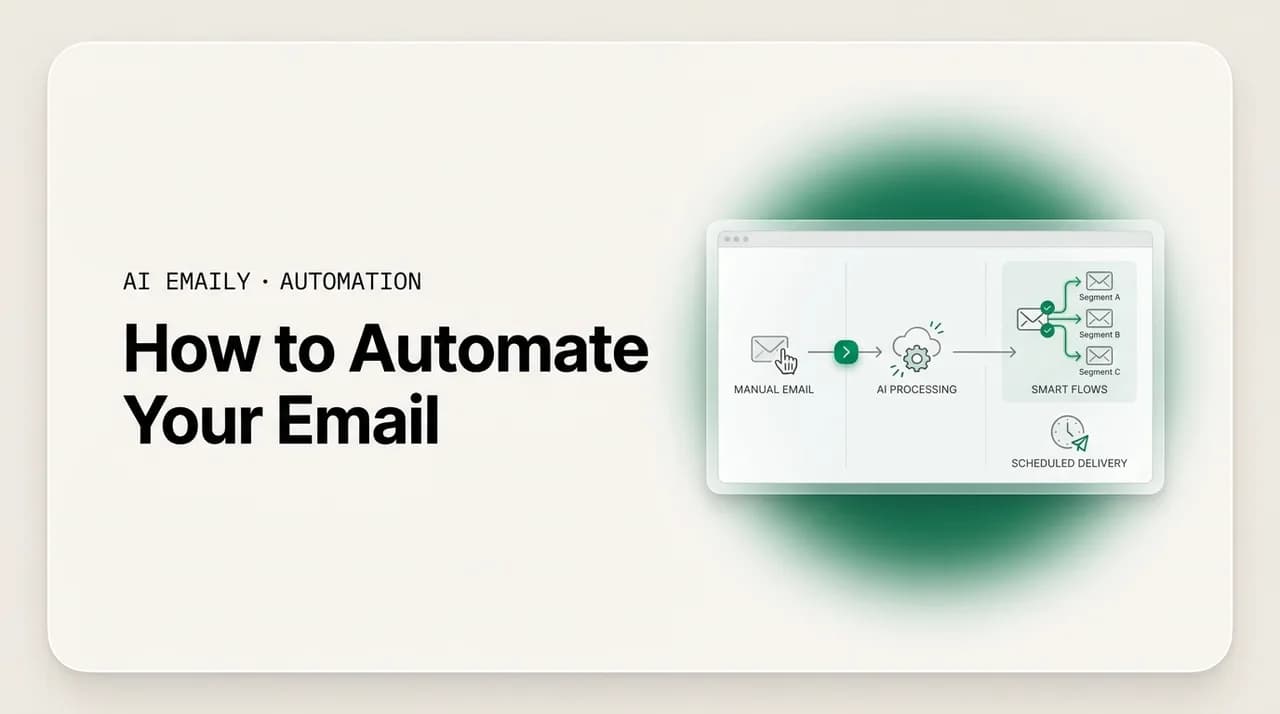
The short answer
How to automate email: start with filters and rules to sort incoming mail, add templates for repeat replies, set targeted auto-replies, schedule follow-ups, then layer AI on the judgment parts (triage and drafting). Begin small, automate the busywork, and keep a human on anything that sends.
Learn how to automate email step by step: filters, templates, auto-replies, follow-ups, and AI triage. A beginner-friendly path that frees hours every week.
On this page
- 01What can you actually automate in your email?
- 02How do you automate email sorting with filters and rules?
- 03How do you automate the replies you send over and over?
- 04How do you set up auto-replies that actually fire?
- 05How do you automate follow-up emails so nothing slips?
- 06How does AI handle the parts rules never could?
- 07What should your starter automation checklist look like?
- 08Gmail vs. Outlook vs. an AI email client — which should you use?
- 09How does AI Emaily automate the whole flow?
- 10Where should you start?
Here is the part nobody tells you when your inbox starts to feel impossible: most of what eats your time is not actually thinking. It is sorting. It is typing the same three sentences for the fortieth time. It is remembering to nudge someone who never replied. It is opening a message, deciding it can wait, and then opening it again two hours later to make the same decision. None of that is real work. It is busywork wearing a work costume, and you can hand almost all of it to a set of rules and, increasingly, to an assistant that understands what your messages mean.
That is what this guide is about. Not a vague promise that automation will change your life, and not a wall of jargon about triggers and pipelines. A plain, step-by-step path you can actually follow, starting with things that take five minutes and ending with an AI agent that handles the parts that used to require you. You can automate the sorting. You can automate the replies you send constantly. You can automate the follow-ups you keep forgetting. And you can let AI take over the judgment-heavy steps that filters were never smart enough to do.
We will walk through it in the order that makes sense for a real person with a real inbox, not the order that flatters a feature list. First the mechanical wins that work in any email app today. Then the parts where rules hit their ceiling and AI quietly takes over. By the end you will have a working setup and a clear picture of what you can reasonably expect to get back, which for most people is somewhere between three and ten hours a week.
One framing is worth holding onto before we start, because it decides whether your setup helps or quietly backfires. Automation is not about doing more email faster. It is about doing less email at all. Every step below should remove a category of work from your day, not simply speed it up. If an automation makes you check, double-check, and babysit, it has failed even if it technically runs. The good ones disappear: you set them, you forget them, and you notice their absence only when you realize you have not manually filed a receipt or chased a quote in weeks. Keep that test in mind. For each thing we automate, the question is always the same — does this let me stop thinking about a whole class of messages? When the answer is yes, you keep it. When the answer is no, you simplify until it is.
Read this first
What can you actually automate in your email?#
Before the steps, a quick map of the territory, because "automate email" means very different things to different people and it helps to know which buckets you are aiming at.
There are five broad jobs you can hand off, and they stack from simplest to smartest. Sorting and filing comes first: deciding where a message goes based on who sent it or what it contains. Then repetitive replies: the canned responses you type so often you could do it in your sleep. Then auto-replies: messages that go out without you, like an out-of-office note or an instant acknowledgment when someone reaches a support address. Then follow-ups: the nudges and reminders that keep threads alive when the other side goes quiet. And finally the judgment work: reading a message, understanding the intent, deciding how urgent it is, and drafting a real reply in your voice.
The first four have existed in some form for years. Gmail and Outlook both ship filters, rules, templates, and a vacation responder. They are rigid, but they are free and they work. The fifth job, the judgment work, is the one that has changed completely. Until recently, software could only match keywords. Now an AI assistant can read for meaning, which means the part of your inbox that used to demand a human, deciding what matters and writing the response, can finally be automated too, with you supervising rather than typing.
It helps to be honest about which of these will give you the most relief, because it is not always the one that sounds most impressive. For most people the ranking goes: sorting first (it instantly changes what you see), then drafting and triage (they attack the high-frequency typing and deciding), then follow-ups (they recover lost opportunities), with auto-replies and templates as steady background wins. We are going to set them up in roughly that order of impact, with the simplest mechanics first so you get an early win and the momentum to keep going. Nobody finishes a fifteen-step automation project. Almost everybody finishes a three-step one and then adds to it.
- Sorting and filing — route messages to folders or labels by sender, subject, or content.
- Repetitive replies — save and reuse the responses you send over and over.
- Auto-replies — send an automatic message when someone emails a specific address or you are away.
- Follow-ups — automatically remind, nudge, or re-send when a thread goes silent.
- The judgment work — AI reads, prioritizes, and drafts in your voice (the genuinely new part).
The one rule that prevents regret
How do you automate email sorting with filters and rules?#
Start here, always. Sorting is the single highest-leverage thing to automate first because it changes what you see the moment you open your inbox. Instead of a flat pile of two hundred messages with the important ones buried, you get receipts in one place, newsletters in another, and the people who actually need you sitting at the top. Nothing else you do later matters much if you are still drowning in noise, so we fix the noise first.
The mechanism is the same everywhere even though the buttons differ: you define a condition ("messages from this sender" or "subject contains this word") and an action ("apply this label," "skip the inbox," "forward to this address"). The email app then runs that rule on every message that arrives. Set it once, and it works forever without you. Here is how to build your first few in the two apps most people use.
A useful way to find your first rules is to look backwards, not forwards. Open your inbox and ask which senders or subjects show up constantly and almost never require real attention. For nearly everyone the answer is the same short list: order confirmations and receipts, newsletters and marketing, and automated notifications from apps and tools. Those three categories alone are usually most of the volume and almost none of the value, which makes them the perfect first targets. You are not trying to invent a clever taxonomy. You are pulling the predictable, low-value mail out of the way so the messages from actual humans stand out.
- 1
Open the filter or rule builder
In Gmail, click the sliders icon in the search bar to open search options, or open a message, click the three-dot menu, and choose "Filter messages like these" to pre-fill the sender. In Outlook, go to Settings, then Mail, then Rules, and click "Add new rule."
- 2
Set the condition
Decide what the rule matches. The most reliable conditions are sender (everything from billing@ a vendor), subject keyword ("receipt," "invoice," "newsletter"), or recipient (anything sent to your support alias). Start specific; you can always widen it later.
- 3
Choose the action
Pick what happens to matching mail. The safe default is apply a label or move to a folder, and skip the inbox. This files the message out of your way without deleting anything. Forwarding and marking as read are also common actions.
- 4
Apply it to existing mail, then save
Both apps let you run the rule on messages already in your inbox. Check that box once to clean up the backlog in one pass, not just future mail. Then save. Send yourself a test message that matches, and confirm it lands where you expect.
- 5
Avoid auto-delete at the start
Filter to label and archive first, never straight to delete. A filter that quietly trashes mail can hide something important for weeks. Once a rule has run cleanly for a while and you trust it, you can graduate the obvious junk to deletion.
Three or four rules like this will quietly remove the majority of the volume that has nothing to do with you, and you will feel the difference within a day. There is one extra setting worth using every single time you build a rule: the option to apply it to existing conversations, not just future mail. Gmail and Outlook both offer it, and it is the difference between a rule that slowly cleans your inbox going forward and one that clears the backlog in a single pass. Check it once when you create the filter and watch hundreds of old receipts and newsletters file themselves out of sight immediately. That one checkbox is often the most satisfying thirty seconds of the whole setup.
This is also the moment people hit the first wall, so it is worth naming it now. Filters only know what you tell them. They cannot tell that a message from a stranger is actually a customer with an urgent problem, because no keyword you wrote anticipated it. They route by literal match, not by meaning, which means they handle the mail you could predict and are blind to the mail you could not. They also degrade over time: a sender changes their address, a subject line shifts, and the rule silently stops catching what it used to. You end up maintaining a small machine. That ceiling is real, and it is exactly where AI changes the game later in this guide — an assistant that sorts by what a message means does not need you to anticipate every variation, and does not quietly break when the wording changes. For now, get the obvious, predictable mail sorting itself, and notice where the rules can and cannot reach. That boundary is the whole reason the second half of this guide exists.
Keep your rule list short
How do you automate the replies you send over and over?#
Once the noise is filed, look at what you type. Almost everyone has a handful of replies they send constantly: a scheduling response, a "thanks, received," a standard answer to the question every new customer asks, a polite decline, a pricing or hours reply. If you have typed essentially the same message more than five times, it should be a template, not a fresh act of typing every time.
Templates, sometimes called canned responses or quick parts, let you save a message once and drop it into a reply in two clicks, then tweak the details. They are the highest-volume time saver after sorting, because they attack the thing you do dozens of times a day. The trick is to write them with obvious blanks so you remember to personalize, and to keep them short enough that they still sound like a person wrote them.
There is a simple way to find which replies deserve a template: pay attention for two or three days and notice the moment you feel the small flicker of "I have typed this before." That flicker is the signal. The replies that trigger it most are almost always a scheduling response, a confirmation or acknowledgment, an answer to the one question every newcomer asks, a polite no, and a standard set of details like your hours, address, or a link. Five templates covering those will handle a startling share of your daily typing. Resist the urge to build twenty — a sprawling template library becomes its own search problem, and you will spend more time hunting for the right canned reply than you saved by canning it.
- 1
Turn templates on
In Gmail, open Settings, then See all settings, then the Advanced tab, and enable Templates. In Outlook, templates live under My Templates in the message toolbar, or as Quick Parts in the desktop app. No setup needed there.
- 2
Write your three most-repeated replies
Do not try to template everything. Start with the three answers you give most. Write each one cleanly, then replace the specifics with visible placeholders like [NAME], [DATE], or [LINK] so you never send a half-filled message by accident.
- 3
Save each as a template
In Gmail, compose the message, click the three-dot menu in the compose window, choose Templates, then Save draft as template. In Outlook, save it under My Templates. Give each a name you will recognize in a hurry.
- 4
Insert and personalize when you reply
Open the reply, drop in the template, then fill the blanks and add one specific line that proves you actually read the message. That single tailored sentence is the difference between helpful and robotic.
Templates can sound like a machine
How do you set up auto-replies that actually fire?#
Templates still require you to be there. Auto-replies do not. An auto-reply is a message that goes out by itself when a condition is met, with no action from you. There are two flavors, and people often only know the first one.
The familiar flavor is the out-of-office or vacation responder: a blanket message that goes to everyone who emails you during a date range. Useful, but blunt, it cannot tell a client apart from a newsletter. The more powerful flavor is the targeted auto-reply: an automatic response that fires only for specific messages, like an instant acknowledgment whenever someone writes to your support address, or a standard reply to a common inbound request. That second kind is where the real leverage is, and it takes one extra step to set up.
- 1
Set the simple out-of-office (when you need it)
In Gmail, Settings, then See all settings, scroll to Vacation responder, toggle it on, set the dates, write the message. In Outlook, Settings, then Accounts, then Automatic replies, toggle on, optionally set a time range, write your note.
- 2
For targeted auto-replies, combine a template with a rule
The blanket responder fires for everyone, which you usually do not want. To answer only certain messages, you pair a saved template with a filter. The filter matches the messages; its action sends the template automatically.
- 3
Build the filter that sends the template (Gmail)
Save your reply as a template first. Then create a filter with your criteria — say, sent to support@ or subject contains a keyword — and in the actions choose "Send template" and pick the one you saved. Now matching mail gets an instant, automatic reply.
- 4
Build the rule that replies with a template (Outlook)
In Outlook rules, create a new rule, set the condition, and choose the action "reply using a specific template." Outlook will send your saved template to messages that match the rule.
- 5
Set expectations, not just acknowledgments
A good auto-reply does more than say "got it." Tell the sender what happens next and when. "Thanks — we reply within one business day" prevents a second, anxious follow-up email and makes the automatic message feel like service rather than a wall.
Two auto-reply traps to avoid
Auto-replies are the first point where automation starts touching outbound mail, and that is the moment to be a little careful. Sending an acknowledgment automatically is low risk because the message is generic and harmless. Sending a substantive answer automatically is higher risk, because if the inbound question was unusual, your canned answer is now wrong and it has already shipped. The principle from the start of this guide holds: automate the harmless acknowledgments freely, but keep a human in the loop for anything that requires a real answer. Later, we will see how AI lets you automate even the substantive replies safely, by drafting them for your approval instead of sending blind.
How do you automate follow-up emails so nothing slips?#
Now for the task that quietly costs people the most money: follow-up. Most replies you are waiting on never come on the first try, and the deal, the answer, or the introduction lives or dies on whether you remember to nudge. Doing that by hand means keeping a mental list of who owes you a reply, which is exactly the kind of thing human brains are terrible at. So automate it.
Follow-up automation comes in two shapes. The reactive shape watches a thread and pings you (or the recipient) if no reply arrives within a set window, so a silent thread bounces back to your attention instead of vanishing. The proactive shape is a sequence: a planned series of messages that go out on a schedule until the person responds or the sequence ends. Both remove the remembering, which is the hard part. Here is how to think about setting them up.
The reason this matters so much is that follow-up is where good intentions go to die. You send a thoughtful message, the other person gets busy, the thread sinks below the fold, and a week later neither of you remembers it existed. The opportunity did not fail on its merits — it failed because no one was tracking it. Automating follow-up is really automating memory: the system holds the open loop so your brain does not have to, and it surfaces or sends the nudge at the right moment regardless of how buried the thread got. That is why a single follow-up automation often outperforms every clever filter you could build, and why it is worth getting right rather than skipping.
- 1
Decide your follow-up window
Pick how long silence should last before a nudge fires — commonly two to four business days for work threads. Short enough to stay relevant, long enough not to be annoying. This single number drives the whole system.
- 2
Choose reactive reminders or a sequence
If you mostly need to remember to circle back, use reminder-style follow-ups that resurface a thread when it goes quiet. If you are running outreach or sales, build a short sequence that sends planned follow-ups automatically until you get a reply.
- 3
Cap the number of touches
Resist the urge to follow up forever. Research on millions of cold emails found that going past three or four touches sharply increases spam complaints. Two or three well-spaced, genuinely useful follow-ups is the sweet spot. More is not more.
- 4
Make every follow-up add something
A follow-up that just says "bumping this" trains people to ignore you. Each one should add a reason to reply: a new detail, a deadline, a shorter ask, or a graceful way out. Stop the sequence the instant they respond.
- 5
Auto-stop on reply
The cardinal sin of follow-up automation is sending nudge number three after someone already answered. Use a tool that detects the reply and halts the sequence automatically. Nothing makes you look more like a robot than chasing a person who already said yes.
Follow-up is where automation pays for itself fastest
How does AI handle the parts rules never could?#
Everything so far has a hard ceiling, and you have probably already felt it. Filters route by literal keyword. Templates are static text. Auto-replies fire on rigid conditions. None of them understand what a message means. They cannot tell that a polite note from an unknown address is your biggest customer about to churn, or that a one-line reply buried in a thread is the approval you have been waiting two weeks for. The judgment, the reading, the deciding, the writing of a real response, has always landed back on you. That is the work AI now does.
The shift is simple to state and large in effect: instead of matching words, AI reads for meaning. That unlocks the two jobs that used to be stubbornly manual. The first is triage: looking at everything that came in and deciding what actually needs you, what can wait, and what can be handled without you, based on what the messages say rather than where they came from. The second is drafting: writing a complete, in-context reply in your own voice, ready for you to glance at and send. These are not faster filters. They are a different category of help.
Triage deserves a closer look, because it is the part most people underestimate until they see it. Think about what you actually do when you open your inbox: you skim, you read just enough of each message to gauge whether it matters, and you decide what to handle now, what to defer, and what to ignore. That scanning is invisible work, but it is work, and it is exhausting precisely because there is no shortcut to it with keyword rules — a filter cannot read the worried tone in a client's note or recognize that a short reply contains the green light you were waiting on. AI triage does that scanning for you. It reads the substance, weighs urgency and intent, and hands you a short list of what genuinely needs a person, with the noise already set aside. You stop being the sorting algorithm. You just see the decisions.
Drafting is the other half, and the leap here is from speeding up typing to removing it. Older "smart reply" features offered three canned phrases and called it AI. A modern assistant does something different in kind: it reads the entire thread, understands what is being asked, and writes a full reply that already contains the specifics — the date you proposed, the answer to their actual question, the right tone for this particular person. Because it learns from how you write, the draft sounds like you, not like a help-desk macro. Your job collapses from composing a message to reading one and saying yes. Multiply that by the routine replies in a single day and you can see why this, more than any filter, is what makes "automate email" finally feel true.
- AI triage reads the whole inbox and surfaces what truly needs you — by intent and urgency, not just sender — so the important stranger no keyword caught still rises to the top.
- AI drafting writes a real reply in your voice, already containing the specifics of the thread, so it reads like you wrote it rather than like a canned template.
- AI summarizing collapses a long, messy thread into the two lines you need to act, so you decide in seconds instead of reading for minutes.
- AI follow-ups draft and time the nudge intelligently, then stop on their own when a reply lands — judgment a static sequence cannot manage.
The right mental model is risk-laddered, and the best practitioners are unanimous on it. Automate the low-risk AI work freely: drafts, summaries, sorting by meaning. These cost you nothing if they are imperfect, because you are reviewing the output. Move to medium-risk work with guardrails: routing and follow-ups that you can see and adjust. And hold the line on high-risk autonomy: do not let AI send substantive mail entirely unsupervised in the early going, and never let it touch genuinely sensitive decisions without a human. The win is not removing yourself from the loop. It is removing the typing and the deciding-what-matters from the loop, while you stay on the one part that needs a human, the final yes.
Practically, this means a good AI email setup drafts the reply and shows it to you. You read it in two seconds, fix a word if you want, and send. You went from composing a message to approving one, which is the difference between a job and a glance. Do that across a day's worth of routine replies and the time saved is not marginal, it is the bulk of your inbox. The mechanical automations from earlier in this guide handle the predictable mail; AI handles the mail that used to require thought. Together they cover almost everything.
Treat email content as untrusted, even with AI
What should your starter automation checklist look like?#
If you do nothing else, do the items below in order. This is the path from a flat, overwhelming inbox to one that mostly runs itself, sequenced so each step makes the next one easier. You do not need to finish it in a day. Most people set up the first three in an afternoon and add the rest over a couple of weeks as they feel the gaps. Effort is rough, low means minutes, medium means a short setup, and the payoff column is what you actually get back.
| Step | What to set up | Effort | What it gives you |
|---|---|---|---|
| 1 | Sorting rules for receipts, newsletters, notifications | Low | An inbox that opens with only what matters in view |
| 2 | Templates for your 3 most-repeated replies | Low | Two-click answers instead of retyping all day |
| 3 | A targeted auto-reply for your support or contact address | Low | Instant acknowledgment, fewer anxious re-sends |
| 4 | Follow-up reminders so silent threads bounce back | Medium | Nothing important slips through the cracks |
| 5 | AI triage to prioritize by meaning, not just sender | Low | The important stranger no rule caught rises to the top |
| 6 | AI drafting for routine replies, reviewed before send | Low | You approve replies in seconds instead of writing them |
| 7 | Auto follow-up sequences for outreach (capped, auto-stop) | Medium | Deals and threads stay alive without you remembering |
How to know it's working
Gmail vs. Outlook vs. an AI email client — which should you use?#
You can automate a surprising amount inside Gmail or Outlook for free, and for a lot of people that is the right place to start. The honest limitation is that both were built around keyword rules, so they top out exactly where the judgment work begins, the triage and the real drafting. A dedicated AI email client is built for that judgment layer from the ground up and connects to your existing accounts, so you are not switching email addresses, just upgrading what runs on top of them. Here is the straight comparison.
| Capability | Gmail (native) | Outlook (native) | AI email client |
|---|---|---|---|
| Filters / rules | Yes, keyword-based | Yes, keyword-based | Yes, plus AI rules that match meaning |
| Templates / canned replies | Yes (Templates) | Yes (My Templates) | Yes, plus AI drafts a fresh reply each time |
| Auto-replies | Vacation responder; template via filter | Automatic replies; template via rule | Yes, context-aware and account-wide |
| Follow-up automation | Manual / add-ons | Manual / add-ons | Built-in, drafts and auto-stops on reply |
| AI triage by intent | No | Limited (Copilot add-on) | Yes — core feature |
| AI drafting in your voice | Basic suggestions | Copilot (add-on) | Yes — learns and writes in your voice |
| Works across providers | Gmail only | Outlook / Microsoft only | Gmail, Outlook, and any IMAP account |
| Cost to start | Free | Free | Free tier, then a flat monthly plan |
Read that table as a sequence, not a verdict. Begin in your current app: build the sorting rules, save the templates, set the auto-reply. Those wins are free and immediate, and you should take them today. The moment you notice you are still the one reading everything to decide what matters, and still the one writing the same kinds of replies by hand, you have hit the keyword ceiling, and that is the signal that an AI client will pay for itself. You are not replacing Gmail or Outlook, you are adding the judgment layer they never had, on top of the same accounts.
How does AI Emaily automate the whole flow?#
Everything in this guide — sorting, templated replies, auto-replies, follow-ups, and the AI judgment layer on top — is what AI Emaily is built to run in one place. The difference is that you do not stitch it together across a filter screen, a templates menu, a separate follow-up add-on, and yet another AI tool. It is one client that connects to the email you already use and handles the busywork end to end, with you supervising the parts that send.
It works in two layers that map exactly onto this walkthrough. The first is a rules brain you control in plain English. Instead of fiddling with rigid keyword filters, you describe what you want — "file all receipts, keep anything from my clients in front of me, snooze newsletters to the weekend" — and it builds and runs the sorting for you. That covers the mechanical automations from the first half of this guide, without the brittleness of hand-built rules that conflict and break.
The second layer is the AI agent, and it does the judgment work that filters never could. It triages your inbox by what messages actually mean and how urgent they are, so the important stranger no keyword anticipated still rises to the top. It drafts real replies in your own voice — not canned templates, but in-context responses that already contain the specifics of the thread, ready for you to glance at and send. You speak or type a rough intent and it writes the polished email. And it runs follow-up on autopilot: it drafts the nudge, times it sensibly, and stops the moment a reply lands, so you never chase someone who already answered.
The point of putting both layers in one client is that they compound. The rules brain clears the predictable mail so the AI agent is reasoning over a clean, relevant inbox instead of fighting through noise. The agent's triage catches everything the rules could not anticipate. The drafting turns the messages that survive triage into replies you approve in seconds. The follow-up autopilot makes sure none of the threads you do reply to fall through afterward. Each piece you have been setting up by hand across separate menus in this guide becomes one continuous flow, and crucially, it is a flow that watches your inbox even when you are not — so the work is being handled in the background rather than waiting in a pile for the next time you sit down.
- Rules brain — describe your sorting in plain English; it files, labels, and routes for you, no brittle keyword filters to maintain.
- AI triage — the inbox is prioritized by meaning and urgency, so what truly needs you is at the top and the noise is handled.
- Voice and intent drafting — replies written in your voice from a quick spoken or typed intent, ready to review and send.
- Follow-up autopilot — nudges drafted, timed, and auto-stopped on reply, so nothing important goes silently dead.
- Every provider — connects to Gmail, Outlook, and any IMAP account, so you keep your address and upgrade what runs on it.
Two things make this safe to actually rely on. First, it keeps a human on the parts that matter: drafts and follow-ups are prepared for your approval rather than fired blind, so an imperfect AI suggestion costs you a glance, never a mistaken send. Second, it is private by design — your mail is yours, message content is handled as untrusted input to the assistant, and the system is built so automations cannot quietly take consequential actions without you. You get the time back without handing over the judgment that should stay yours.
Pricing is straightforward, which matters when you are deciding whether to commit. The Free plan is $0 and lets you connect an account and start automating the basics — sorting, templates, triage — so you can feel the difference before paying anything. The Pro plan is $12.42 per month billed annually and unlocks the full agent: unlimited AI drafting in your voice, follow-up autopilot, and the advanced rules brain across all your accounts. One flat plan, every provider, no per-feature nickel-and-diming.
The fastest way to feel it
Where should you start?#
So, how do you automate your email? You start small and you stack. Build a handful of sorting rules so the noise files itself. Save templates for the replies you send constantly. Set a targeted auto-reply so people get an instant, honest acknowledgment. Add follow-up reminders so threads you care about never die in silence. Each of those is free, takes minutes, and works in the app you already have. Do them in that order and your inbox is already calmer than it was this morning.
Then, when you notice you are still the one reading everything to decide what matters and still typing the same kinds of replies by hand, that is the ceiling of keyword automation, and that is where AI takes over. Triage by meaning, drafting in your voice, follow-ups that think for themselves. The goal was never to remove yourself from your inbox — it was to remove the busywork and keep only the judgment that genuinely needs a human. Get the mechanical wins today, layer AI on the judgment work, and the three-to-ten hours a week most people lose to email starts coming back. You can connect your inbox and start free at app.aiemaily.com/signup.
Frequently asked
See it in AI Emaily
Keep reading

Written by
Nafiul HasanNafiul Hasan is an entrepreneur and AI automation system builder with 10+ years of experience turning messy, manual workflows into reliable automated systems. He designs and ships AI enterprise solutions end-to-end — the agent logic, the data plumbing, and the product people actually use — and founded AI Emaily to give busy professionals their attention back. He writes here from the builder's seat: what works, what breaks, and how to put AI to work without giving up control.