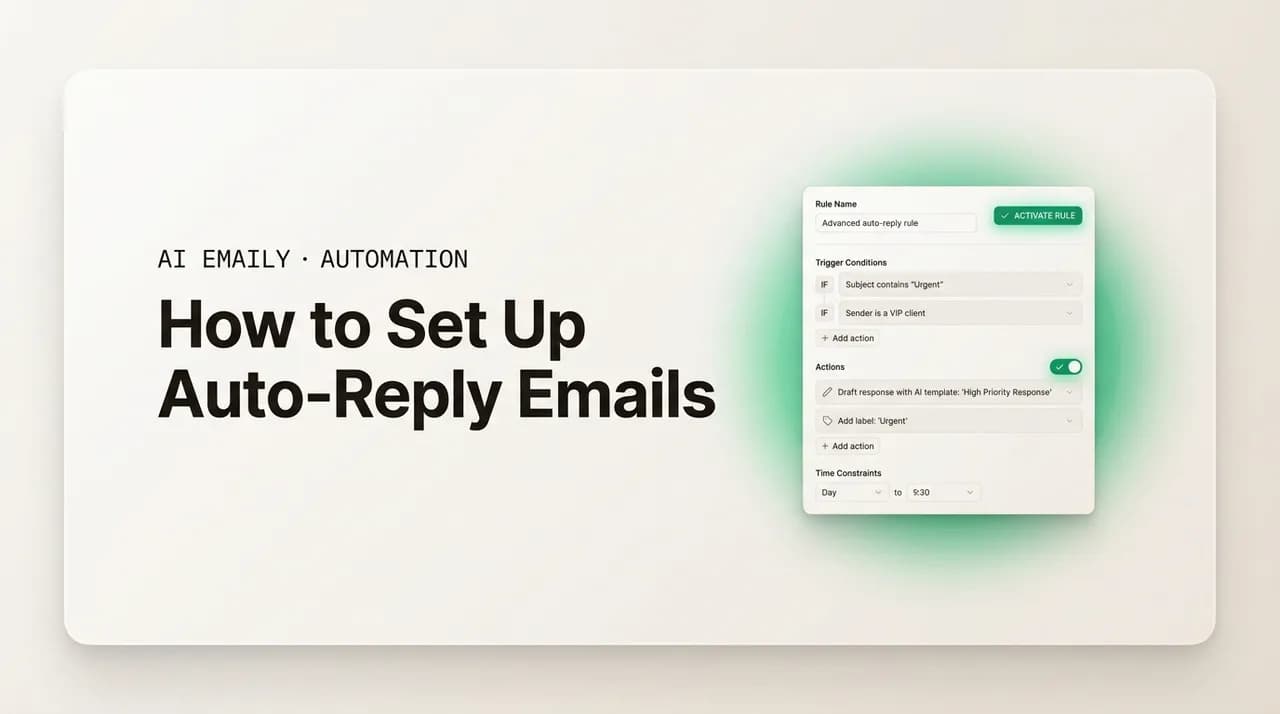
How to Set Up Auto-Reply Emails (Gmail + Outlook)

The short answer
Auto-reply email setup spans three tools: a vacation responder (Gmail), automatic replies (Outlook), and rules that reply with a template on a condition. All three send canned text. To reply to what an email actually asks — in your voice, not a template — you need an AI layer that drafts real answers, with you approving the send.
How to set up auto-reply emails: Gmail vacation responder, Outlook automatic replies, rules-based templates, and AI replies that read the email.
On this page
- 01What are the different kinds of auto-reply email?
- 02How do you set up a vacation responder in Gmail?
- 03How do you set up automatic replies (out of office) in Outlook?
- 04How do you build a rules-based auto-reply that replies with a template?
- 05How do scheduling and internal-vs-external replies work?
- 06Canned auto-reply vs. an AI-drafted reply — what's the real difference?
- 07When does auto-reply backfire?
- 08How does AI Emaily reply for real — beyond canned auto-reply?
- 09Conclusion: pick the right auto-reply for the job
"Auto-reply" started life as one narrow thing: the out-of-office note. You go on vacation, you set a single line — "I'm away until Monday, I'll respond when I'm back" — and your email provider fires that exact text at everyone who writes you while you're gone. It buys you time. It tells people not to expect you. It has done that one job, more or less unchanged, for three decades. Most guides on "how to set up auto-reply emails" stop right there, at the vacation responder, as if that were the whole subject.
It isn't. Auto-reply has quietly grown into a family of features, and they do very different jobs. The out-of-office responder is the simplest. Above it sits rules-based auto-reply — where your email replies with a chosen template only when a message meets a condition you set, like coming from a certain address or containing a certain word. That's how a support address sends an instant "we got your ticket" or a sales inbox fires a brochure to anyone who asks for pricing. And above that, increasingly, sits a genuinely different category: AI auto-reply, which doesn't send canned text at all. It reads the actual email and drafts a real answer to what was asked. The condition side of that is ordinary filter work — the same ground as how to create rules in Gmail.
This guide covers the whole family, in order, with the exact clicks. We'll set up a vacation responder in Gmail and automatic replies in Outlook, step by step. We'll build a rules-based auto-reply that sends a template when a condition is met. We'll cover scheduling and the often-confusing split between internal and external replies. Then we'll be honest about the ceiling every one of these tools shares — they send fixed text, blind to what the email asked — and where that backfires, from reply loops to badly-wrong context. Finally we'll show what "replying for real" looks like: AI that drafts a context-aware answer in your voice, which you approve before it sends.
Why does the distinction matter so much? Because the wrong mental model leads people to set up the wrong tool and then blame the feature. Someone wants their inbox to "handle replies while I'm busy," reaches for the vacation responder because it's the auto-reply they know, and ends up sending a generic away-note to people who needed an answer. Or they spend an afternoon hand-writing a dozen template rules to cover every kind of incoming question, only to discover the thirteenth question doesn't match any of them. Each tool has a job it does well and a job it can't do at all, and almost every auto-reply frustration traces back to using one for the other. The point of mapping the family first is to match the tool to the task before you change a single setting.
If you only need to tell people you're away, the vacation responder is enough and you can stop after the Gmail and Outlook sections. If you want your inbox to actually answer routine email instead of just acknowledging it, keep reading — that's where canned auto-reply ends and something smarter begins. By the end you'll know which of the three tools fits which job, how to set each up correctly, and why the smartest version of "auto-reply" isn't a template at all.
What are the different kinds of auto-reply email?#
Before touching any settings, it helps to see the whole map, because "auto-reply" gets used for at least four different mechanisms that behave nothing alike. People reach for one word and mean four things, then get frustrated when the simple feature can't do the complicated job. Sorting them out first saves you from setting up the wrong tool for what you actually need.
The first is the vacation responder, also called out-of-office (OOO) or, in Outlook, automatic replies. You write one message, optionally set a date range, and it goes back to people who email you while it's on — once per sender, not on every message, so you don't spam someone who writes you three times. It doesn't read the incoming email. It exists to say "I'm not here right now," and that's all it's good at. It's the right tool for being away and the wrong tool for everything else.
The second is rules-based (or filter-based) auto-reply: a rule that watches incoming mail and, when a message matches a condition you define — sender, subject, keyword, recipient address — replies with a specific template you chose in advance. Unlike the vacation responder, it runs all the time, not just when you're away, and it can send different templates for different conditions. This is the workhorse behind "thanks for contacting support," "your order is confirmed," and "here's our media kit." It's still canned text, but it's targeted canned text.
The third is the scheduled or recurring send, which people sometimes file under auto-reply but is really its own thing: an email you compose now and the provider delivers later, or on a repeat. That's outbound automation, not a response to anything incoming, so we'll touch it only where it overlaps (scheduling when a vacation reply turns on and off). The fourth is AI auto-reply — the one that breaks the mold by reading the email and drafting a tailored answer rather than firing a fixed string. The table below lays the four side by side so the rest of this guide has a shared vocabulary.
| Mechanism | What triggers it | What it sends | Best job |
|---|---|---|---|
| Vacation responder / OOO | Any email arriving while it's on | One fixed message to everyone | Telling people you're away |
| Rules-based auto-reply | An email matching a condition you set | A chosen template per condition | Instant acknowledgments and routing |
| Scheduled / recurring send | A time you pick (once or repeating) | A message you wrote in advance | Outbound, not a reply at all |
| AI auto-reply | An incoming email it reads | A drafted answer to what was asked | Actually replying, in your voice |
Three of these send canned text; one doesn't
How do you set up a vacation responder in Gmail?#
Gmail's version of out-of-office is called the Vacation responder, and it lives in Settings. It's the simplest auto-reply there is: one message, an optional date range, and a couple of toggles that control who hears from it. Here's the full setup on desktop, which is where you'll want to write the message since the formatting controls are easiest there.
A quick note on the mobile apps before the steps, because plenty of people set this up on a phone right as they're heading out the door. The Gmail app calls the same feature "Out of Office AutoReply" on iOS and "Vacation responder" on Android. You reach it through the hamburger menu in the top left, then Settings, then your account; toggle it on, set the start and end dates, type your message, and save. The mobile version covers the essentials, but the contacts-only limit and the cleaner formatting are easier to handle on the web, so if you have a minute at a desk, set it there.
- 1
1. Open Settings → See all settings
In Gmail on the web, click the gear icon in the top right, then choose "See all settings" to open the full settings page. The Vacation responder isn't in the quick settings panel — you need the full "General" tab, which is the one that opens by default.
- 2
2. Scroll to the Vacation responder section
On the General tab, scroll near the bottom to "Vacation responder." Select "Vacation responder on" to switch it from off. The fields below it will become active so you can fill them in.
- 3
3. Set the dates and write your message
Choose a "First day." Optionally check "Last day" and pick an end date — if you leave it unchecked, the responder stays on until you turn it off manually, which is a common way people accidentally keep auto-replying for weeks. Add a Subject and a Message. Keep the message short, give a real return date or an alternative contact, and avoid promising a specific response time you can't keep.
- 4
4. Decide who gets the reply
Two checkboxes control the audience. "Only send a response to people in my Contacts" limits the reply to people you know, which cuts down on auto-replying to newsletters and strangers. If you're on a workspace domain, you may also see an option to reply only to people inside your organization. Pick based on whether you want outsiders to know you're away.
- 5
5. Save changes
Click "Save Changes" at the bottom of the page — the responder isn't active until you do. Gmail sends your reply once per person, and only sends it again to the same person if they email you after about four days, or if you edit the message. When the end date passes (or you switch it off), it stops.
Set an end date even if you think you'll remember
How do you set up automatic replies (out of office) in Outlook?#
Outlook calls the feature "Automatic replies" (older versions and Exchange call it the Out of Office Assistant). It's more capable than Gmail's responder in one important way: it can send a different message to people inside your organization than to people outside it, and it has a built-in scheduler. The exact path depends on which Outlook you're in — new Outlook and Outlook on the web are nearly identical, while classic desktop Outlook routes through File. Here's the new-Outlook / web flow, which most people are on now.
There's an architectural reason Outlook's automatic replies feel more solid than a workaround, and it's worth understanding because it explains the IMAP limitation below. On an Exchange or Microsoft 365 account, the reply is sent by the server — Microsoft's mail server holds your out-of-office state and answers on your behalf whether your laptop is open, closed, or at the bottom of a lake. That's why it can promise once-per-sender behavior across a whole away period and switch itself off on schedule. A rule running inside the desktop app can't make that promise, because the app has to be running for the rule to fire. The clean panel and the server doing the work are the same thing, which is exactly why it doesn't exist for account types the Exchange server doesn't manage.
- 1
1. Open Settings → Accounts → Automatic replies
Click the gear icon in the top right to open Settings, then go to Accounts → Automatic replies. (In classic desktop Outlook, it's File → Automatic Replies instead.) This is the dedicated panel — you don't build out-of-office as a rule unless you want the advanced behavior we'll cover in the next section.
- 2
2. Turn automatic replies on
Toggle "Turn on automatic replies." Everything below becomes editable. Until you do this, the message boxes are inert, so this toggle is the master switch.
- 3
3. Set a time period (optional but recommended)
Check "Send replies only during a time period" and set a start and end. This is Outlook's built-in scheduler: the replies switch on and off automatically, so you don't have to remember to disable them. If you skip this, the replies run until you turn the toggle off manually.
- 4
4. Write the internal message
In the main box, write the reply that goes to people inside your organization. Because they're colleagues, you can be more specific here — who's covering for you, where to find things, when you'll be back. This message goes to everyone on your domain who emails you while replies are on.
- 5
5. Choose whether to reply to people outside your organization
Look for "Send replies outside your organization" and decide. You can reply to no one outside, only to people in your contacts, or to anyone. If you enable it, you get a separate message box — keep the external version vaguer (no internal names or details) and aimed at clients or partners. Then save.
| Outlook version | Where to find it | Separate external reply? | Built-in scheduler? |
|---|---|---|---|
| New Outlook / Outlook on the web | Settings → Accounts → Automatic replies | Yes | Yes |
| Classic desktop Outlook (Exchange) | File → Automatic Replies | Yes | Yes |
| Outlook with a non-Exchange account (POP/IMAP) | No native automatic replies — use a rule + template (next section) | Manual via rule | Only while Outlook is open |
Outlook's native auto-reply needs Exchange or Microsoft 365
How do you build a rules-based auto-reply that replies with a template?#
This is where auto-reply gets genuinely useful for day-to-day work, not just for being away. A rules-based auto-reply watches your incoming mail and, when a message matches a condition you set, replies with a template you chose. It runs all the time, it can fire different templates for different conditions, and it's the standard way to send instant acknowledgments — "thanks, we received your message" — or route a specific kind of request to a specific canned answer.
In Outlook, this is the "Reply using a specific template" action inside Rules. The setup has two parts: first you save the canned message as a template, then you build a rule that triggers it on your condition. It's fiddlier than the vacation responder, but it's the only way to get conditional, always-on canned replies inside Outlook. Here's the desktop flow, which is where template-based rules are fully supported.
Before the steps, a word on conditions, because the condition is where rules-based auto-reply lives or dies. A good condition is narrow and unambiguous: a message sent to a specific address you own (support@, sales@, careers@), a message from a known sender or group, or a subject that contains a distinctive word you control rather than a common one. A bad condition is broad — "any message I receive," or a keyword like "help" or "question" that shows up in half your mail. The narrower the condition, the more predictable the rule, and predictability is the whole point: you're handing the inbox permission to reply without you, so it had better only do that exactly when you meant it to.
- 1
1. Compose and save your template
Open a new email and write the canned reply exactly as you want it sent — subject and body. Then save it as a template: File → Save As, and choose "Outlook Template (*.oft)" as the file type. Give it a clear name. This is the message the rule will send; you can make several templates for several conditions.
- 2
2. Open Rules → create a new rule on a blank slate
Go to the Rules manager (in classic Outlook: File → Manage Rules & Alerts → New Rule; in new Outlook: Settings → Mail → Rules). Start from a blank rule that applies to messages you receive, so you can set your own condition rather than using a prebuilt template rule.
- 3
3. Set the condition that should trigger the reply
Choose what matches: "from people or public group" for a specific sender, "with specific words in the subject" for a keyword like "pricing" or "support," or "sent only to me" / "where my name is in the To box." Be deliberately narrow — a condition that's too broad will auto-reply to things it shouldn't, including the wrong senders.
- 4
4. Choose the action: reply using a specific template
In the actions list, tick "reply using a specific template." Click the underlined "a specific template" link, then in the dialog set "Look in" to "User Templates in File System," select the .oft you saved, and choose it. This binds your canned message to the rule.
- 5
5. Add exceptions, then finish and test
Add exceptions to stop loops and misfires — at minimum, exclude automated mail and out-of-office messages, and consider "except if the subject contains 'Automatic reply'." Name the rule, turn it on, and send yourself a test from another account to confirm it fires once and only on the intended condition. Remember: on a non-Exchange account, rule-based replies only run while Outlook is open.
Gmail's equivalent: a filter plus a canned-reply template
How do scheduling and internal-vs-external replies work?#
Two settings cause more confusion than the rest of auto-reply combined: when the reply is active, and who it goes to. Getting these right is the difference between an auto-reply that helps and one that quietly embarrasses you — replying after you're back, or telling a stranger details meant only for your team.
Scheduling is the cleaner of the two. Outlook's automatic replies have a built-in time window: set a start and end, and the server turns the reply on and off for you. That's the safe pattern, because it removes the human step that's most often forgotten — switching it off. Gmail's vacation responder has a "First day" and an optional "Last day" that work the same way, but the "Last day" is optional, which is exactly why people leave it blank and then auto-reply for a week too long. Rules-based replies generally don't self-schedule — a rule is either on or off — so if you want a conditional reply to run only during certain dates, you either toggle the rule by hand or lean on a tool that supports scheduled rules. The lesson across all three: whenever a date range is on offer, use it.
Internal versus external is the setting people most often get wrong, and the stakes are higher because it's about disclosure. Inside an organization, your colleagues can usually see more — who's covering, where the project lives, your direct line. Outside it, clients, vendors, recruiters, and strangers should get a vaguer, safer note: that you're away and when you're back, and nothing about internal names or systems. Outlook bakes this split in directly with separate internal and external messages, and lets you restrict the external reply to your contacts or switch it off entirely. Gmail is blunter: its main lever is "only send to people in my Contacts," which approximates "don't reply to strangers" but doesn't give you two genuinely different messages.
There's a subtle trap in the external setting worth calling out. An external auto-reply confirms to anyone — including spammers and bad actors — that your address is live and that you're away. That's a small but real piece of information leakage: "this inbox is real, and the owner isn't watching it right now." For most people the convenience outweighs it, but if you handle sensitive mail, restricting the external reply to known contacts (or turning it off) is the cautious choice. The table sums up where each control lives.
One more practical tip on phrasing the two messages, since the split only helps if you actually use it well. Write the internal version as if a colleague is asking, because one is: name the person covering, link the doc or channel where work continues, and give your real return date. Write the external version as if a stranger or a client is asking, because they might be: confirm you're away, give a single return date, offer one safe alternative contact if appropriate, and stop. The temptation is to write one message and paste it into both boxes — resist it. The whole value of the internal/external split is that the two audiences should hear genuinely different things, and a tool that forces you to think about both is doing you a favor.
| Control | Gmail | Outlook (Exchange / M365) |
|---|---|---|
| Start / end scheduling | First day + optional Last day | Built-in time period (start and end) |
| Separate internal vs external message | No — one message for all | Yes — distinct internal and external text |
| Limit who gets the external reply | "Only send to people in my Contacts" | No one / contacts only / anyone outside |
| Reply only inside your org | Workspace option (org only) | Internal message is org-only by design |
| Send once per sender (anti-spam) | Yes — once, repeats after ~4 days | Yes — once per sender per active period |
Treat the external reply as public information
Canned auto-reply vs. an AI-drafted reply — what's the real difference?#
Here's the ceiling every tool so far shares, and it's worth stating plainly because it's the whole reason this guide doesn't end at the Outlook section. A vacation responder, a rules-based template, a scheduled send — all three deliver text you wrote in advance. None of them reads the email. They detect that a message arrived (and maybe that it matched a condition) and fire a fixed string back. That's perfect when the job is to acknowledge or to stall, and useless when the job is to actually answer.
Think about what that means in practice. Someone emails asking, "Can you send the revised proposal by Friday, and does the new price include onboarding?" A canned auto-reply gives them "Thanks, we received your message." Helpful as a receipt; it answers neither question. The sender still waits, still wonders, and often still sends a follow-up. The canned reply created motion without progress — it told them you exist, not what they needed to know. Multiply that across every routine question your inbox gets and you see why "auto-reply" has a reputation for being a doormat note rather than a real assistant.
AI auto-reply is a different category. It reads the specific email — the questions asked, the thread it sits in, the tone, the details — and drafts a reply to what was actually said. The proposal question gets a draft that confirms Friday, says whether onboarding is included, and proposes a next step. Ask three different people three different things and you get three relevant drafts, not one identical note. That's not a fancier template; it's a categorically different task — generating a tailored answer versus printing a fixed one. The table draws the contrast across the dimensions that matter.
The maintenance cost is the difference people feel last but resent most. A canned system is only as good as the templates you keep writing and updating. Every new kind of question is a new template to draft, file, and bind to a rule; every change to your pricing or hours or policy is a template to find and edit; every edge case the templates don't cover falls through to silence or a generic note. The library quietly rots — old answers linger, conditions overlap, and you can't remember which rule sends what. An AI reply inverts that economy: you teach it your voice and your standing facts once, and from then on it composes the right answer per email instead of asking you to have pre-written it. You stop maintaining a template library and start approving drafts, which is a far smaller ongoing job.
| Dimension | Canned auto-reply (responder / rule) | AI-drafted reply |
|---|---|---|
| Reads the incoming email? | No — fires on arrival or a match | Yes — reads the question, thread, and context |
| What it sends | Text you wrote in advance | A reply tailored to what was asked |
| Adapts to sender or topic? | Only via separate templates you maintain | Yes — a different answer per email |
| Sounds like you? | Only if you hand-wrote the template | Yes — learned from how you actually write |
| Typical outcome | Acknowledges; rarely resolves | Actually answers or moves the thread forward |
| Setup effort over time | You write and maintain every template | You teach voice and facts once, then approve |
| Best for | Away notices, instant receipts, routing | Real replies to routine email at volume |
Canned auto-reply isn't bad — it's just narrow
When does auto-reply backfire?#
Auto-reply has failure modes that are worth knowing before you turn anything on, because they tend to happen quietly and at scale — by the time you notice, a few hundred wrong replies have already gone out. None of these are reasons to avoid auto-reply; they're reasons to set it up carefully and to know which job each tool is for. There are three big ones.
The first is the mail loop — two auto-responders emailing each other forever. Your out-of-office replies to a newsletter; the newsletter's system auto-replies to your reply; your responder fires again; and around it goes until something rate-limits it. Email standards exist precisely to stop this: well-behaved auto-responders stamp headers like "Auto-Submitted: auto-replied" and refuse to reply to mail that already carries one, and providers cap replies to once per sender. But not every system honors those headers, which is why your rules need explicit exceptions (don't reply to automated mail; don't reply to messages whose subject is already "Automatic reply") and why you should never point an auto-reply rule at a condition broad enough to catch other auto-replies.
The second is wrong context — the canned reply that's technically working but lands badly because it can't see the situation. Your vacation responder cheerfully tells a furious client "I'll get back to you when I return on the 22nd" when their issue is on fire today. A support acknowledgment fires "we'll reply within one business day" to someone reporting an outage. The text isn't broken; it's blind. It can't tell an emergency from a routine note because it never read the message. Canned auto-reply will always have this blind spot — it's the defining limitation — which is why high-stakes inboxes either keep the canned text deliberately neutral or move to something that reads before it replies.
The third backfire is specific to AI, and it's the opposite danger: a reply that reads the email and answers it confidently but wrongly. Because an AI generates a real, specific answer, a mistake isn't a harmless generic note — it's "yes, that's included in your plan" when it isn't, or "Friday works" when it doesn't. That's exactly why a responsible AI auto-reply doesn't send on its own by default; it drafts and waits for you to approve. The asymmetry is the point: a canned reply that's wrong is mildly annoying, but a specific AI reply that's wrong goes out under your name and is hard to unsay. Different tools, different failure modes — and different safeguards.
There's also a quieter failure that sits underneath the dramatic ones: drift. An auto-reply you set up six months ago and forgot is still running on assumptions that may no longer be true. The support acknowledgment promises a one-business-day reply your team can no longer hit. The vacation responder points to a colleague who's since changed roles. The keyword rule fires on a term your product no longer uses. Canned auto-reply doesn't decay loudly — it keeps confidently sending yesterday's answer, and nobody notices until a recipient does. The defense is unglamorous but real: review what your auto-replies actually send on a schedule, and lean on tools that keep an audit trail so you can see, at a glance, what went out in your name and whether it still makes sense.
- Loop protection: every auto-reply rule needs exceptions that exclude automated mail and messages already marked "Automatic reply," so two responders never trap each other.
- Neutral canned text: because a vacation responder can't read the room, keep it generic and give an escape hatch (an alternative contact) for the urgent cases it can't recognize.
- Never reply automatically to a broad condition: a rule that fires on "any email" or a too-common keyword will auto-reply to the wrong senders and to other machines.
- Approval for AI: because an AI reply contains a real answer, the safe default is draft-for-approval — the AI writes, you check, you send — not silent automatic sending.
- Watch the audit trail: whether canned or AI, review what your automated replies actually sent, so you catch a misfiring rule or a drifting category before it becomes a pattern.
The blind spot is built into canned auto-reply
How does AI Emaily reply for real — beyond canned auto-reply?#
Everything to here describes the canned tools and their ceiling: they send fixed text, blind to what the email asked. AI Emaily is built for the job those tools can't do — replying to what an email actually says, in your voice — while keeping you in control of every send. It's an AI-native email client, not a chatbot you paste into and not a bolt-on responder, so the AI reads your real mailbox, drafts in-thread, and acts under controls you set. Here's how that replaces and extends each canned mechanism above.
Instead of a template, Copilot drafts the actual reply. When an email comes in, AI Emaily reads it and the history around it, then writes a complete reply to what was asked — confirming the Friday deadline, answering whether onboarding is included, proposing the next step — and queues it for you. It waits. Nothing sends until you approve it. In v1, that human approval before send is mandatory: the AI does the writing, you make the send decision, every time. That's the safe default the "when auto-reply backfires" section argued for, built in — you get a finished, context-aware draft and keep the final say on everything that leaves your outbox.
For the narrow, repetitive, low-stakes categories you decide to trust — the kind of routine acknowledgments a rules-based reply used to handle — Autopilot can take them end-to-end, within guardrails you set. This is the upgrade path from canned: where a template fired the same line at everyone, Autopilot drafts a real, tailored reply and sends it automatically only for the categories you've chosen and watched it get right. And it never drops the safety nets — Autopilot sends within guardrails, with undo and a full audit trail still behind every action, so even your automatic replies stay reversible and reviewable. You graduate categories the way you'd hand work to a trusted assistant, not all at once on day one.
The voice problem that dooms canned replies — they only sound like you if you hand-wrote them — AI Emaily solves by learning how you actually write: your greetings, your rhythm, your sign-offs. Drafts come out sounding like you dashed them off, not like a generic responder. Because it works in-thread on your real mail, those drafts are grounded in the actual conversation, not a snippet you remembered to paste. And because Copilot is the default, the consequential replies pass under your eyes before they send: voice automated, judgment retained. It also handles being away — it can keep watch while you're out, drafting replies for your approval when you check in, rather than just posting a sign on the door.
Two more things matter for trusting AI with your replies. AI Emaily is private by design: the drafting happens inside a client built for your mailbox, so your threads aren't pasted into a public chatbot or used to train a general model — a real difference from copy-pasting confidential mail into a generic AI. And it works across every email provider, so you bring the inbox you already have, whether that's Gmail, Outlook, or anything else, rather than migrating. On pricing, the Free plan is $0; Pro is $12.42 per month billed annually for the agent and higher limits; and the Autopilot plan is $20.75 per month billed annually when you want fully automatic handling for the categories you've chosen to delegate. You can connect your inbox and have Copilot draft your next reply at app.aiemaily.com/signup.
Use canned for "I'm away," use AI Emaily for "here's your answer"
Conclusion: pick the right auto-reply for the job#
"How to set up auto-reply emails" turns out to be three questions, not one. If you're going away, set a vacation responder in Gmail or automatic replies in Outlook, give it a real return date, schedule its end so it switches off on its own, and split internal from external if your provider lets you. If you want instant acknowledgments or routing that fires on a condition, build a rules-based reply with a template and guard it with exceptions so it doesn't loop or misfire. Both are the right tools for their jobs, and both are canned by nature.
The honest limit to remember is that all of these send text you wrote in advance — they never read the email. That's exactly what you want for an away notice and exactly what fails when the sender needed an answer, not a receipt. A canned reply can't tell an emergency from a routine note or a key client from a stranger, because reading the message was never part of what it does. When you find yourself writing template after template to cover every case, you've outgrown canned auto-reply.
The category that breaks the ceiling is AI auto-reply: a reply that reads the actual email and drafts a tailored answer in your voice — with you approving the send, because a specific answer carries consequences a generic note doesn't. That's the standard AI Emaily is built to. Copilot drafts every reply in your voice and waits for your approval, mandatory before any send in v1. Autopilot handles the categories you've chosen to delegate, fully automatically but within guardrails you set, with undo and a full audit trail behind every action. It's private by design and works with every provider.
So set the vacation responder for being away, build the rules for the receipts and the routing — and when you want your inbox to actually reply, not just acknowledge, let an AI draft the answer and keep the final say for yourself. Start free at app.aiemaily.com/signup and let Copilot draft your next real reply in-thread.
Frequently asked
See it in AI Emaily
Keep reading

Written by
Nafiul HasanNafiul Hasan is an entrepreneur and AI automation system builder with 10+ years of experience turning messy, manual workflows into reliable automated systems. He designs and ships AI enterprise solutions end-to-end — the agent logic, the data plumbing, and the product people actually use — and founded AI Emaily to give busy professionals their attention back. He writes here from the builder's seat: what works, what breaks, and how to put AI to work without giving up control.