How to Schedule Recurring Emails (Daily, Weekly & Monthly) in 2026

The short answer
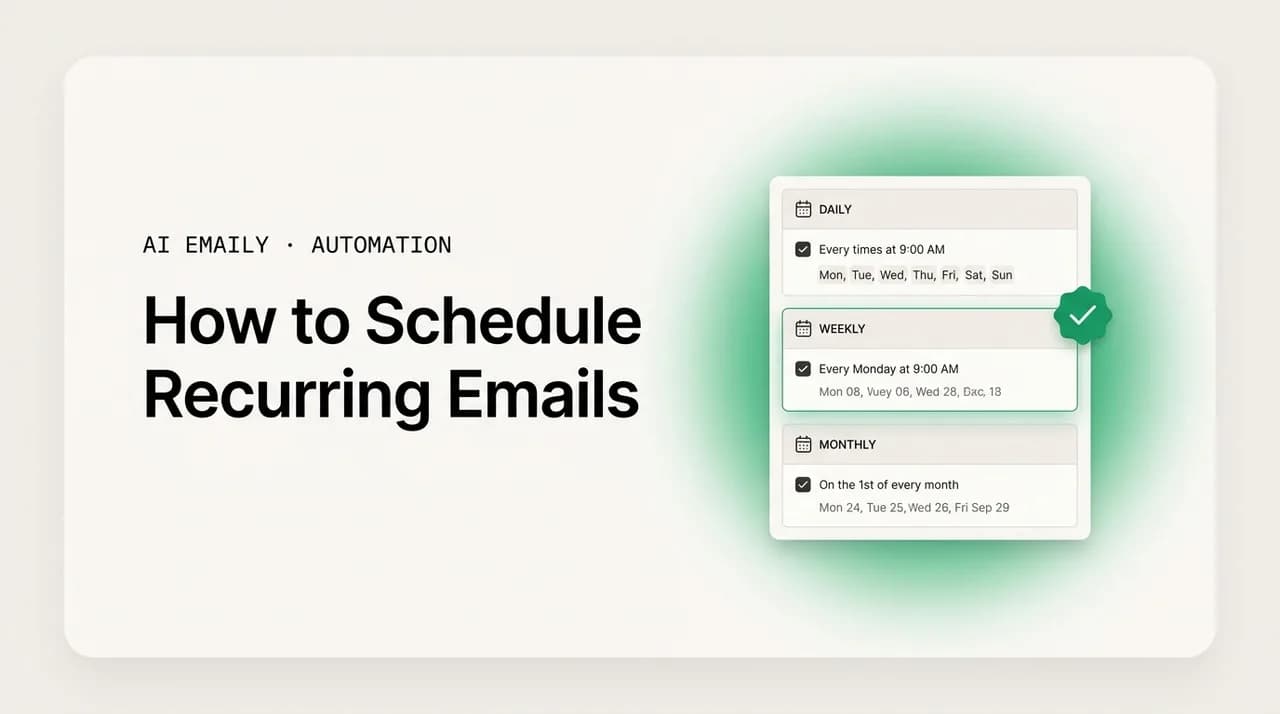
To schedule recurring emails — the same message sent on a repeating schedule — you need more than a native client, because neither Gmail nor Outlook can do a true recurring send. Your options are an add-on, a script, Power Automate, or an email tool that schedules and repeats sends for you. This guide compares all of them.
How to schedule recurring emails in 2026: why Gmail and Outlook can't send them natively, the real workarounds, the best tools, and a simpler way.
On this page
- 01What's the difference between a scheduled send and a recurring email?
- 02Why can't Gmail or Outlook send recurring emails natively?
- 03What's the no-tool workaround using templates and reminders?
- 04How do you send recurring emails with Google Apps Script?
- 05How do you set up recurring emails in Outlook with Power Automate?
- 06What are the best third-party tools for recurring emails?
- 07What are the best use cases for recurring emails?
- 08How do you keep recurring emails from going stale?
- 09How does AI Emaily handle scheduled and recurring sends?
- 10Which method should you use?
- 11Conclusion: schedule the repeat, keep the judgment
Some emails you do not write once. You write them again and again. The Monday status update to your manager. The monthly report that goes to the same five stakeholders on the first of the month. The weekly reminder to the team to submit their timesheets. The quarterly check-in to a client. The invoice that goes out on the same date every month. The content is nearly identical each time, the recipients rarely change, and the only thing that really moves is the date. These are recurring emails — the same message, or close to it, sent on a repeating schedule — and they are some of the most quietly tedious work in any inbox. Not hard. Just relentless. Miss one and something slips; remember every one and you have turned yourself into a human cron job.
The obvious fix is to have your email send them automatically, on a schedule, so the Monday update goes out every Monday whether or not you remember it. And here is the surprise that sends most people down a frustrating rabbit hole: the email client you already use almost certainly cannot do this. Gmail can schedule a single message for a future time, once. Outlook can delay one delivery. But neither one — as of 2026 — has a native "send this every week" setting. There is no repeat button on a scheduled email. The feature that would seem most obvious simply is not there, in either of the two most popular email platforms on earth.
So this guide is about how to actually do it. We will start by drawing a clean line between a one-time scheduled send (which your client can do) and a true recurring send (which it cannot), because confusing the two is the single biggest source of wasted time here. Then we will explain exactly why Gmail and Outlook leave the gap, and walk through every real workaround in order of effort: the template-plus-reminder method anyone can do today, Google Apps Script for the technically inclined, Microsoft Power Automate for the Outlook side, and the third-party add-ons built specifically for this — compared in a table so you can pick. We will cover the use cases that actually justify automating (status updates, reminders, reports) and the trap nobody warns you about: recurring emails that quietly go stale and start doing more harm than the work they save. Finally we will show how AI Emaily, an AI-native email client, handles scheduled and recurring sends — plus the reminder-style follow-ups that are often what people really wanted — without a script or a second subscription. By the end you will know which method fits your situation and how to set it up.
What's the difference between a scheduled send and a recurring email?#
These two phrases get used interchangeably, and that confusion is exactly why so many people end up annoyed at their email client. They are not the same feature, and the gap between them is the whole reason this guide exists. Get the distinction straight and everything that follows makes sense.
A one-time scheduled send is a single email queued to go out at a specific future moment, once. You write the message now, pick a date and time, and the client holds it and releases it then. After it sends, it is done — there is no encore. This is the "Schedule send" in Gmail and the "Delay Delivery" in Outlook, and it is genuinely useful: write the email at 11 p.m. when you have time, have it land at 8 a.m. when your recipient is at their desk. But it fires exactly once. Tomorrow's version is a brand-new email you have to write and schedule all over again.
A recurring email, by contrast, is the same message sent automatically on a repeating schedule — every Monday, the first of every month, every weekday at 9 a.m. — without you touching it each time. You define it once, and the system regenerates and sends it on the cadence you set, indefinitely (or until you stop it). This is what you actually want for a weekly status update or a monthly report: set it up in January, and the December one still goes out on time without a single additional action from you. The difference is repetition. A scheduled send is a single shot with a timer; a recurring send is a standing order.
There is a third thing people often conflate with both, and it is worth naming because it changes which tool you reach for: a reminder-style send, also called a recurring reminder. Sometimes what you want is not literally "email the same thing to the same people forever," but "every Friday, remind me (or my team) to do the thing" — submit the report, review the pipeline, send the update. That is a recurring email used as a nudge, and it is one of the most common real use cases. We will treat it as its own category, because the cleanest solution for it is sometimes different from a pure broadcast.
| One-time scheduled send | Recurring email | |
|---|---|---|
| What it does | Sends one email at a future time | Sends the same email on a repeating schedule |
| How often | Exactly once | Every day / week / month, indefinitely |
| Setup per send | Re-create the email every time | Define once, runs on its own |
| Native in Gmail? | Yes — "Schedule send" | No |
| Native in Outlook? | Yes — "Delay Delivery" | No |
| Best for | Timing a single message well | Status updates, reports, reminders, invoices |
| Failure mode | You forget to schedule the next one | It runs forever even when the content goes stale |
If you only need a one-time send
Why can't Gmail or Outlook send recurring emails natively?#
It feels like an oversight. Both clients can schedule a send. Both have calendars that handle recurring events effortlessly — a weekly meeting is trivial to set up. So why is "repeat this email every week" missing? The answer is partly product philosophy and partly a real distinction between what a calendar does and what an outbound mail send does, and understanding it tells you why the workarounds look the way they do.
Start with Gmail. Gmail's "Schedule send" lets you queue a message for a future date and time, and that is the entire extent of its native scheduling. There is no option to make it repeat, no "every Monday" toggle, no recurrence rule. The email goes once and the feature is finished. Google has built recurrence deeply into Calendar — recurring events, recurring reminders — but it has deliberately not brought that into Gmail's compose window. So in Gmail, native scheduling is strictly one-shot. If you want a recurring send, you are leaving the native feature behind, full stop.
Outlook is the same story with different labels. The classic "Delay Delivery" option (and the newer "Schedule send") postpones a single message to a future time — once. There is no native recurring-email setting in the compose flow. Outlook's recurrence lives in Calendar appointments and in Tasks, not in mail. You can create a recurring task or a recurring calendar item that reminds you to send something, but Outlook will not, on its own, regenerate and re-send an actual email on a schedule. The mail side delays; it does not repeat.
Why the deliberate gap? A few reasons stack up. First, a recurring outbound send is genuinely riskier than a recurring calendar event. A calendar event only affects you and the invitees' calendars; a recurring email actively pushes a message into other people's inboxes over and over, and if the content is wrong, outdated, or the recipient has moved on, you are now sending unwanted mail on autopilot — a deliverability and reputation hazard the platforms are wary of automating by default. Second, recurring sends are mostly a power-user and business need, and both Gmail and Outlook nudge those users toward their respective automation layers — Google Apps Script and Microsoft Power Automate — rather than cluttering the everyday compose box with a rarely used toggle. Third, the content of a recurring email usually should change a little each time (this week's numbers, this month's update), and a naive "send the same thing forever" feature would encourage exactly the stale, ignored email we warn about later. Whatever the mix of reasons, the practical upshot is fixed: as of 2026, neither client does true recurring sends out of the box, and every method below is a way around that.
The cleanest mental model
What's the no-tool workaround using templates and reminders?#
Before any script or subscription, there is a method that works in plain Gmail or Outlook today, costs nothing, and is genuinely the right answer for low-volume recurring emails. It is not fully automatic — it keeps a human in the loop — but for many of the most common cases (a weekly update, a monthly report you want to glance at before it goes), keeping a human in the loop is a feature, not a bug, because it is the natural moment to refresh the content so it does not go stale.
The idea is to split the recurring email into its two parts: the content (a reusable template) and the cadence (a recurring reminder). You save the message once as a template, set a recurring reminder for when it should go out, and when the reminder fires you open the template, update anything that changed, and send. The reminder guarantees you never forget; the template means each send takes ten seconds instead of ten minutes. This is the method most productivity guides quietly recommend for anyone who does not want to maintain code or pay for a tool.
- 1
Save the email as a reusable template
In Gmail, enable Templates under Settings → Advanced, write the email once, then save it as a template from the compose window's three-dot menu. In Outlook, write the message and save it as a Quick Step, a template, or a saved draft. This is the content half — the part you do not want to retype every time.
- 2
Create a recurring reminder for the cadence
In Google Calendar (or Outlook Calendar / Tasks), create a recurring event or task — "Send weekly status update," repeating every Monday at 9 a.m. Set a notification a few minutes before. This is the cadence half: it is the thing that fires reliably forever, the part native mail can't do.
- 3
When the reminder fires, load the template and refresh it
Open the template into a new message, then update the parts that changed since last time — this week's numbers, this month's wins, the new deadline. This small refresh step is exactly what stops a recurring email from going stale, which is the failure mode of the fully automated methods.
- 4
Schedule the send (optional) and send
If you want it to land at a precise time, use the native scheduled send to queue it for the right hour; otherwise just send. Either way the recurring reminder ensures the next one is already on the calendar, so the loop repeats on its own without you tracking it.
When this is genuinely the best method
How do you send recurring emails with Google Apps Script?#
If you are comfortable with a little code — or willing to copy and adapt a snippet — Google Apps Script is the most powerful free way to send genuinely automatic recurring emails from a Gmail or Google Workspace account. It is a JavaScript-based platform built into Google Workspace, and it can send mail (via GmailApp or MailApp), read a Google Sheet for recipients and content, and — critically — run itself on a schedule using time-driven triggers. That last part is the piece native Gmail is missing: a trigger that fires the script every day, week, or month, with no human present.
The standard pattern looks like this. You write a short function that composes and sends the email — pulling the subject, body, and recipient list from a Google Sheet if you want it data-driven, or hard-coding them if it is a simple personal reminder. Then you attach a time-driven trigger to that function: "run every Monday at 9 a.m." or "run on the first of every month." From then on, Google's servers execute your function on that cadence and the email goes out automatically. Because it can read a Sheet, this method also unlocks light personalization — pull each recipient's name or their own numbers from a row and merge them into the message, so the "same" recurring email is actually tailored per person. People use exactly this pattern to auto-generate and email monthly PDF reports built from Sheets data, on a schedule, with zero manual steps.
- Strengths: free, genuinely automatic, runs on Google's servers, supports per-recipient personalization from a Sheet, and handles daily/weekly/monthly cadences.
- Tradeoffs: requires writing or adapting code; you must maintain the script when things change; there is no friendly dashboard, no delivery analytics, and no easy way for a non-technical teammate to edit it.
- Watch-outs: Workspace accounts have daily send quotas; a broken trigger fails silently; and a script that sends identical content forever is the classic stale-email trap.
A script that fails quietly is worse than no script
How do you set up recurring emails in Outlook with Power Automate?#
On the Microsoft side, the equivalent of Apps Script is Power Automate (formerly Microsoft Flow) — a no-code/low-code automation platform that connects to Outlook and can send mail on a schedule without any add-on or VBA. It is the method Microsoft itself points Outlook users toward for recurring emails, and for many people it is the best free option because it requires building a flow in a visual editor rather than writing code. If your organization uses Microsoft 365, you very likely already have access to it.
The setup is conceptually simple. You create a flow with a Recurrence trigger — the schedule — and a "Send an email (V2)" action — the message. The Recurrence trigger is where the magic native Outlook lacks lives: you set the frequency (minute, hour, day, week, month), the interval, and the specific days and times it should fire (every weekday at 9 a.m.; the first Monday of each month; the 1st at midnight). The send action holds the recipients, subject, and body. Once you save and turn it on, Power Automate runs the flow on that cadence and the email goes out automatically — daily, weekly, or monthly, with exact times and days you control.
Power Automate also scales further than a single static send. Because it is a full automation platform, you can make the recurring email data-driven — read rows from an Excel file or a SharePoint list and send a personalized reminder per row (the documented "weekly email reminders based on spreadsheet data" pattern), or only send when a condition is met. That flexibility is its real advantage over the template-plus-reminder method: it is genuinely hands-off and can branch on logic. The cost is the same as Apps Script's — it is another system to build, maintain, and monitor, sitting outside your actual inbox.
Power Automate vs. Apps Script, in one line
What are the best third-party tools for recurring emails?#
If you do not want to write code or build a flow, a category of add-ons exists specifically to bolt recurring sending onto Gmail and Outlook. These are browser extensions or add-ins that live inside your existing inbox and add a "recurring" option to the compose window, plus related features like scheduling, follow-up reminders, tracking, and templates. They are the path of least resistance for individuals and small teams who want the feature without the engineering — you install, click "recurring," pick the cadence, and you are done.
The trade-off is cost and scope. Most of these tools are paid (typically a monthly per-user subscription), they usually attach to one ecosystem (a Gmail extension does not help your Outlook, and vice versa), and a recurring-send feature is often bundled into a broader productivity suite you may or may not need the rest of. They also vary in how "true" their recurrence is and whether they personalize per recipient. The table below compares the most established options on the dimensions that matter for recurring email specifically — read it as a map of the landscape, not an endorsement, and verify current pricing before you buy.
| Tool | Works with | Recurring send | Other relevant features | Approx. pricing (2026) |
|---|---|---|---|---|
| Boomerang | Gmail, Outlook | Yes — recurring messages + calendar scheduling | Send later, follow-up reminders, response tracking | From ~$5/mo; Pro ~$15/mo |
| Right Inbox | Gmail | Yes — built-in recurring emails | Scheduling, reminders, tracking, templates, sequences | Up to ~$17–20/mo |
| Mailbutler | Gmail, Outlook, Apple Mail | Recurring via scheduling/tasks | Tracking, scheduling, tasks, notes, templates | From ~$4/user/mo; Pro ~$7/user/mo |
| GMass | Gmail | Yes — personalized recurring sends from a sheet | Mail merge, mass send, campaigns, personalization | Subscription (mail-merge focused) |
| Recurring Email (Workspace add-on) | Gmail / Workspace | Yes — purpose-built for recurring scheduling | Focused single-purpose recurring scheduler | Free / low-cost add-on tiers |
| Power Automate | Outlook / Microsoft 365 | Yes — via Recurrence trigger | Full automation platform, conditions, data-driven | Included with many M365 plans |
How to choose among them
What are the best use cases for recurring emails?#
Recurring emails are worth setting up only where the same message genuinely repeats on a predictable cadence. Force them onto mail that needs fresh thought each time and you create noise; apply them to truly repetitive sends and they reliably save a couple of hours a week and stop important communications from being forgotten. Here are the cases that consistently justify the setup, grouped by the job they do.
- Weekly status updates — the Monday update to your manager or team, the progress/plans/problems email, the project check-in. Same structure every week, only the details change; a perfect template-plus-cadence fit.
- Recurring reminders — "submit your timesheet by Friday," "the report is due Monday," "stand-up at 9." Often the real goal is the nudge, not the broadcast, so a reminder-style recurring send fits best.
- Monthly and quarterly reports — the metrics email to stakeholders, the board update, the client report. Frequently data-driven, which is why script and Power Automate methods (pull from a sheet) shine here.
- Recurring invoices and billing notices — the same invoice or payment reminder on the same date each month. High-stakes accuracy means you usually want a review checkpoint, not blind automation.
- Meeting agendas and pre-reads — the recurring email that goes out before a standing meeting with the agenda or materials, tied to the meeting's cadence.
- Internal newsletters and digests — a regular team or company update on a fixed schedule. (For richer newsletters specifically, see our guide on automating your newsletter.)
- Personal recurring tasks — "back up the files," "review the pipeline," "renew the domain" — emails you send yourself as a standing prompt so nothing slips.
| Use case | Typical cadence | Personalized? | Best-fit method |
|---|---|---|---|
| Weekly status update | Weekly | Usually no | Template + recurring reminder |
| Team reminder / nudge | Weekly or daily | Sometimes | Reminder-style recurring send |
| Monthly stakeholder report | Monthly | Often (per person) | Apps Script / Power Automate (data-driven) |
| Recurring invoice | Monthly | Yes (per client) | Tool or script with a review checkpoint |
| Meeting agenda / pre-read | Tied to meeting | No | Template + calendar-linked reminder |
| Internal digest / newsletter | Weekly / monthly | No | Newsletter tool or scheduled send |
The test for whether to automate a recurring email
How do you keep recurring emails from going stale?#
Here is the failure mode nobody warns you about, and it is the most important thing in this guide after the scheduled-vs-recurring distinction: a recurring email that runs on autopilot will, sooner or later, start doing harm. The whole appeal of automation is that you set it up and forget it — but "forget it" is exactly what makes recurring email dangerous. The content that was perfect in January is subtly wrong by June. The deadline it references has passed. The link points to last quarter's doc. Two of the five recipients have left the company. And because the send is automatic, the increasingly irrelevant message keeps landing in inboxes on schedule, training every recipient to ignore it. A stale recurring email is worse than no email: it consumes attention, erodes your credibility, and conditions people to filter you out — and you may not realize it is happening because, by design, you stopped watching.
The fix is not to avoid recurring emails; it is to build a deliberate freshness checkpoint into every one. The template-plus-reminder method has this checkpoint baked in — the reminder is your prompt to refresh before sending. The fully automatic methods (scripts, Power Automate, set-and-forget tools) do not, so you have to add it. The principles below keep a recurring email earning its place instead of quietly decaying.
- Build in a review checkpoint. Either use a method that requires a glance before sending, or set a separate recurring reminder to audit each automated send monthly — recipients, links, dates, and content.
- Make it data-driven where you can. If the email reports numbers, pull them live (from a sheet or system) so the figures are always current rather than copy-pasted and stale.
- Personalize beyond a name. A truly generic mass email goes stale fastest; even light per-recipient relevance (their team, their metric, their action item) keeps it worth opening.
- Re-verify the recipient list on a schedule. People change roles and leave; an automatic send to a dead or wrong address is pure noise and a deliverability risk.
- Add a failure alert. For scripts and flows, make the system notify you if a send fails — silent failure is how recurring automation breaks without anyone noticing.
- Sunset ruthlessly. Put an end date or a quarterly "is this still useful?" review on every recurring email. The ones that have outlived their purpose should be stopped, not left running out of inertia.
Set-and-forget is the trap, not the goal
How does AI Emaily handle scheduled and recurring sends?#
Every method above shares the same shape: your email client cannot do recurring sends, so you bolt something onto it — a calendar reminder, a script, a flow, a paid add-on, each living outside your inbox and needing its own maintenance. AI Emaily takes the opposite approach. It is an AI-native email client, so scheduling, repeating sends, reminder-style follow-ups, templates, and rules are built into the place you already read and write mail — no second subscription, no code, no system to babysit. And because it works with Gmail, Outlook, and any IMAP provider, the same scheduling behaves identically wherever your mail lives, instead of being locked to one ecosystem the way a Gmail-only extension or an Outlook-only flow is.
Start with the basics it gets right. Scheduled sends are native: write a message and pick when it should land, exactly as you would expect. Templates are first-class, so the content half of any repeating email is saved once and reused. Rules handle the deterministic routing around your recurring mail. On top of that, AI Emaily is built to schedule and repeat sends and to run the reminder-style sends that are so often what people actually wanted — the weekly nudge, the monthly prompt, the standing check-in — so the use cases earlier in this guide are handled in one place rather than spread across a calendar, a script, and an add-on.
Where it goes further than any workaround is the freshness problem — the stale-email trap that quietly undermines every set-and-forget method. Because AI Emaily understands the content of your mail and learns your patterns, a recurring or reminder send is not a blind broadcast of frozen text. It can be a draft you approve, refreshed for what changed, rather than identical content shipped forever while nobody watches. That maps directly onto the safety model: in Manual the AI only organizes and surfaces; in Copilot it drafts and proposes — including scheduled and recurring sends — and every send waits for your click, which is exactly the review checkpoint that keeps recurring email honest; and only in Autopilot, for the routine sends you have explicitly chosen to delegate, does it act on its own, within limits you set and with undo on everything. So you get genuine automation without surrendering the moment of judgment that stops a recurring email from going stale.
The follow-up side matters here too, because "recurring email" and "automated follow-up" blur together in practice. A huge share of what people try to solve with recurring sends is really "chase this until it is handled" — and AI Emaily tracks threads awaiting a reply and prepares a nudge when the deadline you set passes, drafted for your approval in Copilot and optionally automatic in Autopilot, with undo on every send. That is the reminder use case solved natively, with a human checkpoint by default. Private by design throughout — your email is yours, never training data — which is the baseline for trusting any tool with this much of your inbox. You can connect your inbox free and try it at app.aiemaily.com/signup.
What AI Emaily replaces
Which method should you use?#
There is no single right answer — the best method depends on your volume, your provider, your comfort with tooling, and whether the content changes each time. Use this as a decision shortcut, then read the failure-mode warning one more time, because it applies to every automatic option.
- A handful of recurring emails, content changes a little each time, you want a freshness checkpoint → template + recurring reminder. Free, simple, self-correcting.
- Gmail or Workspace, you are comfortable with code, want true automation and per-recipient personalization → Google Apps Script with a time-driven trigger.
- Outlook or Microsoft 365, you want hands-off automation without code, maybe data-driven → Power Automate with a Recurrence trigger.
- You want the feature inside your inbox with zero engineering and will pay for it → a third-party add-on (Boomerang, Right Inbox, Mailbutler, GMass — match it to your provider).
- You want scheduled sends, recurring/reminder sends, follow-up, templates, and rules in one private, cross-provider AI client — with a built-in review checkpoint so nothing goes stale → AI Emaily.
| Method | Cost | Automation level | Provider | Best for |
|---|---|---|---|---|
| Template + reminder | Free | Manual (with prompt) | Any | Low-volume, content that needs refreshing |
| Google Apps Script | Free | Fully automatic | Gmail / Workspace | Coders; data-driven sends |
| Power Automate | Often included | Fully automatic | Outlook / M365 | No-code automation in Microsoft |
| Third-party add-on | Paid (mo.) | Automatic | Usually one | Feature inside the inbox, no engineering |
| AI Emaily | Free / Pro | Manual → Copilot → Autopilot | All (Gmail, Outlook, IMAP) | Scheduling + recurring + follow-up + freshness, in one client |
Conclusion: schedule the repeat, keep the judgment#
Recurring emails are a small, relentless tax on your week — the Monday update, the monthly report, the Friday reminder — and the most surprising thing about removing that tax is that your email client cannot do it for you. Gmail and Outlook schedule a single send beautifully and stop there; true recurring sending is a gap you fill with a workaround. The honest summary of those workarounds: the free template-plus-reminder method is the right call for low-volume mail that should stay fresh; Google Apps Script and Power Automate give you real hands-off automation if you live in Google or Microsoft and will maintain the plumbing; and third-party add-ons buy you the feature inside your inbox for a monthly fee, matched to one provider.
But every automatic method carries the same quiet risk, and it is the thing to remember above all: a recurring email left truly alone goes stale, and a stale recurring email is worse than none — it trains people to ignore you while you are not looking. The discipline that separates automation that helps from automation that harms is a freshness checkpoint: automate the sending, never automate away the glance that keeps the content true.
That is the line AI Emaily is built around. It puts scheduled sends, templates, rules, recurring and reminder-style sends, and automated follow-up in one AI-native client — across Gmail, Outlook, and any IMAP provider, private by design — and wraps them in Manual, Copilot, and Autopilot modes with undo and audit on everything, so the repeat is automatic but the moment of judgment stays yours by default. You stop being a human cron job for your own inbox, without becoming the person broadcasting last quarter's numbers on a schedule. Connect your inbox free at app.aiemaily.com/signup and let the emails that repeat handle themselves — the right way.
Frequently asked
See it in AI Emaily
Keep reading

Written by
Nafiul HasanNafiul Hasan is an entrepreneur and AI automation system builder with 10+ years of experience turning messy, manual workflows into reliable automated systems. He designs and ships AI enterprise solutions end-to-end — the agent logic, the data plumbing, and the product people actually use — and founded AI Emaily to give busy professionals their attention back. He writes here from the builder's seat: what works, what breaks, and how to put AI to work without giving up control.