How to Change Your Email Address Without Losing Mail

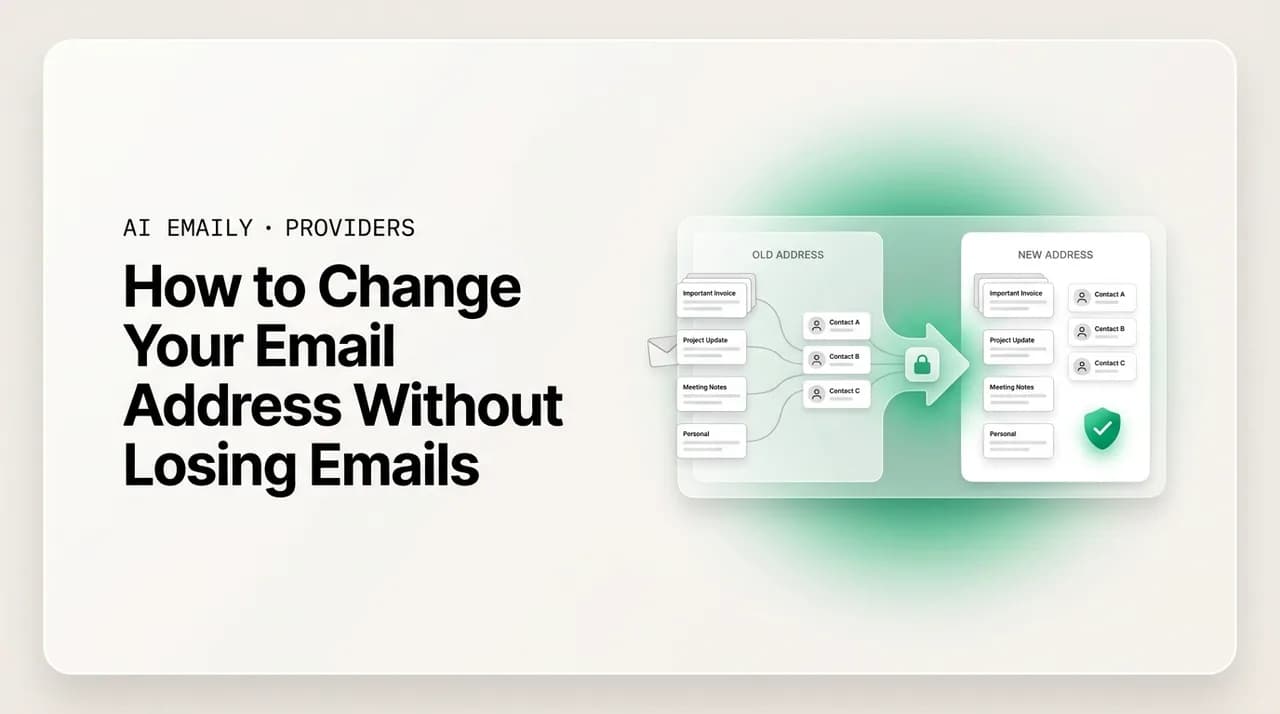
The short answer
Changing your email address without losing emails means doing it in order: set up the new address, forward old mail to it, migrate your inbox and contacts, then update logins, subscriptions, and 2FA by priority. Keep the old address alive 6–12 months as a safety net, and use a custom domain so you never have to do it again.
Change your address in order: set up the new one, forward old mail to it, migrate your inbox and contacts, then update logins, subscriptions, and 2FA.
On this page
- 01Why is changing your email address so risky?
- 02What is the right order to change your email address?
- 03How do you set up and verify the new address first?
- 04How do you forward old email to your new address?
- 05How do you migrate your old emails and contacts?
- 06Which accounts should you update first when you change your email?
- 07How do you tell your contacts and set up an auto-reply?
- 08How long should the transition period last?
- 09How does AI Emaily help you change your email without losing anything?
- 10How do you set up a custom domain so you never change your email again?
- 11The bottom line on changing your email address
Changing your email address feels like it should be a five-minute job and turns out to be a project. You pick a cleaner address, or you leave a provider you have outgrown, and then you realize the address is not just an inbox. It is the key to your bank, your taxes, your password manager, your two-factor codes, fifteen years of receipts, and a contact list that knows how to reach you. Move carelessly and you do not just lose emails — you lose the ability to log in to things, miss a renewal you did not know was coming, and watch a friend's message bounce into nowhere.
None of that has to happen. Changing your email address without losing emails or contacts is entirely doable — it just has to be done in the right order, with the old address kept alive as a safety net while everything catches up. The mistake almost everyone makes is treating it as a single switch: delete the old, announce the new, done. The reliable way is a transition. You set up the new address, point the old one at it, copy your existing mail and contacts across, then update the world that emails you in priority order — and only much later, once nothing is still arriving at the old address, do you let it go.
This guide is the complete walkthrough. You will get the full sequence as concrete steps, a priority table for which accounts to update first and which can wait, the difference between forwarding and migrating (you usually want both), how to handle the scary parts — banking, two-factor authentication, your password manager — without locking yourself out, an auto-reply and announcement plan, and a realistic timeline. At the end we cover the move that means you never have to do this again: putting your email on a custom domain you own, so the address travels with you no matter who hosts it.
We will also be honest about the part that makes this stressful in practice: for weeks or months you are living with two inboxes — the old one still receiving stragglers, the new one filling up — and watching both so nothing falls through is its own job. That is the moment an AI-native email client earns its place, and we will come back to it. First, the plan.
Why is changing your email address so risky?#
It helps to understand why this is harder than it looks, because the risks are exactly what the plan defends against. Your email address is not just a destination for messages from friends — that is the small part. It is the anchor identity for most of your digital life, and the things hanging off it fail quietly when it disappears.
First, your address is your login for hundreds of accounts. Most services use your email as your username, and almost all use it as the only way to reset a forgotten password. If your old address stops working before you have updated a service, you can be permanently locked out, because the recovery link goes to an inbox you can no longer read. That is the single biggest danger, and it is why banking, your password manager, and your primary accounts get updated and verified first.
Second, your address receives things you cannot predict: annual renewals, tax documents, a receipt you will need for a return in eight months, a message from someone you have not heard from in years. You cannot list everyone who might email your old address — which is precisely why you do not rely on a list. You forward the old address to the new one and keep it alive long enough to catch the stragglers.
Third, your existing mail and contacts do not move themselves. The years already in your old inbox, the addresses of everyone you have corresponded with, the folders you have built — none of that transfers just because you start using a new address. It has to be copied across deliberately. Forwarding handles new mail; it does nothing for the archive. Getting both is the difference between a clean switch and quietly losing your history.
Put those together and the rule writes itself: never burn the old address before the new one has fully taken over. Treat the change as a managed transition with overlap, not a hard cutover, and every one of these risks becomes something you handle on a schedule instead of something that ambushes you.
Never delete the old address first
What is the right order to change your email address?#
Here is the whole process at a glance before we go deep on each part. The order matters more than any single step — do these out of sequence and you create gaps where mail or access can slip. Read this as the map; the sections after it are the detail.
- 1
1. Set up and verify the new address
Create the new address, then confirm you can both send from it and receive to it — send a test message to and from another account before you rely on it. Everything else points here.
- 2
2. Turn on forwarding from old to new
In the old account's settings, forward all incoming mail to the new address. This is your safety net: anything you forget to update still reaches you. Leave it on for the entire transition, not just the first week.
- 3
3. Migrate your existing mail and contacts
Forwarding only catches new mail. Separately copy your existing inbox, folders, and full contact list to the new account using IMAP import, your provider's import tool, or an export/import via standard files.
- 4
4. Update accounts in priority order
Change the email on what matters, highest-stakes first: password manager, email recovery, banking, then identity logins, then everything else. Verify each change took effect before moving on. Pace it over days.
- 5
5. Move two-factor authentication carefully
Where your old email receives 2FA codes or recovery links, re-point it one account at a time, keeping the old inbox readable until each is confirmed. Never disable 2FA — re-point it, and save fresh backup codes.
- 6
6. Set an auto-reply and tell your contacts
Put a polite auto-reply on the old address announcing the new one, and send a short heads-up to the people who actually email you. Skip mass-emailing strangers — forwarding covers them.
- 7
7. Run both inboxes together during the overlap
Watch the old and new addresses side by side so nothing arriving at the old one is missed and you catch any account you forgot. A unified inbox makes this one view instead of two logins.
- 8
8. Retire the old address — slowly
Only after months of overlap, when little or nothing new arrives at the old address, wind it down. Keep forwarding on as long as the provider allows. On a custom domain, this is the last time you ever do it.
The one principle underneath all eight steps
How do you set up and verify the new address first?#
Everything downstream points at the new address, so it has to be solid before you start redirecting the world to it. Setting it up is more than picking a name and clicking create — it is making sure the address will work the way you need for the next decade, because the whole point of this exercise is not to do it again.
Start with the address itself. Choose something durable and professional: ideally some form of your real name, simple to say aloud, and not tied to a job, a hobby, or a year that will date it. "firstname.lastname" and close variants age well; "coolskater2009" and "jane@currentemployer" do not. If you are moving providers as part of this, the related guides on switching and migrating cover the provider choice in depth; here we assume you have a destination and focus on making it ready.
Then verify it works in both directions before you trust it. Send a message from the new address to another account you control and confirm it arrives and looks right — correct display name, no spam folder — then send one to the new address and confirm it lands. Check that sent mail is being saved, your signature is set, and authentication (SPF/DKIM/DMARC, if it is your own domain) is configured so your mail is not silently flagged. Five minutes here prevents the nightmare where you point your bank at an address that quietly bounces.
One strategic decision belongs here, because it changes everything that follows: should the new address be on a provider's domain ([email protected]) or a custom domain you own ([email protected])? If there is any chance you will switch providers again, a custom domain means the address never changes even when the host behind it does — making this the last forced migration of your life. We cover the setup at the end; flag the decision now, because if you are going to own a domain, you want the new address on it from day one rather than migrating twice.
Pick an address you will not outgrow
How do you forward old email to your new address?#
Forwarding is the safety net that makes the whole transition forgiving. Once it is on, every message that lands in the old inbox is also delivered to the new one, so the long tail of things you forgot to update — the annual renewal, the old friend, the service whose settings you never found — still reaches you. Turn it on early and leave it on for the entire transition; it turns "I hope I caught everything" into "it does not matter if I missed something."
Every major provider supports forwarding, and the path is similar everywhere: open the old account's settings, find the forwarding section, add the new address as the destination, and confirm. Most providers send a verification message to the destination — click the link, then return and enable forwarding. You can usually choose whether to keep a copy in the old inbox (recommended during the transition) or forward and archive. Keep copies for now; you can clean up later.
A few provider notes. Gmail forwards to a single verified address and lets you keep, archive, or delete the original. Outlook.com forwards under Mail settings and similarly verifies the destination. iCloud Mail offers forwarding in its web settings. Some providers forward everything; a few only forward mail matching a filter, so if you want truly everything, set a catch-all rule. If your old address is on a custom domain or a work account you control, you can often set forwarding at the domain or server level, which is the most reliable kind because it does not depend on a single mailbox's settings.
Understand what forwarding does and does not do, because this is where people get a false sense of safety. Forwarding handles new mail from the moment you turn it on. It does nothing for the mail already in your old inbox — the archive, the folders, the years of history — and it does not move your contacts. That is a separate job, the next step, and skipping it is exactly how people "keep their email" and still lose years of it. Forwarding catches the future; migration rescues the past.
Forwarding catches the future, not the past
How do you migrate your old emails and contacts?#
This is the step that actually rescues your history, and the one people most often skip — then discover months later that the receipt, the contract, or the address they needed lived only in the old account. Migration copies your existing mail, your folder structure, and your full contact list from the old account into the new one, so the archive comes with you instead of being stranded behind an address you are trying to leave.
There are three practical ways to move your existing mail. The first and best, when both accounts support it, is an IMAP transfer: connect the old account to an email client (or use the new provider's built-in import) and copy folders across so structure and read/unread state are preserved. Many providers — Gmail, Outlook, Fastmail, Proton and others — offer a guided "import from another account" tool that does exactly this in the background. The second is export/import via standard files: download your old mail as MBOX or EML, then import those files or keep them as an offline archive (Google Takeout exports Gmail as MBOX). The third, used only when nothing else fits, is a tool such as imapsync for an account-to-account copy. The deeper mechanics are covered in the dedicated export/import and migration guides; here the message is simply: do not leave the past behind.
Contacts are a separate export and just as important — losing your address book is losing the ability to reach people, which is half of "without losing contacts." Every major provider lets you export contacts as a vCard (.vcf) or CSV file and import it into the new account. Do this as its own task, then spot-check that names, addresses, and any groups came across. If your contacts live in a Google or Apple account you are keeping, they may already sync independently of the email change — but verify rather than assume, because contact sync and mail are not always the same account.
Two habits make migration safe. Keep the old account intact until you have confirmed the new one has everything — open the new inbox, search for a few old messages you remember, and make sure they are really there. And expect some imperfection: a large mailbox can take hours to copy, labels may map imperfectly, and you may see the occasional duplicate. None of that is a problem if the old account is still alive, which is the whole reason it stays up. Migrate, verify, then breathe.
| What to move | How | Result |
|---|---|---|
| Existing inbox + folders | Provider "import from another account" tool, or IMAP copy in a client | Mail and folder structure copied to the new account |
| Full mail archive (offline copy) | Export as MBOX/EML (e.g. Google Takeout) and store or import | A portable backup you own, independent of any provider |
| Contacts / address book | Export vCard (.vcf) or CSV from old, import to new | Address book moves with you; no lost recipients |
| Account-to-account migration | imapsync or similar (advanced, when tools fall short) | Direct server-to-server copy of an entire mailbox |
| Calendar + linked data | Export ICS / re-share calendars from the old account | Events and invites follow the new address |
Verify before you trust the move
Which accounts should you update first when you change your email?#
Now the long part: telling the hundreds of services that email you that your address has changed. You cannot do them all at once, and you should not try — update in priority order, so the accounts where a lockout would be catastrophic move first and verify cleanly, and the low-stakes newsletters wait. The forwarding you set up earlier covers anything you miss, which is why you can take this in waves instead of one frantic afternoon.
Think in tiers. Tier one is the keys to everything: your password manager (it may hold the logins to all the rest) and any account-recovery address. Tier two is money and identity: banking, credit cards, payment services, tax and government accounts, insurance — where a missed message or lockout has real financial or legal weight. Tier three is your major identity logins and the services you use constantly: the Apple/Google/Microsoft account your devices hang off, primary shopping, cloud storage, work-critical tools. Tier four is everything else — subscriptions, newsletters, apps you signed up for once. Work top-down, and verify each change in the top tiers: after updating your bank, confirm a test message or login actually arrives at the new address before moving on.
Two-factor authentication deserves its own careful pass, woven through tiers one and two. Wherever your old email is the destination for verification codes or recovery links, re-point it one account at a time, with the old inbox still readable so you can complete any verification step that arrives there. Never turn 2FA off to make the switch easier — re-point it, and where the service offers backup codes, generate and save a fresh set first. App-based authenticators (TOTP apps, hardware keys) are not tied to your email and do not need changing, which is one more reason to prefer them going forward. The table below is your checklist, in the order to do it.
| Priority | Accounts | Why it goes here |
|---|---|---|
| 1 — Do first | Password manager · other email recovery addresses · domain registrar | These hold or control access to everything else; a lockout here cascades |
| 2 — Money & identity | Banks · credit cards · PayPal/payment apps · tax/government · insurance | Financial and legal stakes; missed mail or lockout is costly and slow to fix |
| 3 — Core identity logins | Apple ID · Google · Microsoft · primary cloud storage · work SSO | Your devices and many other logins depend on these accounts |
| 4 — Two-factor anywhere it uses email | Any account that emails you codes or recovery links | Re-point 2FA per account; save fresh backup codes; never disable it |
| 5 — High-use services | Shopping (Amazon etc.) · social media · streaming · key work tools | You touch these often; update so logins and receipts follow you |
| 6 — Everything else | Newsletters · store loyalty · one-off signups · old apps | Low stakes; forwarding covers these, update opportunistically over weeks |
Update 2FA before you lose the old inbox — never disable it
A realistic way to work through the list: scroll your old inbox by sender. The accounts that matter are the ones that have emailed you — receipts, statements, login alerts, password resets. Search the old inbox for "verify," "receipt," "statement," and "reset your password," and you surface most of the services tied to that address without trying to remember them all. Update them in priority order as you find them, and let forwarding handle the genuinely forgotten ones — which by definition rarely email you and therefore matter least.
Do not try to finish this in a day. Spreading it across one or two weeks — top tiers immediately, the rest in evening batches — is less error-prone and less exhausting, and the forwarding net means there is no penalty for pacing it. The only hard rule is sequence: keys and money before convenience, verify the important ones, and never touch the old address's status until the top two tiers are confirmed done.
Let your old inbox build the list for you
How do you tell your contacts and set up an auto-reply?#
Updating the services that email you handles the machines; the people who email you need a lighter touch. The goal is simply that anyone who tries to reach you at the old address learns the new one — without you spamming your entire contact list. Two tools do almost all the work: an auto-reply on the old address and a short, targeted announcement to the people who actually matter.
Set a polite auto-reply (vacation responder) on the old account that names the new address. Keep it short and warm: a line saying you have a new address, the address itself, and a note that you will still see messages sent to the old one for now. Because forwarding is on, you are still receiving everything — the auto-reply is purely so the sender knows to update going forward. Most providers let you run one indefinitely; leave it running through the transition. One caution: some setups reply to every incoming message including newsletters, which is harmless but noisy — if your provider lets you limit it to known contacts or first-time senders, do that.
For people, be selective and human. You do not need to email everyone you have ever corresponded with — that reads like a blast, and most of those addresses reach you via forwarding anyway. Send a genuine heads-up to the people who actively email you: close colleagues, family, key clients, your accountant, anyone whose message you cannot afford to have land in an inbox you are winding down. A one-line note is plenty. Update your address everywhere it is published, too: your signature on the new account, your professional profiles, and any "contact me" form on a site you run.
A sensible rhythm: turn on the auto-reply the day forwarding goes live, tell your inner circle in the first week, and update published addresses as you go. Then let it ride. Over the transition, the auto-reply teaches the stragglers and forwarding catches everyone, so the population still using the old address shrinks steadily on its own until, months later, it is effectively no one.
Don't mass-email everyone — let forwarding do the heavy lifting
How long should the transition period last?#
The transition period — the overlap when both addresses are live — is the heart of doing this without losing anything, and the most common mistake is ending it too soon. People update the obvious accounts, hear nothing for a couple of weeks, and decide they are done. Then a once-a-year renewal, an annual tax form, or a long-dormant contact emails the old address, and if it is gone, that message is gone with it. The safe length of the overlap is measured in months, not weeks, because the most important stragglers arrive on annual cycles.
A practical schedule: keep the old address fully active, forwarding on, for a minimum of six months — twelve if it has been your main address for years. The reason is the annual stuff. Many messages you most need — tax documents, insurance renewals, subscription rebills, a yearly statement — only arrive once a year, so a six-to-twelve-month window guarantees you see each at least once at the new address and can update the source then. Anything shorter and you are gambling that nothing important is on a yearly clock, and something always is.
Use the overlap actively, not passively. Each time something lands at the old address — you will see it because it forwards to the new one — treat it as a to-do: update that account so next time it comes straight to the new address. Over the months, the flow still hitting the old address should dwindle from a steady trickle to almost nothing. That decline is your real signal — not the calendar, but the traffic. When weeks pass with nothing new arriving that you have not already redirected, the transition is complete and you can wind the old account down.
When you do retire it, do so gently and keep forwarding on as long as the provider permits — many forward for free indefinitely, which costs nothing and keeps the net up. If you are leaving a free provider, check whether abandoning the account eventually releases the address (some do, after long inactivity), and never let that happen until you are certain nothing needs it. And note the asymmetry that makes the next section matter: if your new address is on a provider's domain, you may have to repeat this entire dance the next time you switch. If it is on a domain you own, you never do.
| Phase | Timeframe | What's happening |
|---|---|---|
| Setup + redirect | Week 1 | New address verified, forwarding on, migration started, auto-reply set |
| Active updating | Weeks 1–3 | Update accounts top tier to bottom; tell key contacts; verify the important ones |
| Watchful overlap | Months 1–6 | Both inboxes live; redirect each straggler as it arrives; traffic to old address declines |
| Annual-cycle catch | Months 6–12 | Yearly mail (tax, renewals, statements) arrives once at the new address — update the source |
| Wind-down | After ~12 months | Old address quiet; retire it but keep forwarding on as long as the provider allows |
Six months minimum — twelve is safer
How does AI Emaily help you change your email without losing anything?#
Here is the part the step list does not fully capture: for the entire transition — weeks, often months — you are living with two inboxes. The new address is filling up; the old one is still receiving stragglers, annual renewals, and contacts who have not updated you yet. The only way to be sure nothing slips is to watch both, all the time, switching between two logins and trying to remember which account a message came into. That constant context-switching is where things actually fall through the cracks, no matter how good your plan was.
AI Emaily is an AI-native email client built around exactly this problem: it connects your old address and your new address in one inbox, so the whole transition happens in a single view. A message that lands at the old address sits right next to your new mail — you see it immediately, redirect the account that sent it, and move on, instead of discovering it three weeks later in an inbox you forgot to check. There is no "did that go to the old one or the new one," because there is only one stream. It connects Gmail, Outlook, iCloud, Fastmail, Proton, and any IMAP account, so it does not matter which provider you are leaving or arriving at — old and new live together for as long as the overlap lasts.
It also takes work off the parts of the change that are pure drudgery. As you update accounts, AI Emaily helps you find what is tied to the old address — surfacing the receipts, statements, and "verify your account" senders that show which services still need updating — so the priority list builds itself from your actual mail rather than your memory. When stragglers arrive, it can draft the quick "please update my address" replies in your own voice, so telling a contact is one approve-and-send. And because it understands your inbox, it flags what looks important so a forwarded renewal does not get buried under newsletters during the busy weeks.
You stay in control throughout. In its default Copilot mode, AI Emaily drafts and suggests but does not send anything until you approve it — so every "my email has changed" note is yours to confirm. Your mail is private by design: used to help you manage your own inbox, not to train models for anyone else. You can start free at app.aiemaily.com/signup — the Free plan is $0 and connects your inboxes with AI drafting, exactly what you want during a transition; Pro is $12.42/month billed annually for the full set across everything you send. The pitch is simple: changing your email is a managed overlap between two inboxes, and AI Emaily is where that overlap stops being a juggling act and becomes one calm view.
Run the whole transition in one inbox
How do you set up a custom domain so you never change your email again?#
Everything above is the work of changing an address that belongs to a provider. The way to make it the last time is to stop renting your address and start owning it — on a custom domain. When your email is [email protected] instead of [email protected], the address is yours permanently. You can move the actual mail hosting from Google to Fastmail to Proton, as many times as you like, and your address never changes — because it lives on your domain, not on the host. The provider becomes an interchangeable backend; the identity stays put.
The setup is more approachable than it sounds, and it is a one-time effort that pays off forever. Register a domain through a registrar — an annual cost around a cheap coffee per month. Choose an email host that supports custom domains — Google Workspace, Microsoft 365, Fastmail, Proton, iCloud+, and others all do. Then point the domain at that host by adding a handful of DNS records: MX records that tell the world where your mail should be delivered, and SPF, DKIM, and DMARC records that authenticate your outgoing mail so it is not flagged as spam. The host gives you the exact values to paste into your registrar's DNS settings; it is copy-and-paste, not engineering. The full walkthrough is its own guide, but the shape is: buy domain, pick host, add DNS records, verify, done.
The reason this ends the migration treadmill is worth stating plainly. The painful part of changing your email is never the inbox — it is the hundreds of accounts, the 2FA, the contacts, all anchored to an address that is about to die. With a custom domain, switching providers no longer changes your address, so none of that anchoring has to move. The transition you are doing now, if you do it onto your own domain, is the last forced one you will ever face — after this, switching providers is a quiet backend swap that your bank, your contacts, and your password manager never even notice.
So if you have any reason to think you will change providers again — and most people do, over a decade — set the new address up on a custom domain now, during this migration, rather than landing on another provider's domain and repeating this later. You are already doing the work of moving everything; pointing it at an address you own costs little extra today and saves you the entire ordeal next time. And while you run both addresses through the transition, AI Emaily holds your old provider address and your new custom-domain address in the same inbox, so the move to owning your email is as smooth as the rest of the switch.
Own the address, rent the host
The bottom line on changing your email address#
Changing your email address without losing emails or contacts is not about a clever trick — it is about order and overlap. Set up the new address and verify it works. Forward the old address to it so nothing new is missed. Migrate your existing mail and contacts so your history and address book come with you. Update the accounts that email you in priority order — keys and money first, newsletters last — and re-point any two-factor authentication carefully, one account at a time, without ever disabling it. Set an auto-reply, tell the people who matter, and let forwarding handle everyone else.
The discipline that makes it safe is the overlap. Keep the old address alive and forwarding for six to twelve months — long enough to catch the annual renewals and statements that only arrive once a year — and let the declining trickle of mail, not the calendar, tell you when the transition is truly done. Through that whole window you are managing two inboxes, and running them in one place is what keeps the stragglers from slipping; that is the job AI Emaily takes off your plate, connecting old and new in a single view while you keep final say.
And if you would rather never do this again, point the new address at a domain you own. With a custom domain, your address stops depending on any provider, so future switches become a silent backend swap nothing in your life has to notice. Do the move once, do it in order, keep the old address alive until nothing needs it — and ideally, onto an address that is yours for good. That is how you change your email and lose nothing.
Frequently asked
See it in AI Emaily
Keep reading
Sources

Written by
Nafiul HasanNafiul Hasan is an entrepreneur and AI automation system builder with 10+ years of experience turning messy, manual workflows into reliable automated systems. He designs and ships AI enterprise solutions end-to-end — the agent logic, the data plumbing, and the product people actually use — and founded AI Emaily to give busy professionals their attention back. He writes here from the builder's seat: what works, what breaks, and how to put AI to work without giving up control.