How to Switch Email Providers Without Losing Emails (2026)

The short answer
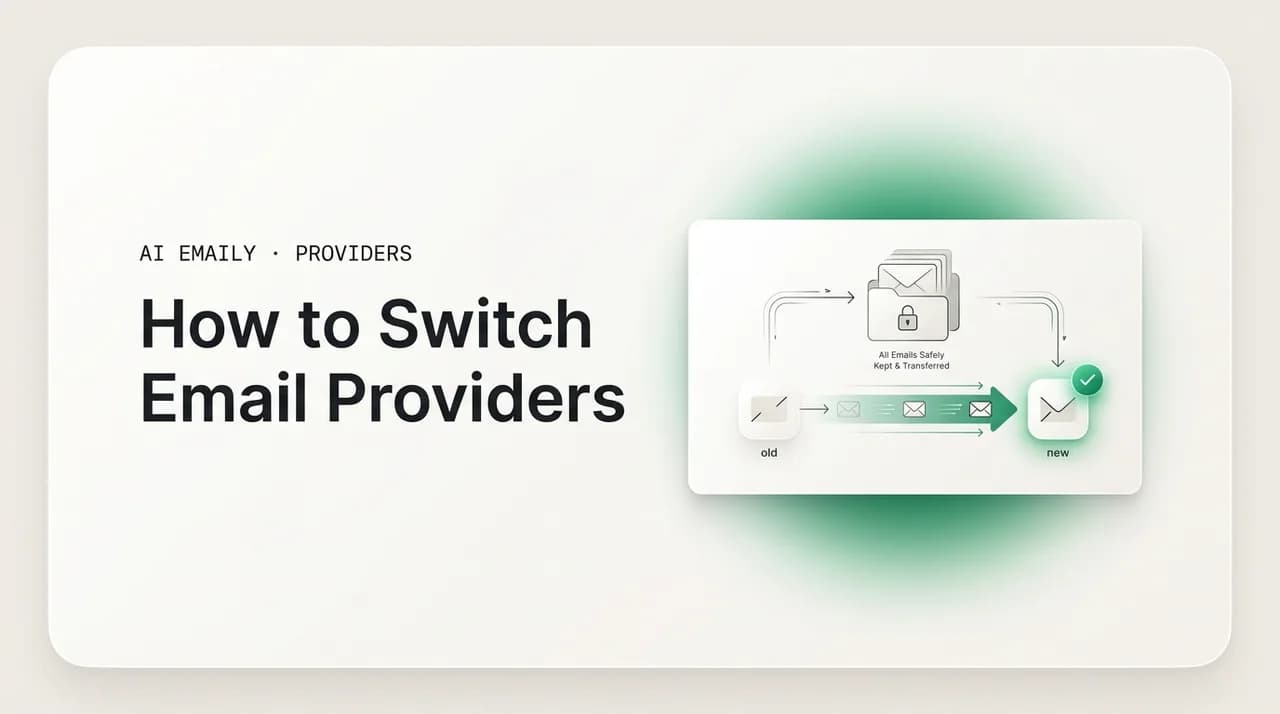
How to switch email providers without losing emails: open the new account, migrate your old mail by IMAP or by exporting and importing it, copy your contacts and calendar, set forwarding and an auto-reply on the old address, then update your logins in priority order. Keep the old account open for months, not days.
How to switch email providers without losing emails: a step-by-step plan to export and migrate your mail, move contacts, set forwarding, update logins, and run a safe transition window — plus when you don't need to fully migrate at all.
On this page
- 01What does it really mean to switch email providers?
- 02How do you choose and set up the new provider?
- 03What are the two ways to migrate your old emails?
- 04How do you migrate your email step by step?
- 05How do you move your contacts and calendar too?
- 06How does forwarding keep you from missing mail?
- 07Which logins should you update first when changing your email?
- 08How long should you keep your old account open?
- 09Why does a custom domain make this your last switch?
- 10Do you even need to fully migrate — or just unify your inboxes?
- 11How does AI Emaily help you switch without losing anything?
- 12The bottom line on switching email providers
You have decided to switch email providers. Maybe Gmail's ads wore you down, maybe you want the privacy of Proton or Fastmail, maybe your old work address is going away, or maybe you just want a professional name on your own domain. Whatever the reason, one fear stops most people before they start: that somewhere in the move, years of email will quietly vanish — the receipts you need for taxes, the thread with the contract, the photos from family, the account-recovery message from a service you log into twice a year. If privacy is the reason, the shortlist worth starting from is the most secure email providers rather than another mainstream inbox.
That fear is reasonable, and it is also avoidable. Switching providers is not a single risky leap where everything either survives or disappears. It is a sequence of small, reversible steps, and if you do them in the right order — and crucially, if you do not delete anything until the new setup has proven itself — you can change where your email lives without losing a single message. The mistakes that cost people their mail are almost always impatience: closing the old account too soon, skipping the export, assuming forwarding is the same as migration, or trusting a one-click importer without checking that it actually copied everything.
This guide is the complete, careful version: how to pick and open the new account, the two real ways to move your existing mail, how to bring your contacts and calendar across, how to set up forwarding so nothing bounces during the handover, the order to update your logins so you do not lock yourself out, how long to keep the old account alive, and the advantage of owning a custom domain so you never have to do this again.
We will also name the thing most migration guides skip: you may not need to fully migrate at all. For a lot of people the real goal is not "move every byte to a new house and abandon the old one" — it is "stop living in the old provider's app and read everything in one better place." Near the end we cover that path, where you connect your old and new accounts together in one inbox during the switch, so nothing is ever stranded. First, the careful full migration. Then the shortcut.
What does it really mean to switch email providers?#
It helps to separate three things people lump together, because confusing them is where most data loss starts. "Switching providers" can mean any of three different jobs, and the right steps depend on which one you want.
First, the new account. The easy part: you sign up with a new provider and have a new mailbox in five minutes. But an empty new mailbox is not a switch; it is just a second account. The work is everything that follows.
Second, the history — the existing mail sitting in your old account. Moving it is migration, a deliberate copy operation: you pull the messages out of the old mailbox and put them into the new one. Forwarding does not do this; it only redirects mail that arrives after you turn it on, and never touches the thousands of messages already in your old inbox. If you want your archive in the new account, you have to migrate it on purpose — there is no automatic transfer just because you opened a new address.
Third, the identity. Your email address is the username for a hundred other things — your bank, shopping accounts, social logins, the place your friends type when they email you. A complete switch means redirecting new mail (forwarding), telling people the new address (auto-reply), and re-pointing your important accounts (updating logins) so that over time the new address becomes the real one and the old one fades to a backstop.
A real, safe switch does all three — new account, migrated history, redirected identity — in an order that never leaves a gap. The single rule that ties them together: keep the old account fully alive and untouched until every piece has moved and you have verified it. The old account is your safety net. You do not cut the net until you are standing on solid ground.
The one rule that prevents lost email
How do you choose and set up the new provider?#
Before you move anything, you need somewhere to move it to, and the choice matters because it shapes how painful this switch — and any future one — will be. We will keep the comparison short here, but the decision comes down to a few axes: privacy, ecosystem fit, price, and whether you control the address.
If you want the mainstream default with the best app and search, Gmail or Outlook are the obvious picks. If you live inside Apple's devices, iCloud Mail is the path of least resistance. If privacy is the reason you are leaving, Proton Mail and Fastmail are the names to look at — Proton for end-to-end encryption, Fastmail for speed, clean IMAP support, and excellent custom-domain handling. Each is a fine destination; the right one is the one whose tradeoffs match why you are switching.
The single most important setup decision, though, is not which provider — it is whether you put your mail on a custom domain (covered in depth later). If you register a domain and point it at whichever provider you choose, your address belongs to you, not the provider, and switching in future becomes a configuration change rather than a migration of your identity. If you are already going through the pain of one switch, this is the moment to make it your last.
Whatever you pick, set up the new account properly before moving data. Set a strong unique password and turn on two-factor authentication immediately — you are about to make this address the key to your digital life. Add a basic signature, set a recovery method, and if the provider offers it, set up an app password (you will likely need one to connect a migration tool, especially for iCloud, Fastmail, and Proton). Then leave it empty and ready.
| If your priority is… | Strong destination picks | Setup note |
|---|---|---|
| Mainstream, best app and search | Gmail · Outlook | Easiest to migrate into; built-in import tools exist |
| Apple ecosystem, zero friction | iCloud Mail | Needs an app-specific password for third-party tools |
| Privacy and encryption | Proton Mail | Migration uses Proton's Import-Export or the Easy Switch tool |
| Speed and clean IMAP / domains | Fastmail | Best-in-class custom-domain handling; standard IMAP migration |
| Owning your address forever | Any provider + your own domain | Register the domain first, then point it at the provider |
Lock down the new account before you fill it
What are the two ways to migrate your old emails?#
Here is the heart of the switch: moving the mail you already have. There are two real methods, and almost every "how do I keep my old emails" question resolves to picking the right one. Both copy your messages; neither has to delete the originals.
The first method is direct IMAP-to-IMAP migration. IMAP is the protocol that keeps a mailbox in sync across devices, and because both your old and new providers almost certainly speak it, you can connect the two accounts and copy messages straight from one to the other — folders, read/unread state, and structure preserved. This is the cleanest method when available, and it is what most provider "import" buttons do under the hood: the new provider logs into your old account (with your password or an app password), reads the messages, and writes copies into the new mailbox. Your old mail stays exactly where it is; you are duplicating, not transferring.
The second method is export-then-import: you download your old mail to a file on your computer (typically an MBOX archive), then upload that file into the new account. It is slower and more manual, but it works in two situations where IMAP migration does not: when you want a local backup you control, and when a provider does not support live IMAP migration. Google's export is Google Takeout (MBOX); most desktop mail clients can export folders to MBOX; and the new provider's import tool reads that file back in.
Which should you use? If both providers support IMAP and the new one has an import tool, use direct migration — it is faster, preserves structure best, and needs no intermediate file. But run an export first regardless, as a backup. That way, even if the migration tool hiccups, you have a full, independent copy of every message on your own drive. The deeper mechanics are in our companion guide on how to export and import email; the rule of thumb is below.
| Method | Best for | Tradeoff |
|---|---|---|
| Direct IMAP migration | Both providers support IMAP; you want folders and read-state preserved | Needs both accounts' credentials / app passwords; relies on a tool or import button |
| Export to MBOX, then import | A local backup you control; provider lacks live migration | Slower and more manual; large mailboxes take time and disk space |
| Both (recommended) | Any serious switch where the mail matters | A little extra time up front for a full safety net |
Migration copies — it does not move
How do you migrate your email step by step?#
Here is the full, ordered sequence for a careful switch that loses nothing. Each step is small on its own; the discipline is doing them in order and confirming each before moving to the next — especially the verification step, the one most people skip and the one that catches a broken migration before it becomes lost mail. Resist the urge to jump ahead to "close the old account": that comes last, and not for weeks.
- 1
1. Open and secure the new account
Create the new mailbox with your chosen provider, set a strong unique password, and turn on two-factor authentication. Generate an app-specific password if the provider needs one for third-party tools (iCloud, Fastmail, Proton typically do). Leave the mailbox empty and ready.
- 2
2. Back up your old mail to a file first
Before touching the migration, export a full copy of your old mailbox to your own computer — Google Takeout (MBOX) for Gmail, or your desktop mail client's export for any IMAP account. This is your independent safety net if anything later goes wrong. Store it somewhere you will not lose it.
- 3
3. Migrate the mail into the new account
Use the new provider's built-in import tool if it has one (Gmail, Outlook, Proton's Easy Switch, and Fastmail all offer guided importers) — point it at your old account and let it copy via IMAP. If there is no importer, import the MBOX file you exported in step 2, or connect both accounts in a desktop client and drag folders across.
- 4
4. Verify the copy is complete
Do not trust the progress bar alone. Compare message counts between the old and new accounts, spot-check your most important folders, confirm attachments opened, and search for a few specific old messages in the new account to prove they made it. Only once counts match and spot-checks pass do you treat the migration as done.
- 5
5. Move your contacts across
Export your address book from the old account (vCard / .vcf or CSV) and import it into the new one. Check that names, emails, and phone numbers came through, and that your most-emailed people are present — losing contacts is the second most common switch regret after losing mail.
- 6
6. Move your calendar and any notes
Export your calendar (ICS) from the old account and import it into the new one, or — if both are on a standard like CalDAV — subscribe the new account to it. Don't forget recurring events and shared calendars. Bring across any notes or tasks tied to the old account the same way.
- 7
7. Set up forwarding on the old account
Turn on automatic forwarding from the old address to the new one so any mail that still arrives at the old address lands in the new inbox without you having to check two places. This catches everything you forget to update and every sender who has your old address memorized.
- 8
8. Set an auto-reply on the old account (optional)
If you are changing your actual address (not just your provider), set a vacation-style auto-reply on the old account telling senders your new address. Keep it short and friendly. This nudges humans to update you in their own address books over time.
- 9
9. Update your logins in priority order
Change the email on your important accounts to the new address, starting with the highest-stakes ones — your password manager, primary bank, and the email/phone recovery on your other accounts — then work down to shopping and newsletters. This is the slowest step and the one to spread over weeks.
- 10
10. Run a transition window, then retire the old account
Keep the old account open and forwarding for months, watching what still arrives there as a signal of which logins you missed. When weeks pass with nothing but spam landing on the old address, you have truly switched. Only then consider closing it — and even then, keep your MBOX backup forever.
Never delete the old account to 'finish' the switch
How do you move your contacts and calendar too?#
Email is the headline, but a switch that loses your address book or calendar is still a bad switch. These move with their own export-and-import flow, separate from your mail, and they are quick — but only if you remember to do them, which is why they get skipped in the rush.
Contacts travel as a vCard file (.vcf) or a CSV. In the old account, find the contacts section, select all, and export, then import that file into the new account. vCard preserves more detail (multiple emails, phone numbers, photos) than CSV, so prefer it; use CSV only if the destination insists. After importing, scan for duplicates and garbled fields — encoding mismatches occasionally scramble accented names, and it is easier to fix a handful now than to discover them piecemeal over the next year.
Calendars travel as ICS files. Export your calendar from the old account, then import the ICS into the new one. Watch three things: recurring events (confirm a weekly meeting still recurs, not just its next instance), all-day events and time zones (a daylong holiday can shift a day across mismatches), and shared or subscribed calendars (those usually need to be re-subscribed rather than imported, because they live on someone else's server). If both providers support CalDAV, subscribing keeps the calendar live rather than freezing a snapshot.
One quiet trap: notes, tasks, and reminders tied to the email account. Apple Notes synced to an iCloud address, tasks attached to Outlook, or Google Tasks all ride along with the mailbox and do not come across with a mail migration. If you use any of these, move them deliberately. The principle is the same as with mail — assume nothing transfers automatically, verify each thing landed, and keep the old account around until you have confirmed it.
How does forwarding keep you from missing mail?#
Forwarding is the bridge that makes a switch safe in the real world, where you will never remember every service, sender, and form that has your old address. Turn it on, and any mail that still arrives at the old address is automatically copied to the new one, so you only have to watch one inbox even while the old address is still in circulation.
Set it up on the old account, not the new one — you are redirecting outward from the place mail still lands. Most providers put this under Settings → Forwarding. You enter the new address, and many providers send a confirmation code there to prove you own it; enter the code and forwarding goes live. Keep a copy in the old inbox (recommended — it leaves a record of what is still hitting the old address) rather than forward-and-delete.
Understand clearly what forwarding does and does not do, because this is where people get burned. It handles new mail arriving after you switch it on. It does not move your history — the old messages stay in the old account until you migrate them. And it depends entirely on the old account staying open — the day you close it, forwarding dies and any sender still using the old address starts bouncing. That is the core reason the transition window is measured in months.
The smart way to use forwarding is as a diagnostic, not just a redirect. Every message that arrives via forwarding tells you about a login or contact you have not updated yet — a bank statement, a subscription receipt, a note from an old colleague is each a to-do to update that source. As the forwarded trickle slows to nothing but spam, you can see, concretely, that the switch is nearly complete. Forwarding is both the safety net and the progress bar.
Use forwarding as your switch checklist
Which logins should you update first when changing your email?#
This is the longest and least glamorous part of switching, and the one most likely to bite you weeks later when a password reset goes to an inbox you no longer check. Your email is the master key to your online life — username and recovery method for almost everything — so changing it means walking through your accounts and re-pointing each one. The order matters because some accounts protect others.
Start with the accounts that protect everything else. Your password manager comes first: it is where you will find the full list of every account you have, so point its own login and recovery at the new address before you touch anything downstream. Next, the high-stakes financial and identity accounts — your primary bank, any brokerage, government and tax logins, your phone carrier. Then update the recovery email and phone on your other major accounts: if those still point at an inbox you are abandoning, you are one forgotten password away from being locked out.
From there, work down by importance — main shopping, social, work, cloud storage — then the long tail of newsletters, forums, and one-off signups. You do not have to do these all at once; spread the long tail over the weeks of your transition window, and let the forwarded mail tell you which ones you missed. A receipt arriving at the old address via forwarding is a precise pointer to a login still set to the old email.
A few cautions. Update one account at a time and confirm each change (many sites email a verification link — click it, or the change does not stick). Watch for accounts that use email-based two-factor or magic links; if a login code is sent to the old address mid-transition, forwarding saves you — one more reason not to close the old account early. And keep a simple checklist as you go.
| Priority | What to update | Why it goes here |
|---|---|---|
| 1 — First | Password manager (login + recovery) | It holds the list of everything else and protects all other logins |
| 2 — Critical | Bank, brokerage, tax/government, phone carrier | Highest stakes; fraud and lockout risk if recovery is stranded |
| 3 — Recovery | Recovery email/phone on major accounts | Resets must land somewhere you control, not the old inbox |
| 4 — Important | Primary shopping, social, work, cloud storage | Daily-use accounts and anything with a saved payment method |
| 5 — Long tail | Newsletters, forums, one-off signups | Low stakes; spread over weeks, guided by forwarded mail |
Recovery addresses are the real danger zone
How long should you keep your old account open?#
The instinct after a big migration is to finish the job — close the old account, feel the clean break. Resist it. The single most common way people lose email during a switch is closing the old account too soon, and there is no upside to rushing it. An open, dormant, forwarding account costs you nothing and protects you from every login you forgot, every contact who still has the old address, and every yearly statement that only arrives once.
Think in months, not days. A reasonable transition window is at least three months, and six to twelve is better if the old address has been your main one for years. The reason is that some mail is seasonal: an annual tax document, a yearly subscription renewal, a once-a-year notice from a service you barely touch. If you close the account in week two, you will never see the renewal that arrives in month five, and the first you will hear of it is when something lapses or bounces. Keeping the account open and forwarding means those rare messages still reach you.
Use the forwarded stream as your guide. As long as real mail — not spam — is still arriving at the old address, the switch is not complete: someone or something is still using it. When weeks go by and nothing lands but obvious spam, you have a strong signal that the people and services that matter have moved over. That is the earliest point worth even considering retirement, and even then there is no rush.
When you do wind it down, do it in stages rather than deleting outright. First, confirm your local MBOX backup is intact — you keep that forever regardless. Then, if the provider allows, leave the account dormant rather than deleting it, especially for free providers where a deleted address can be reissued to someone else. Only delete after the backup is confirmed and recovery addresses are re-pointed. The old account is a parachute — you do not cut it away just because the new one opened.
Why does a custom domain make this your last switch?#
Here is the strategic point that turns a one-time chore into a permanent fix. Everything painful about switching providers — migrating history, forwarding, endless login updates, telling everyone your new address — exists because your address is owned by the provider. [email protected] belongs to Google; leave Google and you lose the address. A custom domain breaks that link.
If you own a domain — yourname.com, registered for a few dollars a year — then [email protected] is yours, and you point it at whichever email provider you choose by setting a few DNS records (MX records that say "send this domain's mail here," plus SPF, DKIM, and DMARC records that prove your mail is legitimate so it does not land in spam). Want Gmail's apps behind it today? Point the domain at Google Workspace. Decide in two years you prefer Fastmail or Proton? Re-point the same domain. Your address never changes, nobody needs to be told anything, and no login needs updating — the migration becomes a back-end configuration swap instead of a public identity change.
That is the genuine advantage, and it is why people who have switched providers once often resolve never to be locked in again. The cost is modest — domain registration plus whatever the provider charges to host mail — and the setup is a one-time DNS exercise, fiddly the first time but permanent once done. The principle: if you are already paying the cost of one migration, putting the new address on a domain you own means you never pay it again.
There is a smaller benefit too: a custom-domain address looks professional and is memorable, which matters if you run a business or side project. But the durable reason is freedom of movement. The provider becomes a replaceable service behind a stable address, and the fear that drives this whole guide — losing your email when you switch — stops applying, because switching no longer touches your identity at all.
The custom-domain rule of thumb
Do you even need to fully migrate — or just unify your inboxes?#
Step back and ask what you actually want. For a lot of people, the goal behind "switch email providers" is not literally "relocate every message and shut the old one down." It is simpler: stop being trapped in a provider's clunky app, get a better experience, and not lose access to anything. Full migration is one way to get there — but it is the heaviest way, and not the only one.
The lighter path is to leave your mail where it lives and change where you read it. Your old account keeps its archive as-is; your new account starts collecting new mail; and instead of bouncing between two apps, you connect both into a single client that shows everything together. Nothing has to be exported, nothing risks being lost in a copy operation, and you read and reply across both addresses from one place from day one. The history stays put and stays safe precisely because you never moved it.
This is the right model in several common situations: when you are mid-transition and want to manage both addresses without checking two apps; when you are not leaving the old provider so much as adding a better one (a new work address alongside personal) and want them unified rather than merged; when the old provider's archive is fine where it is and you just dislike its interface; or when you want to defer the full migration and decide later, calmly, whether you ever need to physically move the old mail at all.
The two paths are not mutually exclusive. Plenty of people do a careful full migration of the important history and also unify the accounts in one inbox for the transition months — belt and suspenders. The point is that "switch providers" does not have to mean a high-stakes one-shot move where everything depends on a clean export. Often the calmer answer is to connect rather than transfer, and that reframing is where an AI-native email client changes the calculation.
Connect first, migrate only if you need to
How does AI Emaily help you switch without losing anything?#
AI Emaily is an AI-native email client built around exactly this insight: most people do not need to gamble years of email on a one-shot migration — they need their old and new accounts to live together in one place so nothing is ever stranded. You connect both accounts and they appear in a single unified inbox. The old mail stays in the old account, untouched and safe; the new mail flows into the new one; and you read, search, and reply across both from one screen. There is no export to get wrong, no copy that might drop messages, and no day-one cutover where everything has to work at once.
That makes AI Emaily the calm way to run the whole transition. During the switch, the forwarding stream, the stragglers still hitting the old address, and the new mail are all in front of you together, and you reply from whichever address is right without app-switching. After the switch, if you never need to merge the archives, you keep both connected and carry on. If you do want a true migration, you do it deliberately in the background while still reading everything in one place — the originals never left the old account.
It works across every account you connect — Gmail, Outlook, iCloud, Fastmail, Proton, and any IMAP provider — so your source and destination both land in the same inbox. The AI then makes two accounts in one place manageable: it triages what arrives, surfaces what needs you, and drafts replies in your voice so the doubled volume of a transition does not double your effort. And it is private by design — your mail is yours, not used to train models for anyone else.
You stay in control throughout. In its default Copilot mode, AI Emaily drafts and organizes but waits for you — nothing sends until you approve it. You can start free at app.aiemaily.com/signup: the Free plan is $0 and connects your inboxes with AI triage and drafting, and Pro is $12.42/month billed annually. For most people, connecting the old and the new in one inbox is the safer, simpler version of switching, and the migration becomes optional rather than terrifying.
Run your switch from one inbox
The bottom line on switching email providers#
Switching email providers without losing emails is not luck or risk — it is sequence and patience. Open and secure the new account, back up your old mail to a file you control, migrate the history by IMAP or by importing that file, then verify the copy actually landed before you trust it. Move your contacts and calendar deliberately, because they do not ride along with the mail. Turn on forwarding so nothing is missed, and use that forwarded stream as your checklist for updating logins — password manager and recovery addresses first, the long tail spread over weeks.
Then wait. The one rule that prevents lost email is keeping the old account open, dormant, and forwarding for months — long enough to catch the seasonal mail that only comes once — and never deleting it just to feel finished. If you are going through all this anyway, put the new address on a domain you own so the provider becomes a swappable backend and you never have to do a full identity switch again.
And remember the lighter path: you may not need to physically migrate everything at all. If the real goal is a better inbox with nothing lost, connecting your old and new accounts into one place — the way AI Emaily does — keeps every old message exactly where it is, gives you both addresses in one screen during the transition, and turns migration into something optional you can do later, calmly, only if you decide you want to. Either way: move in order, verify each step, keep your safety net open, and the switch costs you nothing but a little time.
Frequently asked
See it in AI Emaily
Keep reading
Sources

Written by
Nafiul HasanNafiul Hasan is an entrepreneur and AI automation system builder with 10+ years of experience turning messy, manual workflows into reliable automated systems. He designs and ships AI enterprise solutions end-to-end — the agent logic, the data plumbing, and the product people actually use — and founded AI Emaily to give busy professionals their attention back. He writes here from the builder's seat: what works, what breaks, and how to put AI to work without giving up control.