How to Add iCloud, Fastmail, and Proton to One Email App

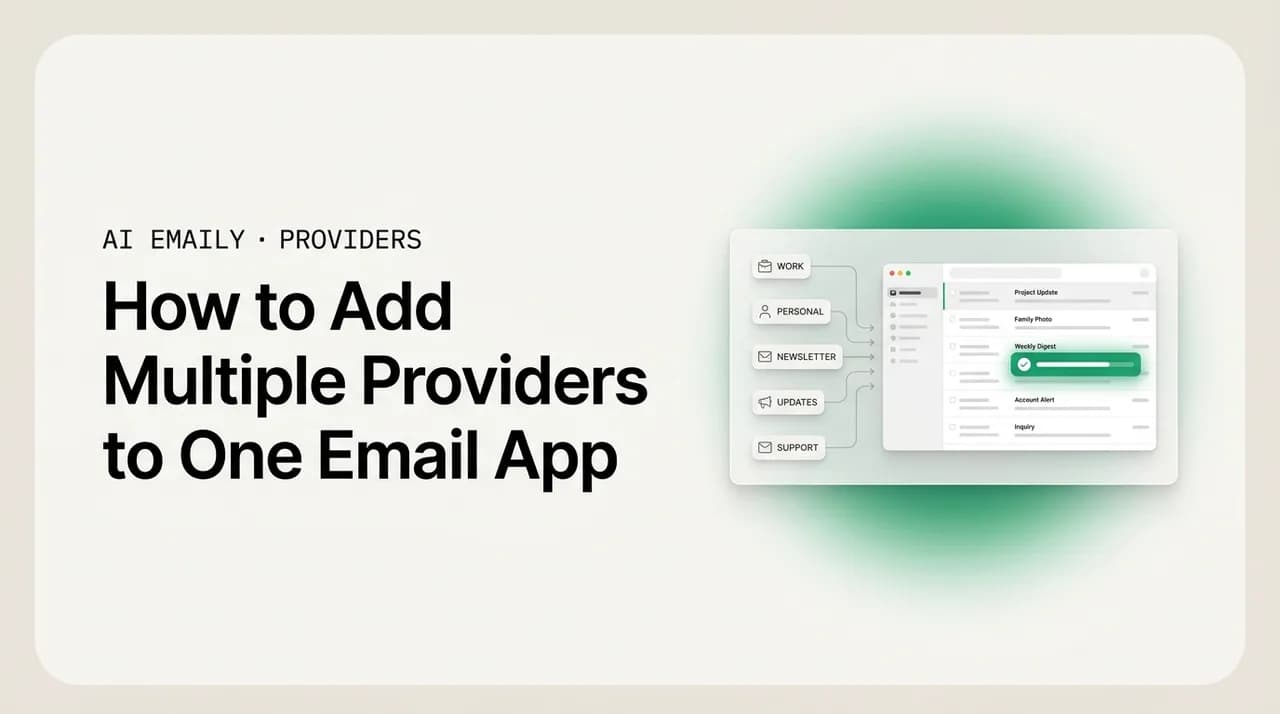
The short answer
To add iCloud, Fastmail, and Proton to one email app, each needs a different unlock: iCloud needs an app-specific password from your Apple ID, Fastmail needs an app password plus its IMAP/SMTP settings, and Proton needs Proton Bridge (a paid feature) or its own apps because mail is end-to-end encrypted. Once unlocked, all three speak standard IMAP and SMTP.
iCloud needs an app-specific password, Fastmail an app password plus IMAP/SMTP settings, and Proton needs Proton Bridge. Exact setup for each, with ports.
On this page
- 01Why can't you just use your normal password?
- 02How do you add iCloud Mail to a third-party email app?
- 03How do you add Fastmail to an email client?
- 04How do you add Proton Mail to a regular email app?
- 05What are the exact IMAP and SMTP settings for each provider?
- 06What goes wrong when connecting these accounts, and how do you fix it?
- 07How do you keep all three accounts in one place without three apps?
- 08How does AI Emaily connect iCloud, Fastmail, and Proton into one inbox?
- 09The bottom line on adding iCloud, Fastmail, and Proton
You have three email accounts that refuse to live in one place. iCloud carries your personal mail and the receipts Apple sends. Fastmail runs your custom domain or your serious personal inbox. Proton holds the messages you want encrypted and private. Each one is fine on its own — the problem is that you are checking three apps, three sets of unread badges, three sets of notifications, and the same question keeps coming up: can I just put all of these into a single email app and be done with it?
The short answer is yes, and the long answer is the reason this guide exists. All three providers support the standard protocols that email apps speak — IMAP for reading and SMTP for sending — so in principle any decent client can connect to all three. The catch is that none of the three lets you simply type your normal password into a third-party app. Each one has a specific gate you have to pass first, and the gate is different for each. Get the gate wrong and the app shows a generic "wrong password" error that tells you nothing about what actually went wrong.
iCloud needs an app-specific password, a one-time code you generate on your Apple ID page because your normal Apple password is protected behind two-factor authentication. Fastmail needs an app password too, generated in its settings, plus the correct IMAP and SMTP server details — and Fastmail is unusually good at telling you exactly what those are. Proton is the genuinely different one: because Proton Mail is end-to-end encrypted, no normal email app can read it directly. You either use Proton's own apps, or you run a small piece of software called Proton Bridge that decrypts mail locally and exposes it to your app over IMAP — and Bridge is a paid feature.
This guide walks through each provider one at a time, with the exact steps, the precise server settings in a table you can copy from, and the gotchas that trip people up. Then it covers how to hold all three at once without three apps fighting for your attention, and how an AI-native email client handles the whole connect-and-unify problem for you — app passwords, Bridge, and a single unified inbox across the lot. We will keep it practical and accurate. Where a setting matters, it is in a table; where a step has a trap, the trap is called out.
Why can't you just use your normal password?#
Before the step-by-step, it helps to understand the one thing all three providers have in common: your everyday account password will not work in a third-party email app. This is not the providers being difficult — it is a deliberate security design, and knowing why makes every step below make sense instead of feeling like arbitrary hoops.
When you sign into iCloud, Fastmail, or Proton on the web, you go through their full login — password plus two-factor authentication (a code from your phone, an authenticator app, or a hardware key). A traditional email app connecting over IMAP and SMTP cannot do that interactive two-factor dance. It needs a single credential it can store and send on every connection. So the providers separate the two: your real password (guarded by 2FA, used to log into the account) and an app-specific credential (a long generated string that only works for mail access and can be revoked on its own).
That separation is what keeps you safe. An app password can read and send mail, but it cannot change your account settings, disable 2FA, or lock you out — and if a device is lost or an app is compromised, you revoke that one credential without touching your real password or your other apps. This is why iCloud and Fastmail both hand you app passwords rather than letting you paste your login. It is also part of why Proton goes further still.
Proton's wrinkle is encryption, not just authentication. Proton Mail stores your messages end-to-end encrypted, meaning even Proton's servers hold them in a form they cannot read. A standard email app speaks plain IMAP and expects readable messages — there is no way for it to decrypt Proton's mail on its own. Proton's answer is Proton Bridge: a small app that runs on your computer, logs into Proton properly, decrypts your mail locally, and then re-serves it to your email app over a local IMAP/SMTP connection that lives only on your machine. That is why Proton's setup looks different from the other two, and why it is a paid feature rather than a free toggle.
App passwords are a feature, not a hassle
How do you add iCloud Mail to a third-party email app?#
iCloud Mail (addresses ending in @icloud.com, @me.com, or @mac.com) connects to any standard email client over IMAP and SMTP — but only with an app-specific password, never your normal Apple ID password. Apple requires this because every modern Apple ID has two-factor authentication, and a third-party app cannot complete that 2FA step on its own. The fix is to generate a one-time app-specific password on your Apple account page and use that in the app instead.
There is one prerequisite worth checking first: two-factor authentication must be turned on for your Apple ID, because app-specific passwords only exist on accounts that have it. On any modern Apple ID it is on by default, but if you have an old account without it, you will need to enable 2FA before the app-password option appears. With that in place, here is the full setup.
- 1
Confirm two-factor authentication is on
On your iPhone, go to Settings, tap your name, then Sign-In & Security, and confirm Two-Factor Authentication is on. On the web, sign in at account.apple.com and check the Sign-In and Security section. App-specific passwords are only available when 2FA is enabled.
- 2
Open your Apple Account security page
Go to account.apple.com in a browser and sign in with your Apple ID. Navigate to the Sign-In and Security section, where account-level credentials are managed.
- 3
Generate an app-specific password
Find App-Specific Passwords and choose to create a new one. Give it a clear label like "Email app on MacBook" so you can recognize and revoke it later. Apple will show you a password in the format xxxx-xxxx-xxxx-xxxx.
- 4
Copy the generated password
Copy the four-group password exactly, including the hyphens. This is shown only once — if you lose it, you delete it and generate a new one rather than recovering it. Paste it somewhere safe just for the next step.
- 5
Add the account in your email app
In your email client, add a new account. When asked for the provider, choose iCloud if it is offered, or pick IMAP/manual setup. Enter your full iCloud address as the username and the app-specific password (not your Apple password) as the password.
- 6
Enter the IMAP and SMTP servers if prompted
If your app does not auto-fill iCloud's settings, enter them manually: incoming IMAP server imap.mail.me.com on port 993 with SSL, outgoing SMTP server smtp.mail.me.com on port 587 with STARTTLS. Use your full iCloud email address for both incoming and outgoing authentication.
- 7
Test send and receive
Let the app sync, then send yourself a test message and confirm it arrives. If sending fails but receiving works, recheck the SMTP port and that you used the app-specific password for the outgoing server too.
Use your full iCloud address as the username
A few iCloud-specific notes. If you use a custom email domain with iCloud Mail (an iCloud+ feature), it still routes through these same imap.mail.me.com and smtp.mail.me.com servers — you authenticate with your underlying @icloud.com address and the app-specific password, and your custom-domain address works as a send-from alias. People often expect a separate server for the custom domain; there isn't one.
If iCloud mail stops syncing weeks or months later for no obvious reason, the usual cause is a revoked or expired app-specific password. Apple invalidates these whenever you change your main Apple ID password, so a routine password change silently breaks every app using an old app-specific password. The fix is always the same: generate a fresh app-specific password and update it in the app. It is worth knowing this in advance so a future "iCloud suddenly can't log in" does not send you down the wrong rabbit hole.
Changing your Apple password breaks app passwords
How do you add Fastmail to an email client?#
Fastmail is the most cooperative of the three. It fully supports IMAP and SMTP, it publishes its server settings clearly, and it has a dedicated screen for creating app passwords scoped to exactly what you need. Like iCloud, Fastmail will not accept your normal login password in a third-party app when two-factor authentication is on — you generate an app password instead. Unlike iCloud, Fastmail lets you scope that password (mail-only, or read-only, or specific protocols) and label it per device, which is genuinely useful for managing several connected apps.
Fastmail's app passwords live in your account settings under the privacy and security area. The flow is quick once you know where it is. Here is the full setup, including the exact server details your app may ask for.
- 1
Open Fastmail settings on the web
Sign in to Fastmail in a browser, then go to Settings and find the Privacy & Security area. Look for the section that manages app passwords (sometimes labeled "App Passwords" or "Connected apps and devices").
- 2
Create a new app password
Choose to add a new app password. Give it a recognizable name like "Mail app on iPhone," and set its access to mail (IMAP, POP, SMTP, CardDAV/CalDAV as needed). Scoping it to mail-only is the safe default for an email client.
- 3
Copy the generated app password
Fastmail shows you a generated password once. Copy it exactly. As with iCloud, you cannot recover it later — if lost, you delete it and create a new one. Keep it handy for the next step only.
- 4
Add the account using manual / IMAP setup
In your email app, add an account and choose IMAP or manual setup rather than a one-tap provider button (Fastmail is not always in the preset list). Enter your full Fastmail address as the username.
- 5
Enter the IMAP incoming server
Set the incoming IMAP server to imap.fastmail.com on port 993 with SSL/TLS. Username is your full Fastmail email address; password is the app password you just generated, not your login password.
- 6
Enter the SMTP outgoing server
Set the outgoing SMTP server to smtp.fastmail.com on port 465 with SSL/TLS (or port 587 with STARTTLS if your app prefers that). Use the same full address and the same app password for outgoing authentication.
- 7
Verify two-way sync
Let it sync, send a test message to yourself, and confirm both send and receive work. If receive works but send fails, switch the SMTP port between 465 (SSL) and 587 (STARTTLS) — different apps prefer different combinations.
Scope the app password to one device
Two Fastmail specifics worth knowing. First, if you host a custom domain on Fastmail, you still connect to the same imap.fastmail.com and smtp.fastmail.com servers — the domain is handled on Fastmail's side, and your app authenticates with your primary Fastmail login address (or the address Fastmail designates), not the custom-domain address itself. The custom-domain address then works as a normal send-from identity. This mirrors how iCloud handles custom domains.
Second, Fastmail supports both IMAP (keeps mail on the server, syncs across devices) and POP3 (downloads and optionally deletes). For a multi-device, multi-app setup — which is the whole point of putting three accounts in one client — always choose IMAP. POP3 pulls messages down to one device and can leave your other apps and the web interface out of sync. If you want the full reasoning on this choice, see the deeper comparison in our IMAP vs POP3 guide.
How do you add Proton Mail to a regular email app?#
Proton is the one that breaks the pattern, and it is important to understand why before you try. Proton Mail is end-to-end encrypted: your messages are stored on Proton's servers in a form Proton itself cannot read, and they are only decrypted on your device with your keys. A standard email app speaks plain IMAP and expects to receive readable messages from the server — there is simply no readable message for it to fetch. So you cannot point Apple Mail, Outlook, or a generic IMAP client straight at Proton the way you can with iCloud or Fastmail.
Proton solves this with Proton Bridge — a small application that runs on your Mac, Windows, or Linux computer. Bridge logs into Proton properly (handling your password and 2FA), downloads and decrypts your mail locally, and then re-serves it to your email app over a local IMAP/SMTP connection that exists only on your own machine (on the loopback address 127.0.0.1). Your email app talks to Bridge; Bridge talks to Proton. The encrypted-to-readable conversion happens on your computer, never exposing your mail to a third-party server. This is the only supported way to use Proton Mail in a desktop email client.
The two things to know up front: Proton Bridge is a paid feature, available on Proton's paid Mail plans (it is not part of the free tier), and it runs on the desktop only — there is no Bridge for iPhone or Android, where you use Proton's own mobile apps instead. With those expectations set, here is the setup.
- 1
Confirm you have a paid Proton plan
Proton Bridge requires a paid Proton Mail plan. If you are on the free tier, you will need to upgrade, or use Proton's official web and mobile apps instead. Check your plan in your Proton account before downloading Bridge.
- 2
Download and install Proton Bridge
From Proton's official site, download Proton Bridge for your operating system (macOS, Windows, or Linux) and install it like any desktop app. Bridge needs to run on the same computer as the email client you want to connect.
- 3
Sign in to Bridge with your Proton account
Open Bridge and log in with your normal Proton credentials, completing two-factor authentication if you have it enabled. Bridge does the real Proton login on your behalf so your email app never has to.
- 4
Let Bridge generate per-app credentials
Once signed in, Bridge shows you a generated username and a Bridge-specific password for your account, along with the local server settings. These credentials are what your email app will use — not your real Proton password.
- 5
Read the local IMAP/SMTP settings Bridge provides
Bridge serves mail on the local address 127.0.0.1 (your own machine). It shows the exact local IMAP and SMTP ports to use. Copy the Bridge username, Bridge password, and those local host and port values.
- 6
Add the account in your email app using Bridge's values
In your email client, add an account via manual/IMAP setup. Use 127.0.0.1 as both the incoming and outgoing server, the local ports Bridge displays, and the Bridge-generated username and password. Bridge handles the local TLS, so accept the connection settings it specifies.
- 7
Keep Bridge running and test
Bridge must be running for mail to sync, so let it launch at startup. Send yourself a test message and confirm both directions work. If your app cannot connect, confirm Bridge is open and that you used the local Bridge port, not Proton's public servers.
Bridge talks to your app on 127.0.0.1
Because Bridge is desktop-only, a Proton account behaves differently across your devices, and it is worth planning for this. On your computer, you run Bridge and connect any email client. On your phone or tablet, there is no Bridge — you use the official Proton Mail app, which decrypts mail natively. So a unified "everything in one app" setup that includes Proton can be fully achieved on desktop, while on mobile you may keep Proton in its own app unless your email client handles the Bridge problem for you (more on that below).
If you only need Proton occasionally and do not want to run Bridge, the official Proton Mail web and mobile apps remain free and require no setup beyond logging in — they handle the encryption transparently. Bridge is specifically for people who want Proton inside a desktop email client alongside other accounts. Decide based on whether having Proton in the same app as iCloud and Fastmail is worth running one extra background app and paying for a Proton plan.
No Proton Bridge on phones
What are the exact IMAP and SMTP settings for each provider?#
Here is the single reference table you will actually copy from. These are the incoming (IMAP) and outgoing (SMTP) server details for all three providers, with hosts, ports, and encryption. For iCloud and Fastmail you use these directly in your email app. For Proton, the "server" is your local Proton Bridge on 127.0.0.1, and Bridge shows you the exact local ports during setup (they are assigned per machine, so read them from Bridge rather than assuming a fixed number).
When an app asks for username, use your full email address for iCloud and Fastmail, and the Bridge-generated username for Proton. When it asks for a password, use the app-specific password for iCloud, the app password for Fastmail, and the Bridge password for Proton — never your real account login in any of the three cases.
| Provider | IMAP (incoming) | SMTP (outgoing) | Login credential |
|---|---|---|---|
| iCloud Mail | imap.mail.me.com · port 993 · SSL/TLS | smtp.mail.me.com · port 587 · STARTTLS | Full @icloud.com address + app-specific password |
| Fastmail | imap.fastmail.com · port 993 · SSL/TLS | smtp.fastmail.com · port 465 (SSL) or 587 (STARTTLS) | Full Fastmail address + app password |
| Proton Mail | 127.0.0.1 · local port from Bridge · local TLS | 127.0.0.1 · local port from Bridge · local TLS | Bridge username + Bridge password |
Port 993 and 587 cover most cases
A note on reading that table accurately. The IMAP and SMTP hostnames for iCloud and Fastmail are stable and publicly documented, so you can rely on them. The Proton row is intentionally not a fixed hostname or port: Proton Bridge runs locally and picks local ports on your specific machine, so always copy the values straight out of the Bridge window rather than from any guide — including this one. If you ever see a guide claiming a public proton.me IMAP server you can connect to directly without Bridge, it is wrong; Proton's encryption makes that impossible.
If you are connecting a fourth or fifth account from some other provider, the same pattern holds: find the provider's published IMAP host (often imap.theirdomain.com) and SMTP host (often smtp.theirdomain.com), use port 993 for IMAP and 587 or 465 for SMTP, enable SSL/TLS, and check whether they require an app password. The three providers in this guide are simply the three most common ones that each need a slightly different unlock — but the IMAP/SMTP mechanics underneath are universal.
What goes wrong when connecting these accounts, and how do you fix it?#
Most connection failures with iCloud, Fastmail, and Proton come from a small set of causes, and they all produce similar, unhelpful error messages — "cannot connect," "wrong password," "server not responding." Knowing the usual suspects turns a frustrating guessing game into a quick checklist. The single most common mistake by a wide margin is using your real account password where an app-specific password is required. If a brand-new connection fails on a provider that needs an app password, check this first, before anything else.
The next most common cause is the wrong port or encryption mode for outgoing mail. Sending breaks far more often than receiving, because SMTP has two valid configurations (port 465 with SSL/TLS, or port 587 with STARTTLS) and apps disagree about which to default to. If you can receive but not send, switching the SMTP port and its matching encryption almost always fixes it. For Proton specifically, a failure usually means Bridge is not running, or the app is pointed at a public Proton server instead of the local 127.0.0.1 Bridge address.
Then there are the time-delayed failures — everything works for weeks, then one account stops. For iCloud, this is almost always a main Apple password change invalidating the app-specific password. For Fastmail, it is usually a revoked or deleted app password (sometimes revoked deliberately when cleaning up old devices). For Proton, it is Bridge being closed, logged out, or not launched at startup. The fix in each case is to regenerate the relevant credential or restart Bridge, then re-enter it in the app.
| Symptom | Likely cause | Fix |
|---|---|---|
| "Wrong password" on a fresh setup | Used your real account login instead of an app password | Generate an app-specific / app password and use that |
| Receive works, send fails | Wrong SMTP port or encryption mode | Switch SMTP between port 465 (SSL) and 587 (STARTTLS) |
| iCloud stops syncing after weeks | Apple ID password change invalidated the app password | Generate a new app-specific password and update the app |
| Fastmail suddenly disconnects | App password was revoked or deleted | Create a new app password in Fastmail settings |
| Proton won't connect at all | Bridge not running or app pointed at a public server | Open Bridge, use the local 127.0.0.1 host and Bridge port |
| Username rejected (iCloud) | Entered only the name before the @ sign | Use your full email address as the username |
Revoke, don't recycle, lost-device credentials
How do you keep all three accounts in one place without three apps?#
Once each account is unlocked — app-specific password for iCloud, app password for Fastmail, Bridge for Proton — the next question is what to actually put them in. You have a few options, and they differ mostly in how much manual setup and how much daily switching they leave you with. The goal of this whole exercise is one place to read and reply, not three accounts technically connected but still siloed into separate inbox views you tab between.
The built-in route is your operating system's mail app. Apple Mail on a Mac or iPhone will take all three: iCloud natively, Fastmail via IMAP with the app password, and Proton via the local Bridge connection on desktop. It works, but you are doing every step by hand — generating each credential, typing each server setting, and on mobile, accepting that Proton lives in its own app because there is no Bridge for phones. You also get a basic combined view at best, with no help telling the three accounts apart or prioritizing across them.
The unified-inbox route is a dedicated multi-account email client. These are built specifically to hold several accounts and show them in one merged inbox, with per-account colors or filters so you can still tell work from personal. They reduce the daily switching, but most still leave you to do the per-provider credential setup yourself, and the ones that support Proton at all usually require you to run Bridge separately. If your priority is simply seeing everything in one list, this is the established answer — and the broader strategy for it is covered in our guide on combining multiple email accounts.
The AI-native route is the newest, and it is where the three-provider problem actually gets solved end to end rather than just connected. Instead of leaving you to manage app passwords, Bridge, and per-account triage by hand, an AI-native client treats "connect iCloud, Fastmail, and Proton into one inbox" as a first-class job — and then does something with the combined inbox, not just display it. That is what the next section is about.
How does AI Emaily connect iCloud, Fastmail, and Proton into one inbox?#
AI Emaily is an AI-native email client built around exactly this problem: holding several accounts — including the awkward ones like iCloud, Fastmail, and Proton — in a single unified inbox, and then doing the work on top of it. Because it speaks standard IMAP and SMTP, it connects to all three the same way any capable client does, with the app-specific password for iCloud, the app password for Fastmail, and Proton Bridge for Proton. The difference is what happens after the accounts are connected.
The connection step itself is guided rather than guesswork. When you add an iCloud or Fastmail account, AI Emaily walks you to the right app-password screen and pre-fills the IMAP and SMTP server settings, so you are pasting one generated credential instead of hand-typing hosts and ports and hoping you picked the right encryption mode. For Proton, it works with the local Bridge connection on desktop the same way other serious clients do, using the Bridge-generated credentials on 127.0.0.1 — so your encrypted Proton mail stays decrypted only on your own machine, exactly as Proton intends.
Once all three are in, they become one inbox, not three tabs. You read and reply in a single list, with each account still distinguishable, so a Fastmail work thread, an iCloud receipt, and a Proton message sit together and you stop switching apps. On top of that unified view, AI Emaily does the things a plain combined inbox cannot: it drafts replies in your own voice across every account, triages and surfaces what actually needs you, and lets you search across all three inboxes at once instead of hunting account by account. The point of merging the accounts is not just to see them together — it is to act on them together.
It stays in your control and private by design. In AI Emaily's default Copilot mode, it drafts and organizes but nothing sends until you approve it, so a reply to a Proton contact or a Fastmail client goes out only when you say so. Your mail is used to draft and triage for you, not to train models for anyone else — which matters especially for the Proton account you chose specifically for privacy. You can start free at app.aiemaily.com/signup: the Free plan is $0 and connects your inboxes with AI drafting, and Pro is $12.42/month billed annually when you want the full set across everything you send.
If your reason for using three providers is that each does one job well — iCloud for the Apple ecosystem, Fastmail for a serious custom-domain inbox, Proton for privacy — you do not have to give any of that up to get one inbox. You keep all three accounts exactly as they are, connected through their proper, secure paths, and AI Emaily becomes the single place you read, write, and search across the lot. For a side-by-side on which of these providers fits which need, our Fastmail vs Proton vs iCloud comparison goes deeper on the choice itself.
Connect all three, then let one inbox do the work
The bottom line on adding iCloud, Fastmail, and Proton#
All three providers can live in one email app, and all three speak the same standard IMAP and SMTP underneath — the only thing that differs is the gate you pass to unlock them. iCloud needs an app-specific password from your Apple ID security page, used with imap.mail.me.com and smtp.mail.me.com. Fastmail needs an app password from its settings, used with imap.fastmail.com and smtp.fastmail.com. Proton needs Proton Bridge (a paid, desktop-only feature) because its mail is end-to-end encrypted, and your app connects to Bridge locally on 127.0.0.1 rather than to a public Proton server.
The mistakes that cause nearly every failure are the same across all three: using your real password where an app password is required, picking the wrong SMTP port or encryption for sending, entering a partial username instead of your full address, or — for Proton — not having Bridge running. Work the short checklist before assuming anything is broken, and remember that a future Apple password change will silently invalidate your iCloud app password and need a fresh one.
Once they are connected, the real win is holding them in one place that does something useful with the combined inbox rather than just stacking three accounts in tabs. That is the job an AI-native client like AI Emaily is built for — guided connection for each provider, one unified inbox across iCloud, Fastmail, and Proton, and drafting, triage, and search on top, with you approving before anything sends. Keep the three providers you chose for good reasons; just stop checking three apps to use them.
Frequently asked
See it in AI Emaily
Keep reading
Sources

Written by
Nafiul HasanNafiul Hasan is an entrepreneur and AI automation system builder with 10+ years of experience turning messy, manual workflows into reliable automated systems. He designs and ships AI enterprise solutions end-to-end — the agent logic, the data plumbing, and the product people actually use — and founded AI Emaily to give busy professionals their attention back. He writes here from the builder's seat: what works, what breaks, and how to put AI to work without giving up control.