IMAP vs POP3: Which Email Setting Should You Use?

The short answer
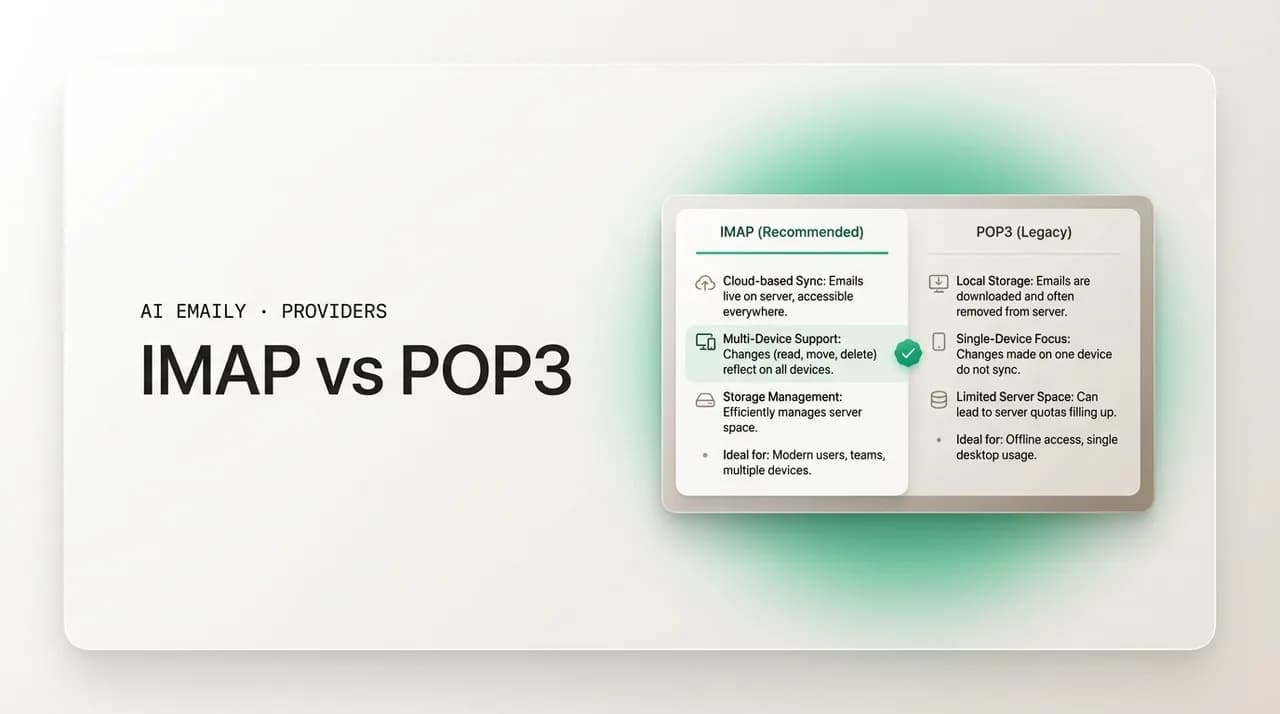
IMAP vs POP3 comes down to sync: IMAP keeps mail on the server and mirrors it across every device, so a message read on your phone shows as read on your laptop. POP3 downloads mail to one device and often deletes the server copy. For modern multi-device email, use IMAP — over SSL/TLS on port 993.
IMAP vs POP3, explained without jargon: how each protocol syncs mail, when to use which, the secure SSL/TLS ports (IMAP 993, POP3 995, SMTP 465/587), why IMAP is the modern default for multiple devices, and what it means for switching apps.
On this page
- 01What is the difference between IMAP and POP3?
- 02How does IMAP sync email across devices?
- 03How does POP3 handle your email differently?
- 04IMAP vs POP3: a side-by-side comparison
- 05What are the correct IMAP, POP3, and SMTP ports?
- 06Is IMAP or POP3 more secure?
- 07Why is IMAP the modern default for email?
- 08When does POP3 still make sense?
- 09What does IMAP vs POP3 mean when you switch email apps or providers?
- 10How does AI Emaily use IMAP to put every account in one inbox?
- 11The bottom line on IMAP vs POP3
You are adding an email account to a new app, or setting up a phone, and the setup screen asks a question you did not expect to answer: IMAP or POP? Two acronyms, no explanation, and a quiet sense that picking wrong might do something you cannot undo. So you guess, or you pick whatever was already selected, and you move on — without ever really knowing what the difference is or whether it matters.
It matters more than the setup screen lets on. The choice between IMAP and POP3 decides where your email actually lives, whether the same inbox looks the same on every device you own, and — in the worst case with the wrong setting — whether mail you wanted gets quietly removed from the server and stranded on one machine. It is not a cosmetic preference. It is the rule that governs how your mail is stored and synced, and getting it wrong is one of the more common ways people lose email without realizing it.
This guide explains both protocols in plain language and then tells you exactly which to use. You will get a clear definition of each, a side-by-side comparison of how they sync, the full set of secure ports you need (with a ports table you can copy), the security reasons to never use the old unencrypted versions, an honest account of the narrow cases where POP3 still makes sense, and what your choice means when you switch email apps or providers. There is a comparison table, a ports reference, and a worked example so you can see the behavior, not just read about it.
The short version, so you are not in suspense: for almost everyone in 2026, the answer is IMAP. POP3 is a holdover from an era of one computer and a dial-up connection. But the why is worth understanding, because it explains a lot of confusing email behavior — and near the end we look at how a modern AI-native client uses IMAP to pull every account you own into one synced inbox, so the protocol question mostly disappears.
What is the difference between IMAP and POP3?#
Both IMAP and POP3 are protocols — agreed sets of rules — for retrieving email from a mail server to the app you read it in. That is the one thing they share: both are about getting incoming mail off the server and in front of you. Neither one sends email; sending is a separate job handled by SMTP, which we cover later. The difference between them is not how they fetch mail but what they do with it, and that single difference drives everything else.
POP3 — Post Office Protocol version 3 — is the older of the two, dating to the mid-1980s. Its model is download-and-store-locally. When your app checks mail over POP3, it connects to the server, downloads new messages to that one device, and — in its traditional default — deletes them from the server afterward. The mental model is a physical post office: mail arrives, you collect it, you take it home, and the post office no longer holds it. Your email then lives on whatever device downloaded it, and the server is empty.
IMAP — Internet Message Access Protocol — came later and takes the opposite approach. Its model is the mail stays on the server, and your devices view and sync it. When you read, delete, file, flag, or move a message over IMAP, that change is made on the server, and every other device you have connected sees the same change. The mental model is not a post office but a shared filing cabinet in the cloud: your phone, laptop, and tablet are all windows into the same cabinet, so the inbox looks identical everywhere because it is the same inbox everywhere.
That is the whole difference in one sentence: POP3 moves mail to one device and lets the server forget it; IMAP keeps mail on the server and keeps every device in sync with it. From that, every practical consequence follows — multi-device behavior, storage, backups, what happens when you switch apps. The rest of this guide is really just walking through those consequences so you can choose with confidence.
The core difference in one line
How does IMAP sync email across devices?#
IMAP's defining feature is two-way sync, and it is worth understanding the mechanics because they explain why IMAP feels the way it does. With IMAP, the server is the single source of truth. Your inbox, your folders, your sent mail, your read and unread states, your flags and stars — all of it is stored on the server. Each device that connects does not own a separate copy of your mail; it holds a synchronized view of the server's copy.
So when you open a message on your phone, your phone tells the server the message is now read, and the server records it. The next time your laptop syncs, it learns the message is read and shows it that way. Delete an email on your tablet and it is removed from the server, so it disappears from every device. Move a message into a "Receipts" folder on your desktop and that folder, with the message in it, appears on your phone. Nothing is local-only. Every action propagates because every action happens to the one shared copy.
This is why IMAP is the right answer for the way people actually use email now — phone in the morning, laptop at work, maybe a tablet in the evening, all the same account. You triage on your phone during a commute, and by the time you open your laptop the inbox already reflects what you did. There is no "I already dealt with that on my phone but my laptop still shows it unread," which is precisely the daily friction POP3 creates. Sync also means your mail survives a lost or broken device: because the messages live on the server, a new phone signs in and pulls the whole mailbox back down, untouched.
IMAP also supports server-side folders and search, partial fetches (it can download just a message header or preview before pulling the full body and attachments, which saves bandwidth on mobile), and shared or delegated mailboxes. These are not edge features — they are why webmail, mobile mail, and desktop clients can all show you a coherent, identical inbox. When you read your email in three different apps and it just looks right in all of them, IMAP is the reason.
How does POP3 handle your email differently?#
POP3 was built for a different world — one computer, a metered dial-up line, and an inbox you wanted to clear off the server so it would not fill up the small mailbox quotas of the time. Its design reflects that. POP3 connects, downloads new messages to the device, and by default removes them from the server, leaving the mailbox empty for next time. The mail then lives entirely on that one device.
The consequence is that POP3 is fundamentally single-device. If your laptop downloads your mail and deletes it from the server, your phone will never see those messages — they are gone from the place your phone checks. The read/unread state, your folders, anything you did with the mail stays local to the machine that has it. Two devices on the same POP3 account do not share a view; they compete for the mail, and whichever connects first can take it away from the other.
Most email apps offer a softening option: "leave a copy of messages on the server." This makes POP3 tolerable on more than one device — each device can download its own copy because the server keeps the originals. But it is a workaround, not real sync. There is still no two-way coordination: read a message on your phone and your laptop will still show it unread, because POP3 has no mechanism to tell the server (or the other device) what you did. Delete it in one place and it remains in the others. You end up with several diverging, increasingly inconsistent copies of the same mailbox — which is usually worse than just picking IMAP.
POP3 is not without genuine upsides, and it is fair to name them. Because mail is downloaded and stored locally, you can read your entire archive completely offline, with no server round-trip. It uses no server storage once mail is downloaded and deleted, which mattered when quotas were tiny and can still matter on a very small plan. And for one specific job — pulling mail down for a local, self-managed backup — POP3's download-everything model is actually convenient. Those cases are real but narrow, and we will come back to them. For the everyday multi-device life almost everyone now leads, POP3's model is a poor fit.
POP3 can delete server mail you meant to keep
IMAP vs POP3: a side-by-side comparison#
With the behavior of each protocol clear, here is the direct comparison — the table to keep if you remember nothing else. Read it as a list of the same questions answered two ways, and you will see why IMAP wins for nearly every modern use. The pattern is consistent: IMAP optimizes for many devices, server-held mail, and sync; POP3 optimizes for one device, local mail, and minimal server storage — priorities from an earlier era.
| Question | IMAP | POP3 |
|---|---|---|
| Where does mail live? | On the server; devices sync a view of it | Downloaded to one device; often removed from the server |
| Multiple devices? | Yes — every device sees the same synced inbox | Poorly — single-device by design; copies diverge |
| Read / unread, folders, flags sync? | Yes — changes propagate to all devices | No — state stays local to each device |
| Delete on one device? | Removes it everywhere (server change) | Stays on other devices; not coordinated |
| Server storage used? | Yes — counts against your mailbox quota | Little to none once mail is downloaded/deleted |
| Offline access? | Cached locally; full mailbox needs a connection to sync | Full local archive readable offline |
| If a device is lost? | Mail is safe on the server; re-sync on a new device | Local-only mail is lost unless backed up |
| Switching apps later? | New app re-syncs the same server mailbox cleanly | Mail may be stranded on the old device's local store |
| Best for | Anyone using email on more than one device (almost everyone) | Single-device use, tiny quotas, or local backups |
| Secure default port | 993 (IMAP over SSL/TLS) | 995 (POP3 over SSL/TLS) |
One nuance the table flattens: IMAP's reliance on server storage is the one place POP3's model has a real edge, and it is worth being honest about it. Because IMAP keeps everything on the server, a large, old mailbox counts fully against your provider's quota — and if you hit the limit, new mail can stop arriving until you clear space. POP3, having offloaded mail to your device, sidesteps this. In practice this rarely tips the decision: provider quotas in 2026 are generous (commonly several gigabytes to effectively unlimited), and the cost of POP3's broken multi-device behavior far outweighs the storage saving for ordinary users. But if you run a genuinely tiny mailbox and read on exactly one machine, it is a real consideration rather than a myth.
The short rule
What are the correct IMAP, POP3, and SMTP ports?#
Retrieving mail (IMAP or POP3) and sending mail (SMTP) each run on specific network ports, and there are secure and insecure versions of each. This trips people up constantly during manual setup, so here is the reference. The rule is simple: always use the encrypted port, and never use the legacy plaintext one. The encrypted ports wrap the connection in SSL/TLS so your login and your mail cannot be read in transit; the plaintext ports send everything, including your password, in the clear.
For receiving mail, IMAP over SSL/TLS uses port 993, and POP3 over SSL/TLS uses port 995. The old unencrypted equivalents — 143 for IMAP, 110 for POP3 — should not be used on the modern internet; treat them as legacy. For sending mail, SMTP has two secure options you will see: port 587 with STARTTLS (the modern standard for submitting mail from a client) and port 465 with implicit SSL/TLS (older but widely supported and equally secure in practice). The legacy plaintext SMTP port 25 is for server-to-server relay and is commonly blocked for client sending; do not use it to send from your app. Here is the full table.
| Protocol | Purpose | Secure port (use this) | Encryption | Legacy / avoid |
|---|---|---|---|---|
| IMAP | Receive (synced) | 993 | SSL/TLS (implicit) | 143 (plaintext) |
| POP3 | Receive (download) | 995 | SSL/TLS (implicit) | 110 (plaintext) |
| SMTP | Send (submission) | 587 | STARTTLS | 25 (plaintext relay) |
| SMTP | Send (submission) | 465 | SSL/TLS (implicit) | — |
A couple of practical notes on using this table. First, if a setup screen offers both 587/STARTTLS and 465/SSL for sending and you are unsure, either is fine — pick whichever your provider lists in its help docs, since most support both. Second, when you enter a server address you will usually use a hostname your provider gives you, not a raw number: something like imap.example.com for receiving and smtp.example.com for sending, paired with the secure port above. The example below shows what a complete, correct manual configuration looks like for a typical custom-domain or third-party mailbox.
Never use the plaintext ports
Is IMAP or POP3 more secure?#
This is a common question with a useful answer: the protocol itself (IMAP versus POP3) is not the security variable — the encryption is. Both IMAP and POP3 can run encrypted or unencrypted. A modern IMAP-over-SSL connection on port 993 and a modern POP3-over-SSL connection on port 995 are comparably secure in transit; an unencrypted connection on 143 or 110 is unsafe in either case. So the right framing is not "is IMAP safer than POP3" but "am I using SSL/TLS?" — and the answer should always be yes.
That said, the two protocols carry different data-at-rest profiles, and that is a real security distinction even when both are encrypted in transit. With IMAP, your mail lives on the provider's server, protected by their infrastructure, your account password, and — increasingly — multi-factor authentication and OAuth. You are trusting the provider's security, but you also benefit from it: server-side backups, threat detection, and the ability to revoke access remotely if a device is lost. With POP3, your mail ends up on your local device. If that device is unencrypted and stolen, the mail goes with it; the provider cannot revoke or protect what already left their server.
There is also the authentication layer, which matters more than the protocol in practice. The strongest setups today do not hand your real password to a mail app at all. OAuth lets you authorize an app to access your mailbox through your provider's login (with MFA), issuing a scoped token that you can revoke at any time without changing your password — and that the app never stores as a reusable secret. For providers that do not support OAuth for third-party apps, the next best thing is an app-specific password: a unique, revocable password generated for one app, so your main account password is never exposed and you can cut off a single app without disrupting the others.
The takeaway for security: choose IMAP for the operational benefits (server-held, recoverable, revocable), insist on SSL/TLS on the secure ports, and prefer OAuth or an app-specific password over typing your primary password into a mail client. The protocol acronym is the least important part of that sentence; the encryption and authentication are what keep your mail safe.
Prefer OAuth or an app-specific password
Why is IMAP the modern default for email?#
Step back and the reason IMAP won is simple: the world stopped looking like POP3's assumptions. POP3 was designed for one computer and an expensive, intermittent connection, where pulling mail down and clearing the server was the sensible thing to do. Today almost everyone reads email on at least two devices — a phone and a computer — and many on three or four, all expected to show the same inbox. That is exactly the problem IMAP solves and POP3 cannot.
Webmail sealed it. The moment people started checking mail in a browser as well as in an app, the mailbox had to live on the server for both to agree — and that is IMAP's model exactly. POP3's download-and-delete behavior is actively hostile to webmail, because mail pulled to a device by POP3 may no longer be in the server mailbox the webmail interface reads from. So as browser-based email became universal, server-resident mail (IMAP) became the only model that made sense, and POP3 receded to a compatibility option.
The mobile era cemented it further. Phones are storage-constrained and frequently replaced; you do not want your only copy of years of email trapped on a device you will upgrade in two years or might drop in a lake. IMAP keeps the canonical mailbox on the server and lets the phone hold a syncing cache, so a new phone simply signs in and re-downloads. It also enables the features mobile mail depends on — push-style updates, server-side search across a large archive, fetching headers before bodies to save data. None of that fits POP3's one-shot download model.
This is why nearly every major provider now defaults new accounts to IMAP, and why setup tools that auto-configure your account almost always pick IMAP without asking. POP3 is still offered for the narrow cases and for backward compatibility, but it is no longer the assumption. If you are setting up email today and have no specific reason to do otherwise, IMAP is not just the safe choice — it is the choice the entire ecosystem is built around.
| Shift in how we use email | Why it favors IMAP |
|---|---|
| Multiple devices per person | Only IMAP keeps phone, laptop, and tablet showing the same synced inbox |
| Webmail alongside apps | Server-held mail (IMAP) lets browser and app agree; POP3 download breaks this |
| Mobile-first, frequent device changes | Canonical mailbox stays on the server; a new device just re-syncs |
| Large, searchable archives | IMAP supports server-side folders and search across years of mail |
| Cloud backups and recovery | Server-resident mail survives a lost or wiped device |
When does POP3 still make sense?#
It would be dishonest to say POP3 is never useful — it is just rarely the right call for ordinary multi-device email. There are a few genuine cases where its download-everything-locally model is an advantage rather than a liability, and naming them precisely is more helpful than blanket advice to never touch it.
The clearest case is a deliberate local archive or backup. If you want a complete, self-owned copy of your mail sitting on your own machine — independent of the provider, readable offline, yours to keep if you ever close the account — POP3 (configured to leave a copy on the server) is a straightforward way to pull everything down. People do this before leaving a provider, or as a periodic personal backup. The key is the "leave on server" setting, so you are copying rather than removing your mail.
A second case is a true single-device setup with tight storage on the server side. If you genuinely read mail on exactly one computer, never on a phone or in a browser, and you are on a mailbox with a very small quota you keep bumping into, POP3's habit of clearing the server can keep that mailbox from filling. This is an increasingly rare combination — most people have a phone in the equation — but it is a real fit when it applies.
A third, more technical case is legacy or constrained environments: an old device or application that only speaks POP3, or an automated process that needs to fetch and remove messages from a mailbox (for example, an inbox that feeds a ticketing system, where you want each message pulled exactly once and cleared). These are specialized and usually handled by people who know exactly why they are choosing POP3. For everyone else — anyone reading personal or work email across a phone and a computer and expecting it to stay in sync — these cases do not apply, and IMAP remains the answer.
If you do use POP3, do it safely
What does IMAP vs POP3 mean when you switch email apps or providers?#
Your protocol choice quietly shapes how painful (or painless) it is to change email apps later — and this is where people who chose POP3 years ago often get an unpleasant surprise. Because IMAP keeps your mail on the server, switching apps is clean: you connect a new app, it syncs the same server mailbox, and your full inbox, folders, and history appear in the new app exactly as they were. Nothing was ever stranded on a device, so nothing is left behind. You can try a new client risk-free and switch back just as easily.
POP3 is the opposite. If a POP3 app downloaded your mail and removed it from the server, that mail now lives only inside that one app's local store. Install a different app and it will not find those messages on the server, because they are not there anymore — they are sitting in the old app's data files on the old device. Migrating then means exporting from the old app (often to an .mbox or .eml file) and importing into the new one, or running a dedicated migration tool — a real, error-prone project rather than a sign-in. This is the hidden cost of POP3 that nobody warns you about until you try to leave.
Switching providers (not just apps) follows the same logic, and it is covered in depth in our guide on how to migrate email to a new provider. The short version: IMAP makes provider migration far easier, because tools can connect to both the old and new mailboxes over IMAP and copy messages server-to-server, preserving folders and read states, without anything depending on a local download. POP3 mail, by contrast, has to be gathered from wherever it was downloaded first. If you anticipate ever changing apps or providers — and most people do, eventually — being on IMAP is the setting that keeps your future options open.
The practical advice: if you are on POP3 today and read on multiple devices, plan a switch to IMAP, but do it carefully. The risk is that turning off POP3 or reconfiguring an account can affect locally stored mail that was removed from the server. Before changing anything, make sure your mail either still exists on the server or is exported to a file you control. Then reconnect the account as IMAP, let it sync, and confirm everything is present before you remove the old setup.
Back up before you switch protocols
How does AI Emaily use IMAP to put every account in one inbox?#
Here is where the protocol question mostly stops being your problem. The reason IMAP matters — that mail lives on the server and can be synced cleanly to anything that connects — is exactly what lets a modern client unify your email instead of leaving you to manage separate apps and separate setups for each account. AI Emaily is an AI-native email client built on that idea: connect your accounts and read, search, and reply to all of them in one synchronized inbox.
Connecting an account is the part this whole guide was leading to. For major providers, AI Emaily connects with OAuth — you authorize it through your provider's own login (multi-factor and all), no password handed over, access you can revoke whenever you want. For other mailboxes — a custom domain, a provider without OAuth, any standards-compliant host — it connects over IMAP, on the secure port, with an app-specific password where the provider requires one. Either way you are not hand-typing server addresses and puzzling over 993 versus 995: the secure, synced setup is the default, and the protocol details are handled for you.
Because the connection is IMAP/OAuth and server-synced, everything this guide says IMAP should do, it does — across all your accounts at once. Read a message in AI Emaily and it shows read in your other apps and in webmail, because the change is made on the server. Archive, file, flag, or delete, and it propagates everywhere. Add a phone or a new laptop and it re-syncs the same mailboxes. Your Gmail, your Outlook, your iCloud or Fastmail or Proton or custom-domain IMAP account — separate servers, separate logins — all appear together in one inbox, with the AI working across them: drafting replies in your voice, summarizing long threads, finding the message you half-remember regardless of which account it lives in.
It is private by design and keeps you in control. Your mail is used to work for you — to draft and organize — not to train models for anyone else, and crown-jewel credentials are encrypted, never logged or exposed. In its default Copilot mode, AI Emaily drafts and prepares actions but sends nothing until you approve it, so connecting your accounts does not mean handing over the wheel. You can start free at app.aiemaily.com/signup: the Free plan is $0 and connects your inbox with AI drafting, and Pro is $17.99/month billed annually when you want it across every account you own. The point is that "IMAP or POP" becomes a question you no longer have to answer — you connect your mail, and it is synced, secure, and unified by default.
Try it on your own accounts
The bottom line on IMAP vs POP3#
IMAP and POP3 are two ways to get mail from a server to your app, and the difference between them is where your mail lives. POP3 downloads it to one device and traditionally clears the server, a model built for a one-computer world. IMAP keeps mail on the server and syncs every device to it, which is the model that fits the way email actually works now — phone, laptop, browser, all showing the same inbox.
So the choice is easy for almost everyone: use IMAP. Connect it over SSL/TLS on port 993 for receiving and 587 or 465 for sending, prefer OAuth or an app-specific password over your real password, and you have a setup that syncs across devices, survives a lost phone, and lets you switch apps or providers later without stranding your mail. Keep POP3 in your back pocket only for the narrow cases — a deliberate local backup, a genuine single-device setup, or a legacy system that needs it — and turn on "leave mail on the server" if you do.
The deeper point is that the right setup should not be something you wrestle with on every account. That is what AI Emaily handles: it connects your mailboxes with OAuth or secure IMAP, unifies them into one synced inbox, and lets the protocol question fade into the background while you keep control of every send. Either way, the principle holds — keep your mail on the server, keep the connection encrypted, and choose the setting that keeps every device, and your future self, in sync.
Frequently asked
See it in AI Emaily
Keep reading
Sources

Written by
Nafiul HasanNafiul Hasan is an entrepreneur and AI automation system builder with 10+ years of experience turning messy, manual workflows into reliable automated systems. He designs and ships AI enterprise solutions end-to-end — the agent logic, the data plumbing, and the product people actually use — and founded AI Emaily to give busy professionals their attention back. He writes here from the builder's seat: what works, what breaks, and how to put AI to work without giving up control.