7 Features of an Intelligent Inbox That Improve Your Productivity

The short answer
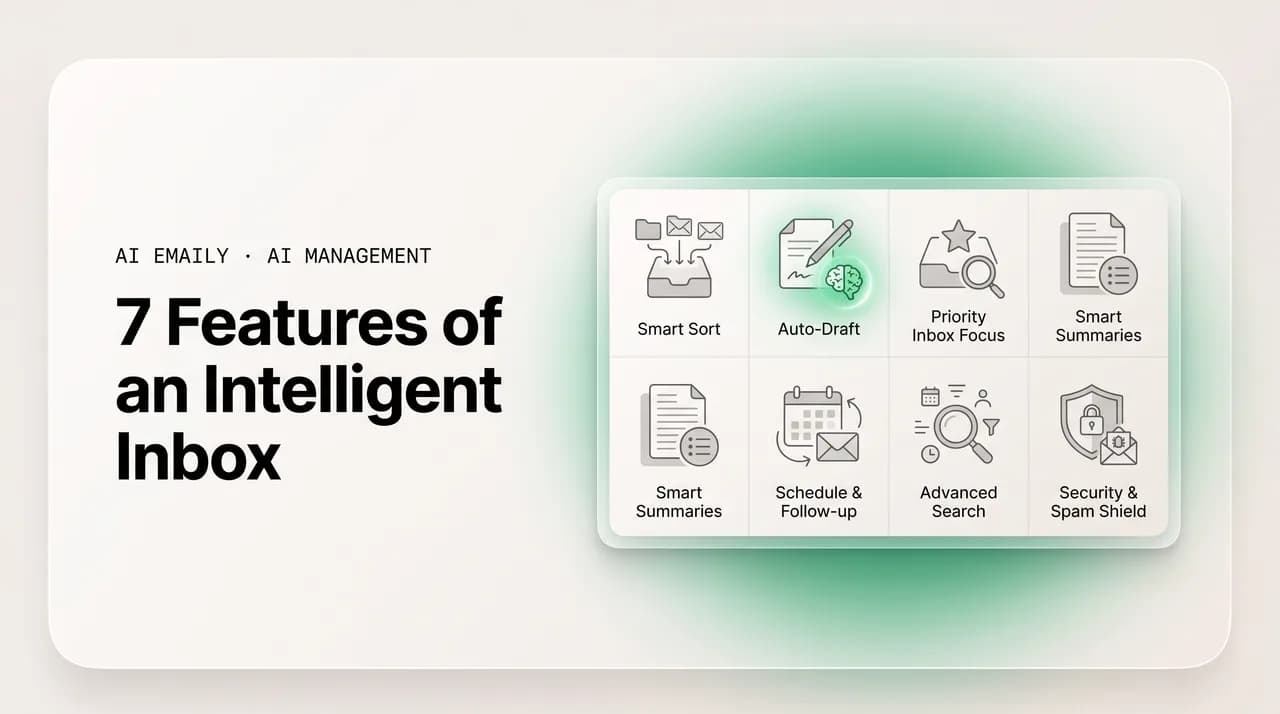
The intelligent inbox features that actually move productivity are AI triage, message summaries, voice-matched drafting, follow-up tracking, smart search, autonomous handling of routine mail with approval, and a unified cross-provider view. Real intelligence does the work under your control; a gimmick just reshuffles it. AI Emaily ships all seven.
The 7 intelligent inbox features that actually improve productivity — AI triage, summaries, voice-matched drafting, follow-up, smart search, and more.
On this page
- 01What is an intelligent inbox, exactly?
- 02Feature 1 — AI triage and prioritization
- 03Feature 2 — Message and thread summaries
- 04Feature 3 — Drafting in your own voice
- 05Feature 4 — Follow-up tracking
- 06Feature 5 — Smart search and retrieval
- 07Feature 6 — Autonomous handling of routine mail, with approval
- 08Feature 7 — A unified view across every account and provider
- 09How do the seven features fit together in practice?
- 10How do you tell real intelligence from a gimmick?
- 11Frequently asked questions
Most inboxes are still organized the way they were twenty years ago: a reverse-chronological list, a handful of folders you set up once and forgot, and a search box that finds things only if you remember the exact words. The intelligent inbox features that matter in 2026 are the ones that change that arrangement from something you operate by hand into something that operates partly on your behalf — reading what arrives, deciding what matters, drafting what you would have written, and remembering what you would have forgotten. The word "intelligent" gets attached to almost every email product now, so the useful question is not whether an inbox claims to be smart but which specific capabilities it has and whether each one does real work or just adds a label.
The pressure behind all of this is well documented. Surveys in 2026 put the average professional at roughly 2.6 hours a day on email — close to a third of the work week — receiving around 121 messages daily, of which only about one in ten is genuinely important. That is the shape of the problem an intelligent inbox is meant to solve: not too little mail, but far too much competing for the same scarce attention, the few messages that need you buried in a flood that does not. A plain inbox makes you do the sorting, deciding, writing, and remembering yourself. An intelligent one takes pieces of that off your plate.
This guide defines what an intelligent inbox actually is, then walks the seven features that genuinely improve productivity — AI triage and prioritization, message and thread summaries, drafting in your own voice, follow-up tracking, smart search and retrieval, autonomous handling of routine mail with an approval gate, and a unified view across every account and provider. For each, we cover what it does, why it saves time, what to look for, and how to tell real intelligence from a gimmick dressed up in AI language. We build one of these products — AI Emaily — so we will use it as a worked example, trade-offs on the record. The aim is that by the end you can judge any "intelligent inbox" by what it does, not what it calls itself.
What is an intelligent inbox, exactly?#
An intelligent inbox is an email client where AI reads, understands, and acts on your mail — rather than just storing and displaying it. The distinction is the whole point. A traditional inbox is a filing cabinet with a clock: it keeps your messages, sorts them newest-first, and lets you build rules and folders by hand. It is passive. Every decision about what matters, what to read, what to answer, and what to ignore is yours to make, one message at a time. An intelligent inbox adds a layer that comprehends the content — who sent it, what it is about, how urgent it is, what it is asking of you — and uses that understanding to do work: sorting by importance, summarizing long threads, drafting replies, surfacing what needs follow-up, and finding things by meaning instead of keyword.
It is worth separating an intelligent inbox from two things it is often confused with. The first is the old rules-and-filters system that has shipped in email for decades. Filters are deterministic: "if sender is X, move to folder Y." They are useful but brittle — they break when senders or subjects change, and they have no idea what a message means. The second is a bolted-on AI button that writes a generic reply when you click it. That is a single feature, not an intelligent inbox; the message list, the prioritization, the search, and the follow-up are all still as dumb as before. A genuinely intelligent inbox applies understanding across the whole experience, not at one button.
The practical test is simple. In a traditional inbox, you do the cognitive work — you read everything to find the few that matter, you remember the follow-ups, you write every reply from scratch, and you hunt for old mail by guessing keywords. In an intelligent inbox, the software does measurable parts of that work and you supervise it. The rest of this guide is the breakdown of which specific parts, because "intelligent" only means something when you can point at the features doing the work.
Intelligent inbox vs. AI feature
There is a reason the intelligent inbox arrived as a category in 2026 rather than earlier. The capability that makes all seven features work — a model that can read a message and genuinely understand its meaning, tone, and intent — only became reliable and affordable enough recently to run across every message in a busy inbox rather than on demand for one. Earlier "smart" email leaned on keyword matching, sender reputation, and hand-built rules: useful, but not understanding. The shift is from pattern-matching the surface of a message to comprehending its content, and that is also the line between real intelligence and a gimmick: a gimmick matches patterns and calls it AI; real intelligence understands the content and acts on it.
One more framing before the list. The seven features are not a menu to pick one from — they compound. Triage decides what you see; summaries cut the time to understand it; drafting cuts the time to respond; follow-up catches what would slip; search finds what you need; autonomous handling clears the routine bulk; and the unified view applies all of that across every account at once. Each one saves time alone, but the gain is largest together, because they cover the full lifecycle of a message — arriving, being understood, answered, remembered, found again. A product with two of the seven is helpful; one with all seven changes how the inbox feels to operate. We will take them in roughly the order a message moves through your day.
Feature 1 — AI triage and prioritization#
The first and most foundational intelligent inbox feature is AI triage: the software reads incoming mail and sorts it by what actually matters, so the few messages that need you are surfaced and the noise that does not is set aside. This is the feature that addresses the core statistic directly — if only about one in ten messages is genuinely important, the single most valuable thing an inbox can do is reliably identify that one in ten so you stop reading the other nine to find it. A plain inbox shows everything in arrival order and leaves the sorting to you. An intelligent inbox does the first pass for you, by understanding sender, topic, urgency, and what the message is asking, and presents a prioritized view instead of an undifferentiated pile.
Why it saves time is easy to underestimate. The expensive part of email is not answering the important messages — it is the reading and deciding you do across everything to find them. That scanning happens dozens of times a day, fragments your attention, and produces nothing. AI triage collapses it: you open the inbox to a view where the genuine customer, the real lead, and the time-sensitive request are at the top, and the newsletters, receipts, and cold pitches are sorted out of your way. The deeper write-up on letting AI handle prioritization covers how a good triage layer reasons about importance; the short version is that it weighs who sent it, your past behavior with similar mail, and what the message actually wants — not just keywords in the subject line.
- Look for triage that explains itself — a good system can show why it ranked a message as important (sender, topic, the ask), not just assert a score. Opaque ranking you can't correct is a black box you'll stop trusting.
- Look for it learning from your corrections — when you mark something important that it buried, or archive something it surfaced, a real system adjusts. A gimmick keeps making the same mistake.
- Look for understanding, not keyword rules — "urgent" in a subject line means nothing; a cold sales pitch often says urgent, a genuine emergency often doesn't. Real triage reads intent, not trigger words.
- Be wary of triage you can't override — you should always be able to see everything and reorder it. An intelligent inbox assists your judgment; it never locks you out of your own mail.
Telling real triage from a gimmick
Feature 2 — Message and thread summaries#
The second feature is summarization: the inbox condenses a long message or a sprawling thread into a few lines that tell you what it says and what it wants. This is the feature that attacks reading time directly. Plenty of the email that survives triage is still long — a forwarded thread with twelve replies, a detailed customer message, a contract discussion you were copied on halfway through. A traditional inbox makes you read all of it to extract the one decision or request buried inside. An intelligent inbox reads it for you and hands you the gist, with the option to expand into the full text when you need it.
The time saved is in the gap between scanning and comprehending. You can scan a subject line in a second, but understanding a forty-message thread well enough to reply correctly can take several minutes of scrolling and re-reading. A good summary closes that gap: it tells you the current state of the conversation, who is waiting on what, and the specific question or decision in front of you, so you spend your time deciding rather than reconstructing. The strongest summaries are thread-aware — they don't just compress the latest message, they synthesize the whole conversation, which is exactly the case where a human wastes the most time.
What separates a useful summary from a useless one
Feature 3 — Drafting in your own voice#
The third feature is drafting — and specifically, drafting that sounds like you rather than like a generic assistant. This is where the largest block of email time is recovered for most people, because writing a reply takes longer than reading one. The intelligent inbox proposes a reply to a message, grounded in the thread and your real information, and you edit and send rather than writing from a blank box. The crucial qualifier is "in your voice." Generic AI drafting produces something grammatically correct and tonally anonymous — the kind of reply that reads like a corporate FAQ and that you end up rewriting anyway, which means it saved you nothing. Drafting only pays off when the output is good enough to send with a light edit.
The difference between generic and voice-matched drafting is the difference between a feature that moves work around and one that removes it. A voice-matched draft learns from your best past replies — how you greet people, how direct you are, how you say no — and from your actual facts, so it gets both the tone and the specifics right. That is what lets you approve instead of author, turning a forty-minute reply session into a ten-minute review. It is worth holding any intelligent inbox to a high bar here, because mediocre drafting is the most common gap between products that claim intelligence and products that deliver it.
The send-with-a-glance test
Feature 4 — Follow-up tracking#
The fourth feature is follow-up tracking: the inbox notices when a message needs a response that hasn't come, or a commitment you made that you haven't fulfilled, and resurfaces it before it slips. This is the quiet productivity killer that no amount of inbox-zero discipline fully solves, because the problem isn't messages you can see — it's the ones that have scrolled out of view. You said you'd send a quote and forgot. A client is waiting on an answer you meant to give yesterday. A lead went quiet after your last reply and a nudge would re-open it. A traditional inbox has no concept of any of this; once a thread drops below the fold, it's gone unless you remember it. An intelligent inbox holds that thread for you.
The reason this matters more than it looks is that the cost of a dropped follow-up is asymmetric. Reading one extra newsletter costs you thirty seconds. Forgetting to follow up on a warm lead or a customer question can cost a sale or a relationship. Follow-up tracking is the feature that catches the small number of high-cost misses, which is why it punches above its weight even though it fires less often than triage or drafting. The best implementations don't just remind you — they understand the context well enough to know a thread is genuinely awaiting your reply versus closed, and they can draft the follow-up nudge in your voice so acting on the reminder takes seconds, not a fresh writing task.
- 1
1. Detect the open loop
The inbox identifies threads waiting on you (a reply you haven't sent) and threads waiting on someone else (a reply you're owed, a commitment you made that's outstanding). This requires understanding the conversation's state, not just its age — a closed thread shouldn't resurface, an open one should.
- 2
2. Resurface at the right time
Rather than letting the thread vanish below the fold, it brings it back when action is due — not immediately (you haven't had time to reply yet) and not too late (the lead's already gone elsewhere). Timing is what separates a useful nudge from noise you learn to ignore.
- 3
3. Draft the nudge
When you act on a follow-up, the inbox offers a ready draft in your voice — a short, natural "circling back on this" rather than a blank box. This is what makes follow-up tracking actually get done: the reminder and the reply are one quick step, not a reminder followed by a fresh writing task you'll defer again.
Why follow-up tracking is underrated
Feature 5 — Smart search and retrieval#
The fifth feature is smart search: finding mail by what it means, not by the exact words it contains. Traditional email search is keyword matching — it finds messages with the literal terms you type, which works only when you remember the precise phrasing the sender used, and fails the moment you don't. You search "invoice" and miss the one that said "statement." You search a person's name and get hundreds of results with no way to narrow to the one thread you actually want. An intelligent inbox lets you search the way you think: "the contract Sarah sent about the renewal," "what did we agree on the pricing," "the receipt from that flight in March" — and it understands the intent rather than matching strings.
The time saved here is the time you currently spend hunting. Retrieval is one of those costs that hides in plain sight: a minute here finding an old thread, two minutes there reconstructing what was decided, several times a day, every day. Smart search collapses that because it understands concepts and relationships — it knows an invoice and a statement are the same kind of thing, that "the renewal contract" refers to a specific document even if you never use that exact title, and that "what we agreed" is asking for a decision buried in a thread. The smart-search capability is where an intelligent inbox stops being a faster filing cabinet and starts being something you can ask questions of. At its best, search and summarization merge: you ask a question about your own mail and get an answer synthesized from across many messages, not just a list of links to go read.
| What you want to find | Keyword search | Smart search |
|---|---|---|
| The renewal contract from Sarah | Only finds it if you type a word that's literally in the message; "renewal" may not appear in it | Understands "renewal contract" as a concept and surfaces the right document by meaning |
| What we agreed on pricing | Returns every message containing "pricing" — dozens of results to sift | Reads the thread and answers the question: the decision, not just the matching messages |
| That receipt from a March flight | Requires the airline name or exact terms you've forgotten | Finds it from "receipt," "flight," and "March" even if none appear verbatim |
| The intro to the new client | Misses it if it said "welcome" instead of "intro" | Matches the intent regardless of the exact wording used |
Real semantic search vs. dressed-up keyword search
Feature 6 — Autonomous handling of routine mail, with approval#
The sixth feature is the one that separates an intelligent inbox that assists from one that genuinely takes work off your plate: the ability to hand routine, low-stakes messages to an AI agent that handles them end to end — reads, drafts, and (when you allow it) sends and files — while everything consequential still routes to you. A large share of inbox volume is repetitive: the same handful of questions, status checks, simple confirmations, scheduling back-and-forth, answered for the hundredth time. Triage sorts these, drafting speeds them up, but you're still in the loop on each one. Autonomous handling lets you decide that an entire category is safe for the agent to resolve without you, so it simply stops reaching you at all.
This is also the feature where the trade-off is real and worth stating plainly, because autonomy without control is a liability, not a productivity feature. The right design is approval-first: by default the AI drafts and stages, and you approve before anything sends, so a recipient never gets an unreviewed AI reply unless you've knowingly allowed it for that specific kind of message. You grant autonomy deliberately, category by category, after you've watched the agent handle that category well — and even then every action is logged so you can see and undo what it did. The capability scales from a draft you approve, to an agent you supervise, to full autonomy on narrow categories you trust. The honest version of this feature gives you the dial; a gimmick either can't act at all, or acts on everything with no gate, which no one should accept on their real mail.
| Mode | Who acts | Good for |
|---|---|---|
| Manual | You do everything; AI only assists when asked | Anyone who wants help drafting and searching but no automatic action |
| Approval-first (Copilot) | AI drafts and stages; you review and send | The sensible default — full speed-up, you still approve every send |
| Autonomous (Autopilot) | AI resolves chosen categories end to end, within limits, logged | Routine, low-stakes mail you've watched it handle well — granted deliberately |
Autonomy is only a feature if you control it
Feature 7 — A unified view across every account and provider#
The seventh feature is less glamorous than an AI agent but quietly multiplies the value of every other feature: a single, unified view across all your accounts, regardless of provider. Most people don't have one inbox — they have several. A personal Gmail, a work account on Microsoft 365, maybe a shared address like info@ or support@, possibly an older account on plain IMAP. A non-unified setup means switching between apps and tabs, and worse, it means your intelligent features are fragmented: triage that only sees one account can't tell you what's most important across your whole day, and search that can't reach an old account can't find what's in it. The intelligent inbox is only as smart as the mail it can see.
A unified view fixes that by connecting every account into one workspace where the AI operates across all of them at once. Triage prioritizes across your personal and work mail together, so the genuinely urgent thing wins regardless of which account it landed in. Search reaches everything, so you find the thread without remembering which account it's in. Drafting holds a consistent voice, and the routine-handling agent can work your shared addresses alongside your personal mail. This is also where provider independence matters: a tool that only works with one service forces you to either migrate everything or accept a fragmented setup. Universal support — Gmail and Google Workspace, Outlook and Microsoft 365, and standard IMAP — means you connect what you already have and get the full intelligent layer across all of it.
- Look for true unification, not just multiple inboxes side by side — the AI features (triage, search, follow-up) must operate across all accounts together, or you've just got several dumb inboxes in one window.
- Look for broad provider support — Gmail/Workspace, Outlook/Microsoft 365, and IMAP cover almost everyone. A single-provider tool quietly forces a migration or leaves accounts behind.
- Look for consistent intelligence across accounts — your voice in drafts, your priorities in triage, your reach in search should be the same everywhere, not full-featured on one account and degraded on the rest.
Why the unified view multiplies everything else
How do the seven features fit together in practice?#
Listed separately, the seven features read like a checklist. In daily use they're a pipeline, and the productivity gain comes from the whole pipeline running, not any single stage. Walk a normal morning through them and the compounding becomes obvious: triage decides what you even see, summaries cut the time to understand it, drafting cuts the time to answer, follow-up catches what you'd otherwise drop, search finds what you need to reference, autonomous handling clears the routine bulk before it reaches you, and the unified view applies all of that across every account at once. A message arrives, gets understood, gets answered or resolved, and gets remembered — with you doing only the parts that need judgment.
Here's how that pipeline runs inside AI Emaily, as a concrete example of all seven working together. We build it, so weigh the description accordingly and check the current feature pages for specifics — but the shape is what matters for evaluating any intelligent inbox.
- 1
Connect every account, any provider
Point AI Emaily at your personal Gmail, your work Microsoft 365, any shared address, and any IMAP account. They run in one workspace, and the AI operates across all of them — so triage, search, and follow-up see your whole email life, not one slice of it (Feature 7).
- 2
Open to a triaged inbox, not a pile
As mail arrives across every account, the AI reads and prioritizes it — the genuine customer, the real lead, the message from your manager surface to the top; the newsletters and noise sort out of the way. You start the day with the few things that matter visible (Feature 1).
- 3
Understand long threads in seconds
For anything long or tangled, a thread-aware summary tells you the state of the conversation and the decision in front of you, so you act instead of reconstruct (Feature 2). Ask a plain-language question about your own mail and get an answer synthesized across messages (Feature 5).
- 4
Reply in your voice, follow up without forgetting
Replies come pre-drafted in your learned voice and real facts — you edit lightly and send (Feature 3). Threads awaiting a response resurface before they slip, with a nudge drafted for you (Feature 4).
- 5
Delegate the routine, under your control
For low-stakes categories you've watched the agent handle well, hand them off entirely — the agent reads, drafts in your voice, and (when you allow it) sends and files, within limits you set and with every action logged (Feature 6). Everything consequential still routes to you, approval-first.
The control layer underneath all seven
How do you tell real intelligence from a gimmick?#
Because "intelligent" and "AI" are now attached to nearly every email product, the most useful skill when evaluating one is separating genuine capability from marketing. The pattern is consistent: a gimmick matches patterns and labels it AI; real intelligence understands content and acts on it. Most of the tells come down to whether a feature does measurable work and whether it improves as it sees more of your mail. A few quick tests cut through the language fast, and they apply to any product, not just ours.
| Feature | Likely a gimmick | Likely real intelligence |
|---|---|---|
| Triage | Renames existing categories (Promotions, Social) and calls it AI prioritization | Reasons about importance per message; learns from your corrections; sometimes surprises you correctly |
| Summaries | Just truncates the latest message; you still reopen the thread to be safe | Thread-aware; tells you the state and the decision; you can act on the summary alone |
| Drafting | Same anonymous template in everyone's inbox; you rewrite every time | Learns your voice and facts; sendable with a light edit; improves over time |
| Search | Fuzzy keyword matching that still misses synonyms; only returns a list | Understands concepts; finds by meaning; can answer a plain-language question |
| Autonomy | Either can't act, or acts on everything with no approval gate | Approval-first by default; autonomy granted per category; every action logged and reversible |
One honest caveat, since we make one of these products: no intelligent inbox is right one hundred percent of the time. Triage will occasionally rank something wrong, a draft will sometimes need real editing, a summary will now and then miss a nuance. That is exactly why the control layer matters — why approval-first, full visibility, and reversibility aren't optional niceties but the thing that makes the intelligence safe to rely on. An intelligent inbox is a very capable assistant you supervise, not an infallible replacement for your judgment. Evaluate any product, including ours, on that basis: not whether it's perfect, but whether it does real work, learns, and keeps you in control of the moments that matter.
If you're comparing options, the practical move is to score each candidate against the seven features and the gimmick tests above, then try the one that scores best on your own mail for a week — triage and drafting reveal their quality almost immediately, search and follow-up within days. AI Emaily has a free tier for exactly this: connect one account and watch the intelligent layer work before you pay for anything. The features are easy to claim and harder to deliver, so prove it on real messages rather than taking any vendor's word, ours included.
Frequently asked questions#
The questions people ask most when figuring out what an intelligent inbox is, which features actually matter, and how to tell genuine capability from marketing.
Frequently asked
See it in AI Emaily
Keep reading

Written by
Nafiul HasanNafiul Hasan is an entrepreneur and AI automation system builder with 10+ years of experience turning messy, manual workflows into reliable automated systems. He designs and ships AI enterprise solutions end-to-end — the agent logic, the data plumbing, and the product people actually use — and founded AI Emaily to give busy professionals their attention back. He writes here from the builder's seat: what works, what breaks, and how to put AI to work without giving up control.