Emails on Phone but Not Computer (or the Reverse): Fixes

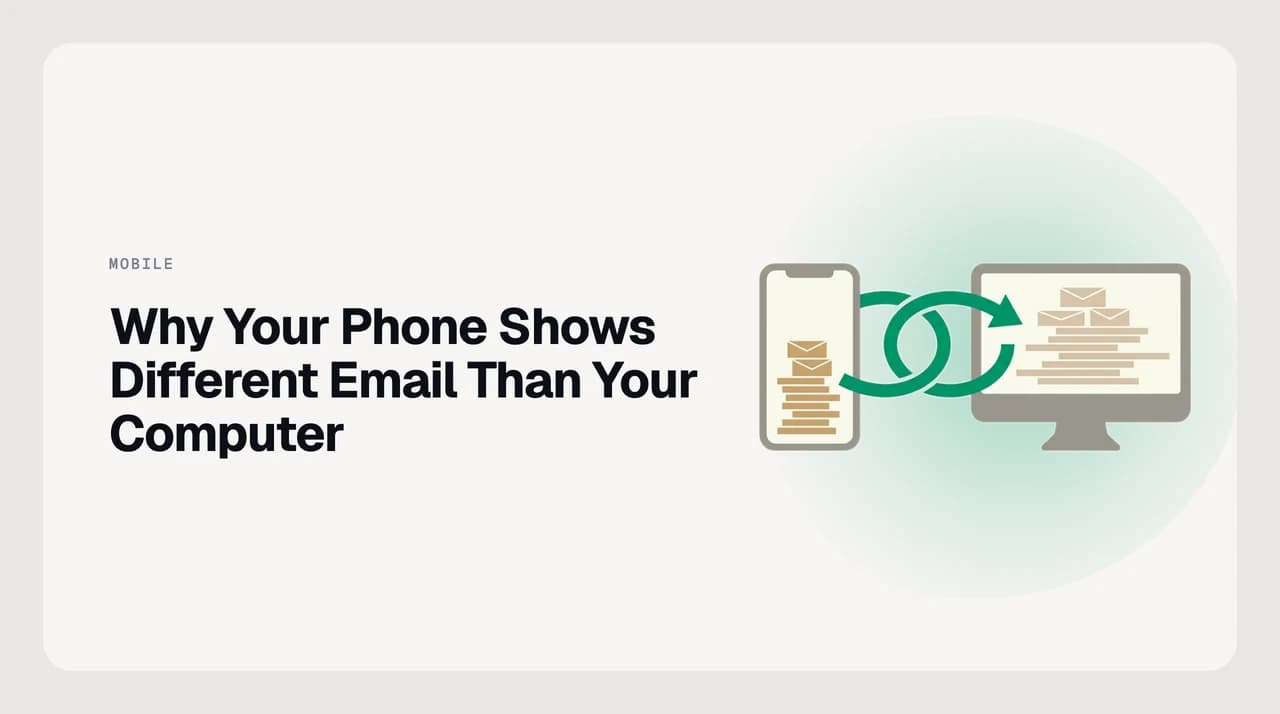
The short answer
If an email shows on your phone but not your computer, open your provider's webmail to test. If it is there, your computer's app is the problem: check it is on the same account, not in Work Offline mode, and that the message is not in Junk, hidden by a filter, or downloaded and removed by POP3.
Email on your phone but not your computer? Check the account, Junk, offline mode, POP3 and sync windows. Ordered fixes for Outlook, Gmail and iPhone.
On this page
- 01Which is your case?
- 02Emails show on your phone but not your computer: fix in this order
- 03Outlook on the computer: the usual culprits
- 04Emails on your computer but not your phone
- 05How common mail apps sync by default
- 06What to do when it still does not match
- 07A faster way to keep inboxes matched across devices
Email on your phone but not on your computer? Open your provider's webmail in a browser. If the message is there, your computer's mail app is the problem, not the mailbox. Check that both devices use the same address, that the app is online (not in Work Offline mode), and that the message is not in Junk, behind a view filter, or removed from the server by POP3.
The reverse (mail on the computer but missing on the phone) is a different set of causes, mostly sync windows and unsubscribed folders. The table below sends you to the right section, and the rest of this guide covers both directions in the order worth trying them.
Which is your case?#

| What you see | Most likely cause | Go to |
|---|---|---|
| Email is on the phone, missing on the computer | Computer app is offline, filtered, on a different profile, or on POP3 | Emails show on your phone but not your computer |
| Email is on the computer, missing on the phone | Phone sync window, unsubscribed folder, or POP3 on the computer | Emails on your computer but not your phone |
| Read on one device, still unread on the other | Sync delay or a rule that only runs on one machine | Emails on your computer but not your phone, step 4 |
Emails show on your phone but not your computer: fix in this order#
This is the more common direction, and the order matters: the first two steps tell you whether the mailbox or the computer app is at fault, which saves you from changing settings that were never broken.
- 1
Confirm both devices use the exact same account
Open the account settings on the phone and the computer and compare the full address. A personal address on the phone and a work address on the computer look alike more often than you would expect, and aliases or a second profile can hide the same mismatch.
- 2
Check the computer is actually online and syncing
In Outlook for Windows, look at the Send/Receive tab: if Work Offline is highlighted, Outlook is not talking to the server at all. Click it to go back online, then choose Send/Receive All Folders (Shift+F9 refreshes the current folder). In Apple Mail, check the account is not switched off or taken offline in the Mailbox menu. Your phone stays connected the whole time, which is why it shows newer mail than the computer.
- 3
Look in Junk, Other, and any active view filter
The message may have arrived on the computer but landed somewhere you are not looking. Check Junk or Spam, then Outlook's Other tab if Focused Inbox is on, then clear any view filter or search box that narrows the list. A filter such as Unread, or a leftover search, makes a full inbox look half empty.
- 4
Check for POP3 on the computer
POP3 downloads mail to one device and, unless told otherwise, removes it from the server. If your phone connected first, it may have taken the message and the computer never sees it. In Outlook for Windows, open File > Account Settings > Account Settings and check the Type column for your account. If it says POP, either tick Leave a copy of messages on the server (File > Account Settings > Change > More Settings > Advanced) or, better, switch the account to IMAP. See our guide to IMAP vs POP3.
- 5
Check rules and filters that move mail to another folder
A server-side rule or Gmail filter can send a message straight to a folder or label your computer app does not display. Look for a rule that matches the sender or subject, then confirm the folder is subscribed (IMAP) or included in the view on the computer.
- 6
Rebuild the Outlook profile if the data file is damaged
If webmail shows the message and nothing above explains the gap, the desktop profile may be corrupt. In Windows, open Control Panel > Mail > Show Profiles, add a new profile with the same account, and start Outlook with it. Your mail lives on the server, so a new profile re-downloads it rather than deleting anything.
Test first: open the provider's webmail
Outlook on the computer: the usual culprits#
Because most of the searches behind this problem are about Outlook, it is worth pulling the Outlook-specific causes into one place.
- Work Offline is on. The Send/Receive tab shows it highlighted and the status bar says Working Offline. Click it to turn it off.
- Cached Exchange Mode is keeping only part of the mailbox. In classic Outlook for Windows, open File > Account Settings > Account Settings, double-click the account, and look at the Mail to keep offline slider. A short setting means older mail exists on the server and on your phone but not in the local copy. Newer builds of Outlook for Windows may not show this slider at all, so the path can differ by version.
- Focused Inbox is hiding the message in Other. Switch to the Other tab or turn Focused Inbox off from the View tab.
- A view filter or search is narrowing the list. Clear the search box and check View > Reset View.
- The message is in Junk Email. Check it, and mark the sender as not junk so it stops happening.
- You are signed into the wrong profile or account. Compare the address with the one on your phone.
Emails on your computer but not your phone#
This is the direction the older version of this guide focused on. The causes are mostly about how much mail your phone downloads, rather than whether the mailbox has it. Work through these in order.
- 1
Check how the account is connected
Gmail and Outlook.com accounts added through Google's and Microsoft's own apps do not use POP3. POP3 mostly turns up on accounts added manually as Other, on ISP and web-host mailboxes, and on older desktop setups. If any client uses POP, resolve that first: remove the account from every device and re-add it with IMAP settings from your provider.
- 2
Check and extend the sync window on your phone
Gmail app: open Settings, tap your account, and look for Days of mail to sync. Google's help page describes it as the number of days of mail synced and stored on the device; it does not publish a default, and many installs ship with 30 days, so check yours. Messages outside the window are still on Google's servers and appear when you search or scroll. Outlook mobile: Microsoft documents that the app syncs 500 items per folder, up to 1,000 if you tap Load more conversations. Recent versions also offer a sync-days setting under the account's Data storage or Sync settings; its exact label and range vary by version and by whether the mailbox is on Exchange Online. iPhone Mail: for Exchange accounts, Apple documents a Mail Days to Sync option in the account's settings; IMAP accounts usually do not offer it.
- 3
Check folder and label sync on the phone
A folder or label that exists on the server may not be syncing on your phone. In the Gmail app, open Settings, tap your account, then Manage labels, choose a label, and set Sync messages to Last 30 days or All. (Show in IMAP is a different setting: it lives in Gmail on the web and only affects IMAP clients such as Apple Mail or Outlook.) In Outlook mobile, check the account's sync settings for the folder you are missing.
- 4
Look for rules that only run on one machine
In Outlook for Windows, open File > Manage Rules and Alerts and look for a rule that runs only on that computer. It marks mail read, moves it, or deletes it when Outlook is open, and your phone sees the message in its original state. Recreate it in Outlook on the web so it runs on the server for every device. Apple Mail rules and Smart Mailboxes on a Mac are local to that Mac as well. Gmail filters run on the server.
- 5
Refresh, then re-add the account if needed
Pull down in the inbox to force a sync. If that does nothing, clear the app's cache on Android (Settings > Apps > your mail app > Storage > Clear cache) or remove and re-add the account. On a current iPhone, the Fetch New Data schedule is under Settings > Apps > Mail > Mail Accounts > Fetch New Data; older iOS versions put it under Settings > Mail > Accounts. Mail lives on the server, so re-adding the account does not delete it.
How common mail apps sync by default#
Defaults change between app versions, so treat the sync windows below as starting points and check the setting in your own app.
| App | How it syncs | How far back it keeps mail on the device | Where to look |
|---|---|---|---|
| Gmail app (iOS or Android) with a Gmail account | Google's own sync, not IMAP | Set by Days of mail to sync; many installs use 30 days | Gmail app: Settings > account > Days of mail to sync and Manage labels |
| Outlook mobile | Outlook's own cloud sync | 500 items per folder, up to 1,000 on request; newer versions add a days setting | Outlook: Settings > account > Data storage / Sync settings, if shown |
| iOS Mail | IMAP, iCloud or Exchange, depending on the account | Count-based for IMAP; Mail Days to Sync for Exchange | Settings > Apps > Mail > Mail Accounts |
| Any client on a POP3 account | POP3: downloads to one device and may remove from the server | Not applicable | Check the account type in desktop Outlook or Mail first |
What to do when it still does not match#
If you have worked through the steps and the inboxes still differ, confirm IMAP is enabled at the provider, not just in the client. Gmail requires you to turn it on for third-party clients: Settings (gear icon) > See all settings > Forwarding and POP/IMAP > IMAP access > Enable IMAP. The Gmail app itself does not need this, but desktop Outlook or Apple Mail connecting by IMAP does.
If nothing fits, remove the account from the phone and add it again. That forces a full resync from the server and clears stuck authentication tokens or a folder map that went out of alignment during setup. Your mail lives on the server and is not affected.
Does deleting an email on your phone also delete it on your computer?
A faster way to keep inboxes matched across devices#
We build AI Emaily, an AI-native email client that connects Gmail (through the Gmail API), Outlook and Microsoft 365 (through Microsoft Graph), and iCloud or other IMAP accounts into one inbox on web, macOS and Windows desktop apps, and iOS. Read, star, archive and trash changes sync back to the provider, so each device shows the same mailbox. On connect it syncs about the last 60 days of mail and everything new after that, so older history stays at your provider.
If you want the inbox to arrive partly handled as well as matched, AI Emaily can draft replies in the voice you set in your Personal Context, with your approval before every send in Copilot mode. It starts with a 7-day free trial.
Frequently asked
See it in AI Emaily
Keep reading
Sources

Written by
Nafiul HasanNafiul Hasan is an entrepreneur and AI automation system builder with 10+ years of experience turning messy, manual workflows into reliable automated systems. He designs and ships AI enterprise solutions end-to-end — the agent logic, the data plumbing, and the product people actually use — and founded AI Emaily to give busy professionals their attention back. He writes here from the builder's seat: what works, what breaks, and how to put AI to work without giving up control.