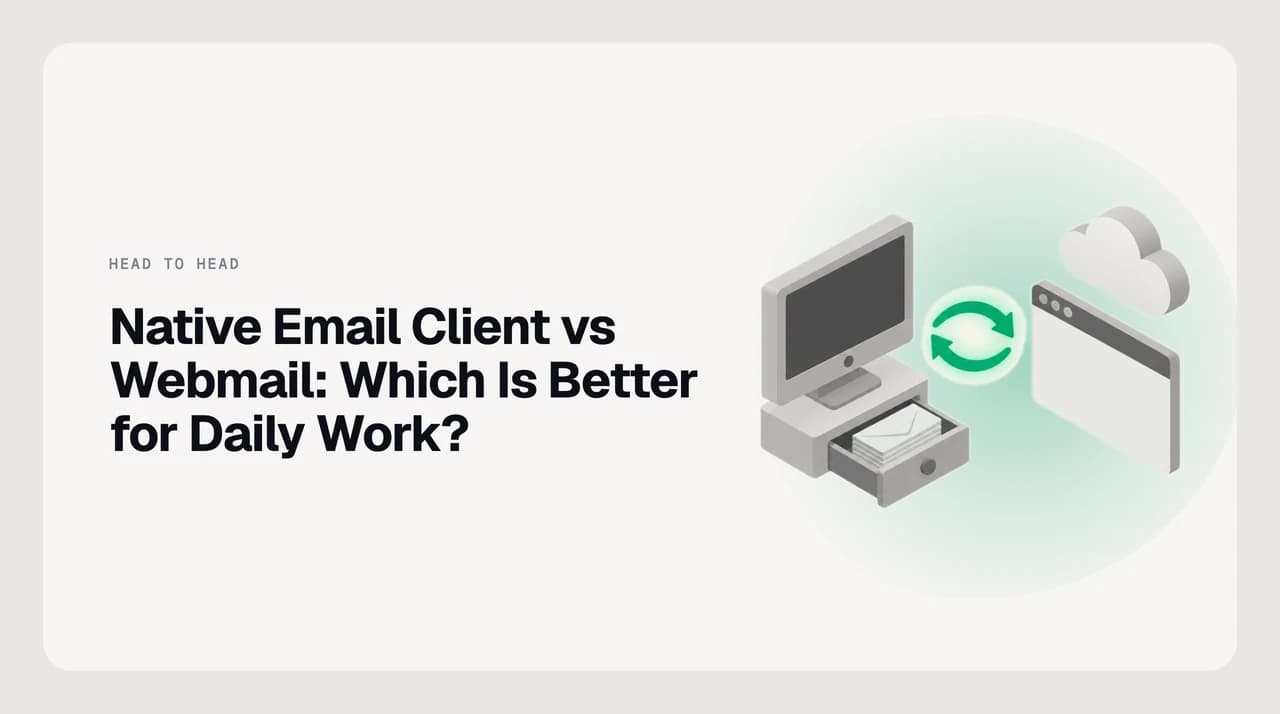
Native Email Client vs Webmail: Which Is Better for Daily Work?

The short answer
Neither wins outright. A native email client is better if you juggle several accounts, work offline or live on the keyboard all day. Webmail is better if you use one provider, switch between computers, or want new features the day they ship. Pick by your working pattern, not by which one feels more serious.
Native email client vs webmail for daily work: offline access, speed, multiple accounts, search, battery and feature lag compared, with a verdict per situation.
On this page
- 01So which one should you use? The verdict up front
- 02How do they compare side by side?
- 03Does webmail work offline?
- 04Where does a native email client win?
- 05Is a desktop email client faster than webmail?
- 06Where does webmail win?
- 07Why do new features arrive in webmail first?
- 08Which handles search better?
- 09Do desktop clients drain battery or memory?
- 10What about multiple accounts in the browser?
- 11How do notifications differ day to day?
- 12What does each cost?
- 13Who is each one genuinely for?
- 14Is a desktop email client still worth using?
- 15Is there a third option between client and webmail?
The native email client vs webmail question sounds settled, and it is not. Ten years ago a desktop client was the obvious choice for anyone who did real work in email. Today Gmail and Outlook on the web are fast, the browser is where most work already happens, and many people never install anything.
But a browser tab still behaves like a browser tab. It loses its place, it shares memory with forty other tabs, and it stops working when the train goes into a tunnel. This post compares the two on the things that decide daily work: offline access, keyboard speed, notifications, multiple accounts, search, resource use, and how fast each gets new features.
It applies to any provider, not just Gmail or Outlook. Where a behaviour depends on the mail protocol, we say which one and point you to the standard. Where it depends on a specific vendor, check that vendor's current help page, because these details change.
So which one should you use? The verdict up front#
Use a native client if your day involves more than one mailbox, you lose connection often, or you process a lot of mail from the keyboard. A good client puts every account in one window, keeps a local copy you can read on a plane, and stays out of the browser's tab clutter.
Use webmail if you live inside one provider, move between several computers, or rely on provider features like Gmail's smart chips or Outlook's Copilot panels. Webmail gets those features first and sometimes only. It also needs nothing installed, which matters on locked-down work laptops.
Many people end up with both: webmail on borrowed or shared machines, a client on the main computer. That is a sensible answer, not a failure to decide. The rest of this page helps you decide which one is the default.
How do they compare side by side?#
Here is the short version. Each row is explained in the sections below, and every row has exceptions for specific products.
| Dimension | Native email client | Webmail | Edge to |
|---|---|---|---|
| Offline access | Usually keeps a local copy; read, search and draft offline | Limited or none unless the provider offers an offline mode | Native client |
| Keyboard speed | Full shortcuts, no browser keys competing | Good shortcuts, but some clash with browser keys | Native client, slightly |
| Notifications | System-level, survive a closed browser | Depend on the tab or browser staying open | Native client |
| Multiple accounts | Unified inbox across providers in one window | One tab per account, one provider per tab | Native client |
| Search | Local index is fast but may only cover synced mail | Server-side search covers the full archive | Webmail |
| Resource use | Varies widely; native toolkits are light, some are heavy | Shares the browser's memory; cheap if a browser is open anyway | Depends on the client |
| New provider features | Arrive late, partly, or never | Arrive first, often only here | Webmail |
| Setup and portability | Install and sign in on each machine | Sign in from any browser | Webmail |
Does webmail work offline?#
Mostly, no. Webmail is a page that talks to the provider's servers. When the connection drops, the page can show what it already loaded, but new searches, older threads and attachments you never opened will not load.
Some providers offer an offline mode for their web app. It usually has to be switched on per device and per browser, it caches a limited window of recent mail, and it is easy to forget it was never set up on the laptop you are holding. Check your provider's help page for the current limits before you rely on it.
A native client works differently. Most IMAP clients keep a local copy of your mail and sync changes when the connection comes back. The IMAP standard was written for this: RFC 9051 says the protocol "provides the capability for an offline client to resynchronize with the server." You read, file and draft offline, and the client sends and syncs when you reconnect.
Offline is not the same as backed up
Where does a native email client win?#
The client's advantages come from being its own program rather than a page inside another program. That shows up in four places.
- Multiple accounts. A client can put Gmail, Outlook, iCloud and a work IMAP account into one unified inbox. In the browser, that is four tabs, four sets of shortcuts and four places a reply can hide.
- Offline and flaky connections. Reading, filing and drafting keep working on planes, trains and hotel Wi-Fi. Changes queue and sync later.
- Notifications you can trust. System notifications arrive whether or not a browser is open, and you can set them per account or per folder in most clients.
- Focus. A separate window with its own Dock or taskbar icon is easier to open, close and ignore than a tab among dozens.
Is a desktop email client faster than webmail?#
For moving through mail, usually yes, but by less than people expect. Webmail on a good connection is quick now. The difference shows up in small delays: opening an old thread that has to load from the server, switching accounts, or searching while the network is slow.
A client that keeps mail locally opens messages from disk. That removes a network round trip from almost every action, and it adds up over a few hundred messages a day. Keyboard shortcuts also behave more predictably, because no browser shortcut is waiting to grab the same key.
The catch is the first sync. A client connecting a large mailbox for the first time can take a long while to download headers and bodies. Some clients only fetch recent mail by default, which affects search later.
Where does webmail win?#
Webmail's advantages come from being the provider's own front end. The people who run the server also build the page, so it always speaks the provider's full feature set.
- Features first. Provider-specific tools, from smart replies to built-in assistants to calendar and chat panels, ship to webmail first and are often web-only.
- Full-archive search. Search runs on the provider's servers against everything you have ever kept, not just what a client downloaded.
- No install, no updates. Sign in from any browser on any machine. Nothing to patch, nothing for IT to approve.
- Exact label and folder behaviour. Gmail labels, Outlook categories and provider-side rules work exactly as designed, because nothing is translating them.
Why do new features arrive in webmail first?#
Because the provider controls the web app and nothing else. Google can ship a change to Gmail on the web the same day it is ready. A third-party client has to wait for an API to exist, build against it, test it and release an update.
Some features never reach clients at all, because they are not part of any mail protocol. IMAP describes messages, folders, flags and search. It does not describe meeting-scheduling chips, AI summaries or a sidebar chat app. If a feature only exists in the provider's own code, only the provider's own apps get it.
The provider's own desktop apps are the partial exception. Microsoft's new Outlook for Windows is built on the same web codebase as Outlook on the web, so the two track each other closely. Whatever you choose, check feature parity yourself for the two or three features you use daily. Lists published by others, including this one, go stale.
Which handles search better?#
This is the dimension webmail wins most clearly. Provider search runs on servers against your whole archive, with years of tuning behind it. Gmail search operators and Outlook's search filters work on everything, including mail from a decade ago.
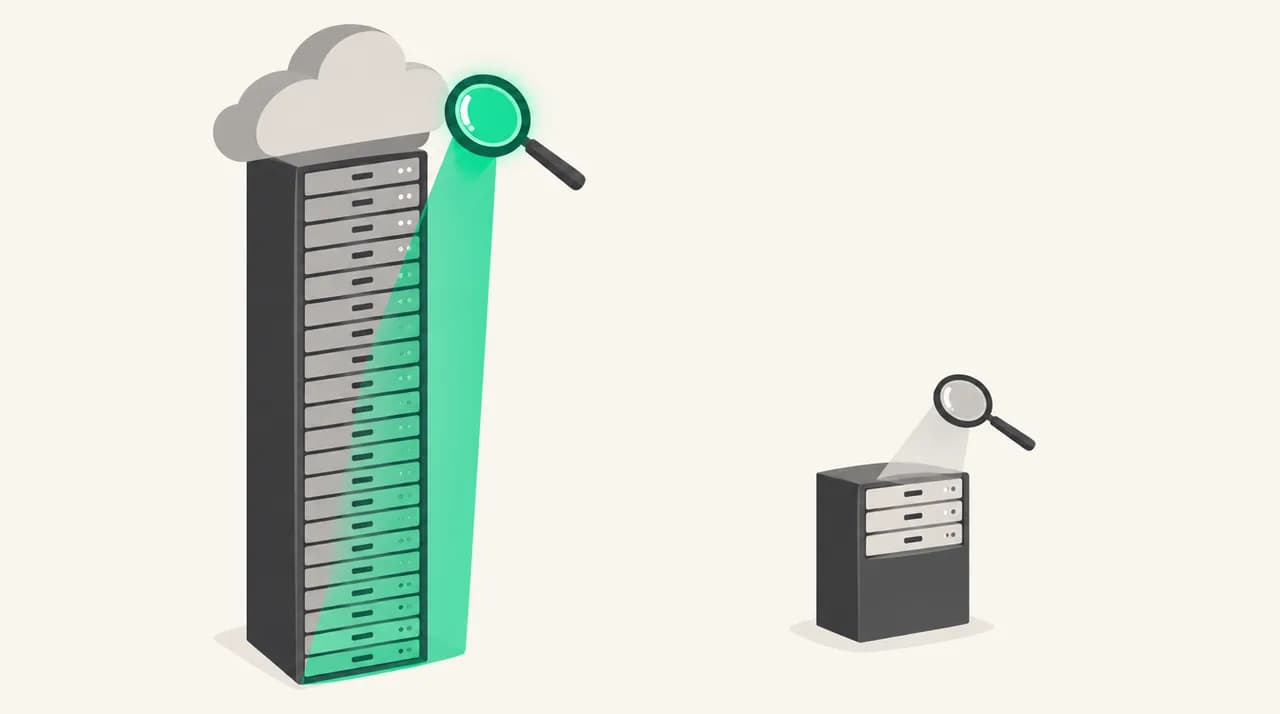
A client usually searches a local index. That is fast and works offline, but it only covers what the client downloaded. If the client syncs the last year by default, a search for an old contract quietly returns nothing. Some clients fall back to a server search over IMAP, which is slower and less flexible.
If you search old mail several times a day, either keep webmail open for search or set your client to sync the full mailbox. That costs disk space and a long first sync.
Do desktop clients drain battery or memory?#
It depends on how the client is built. Clients written in a platform's own toolkit, such as Apple Mail on macOS, tend to be light. Clients built as a web app inside an Electron shell bundle their own copy of a browser engine, so they use more memory than a native binary would.
Webmail shares memory with your browser. If you already keep a browser open all day, one more tab is close to free. If you would otherwise close the browser, a light native client may use less in total.
Battery is mostly about sync. A client checking several accounts every few minutes keeps the network radio busy. IMAP's IDLE command, part of the base IMAP4rev2 standard, lets a server push changes over a held connection instead, and most modern clients use it. The JMAP project argues its newer protocol is more efficient again, with push that needs no permanent connection, but JMAP support among providers is still limited.
What about multiple accounts in the browser?#
Browsers can handle multiple accounts, just not gracefully. Gmail lets you sign into several Google accounts and switch between them. Outlook on the web can add some other accounts. Neither gives you one inbox across providers that behaves like a single mailbox.
In practice, people with three or more accounts drift into one of two habits. They forward everything into one account, which breaks reply-from addresses unless set up carefully, or they keep a row of pinned tabs and miss mail in the ones they check least. A client with a unified inbox fixes both, which is the most common reason people install one.
How do notifications differ day to day?#
Webmail notifications depend on the browser. The site needs permission, the browser has to be running, and some browsers pause background tabs to save power, which can delay alerts. Close the browser at the end of a meeting and you will not hear about the reply you were waiting for.
A client registers with the operating system like any other app. Its alerts respect Focus modes and Do Not Disturb, and most clients let you mute an account or alert only on certain folders or senders. If you need to know within minutes when a specific client writes, that control is worth more than any speed difference.
What does each cost?#
Webmail is included with your mailbox. If you pay for Google Workspace or Microsoft 365, you already have it; consumer Gmail and Outlook.com have free web access.
Native clients come in several shapes. Some ship with the operating system, like Apple Mail. Some are open-source and free, like Thunderbird. Others are paid, either as a one-time licence, a subscription, or a free tier with paid upgrades. Microsoft's Outlook desktop app comes with many Microsoft 365 plans.
We are not printing prices here, because they change and a stale number is worse than none. Check each vendor's own pricing page on the day you decide, and check whether a free tier limits the number of accounts, which is the feature most people install a client for.
Verify on the vendor's page
Who is each one genuinely for?#
Match the tool to your week, not to a general idea of which is more professional.
| Your situation | Better default | Why |
|---|---|---|
| Three or more accounts across providers | Native client | Unified inbox beats a row of tabs |
| Frequent travel or poor connections | Native client | Local copy keeps you working offline |
| One Gmail or Microsoft 365 account, deep in its ecosystem | Webmail | First-party features and full search |
| Switch between several computers or shared machines | Webmail | Nothing to install or sync per device |
| Locked-down work laptop | Webmail | IT may block installs; the browser is already approved |
| Heavy keyboard user processing hundreds of emails a day | Native client, usually | Local speed and no shortcut clashes |
| Searches old mail constantly | Webmail, or a client set to full sync | Server search covers everything |
Is a desktop email client still worth using?#
Yes, if your work matches the left column above. The reasons people installed clients twenty years ago, mainly offline access and many accounts in one place, are still real. What changed is that webmail closed the speed gap and pulled ahead on features.
If you have one account and a reliable connection, you can stop reading here. Webmail is the better default for you, and nothing in a client will change that much.
Is there a third option between client and webmail?#
Both models share one assumption: you read every email and decide what to do with it. The client makes that faster and the browser makes it portable, but the work is the same. There is now a third shape, a client with an AI agent built in that triages, drafts and follows up for you, with your approval.
We build AI Emaily, so weigh this section with that in mind. It connects Gmail, Outlook and any IMAP account into one unified inbox, which covers the multi-account case that pushes people towards a desktop client. The agent sorts incoming mail, drafts replies in the voice you set in your Personal Context, grounded in context folders and per-client profiles you set yourself, and nothing is sent without your approval unless you turn on a gated Autopilot. Every agent action is logged, and autonomous sends can be cancelled within an undo window. We do not train models on your mail.
It runs on the web, as a downloadable Mac app (Apple Silicon only) and Windows installer, a native iOS app, and a PWA on Android. The desktop apps are an Electron shell around the web interface. That means features land on desktop and web the same day, so you do not choose between the two.
Here is the concession, plainly. Against a native-toolkit client like Apple Mail or Thunderbird, our desktop app will not match it on memory use or deep OS integration, and offline is partial: you can read and draft, but it is not a full local archive. If a complete offline copy of every message is your top requirement, a traditional native client is the better fit. There is no Linux build. Pricing is on aiemaily.com/pricing, with a 7-day free trial on Pro and Autopilot; the homepage at aiemaily.com shows how it works.
Frequently asked
See it in AI Emaily
Keep reading
Sources

Written by
Nafiul HasanNafiul Hasan is an entrepreneur and AI automation system builder with 10+ years of experience turning messy, manual workflows into reliable automated systems. He designs and ships AI enterprise solutions end-to-end — the agent logic, the data plumbing, and the product people actually use — and founded AI Emaily to give busy professionals their attention back. He writes here from the builder's seat: what works, what breaks, and how to put AI to work without giving up control.