550 5.1.10 Recipient Not Found by SMTP Address Lookup

The short answer
550 5.1.10 means Exchange Online searched its directory for the recipient's SMTP address and found no matching mailbox. Usual causes: a mistyped or stale Auto-Complete entry, a deleted or unlicensed recipient, or a broken forwarding rule on their side. Delete the Auto-Complete entry, retype the address, and resend. If it persists, the recipient's admin must check the account.
550 5.1.10 recipient not found by SMTP address lookup: what Exchange Online means, and the Auto-Complete, forwarding and admin fixes that clear it.
On this page
- 01What does 550 5.1.10 recipient not found by SMTP address lookup mean?
- 02What causes a 5.1.10 bounce, and how do you confirm each one?
- 03Fix 1: How do I remove a stale Auto-Complete entry in Outlook?
- 04Fix 2: What if the recipient has a broken forwarding rule?
- 05Fix 3: What should the recipient's admin check?
- 06How do I tell which cause I have?
- 07How do you stop 5.1.10 bounces coming back?
- 08Where does AI Emaily fit?
You sent a normal message to a colleague, and Outlook bounced it with 550 5.1.10 recipient not found by SMTP address lookup. The address looks right. The person may even have replied last week.
This page explains what the code means in Exchange Online, which of the usual causes you have, and the exact fix for each. It is based on Microsoft's own troubleshooting documentation, checked in October 2026.
What does 550 5.1.10 recipient not found by SMTP address lookup mean?#
It is a permanent failure raised by Exchange Online, the mail service behind Microsoft 365. Microsoft's NDR reference lists 5.1.10 as Recipient not found: the SMTP address lookup did not find the recipient's address. The message was not delivered, and retrying the same message will produce the same result.
The key point is where the lookup happens. Exchange Online checks its own directory of mailboxes, contacts, groups and mail users. If the address is not there, the message stops. Microsoft lists 5.1.1 separately, as a bad destination mailbox address. With 5.1.10 the question is usually how a wrong or outdated address reached the lookup in the first place.
A related code is 5.5.0, which Microsoft describes as similar to 5.1.10 when the recipient is on hotmail.com or outlook.com and was not found by the same lookup.
What causes a 5.1.10 bounce, and how do you confirm each one?#
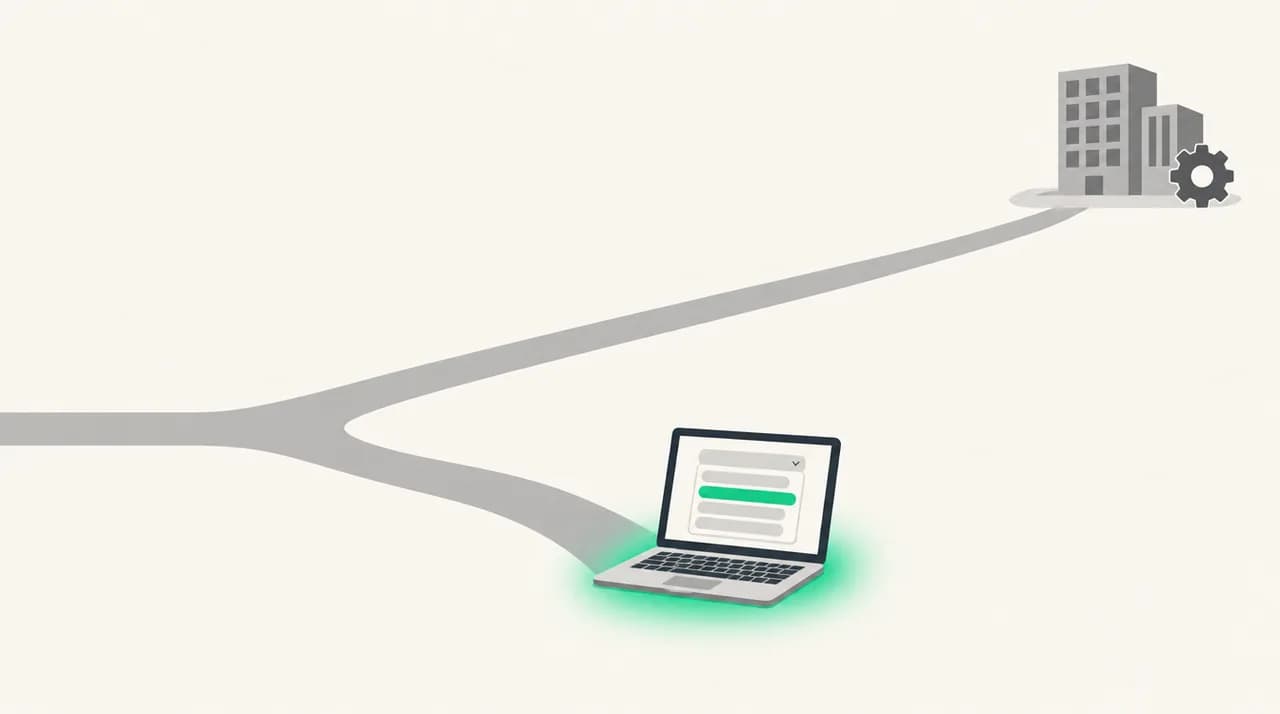
Five causes account for almost every case. The table shows each one, how to confirm it in a minute or two, and which fix applies.
| Cause | How to confirm | Fix |
|---|---|---|
| Stale or corrupted Auto-Complete entry | The bounced address differs from the address the person uses now, or retyping the full address by hand works | Fix 1: remove the entry, retype, resend |
| Typo in the address | Compare the address in the bounce with the one in your Sent Items, character by character | Fix 1: retype and resend |
| Recipient was removed or has no valid mailbox | Admin searches Active users in the Microsoft 365 admin center and finds nothing, or finds a user with no email license | Fix 3: admin recreates the account or assigns a license |
| Broken forwarding rule on the recipient side | The address in the NDR does not match the address you sent to | Fix 2: recipient or admin removes the bad forward |
| Domain or hybrid routing problem | Several senders fail to reach several people at one domain; on-premises users are not represented in Exchange Online | Fix 3: admin checks accepted domain type, directory sync and MX |
Fix 1: How do I remove a stale Auto-Complete entry in Outlook?#
Start here, because it takes two minutes and needs no admin rights. Outlook keeps an Auto-Complete list, also called the nickname cache, of people you have emailed. Each entry stores an SMTP address, a LegacyExchangeDN value and a display name. If the person was moved between systems, or their account was removed and recreated, your cached entry can point at a recipient Exchange can no longer resolve.
Resending the bounced message can fail again because it reuses the same entry, so build a fresh one.
- 1
Open a new message, not the bounced one
In classic Outlook, you can open the bounce and choose Send Again from the Report tab, then delete the recipient from the To box. Microsoft notes that Send Again may not work if the original had an attachment over 10 MB. In that case, resend from Sent Items.
- 2
Find the bad suggestion
In the To box, type the first few letters of the person's name or address until the old entry appears in the suggestion list.
- 3
Delete that one entry
Hover over the suggestion until it highlights and select the X, or press the Delete key. In Outlook on the web, use the Down Arrow to select the suggestion, then press Delete. Outlook on the web keeps its own list, so clearing one does not clear the other.
- 4
Type the full address by hand
Finish typing the complete address, check the spelling, and send. A successful send writes a fresh, working entry back into the list.
- 5
If one entry is not enough, empty the whole list (classic Outlook)
Go to File, Options, Mail. Under Send messages, select Empty Auto-Complete List and confirm. Microsoft also documents starting Outlook with the /CleanAutoCompleteCache switch. Emptying the list removes every suggestion, so do it only if single deletions did not help.
Newer Outlook builds behave slightly differently
Fix 2: What if the recipient has a broken forwarding rule?#
Compare two things: the address you sent to, and the address printed in the bounce. If they match, your message reached the lookup as typed. If they are different, something on the recipient's side rewrote the destination. Almost always that is a forward, and the forward target is the address that does not exist.
This is common after a reorganisation: forwarding was set to a colleague who later left, so every message to the first person now bounces. Ask the recipient by phone or chat rather than guessing.
- 1
Check Inbox rules (the recipient, or a delegate)
In Outlook on the web, open Settings, then Mail, Automatic processing, then Inbox and sweep rules. Update or delete any rule that forwards or redirects to a removed address.
- 2
Check account-level forwarding
In the Microsoft 365 admin center, an admin opens the user under Active users, goes to Mail settings, then Email forwarding, turns it off and saves. Microsoft's article also describes a Stop forwarding option in the user's own settings.
- 3
Check mail flow rules (admin only)
In the Exchange admin center, go to Mail flow, then Rules. Look for any redirect or copy rule that sends the recipient's mail to a removed address, then update, disable or delete it.
Fix 3: What should the recipient's admin check?#
If your own address entry is clean and the forward is not the cause, the fix is on the receiving tenant. Send the admin the full bounce text, including the line that starts Diagnostic information for administrators. These are the checks Microsoft lists.
- 1
Confirm the recipient exists and is licensed
In the Microsoft 365 admin center, open Users, then Active users, and search for the person. The username must match the address the sender used. If the mailbox is hosted in Exchange Online, open the user's details and confirm a license that includes email is assigned. If not, assign one. If the user is missing, recreate the mailbox or create a mail contact.
- 2
Check the accepted domain type in hybrid setups
If the domain is Authoritative, Exchange Online stops delivery when it cannot find the recipient in its own directory. If some mailboxes are still on-premises, those users must be represented as mail users or contacts, or the domain may need to be Internal Relay with a working connector. Microsoft warns that changing this can break mail flow, so read the accepted domains documentation first.
- 3
Run a directory sync after hybrid changes
If the recipient lives on-premises and was created recently, force a delta sync from the server running Microsoft Entra Connect Sync using Start-ADSyncSyncCycle -PolicyType Delta. Then recheck the user in Exchange Online.
- 4
Verify the custom domain's MX record
In the admin center, go to Settings, then Domains, select the domain and choose Check DNS. There should be only one MX record for a domain enrolled in Exchange Online. DNS changes usually propagate in a few hours but can take up to 72 hours.
How do I tell which cause I have?#
Work through these in order. Each question either points to a fix or rules out a branch.
- Does the address in the bounce match what you meant to send to? If not, suspect a forward on the recipient's side (Fix 2) or a typo (Fix 1).
- Does it work when you type the whole address into a brand-new message? If yes, your Auto-Complete entry was the problem (Fix 1).
- Does the bounce happen for every sender, internal and external? If yes, the recipient is missing, unlicensed or mis-routed, and only their admin can fix it (Fix 3).
- Did you send the message at all? If your Sent Items shows nothing, Microsoft says the bounce is likely backscatter: a spammer forged your address as the sender. It is harmless to ignore, and your account is not compromised by it. Lots of backscatter is worth a malware scan.
Do not keep retrying the same message
How do you stop 5.1.10 bounces coming back?#
Most repeat bounces come from the same few habits. These are the ones that matter.
- Remove the Auto-Complete entry for anyone who leaves, changes address or moves tenant. It is the step generic address-not-found guides skip.
- When offboarding someone, remove forwards that point at them and set up forwarding only to a mailbox that will outlive the project.
- After a mailbox migration or hybrid change, force a directory sync and ask a few senders to clear their cached entry for the moved person.
- Audit mail flow rules and Inbox rules when an employee departs. Rules that redirect to removed addresses are the usual silent source.
Where does AI Emaily fit?#
This error exists because a stale local address was trusted at send time and nobody saw the problem until the bounce arrived. We build AI Emaily, an AI email client that works with Outlook and Microsoft 365 accounts. In Copilot mode every draft the agent writes is held for your approval, so the To line is in front of you before anything goes out. We do not change what Exchange Online knows about a recipient, so a removed mailbox will still bounce. See the pricing page for plans, and a 7-day free trial is available on Pro or Autopilot.
Frequently asked
See it in AI Emaily
Keep reading
Sources

Written by
Nafiul HasanNafiul Hasan is an entrepreneur and AI automation system builder with 10+ years of experience turning messy, manual workflows into reliable automated systems. He designs and ships AI enterprise solutions end-to-end — the agent logic, the data plumbing, and the product people actually use — and founded AI Emaily to give busy professionals their attention back. He writes here from the builder's seat: what works, what breaks, and how to put AI to work without giving up control.