534 5.7.9 Application-Specific Password Required: Fix It

The short answer
Gmail returns 534 5.7.9 when your account has 2-Step Verification on and your mail client sent the normal account password over SMTP. Google refuses it. Create a 16-character app password at myaccount.google.com/apppasswords and use that instead, or switch the client to Sign in with Google (OAuth). Work and school accounts may need an admin.
Gmail's 534 5.7.9 application specific password required means 2-Step Verification blocks your normal password over SMTP. Use an app password or OAuth.
On this page
- 01What does 534 5.7.9 application-specific password required mean?
- 02What causes the 534 5.7.9 error?
- 03Fix 1: How do I create an app password for Gmail?
- 04Fix 2: What if the app password option is missing?
- 05Fix 3: Should I use OAuth instead of an app password?
- 06How do I tell which cause I have?
- 07How do I stop 534 5.7.9 coming back?
- 08Where does AI Emaily fit?
You pointed a mail client, a printer, a script or a CRM at smtp.gmail.com, and the send failed with 534 5.7.9 application specific password required. The login was refused before a single message went out.
This page covers what the code means, the six causes behind it, and three fixes in order. It also covers the dead end most forum threads skip: the app password option simply not existing on your Google account.
What does 534 5.7.9 application-specific password required mean?#
It is an authentication refusal from Gmail's SMTP server. The account you are logging into has 2-Step Verification, and the client offered the regular account password. Google will not accept that over plain SMTP, so it tells you to use an application-specific password instead.
The numbers follow the standard SMTP scheme. The 5 means a permanent failure, so retrying the same credentials will never work. The 5.7.9 enhanced status code comes from RFC 4954, the SMTP authentication extension, where it is defined as the authentication mechanism being too weak. Gmail reuses it with its own text: application-specific password required. As of October 2026, Google's published SMTP error list prints the code as 534 5.7.90, while server replies in logs usually read 534 5.7.9; the wording is the same.
Google describes an app password as a 16-digit passcode (its wording; the code is 16 characters long) that gives a less secure app or device permission to access your Google Account, and it only works on accounts with 2-Step Verification turned on. Google also states that app passwords are not recommended and are unnecessary in most cases. Its preferred route is Sign in with Google.
What causes the 534 5.7.9 error?#
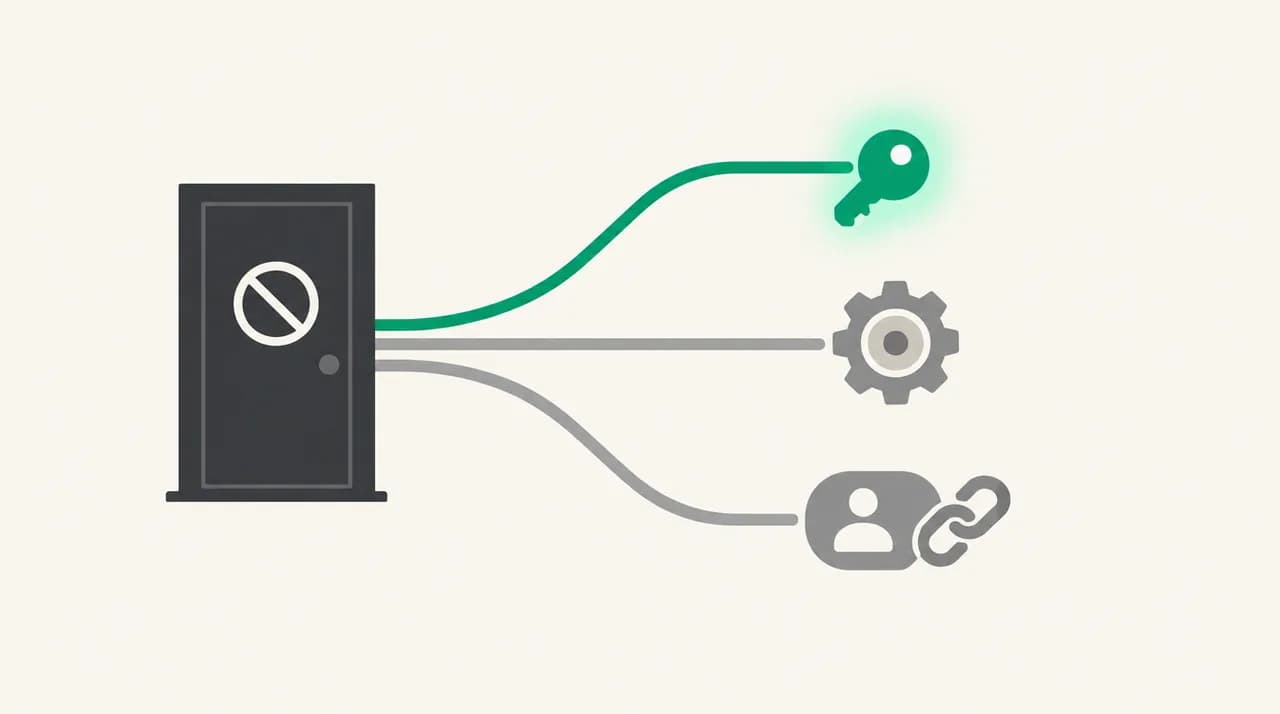
Most of the time it is the first row below. The other rows matter when the fix fails or when the app password option is missing from your account.
| Cause | How to confirm | Fix |
|---|---|---|
| Normal account password used in the client | 2-Step Verification is on and the client has the same password you type at gmail.com | Fix 1: create an app password and paste it into the client |
| App password was revoked after a password change | It worked before, then you changed your Google password | Fix 1: create a new app password. Google revokes old ones on a password change |
| 2-Step Verification is set up only for security keys | The app password page says the setting is not available, and security keys are your only second step | Fix 2: add a phone prompt, authenticator app or other second step, then retry |
| Work, school or organization account | Your address is on a company or school domain, and the option is missing or disabled | Fix 2: ask your Workspace admin, or use Fix 3 |
| Advanced Protection is enabled | You enrolled in Google's Advanced Protection Program | Fix 3: app passwords are not offered, so use OAuth |
| Client cannot use OAuth and has a typo in the app password | Password pasted with a stray character or the wrong account selected | Fix 1: regenerate and paste again with no trailing space |
Fix 1: How do I create an app password for Gmail?#
This is the right fix when 2-Step Verification is on, you are on a personal Google account, and your client has no Sign in with Google button. It takes about two minutes.
- 1
Confirm 2-Step Verification is on
Open your Google Account security page and check that 2-Step Verification shows as on. App passwords cannot exist without it.
- 2
Open the app passwords page
Go to myaccount.google.com/apppasswords and sign in again if prompted. Google links to this page from its own help article.
- 3
Name the app and generate the password
Type a label such as the name of the client or device, then create it. Google shows a 16-character password once. Copy it straight away, because it is not shown again.
- 4
Paste it into the client in place of your password
Keep your full Gmail address as the username. For the password field, paste the 16 characters without spaces. Google displays them in groups, and leaving the spaces out is the safe choice.
- 5
Check the server settings
Use smtp.gmail.com with port 465 (SSL/TLS) or port 587 (STARTTLS), and authentication switched on. Then send a test message.
Fix 2: What if the app password option is missing?#
This is the dead end. You open the app passwords page and either see nothing or are told the setting is not available. Google's help page lists the three reasons it happens: 2-Step Verification is set up only for security keys, you are signed into a work, school or other organization account, or Advanced Protection is on.
Work through them in this order. Each one takes a minute to rule out.
- 1
Check how your second step is set up
If security keys are your only second step, add another method such as a phone prompt or an authenticator app in the 2-Step Verification settings. Then reload the app passwords page.
- 2
Check whether the account belongs to an organization
If you sign in with a company or school address, your admin controls this. They can tell you whether app passwords are allowed for your account, and they may prefer you use OAuth instead.
- 3
Check for Advanced Protection
If you enrolled in Advanced Protection, app passwords are not available at all. You need a client that supports Sign in with Google, which is Fix 3.
- 4
Test in a clean browser session
Sign in at myaccount.google.com in a private window with only the affected account. If you are signed into several Google accounts, the page can open for the wrong one.
Do not turn off 2-Step Verification to dodge this
Fix 3: Should I use OAuth instead of an app password?#
Yes, when the client supports it. Google's own guidance is to use Sign in with Google to connect apps, and to fall back on app passwords only when the app does not offer it. With OAuth, the client never sees your Google password and you can revoke its access from your account without changing anything else.
In practice, remove the Gmail account from the client and add it again. Pick the Google or Gmail option rather than a generic SMTP or IMAP setup, and a Google sign-in window opens in your browser. Approve the permissions and the client stores a token, not your password.
Scripts, printers and older CRMs often cannot do this. For those, an app password from Fix 1 is the practical answer, as long as your account allows one. If the same client later fails at the receiving end instead, the related error is Gmail's IMAP message asking you to log in via your web browser, and the cause is the same one.
How do I tell which cause I have?#
Start with one question: did this setup ever work? If it worked and then stopped right after you changed your Google password, the app password was revoked and Fix 1 solves it.
If it never worked, check whether the app passwords page opens. If it does, you were simply using the wrong password, so Fix 1 again. If it does not, you are in Fix 2 territory, and the table above tells you which of the three account reasons applies.
If you are not sure that 2-Step Verification is even on, check. Without it, you would see a different error, usually 535 5.7.8 for a rejected username and password (Google's list prints it as 535 5.7.80 as of October 2026). That one has its own causes and its own fix.
| What you see | Most likely cause | Go to |
|---|---|---|
| Worked before, broke after a password change | App password revoked | Fix 1 |
| Never worked, app passwords page opens normally | Normal password used instead of an app password | Fix 1 |
| App passwords page missing or unavailable | Security-key-only 2SV, organization account, or Advanced Protection | Fix 2 |
| Client shows a Sign in with Google option | Better route available | Fix 3 |
| Error mentions logging in via your web browser | Related Gmail sign-in block, often fixed by OAuth | Fix 3 |
How do I stop 534 5.7.9 coming back?#
Name each app password after the client or device that uses it. When you lose a laptop or retire a printer, you can open the app passwords page and remove that one entry. Once revoked, that app cannot get into your account again.
Remember that changing your Google password revokes every app password you have made. After a password change, expect each old-style client to fail with this same error until you issue new ones. A short list of which clients use app passwords saves an afternoon of guessing.
Where you can, move clients to OAuth. A token can be revoked per app, no password is stored on the client, and nothing breaks when you rotate your password.
Treat an app password like a password
Where does AI Emaily fit?#
The reason this error keeps appearing is that generic SMTP and IMAP setups hand your Google password, or a long-lived app password, to every client you connect. AI Emaily's Gmail connection uses Google sign-in rather than asking you to paste a password into SMTP settings, so the 2-Step Verification refusal does not come up in the normal setup. We build AI Emaily, and it also runs approve-before-send on drafts, so the agent does not send anything on its own until you allow it. It does not fix scripts or printers that still use raw SMTP; those need Fix 1. If you are weighing a client that sidesteps this, you can start at the AI Emaily homepage, see plans on the pricing page, or read the Gmail connection doc linked below. The trial is 7 days, with a card required.
Frequently asked
See it in AI Emaily
Keep reading

Written by
Nafiul HasanNafiul Hasan is an entrepreneur and AI automation system builder with 10+ years of experience turning messy, manual workflows into reliable automated systems. He designs and ships AI enterprise solutions end-to-end — the agent logic, the data plumbing, and the product people actually use — and founded AI Emaily to give busy professionals their attention back. He writes here from the builder's seat: what works, what breaks, and how to put AI to work without giving up control.